How to Transfer Data to a New iPhone X in 2026: Full Guide
Transfer data to a new iPhone X in 2026 with Quick Start, iCloud, Finder, or Move to iOS. Step-by-step setup, iOS 16.7 limits, and what does not move over.
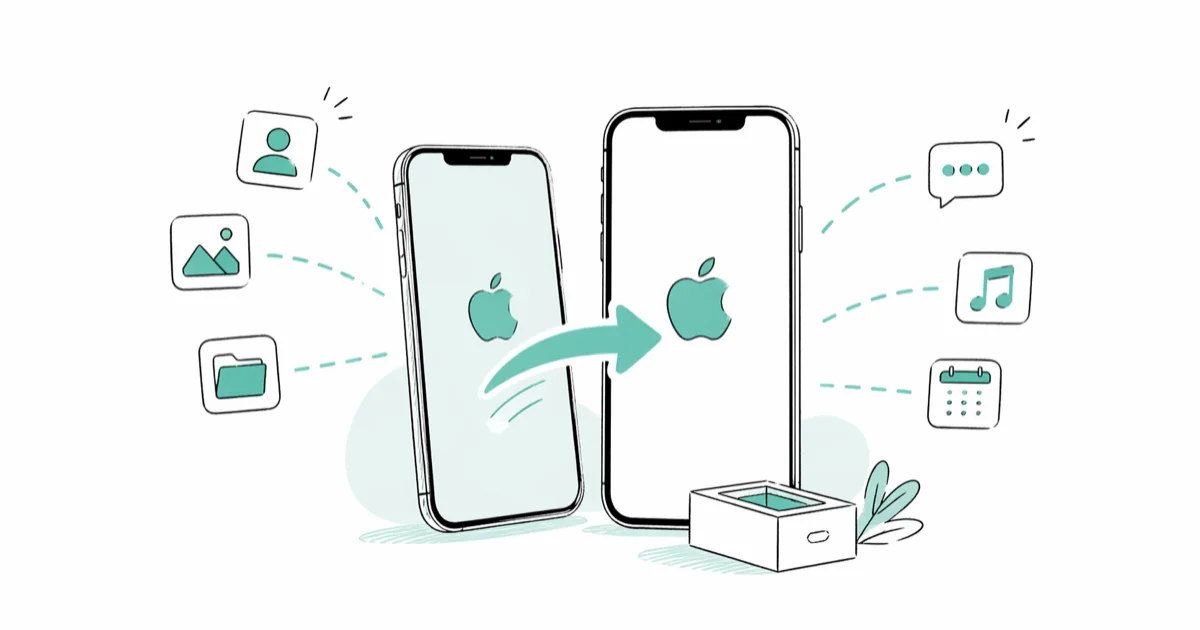
Quick AnswerUse Quick Start to migrate iPhone-to-iPhone wirelessly when both phones run iOS 12.4 or later. Restore from an iCloud or Finder/iTunes backup if Quick Start fails. For Android sources, run Move to iOS during the new iPhone setup before completing the welcome screens.
Setting up a new iPhone X in 2026 means picking the right transfer path for an older device that tops out at iOS 16.7.x. Apple supports four official methods: a device-to-device migration, a clean iCloud restore, a Finder or iTunes backup, and Move to iOS for Android sources. The steps below cover each one.
- Quick Start is the fastest iPhone-to-iPhone path when both phones run iOS 12.4 or later; expect 25 to 90 minutes on Wi-Fi.
- iCloud restore needs enough free iCloud storage for the full backup and at least 50% battery on each phone.
- Finder (macOS Catalina+) or iTunes (Windows or older Macs) is the only way to capture Health and Keychain data if you skip iCloud encryption.
- Move to iOS is the only Apple-supported route from Android, and it runs only during the new iPhone’s first-time setup.
- Plan to re-enter passwords, re-add Apple Pay cards, and re-pair AirPods and Apple Watch after any transfer.
#Which Transfer Method Should You Choose?
The right path depends on your source device and what you want to keep. Apple’s own Transfer to a new iPhone page confirms four supported routes, and each one has a clear sweet spot.
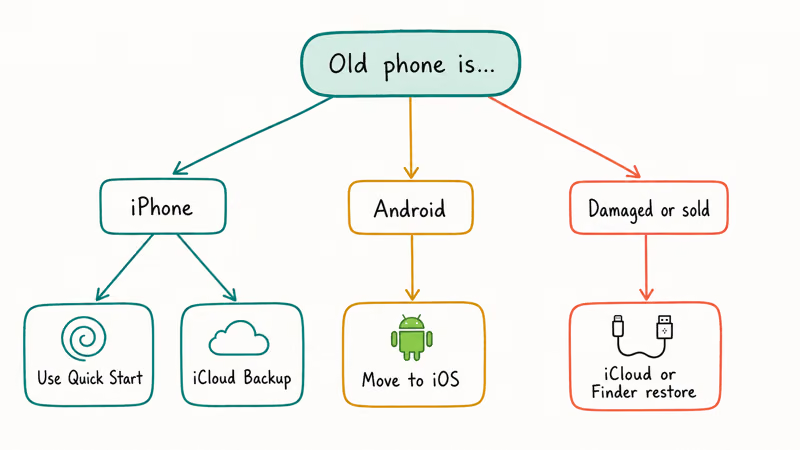
| Method | Source device | Wired or wireless | Best for |
|---|---|---|---|
| Quick Start | iPhone or iPad on iOS 12.4+ | Wireless or Lightning cable | Same-Apple-ID upgrades |
| iCloud Backup | Any iPhone | Wireless | No-computer households |
| Finder / iTunes | iPhone with macOS or Windows PC | Lightning cable | Encrypted backups, Health, Keychain |
| Move to iOS | Android 5.0+ | Wireless (peer Wi-Fi) | First-time iOS switchers |
The methods differ sharply in speed. Quick Start with a Lightning cable moves a 64 GB load fastest; the same load over iCloud takes considerably longer on a typical broadband connection; a Finder restore from a fresh local backup is quicker but needs the backup’s full size free on the Mac; and Move to iOS from Android runs slowest on peer Wi-Fi alone.
Cable wins.
Pick Quick Start first when both phones are nearby and powered. Drop to iCloud if you no longer have the old phone but have a recent cloud backup. Use Finder or iTunes when you need an encrypted local copy or you can’t wait on broadband, and save Move to iOS for Android departures only.
#Does Your iPhone X Still Get iOS Updates in 2026?
The iPhone X reached its software ceiling at iOS 16.7.x, which Apple confirms on its iOS 16 compatibility list. The same list shows iOS 17 dropped support for the iPhone X, iPhone 8, and iPhone 8 Plus, and Apple now ships security-only patches for the iOS 16 branch.
This matters in three ways.
First, the iPhone X can’t accept an iCloud or Finder backup made on iOS 17 or later. Apple’s restore engine refuses backups from a newer iOS than the destination, so a backup captured on an iPhone 15 will silently fail. The workaround is to migrate selectively: contacts via iCloud sync, photos via iCloud Photos, WhatsApp through in-app transfer.
Second, Quick Start needs iOS 12.4 or newer on both phones; older drops back to iCloud or iTunes.
Third, some apps no longer ship updates for iOS 16. Signal lists iOS 16 as the new minimum on its system requirements page, and after migration you’ll see “no longer compatible” notices for a handful of apps that have moved past iOS 16.
#How to Use Quick Start to Transfer iPhone to iPhone X
Quick Start has been Apple’s default migration since iOS 12.4, and Apple’s Quick Start support article states that both devices need iOS 12.4 or later for the wired transfer to appear as an option. The wired flow follows the official steps exactly.
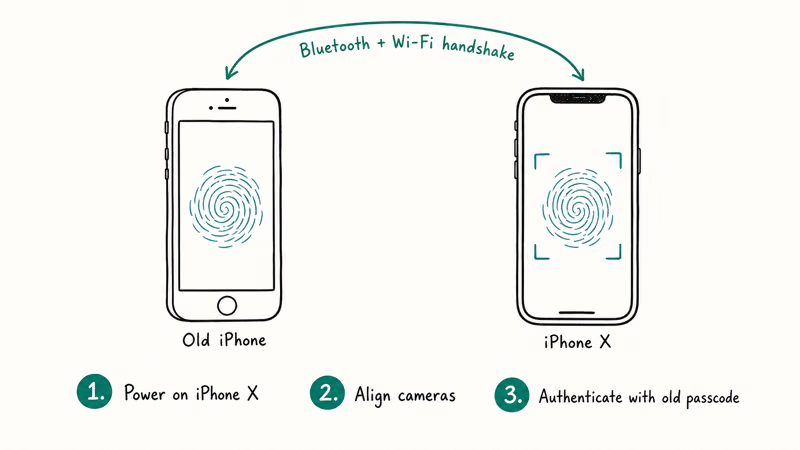
Before you begin: charge both phones above 50% or keep them plugged in, and turn on Bluetooth on the old phone.
For the wired path, you also need a Lightning-to-Lightning cable plus a Lightning-to-USB camera adapter; this combo roughly halves transfer time compared to peer Wi-Fi.
- Power on the new iPhone X and place it next to the old phone.
- Wait for the “Set Up New iPhone” prompt on the old phone, then tap Continue.
- Point the old phone’s camera at the animation that appears on the iPhone X.
- Enter the old phone’s passcode on the iPhone X when prompted.
- Set up Face ID on the iPhone X.
- Choose Transfer from iPhone for a direct device-to-device copy, or pick Download from iCloud to pull from your latest cloud backup.
- Agree to the Terms and Conditions and the Apple ID prompts.
- Leave both phones together and on power until the progress bar finishes.
Two specific failure modes are common. The first is a stuck animation scan, which usually clears after toggling Bluetooth off and back on. The second is a “Could not activate iPhone” alert, which disappears once the iPhone X connects to Wi-Fi through Settings before resuming. If Quick Start refuses to start, our iPhone Quick Start not working walkthrough covers eight other fixes.
#How to Restore Your New iPhone X from an iCloud Backup
iCloud is the easiest path when the old phone is gone, broken, or already wiped. Apple recommends a fresh backup right before restore so nothing newer than the backup is lost.
On the old iPhone:
- Open Settings, tap your name, then tap iCloud.
- Tap iCloud Backup, confirm it’s on, then tap Back Up Now.
- Stay on Wi-Fi until the timestamp updates to the current time.
On the new iPhone X:
- Power on and follow the welcome screens to the Apps & Data screen.
- Tap Restore from iCloud Backup.
- Sign in with the same Apple ID used for the backup.
- Pick the most recent backup from the list (check date and size).
- Wait for the bar to finish, then keep the phone on Wi-Fi while apps and media re-download in the background.
Apple’s documentation states that media like photos in iCloud Photos and App Store apps download separately after the main restore, which is why the Home Screen may look complete before everything actually returns. If you hit “estimating time remaining” for hours, our iPhone backup estimating fix lists the seven steps that resolve it.
Always check Settings > [your name] > iCloud > iCloud Backup for the “Last Successful Backup” timestamp before you restore. If it’s older than 24 hours, run Back Up Now first or you’ll lose anything created since then.
If the backup itself looks broken or missing, see our how to download iCloud backup files guide for inspecting what is actually stored before you restore.
#How to Use Finder or iTunes for a Wired Restore
A wired backup keeps everything local and is the only way to capture Health, Activity, and Keychain data without enabling end-to-end encryption in iCloud. Apple recommends encrypting the local backup to include those data types.
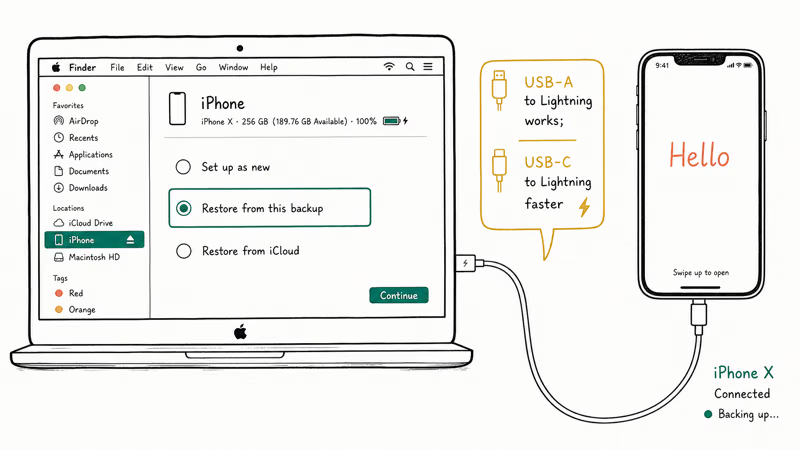
Use Finder on macOS Catalina or later.
On older Macs and Windows PCs, install the latest iTunes for Windows. Connect the old iPhone with a Lightning cable and trust the computer when prompted.
- Select the iPhone in the Finder sidebar or in iTunes.
- Tick Encrypt local backup and set a password you’ll remember.
- Click Back Up Now and wait until the progress wheel stops.
- Disconnect the old phone, connect the new iPhone X.
- On the iPhone X’s setup screen, choose Restore from Mac or PC.
- In Finder or iTunes, select Restore Backup, pick the backup you just made, and enter the encryption password.
- Keep the cable connected until the iPhone X reboots and shows the Home Screen.
The encrypted backup adds a little time to the backup step but unlocks saved Wi-Fi passwords and Mail accounts on the iPhone X, which saves a good deal of manual re-entry afterward. Off-brand cables often drop the connection mid-restore. Stick with Apple’s original Lightning cable, or a certified MFi alternative if you don’t have it handy.
#How to Transfer from Android with Move to iOS
Apple’s Move to iOS app is the only first-party tool for switching from Android. It moves contacts, message history, photos, videos, mail accounts, calendars, web bookmarks, and free apps with App Store equivalents. An Android transfer can take a while on a 5 GHz peer Wi-Fi network even with both phones plugged into power.
Three things to do first.
Plug in both phones, connect the Android to mobile data or a separate Wi-Fi network so it doesn’t fight the iPhone’s peer network for the same SSID, and confirm the Android runs 5.0 or later.
- On the Android phone, install Move to iOS from the Google Play Store.
- Open the app, tap Continue, then Agree and Continue through the welcome screens.
- On the new iPhone X, follow setup until Apps & Data, then tap Move Data from Android.
- The iPhone X displays a 6 or 10 digit code; enter it on the Android phone.
- Pick the content categories you want to copy, then tap Next on the Android.
- Wait until the iPhone X progress bar reaches 100% before tapping anything on either phone.
- Finish iPhone X setup once the Android shows Done.
If the Android phone shows “no code” or “transfer interrupted,” our Move to iOS not working page collects nine specific fixes, including the airplane-mode workaround that resolves most peer Wi-Fi handshake failures.
Move to iOS doesn’t carry paid apps, DRM-protected music, ringtones, or app account data. Plan a sign-in pass for Spotify, Netflix, banking, and authenticator apps after the move; budget about 15 to 20 minutes for it once the device is on Wi-Fi and signed into iCloud. The faster Spotify and Netflix re-authenticate via Sign in with Apple if you’ve used it before.
If Apple’s Quick Start, iCloud, Finder/iTunes, and Move to iOS routes still fail, a dedicated manager like AnyTrans can copy selected files through a computer instead of restoring the whole phone.
Some links on this page are affiliate links, which means fone.tips may earn a commission at no extra cost to you.
#What Data Does Not Transfer Over
Every transfer method skips a small but predictable set of items. According to Apple’s restore documentation, seven categories don’t survive any of these migrations and you’ll need to reconfigure them on the iPhone X.
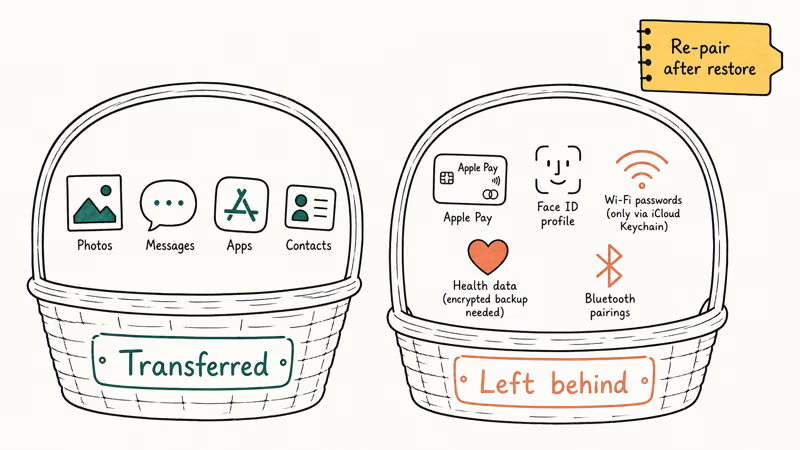
- Apple Pay cards must be re-added in Wallet > + for security.
- Touch ID and Face ID profiles don’t move; you re-enroll on the iPhone X.
- VPN and email passwords transfer only when the source backup is encrypted (Finder/iTunes) or Keychain syncs through iCloud.
- Authenticator codes (Google Authenticator, Authy) require either a cloud sync inside the app or manual re-pairing of each account.
- AirPods, Apple Watch, and CarPlay vehicles need to be re-paired even after Quick Start.
- Apple Music and iTunes Store purchases redownload through the Library tab, not as part of the backup.
- App-specific data for apps that store data only locally (some games, certain banking apps) usually doesn’t survive the move.
Export your Authenticator accounts first. Two-factor tokens stored inside Google Authenticator don’t transfer with any method, including Quick Start. Use the Transfer accounts export tool inside Google Authenticator on the old phone and scan the QR code with the new Authenticator install on the iPhone X. Skip this and you’ll be locked out of every account that depended on those tokens.
For contacts and messaging migrations that cross platforms, our transfer WhatsApp from Android to iPhone tutorial and our share contacts on iPhone and Android guide cover the moves Move to iOS does not handle cleanly.
#Bottom Line
For most iPhone X buyers in 2026, Quick Start over a Lightning cable is the fastest, cleanest path. It bypasses Wi-Fi bottlenecks and captures every iOS-eligible setting in one pass. Choose a Finder or iTunes restore instead when you need encrypted backups for Keychain or Health data, and save Move to iOS for Android departures during first-time setup only.
iPhone tips & tricks
#Frequently Asked Questions
Can I transfer data to an iPhone X after I finish setup?
Only by erasing it first. Apple’s restore tools require the Apps & Data screen, which only appears during a fresh setup, so open Settings > General > Transfer or Reset iPhone > Erase All Content and Settings and start the migration from the welcome screen. Back up anything already on the iPhone X first; the erase is irreversible.
Does Quick Start work without internet?
Partially. The device-to-device copy finishes offline, but Apple’s activation servers still need a connection before you can use the iPhone X.
How long does it take to transfer data to a new iPhone X?
Plan for the full method’s range, not the best case. For a 64 GB load, expect 25 to 45 minutes with Quick Start over a Lightning cable, 60 to 110 minutes over Wi-Fi, and 30 to 50 minutes from a Finder backup on USB. iCloud restores depend on broadband and tend to take the longest of any method, even on fast fiber.
Will iMessage still work on my old number after I switch?
Only if you deregister iMessage on the old phone before passing it on. Visit Apple’s Deregister iMessage page and enter your phone number so texts from iPhone users arrive as SMS. Skipping this is the top cause of “missing texts” after a switch, and Apple’s servers can take up to 24 hours to drop your number from the iMessage routing pool. Deregister at least a day before you sell the old device.
Can I restore an iPhone 15 backup onto the iPhone X?
No. The iPhone X stops at iOS 16.7.x. Apple’s restore engine refuses backups taken on a newer iOS than the destination, so migrate manually (contacts via iCloud, photos via iCloud Photos, WhatsApp via in-app transfer).
Do I need to keep the old iPhone on during Quick Start?
Yes, both phones must stay powered, unlocked, and within Bluetooth range until the progress bar completes. If the source phone locks partway through a large transfer, the iPhone X throws an “interrupted” alert and forces a Quick Start restart. Setting the source phone’s auto-lock to “Never” under Settings > Display & Brightness > Auto-Lock removes the most common failure point.
What happens to my photos if I have iCloud Photos turned on?
iCloud Photos syncs separately from the device backup, so your library re-downloads from the cloud to the iPhone X over Wi-Fi once you sign in with the same Apple ID. Expect a multi-hour download for libraries above 50 GB. The Photos app shows lower-resolution placeholders until each image finishes downloading.

How to Transfer Data to a New iPhone Without iCloud
Move everything to your new iPhone without iCloud: Quick Start device-to-device transfer, wired migration, and encrypted Finder or iTunes backups.
Best Wireless Earbuds for iPhone in 2026: USB-C Era Picks
Best wireless earbuds for iPhone in 2026, comparing AirPods Pro 3, Sony WF-1000XM6, Bose QC Ultra, and Anker Liberty 4 NC on the USB-C iPhone lineup.
iPhone Keyboard Lag? 7 Proven Fixes for iOS 26 (2026)
Fix iPhone keyboard lag with 7 proven fixes for iOS 26. Covers restart, storage, predictive text, third-party keyboards, and dictionary reset.
How to Block Porn on an iPhone: A Guide for Parents
Learn how to block porn on iPhone using Screen Time, DNS filtering, and safe browsers. Step-by-step guide for parents to protect kids' devices.