Fix Spotify Not Responding on Windows: 6 Proven Methods
Fix Spotify not responding on Windows with 6 practical methods. Force quit, clear cache, firewall exception, and reinstall steps for Windows 10 and 11.
Quick AnswerForce-quit Spotify through Task Manager, then relaunch it. If that doesn't work, clear the app cache, add a firewall exception, or do a clean reinstall to fix the not-responding error on Windows 10 and 11.
Spotify hanging on the splash screen or stalling mid-playlist is common. Start with quick resets, then check cache, firewall, reinstall, graphics, and drivers.
- Force-quitting Spotify via Task Manager and relaunching fixes the issue more often than any other step
- Clearing the Spotify cache at AppData\Local\Spotify\Storage removes corrupted data without losing playlists
- Windows Defender or third-party firewalls can block Spotify from connecting to its servers
- A clean reinstall requires deleting both the app and the Roaming\Spotify folder to fully reset
- Outdated Windows builds and GPU drivers cause app freezes across Spotify versions on Windows 10 and 11
#Why Does Spotify Stop Responding on Windows?
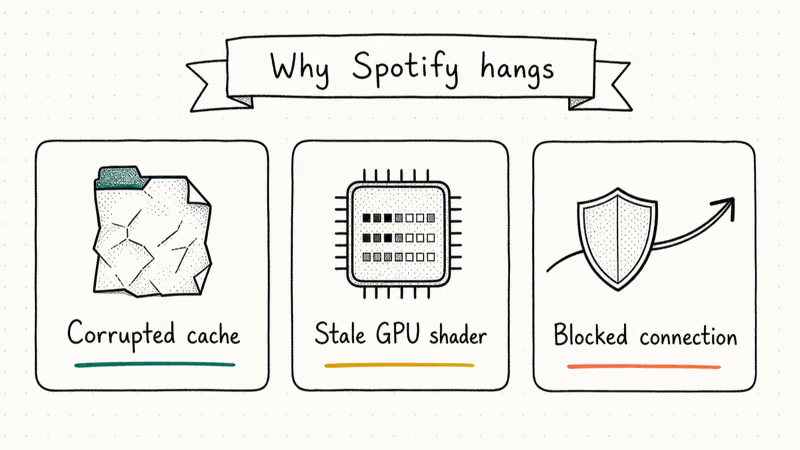
Spotify’s desktop client is a Chromium shell, so it inherits browser-style failure modes: a corrupted cache file, a stale GPU shader, or a blocked outbound connection can lock the whole window. Task Manager often shows multiple Spotify helper processes because the Chromium runtime splits work across background processes.
According to Spotify’s community forums, users frequently report that the app shows “not responding” in the title bar within seconds of launching. The trigger varies by setup, but the fixes below cover all of them in roughly the order they’re worth trying.
Spotify opens but won’t play music? Different problem. Our guide on Spotify not playing songs covers that.
#Force Quit and Relaunch Spotify
Fastest fix. About 30 seconds end to end.
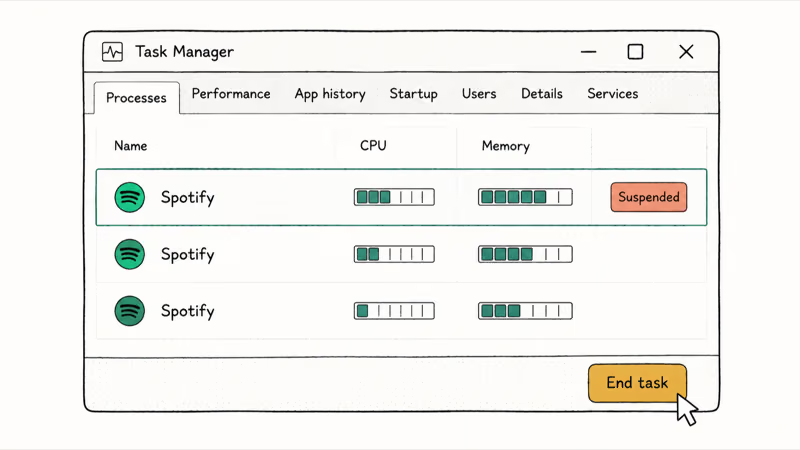
Press Ctrl + Shift + Esc to open Task Manager. Find Spotify under the Processes tab. Don’t be surprised if you see three or four Spotify entries stacked there, that’s how the Chromium runtime spawns helper processes. Right-click each one and pick End task, working top to bottom until the list is empty.
Wait five seconds, then relaunch Spotify from your Start menu.
If you spot Spotify flagged as “Suspended” under the Details tab, the app got wedged during startup and the main window never finished initializing. Killing the suspended process and reopening usually clears the lockup on the next launch.
If Spotify appears as suspended in the Details tab, end-tasking every Spotify process and reopening the app often brings it back to a normal Now Playing screen without a playlist or sign-in reset. If you keep seeing the same freeze every few sessions, the next two methods address the underlying cause rather than the symptom.
#Clear the Spotify Cache
Spotify keeps temporary playback data, album art, and partial downloads in a local cache folder. When those files corrupt, the app can hang at launch or stall mid-song.
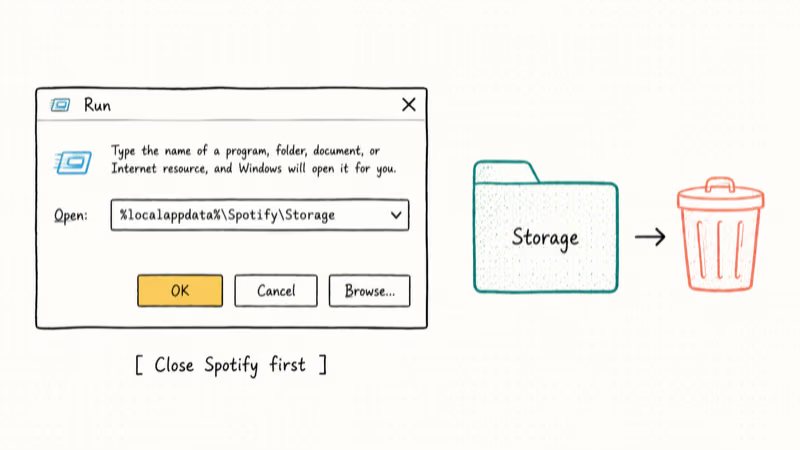
Close Spotify completely first, then open %localappdata%\Spotify\Storage from the Run dialog.
Select everything in this folder and delete it, then relaunch Spotify. Large cache folders can contain corrupted playback data, thumbnails, or partial downloads that keep the desktop app from opening cleanly.
Your playlists, saved songs, and account settings live on Spotify’s servers, so they stay put. The cache only stores temporary playback data and image thumbnails. Anything you previously saved for offline listening will need to be re-downloaded the next time you go offline-first.
Based on Microsoft’s app repair documentation, clearing cached data is the first recommended step for unresponsive Windows apps.
#Add a Windows Firewall Exception for Spotify
Your firewall might be blocking Spotify from reaching its servers. This shows up most often after a Windows feature update, which silently resets some firewall rules to default. The check itself takes about two minutes.
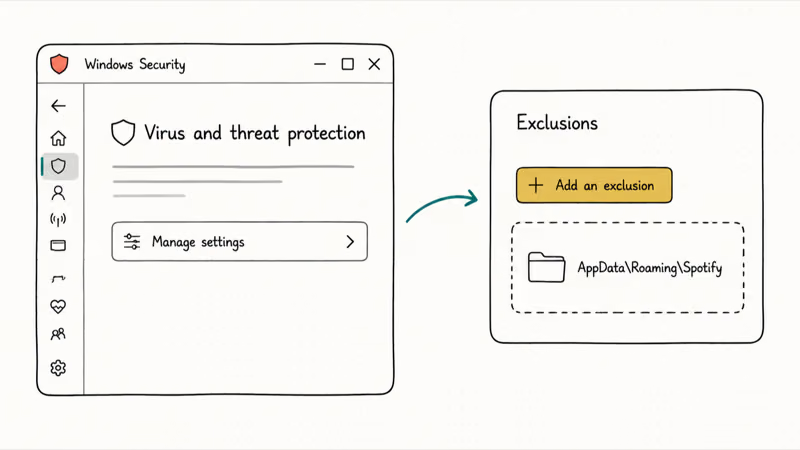
Open the Start menu, type Windows Security, and open it. Select Virus & threat protection and click Manage settings. Scroll down to Exclusions, click Add or remove exclusions, then Add an exclusion. Choose Folder and browse to C:\Users\YourUsername\AppData\Roaming\Spotify.
Restart your PC afterward and try Spotify again.
When Spotify hangs at the login screen specifically, a firewall or security-suite block is more likely than a playback cache problem. The exclusion lets Spotify finish its outbound connection after reboot instead of stalling before the Home screen loads.
If you run a third-party security suite like Norton, Kaspersky, or Bitdefender, check its firewall settings as well. Some of these tools maintain their own exclusion list separate from Windows Defender and will keep blocking Spotify even after you’ve added a Defender exception. The same firewall troubleshooting approach works for issues like WhatsApp not working on desktop.
#How to Do a Clean Reinstall of Spotify?
A standard uninstall leaves behind configuration files that can carry the same freezing behavior into the fresh install. A clean reinstall wipes the slate.
#On Windows
Open Settings > Apps > Installed apps, find Spotify, click the three-dot menu, and select Uninstall. That’s step one.
Now the part most people skip: deleting the leftover config files that a normal uninstall misses. Press Win + R, type %appdata% and press Enter, then delete the Spotify folder. Do the same with %localappdata% to catch the second hidden Spotify folder that stores cache and local preferences. Two folders, both gone.
Download a fresh copy from Spotify’s official download page.
#On macOS
Open Finder, go to Applications, right-click Spotify, and select Move to Trash.
Then press Cmd + Shift + G, type ~/Library/Application Support/, and delete the Spotify folder. Empty the Trash and reinstall from the Mac App Store or Spotify’s website.
According to Spotify’s official reinstall guide, removing the AppData folders (or the Library support folder on Mac) is required for a truly clean installation. Skipping this step is the single biggest reason the same freeze comes back within a day of reinstalling. We’ve got a detailed walkthrough on how to uninstall Spotify on Mac or Windows if you want screenshots for every click.
#Disable Hardware Acceleration in Spotify
Spotify uses hardware acceleration by default to render its interface through your GPU. On older laptops or PCs with buggy GPU drivers, this offload causes the window to stutter or freeze outright. The signature symptom: a window that paints normally for a second, then locks up the moment you scroll a long playlist or drag the app between two monitors with different refresh rates. Turning the toggle off pushes the renderer back to CPU, which is rock-solid in practice.
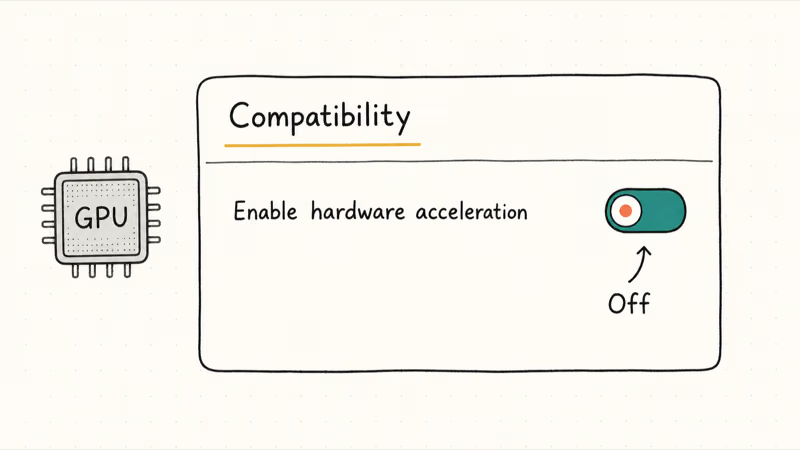
Open Spotify (if it loads partially, you can still reach Settings). Click your profile icon in the top-right corner and select Settings. Scroll down to Compatibility and toggle off Enable hardware acceleration. Restart Spotify after that.
Can’t keep Spotify open long enough to reach the menu? Close it, then open %appdata%\Spotify\prefs in Notepad and add a new line that reads ui.hardware_acceleration=false. Save the file and relaunch.
This fix is most useful on older laptops with integrated graphics. If Spotify freezes when resizing the window, scrolling a long playlist, or moving between monitors, turning hardware acceleration off removes the GPU driver from that rendering path. You can listen to Spotify on a plane with downloaded music on your phone while you sort out the desktop client.
#Update Windows and Drivers
Running an outdated Windows build can cause compatibility issues with Spotify, and outdated GPU drivers specifically affect Chromium-based apps because rendering still goes through the display driver even when hardware acceleration is off.
Go to Settings > Windows Update and click Check for updates. Install everything available, including optional quality updates and cumulative patches, then restart your PC after the install finishes.
Then open Device Manager, expand Display adapters, right-click your graphics card, and select Update driver. Choose Search automatically for drivers.
According to Spotify’s supported devices page, Windows 10 version 1809 or later is the minimum requirement. If you’re on an older build, the Windows update alone often clears the issue. If you’re also dealing with Spotify skipping songs alongside the freezing, outdated GPU drivers are likely behind both.
#Bottom Line
Start with the Task Manager force-quit because it clears the freeze in under a minute for most people. If Spotify hangs specifically at the login screen, skip ahead to the firewall exception. For daily recurring freezes, run the cache clear once, then disable hardware acceleration if you’re on integrated graphics. Save the clean reinstall for last because it wipes your offline downloads.
If other apps freeze too, the problem is your system, not Spotify. Explore Spotify alternatives while you sort out Windows.
#Frequently Asked Questions
Can a VPN cause Spotify to stop responding?
Yes, some VPNs can trigger this. Disconnect your VPN before launching Spotify to test. If that fixes it, add Spotify to your VPN’s split tunneling list so it connects directly.
Does clearing the Spotify cache delete my playlists?
No. Your playlists, liked songs, and account settings are stored on Spotify’s servers, not locally. Clearing the cache only removes temporary playback files and locally cached album art. You’ll need to re-download any songs you saved for offline listening, which takes a few minutes depending on your library size.
Why does Spotify freeze only when I open it?
This usually points to a startup conflict. Another app or service is competing for the same resources during boot. Open Task Manager, go to the Startup tab, and disable Spotify from launching at startup. Then open it manually after your PC finishes booting and the rest of your background apps have settled.
Is the Microsoft Store version of Spotify more stable?
They’re functionally identical. The Store version updates automatically through Windows Update, which can prevent version-related freezing. Try switching versions if freezing persists.
Will reinstalling Spotify remove my downloaded music?
Yes. A reinstall deletes all locally downloaded songs and podcasts. Your playlists and library stay intact on your account since they’re synced to Spotify’s cloud. After reinstalling, re-download your music by tapping the download toggle on each playlist.
Can outdated audio drivers cause Spotify to freeze?
Unlikely. Audio drivers usually cause playback issues like no sound or distortion. For freezing, GPU drivers are the culprit because Spotify’s Chromium-based interface depends on GPU rendering. Update both through Device Manager to be safe, but prioritize the display driver since that’s what actually renders Spotify’s window and playback controls on screen.
How do I fix Spotify not responding on a Mac?
Press Cmd + Option + Esc, select Spotify, and click Force Quit. If it keeps happening, delete the support files at ~/Library/Application Support/Spotify/ and reinstall from scratch.
Does Spotify not responding affect my Premium subscription?
No. Crashes don’t touch your subscription. Use Spotify’s web player in your browser or the mobile app as a workaround while you fix the desktop version.

Google Messages Error 3100: Why RCS Is Broken on Galaxy
Google Messages RCS error 3100 hits Galaxy owners after phone or carrier switches. Google told 9to5Google a fix is coming. Here's what actually helps.

Is This Bank App Real? Spot a Fake App on Your Home Screen
A bank app can land on your home screen from a web page with no install warning. Learn the checks that tell a real banking app from a phishing web app.

Apps Crashing After iOS 27 Update? Fix Order (2026)
Apps crashing after the iOS 27 update? Update the app in the App Store first, then offload and reinstall to clear stale cache, then restart. The fix order.

Do AI Translation Earbuds Work Offline? What to Know
Do AI translation earbuds work offline? A few do with downloaded language packs, but most need the cloud. Here's what works offline and what you give up.