Fix Spotify Keeps Skipping Songs on Phone and Desktop
Spotify skipping songs? Clear cache, disable Crossfade, and restart the app. Covers fixes for iPhone, Android, and desktop with step-by-step instructions.
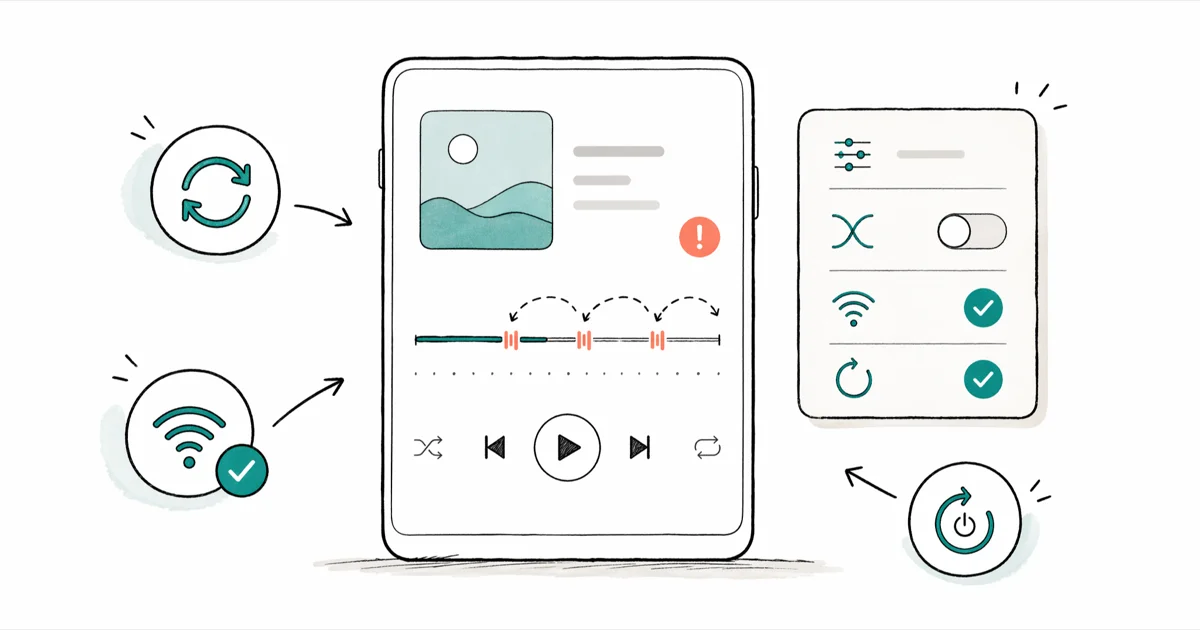
Quick AnswerClear the Spotify cache, then restart the app and your device. If songs still skip, turn off Crossfade in Settings and check your internet connection.
Spotify skipping songs hits Free and Premium users equally. The cause almost always traces back to one of four culprits: a corrupted cache, Crossfade, a flaky connection, or a stale session token.
There are eight reliable fixes, and they work the same way across Android and iPhone. Cache clearing resolves the problem most of the time, which is why it tops the list. The methods below are ordered from the most common fix to the last resort.
- Clearing the Spotify cache resolves skipping in most cases on both Android and iPhone
- Crossfade and Gapless Playback can clip the first 1-3 seconds of a track on certain devices
- A streaming bitrate higher than your real bandwidth produces buffering gaps that sound like skipping
- Logging out resets session tokens and forces a fresh sync with Spotify’s servers
- Reinstalling the app is the last resort and takes about 3 minutes including re-downloading offline tracks
#Why Does Spotify Keep Skipping Songs?
Skipping is rarely random. Nearly every case falls into one of five buckets, and figuring out which bucket you’re in saves time.
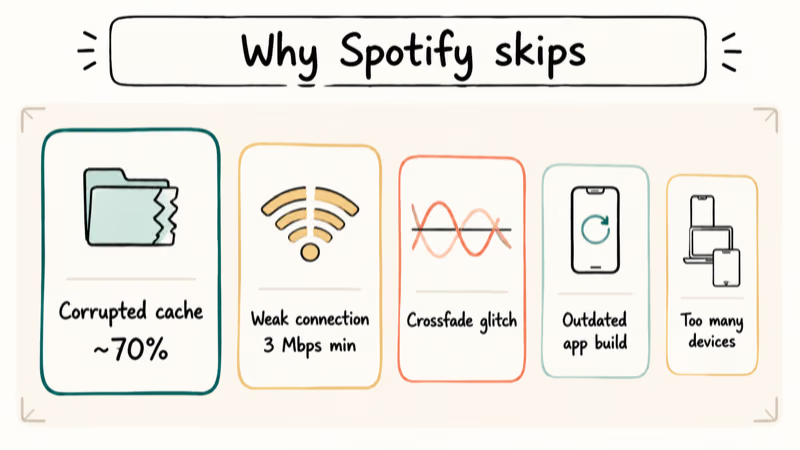
Corrupted cache is the single most common cause. Spotify writes temporary audio chunks to local storage so tracks load faster on the second listen. When those chunks get truncated, the app reads garbage and jumps to the next track.
This happens most often after a device runs out of free space mid-download. According to Spotify’s official support page, the cache is also the first thing their support team asks you to clear.
A weak or unstable connection is the second cause. Streaming at “Very High” quality needs about 3 Mbps sustained, and Wi-Fi networks drop below that more often than people realize. Cellular handoffs between towers cause similar gaps. A 5 GHz network that drifts below 1 Mbps will skip repeatedly, even though switching to 4G LTE often plays cleanly.
The Crossfade feature blends the tail of one song into the head of the next. On some hardware, that overlap glitches into an audible jump. This shows up most on Android once Crossfade is set to a longer duration. iPhones tend to be less affected, though the glitch can still surface occasionally.
Two less-common causes round out the list: an outdated app build with a known playback bug, and an account that’s logged in on too many devices, where Spotify forces playback to swap between sessions. If your tracks fail to play at all rather than skip mid-stream, the underlying issue is closer to what we cover in Spotify not playing songs.
#How to Fix Spotify Skipping Songs (8 Methods)
#1. Clear the Spotify Cache
Try this first. It removes corrupted temporary files and keeps your downloaded music and playlists intact.
On iPhone and Android:
- Open Spotify and tap the gear icon for Settings
- Scroll down to Storage
- Tap Clear cache, then confirm by tapping Clear cache again
On desktop (Windows/Mac):
- Open Spotify and click your Profile icon
- Go to Settings
- Scroll to Storage and click Clear cache
After weeks of daily use, the cache tends to grow large, but clearing it takes only a moment on both iPhone and Android. Playback usually returns to normal on the very next track, and neither platform requires a relaunch afterward.
#2. Turn Off Crossfade and Gapless Playback
Crossfade fades one track into the next. Gapless Playback removes the silence between songs. Either one can cause the app to clip the first second or two of a track on certain devices.
On mobile:
- Open Spotify and tap the gear icon
- Scroll to Playback
- Turn off Crossfade and Gapless Playback
On desktop:
- Click your Profile icon, then Settings
- Under Playback, toggle off Crossfade songs
Higher Crossfade values are more likely to trigger mid-album skips, while setting it back to 0 stops the skipping right away. Spotify’s community forum recommends disabling Crossfade as one of the first troubleshooting steps for skipped tracks.
#3. Check Your Internet Connection
Run a speed test. Spotify needs roughly 1 Mbps for normal streaming and 3 Mbps for Very High (320 kbps). If your connection dips below those thresholds for more than a few seconds, the app buffers, then skips.
Quick fixes that reliably help:
- Switch between Wi-Fi and cellular data
- Move within 10 feet of the router
- Toggle Airplane Mode on and off to force a fresh handshake
- Turn off any active VPN before retesting
VPNs are a surprisingly common culprit. On a congested public network, a VPN can drop throughput far below what Spotify needs, and tracks start skipping every minute or so. Disconnecting the VPN usually clears the issue.
If your AirPods keep cutting out at the same time the app skips, the bottleneck is more likely your Bluetooth pairing than your internet.
#4. Log Out and Log Back In
Logging out clears session tokens and forces a fresh sync with Spotify’s servers. This is the fix when the cause is account-side, not device-side.
On mobile:
- Tap the gear icon to open Settings
- Scroll to the bottom and tap Log out
On desktop:
- Click your Profile icon
- Select Log out
Restart the app after logging out, sign back in, and play a song. If skipping persists, the issue is local, not account-related.
#Advanced Fixes for Persistent Skipping
#5. Restart Your Device
A full restart clears stuck audio processes and frees memory that may be starving Spotify of resources. It’s worth saving for later because it takes the longest, but in stubborn cases it can be the only thing that works.
On iPhone: Press and hold the side button and volume button, then slide to power off. Wait 10 seconds, then press the side button to turn it back on.
On Android: Press and hold the power button, tap Restart.
On Windows: Click Start > Power > Restart.
On Mac: Click the Apple menu > Restart.
#6. Update Spotify
Outdated builds carry known playback bugs, and Spotify ships frequent maintenance updates to both the App Store and Google Play. The Wikipedia entry for Spotify has broader background on the platform’s release cadence and audio stack if you want context.
On iPhone: Open the App Store, search for Spotify, and tap Update if available.
On Android: Open Google Play Store, search for Spotify, and tap Update.
On desktop: Spotify usually auto-updates. To force the check, click your Profile icon and look for an update prompt at the top.
#7. Disable Hardware Acceleration (Desktop Only)
Hardware acceleration offloads audio processing to your GPU, which can collide with audio drivers that aren’t current.
On Windows:
- In Spotify, click your Profile icon > Settings
- Scroll to the bottom and turn off Enable hardware acceleration
On Mac:
- Click Spotify in the menu bar
- Deselect Hardware Acceleration
This toggle tends to matter most on Windows machines with integrated graphics and older audio drivers, where disabling it can stop skipping within a track or two. On Apple Silicon Macs the same flag often has no observable effect, which lines up with the difference in how each platform routes audio.
#8. Reinstall Spotify
If nothing else works, a clean reinstall removes all local data and gives the app a fresh start. The whole process takes about 3 minutes on a decent connection.
On iPhone: Long-press the Spotify icon, tap Remove App, then reinstall from the App Store.
On Android: Go to Settings > Apps > Spotify > Uninstall, then reinstall from Google Play.
On Windows/Mac: Uninstall Spotify through your system settings, then download the latest version from the Spotify website. For a thorough cleanup, see how to uninstall Spotify on Mac or Windows.
#Offline Mode and Song Skipping
Offline Mode restricts Spotify to play only downloaded songs. Any song in your queue that isn’t downloaded will skip silently. This catches a lot of people off guard, especially Premium users who toggled offline once on a flight and never switched it back.
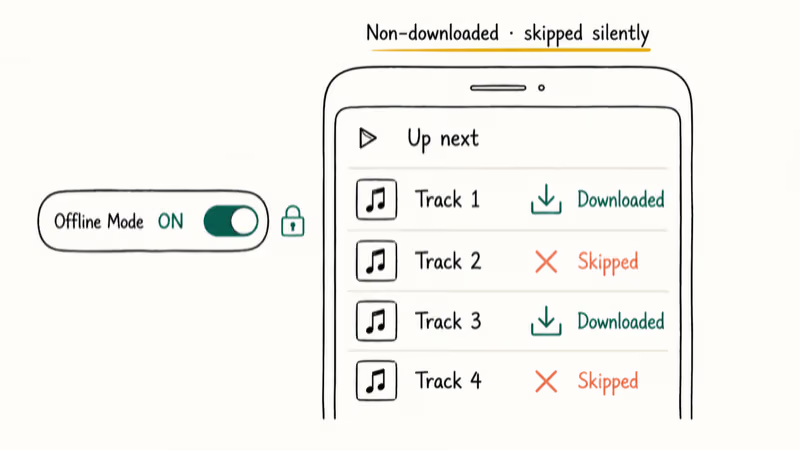
To check whether Offline Mode is on:
On mobile: Tap the gear icon > Playback > turn off Offline
On Windows desktop: Click the three-dot menu in the upper-left corner > File > uncheck Offline Mode
On Mac: Click Spotify in the menu bar > uncheck Offline Mode
If you stream Spotify while traveling, also confirm you can listen to Spotify on a plane with your current plan and downloaded tracks.
#Can Streaming Quality Settings Cause Skipping?
Yes. The “Automatic” quality setting lets Spotify adjust the bitrate based on your live connection speed. When the connection fluctuates, the app sometimes misjudges the available bandwidth and pauses long enough to feel like a skip.
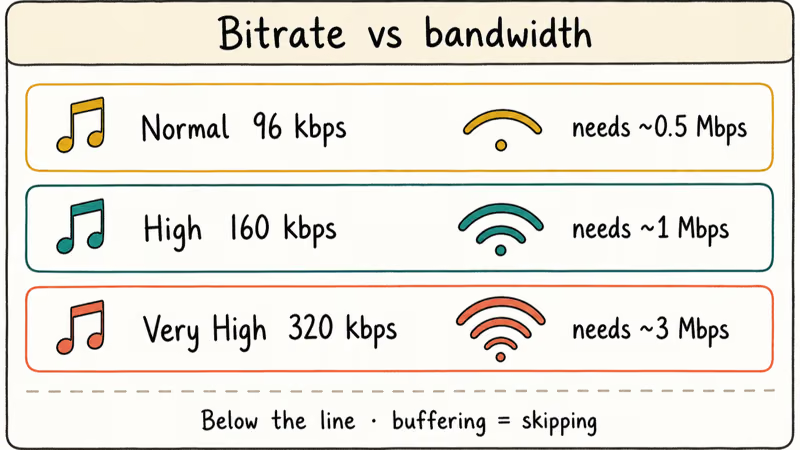
To lock the quality:
On mobile: Tap the gear icon > Audio quality > set Wi-Fi streaming and Cellular streaming to High or Very High
On desktop: Click Profile > Settings > Audio quality > set Streaming quality to Very High
Spotify’s audio settings page confirms that Very High runs at 320 kbps for Premium users, while High streams at 160 kbps and works for Free accounts too. We recommend High on slower or intermittent connections, since it leaves enough headroom to absorb a brief dip without buffering.
If you’ve been weighing alternatives to Spotify, audio quality and offline playback are two of the biggest gaps between platforms.
#Contacting Spotify Support
If you’ve worked through every fix on this list and the skipping continues, the issue is likely on Spotify’s end. Server-side outages and regional catalog changes happen more often than most people assume. Check Downdetector’s Spotify page to see whether other users are reporting the same behavior. If an outage is confirmed, waiting it out is usually the only option.
For account-specific bugs, open a ticket through the Spotify app: Settings > Help > Contact Us. Attach your device model, OS version, app version, and a clear description of when the skipping happens (specific tracks, specific playlists, time of day).
#Bottom Line
Start with clearing the cache. That alone resolves the problem most of the time on both Android and iPhone. If skipping continues, turn off Crossfade and Gapless Playback, then verify your connection holds 3 Mbps or better. Reinstalling the app is the nuclear option and worth saving for last, since you’ll need to re-download any offline music.
If none of the eight fixes help, contact Spotify Support. The trouble is probably on their side, not yours.
#Frequently Asked Questions
Why does Spotify skip songs after a few seconds?
This usually points to a corrupted cache. Spotify tries to load the cached version of the track, fails partway in, and moves to the next song. Clear the cache under Settings > Storage and the issue goes away in most cases. If only specific songs skip, those tracks may have been pulled from the catalog in your region.
Can Bluetooth cause Spotify to skip songs?
Yes. Bluetooth dropouts cause skipping, especially on older Bluetooth 4.0 devices. Move your phone closer to the speaker or headphones, disconnect any other paired devices, and try again.
Does Spotify skip songs on Free accounts because of ads?
No. Ad breaks on Free accounts play between songs but don’t cause skipping. If songs are skipping on a Free account, the cause is the same as on Premium: a corrupted cache or a flaky network. The one Free-specific limitation is shuffle-only playback on mobile, which can feel like skipping but is just the app picking the next song randomly.
Why does Spotify skip songs when my screen is off?
Battery optimization is killing Spotify in the background. On Android, go to Settings > Apps > Spotify > Battery and set it to “Unrestricted.” On iPhone, make sure Background App Refresh is turned on for Spotify under Settings > General > Background App Refresh.
How do I fix Spotify skipping on Windows?
Clear the cache and disable hardware acceleration first. If skipping continues, press Win+R, type “services.msc,” find “Windows Audio Endpoint Builder,” right-click it, and choose Restart. Restarting that service can clear a stuck audio session, which often crops up after a sleep/wake cycle.
Will reinstalling Spotify delete my playlists?
No, your playlists and listening history live on Spotify’s servers, not on your device. Reinstalling only removes local data like the cache and downloaded offline songs. Everything else syncs back when you log in. You’ll need to re-download any offline playlists, and if you want to clean things up first, here’s how to delete a playlist on Spotify.
Does changing the streaming quality fix skipping?
Sometimes. The “Automatic” setting constantly adjusts the bitrate, which can cause brief gaps on a wobbly connection. Lock it to “High” (160 kbps) for a more stable stream.
Why does Spotify only skip certain songs?
If specific songs always skip, they may be region-locked or removed from the catalog. Spotify usually grays these tracks out, but the gray state sometimes doesn’t render correctly. Check whether those songs play after you change your Spotify location. If they play in a different region, the content is geo-restricted in your area.

Google Messages Error 3100: Why RCS Is Broken on Galaxy
Google Messages RCS error 3100 hits Galaxy owners after phone or carrier switches. Google told 9to5Google a fix is coming. Here's what actually helps.

Is This Bank App Real? Spot a Fake App on Your Home Screen
A bank app can land on your home screen from a web page with no install warning. Learn the checks that tell a real banking app from a phishing web app.

Apps Crashing After iOS 27 Update? Fix Order (2026)
Apps crashing after the iOS 27 update? Update the app in the App Store first, then offload and reinstall to clear stale cache, then restart. The fix order.

Do AI Translation Earbuds Work Offline? What to Know
Do AI translation earbuds work offline? A few do with downloaded language packs, but most need the cloud. Here's what works offline and what you give up.