Signal Notifications Not Working? How to Fix Them 2026
Signal notifications not working or delayed? Fix battery optimization, background limits, and notification settings on Android and iPhone in 2026.
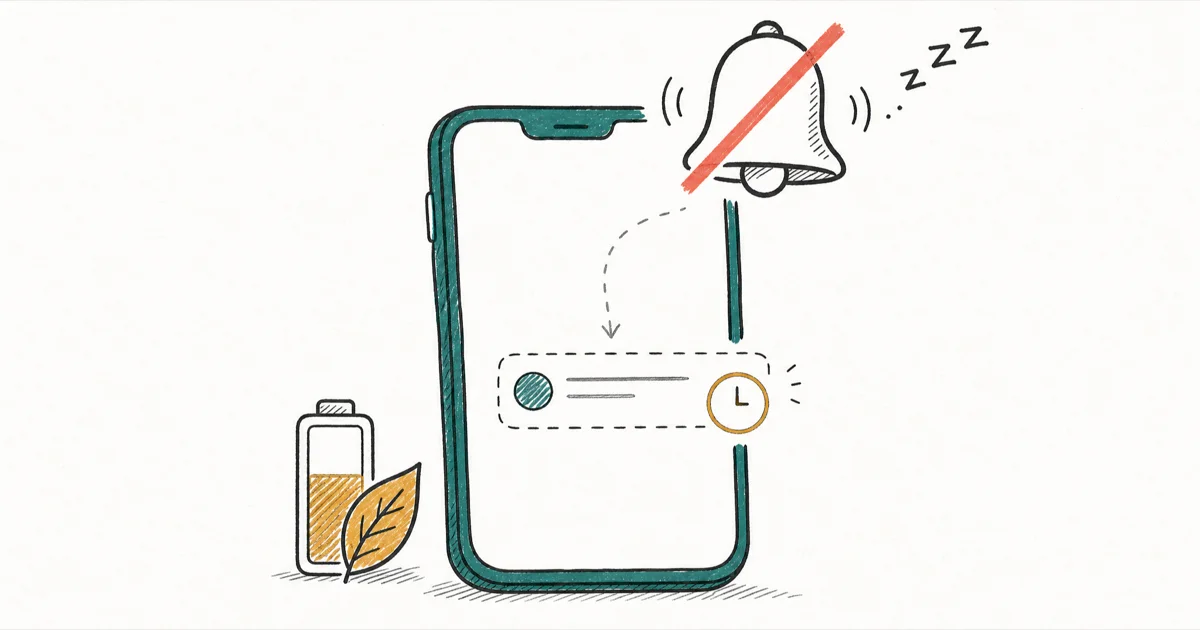
Quick AnswerIf Signal notifications aren't working, the cause is almost always battery optimization on Android. Set Signal to Don't optimize or Unrestricted, enable background data, and confirm notifications are on in Signal's own settings.
When Signal notifications stop working, the messages usually arrive only when you open the app. On Android, that one symptom points straight at battery optimization. The fix is almost always a quick settings change.
- On Android, battery optimization is the leading cause, so set Signal to Don’t optimize or Unrestricted.
- Messages that arrive only when you open Signal are the classic sign of a background-restriction problem.
- Samsung and Pixel add extra layers like Put unused apps to sleep and Adaptive Battery that you must disable for Signal.
- iPhone fixes are simpler, centering on notification permissions, Focus modes, and a background refresh check.
- Avoid force-closing Signal, since that stops the background sync that delivers new-message alerts.
#Why Are Signal Notifications Delayed?
On Android, Signal often uses its own message-retrieval system instead of Google’s push service, so it needs to run in the background. When Android decides Signal is idle, it sleeps the app and queues new messages until you reopen it, then delivers them all at once.
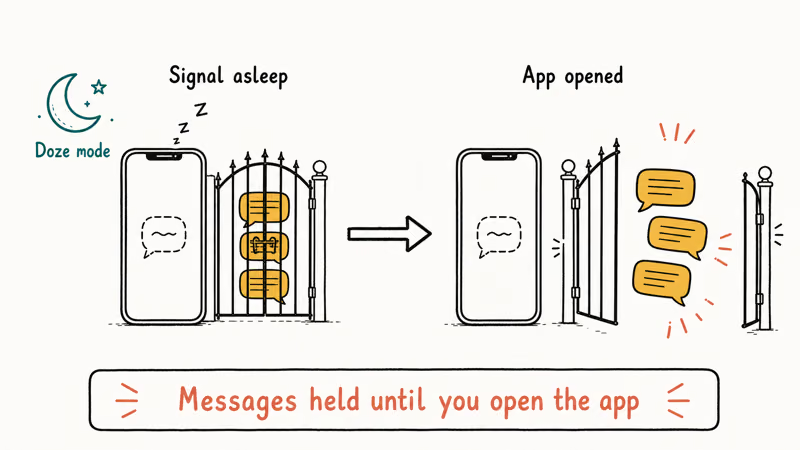
This is Android’s Doze mode and battery optimization at work. According to Signal’s notification troubleshooting guide, the most common cause of missing or delayed alerts is that the system has restricted Signal in the background to save power. The app is working fine. The operating system is just holding its alerts.
The telltale symptom is consistent. Messages land the instant you open Signal but never before, and if that matches what you see, you have a background-restriction problem rather than a Signal bug.
#How Do You Fix Signal Notifications on Android?
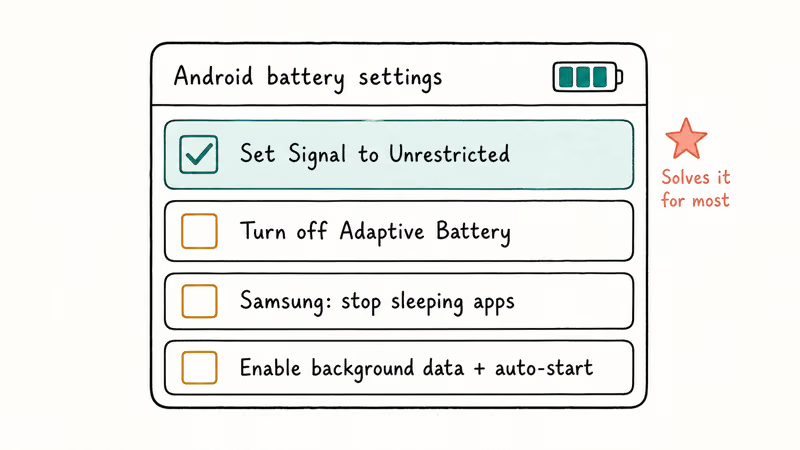
Work through these in order. The first step solves it for most people.
#Exclude Signal From Battery Optimization
This is the single most important fix. Go to Settings, then Apps, then Signal, then Battery, and choose Don’t optimize or Unrestricted. On newer Android versions, long-press the Signal icon, tap App info, then Battery, and set Unrestricted. Restart afterward.
#Turn Off Adaptive Battery
Per-app exclusion is not always enough. Adaptive Battery throttles apps it thinks you rarely use, and Google’s Pixel battery guide confirms that these power-saving modes can delay alerts. If notifications still lag, open Settings, then Battery, then Adaptive Battery, and toggle it off.
#Samsung: Stop Putting Signal to Sleep
Samsung devices add their own layer. Samsung’s sleeping apps guide states that apps unused for about 3 days get put to sleep, which delays their notifications. The fix lives under Settings, then Battery, then Background usage limits: turn off Put unused apps to sleep, then add Signal to the Apps that won’t be put to sleep list so the phone never sidelines it after a quiet stretch.
#Enable Background Data and Auto-Start
Two more switches matter on many phones. Make sure background data is on under Settings, then Apps, then Signal, then Mobile data. On Xiaomi, Huawei, and Oppo, also enable Auto-start or add Signal to the protected-apps list, since those skins block background launches by default.
#Fixing Signal Notifications on iPhone
iPhone is simpler. iOS handles push more uniformly and lacks Android’s per-manufacturer battery quirks, so most fixes live in two settings screens.
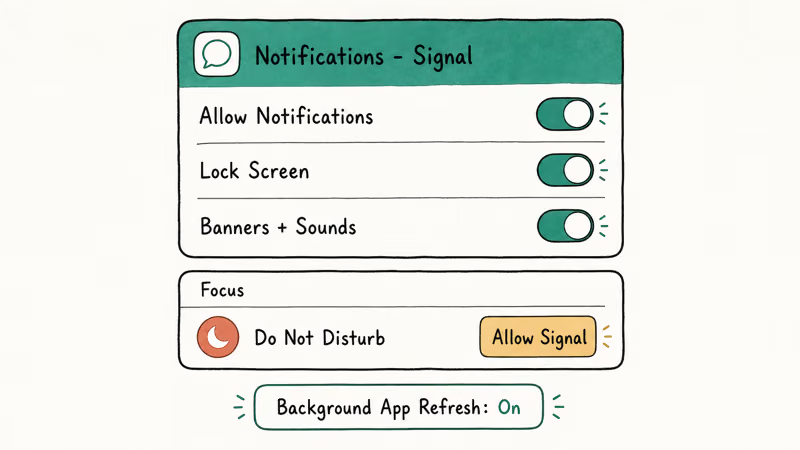
First, confirm permissions. Open the iOS Settings app, tap Notifications, then Signal, and make sure Allow Notifications is on with Lock Screen, Banners, and Sounds enabled. Then open Signal itself, go to Settings, then Notifications, and check that message notifications are turned on inside the app too.
Focus modes are the other common culprit. A Focus schedule, including the Do-Not-Disturb mode, can silence Signal without warning. Check Settings, then Focus, then either allow Signal or confirm no schedule is active. Last, verify Background App Refresh is on for Signal.
#When a Reinstall Is Actually the Answer
Most notification problems are settings, not corruption. A reinstall is a last resort, for when every toggle above is set and alerts still fail.
Back up your Signal data first, since Signal stores chats locally rather than on a server, and losing them is permanent. A reinstall can restore alerts only when setup also reapplies the battery-optimization exclusion. Skip that step and the same background restriction can return.
#How to Keep Signal Notifications Reliable
Once alerts work again, a couple of habits keep them that way. Leave Signal off any battery-saver exception list you later create, since aggressive modes re-throttle it. Resist the urge to swipe Signal away from the recent-apps screen, because that triggers the same background kill that force-closing does.
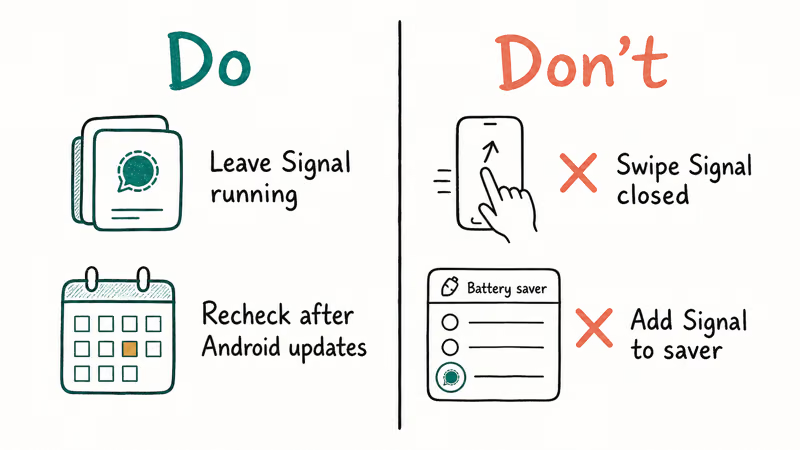
After a major Android update, recheck the battery-optimization toggle. System updates sometimes reset per-app exemptions silently, which is why notifications can break again weeks after you fixed them, with no obvious trigger on your end.
#Fixing Notifications Across Other Apps
If notifications fail across many apps rather than just Signal, the issue is system-wide. The root cause is usually the same battery and Doze behavior applied broadly.
Our guide to delayed notifications on Android covers the system-wide battery and Doze settings.
The same root causes affect other apps one at a time. See our walkthroughs for Facebook notifications not working and Instagram notifications not working when the trouble spreads.
#Bottom Line
When Signal notifications are not working, confirm the symptom first: messages that only arrive when you open the app signal a background-restriction problem. On Android, exclude Signal from battery optimization, turn off Adaptive Battery and Samsung’s sleep feature, and enable background data plus auto-start. On iPhone, the path is shorter, covering notification permissions, Focus modes, and Background App Refresh.
Avoid force-closing the app, because that kills the sync that delivers alerts, and save the reinstall for when every setting checks out. For related notification controls, our guides to Snapchat notifications not working on iPhone and the Bumble notification sound show the same toggles in other apps.
#Frequently Asked Questions
Why do Signal messages only arrive when I open the app?
That’s the classic sign of background restriction. Android has put Signal to sleep to save battery, so it holds new messages until you reopen the app. Exclude Signal from battery optimization and set it to Unrestricted to fix it.
Does Signal use Google’s push notifications?
Not always. On Android it can use its own background message-retrieval system, which is exactly why battery optimization affects it so much.
How do I stop Samsung from delaying Signal alerts?
Open Settings, then Battery, then Background usage limits, and turn off Put unused apps to sleep. Then add Signal under Apps that won’t be put to sleep. Samsung’s sleep feature is a common reason alerts stop after the phone sits idle for a few days.
Why are my Signal notifications fine on iPhone but not Android?
iOS handles push more uniformly, while Android lets each manufacturer add its own battery restrictions. Those restrictions, not Signal, cause most Android delays. The iPhone equivalent is usually a Focus mode or a disabled notification permission.
Will reinstalling Signal fix my notifications?
Sometimes, but it’s rarely necessary, because most problems are settings rather than a broken install. If you do reinstall, back up your Signal data first, since chats are stored locally on the device and a fresh install wipes them. Then reapply your battery-optimization exclusion during setup, because that single step is usually what actually restores alerts, not the reinstall itself.
Should I force-close Signal to save battery?
No. Force-closing stops the background sync that retrieves new messages, so you won’t get notifications until you reopen the app. Leave Signal running in the background and rely on the battery settings instead.
Does turning off Adaptive Battery hurt my phone?
No, it just lets background apps run more freely. Google notes that Adaptive Battery can delay alerts for apps it thinks you rarely use, so turning it off, or excluding Signal specifically, trades a little battery life for reliable notifications.

Is This Bank App Real? Spot a Fake App on Your Home Screen
A bank app can land on your home screen from a web page with no install warning. Learn the checks that tell a real banking app from a phishing web app.
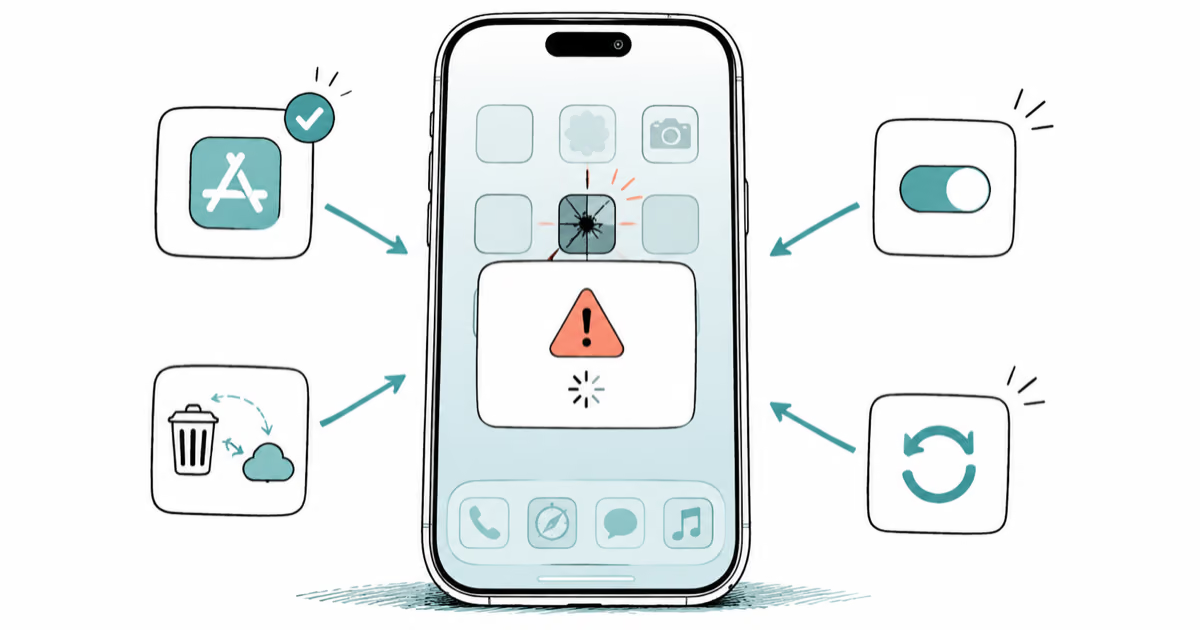
Apps Crashing After iOS 27 Update? Fix Order (2026)
Apps crashing after the iOS 27 update? Update the app in the App Store first, then offload and reinstall to clear stale cache, then restart. The fix order.
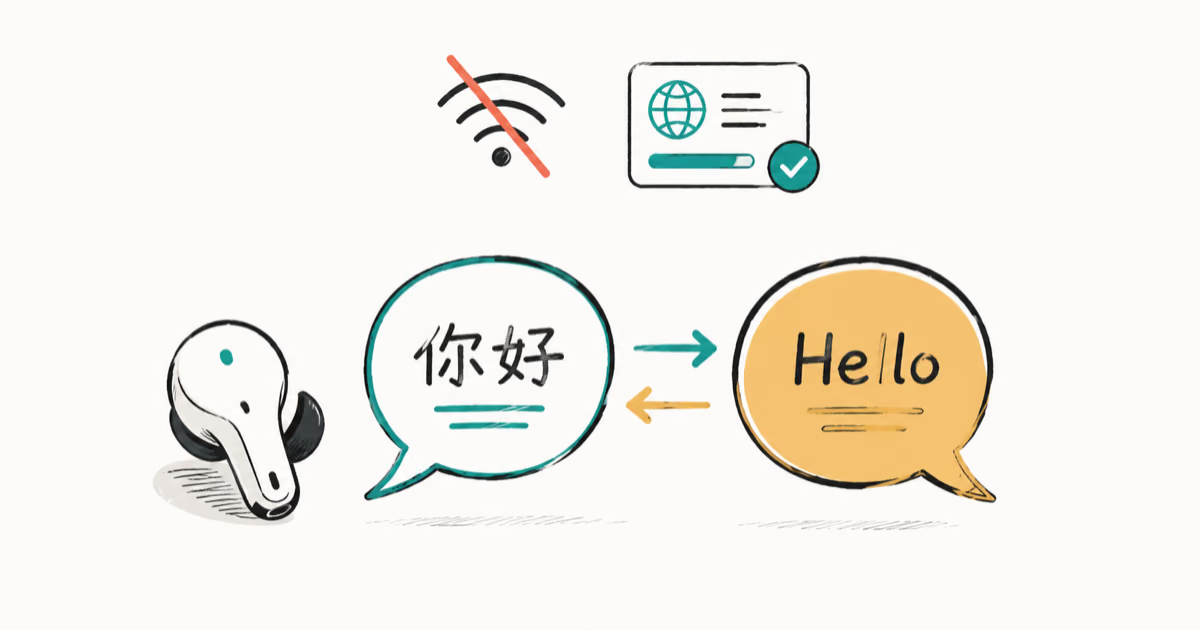
Do AI Translation Earbuds Work Offline? What to Know
Do AI translation earbuds work offline? A few do with downloaded language packs, but most need the cloud. Here's what works offline and what you give up.
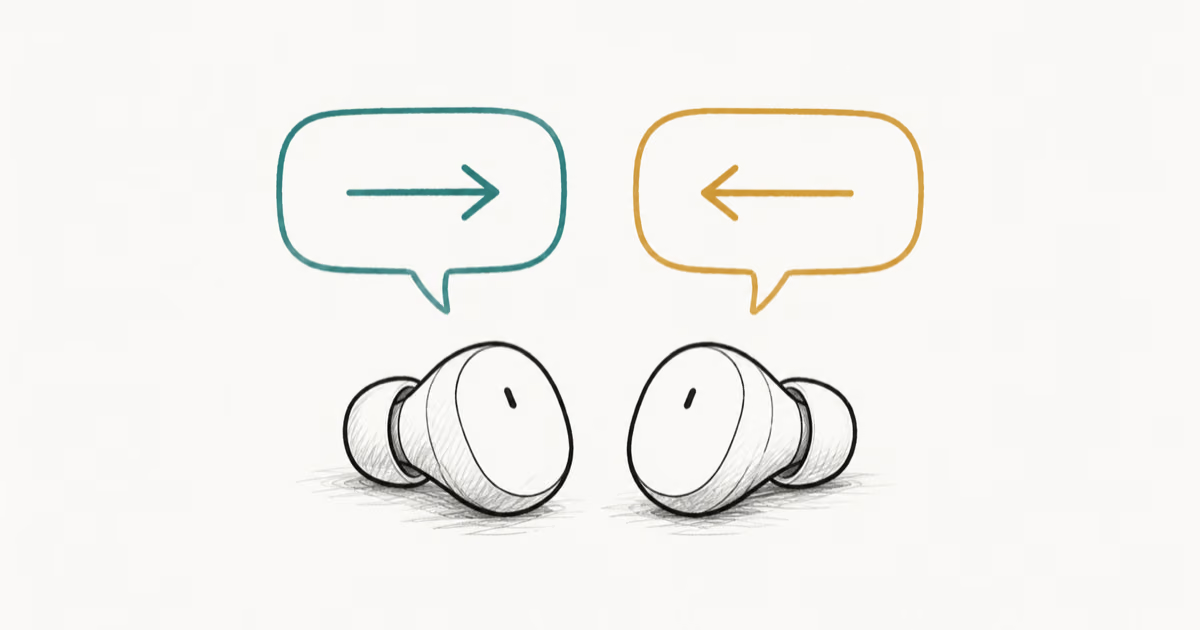
How to Set Up Translation Earbuds (Pairing and Modes)
How to set up translation earbuds: charge, install the app, pair over Bluetooth, pick two languages, and choose a mode. A step-by-step first-use guide.