MacBook Overheating? How to Fix It and Cool Down Fast
MacBook running hot? Here are the most effective fixes, from killing runaway processes to cleaning vents, plus signs it is a hardware problem.
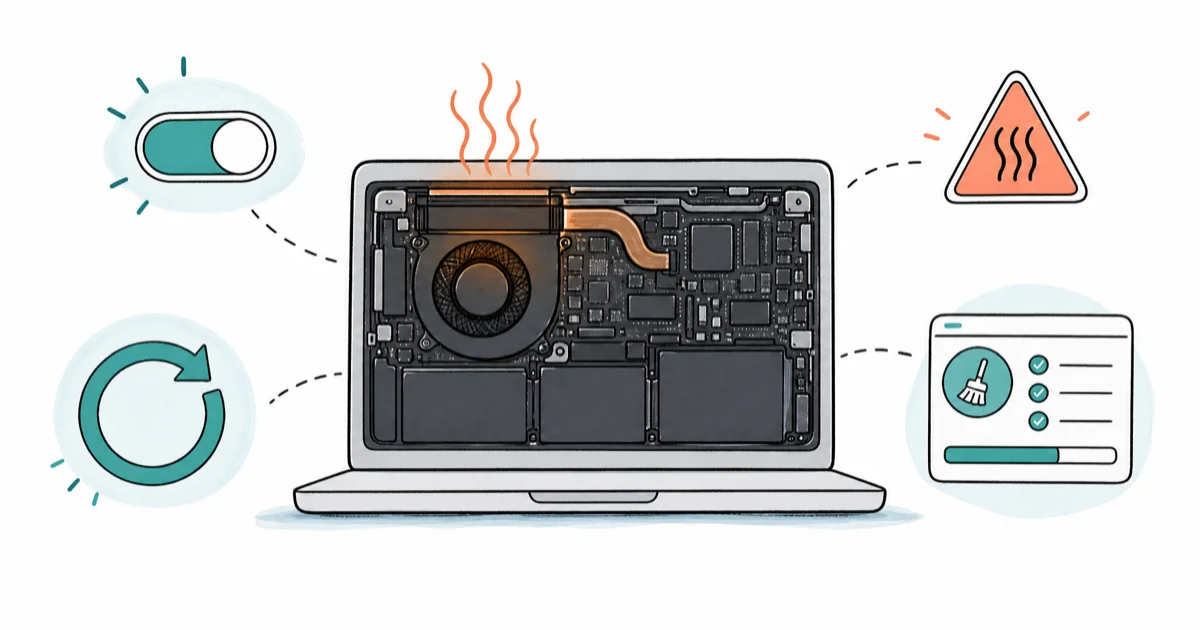
Quick AnswerOpen Activity Monitor, sort by CPU%, and force-quit any process above 80%. That fixes the majority of MacBook overheating cases in under two minutes. If heat persists after that, check for Spotlight indexing, close extra browser tabs, and make sure the vents aren't blocked.
MacBook overheating can slow your machine to a crawl, spin the fans at full speed, and make it too hot to hold. A runaway app or background service is usually the first thing to check before assuming hardware failure. Here’s how to find it and cool things down fast.
- Activity Monitor’s CPU tab identifies runaway processes quickly; force-quitting the offender often lowers heat.
- Spotlight indexing (the
mds_storesprocess) reliably spikes CPU after a macOS update; it finishes on its own or you can pause it in settings. - Chrome tabs run as separate processes and each one draws CPU in the background, even when you’re not looking at them.
- Charging a MacBook while running demanding apps raises heat; plugging in after the task finishes is an easy workaround.
- If the bottom case stays scalding after you’ve closed every app and the fans still roar, a hardware check at an Apple Store is worth scheduling.
#Common Causes of MacBook Overheating
Your MacBook produces heat in proportion to how hard its processor is working. A healthy machine runs warm under load and cools quickly at idle. When it stays hot even at idle, or fans spin to max for minutes at a time, something is driving the CPU unnecessarily hard.
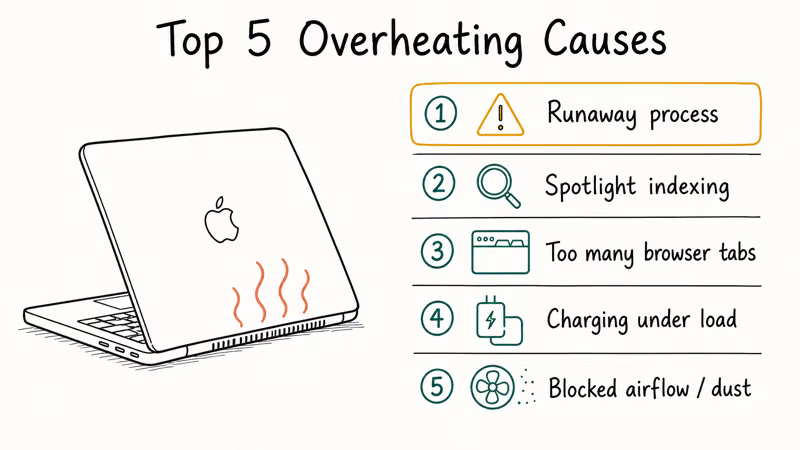
Start with these common causes:
- A runaway process: one app or background service consuming 80–100% CPU on its own
- Spotlight indexing: triggered automatically after macOS updates or connecting an external drive
- Too many browser tabs: Chrome especially, since each tab runs a separate renderer process
- Charging under heavy load: the battery charger and processor compete for thermal headroom
- Blocked airflow or dust: fabric surfaces or dust buildup in the vents
According to Apple’s support documentation on operating temperatures, MacBooks are designed to run between 50°F and 95°F (10°C–35°C), and the company recommends placing them on a stable work surface that allows for good ventilation. When the ambient temperature is high or airflow is restricted, macOS ramps up the fans and, if necessary, slows the processor down to protect the hardware.
#How to Fix MacBook Overheating: Start With Activity Monitor
Open Activity Monitor (go to Applications > Utilities > Activity Monitor). Click the CPU tab and click the % CPU column header to sort highest first.
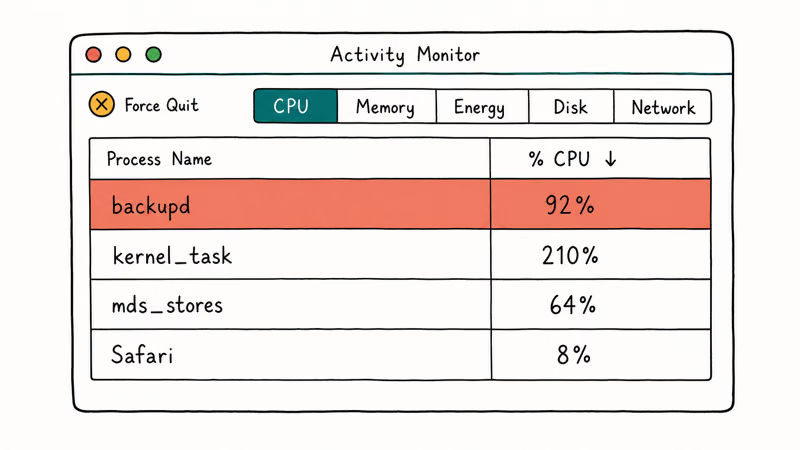
A process that stays near the top of the CPU list is the first suspect. Select it, click the X button in the toolbar, and choose Force Quit. If the Mac starts cooling afterward, the process was likely driving the heat.
Sustained overheating also triggers CPU throttling. If your Mac feels slow after cooling down, the macOS running slow fix covers the throttling recovery steps.
A few processes look alarming but aren’t the real culprit:
kernel_taskconsuming 200–400% CPU is not the cause of heat. It’s macOS deliberately throttling other processes because the Mac is already hot. Find the other high-CPU process and quit that one.mds_storesat high CPU means Spotlight is indexing. It finishes on its own. To speed it up, go toSystem Settings>Siri & Spotlight>Spotlight Privacyand temporarily add your main drive to the excluded list, then remove it. That forces Spotlight to abandon the current index.
After a macOS update, Spotlight re-indexes the entire drive. The mds_stores process in Activity Monitor shows the work in progress. You’ll see CPU consistently above 50% with nothing else open. That’s the tell.
The fix is patience: indexing usually finishes within an hour or two on an SSD. If you need full performance right away, go to System Settings > Siri & Spotlight, scroll down to Spotlight Privacy, and add your startup drive. That halts indexing immediately. Remove the drive from the list later and indexing resumes when you’re not under time pressure.
#Do Browser Tabs and Background Charging Make MacBooks Overheat?
Every Chrome tab is a separate process named Google Chrome Helper (Renderer) in Activity Monitor. A crowded Chrome window can mean many renderer processes quietly drawing CPU, which adds heat over time.
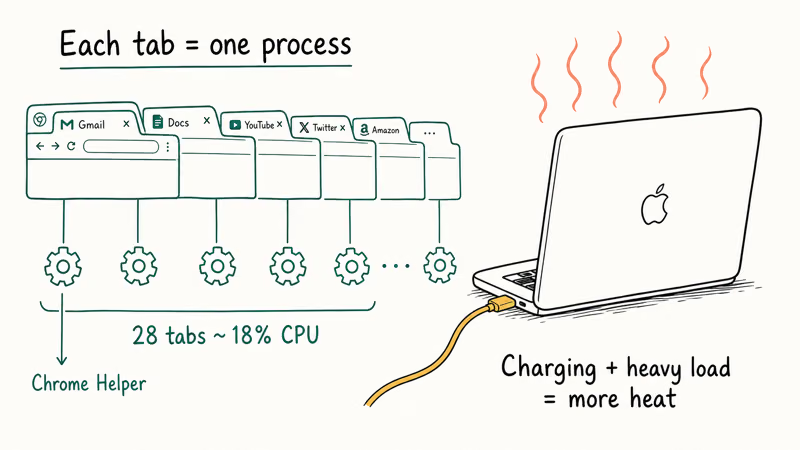
The fastest fix: quit Chrome entirely, switch to Safari for day-to-day browsing, and use Chrome only for sites that require it. Safari is optimized specifically for macOS and draws significantly less power on the same web content.
If you need to stay in Chrome, install a tab-suspension extension. Also disable unused extensions in chrome://extensions, since each one runs a persistent background script.
If a dead MacBook battery is already a problem alongside the heat, see the MacBook battery draining fast guide for a complete fix list.
Plugging in your charger while running a video export, a Zoom call, or a game forces the MacBook to manage heat from two sources at once: the processor working hard and the battery accepting charge current. On Intel models especially, that combination leaves less thermal headroom than doing either task alone.
The workaround is to finish the intensive task first, then plug in. If you must charge during heavy use, a partial charge (plugging in when the battery is already above 50%) generates less heat than charging from near-empty. Apple Silicon MacBooks handle this better than Intel models, but the principle still applies for extended 4K rendering or large file exports.
#Fix Airflow and Clean the Vents
MacBooks vent heat out the back hinge area, and soft surfaces block it. Put the laptop on a hard, flat surface. Even a hardcover book helps.
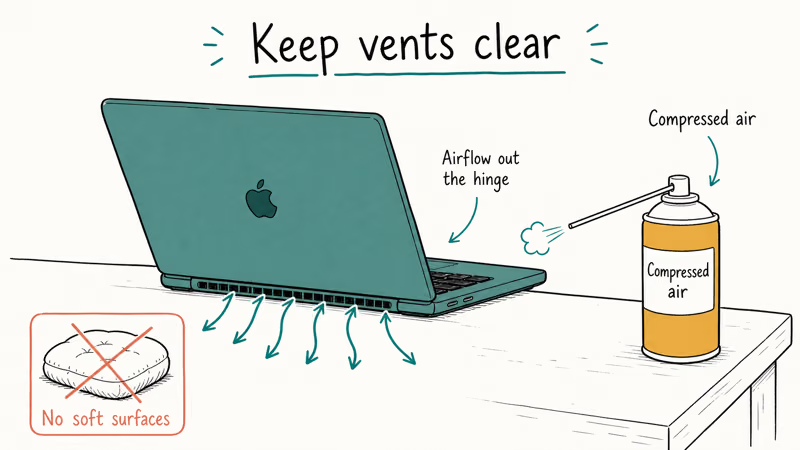
For MacBooks more than two or three years old, dust accumulation inside the chassis can restrict fan performance enough to cause chronic heat problems. If you hear the fans but the Mac stays hot anyway, the vents may be partially blocked. A short burst from a can of compressed air into the vent slots (with the Mac powered off) can help. For a more thorough cleaning, an Apple Authorized Service Provider can open the chassis safely.
Disk storage ties into thermal performance too. A nearly full drive forces the OS to work harder managing swap space, and swap activity keeps the processor busier than it needs to be. The guide on how to clear system data on a Mac walks through reclaiming that space without deleting important files.
According to Apple’s page on fans and fan noise, closing the lid briefly and reopening it can reset fan behavior on Apple Silicon Macs after an update.
#Reset the SMC and Update macOS
The System Management Controller (SMC) on Intel MacBooks controls fan speeds, power management, and thermal responses. When it gets into a bad state, the fans can run too slow even when the processor is hot, or not ramp up at all.
Apple’s support page on resetting the SMC confirms that Intel-based MacBooks with a T2 chip (2018 and later) can be reset by shutting the Mac down completely, then holding the power button for 10 seconds, releasing it, waiting a few seconds, and pressing the power button normally. The page also lists the key combinations by exact model year for older Intel models.
Apple Silicon Macs (M1 and later) don’t have an SMC. A normal restart accomplishes the same thing. No special key sequence needed.
Background processes can also run hot due to bugs that a software update later fixes. mds_stores, PhotoAnalysisService, and third-party kernel extensions have all caused overheating issues that disappeared after a system update. Go to Apple menu > System Settings > General > Software Update and install any pending updates.
Also update third-party apps. Outdated security tools and backup software are common CPU hogs that their own developers fix quickly. A macOS update won’t help there.
Spotlight search problems and overheating often share the same mds_stores root cause. Fixing one usually fixes both.
#When Is It a Hardware Problem?
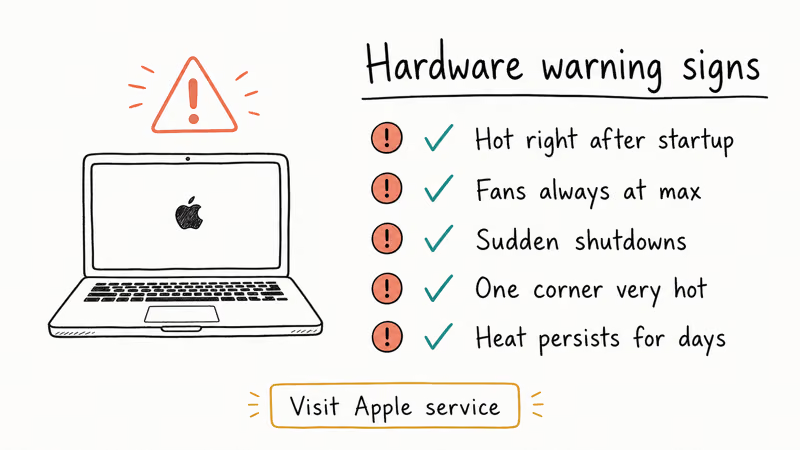
#Signs That Software Won’t Fix
Most overheating is a software problem. But a small percentage of cases have a hardware root cause, and those don’t respond to any of the fixes above. Here’s what to watch for:
- The Mac runs hot immediately after startup with nothing open. If it’s hot before you’ve launched any app, the heat isn’t coming from software you’re running.
- Fans run at maximum speed constantly, even after a full restart. Healthy fans ramp down within a few minutes of light use.
- The Mac shuts itself off without warning under light load. This is a thermal protection shutdown. The processor hit a hard limit and the OS cut power to prevent damage.
- The bottom case is very hot in one specific corner. Localized heat (rather than general warmth) can indicate a component failing in that area.
- You’ve tried every software fix and heat persists for days. Thorough software troubleshooting typically resolves overheating within a session.
If two or more of these are true, schedule a Genius Bar appointment or visit an Apple Authorized Service Provider. Apple’s hardware diagnostics can identify sensor failures, fan faults, and logic board issues that no software tool can fix. If a thermal shutdown left the Mac completely unresponsive, the MacBook not turning on guide covers the recovery steps.
If your Mac is also having trouble with searches or system functions, a Spotlight not working fix might reveal a related indexing issue worth sorting out at the same time.
#Bottom Line
Start with Activity Monitor and quit whatever process is running hot. Runaway background activity is the most common software-side reason a MacBook overheats while no obvious app is open.
If the heat comes back after force-quitting, check Spotlight indexing, trim your Chrome tabs, and make sure the Mac is sitting on a hard surface. Only reach for SMC resets and hardware service if everything else fails and the symptoms match the hardware warning signs above.
#Frequently Asked Questions
Why is my MacBook running hot when nothing is open?
Background processes run without visible app windows. Open Activity Monitor and sort by % CPU. Common culprits: mds_stores (Spotlight), backupd (Time Machine), and kernel extensions from security apps. Force-quit anything above 80%.
Does MacBook overheating cause permanent damage?
Occasional overheating doesn’t destroy hardware. macOS has built-in thermal protection that throttles the processor and shuts the machine down before damage occurs. The one area worth watching is the battery: sustained heat over months can accelerate capacity loss faster than normal aging, which is why chronic overheating is worth resolving even if the Mac seems to recover fine on its own.
Is it bad to use a MacBook on my lap?
Short sessions are fine. For anything longer than a few minutes, a soft surface blocks the rear vents and the MacBook gets noticeably hotter. Use a hard surface.
Should I buy a cooling pad for my MacBook?
Skip it if you have an M-series Mac. Apple Silicon runs cool enough that a cooling pad rarely makes a measurable difference. Intel MacBook owners doing sustained heavy work can benefit from an external fan stand, but for most people, the better fix is addressing the software process driving the heat rather than adding cooling hardware on top of a root cause you haven’t resolved.
What temperature is too hot for a MacBook?
A bottom case above 45°C (113°F) means the processor is working hard. Above that is uncomfortable. Apps like iStatMenus show internal CPU temps. Readings consistently above 90°C at idle are worth investigating.
Why do MacBook fans keep running after I close everything?
Fans need a few minutes to ramp down after a thermal event, even once the CPU load drops. If they’re still loud five or more minutes after you’ve closed all apps, something is still running. Open Activity Monitor and sort by % CPU. Background iCloud sync, Time Machine backups, and Spotlight all start automatically without creating visible app windows, and any of them can keep the fans spinning well after you’ve stopped actively using the Mac.
Does charging make MacBook overheating worse?
Yes, especially on Intel models. The charger adds heat through the charging circuit at the same time the processor generates heat from work. Charging from a low battery is the worst combination: charge current is highest when the battery is most depleted. If you need to do something intensive, finish the task first and then plug in if possible.

macOS 27 Compatible Macs: Every Supported Model (2026)
macOS 27 Golden Gate runs only on Apple Silicon Macs. Here is the full list of supported M-series models and the four Intel Macs that lose support.

macOS 27 Golden Gate: Every Major New Feature Confirmed
macOS 27 Golden Gate goes Apple Silicon only, adds a Gemini-powered Siri, refines Liquid Glass, and rebuilds Spotlight. Here is every confirmed change.

macOS 27 Liquid Glass: Every Readability Fix Explained
macOS 27 Golden Gate refines Liquid Glass with an intensity slider, better contrast, cleaner window corners, and edge-to-edge sidebars to fix readability.

macOS 27 Performance: What Golden Gate Makes Faster
macOS 27 Golden Gate speeds up AirDrop, network file browsing, Safari, and Spotlight, with core system improvements on the Apple Silicon-only release.