How to Reset Your Screen Time Passcode If You Forgot It
Forgot your Screen Time passcode? Reset it with the correct Apple Account, fix Family Sharing recovery issues, and avoid erasing your device.
Quick AnswerOpen Settings > Screen Time > Change Screen Time Passcode, then authenticate with the Apple Account used to create it. For a child, the Family Sharing organizer resets it from the organizer's device.
If you forgot a Screen Time passcode, use Apple’s account-based reset before erasing anything. Work only on a device and Apple Account you own or are authorized to manage; for a child’s device in Family Sharing, the organizer performs the reset.
Attempting to access or alter Screen Time controls on someone else’s device or account without permission may violate their privacy rights, applicable law, and workplace, school, or organizational policy.
- Reset your own passcode from
Settings>Screen Time - A Family Sharing organizer resets a child’s passcode from the organizer’s device
- Use the same Apple Account that set up Screen Time Passcode Recovery
- Share Across Devices can update the reset passcode on your other devices
- Restoring a backup doesn’t remove a Screen Time passcode
#What Does the Screen Time Passcode Protect?
Screen Time can lock app limits, downtime, communication rules, and content or privacy restrictions. It uses a separate passcode so someone who can unlock the device can’t quietly change those limits.
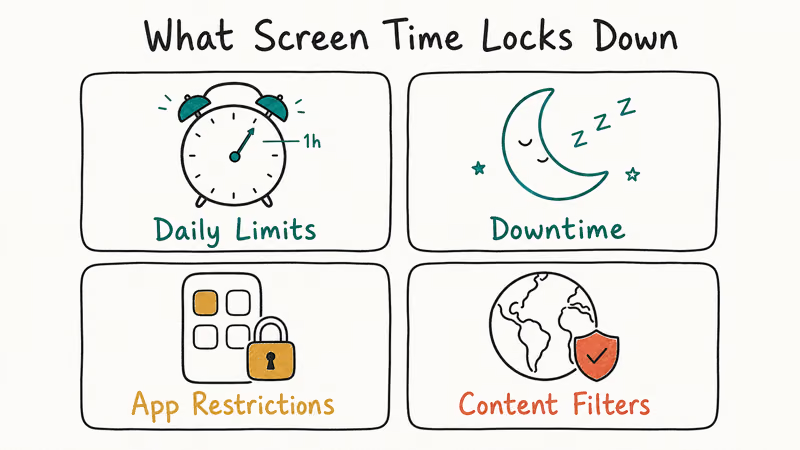
According to Apple’s current Screen Time setup guide, a parent can manage a child’s settings through Family Sharing or configure them on the child’s device when the applicable account and regional rules allow it. The passcode protects the settings; it isn’t the same code used to unlock the iPhone or iPad.
If you’re reviewing the feature before resetting anything, start with our Screen Time overview. For content filters specifically, see the separate guide to parental controls on iPhone and iPad.
#How Do You Reset Your Own Screen Time Passcode?
According to Apple’s current Screen Time passcode reset guide, use this path:
- Open
Settings>Screen Time. - Tap Change Screen Time Passcode, then tap it again.
- If asked, enter the Apple Account email address and password used when the Screen Time passcode was created.
- Enter and confirm a new Screen Time passcode.
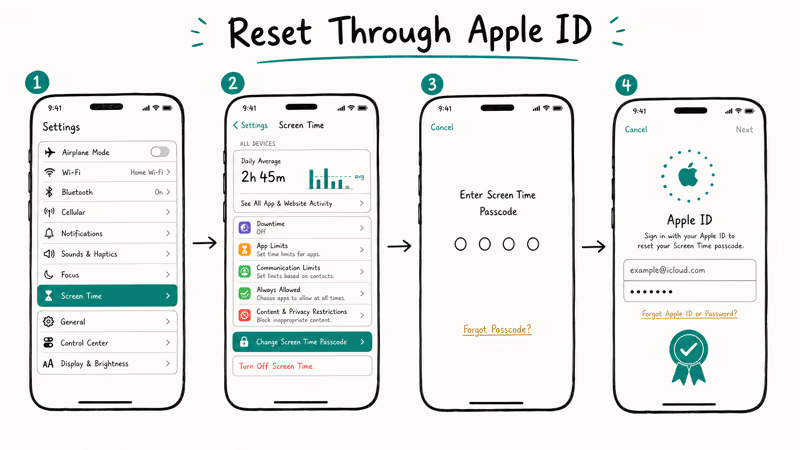
The important detail is account identity, not merely the account currently signed in to the device. If more than one Apple Account is in use, the recovery prompt needs the one that originally set up Screen Time Passcode Recovery.
Menu labels and availability can vary by OS version, device, region, and account configuration. Update the device and follow Apple’s current guide rather than an older screenshot or a removal utility.
#Reset a Child’s Passcode Through Family Sharing
For a child in Family Sharing, the organizer starts the reset on the organizer’s device:
- Open
Settings>Screen Timeon the organizer’s iPhone or iPad. - Under Family, select the child’s name.
- Under Restrictions, tap Manage Screen Time.
- Tap Change Screen Time Passcode twice.
- Enter and confirm the replacement passcode.
Apple’s parental-controls guide also places a child’s Content & Privacy Restrictions beneath the child’s name in the organizer’s Screen Time settings. That distinction matters when the child and organizer use different Apple Accounts.
If a restriction blocks account changes after the reset, follow the focused guide for sign-out restrictions instead of weakening unrelated controls.
#Fix Apple Account and Sync Problems
If authentication fails, check the account used when recovery was configured. Apple’s reset page says it may be a family member’s account or the child’s account rather than the account shown elsewhere in Settings.
- Confirm the Apple Account email address used during setup.
- Let the Family organizer perform a child-account reset.
- Update devices in the Family Sharing group before changing shared controls.
- If Share Across Devices is enabled, allow the replacement passcode to sync rather than creating different codes on each device.
Compare the symptoms with our forgotten Screen Time passcode guide before changing anything else.
#Don’t Erase the Device as the First Fix
The old version of this article pointed an erasure claim at Apple support ID 111766. That page is actually about Apple One subscriptions, so it couldn’t support any reset instruction.
Apple’s current factory-reset guide states that restoring a device from a backup won’t remove the Screen Time passcode. Erasing also destroys local data and may still leave you with the same code after a restore.
Use the account reset above. If it still fails, use the Get suggestions route on Apple’s reset page or contact Apple Support. A third-party program that asks for a device trust prompt, account credentials, or a security-control workaround adds privacy and account risk without changing which Apple Account owns the settings.
If your goal is simply to stop using the feature and you still know the code, turn off Screen Time normally. Don’t confuse that choice with recovering a forgotten code.
#Prevent Another Recovery Problem
Save the new passcode and its recovery Apple Account in a secure password manager.
Keep family devices updated before changing shared settings. Apple’s setup guide says this helps Screen Time settings sync across the Family Sharing group. For non-Apple devices, use the platform’s own recovery flow; our Android screen-time guide explains the separate Google controls.
#Bottom Line
Reset a forgotten Screen Time passcode through Settings > Screen Time > Change Screen Time Passcode with the Apple Account used during setup. For a child, make the change from the Family organizer’s device. If the account isn’t accepted, verify its identity or ask Apple for support; don’t erase the device or trust a removal tool as the first response.
#Frequently Asked Questions
Can I reset a Screen Time passcode without erasing my iPhone?
Yes. Apple’s current path uses Change Screen Time Passcode and the Apple Account that configured recovery. Your content stays on the device.
Is the Screen Time passcode the same as the device passcode?
No. The device passcode unlocks the iPhone or iPad. The Screen Time passcode protects usage limits and restrictions.
Who resets a child’s Screen Time passcode?
For a child managed through Family Sharing, the organizer resets it from the organizer’s iPhone or iPad under Settings > Screen Time > the child’s name.
Why isn’t my current Apple Account accepted?
Screen Time may have been configured with another Apple Account. Use the account that set up Screen Time Passcode Recovery; in a family, that can belong to the organizer or child.
Does restoring a backup remove the passcode?
No. Apple explicitly warns that restoring from a backup doesn’t remove a Screen Time passcode.
Does the replacement passcode sync to other devices?
Apple says the passcode updates across devices when Share Across Devices is enabled. Keep the devices updated and signed in to the intended accounts.
Should I use a third-party passcode-removal tool?
Use Apple’s account reset or support route first. A removal tool can expose device data or credentials and isn’t needed for the documented recovery flow. For more context, see our guide to removing a Screen Time passcode without treating commercial compatibility claims as guarantees.

Is This Bank App Real? Spot a Fake App on Your Home Screen
A bank app can land on your home screen from a web page with no install warning. Learn the checks that tell a real banking app from a phishing web app.
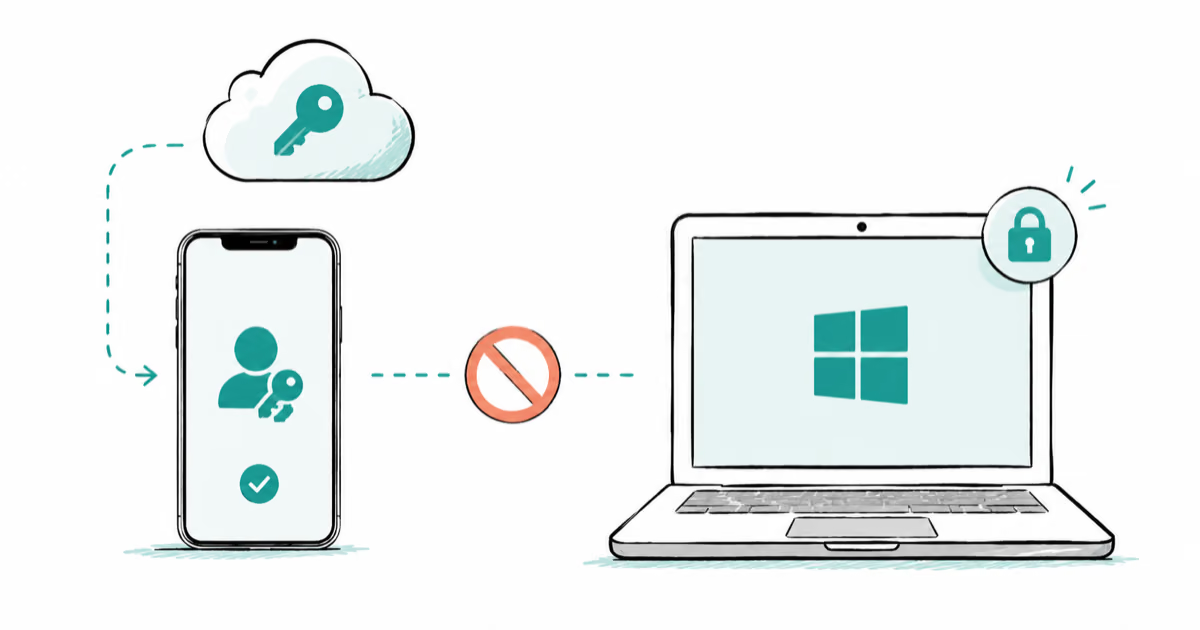
Passkeys Not Syncing Between iPhone and Windows? Read This
Passkeys not syncing between iPhone and Windows is by design, not a bug. Here is why iCloud passkeys skip Windows Hello and the three ways to fix it.
VPN Not Working on Snapdragon X? Why It Fails, How to Fix
Your VPN won't install or connect on a Snapdragon X Copilot Plus PC because Windows on ARM can't emulate the network driver. Here are the fixes that work.

How to Check If a Link Is Safe Before You Click It
Learn how to check if a link is safe with official-first steps: read the real domain, use the app instead, and treat scanners as a second opinion only.