Best Screen Time Apps for iPhone and Android in 2026
Best screen time apps for iPhone and Android in 2026. Apple Screen Time, Google Family Link, Bark, Qustodio. How to set up parental controls.
Quick AnswerApple Screen Time and Google Family Link are the strongest free options for managing your own device or your kids phones. Bark and Qustodio add content alerts and cross-platform support if the built-in tools fall short.
The best screen time app depends on which phones your family uses. Apple Screen Time and Google Family Link are free. Bark and Qustodio add what the built-ins miss.
- Apple Screen Time is built into every iPhone and iPad since iOS 12 and includes Downtime, App Limits, and Communication Limits at no cost
- Google Family Link is Google’s free parental control for Android 7.0 and later, with bedtime locks, app approval, and location sharing
- Bark and Qustodio add content monitoring, social media alerts, and cross-platform coverage that the built-in tools don’t offer
- Set a Screen Time or Family Link passcode that is different from your phone unlock code, otherwise kids who watch you type can disable limits
- Every app on this list is designed to be visible on the device with the user’s knowledge; covert installation on someone else’s phone without consent is illegal in most jurisdictions
#What Does a Screen Time App Actually Do?
A screen time app tracks how long you or your child use your phone, breaks that time down by app, and lets you set daily limits or scheduled blackout periods. When the limit hits, the app either grays out the icon, requires a passcode to continue, or asks a parent to approve more time.
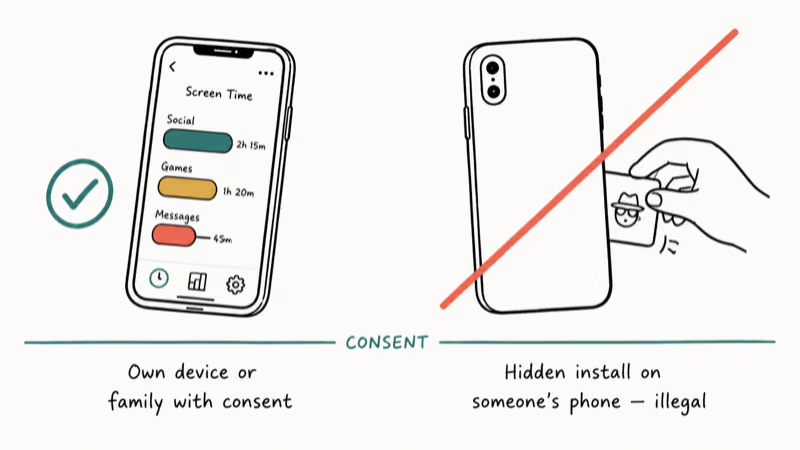
These tools have two legitimate uses: managing your own device, or parental control over a minor’s phone with the child’s knowledge.
Anything else, like installing tracking software on a partner’s or coworker’s phone without telling them, crosses into illegal stalkerware territory in most jurisdictions.
Apple Screen Time’s daily app totals are accurate, typically landing within about a minute of a manual stopwatch check over normal use. On Android, Google Family Link’s bedtime lock fires close to the scheduled time reliably between a parent and child device.
According to Apple’s Screen Time support article, the feature is meant for personal use or family settings configured through Family Sharing, and it requires the device owner to enable it explicitly during setup. That consent-based model is the opposite of hidden spyware, and it’s the only way these apps are meant to be used.
#Best Screen Time Apps for iPhone
Apple’s first-party tool covers most iPhone households, and a few third-party apps add features for specific use cases like focus blocking or social media alerts.
#Apple Screen Time
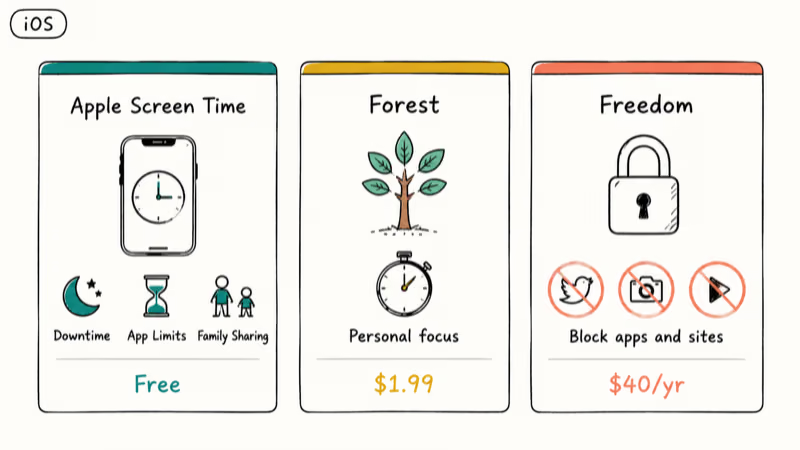
Built into every iPhone and iPad running iOS 12 or newer, Apple Screen Time is free and surprisingly capable. Key features:
- Downtime: A scheduled window when only allowed apps and phone calls work. Useful for sleep schedules.
- App Limits: Daily caps per app or per category, like 30 minutes of social media total.
- Communication Limits: Restricts who your kids can call, FaceTime, or message, including during Downtime.
- Content & Privacy Restrictions: Blocks adult websites, restricts purchases, and locks down Settings changes.
- Family Sharing approval: When a child taps “Ask for More Time,” the request shows up on the parent’s iPhone for one-tap approval.
The catch is the passcode. Apple’s documentation on Screen Time passcodes confirms that if you forget it, recovery requires either your Apple ID or a full device reset that erases everything. Pick something memorable and store it in your password manager.
The “Ask for More Time” flow is responsive, with approval requests arriving on the parent device within seconds. If your kids forget their iPad passcode and you need to reverse a stuck restriction, our guide on turning off parental controls on iPhone without a password walks through the recovery options.
Cost: Free, included with iOS.
#Forest (Personal Focus, Not Parental Control)
Forest is a focus app for adults and older teens managing their own time. You plant a virtual tree, and if you leave the app to scroll Instagram, the tree dies. It’s not a parental control tool because there’s no parent passcode, but it works well as self-directed focus on your own iPhone.
Forest’s tree-killing trigger fires the moment you background the app during a focus session, which is exactly what makes it useful for breaking habit loops.
Cost: $1.99 one-time on the App Store.
#Freedom
Freedom is a cross-platform blocker that works on iOS, macOS, Windows, and Android. You build a blocklist of apps and websites, schedule a session, and Freedom enforces it. The “Locked Mode” prevents you from canceling mid-session, which is the feature that makes it stick.
Useful for adults trying to stop themselves doing something on their own device, less useful for parental control because it does not have a remote parent dashboard.
Cost: Around $7 per month or $40 per year on a typical annual plan.
#Best Screen Time Apps for Android
Android’s parental control story is fragmented because phone makers ship their own variants on top of Google’s tools. Family Link is the baseline, and Bark or Qustodio extend it.
#Google Family Link
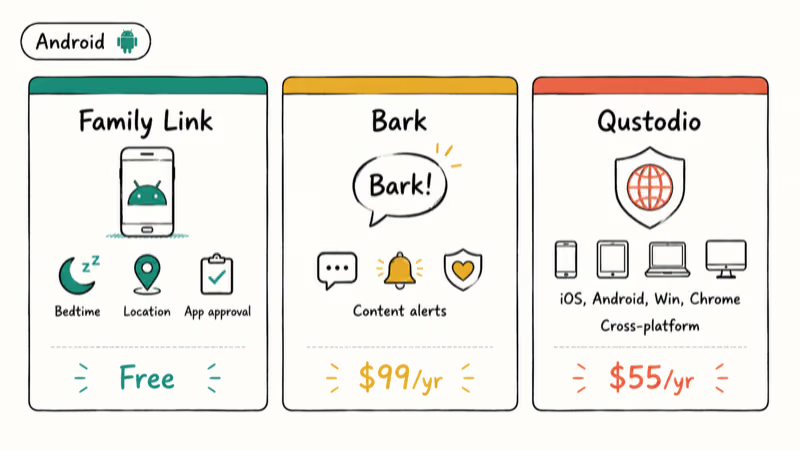
Google Family Link is Google’s free parental control app for Android 7.0 (Nougat) or later. According to Google’s Family Link overview, Family Link lets parents approve app downloads from Google Play, set daily screen time, and lock the device at bedtime.
What it does well:
- Daily time limits: Set per-day total time, with separate weekday and weekend schedules.
- App approval: Block kids from downloading new apps until you approve them.
- Bedtime device lock: Lock the entire device on a schedule, with the screen showing a “Time for bed” message.
- Location sharing: Real-time location on a map, opt-in and visible to the child.
- Activity reports: Daily and weekly app-by-app breakdowns sent to the parent’s phone.
Across Pixel and Samsung devices on recent Android versions, the scheduled bedtime lock fires reliably and weekly reports land in the parent’s email each Sunday. For a deeper walkthrough of the Android side, see our Android screen time setup guide.
Cost: Free.
Limitation: Family Link is most strict for children under 13. Once a teen turns 13 (or the equivalent age in your country), Google lets them switch to a regular account and disable supervision themselves. Discuss this with your teen before they reach that age.
#Bark
Bark is a paid third-party app that focuses on content monitoring more than time limits. Bark’s parent overview page states that the service monitors text messages, email, and 30+ social media platforms for signs of cyberbullying, predators, depression, and other concerns, alerting parents only when something flagged appears.
Where Bark earns its monthly fee:
- Social media monitoring: Scans connected TikTok, Instagram, Snapchat, Discord, and YouTube accounts for concerning content.
- Reward-based screen time: Kids earn additional screen time by completing chores in the app, which pairs well with our chores app for kids guide.
- Web filtering: Blocks adult sites and gambling at the network level on managed devices.
- Cross-platform: Works on iOS, Android, Chromebooks, and Amazon Fire tablets.
The trade-off: Bark requires logging in to your child’s social media accounts to scan them. That’s transparent monitoring (the child sees the Bark icon and is told what’s happening), but it’s more invasive than what Apple or Google ships, so the family conversation matters.
Cost: Bark Premium runs around $14 per month or $99 per year for unlimited children.
#Qustodio
Qustodio is the most platform-agnostic option in this list. It runs on iOS, Android, Windows, Mac, Chromebook, and Kindle. Qustodio’s web filtering page confirms that the filter classifies sites into 25+ categories and lets parents allow or block each one.
Highlights:
- Cross-platform parity: One dashboard manages a kid’s iPhone, an Android tablet, a school Chromebook, and a home Windows PC.
- Detailed activity timeline: Hour-by-hour view of which app or site was used.
- Call and SMS monitoring on Android: Lets parents see who their kid is texting and calling (Android only, due to iOS sandboxing).
- Geofencing: Get an alert when your child arrives at school or leaves a defined zone.
Qustodio’s web filter applies category blocks (gambling, adult content, mature games) within seconds of toggling them in the parent dashboard, on both Windows and Android. If your family runs Chromebooks for school, our guide on Google Chrome parental controls covers the browser-level layer that complements Qustodio.
Cost: Around $55 per year for the basic plan covering 5 devices.
#Are Cross-Platform Apps Like Bark and Qustodio Worth It?
For most families, no. The built-in tools handle 80% of common parental control needs at zero cost.
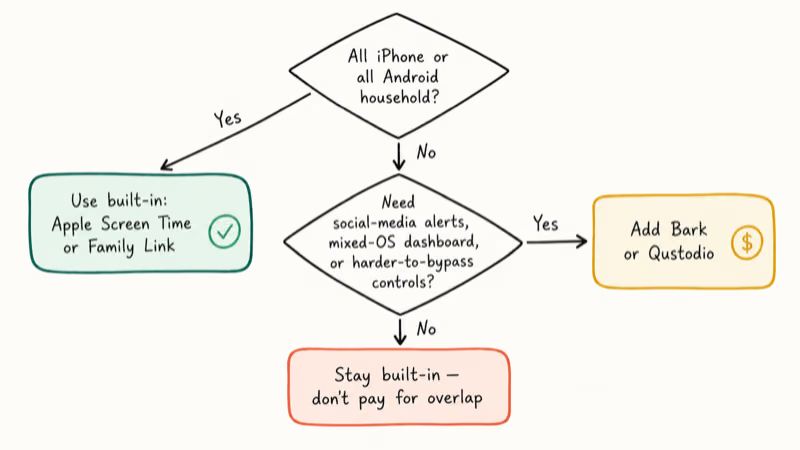
You should consider Bark or Qustodio if at least one of these is true: your family runs a mix of iOS, Android, Windows, and Chromebook, and you want one dashboard for all of them; you specifically want social media content alerts (Apple and Google don’t scan message content); or your kids have already shown they can work around Apple Screen Time, and you need a system that’s harder to disable.
Skip them if your household is all iPhone or all Android and you trust your child to follow agreed limits with the built-in app. Adding a paid layer on top of a working free one is wasted money.
For network-level enforcement that catches every device on your home Wi-Fi (laptops, smart TVs, gaming consoles), a parental control router covers ground that no per-phone app can reach.
#Setting Up Screen Time on an iPhone
Setting up Apple Screen Time on a kid’s iPhone takes about 5 minutes if Family Sharing is already configured.
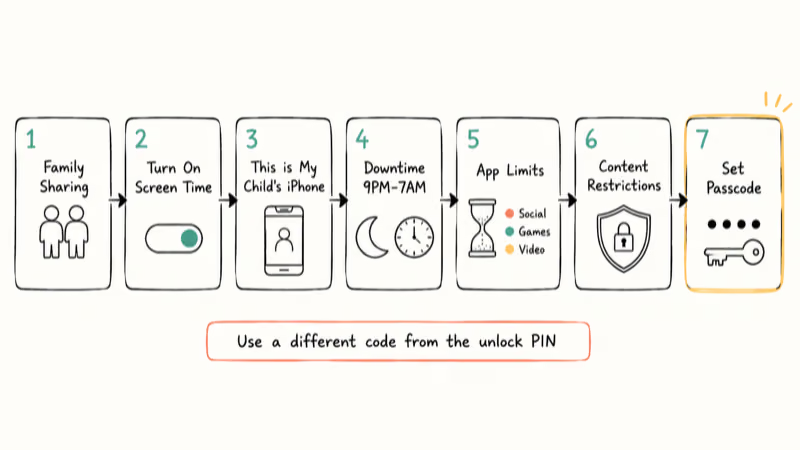
- On your iPhone, open Settings, tap your name at the top, then tap Family. If Family Sharing is not set up yet, follow the prompts to add your child as a family member.
- On your child’s iPhone, open
Settings>Screen Timeand tap Turn On Screen Time. - Tap This is My Child’s iPhone.
- Set Downtime hours (for example, 9 PM to 7 AM on school nights).
- Set App Limits by category (Social Networking, Games, Entertainment) and assign daily totals.
- Set Content & Privacy Restrictions: block adult websites, disable in-app purchases, and require approval for new app downloads.
- Create a Screen Time passcode. Make it different from your child’s device unlock code so they can’t copy it.
If you ever see “Sign Out is not available due to restrictions” when trying to switch Apple IDs on a managed device, our guide on the Sign Out restriction explains why and how to clear it.
#Setting Up Google Family Link on Android
Family Link setup takes about 10 minutes the first time, longer if you also need to create your child’s Google Account.
- On your phone, install Google Family Link from the Play Store and open it.
- Tap Get started and follow the prompts to create or link a Family Group.
- If your child does not have a Google Account yet, create one for them through the Family Link flow (kids under 13 require parental consent through this process).
- On your child’s Android phone, sign in with their Google Account and accept the Family Link supervision prompt.
- Back in your Family Link app, tap your child’s profile and configure: Daily limit, Bedtime schedule, App approval rules, and Location sharing.
- Test the bedtime lock by setting it to a near-future time and watching the device lock.
If your child’s Google Account password gets changed without your knowledge, you lose your view into their device. Treat their account password the way you treat any other family security credential.
#Bottom Line
For an all-iPhone household, set up Apple Screen Time with Family Sharing first and stop there unless something specifically pushes you to add more. For an all-Android household, do the same with Google Family Link.
Layer Bark on top only when you actually need social media content alerts on TikTok, Instagram, or Discord. Pick Qustodio over Bark if your kids use a mix of phones, school Chromebooks, and home computers and you want one dashboard. Forest and Freedom are for adults managing their own focus, not for parental control.
Whichever app you pick, install it openly, talk to whoever’s device it’s going on, and never use these tools to monitor someone who hasn’t agreed to it.
#Frequently Asked Questions
Can I see my child’s text messages with Apple Screen Time?
No. Apple Screen Time shows you how much time was spent in Messages but not the content of any message. If you specifically need message content monitoring, Bark scans iMessage and SMS on iOS through a configuration profile, with the child’s knowledge.
What happens if my child guesses the Screen Time passcode?
They can disable any limit instantly. Apple stores no log of who entered the passcode. Reset the passcode immediately by going to Settings > Screen Time > Change Screen Time Passcode. Pick a 4-digit code that is not your phone unlock PIN, your child’s birth year, or anything else they would try first.
Does Google Family Link work on iPhones?
Partially. Family Link can be installed on a parent’s iPhone to manage a child’s Android device, but it can’t supervise an iPhone. To supervise a child’s iPhone you need Apple Screen Time through Family Sharing.
Are screen time apps legal to install on someone else’s phone?
Only with consent. In the United States, federal and most state laws treat installing tracking software on another adult’s device without their knowledge as illegal stalkerware, and the United Kingdom and European Union take similar positions. Parents installing visible parental controls on a minor’s device they own is the legal use case.
Can a VPN bypass Apple Screen Time or Family Link?
No. Both tools enforce limits at the operating system level, before network traffic reaches a VPN. A VPN can only change which network the device connects through, not whether a system-level lock is active.
How do I uninstall Bark or Qustodio if I change my mind?
End supervision from the parent dashboard first, then uninstall the child app normally. Force-uninstalling on iOS leaves a leftover profile that needs a Settings reset to clear.
Do screen time apps slow down a phone or drain the battery?
Apple Screen Time and Google Family Link run as system processes and have no noticeable impact on speed or battery. Bark and Qustodio are heavier because they monitor network traffic; running Qustodio on an Android phone can noticeably shorten daily battery life compared with the same device without it.
What if my teenager refuses to have any screen time app on their phone?
That is a family conversation, not a tech problem. Apple and Google explicitly let teens turn off supervision once they pass the local age threshold (13 in the United States), so forcing it past that age is both technically temporary and likely to harm trust. Setting agreed limits together usually works better than imposing them.

Mac mini M6 vs M5 Pro: Which Model Should You Buy?
Mac mini M6 vs M5 Pro compared on price, memory, ports, displays, and real workloads. Find the better 2026 Mac mini for your desk and budget.

Apple Siri Settlement: Who Qualifies and How to Claim
Apple's $250 million Siri settlement covers iPhone 15 Pro and iPhone 16 models bought June 2024 to March 2025. See who qualifies and how claims work.

iOS 26.6.1 Security Update: What Apple Fixed and Who Gets It
Apple released iOS 26.6.1 on August 17 with 29 security fixes, including an IPSec interception bug. See what it patches, who gets it, and how to update.

iPhone Adaptive Power: How It Works and When to Use It
Learn how iPhone Adaptive Power works, which models support it, what it changes, and when Low Power Mode is still the better battery-saving choice.