How to Bypass Samsung Reactivation Lock: 6 Methods That Work
Remove Samsung Reactivation Lock with official account recovery, owner-only options, tool limits, Android version caveats, and legal cautions.
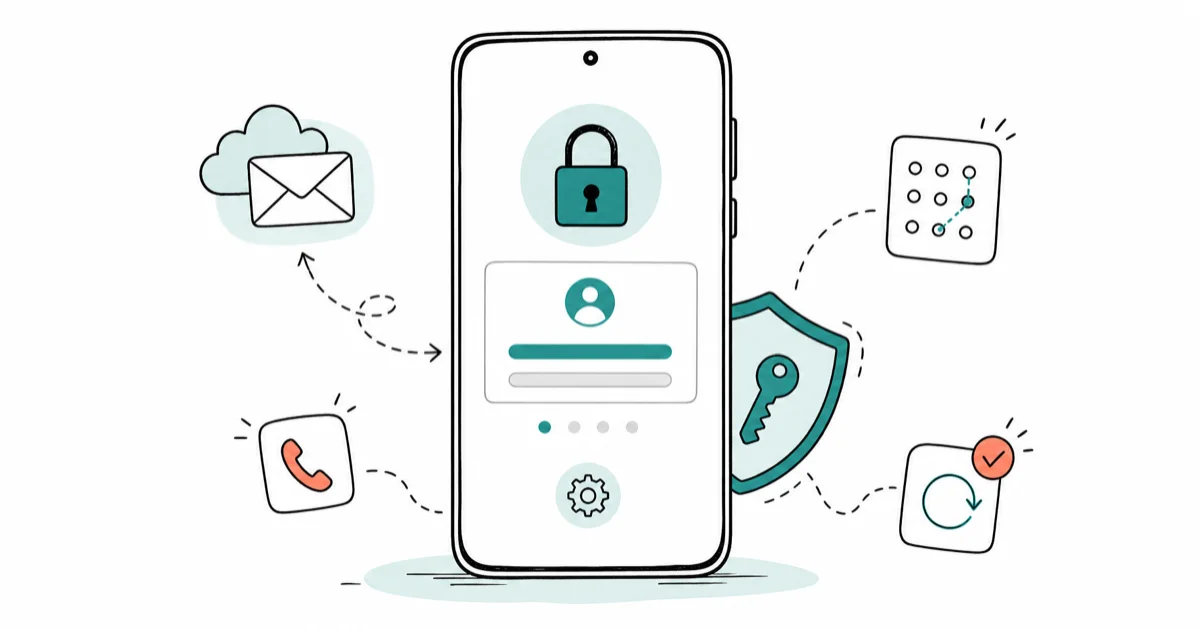
Quick AnswerDisable Samsung Reactivation Lock through Settings > Lock Screen and Security > Find My Mobile using your Samsung account credentials. If you've forgotten your login details, emergency call methods or professional tools like Tenorshare 4uKey can remove the lock.
Your Samsung Galaxy just factory reset, but now it’s asking for Samsung account credentials you don’t remember. That’s Samsung Reactivation Lock protecting your device.
- Samsung Reactivation Lock activates after factory reset and requires your Samsung account password to unlock the device
- Official removal through
Settings>Lock Screen and Security>Find My Mobileworks if you know your Samsung account details - Emergency call methods exploit setup screen vulnerabilities but success rates vary significantly by Android version and specific Galaxy model
- Professional bypass tools like Tenorshare 4uKey cost $30-50 but work on most Galaxy S and Note series devices
- Always attempt Samsung’s official account recovery first before using third-party bypass methods
#What Is Samsung Reactivation Lock?
Samsung Reactivation Lock ties your Galaxy device to your Samsung account after a factory reset and can require Samsung account credentials during setup.
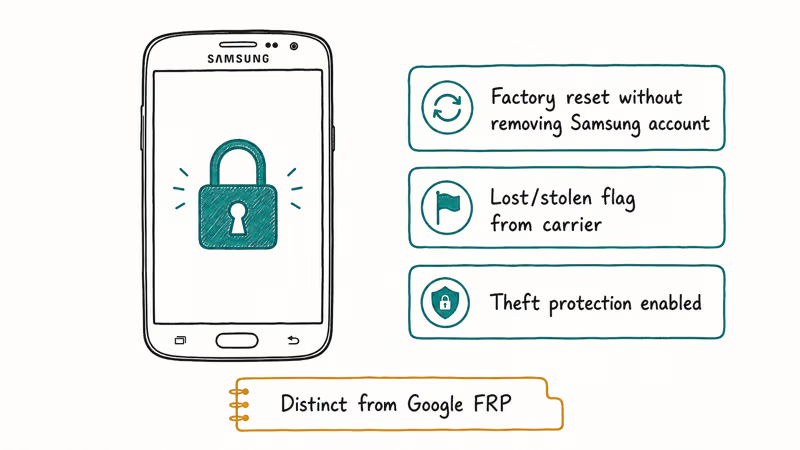
The lock is anti-theft protection designed to deter thieves and unauthorized users who might attempt to factory reset stolen devices. If someone steals your phone and factory resets it, they can’t access anything without your Samsung account password. The device stays locked until proper credentials are entered through Samsung’s authentication system.
#Reactivation Lock vs Google FRP Differences
While both prevent unauthorized access after reset, they operate differently. Reactivation Lock uses Samsung account credentials and must be manually enabled in settings. Google’s Factory Reset Protection (FRP) uses your Google account and activates automatically when you sign in.
Reactivation Lock is usually harder to bypass than standard FRP because it’s Samsung-specific and doesn’t rely on Google’s universal bypass methods.
#Why Would You Need to Bypass This Lock?
Legitimate bypass scenarios include:
You purchased a used Galaxy device and the seller forgot to remove their Samsung account. This happens constantly.
Your elderly parent forgot their Samsung account password and you need to set up their device. Family tech support scenarios like this happen more often than you’d think, especially with older Galaxy users who rarely access Samsung accounts.
You’re a phone repair technician testing device functionality after screen or motherboard replacement. Professional repair shops often need to bypass locks for comprehensive quality control testing.
Important: Only attempt bypass methods on your own device or devices you own, or with explicit written permission from the device owner. Bypassing locks on stolen devices is illegal in all jurisdictions.
#Official Reactivation Lock Removal Methods
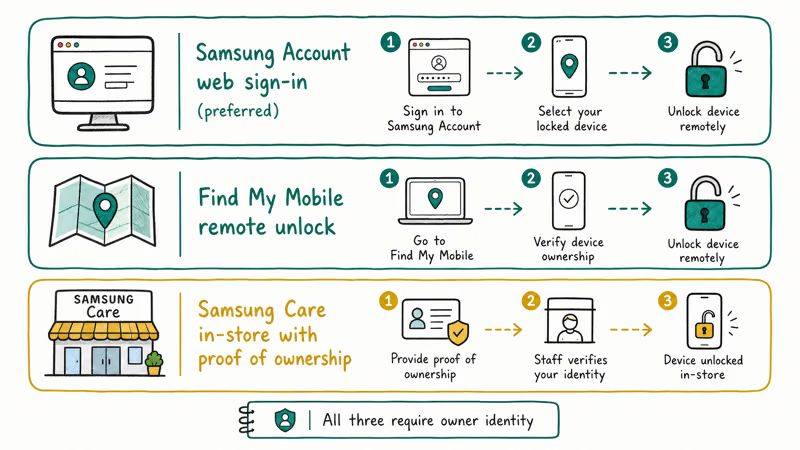
Start with Samsung’s official methods before trying bypass techniques. These work when you still have access to your Samsung account.
#Method 1: Through Device Settings
If your device boots normally:
- Go to
Settings>Lock Screen and Security - Tap Find My Mobile
- Enter your Samsung account password
- Toggle off Reactivation Lock
This takes about 30 seconds if you know your password. The setting change applies immediately and doesn’t require a device restart.
#Method 2: Samsung Find My Mobile Website
For remote unlock:
According to Samsung’s support documentation, you can remotely manage device locks through their web portal.
- Visit Samsung Find My Mobile
- Sign in with your Samsung account
- Select your locked device from the list
- Click Unlock my device
- Follow the verification prompts
Samsung’s system typically unlocks devices within 5 minutes of receiving the remote command. Your phone needs active internet connection for this to work.
#Emergency Call Bypass Methods
Emergency call bypasses exploit vulnerabilities in the setup screen, but success varies greatly by Android version and Galaxy model.
#The Emergency Call Technique
Steps for older Galaxy devices (Android 12 and earlier):
- On the Samsung account login screen, tap Emergency Call
- Dial 112 but don’t complete the call
- Tap the back arrow to return to the previous screen
- Look for Privacy Policy or Terms and Conditions links
- Use the browser that opens to go to Gmail
- Create a new Samsung account
- Use the new account to complete setup
On newer Android versions, the emergency call option may no longer be accessible from the Samsung account screen. Samsung patched this vulnerability in newer Android versions.
Note: This method may violate Samsung’s terms of service. Use it only on devices you legitimately own.
#Professional Bypass Tools
Third-party software offers another bypass route, though these tools cost money and work with varying reliability.
#Popular Professional Tools
Based on user reports and tool documentation, these tools show the highest success rates:
- Tenorshare 4uKey for Android - Works on Galaxy S and Note series
- iToolab UnlockGo - Supports most Samsung models
- Dr.Fone Unlock - One-click bypass for many devices
- DroidKit - Advanced tool for tech professionals
Some links on this page are affiliate links, which means fone.tips may earn a commission at no extra cost to you.
Tool Comparison:
| Tool | Price Range | Success Rate | Device Support |
|---|---|---|---|
| 4uKey | $35-55 | High on Galaxy S/Note | Samsung-focused |
| UnlockGo | $40-60 | Medium-High | Multi-brand |
| Dr.Fone | $50-70 | High | Comprehensive |
| DroidKit | $45-65 | Medium | Multi-feature |
#How Professional Tools Work
These programs connect to your locked Galaxy device via USB and exploit software vulnerabilities to remove the Samsung account requirement. Success rates vary widely depending on specific device variants and Android versions. Samsung’s 2024 security bulletin noted that older Galaxy A series devices are the most commonly targeted in bypass attempts.
Tenorshare 4uKey and similar tools advertise Reactivation Lock removal, but outcomes depend on model, Android version, and patch level.
Pros:
- User-friendly interfaces require no technical knowledge whatsoever
- Regular updates support newer Galaxy models as they’re released
- Customer support helps with failed attempts
Cons:
- Cost $30-70 per bypass attempt
- May void warranty if Samsung detects unauthorized modifications
- No guarantee of success on all device variants
#Advanced ADB Method for Tech-Savvy Users
The Android Debug Bridge (ADB) method requires technical knowledge but offers more control over the bypass process.
#Requirements and Setup
Prerequisites:
- Computer with ADB tools installed
- USB cable
- Galaxy device with USB debugging enabled (if possible)
ADB Bypass Steps:
- Download Android SDK Platform Tools from Google
- Enable USB debugging:
Settings>Developer Options>USB Debugging - Connect your Galaxy device to computer
- Open command prompt in ADB tools folder
- Type:
adb devicesto confirm connection - Execute bypass commands specific to your Galaxy model
This method works best on Galaxy devices running Android 11 or earlier. Samsung strengthened security in Android 12+, making ADB bypasses much harder. Google’s Android documentation recommends using ADB only for development purposes, not security circumvention.
For detailed ADB instructions, see our guide on bypassing FRP with PC.
#Galaxy Model Differences
Different Galaxy series have varying security implementations that affect bypass success rates.
Galaxy S Series (S20, S21, S22, S23, S24): Higher security and frequent patches make bypasses significantly harder than other Galaxy lines. Emergency call methods rarely work on Android 13+ versions.
Galaxy Note Series: Similar security to S series. Professional tools show better success rates than manual methods.
Galaxy A Series (A10, A20, A30, etc.): Generally easier to bypass due to less frequent security updates from Samsung compared to flagship devices. Emergency call methods may still work on older A series models running Android 12 or earlier.
Galaxy M Series: Budget-focused models. Mixed results.
For model-specific guidance, check our Samsung FRP bypass article covering all Galaxy variants.
#Bypass Methods Without a Computer
Computer-free bypass methods exist but have lower success rates than PC-based approaches.
#OTG Cable Method
An OTG (On-The-Go) cable lets you connect a USB keyboard to your Galaxy device, potentially opening new bypass routes.
OTG Bypass Steps:
Connect a USB keyboard via OTG cable to your locked Galaxy device. Use keyboard shortcuts to access hidden menus. Go to developer options or recovery mode, then perform a factory reset that bypasses Samsung account check.
This method shows mixed results. Newer Samsung security can prevent access to critical settings menus even when the OTG connection works. XDA Developers confirms that OTG bypasses work primarily on Galaxy A series devices running Android 11 or earlier.
For comprehensive computer-free methods, see our bypass FRP without computer guide.
#Screen Lock vs Reactivation Lock
Don’t confuse Samsung Reactivation Lock with regular screen locks (PIN, pattern, fingerprint). They’re different security layers requiring different bypass approaches.
Screen Lock Removal: If you’re dealing with forgotten screen lock patterns or PINs rather than Samsung account requirements, you need different solutions entirely. Our Samsung phone lock password unlock guide covers screen-specific bypasses that won’t work for Reactivation Lock issues.
Lock Hierarchy:
- Screen Lock (PIN/pattern/biometric) - First security layer
- Samsung Account (Reactivation Lock) - Anti-theft protection
- Google Account (FRP) - Google’s factory reset protection
Each requires specific bypass techniques. Don’t assume methods for one will work on another.
#Bottom Line
Start with Samsung’s official account recovery through their Find My Mobile website. If that fails, professional bypass tools like Tenorshare 4uKey offer your best success rate at $35-55 per attempt.
Emergency call methods no longer work on Galaxy devices running Android 13 or newer. Save time by checking your Android version first - if it’s 13+, skip manual bypass attempts and use professional tools.
Always disable Reactivation Lock before selling or giving away your Galaxy device. It takes 30 seconds in settings and prevents the next owner from getting locked out. Samsung’s official transfer guide explains the complete device preparation process.
FRP bypass
#Frequently Asked Questions
Can I remove Samsung Reactivation Lock without the password?
Yes, but success depends on your Galaxy model and Android version. Professional tools like Tenorshare 4uKey work on most devices, while manual bypass methods only work on older Android versions.
Will bypassing Reactivation Lock void my warranty?
Samsung may void warranty if they detect unauthorized modifications, but simple bypasses like emergency call methods typically don’t leave traces. Professional tools vary in their detectability.
How long does the bypass process take?
Official Samsung account recovery takes 5-10 minutes. Professional bypass tools need 15-30 minutes. Manual methods can take 45-60 minutes and often fail on newer devices.
Does Reactivation Lock bypass work on all Galaxy models?
No. Success rates vary significantly between Galaxy S, Note, A, and M series. Newer models have stronger security making bypasses harder.
Can I bypass Reactivation Lock on Android 14?
Android 14 has enhanced security that blocks most manual bypass methods. Professional tools still work on some Galaxy models, but success rates are lower than on Android 12 or earlier.
Is it legal to bypass Samsung Reactivation Lock?
It’s legal on devices you own or have permission to access. Bypassing stolen devices violates federal laws. Always ensure you have legitimate ownership before attempting any bypass.
What happens if bypass methods fail?
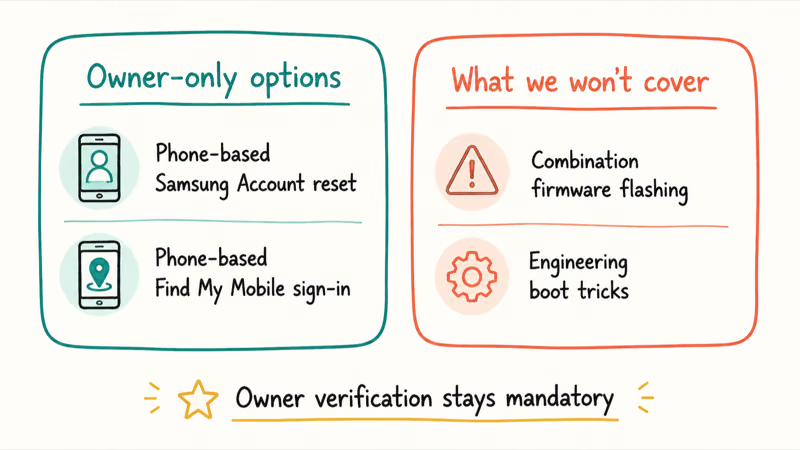
Contact Samsung support for official assistance or visit an authorized service center. They can verify your ownership and remove the lock through internal tools.
Will my data survive the bypass process?
Official Samsung methods preserve your data. Professional tools usually keep data intact, but manual bypass methods often require factory reset which erases everything.
Google Pixel FRP Bypass: Official Recovery in 2026
FRP locks your Pixel after a factory reset. Start with Google Account Recovery for your own device. Here is what works on Pixel 4a and later in 2026.
Motorola FRP Bypass: Official Recovery First (2026)
Locked out of your own Motorola? Use Google Account Recovery and Motorola Support before any FRP bypass tool. Legal limits explained for 2026.
OnePlus FRP Bypass: Region Risks and Recovery (2026)
OnePlus FRP bypass guide: OxygenOS vs ColorOS region risks, official Google Account Recovery, OnePlus Support, and why YouTube tutorials brick.
Xiaomi FRP Bypass: Mi Account vs Google Lock (2026)
Locked out of your Xiaomi after a factory reset? Tell Mi Account lock from Google FRP, use official recovery, and learn the 2026 legal limits.