Samsung FRP Bypass: Safe Recovery Options for Galaxy
Recover access to your own Samsung Galaxy after an FRP lock. Start with Google and Samsung account recovery, then use proof of purchase for service.
Quick AnswerFor your own Galaxy, recover the Google account used before the reset first. Then check your Samsung account and SmartThings Find, or take proof of purchase to Samsung support.
Factory Reset Protection is an anti-theft feature that blocks setup after a reset until the phone verifies the previous Google account. If the Galaxy is yours, recover that account first; use Samsung support with proof of purchase if recovery fails.
- Google Account Recovery is the first path for a Galaxy tied to your own Google account
- SmartThings Find can confirm whether the phone is registered to your Samsung account, but available controls vary by model and region
- A Samsung service center can review a locked phone when you bring the receipt and other proof of ownership
- Smart Switch Emergency Software Recovery repairs a failed software update; it doesn’t replace Google account verification
- Paid utilities are vendor products, not official Samsung or Google recovery methods, so check compatibility and refund terms before paying
Legal Notice: Use these recovery paths only on your own device or one you have explicit permission to service. If ownership or authorization is unclear, stop. Attempting to remove another person’s security controls can violate laws, contracts, and privacy rights, and the rules vary by jurisdiction; use the seller, carrier, or Samsung service process instead.
#Which Recovery Path Should You Try First?
Start with the account that was on the phone before the reset. The model and Android version matter less for official recovery than access to that account and proof that you own the device.
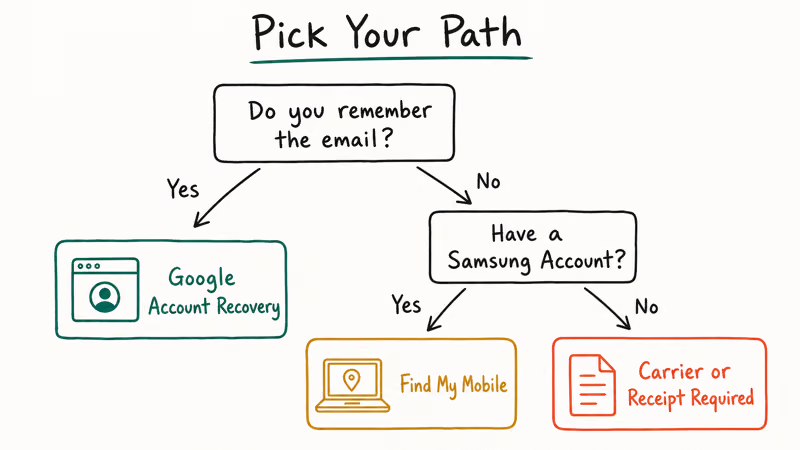
- Recover the Google account. Use the recovery email, phone number, or a device where you’re already signed in.
- Check your Samsung account. SmartThings Find, formerly Find My Mobile, shows registered devices and the controls available for them.
- Prepare proof of ownership. A receipt, carrier record, or invoice with the IMEI gives Samsung support something it can verify.
- Use Smart Switch only for update recovery. It can restore software after an interrupted update, but it isn’t an FRP bypass.
- Treat paid utilities as a last resort. Vendor support lists and prices change, and their claims aren’t a substitute for account recovery or ownership checks.
#Understanding Factory Reset Protection
FRP ties a reset Galaxy to the Google account previously used on it.
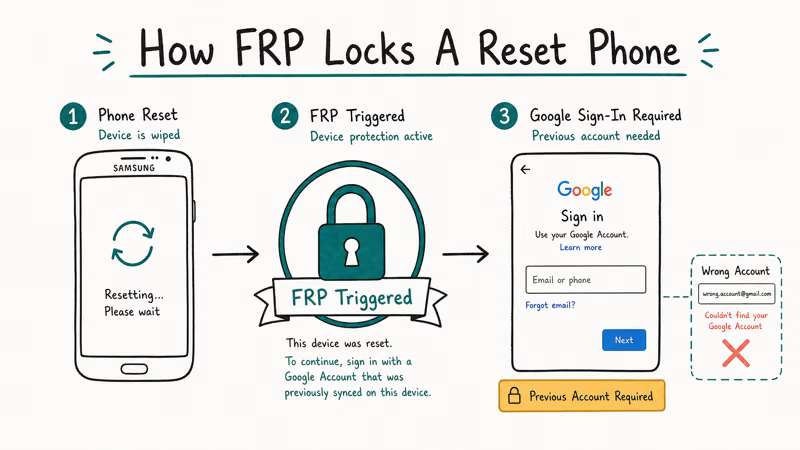
According to Google’s Android Help page, device protection can stop other people from using a protected phone after an unauthorized factory reset; Google says only someone with the Google Account or screen lock could use a protected device that was stolen and erased. That security goal is why this guide sticks to account recovery, ownership verification, and official software repair.
FRP can still catch a legitimate owner who forgot a password or bought a used phone that wasn’t properly removed from the seller’s account. The next sections cover those cases without publishing instructions that defeat the lock.
#Method 1: Google Account Recovery
This is the official starting point. According to Google’s account recovery page, the process covers a forgotten password, forgotten username, or missing verification codes.
- Open Google Account Recovery on another phone or computer.
- Enter the email address that was used on the Galaxy. If you forgot it, choose the username-recovery option.
- Answer Google’s questions and use a recovery email, recovery phone, or trusted signed-in device when offered.
- Reset the password when Google confirms the account is yours.
- Return to the Galaxy setup screen and sign in with the recovered account.
Never give a password or verification code to an account-recovery seller. Google says it doesn’t partner with those services.
If you need a longer preparation checklist, use our Google Account Recovery after a factory reset guide. Once you’re back in, secure your Google account by checking the recovery phone, recovery email, and 2-Step Verification settings.
#Method 2: Samsung Account and SmartThings Find
Find My Mobile is now part of SmartThings Find. According to Samsung’s SmartThings Find support page, the service shows devices registered to your Samsung account and makes only the controls supported for that device and region available.
- Open Samsung’s SmartThings Find website on another phone or computer.
- Sign in with the Samsung account that was registered on the Galaxy before the reset.
- Select the Galaxy from the device list and review the functions Samsung displays.
- If the phone isn’t listed or no relevant recovery control appears, contact Samsung support rather than trying to break out of the setup screen.
A supported SmartThings Find screen-unlock option is separate from FRP. Setup can still require the previous Google account.
Samsung’s page doesn’t promise a remote screen-unlock control for every device. Use only the controls currently shown for your registered Galaxy and region.
#Samsung Service Center With Proof of Purchase
If neither account can be recovered, ask Samsung to verify ownership. Bring the original receipt, carrier invoice, or activation record that identifies the phone, plus photo ID if the service center requests it.
According to Samsung’s repair-services page, owners can use a Samsung Account to manage repair requests, search for a local support center, and check an existing repair’s status. Requirements and available remedies vary by country, carrier, model, and warranty status, so confirm what the center needs before traveling.
Keep the IMEI and purchase record together. Don’t post the IMEI publicly or send it to an unverified unlock seller.
#Smart Switch Emergency Software Recovery
Smart Switch has an official recovery mode for a phone that failed during a software update. Samsung’s Phone Recovery Guide states that Emergency Software Recovery and Initialization restarts an interrupted update with current software.
Use that feature only when Smart Switch identifies an update-recovery problem. It may reinstall device software and erase data, but it doesn’t remove the requirement to sign in with the Google account previously linked to the phone. If Smart Switch stalls during a supported recovery, our Smart Switch troubleshooting guide covers connection and update checks.
#What Should You Do With a Used FRP-Locked Phone?
Stop setup and contact the seller. Ask the seller to recover their Google account through Google’s official process or take the phone back; don’t ask them to send you their password or verification code.
If the seller won’t help, use the marketplace’s return or dispute process. Keep the listing, payment record, messages, and the phone’s IMEI as proof of the transaction. An authorized Samsung service center can then tell you whether that evidence is enough for service, but it may refuse a device that can’t be tied to a legitimate purchase.
#Paid FRP Tools: Product and Price Information
These vendors advertise FRP features, but we haven’t verified their removal or compatibility claims. None is an official Google or Samsung recovery method.
Use software only on a device you own or are explicitly authorized to service. Read the vendor’s device list, renewal terms, and refund policy before paying.
#Tenorshare 4uKey for Android
Tenorshare describes 4uKey for Android as a screen-unlock product that includes Google FRP functionality. According to its official pricing page, the 1-year license was $39.95 for 1 PC and 5 mobile devices when checked on August 25, 2026. The annual plan renews automatically unless canceled.
Some links on this page are affiliate links, which means fone.tips may earn a commission at no extra cost to you.
#DroidKit
iMobie sells DroidKit as a full Android toolkit and also lists an FRP Bypass module. According to its official pricing page, a 3-month, 1-device/1-PC subscription was $35.99, reduced from $59.99, while the separate FRP Bypass module was $39.99 when checked on August 25, 2026. The subscription renews automatically unless canceled.
#Dr.Fone Screen Unlock
Wondershare describes Dr.Fone Screen Unlock for Android as a screen-lock product with an FRP feature. According to its official pricing page, the annual plan was $39.95 per year for up to 5 mobile devices and 2 PCs when checked on August 25, 2026. That plan also renews automatically unless canceled.
| Product | Official price checked August 25, 2026 | License scope shown by vendor |
|---|---|---|
| 4uKey | $39.95/year | 1 PC, 5 mobile devices |
| DroidKit | $35.99/3 months; FRP module $39.99 | 1 device, 1 PC for $35.99 |
| Dr.Fone | $39.95/year | Up to 5 devices, 2 PCs |
Prices and promotions can change. Check the official page and checkout total before purchase.
#Why This Guide Omits Manual Bypass Steps
FRP exists to stop a reset phone from becoming usable without the previous owner’s account. Emergency-call tricks, service-menu sequences, accessibility shortcuts, browser detours, and sideloaded packages are all attempts to get around that anti-theft check.
We don’t publish those sequences. The same instructions offered to a legitimate owner can be used on a lost or stolen phone, and security patches can make an old sequence fail or damage the setup state. Use account recovery, the seller, Samsung support, or a documented repair channel instead.
#Bottom Line
Recover the previous Google account first. Then check the Samsung account and SmartThings Find, and take proof of purchase to Samsung support if the accounts can’t be recovered.
Smart Switch is appropriate for a failed software update, not for defeating FRP. Paid tools remain vendor products with changing compatibility and subscription terms; they don’t replace proof that the phone is yours.
FRP bypass
#Frequently Asked Questions
Is bypassing Samsung FRP legal?
Only use recovery or service methods on your own device or one you have documented permission to handle. If ownership is disputed, stop and use the seller, marketplace, carrier, or Samsung service process.
Will official FRP recovery void my Samsung warranty?
Google Account Recovery and Samsung account recovery don’t modify the phone’s firmware. A service center can tell you whether a repair or software initialization affects coverage in your region.
Do these recovery paths depend on the Galaxy model?
Google account recovery works at the account level. SmartThings Find functions, Samsung service requirements, and third-party compatibility can vary by model, region, carrier, and software version.
Can I recover from FRP without a computer?
You can run Google Account Recovery and open SmartThings Find in a browser on another phone. Smart Switch Emergency Software Recovery requires a compatible Mac or Windows PC.
What happens to my data during FRP recovery?
FRP usually appears after a factory reset, so local data may already be erased. Account recovery doesn’t restore unsynced files, and Smart Switch software recovery may initialize the device again.
How do I prevent an FRP lock before selling a phone?
Remove your Google and Samsung accounts through the phone’s normal settings before starting a factory reset. Back up your data first, then confirm the buyer can reach setup without being asked for your account.
Which professional tool has the highest success rate?
We don’t have independent evidence for a reliable cross-model ranking. Check each vendor’s current device list and refund terms, but use Google and Samsung recovery first.
Google Pixel FRP Bypass: Official Recovery in 2026
FRP locks your Pixel after a factory reset. Start with Google Account Recovery for your own device. Here is what works on Pixel 4a and later in 2026.
Motorola FRP Bypass: Official Recovery First (2026)
Locked out of your own Motorola? Use Google Account Recovery and Motorola Support before any FRP bypass tool. Legal limits explained for 2026.
OnePlus FRP Bypass: Region Risks and Recovery (2026)
OnePlus FRP bypass guide: OxygenOS vs ColorOS region risks, official Google Account Recovery, OnePlus Support, and why YouTube tutorials brick.
Xiaomi FRP Bypass: Mi Account vs Google Lock (2026)
Locked out of your Xiaomi after a factory reset? Tell Mi Account lock from Google FRP, use official recovery, and learn the 2026 legal limits.