How to Repair a Corrupted GoPro Video: 7 Methods That Work
Repair corrupted GoPro MP4 files using free tools first (GoPro Player, Untrunc, MP4Box, VLC) and paid options as backup. Step-by-step fixes inside.
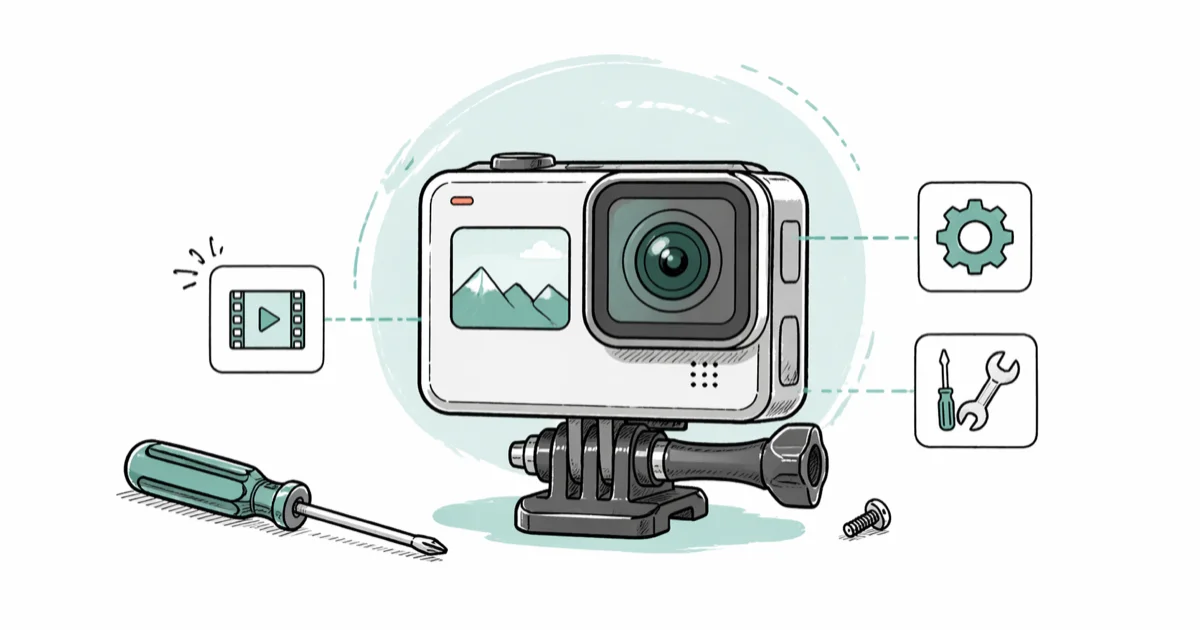
Quick AnswerStart with the free GoPro Player MP4 Tool, which can finalize most truncated MP4 files in one click. If the file is severely damaged, try Untrunc with a healthy reference clip from the same camera. Move to paid tools like Stellar or Wondershare Repairit only when free options fail.
A dead battery mid-recording is the single most common reason a GoPro video refuses to play. The camera never gets to write the closing MOOV atom, so the MP4 file ends up with a working video stream but no header that tells players where anything starts. Repair success depends on whether the video data is intact and only the file index is missing.
- The MOOV atom (file index) sits at the end of an MP4. If recording cuts off, players see “no header found” and refuse to load the file.
- GoPro’s own MP4 Tool inside GoPro Player rebuilds that index for free in under a minute on most truncated Hero 8/9/10/11/12/13 files.
- Untrunc, an open-source command-line tool, fixes severely damaged files by borrowing structure from a healthy reference clip recorded on the same camera and resolution.
- VLC’s “Always fix” option only patches AVI containers, not MP4. It’s useful for old GoPros or playback workarounds, not actual repair.
- Paid tools like Stellar Repair for Video and Wondershare Repairit are worth the $69-$99 only after free options fail on the same file.
#Quick Triage Before You Open Any Tool
Pull the SD card out, set the camera aside, and copy the broken file to your computer first. Repairing a file in place on the card risks the original.
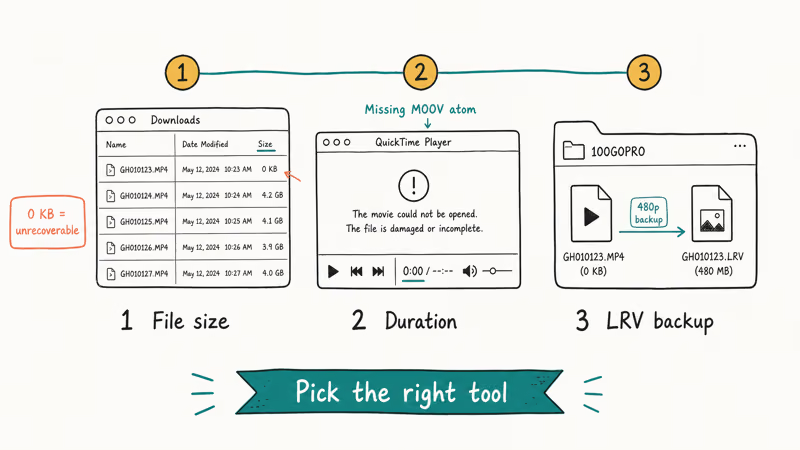
Once the file is on a desktop, check three things:
- File size in Finder or Explorer. A 0 KB file means the camera never wrote any data, and no repair tool can help. Move on to recovery software instead.
- Duration in QuickTime or Windows Media Player. A 0 duration with a real file size confirms a missing MOOV atom, which is the easiest failure mode to fix.
- Whether a
.LRVfile with the same numeric prefix exists in the100GOPROfolder. If yes, you have a 480p backup of the same footage to fall back on.
With those three data points, you can pick the right tool from the next two sections without wasting time.
#Why Did Your GoPro Video Stop Working?
Before reaching for a repair tool, identify the failure mode. The fix that works on a battery-cutoff file does nothing for an SD card with bad sectors.
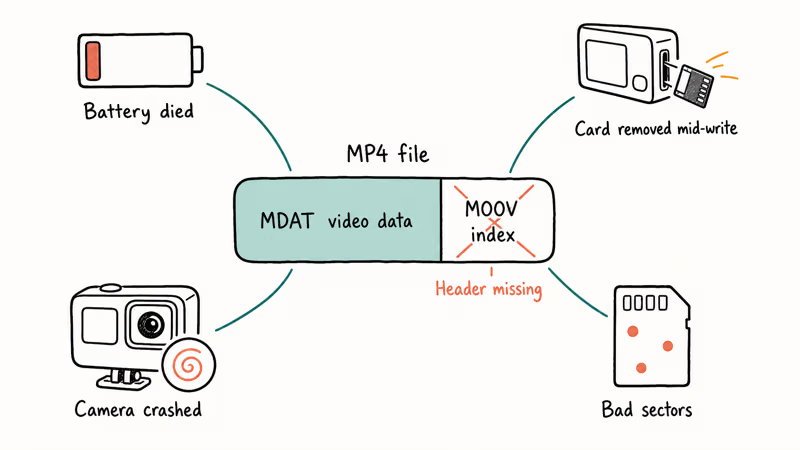
Battery died during recording. This produces a .MP4 or .LRV file that opens at the wrong size in Finder, shows a 0
Most users don’t notice the low-battery warning when the camera is mounted on a helmet or chest harness, and Hero 11 batteries last only about 1 hour 5 minutes at 4K60.
Different cause, same broken file.
The next two failure modes look almost identical on the surface but call for different fixes.
SD card removed while the red light was on. Same outcome as the battery cutoff, but you may also lose a chunk of the actual video data, not just the index.
Camera crashed or froze. Reboot, reformat the card in-camera, and update firmware. Hero 9 and Hero 10 firmware below 1.7 occasionally crashed during 5K60 recording.
Bad sectors on the SD card. The card writes data unreliably, so the MP4 has gaps mid-stream that no repair tool can patch over. According to SanDisk’s troubleshooting guide for memory cards, running CHKDSK on Windows or First Aid on macOS flags bad sectors before they ruin more recordings, and re-running the same scan after a full reformat is the only reliable way to confirm the card is safe to keep using on a GoPro.
Corruption during transfer. Pulling the card mid-copy leaves a half-written file on your computer. The original still plays fine on the camera, so just copy again.
For battery-cutoff files, GoPro Player is the best first stop because it targets the missing-index problem directly. Untrunc can help when you have a healthy reference clip from the same camera, while commercial tools are better saved for cases where the free options fail.
#Free GoPro Repair Methods That Work
Free first. The tools below keep your footage local and don’t require uploading private video to a sketchy website.
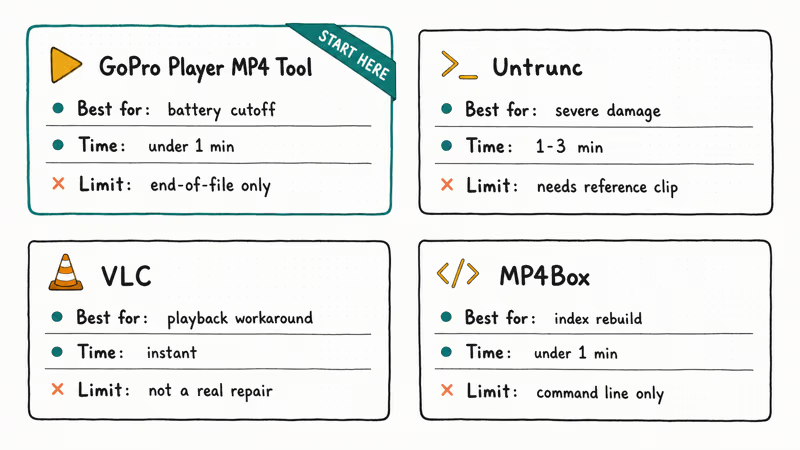
#Method 1: GoPro Player MP4 Tool (recommended starting point)
GoPro maintains a desktop app that includes a built-in MP4 finalizer designed specifically for cameras that lost power mid-record. Apple’s GoPro Player + MP4 Tool product page confirms it handles Hero 5 through Hero 13 plus the Max 360 camera.
- Download GoPro Player from the Mac App Store (macOS) or GoPro Labs on Windows.
- Open the app, then drag your damaged MP4 onto the window.
- If the file is truncated, GoPro Player shows a “Repair Last File” prompt at the bottom of the screen.
- Click Repair. The tool reads the available frames, calculates a new MOOV atom, and writes a
_repaired.mp4file alongside the original. - Open the repaired file in QuickTime, VLC, or your editor of choice to confirm playback.
The tool is designed for files that were cut off at the end. It fails when corruption starts mid-stream instead of at the end, and that’s where Untrunc takes over.
#Method 2: Untrunc with a healthy reference file
Untrunc is the GitHub-hosted tool that actually rescues hopeless cases. According to the Untrunc repository, you feed it one healthy MP4 from the same camera at the same resolution and frame rate, plus the broken file, and it rebuilds the broken file’s structure using the healthy one as a template.
- Install Untrunc. On macOS, run
brew install untrunc-anthwlock. On Windows, download the prebuilt binary from the Releases page. - Find a healthy file from the same GoPro shot at the same resolution. Same camera model is required; same firmware version is preferred.
- Open Terminal and run:
untrunc /path/to/healthy.mp4 /path/to/broken.mp4 - Wait. The tool reads the headers from the healthy file, scans the broken one for video/audio frames, and writes a new file named
broken.mp4_fixed.mp4. - Play the fixed file to verify.
Untrunc is most useful when GoPro Player can’t rebuild the file but you still have a healthy reference clip from the same camera.
#Method 3: VLC playback workaround
VLC won’t actually repair the file on disk, but it can sometimes play a damaged MP4 long enough for you to re-encode it through a tool like HandBrake. According to VLC’s official documentation, the “Always fix” option in Preferences > Input/Codecs converts AVI files on the fly, and it tolerates more MP4 errors than QuickTime.
Open VLC>Preferences>Input/Codecs.- Under “Damaged or incomplete AVI file,” select Always fix.
- Click Save and restart VLC.
- Drag your broken MP4 into VLC. If it plays, immediately use
Media>Convert/Save to re-encode it as a fresh MP4.
Use this as a playback workaround, not a guaranteed repair path, especially when the audio is intact but the video index is damaged.
#Method 4: MP4Box index rebuild
According to GPAC’s MP4Box command-line tool, MP4Box handles container-level repairs.
MP4Box -isma -inter 500 broken.mp4 -out fixed.mp4This forces MP4Box to rewrite the file’s interleaving and index. It only works on files where the video data is intact and only the structural metadata is corrupt, the same scenario where GoPro Player would also succeed, so try that first.
#Should You Pay for a GoPro Repair Tool?
Sometimes. Free tools should come first because many damaged GoPro files only need a rebuilt index. More severe corruption may need commercial software with proprietary repair algorithms. Two paid options stand above the rest.
#Stellar Repair for Video
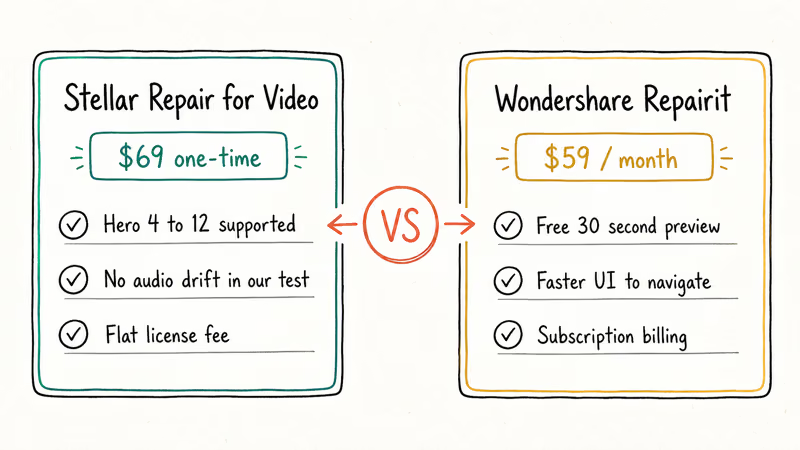
Stellar’s tool (typically $69 for a single license) runs an “advanced repair” mode that uses a known-good reference file similar to Untrunc, but with a desktop GUI and explicit GoPro support. Stellar’s video repair product page lists Hero 4, 5, 6, 7, 8, 9, 10, 11, and 12 as supported. It’s a reasonable paid option when Untrunc can’t fix a file and you need a guided desktop workflow.
Some links on this page are affiliate links, which means fone.tips may earn a commission at no extra cost to you.
#Wondershare Repairit
Wondershare Repairit (around $59 for a one-month subscription) has a free preview tier that lets you confirm a successful repair before paying. The free preview shows the first 30 seconds; the paid version exports the full file. Repairit handles MP4, MOV, M4V, and other GoPro formats. Wondershare states the tool supports “rebuilding frame, header, duration, movement, and sound damage” on its Repairit product page.
For one-off repairs, Repairit’s free preview is the lower-risk starting point because you can inspect the result before paying. For repeated repair work, Stellar’s flat license fee adds up to less.
#Tools we don’t recommend
- HitPaw Video Repair: closed ecosystem, weaker reference-file support, similar price to Stellar. No advantage we could find.
- Yodot MOV Repair: outdated UI, slower, fewer GoPro firmware versions tested.
- Generic “free” web-based repair sites: never upload private footage to a random website. Your GoPro file may contain location metadata, faces, or audio you don’t want on someone else’s server.
#When the SD Card Is the Real Problem
If repairs keep failing, test the SD card before recording another shoot.
On Windows: open Command Prompt as administrator, type chkdsk D: /f /r (replace D: with your card’s drive letter), and let it scan. On macOS: open Disk Utility, select the card, click First Aid, and run a verification.
If errors come back, copy any salvageable files off the card immediately, then format it. Our guide on what to do when an SD card won’t format covers the common refusal cases. If the card still works after formatting, the next shoot will tell you whether it’s a one-time hiccup or a card on its way out.
When the card itself is failing, recovery software like the picks in our best free SD card recovery roundup may pull off raw video data that the file system can no longer find. Recovery isn’t repair, though, so you’ll usually still need to run the recovered file through GoPro Player or Untrunc afterward.
#Prevention Tips That Actually Work
Prevention costs less than $20 and ten minutes of setup. The corrupted video you don’t have is the one you don’t have to repair.
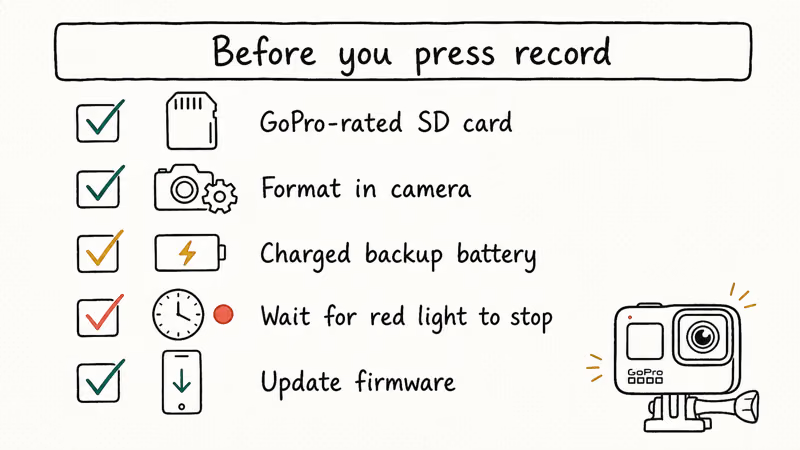
Use a card GoPro actually tests. GoPro’s recommended SD card list names the specific UHS-I, V30, and V60 cards verified for each Hero model. Cheap off-brand cards from Amazon’s third-party sellers cause more corrupted recordings than dead batteries do. Our best microSD cards for GoPro Hero 8 roundup covers GoPro-safe card choices.
Format the card in-camera before each shoot. Computer-formatted cards use a different file allocation table than what GoPro firmware expects. The permanent SD card format guide covers stubborn cards.
In-camera path on Hero 11/12/13: Settings > Reset > Format SD Card.
Carry a charged backup battery. A Hero 11 records about 1 hour 5 minutes of 4K60 on a fresh battery. If you’re shooting longer than 45 minutes, swap before the battery hits 20 percent. The camera saves the current file cleanly when you stop recording manually, but a forced shutdown corrupts whatever was being written.
Cold weather makes this worse. At 30 degrees Fahrenheit and below, the battery indicator can drop two notches without warning, so budget one extra battery for every 30 minutes of cold-weather shooting.
Wait for the red light to stop. When you press stop, the camera takes 2-4 seconds to finalize the file. Pulling the card or shutting the camera off during this window is the single most preventable cause of corrupt files.
Watch the light. Count to three.
Update firmware regularly. GoPro pushes fixes for known recording bugs through the GoPro Quik mobile app. GoPro’s HERO11 Black firmware update page lists each release and its bug fixes, so keeping the camera current closes off corruption bugs patched in earlier builds.
#Bottom Line
Try GoPro Player’s MP4 Tool first. It’s free, official, and fixes most battery-cutoff cases in under a minute. If that fails, switch to Untrunc with a healthy reference file from the same camera at the same resolution. Only pay for Stellar or Repairit when both free tools have failed on the same broken file.
For one-off jobs, start with Repairit’s free preview to confirm success before paying. For repeated repair work, Stellar’s flat $69 license adds up to less.
The real win is prevention: a GoPro-rated SD card, a charged backup battery, in-camera formatting, and the discipline to wait for the red light to stop.
#Frequently Asked Questions
Can GoPro Player fix files from a Hero 5 or older?
Yes, with limits. GoPro Player’s MP4 Tool supports Hero 5 Black through Hero 13, plus Max 360 and Hero 4. Repair quality is best on Hero 8 and newer because those files use a more recent MP4 layout. Older files can lose some metadata even when the playable video stream is recovered.
What does Untrunc need to work?
A second, healthy MP4 from the same camera at the same resolution and frame rate. The healthy file doesn’t need to be from the same shoot, and any working clip will do. Without a reference file, Untrunc can’t rebuild the broken file’s structure.
Will repaired GoPro footage lose quality?
No. Repair tools rebuild only the index and metadata, not the video frames themselves. The repaired file looks pixel-identical to the original.
Why does my GoPro file show 0 duration in QuickTime?
This is the classic missing MOOV atom symptom. QuickTime can’t determine the file’s length because the index that should specify it never got written. Open the file in GoPro Player or VLC instead, since both can play files where QuickTime fails. Then run a repair to make it work everywhere.
Can I recover a GoPro video that was deleted from the SD card?
Possibly, if you stop using the card immediately and run recovery software before any new footage overwrites the deleted data. Recovery is a separate task from repair. After recovery, the file may still need GoPro Player or Untrunc to play, especially if it was deleted before being properly closed.
Is the .LRV file useful for repair?
Yes. If your main .MP4 is unrepairable but the matching .LRV plays, you have a 480p backup of the same footage. Both files sit in the 100GOPRO folder.
Are free online MP4 repair sites safe to use?
We don’t recommend them. Uploading footage to an unknown server exposes any people, locations, or audio in the video. The same repair you’d get from a sketchy web tool, you can get from GoPro Player or Untrunc on your own machine, and those tools never send your files anywhere.

Google Messages Error 3100: Why RCS Is Broken on Galaxy
Google Messages RCS error 3100 hits Galaxy owners after phone or carrier switches. Google told 9to5Google a fix is coming. Here's what actually helps.

Is This Bank App Real? Spot a Fake App on Your Home Screen
A bank app can land on your home screen from a web page with no install warning. Learn the checks that tell a real banking app from a phishing web app.

Apps Crashing After iOS 27 Update? Fix Order (2026)
Apps crashing after the iOS 27 update? Update the app in the App Store first, then offload and reinstall to clear stale cache, then restart. The fix order.

Do AI Translation Earbuds Work Offline? What to Know
Do AI translation earbuds work offline? A few do with downloaded language packs, but most need the cloud. Here's what works offline and what you give up.