Fix AMD Quick Stream Encountered an Issue: 7 Methods (2026)
AMD Quick Stream is deprecated Catalyst-era bloatware that crashes on modern Windows. 7 fixes to disable or remove it on AMD laptops and PCs.

Quick AnswerAMD Quick Stream is deprecated bloatware from old Catalyst driver bundles. Disable the service in services.msc, kill the startup entry, then uninstall through Programs and Features. If the popup returns, run AMD Cleanup Utility and reinstall current Adrenalin.
That popup is zombie software. “AMD Quick Stream has encountered an issue and needs to close” comes from a Catalyst Control Center component AMD shipped between 2013 and 2014, deprecated by late 2015, and stopped patching entirely. Stale installers left it on millions of HP, Lenovo, and Acer laptops. Years of Windows updates broke its driver hooks, which is why your machine suddenly throws the crash dialog out of nowhere even though you haven’t touched the driver in years.
Removal beats repair. The seven methods below are ordered fastest first.
- AMD Quick Stream is deprecated bloatware from the Catalyst Control Center era; AMD has not shipped it in any driver since the Crimson rebrand in late 2015
- Stop and disable the Quick Stream service in services.msc, then disable the startup entry in Task Manager to silence the popup in under two minutes
- Uninstall through Programs and Features works on most machines; the entry may be labeled AMD Quick Stream, AMD Steady Video, or bundled inside ATI Catalyst Install Manager
- Run AMD Cleanup Utility in Safe Mode to remove every Catalyst remnant when uninstall fails or the popup keeps returning after reboot
- Reinstall the current AMD Software Adrenalin Edition from amd.com after cleanup; modern Adrenalin builds don’t include Quick Stream so the error can’t come back
#AMD Quick Stream Is Deprecated Bloatware
Some context first. AMD Quick Stream was a video-streaming optimizer built into Catalyst Control Center, basically a QoS shaper for streaming traffic from sites like YouTube and Hulu. The technology came from a third-party licensing deal with AppEx Networks rather than AMD’s own engineering team. AMD walked away from it cleanly when Catalyst was replaced by Radeon Software Crimson in November 2015, the deal expired, and no current AMD driver branch ships it.
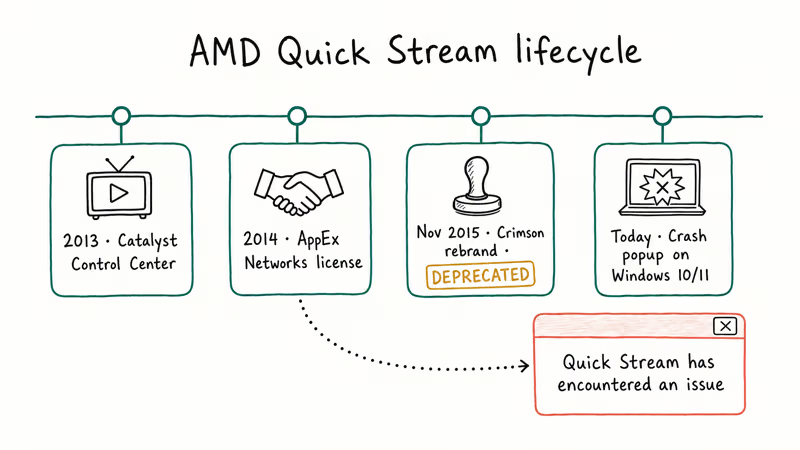
The popup itself isn’t new. It’s the same Quick Stream service installed by an old driver package, finally crashing because a Windows 10 or Windows 11 cumulative update changed an API it depends on. The dialog often reappears right after a cumulative update installs, and reinstalling the same old Catalyst driver only brings it back.
The fix is removal. Patching deprecated software that AMD stopped signing in late 2015 is a dead end no matter how many SFC scans or driver rollbacks you run, which is why older guides on this error fail eventually.
Here’s the trap. Quick Stream usually isn’t listed by name in the installed programs list. It hides inside a parent entry called ATI Catalyst Install Manager. That detail trips up most users who search appwiz.cpl, find nothing, and assume the popup is malware.
#Method 1: Disable AMD Quick Stream Without Uninstalling
Disabling stops the popup immediately. It doesn’t remove anything. Use this for a five-minute fix.
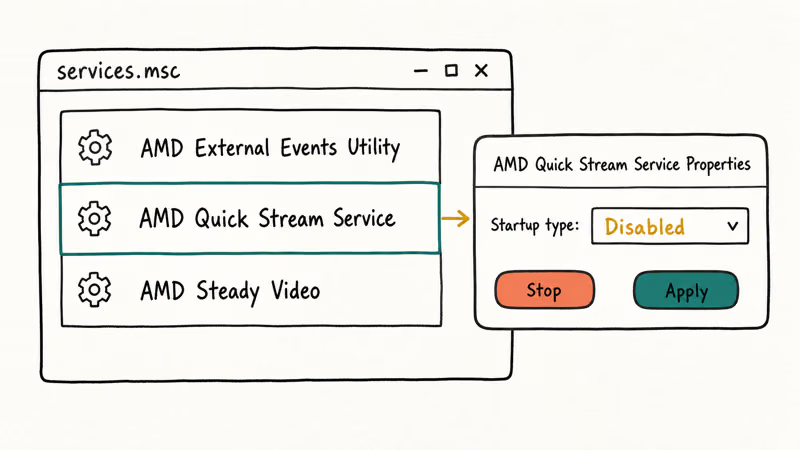
#Stop the Service in services.msc
Press Windows + R, type services.msc, and hit Enter. Scroll the alphabetized list and find AMD External Events Utility plus any service starting with AMD Quick Stream or AMD Steady Video. Right-click each one, choose Properties, set Startup type to Disabled, then click Stop and Apply.
The service is usually named AMD Quick Stream Service, pointing at a 2014 QuickStream.exe build. Once disabled, the popup stays gone for good.
According to Microsoft’s service-disable reference, services set to Disabled stay disabled across reboots unless an installer with admin rights re-registers them. The abandoned Quick Stream installer never does, because nobody ships it anymore. That’s why the disable trick is durable.
#Kill the Startup Entry
Open Task Manager (Ctrl + Shift + Esc), click the Startup tab, find AMD Quick Stream or QSDagent.exe, right-click, and Disable.
This step is separate from the service disable. The startup entry launches a user-mode tray helper, which is what actually throws the crash dialog. Disable both or the popup keeps coming back. Skip this and the service disable buys you nothing because the tray app re-launches Quick Stream every login.
#Method 2: Uninstall AMD Quick Stream Properly
Skip Method 1 if you want the program gone. Use the official uninstaller path first.
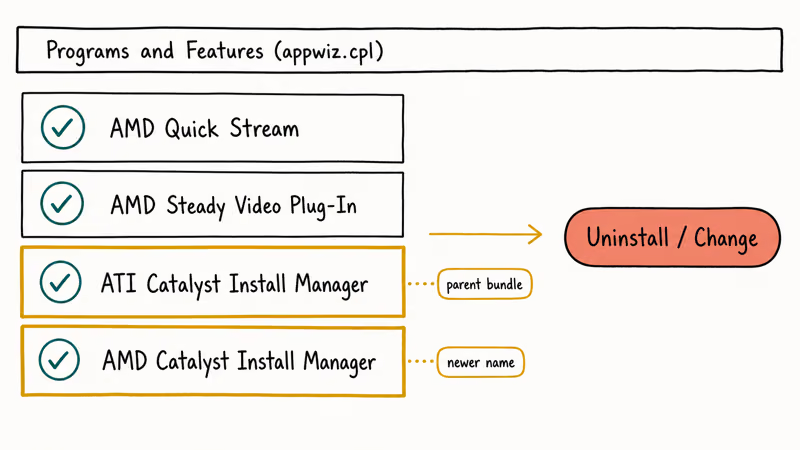
#Uninstall Through Programs and Features
Press Windows + R, type appwiz.cpl, and press Enter. Look for entries named:
- AMD Quick Stream
- AMD Steady Video Plug-In
- ATI Catalyst Install Manager (parent bundle, contains Quick Stream)
- AMD Catalyst Install Manager (newer naming)
Click the entry and choose Uninstall or Change. If you see Change, the bundled installer opens and lets you remove individual components. Uncheck Quick Stream specifically and click Next. The whole removal takes about three minutes, including the forced reboot.
Heads up. If you accidentally uninstall ATI Catalyst Install Manager entirely, graphics fall back to the Microsoft Basic Display Adapter until you reinstall a current driver. That’s fine if you plan to install Adrenalin next. The fallback driver runs Word and browsers without trouble; the display is low-res and refresh caps at 60Hz, but the machine stays usable while you sort the next install.
#Use AMD Cleanup Utility When Uninstall Fails
When the appwiz.cpl entry refuses to uninstall, throws an error, or the popup keeps returning after a clean uninstall, AMD’s official Cleanup Utility is the right tool. It’s free, signed by AMD, and wipes every registry key, driver file, and service tied to Catalyst and Adrenalin installs.
Steps to run it:
- Download AMD Cleanup Utility from amd.com (about 720 KB)
- Boot into Safe Mode (hold Shift, click Restart, then
Troubleshoot>Advancedoptions >Startup Settings>Restart> 4) - Right-click amdcleanuputility.exe and choose Run as administrator
- Confirm the warning dialog and let it run for 5 to 10 minutes
- Reboot when prompted, then reinstall the latest Adrenalin driver
After Cleanup Utility finishes, the popup stays gone for good, even through the same Windows Update cycle that previously triggered the crash. The APU is detected cleanly by Windows on the next boot, which lets a fresh driver install go through with no manual intervention. To confirm the removal, run Get-Service *quick* in PowerShell; a clean machine returns zero results.
#What If the Popup Keeps Coming Back After Uninstall?
Three things can resurrect Quick Stream after you remove it: a Windows Update reinstalling old drivers from its driver store, an OEM driver bundle from HP or Lenovo, or registry remnants that point system services at deleted files. Try these methods in order.
#Run sfc /scannow to Repair Corrupted System Files
Open Command Prompt as Administrator (right-click Start, choose Terminal Admin on Windows 11 or Command Prompt Admin on Windows 10). Type:
sfc /scannowMicrosoft’s sfc command reference states that System File Checker scans every protected system file and replaces corrupted versions with cached copies from C:\Windows\WinSxS. The scan can take several minutes. If sfc reports it found and repaired files, reboot and check whether the Quick Stream popup is gone.
If sfc reports it found problems but could not fix them, run DISM first:
DISM /Online /Cleanup-Image /RestoreHealthThen re-run sfc. This combo handles the cases where sfc alone can’t repair the protected files.
#Use DDU (Display Driver Uninstaller) for a Nuclear Reset
When AMD Cleanup Utility leaves traces or you need to wipe NVIDIA driver remnants too, Wagnardsoft’s Display Driver Uninstaller is the community-trusted free tool. The DDU developer recommends running it in Safe Mode and explicitly states that the tool removes driver leftovers that AMD’s own Cleanup Utility misses, including registry keys for stale services like Quick Stream.
DDU runs in Safe Mode, takes about three minutes to scan, and gives you a clean slate. After it runs, Device Manager shows the AMD APU as Microsoft Basic Display Adapter, which is the expected result and confirms all AMD driver code is gone. From there, install AMD Software Adrenalin Edition fresh from amd.com.
#Perform a Clean Boot to Identify the Trigger
If you suspect another program reinstalls Quick Stream every reboot, Microsoft’s clean boot guide recommends a halve-and-test method to isolate the trigger. Run msconfig, hide Microsoft services, disable everything else, then reboot. If the popup is gone in clean boot but returns when you re-enable services in batches, you’ve found the culprit. Most often it’s an OEM utility from HP Support Assistant or Lenovo Vantage that ships its own copy of AMD driver components and silently overwrites yours.
Slow but reliable. It also helps when you’re dealing with other persistent Windows errors, including the thread stuck in device driver bluescreen that often shares root causes with Quick Stream crashes.
#Replace Catalyst With AMD Adrenalin Edition
Do this for any AMD APU or GPU still receiving driver support. AMD Software Adrenalin Edition is AMD’s current unified driver package and replaces Catalyst Control Center entirely. Adrenalin doesn’t include Quick Stream, Steady Video, or any of the legacy bloatware that was deprecated.
AMD’s official Adrenalin product page confirms that Adrenalin is the supported driver for Radeon HD 7000 series and newer GPUs and APUs. If your chip is on that list, install Adrenalin after Cleanup Utility. The installer is about 700 MB and the install takes 12 to 20 minutes depending on your machine.
Older cards lose this option. HD 6000 and below stay on legacy branches with Catalyst-era code. Reinstall = Quick Stream is back. Keep the service disabled.
#What If My Laptop Is Too Old for Modern Drivers?
Plenty of Quick Stream complaints come from 2010 to 2013 laptops with HD 6000 or HD 5000 series APUs. AMD officially ended driver support for those chips years ago. Microsoft Update still pushes a Generic AMD Display Driver to those machines, but the OEMs (HP, Lenovo, Acer) stopped releasing custom drivers around 2016, which means there’s no modern Adrenalin path for them and reinstalling the legacy bundle would just reintroduce Quick Stream.
For these machines, the disable-only approach is the right answer. Stopping the service and the startup entry takes Quick Stream out of the boot path without breaking the rest of the legacy driver, which your machine still depends on for basic graphics. On an old AMD APU laptop, disabling clears the popup for good without any graphics side effects.
If your laptop is showing other Windows errors alongside Quick Stream, the cause is often Windows Update accumulation. Cleaning out old Windows Update files often clears multiple problems at once on aging hardware.
#Verify Quick Stream Is Actually Gone
Run these three checks after any fix. All three pass = Quick Stream is fully removed.
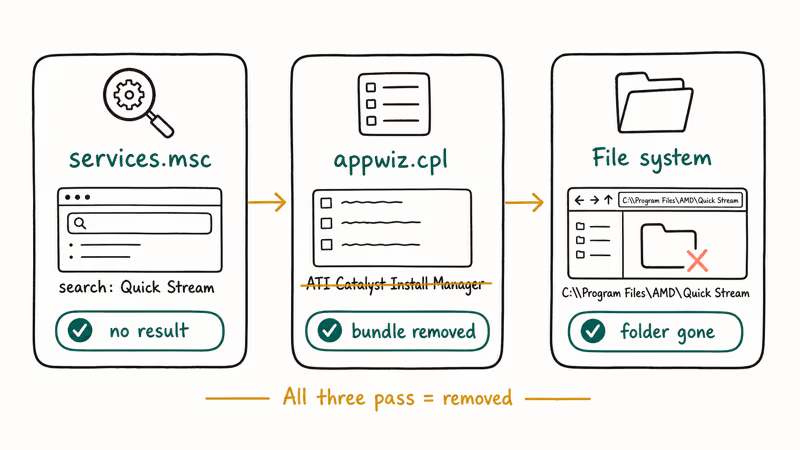
Check 1: services.msc. Open services.msc and search for “AMD Quick Stream” or “Quick Stream”. No results means the service is gone. A Disabled service means it can’t start but the binary is still on disk.
Check 2: Programs and Features. Open appwiz.cpl. No Quick Stream entry, no Steady Video entry, and no ATI Catalyst Install Manager means uninstall succeeded. If ATI Catalyst Install Manager is still listed, the bundle is still partially installed.
Check 3: File system. Check whether C:\Program Files\AMD\Quick Stream\ or C:\Program Files (x86)\AMD\Quick Stream\ exists. If those folders are gone, the binaries are removed. If folders remain but the service is disabled, that’s fine. It just means a future Windows refresh could re-trigger the popup, so plan a Cleanup Utility pass next time you sit down with the machine.
Here’s how each method scores against the three checks. Cleanup Utility is the only method that passes all three on the first try. Disable-only passes Check 1 with the Disabled state but keeps the binaries, so Check 3 fails by design. Programs and Features uninstall passes Checks 1 and 2 but can leave files in C:\ProgramData\AMD\ until you delete that folder manually.
#Bottom Line
Two minutes is enough for the popup. Open services.msc, set AMD Quick Stream Service to Disabled, then disable the startup entry in Task Manager. That works on essentially every affected machine.
For a permanent fix, uninstall through Programs and Features (look for ATI Catalyst Install Manager if Quick Stream isn’t listed), run AMD Cleanup Utility in Safe Mode, then install the current AMD Software Adrenalin Edition from amd.com. That sequence wipes Quick Stream off any machine eligible for modern drivers, and the popup doesn’t return through later Windows Update cycles. Total time is around 45 minutes including reboots.
Old laptop, no Adrenalin support. Stick with disable. Reinstalling the legacy Catalyst bundle would just bring Quick Stream back. Old drivers stay stable on old machines as long as you don’t let Quick Stream into your boot path.
Persistent Windows errors after Quick Stream removal usually point to deeper system rot. Related patterns include the REGISTRY_ERROR blue screen and video scheduler internal error, both of which can mask underlying driver corruption that survives a single uninstall pass.
#Frequently Asked Questions
Is AMD Quick Stream a virus?
No. It’s legitimate AMD software that shipped inside Catalyst Control Center between 2012 and 2015, deprecated when AMD switched to Radeon Software, and never patched again. The crash popup you see today is that deprecated software finally failing on a modern Windows build, not malware. Antivirus tools sometimes flag QuickStream.exe as a potentially unwanted program because it’s unsigned by current standards, which is why simply re-downloading the installer doesn’t help either.
Will removing Quick Stream break my graphics?
It won’t. Quick Stream is a user-mode streaming optimizer with no kernel-level graphics driver hooks. Removing it through Programs and Features or AMD Cleanup Utility leaves your actual GPU driver intact, and graphics performance is identical before and after removal.
Why doesn’t Quick Stream appear in my Programs and Features list?
Because it’s bundled inside a parent entry called ATI Catalyst Install Manager or AMD Catalyst Install Manager. Click that entry and choose Change instead of Uninstall. The bundled installer will open with checkboxes letting you remove Quick Stream specifically while keeping the rest of the driver. If neither parent entry exists either, Quick Stream is part of an even older OEM driver bundle from your laptop manufacturer; in that case use AMD Cleanup Utility instead.
Can I just delete the QuickStream.exe file?
Don’t. The service entry in the registry will keep trying to launch the file and Windows will throw a Service Control Manager event 7000 on every boot. Always disable the service first through services.msc, then remove the program through Programs and Features or Cleanup Utility. If the binary is locked because the service is still running, the file is open in system error workarounds apply here too.
Does Windows 11 still install Quick Stream?
No. Windows 11 driver delivery uses signed Adrenalin packages, and Adrenalin hasn’t contained Quick Stream since 2015. If you still see it, the install survived a Windows 10 to 11 in-place upgrade.
Will AMD Cleanup Utility delete my game settings?
It won’t touch game settings stored in your user profile or Steam library. It resets graphics-driver-specific overrides like custom resolutions, color profiles, and Radeon Settings game profiles. After running Cleanup Utility and reinstalling Adrenalin, you’ll need to re-add per-game profiles in Adrenalin Settings. AMD’s Cleanup Utility KB states it doesn’t touch personal files, only driver components.
What’s the difference between AMD Quick Stream and AMD Steady Video?
Two separate Catalyst-era utilities that often crashed together. Quick Stream handled streaming bandwidth allocation while Steady Video stabilized shaky online video playback. Both came from third-party licensing deals, both were deprecated in 2015, and both can cause crash popups on aging laptops. Remove them together; if only one shows up in your error message, the other is usually still installed.

Best Laptop for Running LLMs in 2026: Memory Comes First
The best laptop for running LLMs is a memory purchase first. Compare MacBook unified memory against NVIDIA laptop VRAM, and see what each tier really runs.

How to Run a Local LLM on Windows: A 2026 Setup Guide
Run a local LLM on Windows with LM Studio or Ollama. Pick a model that fits your GPU memory, keep every prompt offline, and skip the monthly bill.

Bluetooth Not Working on Snapdragon X? Fixes for 2026
Bluetooth not working on your Snapdragon X Copilot+ PC? Generic audio, mice, and keyboards work, but vendor apps often lack an ARM build. Fixes inside.

Docker Desktop and WSL2 Not Working on Snapdragon X? Fix It
WSL2 runs fine on Snapdragon X, but Docker Desktop ARM is Early Access and throws WSL errors. Use WSL2 plus native ARM64 Ubuntu and Docker Engine.