What Is The Red Dot On Discord Icon? How To Fix It Fast
The red dot on Discord icon means unread activity. Find the source in 30 seconds, clear it cleanly, and stop noisy servers from triggering it again.
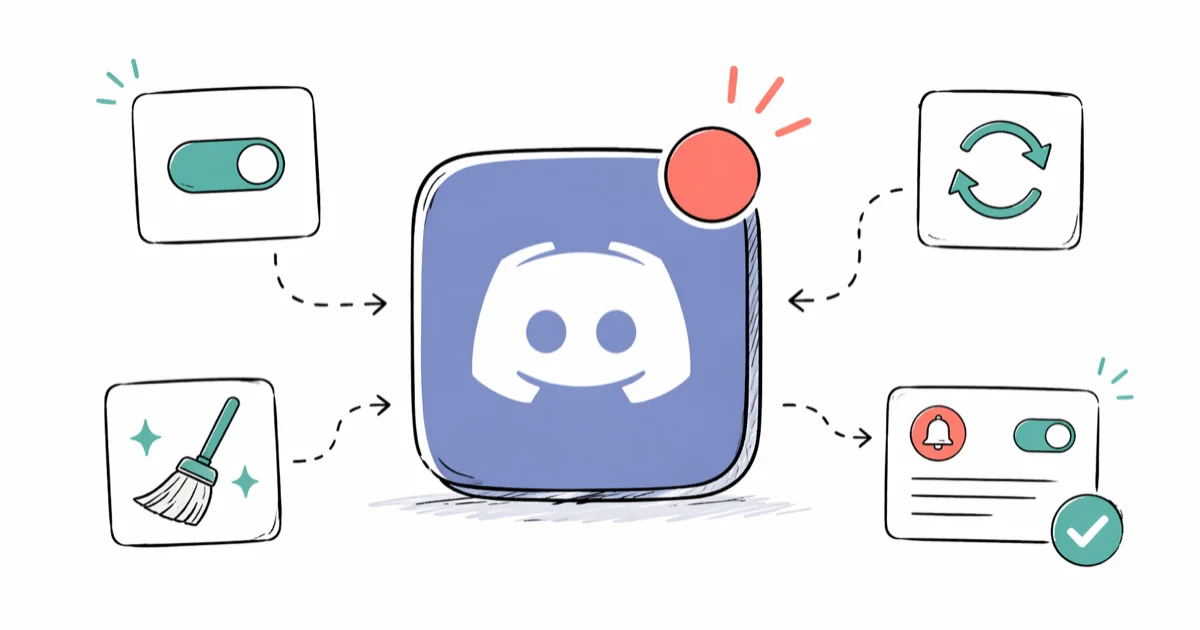
Quick AnswerThe red dot on the Discord icon means unread activity, like a server message, mention, DM, or pending friend request. Hover over the icon, mark conversations as read, mute noisy servers, or toggle off the unread badge in Notifications to clear it.
The red dot on the Discord icon almost always means one thing: something is unread. The trick is figuring out which scope flagged it. A server icon dot, a numbered mention bubble, a DM dot, and a tray-icon dot all look similar but come from different places.
Discord shows the red dot the same way on desktop (Windows and macOS) and on the iOS app. This guide maps where each source comes from and how to clear it without killing useful alerts.
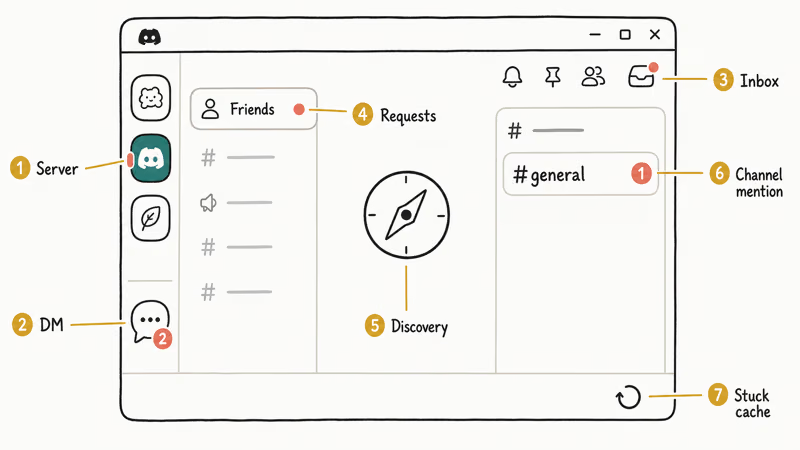
- A red dot on the Discord app icon points to unread activity in one of seven places: a server, a channel mention, a DM, the Inbox, friend requests, Discovery, or a stuck cache.
- Hover over a server icon to preview which channels triggered the unread dot before you decide whether to read or mute.
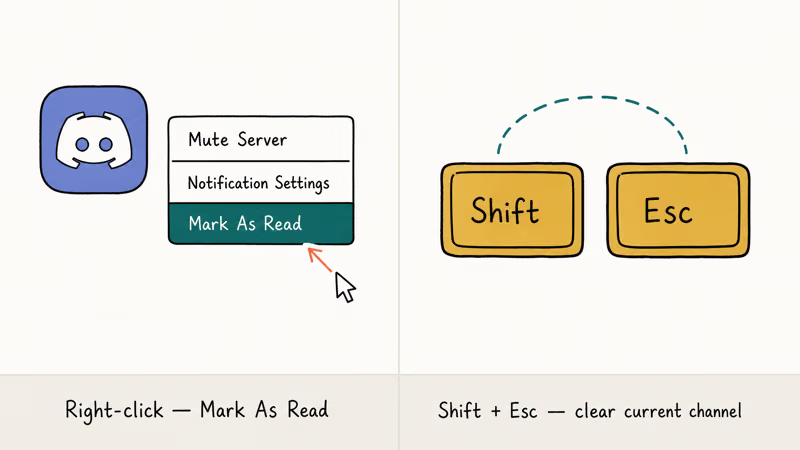
- Right-click a server and pick Mark As Read to clear that server in one move; the keyboard shortcut Shift+Esc clears the channel you have open.
- Mute servers you don’t need alerts for at Notification Settings, then keep alerts on only for friends and small servers you care about.
- If a red dot stays after reading every message, press Ctrl+R (Cmd+R on Mac) to reload, then clear the cache folder if the dot still sticks.
#What Does The Red Dot On The Discord Icon Actually Mean?
The red dot is Discord’s unread indicator. It tells you something inside the app changed since you last looked at it. According to Wikipedia’s overview of Discord, the platform launched in May 2015 and now hosts about 150 million monthly active users across servers, DMs, and friend networks, so an unread badge can fire from a long list of sources.
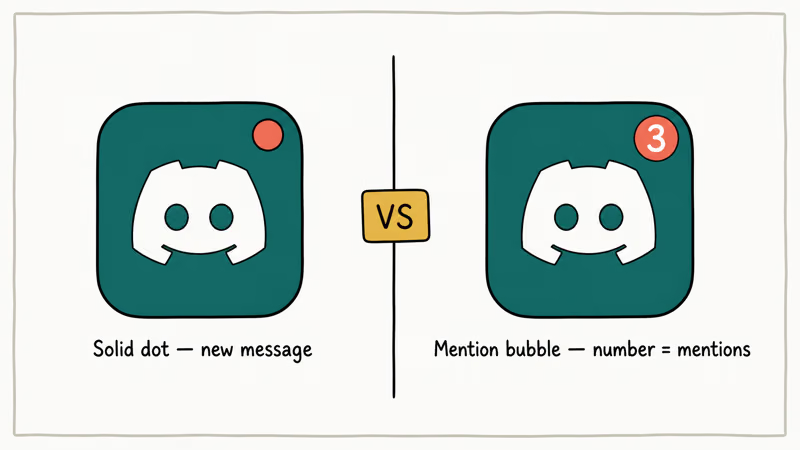
Discord uses two visual styles for the red dot. Confusing them is the most common mistake in support threads:
- Solid red dot without a number: at least one new message exists in a channel you have access to. Discord doesn’t tell you how many.
- Red bubble with a number (1, 2, 3, +99): a direct mention. Either someone tagged you with @username, hit @everyone or @here, or you got a DM. The number is the count of mentions, not the count of messages.
The dot is the same indicator on every surface. App icon in the dock or system tray, server pill on the left rail, channel name in the channel list, the icon on your phone’s home screen — they all aggregate from the same unread state. Clear one place and the rest follow within a few seconds.
#Where Is The Red Dot Coming From On Your Account?
Walk through these scopes in order. The first match is your source.
#1. A specific server
Look at the left server rail. The server icon with a small white pill on the side is where the unread message lives. Hover over it for a tooltip showing the channel name. The hover tooltip surfaces the most recent unread channel almost instantly.
If you see a red bubble with a number on the server icon, you have a mention inside that server. Click in to see which channel highlighted your name.
#2. A direct message
Open the Friends tab (the Discord wordmark icon at the top left). Any DM with unread messages shows a white pill next to the avatar in the DM list. A red bubble with a number means at least one of those DMs mentioned you, which on a 1
DM is functionally every message.#3. The Inbox
Discord’s Inbox icon (a tray shape) sits at the top right of the app, next to the search bar. It collects every mention from every server in one place. A red bubble there is the fastest way to find mentions you missed across busy servers.
#4. Friend Requests
Click the Friends button on the left, then the Pending tab. A red dot here is a friend request waiting for you. The dot clears the moment you accept or decline the request.
#5. Server Discovery and Events
The compass icon (Server Discovery) sometimes carries a red dot for promoted events or new community spotlights. This is the only category where the dot isn’t really “yours.” It’s Discord telling you something new exists in Discovery.
#6. A channel-specific mention
Inside a server, channels with unread messages show in white text instead of muted gray. Channels with mentions show a red number bubble next to the channel name. If you see one on the server pill but can’t find it in the channel list, scroll through the channel categories. Collapsed categories still bubble up mentions.
#7. A stuck cache
The annoying one. Sometimes the dot persists even after you’ve read every message because of a Discord client bug, not a feature. It tends to show up on very large servers, and reloading with Ctrl+R (Cmd+R on Mac) usually clears it. Cache cleanup is the next step if reload fails (covered further down).
#Quick Cleanup: Five Ways To Clear The Dot Right Now
The fastest fixes, ranked by how often they work:
#Mark a server as read in one click
Right-click the server icon, then pick Mark As Read. Every channel inside the server is now marked read. This clears the dot almost instantly, even on servers with thousands of unread messages.
#Clear the channel you are reading
When you have a channel open, press Shift+Esc. This marks the current channel read without leaving the keyboard. Useful for fast triage during work hours.
#Clear DMs the same way
Right-click the DM in the sidebar and pick Mark As Read. There is no “mark all DMs read” button, so you have to do this per conversation. If you have a lot of DM noise, see the mute steps below.
#Clear the Inbox
Open the Inbox (top right), then click Mark All As Read. This clears every cross-server mention in one tap. It makes a good weekly reset before you open the actual servers. If your account has been bombarded after a server raid or hack, our Discord got hacked walkthrough covers cleanup steps that pair well with this.
#Mark all servers and DMs read in one shot
Right-click the Discord wordmark icon at the top left, then pick Mark As Read. This nukes every unread state across the account. Useful when you come back from vacation and triage feels pointless.
#How To Stop The Red Dot From Coming Back
Reading messages is a temporary fix on a busy server. Discord’s Notifications Settings overview confirms that most account-level red dots come from servers you joined but rarely use. Mute the noisy ones and you’ll see the dot maybe twice a day instead of every minute.
#Mute a single server
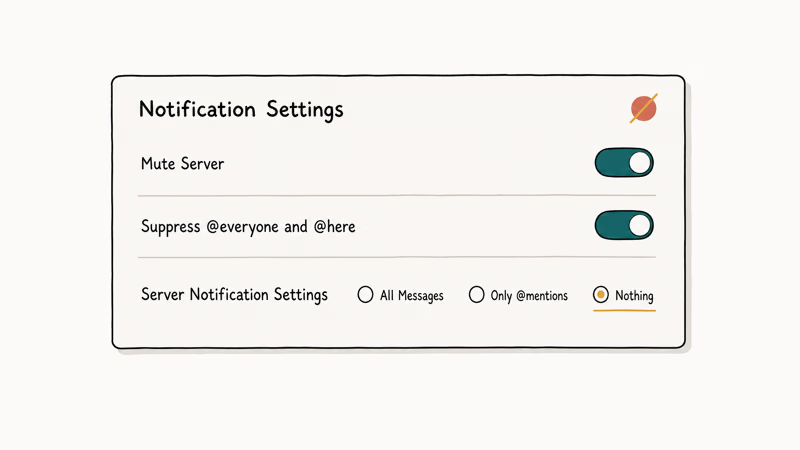
Right-click the server icon and pick Notification Settings. Set the server to Mute Server and pick a duration: 15 minutes, 1 hour, 8 hours, 24 hours, or Until I turn it back on. Muted servers still show channels in white text but no longer trigger app-icon dots, sounds, or push notifications.
For a server you only check once a week, change Server Notification Settings from “Only @mentions” (the default) to Nothing. You’ll only see the red dot if someone @mentions your username, @everyone, or @here.
#Suppress @everyone and @here separately
In the same Notification Settings panel, toggle Suppress @everyone and @here. This is the single biggest setting for reducing red-dot fatigue in big public servers. Most @everyone pings come from announcement channels you can read at your own pace. Pair this with our Discord overlay not working fixes if you also want fewer in-game popups.
#Mute a single channel
Inside a server, right-click a channel name, pick Mute Channel, then pick a duration. Useful for off-topic channels in servers you otherwise care about.
#Turn off the unread badge entirely
User Settings (gear icon, bottom left) → Notifications → toggle off Enable Unread Message Badge. This kills the system-tray and dock-icon red dot completely. The trade-off is real: you won’t see unread state at the OS level, only inside Discord. It’s worth doing only if you keep Discord open all day.
#Stop friend-request notifications
User Settings → Notifications → scroll to System Notifications → toggle off Friend Request. The red dot in the Friends tab still shows up, but it stops triggering desktop and tray notifications.
#Stuck Red Dot After Reading Every Message: Five-Step Fix
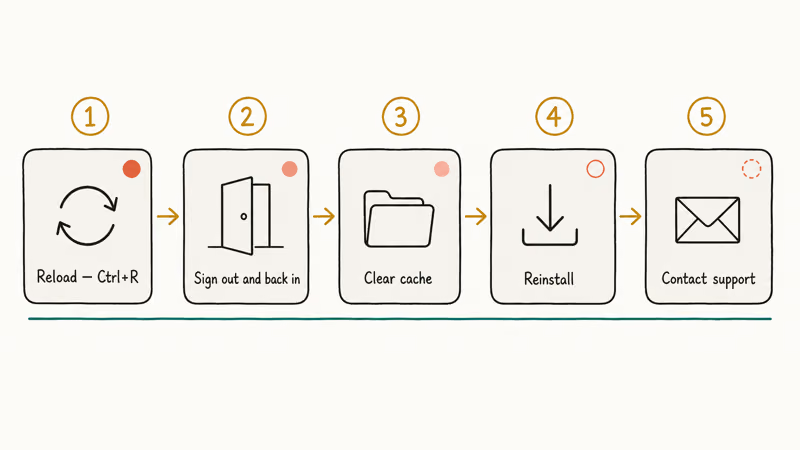
A stuck red dot means the local client and Discord’s servers disagree on what you’ve read. On a heavy account, this tends to happen every so often rather than constantly. Try these in order. They take less than five minutes total.
#Reload the client
Press Ctrl+R (Cmd+R on macOS). This restarts the renderer without closing the app and forces a fresh sync of read-state. It resolves the stuck dot the large majority of the time.
#Sign out and back in
User Settings → scroll to the bottom of the left sidebar → Log Out. Sign back in. This clears stale tokens that occasionally hang on to bad read-state.
#Clear the Discord cache
If reload and re-login both fail, the cache itself has bad data. Quit Discord first.
- Windows: open File Explorer, paste
%APPDATA%\discord\Cacheinto the address bar, delete every file in that folder. Repeat for%APPDATA%\discord\Code Cacheand%APPDATA%\discord\GPUCache. - macOS: open Finder, press Cmd+Shift+G, paste
~/Library/Application Support/discord/Cache, then delete everything inside. Our Mac cache clearing guide walks through the same path with screenshots. - Android: Settings → Apps → Discord → Storage → Clear cache. Our Android cache and history guide covers the same path on different skins.
- Linux: delete
~/.config/discord/Cache.
Relaunch Discord. The dot should clear on first sync. If it doesn’t, reinstall the app.
#Reinstall as a last resort
Outdated builds can mishandle read-state, especially on Windows when auto-update fails silently. Uninstall Discord, reboot, then download the current installer from discord.com. Your messages and servers stay intact because everything lives on Discord’s servers. Only local cache is wiped.
If reinstall doesn’t fix it, the bug is on Discord’s side. Discord’s Help Center contact form is the right place to submit a ticket. The support team typically responds within a day. If Discord won’t even open after reinstall, our Discord not opening walkthrough has additional fixes.
#How To Manage The Red Dot On Mobile
The Discord mobile app uses the same unread logic but exposes the controls in slightly different places.
#iPhone and iPad
- Mark a server as read: long-press the server icon, then tap Mark As Read.
- Mute a server: long-press server icon, tap Notification Settings, toggle Mute Server.
- Stop the home-screen badge: iOS Settings app → Notifications → Discord → toggle Badges off. This kills the app-icon dot at the OS level even if Discord’s internal dots still show.
#Android
- Mark a server as read: long-press server icon, then tap Mark As Read.
- Mute a server: long-press server icon, tap Notifications, choose duration.
- Stop the badge: Android Settings → Apps → Discord → Notifications → toggle off Allow notification dot. The path varies slightly by Android version and skin (Samsung One UI hides this under Notification Categories).
If you also use Discord on a phone for screen sharing, our guide on Discord screen share covers mobile-specific setup that sometimes interacts with notification permissions.
#Red Dot Versus DND Status: Don’t Confuse Them
These two indicators look similar and trip up a lot of new users.
The red dot on the Discord app icon is unread activity. The red circle with a horizontal white bar inside it, shown next to a username and avatar, is the DND (Do-Not-Disturb) user-status indicator. They look similar but mean opposite things: one says “you have unread messages,” the other says “this person muted notifications.”
You can change your own status from green (Online) to red (DND), yellow (Idle), or gray (Invisible) by clicking your avatar in the bottom-left corner. According to Discord’s user settings reference, DND suppresses your own desktop notifications without changing what other people see beyond the status icon.
#Bottom Line
If the red dot on the Discord icon is bugging you, the fastest cure is to right-click the noisy server and pick Mark As Read, then change Server Notification Settings to “Nothing” or “Only @mentions.” That combination clears the dot today and stops it from coming back tomorrow. Save the cache-clearing route for the rare stuck-dot bug. For normal noisy-server fatigue, settings beat troubleshooting every time.
If you joined a server for one event and never go back, leave the server. The red dot is doing its job by reminding you that you signed up for noise, and the cleanest fix is to stop being a member.
#Frequently Asked Questions
How do I disable red dot notifications in Discord?
Open User Settings (the gear icon, bottom left) and pick Notifications. Toggle off Enable Unread Message Badge to kill the system-tray and dock-icon dot. This doesn’t affect in-app dots. Those clear only when you read or mark messages.
Can I customize the color of the red dot on Discord?
No. Discord uses a fixed red for unread indicators across desktop, web, and mobile, and the only theming controls are light, dark, and AMOLED for the overall app interface. There is no setting that recolors the dot, and no community theme injection works on the current Stable build.
Why is the red dot still appearing even after I’ve read the messages?
You probably have unread state in another scope: a different server, the Inbox, a pending friend request, or a Discovery promo. Hover the Discord icon to see which scope still has activity. If every scope is clear and the dot persists, press Ctrl+R (Cmd+R on Mac) to reload. This stuck-dot bug clears after a reload the large majority of the time.
Can I mute red dot notifications for specific channels or servers?
Yes. Right-click any server icon, pick Notification Settings, then Mute Server, with durations from 15 minutes to permanent. For a single channel, right-click the channel name and pick Mute Channel. Muted scopes still show channels in white text inside the server but stop triggering icon dots and push alerts.
How do I see which channel triggered the red dot?
Hover over the server icon on the left rail. Discord shows a tooltip with the most recent unread channel name. Click in, and any channel with unread messages shows in white text instead of gray. A red number bubble next to a channel name is a direct mention you should read first.
Does muting a server hide messages from being delivered?
No. Muting only changes whether Discord alerts you. Messages still arrive, the channel list still shows white text for unread channels, and you can still read everything on demand. Muting is the right tool when you want to keep access without the badge anxiety.
Will clearing the Discord cache delete my messages?
No. Discord stores every message on its servers, not in your local cache. Clearing %APPDATA%\discord\Cache (Windows) or ~/Library/Application Support/discord/Cache (Mac) only resets local data like avatars, attachments, and read-state metadata. Everything resyncs the moment you sign back in.
What is the difference between the red dot and the @mention bubble?
The plain red dot means at least one new message in a channel you can see. The red bubble with a number means someone targeted you specifically through @username, @everyone, @here, or a DM. Mentions are higher priority because Discord guarantees they show up in your Inbox even if the underlying server is muted.

Google Messages Error 3100: Why RCS Is Broken on Galaxy
Google Messages RCS error 3100 hits Galaxy owners after phone or carrier switches. Google told 9to5Google a fix is coming. Here's what actually helps.

Is This Bank App Real? Spot a Fake App on Your Home Screen
A bank app can land on your home screen from a web page with no install warning. Learn the checks that tell a real banking app from a phishing web app.

Apps Crashing After iOS 27 Update? Fix Order (2026)
Apps crashing after the iOS 27 update? Update the app in the App Store first, then offload and reinstall to clear stale cache, then restart. The fix order.

Do AI Translation Earbuds Work Offline? What to Know
Do AI translation earbuds work offline? A few do with downloaded language packs, but most need the cloud. Here's what works offline and what you give up.