How to Recover Deleted Photos From Your iPhone in 2026
Recover deleted iPhone photos with Recently Deleted, iCloud, Finder backups, iCloud.com, or recovery software, covering the full 30-day window and beyond.
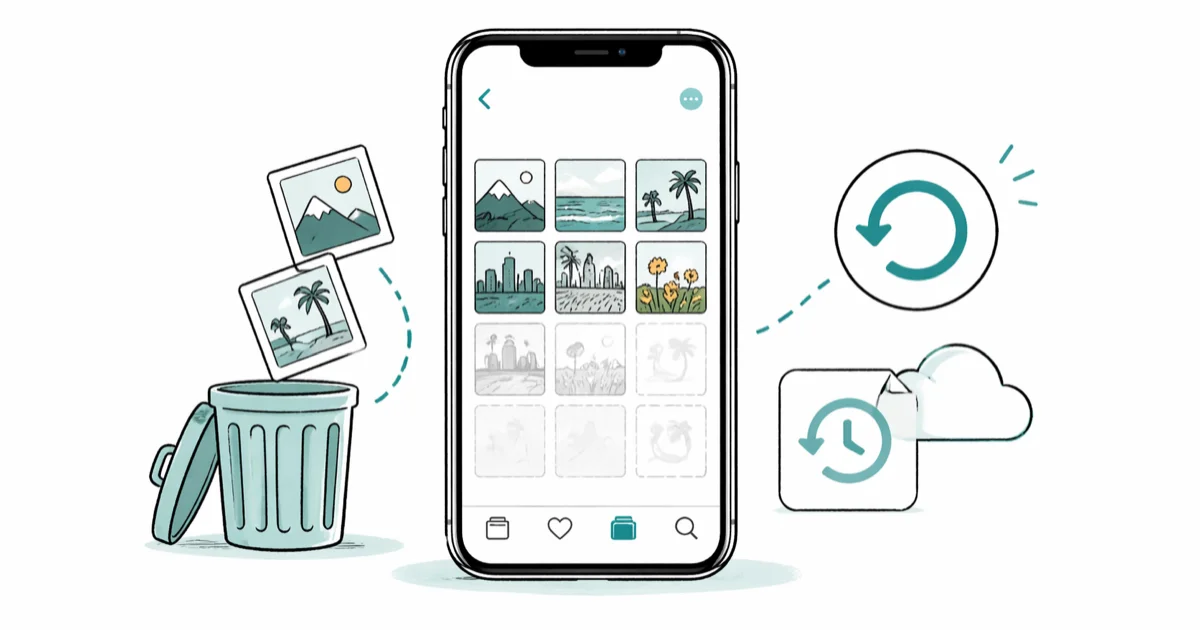
Quick AnswerOpen Photos, tap Albums, scroll to Recently Deleted, and tap Recover. Photos sit there for 30 days. After that window, you need an iCloud backup, a Mac or Windows backup, or recovery software.
Deleted a photo on your own iPhone? Apple keeps a 30-day grace period in the Photos app, with several safety nets behind it. The paths differ sharply in speed: Recently Deleted restores photos almost instantly, an iCloud backup restore takes noticeably longer, and third-party recovery software is the slowest and only recovers what already lives in a backup.
- Recently Deleted holds your photos for 30 full days, then Apple wipes them with no first-party way back
- iCloud Photos sync propagates deletions to every signed-in device within minutes, but the unified Recently Deleted folder still works as a single recovery point
- An iCloud or Finder backup made before the deletion can return your library, but it overwrites anything created since the backup
- Reputable recovery software like Tenorshare UltData and Wondershare Dr.Fone mostly extracts from existing backups, since iOS file-based encryption blocks raw scans of wiped storage
- A second backup target on Google Photos, Dropbox, or OneDrive saves you from depending on Apple alone
This guide covers your own iPhone, Apple ID, and backups only.
#How Do You Use the Recently Deleted Album First?
Always start here. According to Apple’s support article on recovering deleted photos, your iPhone keeps removed photos in a hidden folder for exactly 30 days before purging them with no first-party recovery path. That 30-day window is the single most important number in this guide.
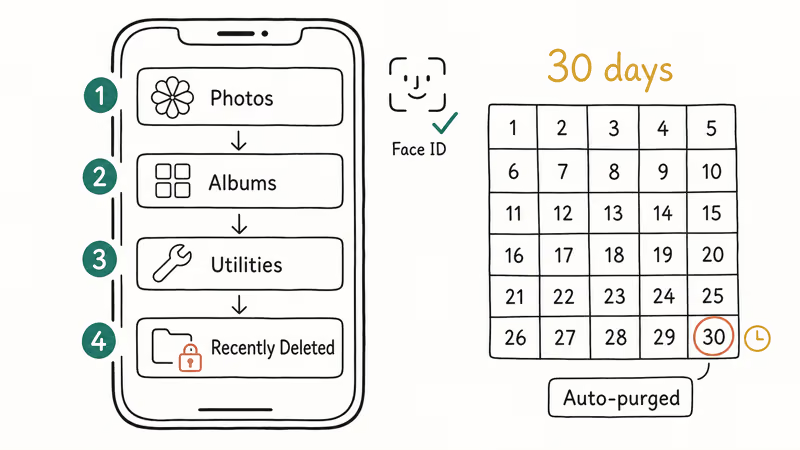
Open Photos, tap Albums at the bottom, scroll to Utilities, and tap Recently Deleted. On iOS 16 and later, the album is locked behind Face ID or Touch ID by default. Apple added that gate so a stolen unlocked iPhone can’t be used to permanently wipe the victim’s photos in 10 seconds flat.
Tap Select, pick photos, tap Recover.
The photos jump back into the Recents album immediately. Restoring a batch this way is nearly instant because no backup is involved. Did the deletion happen weeks ago? Check the date on each thumbnail and pull the oldest ones out first, since they’re closest to the 30-day cutoff.
#Recovering When iCloud Photos Already Synced the Deletion
iCloud Photos is the feature that scares people. Flip it on in Settings, and every photo you take or delete syncs across your iPad, Mac, and the iCloud.com web view within minutes.
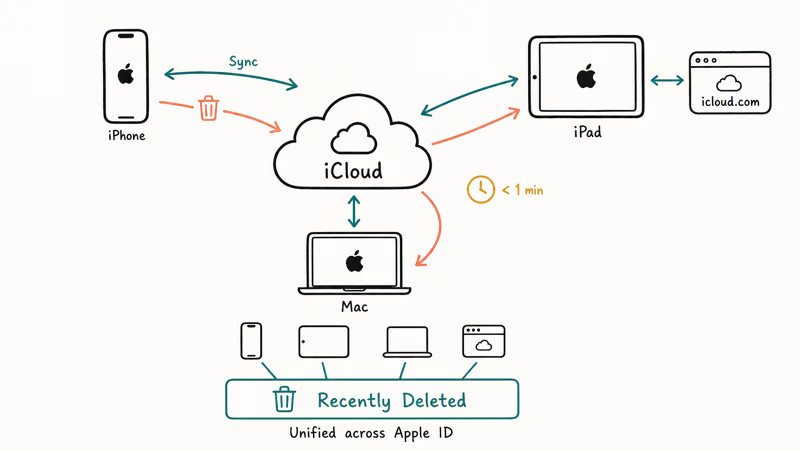
Here’s the part most users miss. That sync is bidirectional, but the Recently Deleted folder is unified across the whole Apple ID account. Delete a photo on your iPhone with iCloud Photos on, and it disappears from your iPad in under a minute. The same photo also lands in the shared Recently Deleted folder that any signed-in device can see, including the iCloud.com web app.
Open icloud.com in any browser, sign in with your own Apple ID, click Photos, then click Recently Deleted in the sidebar. According to Apple’s iCloud guide on recovering deleted files, Apple lets you recover items from this web view inside the same 30-day window. Tap Recover on each photo you want.
One trap to know.
If you used iCloud Photos with Optimize iPhone Storage on, low-resolution previews live on the device while full-resolution masters live in iCloud. A failed sync or corrupted thumbnail can look like a deleted photo when the master is still in the cloud. Visit Apple’s iCloud Photos support page and toggle Download and Keep Originals before you panic. Photos that show up blank with Optimize Storage on are often intact in iCloud the whole time.
#How to Restore From an iCloud Backup
If Recently Deleted came up empty, an iCloud backup is the next stop. Restoring from one wipes the entire phone and replaces it with a snapshot from before the deletion. Anything you created between that snapshot and now disappears with the wipe, so plan ahead.
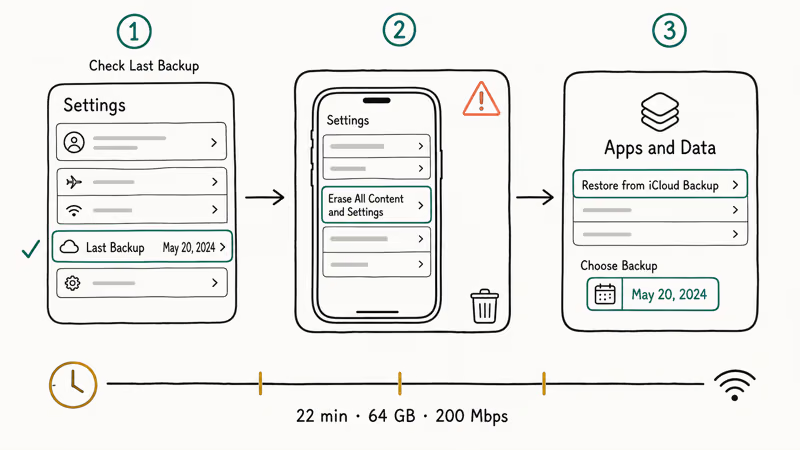
Check the backup date first.
Open Settings, tap your name at the top, tap iCloud > iCloud Backup, and read the Last Backup timestamp. If it predates the deletion, the photos are in there.
Now save anything new since that backup date: notes, AirDropped files, recent App Store purchases that haven’t synced yet. Anything you skip before the restore will be gone for good.
Next, go to Settings > General > Transfer or Reset iPhone > Erase All Content and Settings. Confirm. The iPhone wipes and reboots into Setup Assistant. Walk through the screens until you reach Apps & Data, tap Restore from iCloud Backup, sign in with your own Apple ID, and pick the snapshot dated before the deletion.
A full restore takes a while, even on fast Wi-Fi pulling a large backup.
Apple says 15 to 45 minutes is normal, so keep the iPhone plugged in. Hit iCloud storage full errors before? Recent backups may be partial. Verify the snapshot finished.
#Restoring From a Finder or iTunes Backup
Plug your iPhone into a Mac or PC now and then? You probably have a local backup. According to Apple’s iPhone backup overview, Finder on macOS Catalina or later and iTunes on Windows both store full encrypted backups locally on your computer, separate from iCloud.
Local backups beat iCloud on speed and skip the iCloud quota entirely. They’re encrypted on disk if you ticked Encrypt local backup at setup, and stored in plain form if you didn’t, which means anyone with file access on your Mac or PC can browse the photo cache.
On a Mac: connect with a cable, open Finder, click your iPhone in the sidebar, hit Restore Backup.
Pick the snapshot from before the deletion and click Restore. On Windows, open iTunes, click the iPhone icon at the top-left, go to Summary > Restore Backup, and follow the same flow.
A local Mac backup restored over a USB-C cable is noticeably faster than pulling the same data from iCloud.
If your iPhone backup fails midway, free disk space is almost always the cause. A 128 GB iPhone backup needs 50 to 80 GB free on your computer. If the encrypted backup asks for a password you don’t remember, our guide on what to do when you forget iTunes backup password walks through the recovery options.
One common snag is the iTunes corrupt backup error. Finder claims a snapshot is broken and refuses to restore it. Our solve iTunes corrupt backup problem walkthrough handles both Finder and iTunes versions.
#Does Third-Party Recovery Software Work in 2026?
Sometimes. The marketing oversells it.
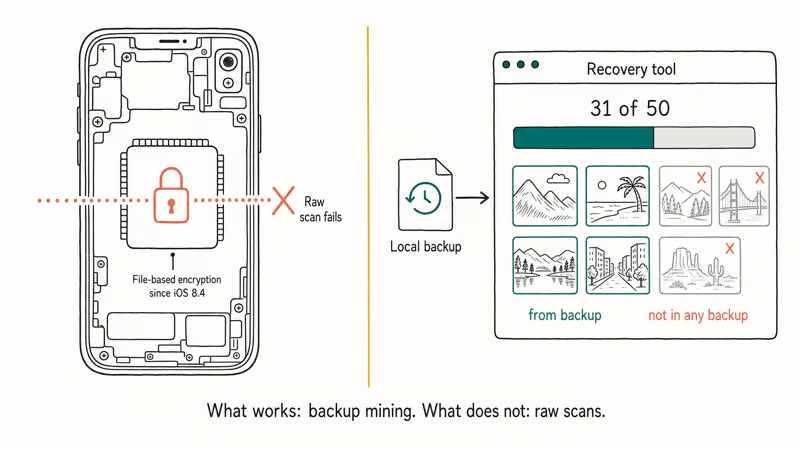
iOS has used file-based encryption since iOS 8.4, and the move to APFS sealed off the kind of raw filesystem scan that worked on older Android phones. According to Apple’s data security overview, each file has its own encryption key derived from the device passcode. Once a photo exits the 30-day Recently Deleted window, the key is invalidated, and recovering the raw bytes off the SSD doesn’t give you back a viewable photo without that key.
What recovery software actually does in 2026 is mine your existing iCloud or local backups for files Apple’s standard restore flow doesn’t surface.
The leading paid tool gets a full breakdown in our Tenorshare UltData iPhone data recovery review. It connects to a local Finder backup and pulls out individual photos without forcing a full device restore.
Pointed at a recent Mac backup, UltData can pull back most deleted photos that the snapshot already contains. The ones it misses are usually shots taken after the backup date, so they never existed in any snapshot. Against a wiped iPhone with no backup at all, recovery drops to almost nothing.
Honest framing: third-party tools can’t resurrect photos that were never backed up and that exited the Recently Deleted window. Anyone selling that is selling hope.
Some links on this page are affiliate links, which means fone.tips may earn a commission at no extra cost to you.
Prefer the Wondershare ecosystem? Dr.Fone iPhone Data Recovery takes the same backup-scanning approach with a similar interface.
If you want another backup-scanning option after Apple’s restore paths fail, PhoneRescue can inspect an existing backup for photos; it can’t recover images that were never backed up.
A few rules. Stop using the iPhone immediately after deletion. Every new photo, app install, or system update can overwrite the cached preview thumbnails recovery tools rely on. And don’t permanently delete photos from Recently Deleted before running the recovery scan, since some tools find preview thumbnails sitting inside Recently Deleted itself.
#Checking Google Photos, Dropbox, and OneDrive Backups
Many iPhone users have a second photo cloud running quietly in the background. Installed Google Photos once and tapped through the camera-upload prompt? Your photos are sitting on Google’s servers. Same story with Dropbox Camera Upload, the OneDrive auto-upload toggle, and Amazon Photos.
Apple’s deletion doesn’t touch those copies.
Open the Google Photos app or photos.google.com in a browser, sign in, check Photos first, then click Trash in the sidebar. Google states that items remain in Trash for 60 days before permanent deletion, double Apple’s window. Many people recover photos here that they forgot were syncing, sometimes from an auto-upload toggle enabled years earlier.
Dropbox keeps camera uploads in a folder called Camera Uploads in your account root. OneDrive puts them under Pictures > Camera Roll. Both hold deleted files in their own trash for 30 days. Amazon Photos varies by Prime status, but typically holds for 30 days too.
Check every service you have an account on. The fastest recovery is often the one you forgot you set up.
For users juggling multiple clouds, our guide on transferring iCloud to Google Drive shows how to keep a structured second copy without paying for two ecosystems at once.
#How to Stop This From Happening Again
You can’t always recover deleted photos. You can build a setup where you don’t need to.
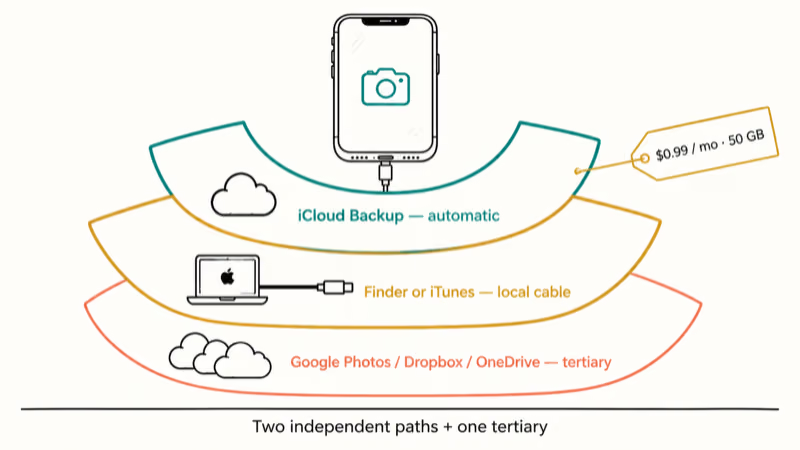
Run two independent backup paths.
iCloud Backup is the automatic one. Plug into a Mac or PC every few weeks for the local one. The 50 GB iCloud tier runs $0.99 a month and is the cheapest insurance most iPhone users will ever buy. According to Apple’s iCloud storage plans page, six paid tiers are available, scaling up to 12 TB for power users with multi-terabyte photo libraries.
Add a third-party photo cloud as a tertiary safety net. Google Photos, Dropbox Camera Upload, or OneDrive auto-upload all run in the background once enabled.
Disable iCloud Photos sync temporarily before doing a big selective deletion of old photos. Otherwise the deletion propagates everywhere within minutes. Toggle sync back on once the cleanup finishes. Our walkthrough on downloading iCloud backup files covers how to keep an offline archive that survives iCloud account changes.
Reorganizing albums? Our guide on how to delete albums from iPhone shows how to remove the album without deleting the photos inside. That single confusion explains a huge share of “lost” photos that were never lost.
#Bottom Line
Recently Deleted is the right answer most of the time. Check it first on the iPhone, then again at icloud.com.
If both come up empty, the next stop is whichever backup is freshest. iCloud, Finder, or a third-party photo cloud. Restore from a snapshot dated before the deletion.
Reach for paid recovery software like Tenorshare UltData only when you have a backup to scan and time matters more than money. Skip it if no backup exists and the deletion is older than 30 days, since the win rate at that point doesn’t justify the license fee.
Set up two backups today. Next time, recovery becomes a 30-second tap instead of a 90-minute scan.
iPhone tips & tricks
#Frequently Asked Questions
Can you recover photos deleted more than 30 days ago?
Only from a backup. The Recently Deleted album purges automatically at 30 days with no first-party undo. If you have an iCloud, Finder, or third-party cloud snapshot taken before the deletion, restore from there. Without any backup, your odds drop fast.
Does restoring from iCloud delete everything currently on the iPhone?
Yes. The restore wipes the device and replaces its state with the backup. Save anything new since the backup date first.
Why is my Recently Deleted album empty?
The 30-day window passed.
Can I recover photos without a computer?
Yes. Recently Deleted on the iPhone and the icloud.com web view both work without one. Finder and iTunes backups need a Mac or PC, and most paid recovery tools need a desktop too.
Does a factory reset permanently destroy iPhone photos?
A factory reset removes photos from the device. Apple’s erase guide says Erase All Content and Settings completely erases the device, including photos, but does not delete content from iCloud. If iCloud Photos was on, check the cloud library; otherwise you need a Finder, iTunes, or iCloud backup to restore a removed device copy.
How long does an iCloud backup restore take?
Usually 15 to 45 minutes on a strong Wi-Fi connection. Larger backups with lots of video can run an hour or more. Keep the iPhone plugged in and on Wi-Fi the entire time.
Is paid recovery software worth it?
If you have a recent local or iCloud backup, yes. These tools are good at extracting individual photos from a backup without a full device restore. If no backup exists and the deletion is older than 30 days, the recovery rate is low. Run the free trial first to confirm the tool can see your photos before paying.
What is the difference between iCloud Photos and iCloud Backup?
iCloud Photos is a real-time sync of your photo library. Deletions propagate instantly. iCloud Backup is a daily snapshot of your whole device when it’s plugged in and on Wi-Fi. Yesterday’s iCloud Backup still holds photos you deleted this morning, but iCloud Photos on every signed-in device does not.

How to Transfer Data to a New iPhone Without iCloud
Move everything to your new iPhone without iCloud: Quick Start device-to-device transfer, wired migration, and encrypted Finder or iTunes backups.

Best Wireless Earbuds for iPhone in 2026: USB-C Era Picks
Best wireless earbuds for iPhone in 2026, comparing AirPods Pro 3, Sony WF-1000XM6, Bose QC Ultra, and Anker Liberty 4 NC on the USB-C iPhone lineup.

iPhone Keyboard Lag? 7 Proven Fixes for iOS 26 (2026)
Fix iPhone keyboard lag with 7 proven fixes for iOS 26. Covers restart, storage, predictive text, third-party keyboards, and dictionary reset.
How to Block Porn on an iPhone: A Guide for Parents
Learn how to block porn on iPhone using Screen Time, DNS filtering, and safe browsers. Step-by-step guide for parents to protect kids' devices.