How to Recover Deleted Emails from Your Computer Fast
Recover your own deleted emails in Outlook, Apple Mail, Thunderbird, Gmail, and IMAP accounts. Trash, Recoverable Items, PST/MBOX repair, and Time Machine.

Quick AnswerOpen the Trash or Deleted Items folder in your email client and right-click any message you want back. Most clients keep deleted mail there for 30 days. If the folder is empty, use your provider's server-side recovery tool, restore from a Time Machine or profile backup, or run reputable file-recovery software on your own drive.
This guide is for recovering email from a mailbox you own. That covers your personal account, your work account where you have credentials, or a local PST/MBOX file on your own drive. It walks through every path across Outlook, Apple Mail, Thunderbird, and Gmail. Start at the top: most “lost” messages are sitting one click away in a folder you forgot about.
- The Trash or Deleted Items folder holds most “lost” mail for about 30 days, and recovery is one right-click away.
- Microsoft 365 mailboxes have a hidden Recoverable Items folder with a 14-day default retention, configurable up to 30 days.
- Apple Mail data lives at
~/Library/Mail/V*/, so a Time Machine snapshot from before the deletion can put a message back. - Thunderbird stores everything in MBOX files inside your profile folder, which you can copy back from any backup.
- File-recovery software on your own drive works for PST, OST, and MBOX files only when you stop writing to that drive immediately.
#Why You Can Often Get a Deleted Email Back
Email clients almost never delete on the first keystroke. They move the message to a Trash folder, then to a server-side hold area, then to a backup. Each of those layers is a separate recovery chance, and the right method depends on which layer the message has reached, how long ago you deleted it, and whether the account is web-only or backed by a local data file on your hard drive.
A few rules apply to every client. Stop sending and receiving on the affected mailbox while you work, since new mail can push older items out of retention queues sooner. Note roughly when the deletion happened. Most clocks below start there.
One scope rule. This guide assumes you own the mailbox or have explicit permission from the account holder. Recovering email from someone else’s account without authorization is illegal in most jurisdictions under laws like the U.S. Computer Fraud and Abuse Act.
#How to Recover Deleted Emails in Microsoft Outlook
Outlook is the most common case, and it has the most layers of protection.
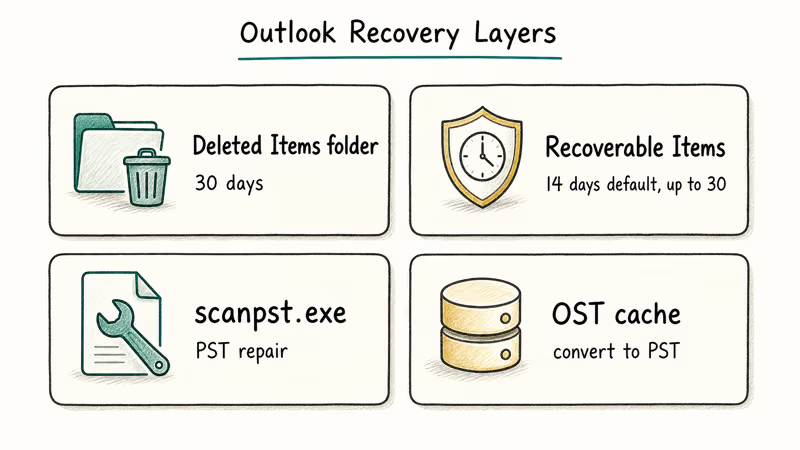
Deleted Items folder (first stop). Open Outlook desktop or the new Outlook for Windows. Click Deleted Items in the folder pane. Right-click any message and choose Move > Other Folder > Inbox. This works whether you use POP, IMAP, Exchange, or a Microsoft 365 account.
Recoverable Items folder (second stop, work and school accounts). When the message is no longer in Deleted Items, Outlook on Microsoft 365 mailboxes keeps a hidden recovery layer. According to Microsoft’s recover deleted items guide, you select the Deleted Items folder, click Recover deleted items from server in the Folder ribbon, pick the messages, and click Restore.
Microsoft confirms that 14 days is the default Exchange Online retention, with admin-configurable headroom up to 30 days. Microsoft’s Recoverable Items folder documentation covers the exact policy controls. Personal Outlook.com accounts use a similar layer at a shorter window.
PST corruption recovery (local Outlook only). A crashed PST file shows up as Outlook refusing to open or messages disappearing in batches. Microsoft ships a free repair tool called scanpst.exe with every Outlook install. Our walkthrough on how to use SCANPST.EXE covers the exact path on Outlook 2016, 2019, 2021, and Microsoft 365.
According to Microsoft’s PST repair documentation, the Inbox Repair tool diagnoses and repairs errors in the data file. Microsoft recommends running it more than once because it repairs problems in passes.
If scanpst can’t open the file or finishes with errors that won’t go away, paid tools take over. Stellar Repair for Outlook targets large or badly corrupted PST files that scanpst gives up on, and it can often pull most of the messages out, including attachments.
Some links on this page are affiliate links, which means fone.tips may earn a commission at no extra cost to you.
OST cache trick (Exchange/Microsoft 365). When the server copy is gone but you still have the local OST cache, converting OST to PST preserves the cache as a portable file you can mine for messages.
If Outlook itself won’t start so you can do that, our notes on Outlook error code 0x8004060c and Outlook error 0x80040119 cover the two errors most likely to stand between you and the cache.
#How Do You Recover Deleted Emails in Apple Mail?
Apple Mail keeps three independent recovery surfaces. Try them in this order.
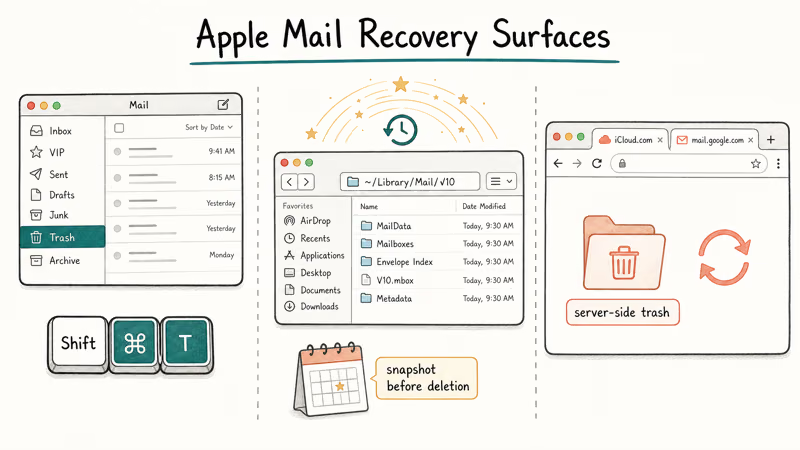
Trash mailbox. Open Mail and look for the Trash mailbox under each account. Select the message, then press ⇧⌘T or drag it to Inbox. Apple’s Mail user guide covers the keyboard shortcut and the manual restore.
Time Machine restore of the Mail data folder. Apple Mail stores its database at ~/Library/Mail/V*/ (V* is the version, like V10). When the message is gone from Trash and the IMAP server has purged it, restore the whole folder from Time Machine: quit Mail, open Time Machine, browse to ~/Library/Mail/, pick a snapshot from before the deletion, and click Restore. Apple’s Time Machine setup guide covers connecting an external drive.
IMAP server-side trash. Sign in to the provider’s web interface (iCloud.com, mail.google.com, mail.yahoo.com) and check the web Trash. The server-side Trash and Mail’s local Trash aren’t always perfectly synced, so messages can survive in web Trash even when they no longer exist locally after a Mail index rebuild. When local Trash is empty and Time Machine is too far back, this is the next stop before any third-party tool.
A short caution. Don’t run Mailbox > Erase Deleted Messages or Mailbox > Rebuild while you’re still hunting. Both can finalize deletions and force a re-sync that wipes whatever the server has already purged.
#What Should You Do for Mozilla Thunderbird?
Thunderbird’s storage model makes recovery a file-copy job. Every folder is a flat MBOX file inside your profile directory.
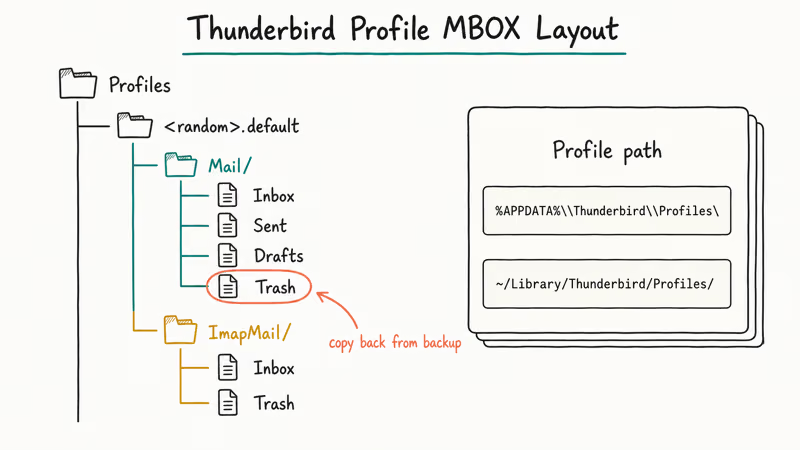
Find the profile path first. According to Mozilla’s profile location documentation, Windows profiles live at %APPDATA%\Thunderbird\Profiles\<random>.default\ and macOS profiles live at ~/Library/Thunderbird/Profiles/<random>.default/. Inside, the Mail/ and ImapMail/ subfolders contain one file per mailbox. The Trash file is literally named Trash (no extension).
If the message is still in Trash: open Thunderbird, find the Trash folder for that account, right-click the message, and choose Move To.
If you’ve already emptied Trash: quit Thunderbird and go to your latest profile backup (Time Machine on macOS, File History or a manual copy on Windows). Copy the relevant Trash or Inbox MBOX file back into the live profile, replacing the current one, then restart Thunderbird and rebuild the index by right-clicking the folder and choosing Properties > Repair Folder.
If you compacted folders right after deletion: that’s the worst case. Compaction physically rewrites the MBOX, dropping deleted messages forever. From here, the only path is filesystem-level recovery on the drive itself, treated like any hard-drive recovery scenario.
If you sync Thunderbird with Gmail via IMAP, our Thunderbird and Gmail setup guide shows how the two stay in sync. That’s useful for figuring out which side actually purged the message.
#How to Recover Deleted Emails in Gmail and Other Web Mail
Web mail is mostly server-side. Your local recovery options shrink, and your provider-side options matter more.
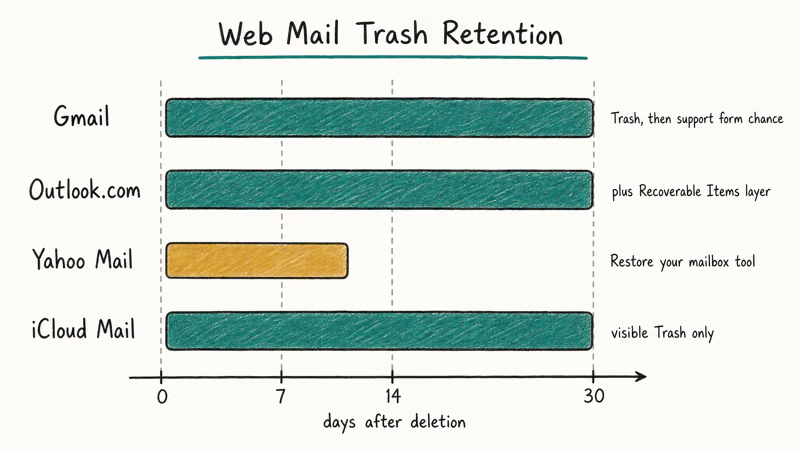
Gmail Trash. Sign in to mail.google.com. Click More in the left sidebar, then Trash. According to Google’s recover deleted Gmail messages page, messages stay in Trash for 30 days after deletion, and after that they’re permanently deleted. Right-click the message and choose Move to > Inbox.
Gmail support form (after permanent deletion). Google sometimes restores recently and accidentally deleted Gmail messages through a support request, but the window is short and not guaranteed. Sign in to the Google account, search “Gmail missing emails” in the Help Center, and follow the form there. It tends to work only within a few days of permanent deletion, and rarely on messages purged more than a couple of weeks past Trash.
Outlook.com. Select the Deleted Items folder, then click Recover items deleted from this folder at the top. The window is the same 30-day visible Trash plus a Recoverable Items layer that mirrors the work-account behavior described earlier.
Yahoo Mail. Click Settings > More Settings > Mailboxes, then Restore your mailbox. Yahoo’s recovery lookback is shorter than Microsoft’s, and there is no client-side cache to fall back on.
iCloud Mail and ProtonMail. Both follow the same pattern. A visible Trash folder, then a short server-side window after that. Check the provider’s official help center for the exact day count, since these change. If the account is your own and you locked yourself out, our Gmail account recovery walkthrough has the same template you can apply to most providers.
#When a System Crash Takes the Drive Down
A drive failure flips the priorities. Now disk-level recovery comes before mailbox-level recovery, because each new write to the drive shrinks your odds.
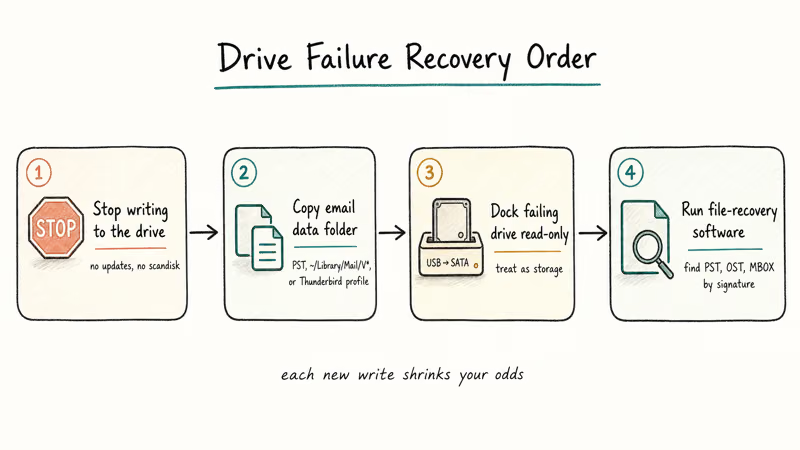
Stop using the affected drive: don’t let the OS install updates, don’t run scandisk, don’t reinstall Outlook. If the machine still boots, copy the email data folder (the Outlook PST directory, ~/Library/Mail/V*/, or the Thunderbird profile) to an external drive immediately, and work from the copy.
If the drive itself is failing, pull it. Email can often be recovered cleanly even from a struggling drive read through a USB-to-SATA dock.
Run file-recovery software next. EaseUS Data Recovery and Recuva by Piriform both find lost PST, OST, and MBOX files by file signature, since each container format has a recognizable header the scanner locks onto. Reuse the NTFS dock setup from earlier, point the scan at the dismounted volume, and save anything recovered to a separate drive.
If Outlook itself is stuck on a crashed mailbox, restarting Outlook the right way (closing all instances, optionally running with /safe) sometimes restores the mailbox without any third-party tool.
#Why Backups Beat Recovery Every Time
Every recovery method above has a failure mode. A regular backup makes all of them irrelevant.
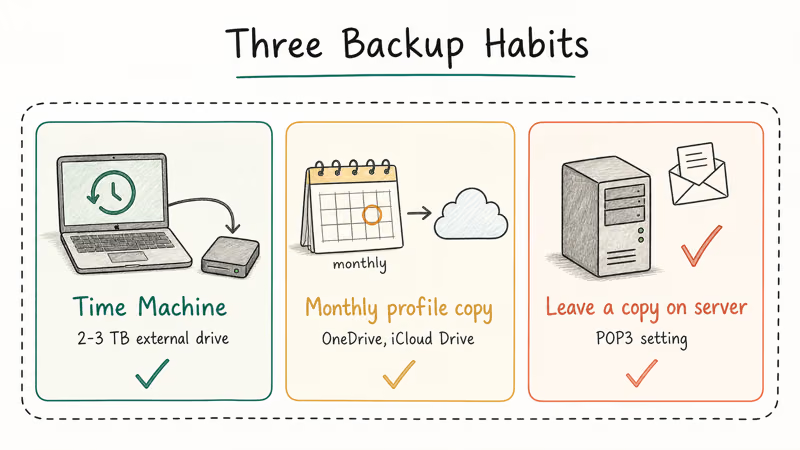
Three habits save the next message. First, turn Time Machine on if you’re on a Mac and point it at a 2-3 TB external drive. Second, schedule a monthly copy of your Outlook PST or Thunderbird profile to OneDrive, iCloud Drive, or any cloud sync, since these are regular files (cp works fine). Third, on POP3 accounts, enable Leave a copy of messages on the server so a desktop crash doesn’t take your only copy.
Audit your filter rules too. Aggressive client-side rules can silently delete new messages before you ever see them: Outlook’s File > Manage Rules & Alerts lists every active rule, and Apple Mail’s Mail > Settings > Rules does the same. A “delete from sender X” rule set up years ago can keep quietly running long after you’ve forgotten it.
Two related habits we cover separately. Knowing whether email addresses are case sensitive saves you from filter mistakes that route mail straight to Trash, and reviewing Mac Trash with force empty Trash on Mac keeps you from purging recoverable data when you’re trying to free space.
#Bottom Line
Walk the layers in order. Trash folder first, since it solves most cases in 10 seconds. Provider-side recovery (Microsoft 365 Recoverable Items, Gmail’s support form, Outlook.com’s restore link) catches another chunk within 30 days. Past that, paths split by client: Outlook PST corruption goes to scanpst then Stellar Repair for Outlook, Apple Mail goes to Time Machine, Thunderbird goes to a profile backup, and a dead drive goes to EaseUS Data Recovery.
The only path that doesn’t have a fallback is “no backup, no provider window left, drive overwritten.” Set up Time Machine or a monthly profile copy this week, and that scenario stops being possible.
#Frequently Asked Questions
How long can a deleted email stay recoverable?
That depends on which layer you’re looking at. The visible Trash or Deleted Items folder typically holds messages for about 30 days, while Microsoft 365 work mailboxes add a Recoverable Items layer that defaults to 14 days and can be extended up to 30 days by an admin. Local PST and MBOX files have no time limit at all, since the messages stay recoverable as long as the file or its drive sectors haven’t been overwritten by new data.
Can you recover Gmail messages after the 30-day Trash window?
Sometimes, through Google’s Gmail support form, but the window is short and the recovery isn’t guaranteed.
Will third-party recovery software work on my Gmail?
Only on the local IMAP cache. If you sync Gmail to Outlook or Thunderbird, the local PST or MBOX file is recoverable like any other, and pure web-only Gmail has no local file to scan because the provider’s server-side tools are the only path.
Is it safe to use paid recovery software on my own drive?
Yes, if you stick to reputable vendors and download installers from the official site. Stellar Repair for Outlook, EaseUS Data Recovery, and Recuva are widely used, and they don’t bundle adware when you grab the installers from the vendor’s domain (third-party download portals are the source of most “recovery tool malware” complaints).
What happens to my email metadata when I recover?
It depends on the method. Trash folder restoration and Recoverable Items in Outlook preserve all metadata, including the original sent date, threading, and attachments. Filesystem-level recovery (file-recovery software pulling a deleted PST or MBOX) preserves message content, but the file timestamps in your client may reflect the recovery date rather than the original sent date, so always double-check before relying on dates for legal or audit purposes.
Can I recover email from a co-worker’s account if I have their permission?
Only with documented authorization, and ideally with IT involved if it’s a work account.
Does emptying Trash on my phone affect my computer?
Yes, on IMAP and Exchange accounts the protocol syncs deletions in both directions, so emptying Trash on the phone makes the desktop client reflect the same state on the next sync. POP3 is the exception, since POP3 accounts don’t sync deletions back, and a phone deletion only affects the phone copy.

Pixel 11 vs Pixel 10: What Changed and Who Should Upgrade
Pixel 11 vs Pixel 10: same screen and camera resolution, new Tensor G6, 25W wireless, and Gemini Intelligence. Here is who should actually upgrade.

Verizon Not Receiving Texts? How to Fix It in 9 Steps
Verizon not receiving texts? Fix it in 9 steps: check Message Blocking in My Verizon, reset network settings, deregister iMessage, and call support.

Pixel Battery Drain: What Google's July Fix Really Covers
Google marked the Pixel idle battery drain bug fixed in July, but only some phones got the patch. Here is who is covered, who is not, and what to try.

iPhone Stuck on EDGE? How to Get 5G or LTE Back (2026)
iPhone stuck on EDGE with crawling data? Here's why the E icon appears, which settings force 5G or LTE back, and when the problem is your carrier.