How to Recover Data From iPhone After Factory Reset
Recover data from your own iPhone after factory reset. iCloud and Finder restore steps, why no-backup recovery fails on modern iOS, and prevention.
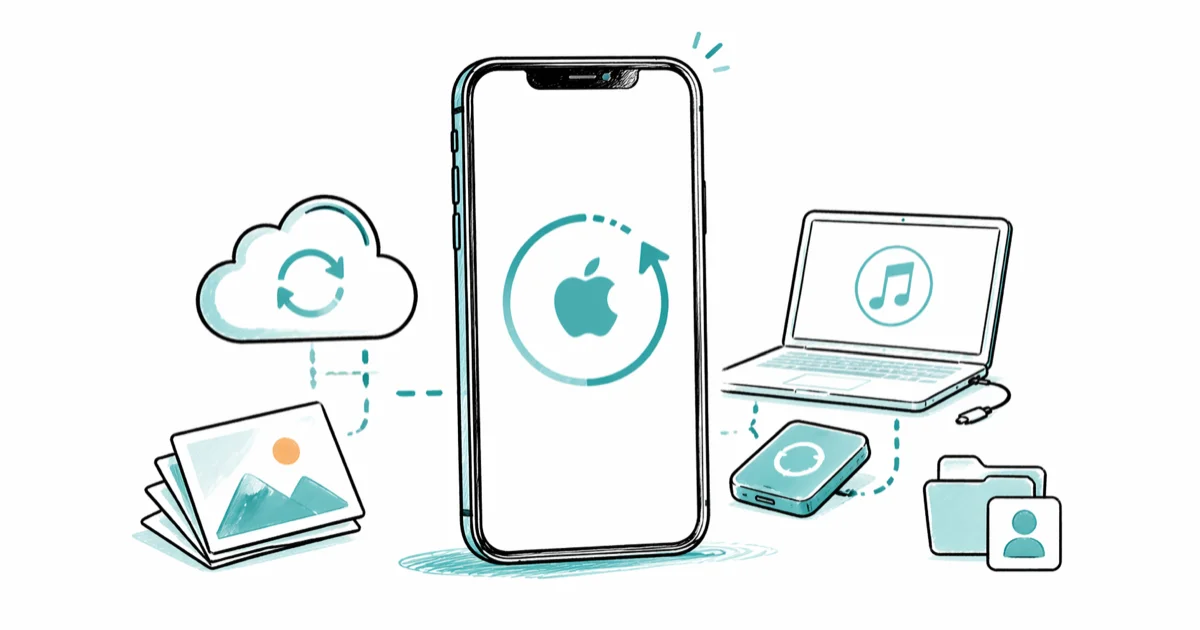
Quick AnswerAfter a factory reset on your own iPhone, the only reliable recovery path is restoring from an iCloud or Finder/iTunes backup signed into the same Apple ID. With no pre-reset backup, post-reset data is unrecoverable on iOS 8.4 and later because the encryption keys are destroyed.
This is for recovering data on your own iPhone, signed into your own Apple ID. The honest answer is below.
- The only reliable recovery is restoring from an iCloud or Finder/iTunes backup tied to the same Apple ID
- On iOS 8.4 and later, factory reset destroys the device’s encryption keys, so post-reset data on the device itself is unrecoverable
- iCloud Backup runs daily over Wi-Fi when the iPhone is locked and charging, so check your last backup date before resetting
- Encrypted local backups in Finder or iTunes include passwords, Health data, and Wi-Fi settings that unencrypted backups skip
- Tools that promise post-reset recovery without a backup don’t work on modern iPhones, regardless of marketing claims
#Can You Recover Data From an iPhone After Factory Reset?
The short answer: only if a backup already existed before the reset. A factory reset on any iPhone running iOS 8.4 or later wipes the encryption keys that protect your local data. Without those keys, the bytes still on the flash chips are mathematically inaccessible, even with the device in hand.
That reframes the problem. You’re not searching for lost files on the iPhone. You’re restoring a backup from somewhere else. Apple’s iPhone backup support article lists the two official paths.
There’s a narrow third path that works only before a reset: scanning the device for accidentally deleted files. Tenorshare UltData and Wondershare Dr.Fone can scan for deleted-but-not-yet-reset items, but they can’t recover local files after the reset destroys the encryption keys.
Some links on this page are affiliate links, which means fone.tips may earn a commission at no extra cost to you.
#How to Restore Your iPhone From an iCloud Backup
This is the path most people end up using. It works during the initial setup flow after a factory reset, and you need three things: your Apple ID, the password, and a Wi-Fi network.
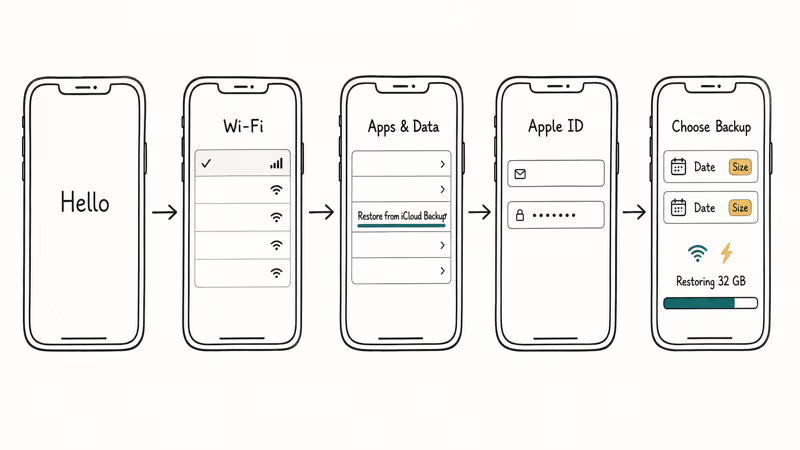
- Power on your iPhone. The “Hello” screen appears.
- Tap your language and region, then connect to Wi-Fi.
- Continue through the prompts until you reach Apps & Data (newer iOS calls this Transfer Your Apps & Data).
- Tap Restore from iCloud Backup.
- Sign in with the same Apple ID you used before the reset.
- Pick the backup you want from the list. Check both date and size to confirm.
- Stay on Wi-Fi and keep the iPhone charging until the progress bar finishes.
The home screen returns first, then apps redownload in the background. Restore time depends on backup size, Wi-Fi speed, and how many apps need to be downloaded again.
One trap to know about: if the last automatic iCloud Backup is older than the data you actually need, the missing items are gone. On another Apple device, open Settings, tap your name, tap iCloud, then iCloud Backup, and check the “Last Backup” timestamp. If it’s older than expected, the cause is usually full iCloud storage. Apple confirms that backups stop running silently when storage is full.
If the restored device behaves oddly after the process, the guide on what a restored iPhone really is explains the cleanup steps that sometimes help.
#How to Restore From a Finder or iTunes Backup
If you sync your iPhone to a Mac or PC, a local backup is probably already on that computer. Finder handles backups on macOS Catalina and later. Older Macs and Windows computers use iTunes. The setup flow is similar to iCloud restore, but the data path is local USB rather than over Wi-Fi.
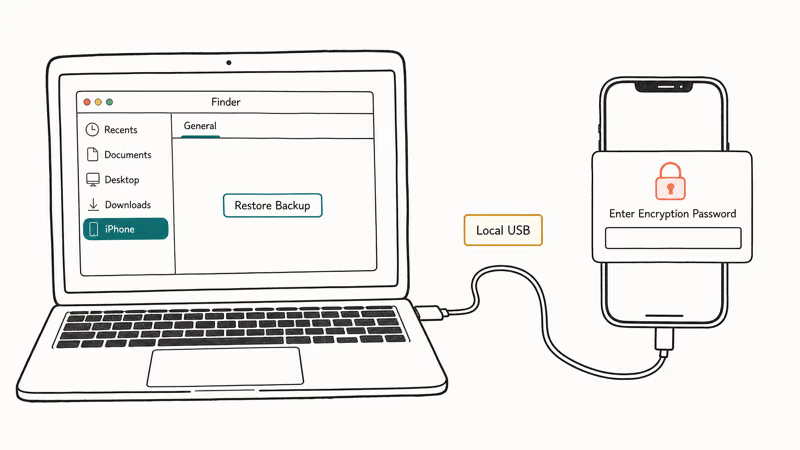
- Connect the iPhone to your computer with the cable that came with the device.
- On a Mac with macOS Catalina or later, open Finder and click the iPhone in the sidebar. On Windows or older Macs, open iTunes.
- If prompted, tap Trust on the iPhone.
- In the General tab, click Restore Backup.
- Choose the backup you want. The list shows date and size.
- If the backup is encrypted, enter the encryption password.
- Click Restore and keep the iPhone connected until the process finishes.
Apple’s Finder backup support article states that encrypted backups include saved passwords, Wi-Fi settings, website history, Health data, and call history, while unencrypted backups skip all of those. That is why encrypted local backups are the better default before a reset.
When a Finder restore stalls, the guide on fixing an iPhone that won’t restore walks through the common errors. Forgotten the encryption password? See recovering an iTunes backup password.
#What If You Did Not Have a Backup?
This is where blog posts usually start lying. Many recommend tools that claim to recover data from a factory-reset iPhone “without any backup.” On iOS 8.4 and later, that promise isn’t true.
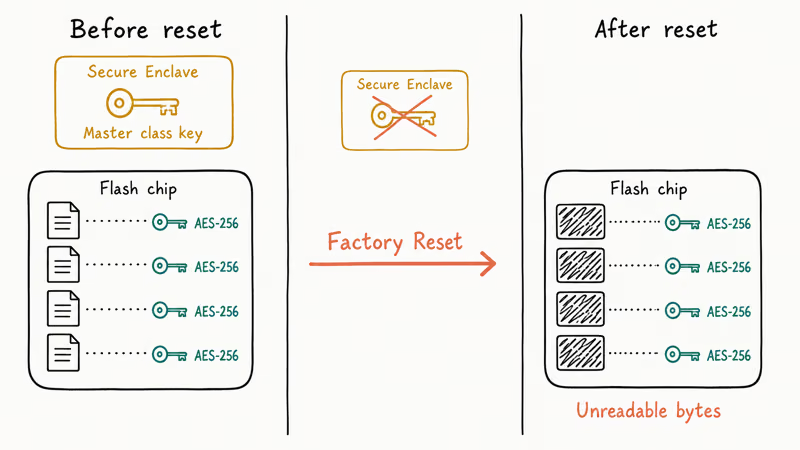
According to Apple’s Platform Security Guide, every iPhone since the iPhone 5s pairs each file with a per-file AES-256 encryption key, wrapped by a class key that lives in the Secure Enclave. A factory reset destroys those class keys. Without them, the encrypted bytes on the flash chips are random noise, even to recovery software with full disk access. There’s no algorithm or “deep scan” that defeats AES-256 with a missing key.
Tools like Tenorshare UltData, Wondershare Dr.Fone iOS recovery, and iMyFone D-Back can recover deleted-but-not-yet-reset files, because deleted files leave their encryption keys intact for a brief window. Once the device is wiped, the keys are gone.
Where do these tools actually help? Two scenarios:
- Before you factory reset, when you have accidentally deleted photos or messages and want to dig them out of free space.
- From an iTunes or iCloud backup file, where the tool extracts specific item types (a single text thread, a contact group, a few photos) without forcing a full restore that overwrites your current device state.
If your data was important and no backup exists, the loss is real. Lab-level forensic services exist and are typically used by law enforcement on devices they legally possess, but Apple’s encryption design means even they can’t recover post-reset user data on a modern iPhone. Reputable services will tell you this honestly. The ones that promise guaranteed recovery for $300 to $1,500 are selling hope.
#How to Pull Specific Items From a Backup Without a Full Restore
Sometimes you don’t want to wipe your current iPhone state to recover three text threads from last year. Backup-extraction tools solve this by reading the backup file directly.
Backup-extraction tools such as Tenorshare UltData and Dr.Fone iOS data recovery can scan an existing Finder or iTunes backup and show item categories such as contacts, photos, messages, and notes. Use this route when you need a few items from a backup without restoring the whole backup over your current phone.
Two real limits to know:
- The backup itself has to exist and be unlocked. Encrypted backups need the encryption password.
- Tools can’t recover items that were never in the backup. If iCloud Photos was your only photo store and the backup excluded photos, the tool won’t find anything.
This is the legitimate use case for paid recovery software on modern iOS. Apple’s iCloud Backup support article confirms that iCloud Backup excludes anything already stored in iCloud (Photos, Mail, Notes, Health if you turned it on), which is why backup contents are often smaller than the iPhone’s used storage.
If Finder or iTunes can see the backup but a full restore isn’t practical, a dedicated extractor like PhoneRescue can preview selected items before export; it can’t recover data that was never in the backup.
#What Factory Reset Actually Does to iPhone Data
The user-facing version of factory reset is “erase everything and start fresh.” The technical version is more useful. When you tap Settings, then General, then Transfer or Reset iPhone, then Erase All Content and Settings, the iPhone tells the Secure Enclave to discard the master class key. That single step makes every encrypted file on the device unreadable, in milliseconds.
The flash chips still hold the same physical bits afterward — useless without the key. The guide on erasing an iPhone completely covers this in detail.
Two consequences follow. First, post-reset recovery on the device itself is impossible by design. Second, a factory reset is the right move when you’re selling or giving away an iPhone, because the new owner can’t access your data even with forensic tools. Apple recommends signing out of iCloud and turning off Find My before any reset, and the note on what to do when you can sign out of your Apple ID walks through the prompt that releases activation lock.
The reset doesn’t touch iCloud. Your iCloud Photos library, your iCloud backup files, your iCloud Drive contents, and anything synced through Notes or Mail stay on Apple’s servers tied to your Apple ID. That’s the data that survives a reset, and that’s what restore-from-iCloud pulls down. A different control, Reset Encrypted Data and the eleven iCloud classes it wipes, only clears end-to-end encrypted categories when trusted-device recovery is stuck.
#Preventing Data Loss Before Your Next Factory Reset
Three layers of redundancy take an evening to set up and prevent the next loss entirely.
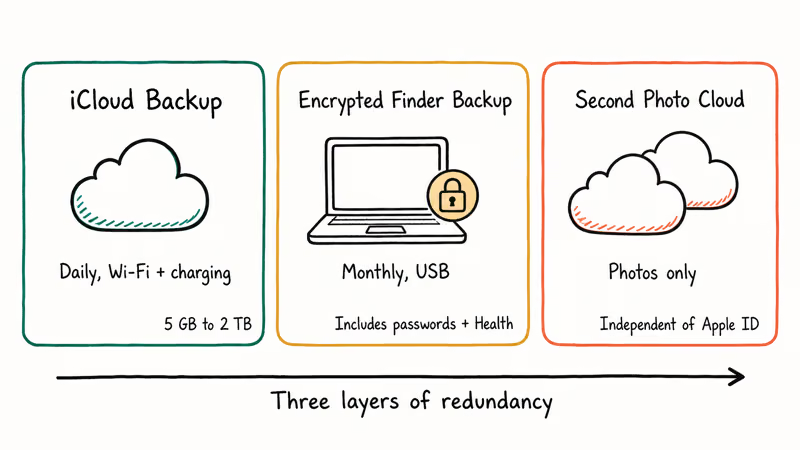
Turn on automatic iCloud Backup. Open Settings, tap your name, tap iCloud, tap iCloud Backup, and toggle Back Up This iPhone on. Apple confirms that every Apple ID starts with 5 GB of iCloud storage at no cost, scaling up through 50 GB, 200 GB, and 2 TB tiers on its iCloud+ plans page. Pick the tier that holds your photos plus headroom.
Make a local encrypted backup once a month. Connect the iPhone, open Finder or iTunes, click the device, check Encrypt local backup, set a password, and click Back Up Now. The encrypted form catches passwords and Health data that the unencrypted form skips. Store the password in your password manager, since losing it makes the backup permanently unreadable. About 90 seconds of clicks; the actual backup runs unattended.
Sync photos to a second cloud. Photos are usually the data people grieve hardest after a loss. Enable iCloud Photos plus a second service like Google Photos so one account or backup failure does not become the only copy.
The Apple Support page on iCloud storage confirms that the system pauses backups silently when storage runs out. Set a calendar reminder every quarter to check Settings, General, iPhone Storage for the iCloud Backup row, and confirm the last backup ran in the past week. That two-minute habit is what separates a recoverable reset from a painful one.
If your iPhone has stopped responding entirely and you can’t back up before the reset, the guide on fixing an iPhone with a white screen covers recovery-mode options that sometimes preserve data when the phone seems dead.
#Bottom Line
Restore from iCloud first. It’s the fastest path and Apple’s setup flow leans on it. If iCloud isn’t an option, restore from an encrypted Finder or iTunes backup. And if no backup exists at all on a modern iPhone, the data is gone — any tool that promises otherwise is misleading you.
Spend the next hour setting up two-cloud backup so you never read this article in panic mode again.
iPhone tips & tricks
#Frequently Asked Questions
Can you recover data from an iPhone factory reset without a backup?
No. Not on iOS 8.4 or later. The Secure Enclave destroys the per-file encryption keys during reset, so the bytes on the flash chips become unreadable.
How long does an iCloud backup restore take?
It depends on backup size, Wi-Fi speed, and app redownloads. Keep the iPhone charging and on Wi-Fi until the home screen returns and apps finish downloading in the background.
Will restoring from a backup also restore my apps?
Yes, with one caveat. The backup stores app data and a list of installed apps; the apps themselves redownload from the App Store during restore. If an app left the App Store between your backup and your restore, the data can’t come back.
What is the difference between encrypted and unencrypted iPhone backups?
Encrypted backups include saved passwords, Wi-Fi settings, Health data, and call history. Unencrypted ones skip all of that.
Can I restore an iPhone backup to a different iPhone model?
Yes. iPhone backups can be restored to a different iPhone model when the new device supports the backup’s iOS version. Face ID and the device passcode are set up fresh, since both are tied to the new hardware.
Does factory reset remove my Apple ID from the iPhone?
Only if you sign out before the reset. If you reset while signed in, Find My activation lock stays on the device. Whoever sets it up next will need your Apple ID password. Always sign out and turn off Find My first.
Should I run third-party recovery software before factory resetting my iPhone?
That’s the one scenario where these tools earn their price. If you’ve accidentally deleted photos or messages within the past day or two and the items are gone from Recently Deleted, run the scan first, recover what you need, then reset. After the reset, the same tool returns nothing on the device. Pre-reset is the only useful timing.
How often should I back up my iPhone?
Automatic iCloud Backup runs daily when the iPhone is locked, charging, and on Wi-Fi. That covers most days for most people. Add a manual encrypted Finder or iTunes backup before any iOS update or factory reset.

How to Transfer Data to a New iPhone Without iCloud
Move everything to your new iPhone without iCloud: Quick Start device-to-device transfer, wired migration, and encrypted Finder or iTunes backups.
Best Wireless Earbuds for iPhone in 2026: USB-C Era Picks
Best wireless earbuds for iPhone in 2026, comparing AirPods Pro 3, Sony WF-1000XM6, Bose QC Ultra, and Anker Liberty 4 NC on the USB-C iPhone lineup.
iPhone Keyboard Lag? 7 Proven Fixes for iOS 26 (2026)
Fix iPhone keyboard lag with 7 proven fixes for iOS 26. Covers restart, storage, predictive text, third-party keyboards, and dictionary reset.
How to Block Porn on an iPhone: A Guide for Parents
Learn how to block porn on iPhone using Screen Time, DNS filtering, and safe browsers. Step-by-step guide for parents to protect kids' devices.