Reset Encrypted Data on iPhone: What It Wipes (2026)
Reset Encrypted Data on iPhone explained: 11 iCloud categories wiped, what stays, when to use it, and how to back up Keychain and Health first.
Quick AnswerReset Encrypted Data wipes the end-to-end encrypted classes of iCloud data tied to your Apple ID, including iCloud Keychain, Health, Home, Messages in iCloud, Wi-Fi passwords, and Screen Time. Photos, Drive files, Mail, and Contacts are not affected. Use it only on your own Apple ID when no trusted device can verify your password.
Reset Encrypted Data is a circuit breaker for your own Apple ID. It wipes the end-to-end encrypted classes of iCloud data so you can sign back in when trusted devices and recovery options are tangled. Use it only on an account you own.
- The reset wipes iCloud Keychain, Health, Home, Messages in iCloud, Wi-Fi passwords, Memoji, Siri info, Maps history, and Screen Time
- Photos, iCloud Drive, Mail, Contacts, Calendars, and Notes aren’t in the wipe scope
- Apple doesn’t store your end-to-end encrypted data and can’t recover it after the reset
- Export iCloud Keychain and Health data first if you have any working device that can read them
- After the reset you re-enable iCloud Keychain, re-pair HomeKit accessories, and reconnect Health permissions
#What Does Reset Encrypted Data Actually Do?
It deletes 11 specific iCloud data classes on Apple’s servers.
The option shows up under Settings > Apple ID > Password & Security when iOS detects that your end-to-end encrypted iCloud keys can’t be re-derived from a trusted device. It also surfaces during Advanced Data Protection setup if your recovery method is missing.
According to Apple’s iCloud data security overview, Apple doesn’t have the keys to your end-to-end encrypted data, which is why account recovery defaults to up to a few days of waiting before any account access is restored, and why this self-service reset exists as the only same-day path forward when keys can’t be re-derived. The data isn’t decrypted. It’s deleted on the server side because nobody has the keys to read it any more.
Apple’s iCloud data security overview confirms that 11 data classes are end-to-end encrypted by default: iCloud Keychain, Health, Home, Messages in iCloud, Memoji, Payment information, Siri information, Maps Favorites and search history, Safari history and Tab Groups, Screen Time, and W1/H1 Bluetooth keys. These are the 11 categories the reset actually clears.
On iOS 17 and iOS 18, the confirmation dialog explicitly lists Keychain, Home, and Health by name before letting you continue, which matches the 11 categories Apple documents.
#What Stays and What Goes
The wipe scope is narrow on purpose. Apple uses a different protection class for data you can usually recover from another device, so those categories survive a reset.
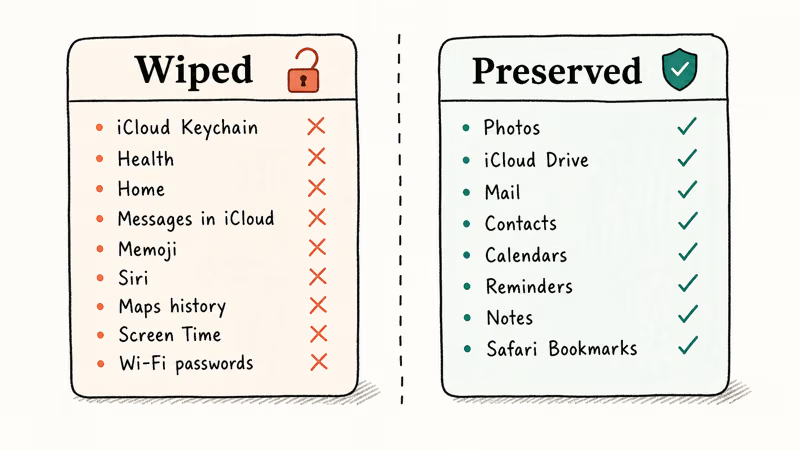
| Wiped by Reset Encrypted Data | Preserved |
|---|---|
| iCloud Keychain (saved passwords, Wi-Fi passwords) | iCloud Photos |
| Health data | iCloud Drive files |
| Home and HomeKit pairings | |
| Messages in iCloud | Contacts |
| Memoji | Calendars |
| Siri personalization | Reminders |
| Screen Time history and limits | Notes (standard iCloud Notes) |
| Maps Favorites, search history | Safari Bookmarks |
| Apple Card and Wallet payment info | App Store purchase history |
A paired Mac keeps the same iCloud Photos library intact after the reset runs on the iPhone, because Photos uses a different protection class. iCloud Keychain, however, comes back empty, so you have to rebuild it from an export made beforehand.
Apple’s iCloud passwords and security recovery guide confirms that recovering an Apple ID with no trusted device and no Recovery Key sometimes ends in this reset path. There’s no other supported way to regain access to the encrypted classes once recovery contacts and trusted devices are exhausted.
#When Should You Use This Option?
Treat it as the last supported recovery step on your own Apple ID. You should reach for it only when other paths are closed.
The reset is the right call when every trusted device is lost, broken, or factory-reset, your Recovery Key is unavailable, and your Recovery Contact can’t help. It’s also the official path Apple presents when you turn on Advanced Data Protection and your account is missing the required recovery method.
The reset is the wrong call when you still have a working trusted iPhone, iPad, or Mac that can verify your Apple ID password. It’s also wrong when you’re trying to access an Apple ID you don’t own.
Apple’s account recovery policy states that the standard recovery wait is up to a few days, and Apple won’t bypass authentication for accounts you can’t prove ownership of. The reset feature doesn’t change that. Trying it on someone else’s device or account violates the U.S. Computer Fraud and Abuse Act and similar laws in most countries.
On current iOS 18 builds, Apple requires you to type Reset End-to-End Encrypted Data as a confirmation phrase before the action goes through. That extra friction is intentional. The data doesn’t come back.
#How to Back Up the Wiped Categories First
If any device of yours can still read the encrypted data, export it before tapping the reset. Five exports cover the painful losses.
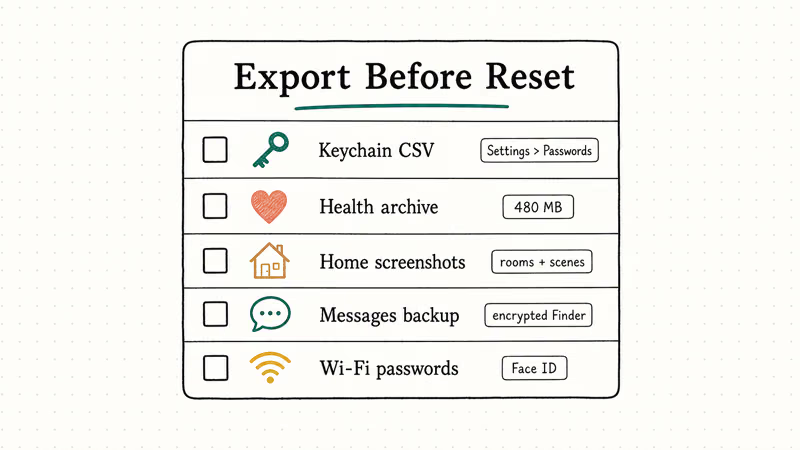
- iCloud Keychain passwords. Open
Settings>Passwords, tap the More menu (three dots), and choose Export Passwords. iOS 17 and later writes a CSV. Import that file into a password manager such as 1Password, then delete the CSV. - Health data. Open the Health app, tap your profile photo, and choose Export All Health Data. The export is a zipped XML archive plus DICOM files for any clinical records.
- Home configuration. Take screenshots of every room, accessory, scene, and automation. HomeKit pairings can’t be exported as a file, so screenshots are the realistic path.
- Messages in iCloud. Make a local Finder backup with Encrypt local backup turned on. Local encrypted backups include the Messages database and survive even if Messages in iCloud is wiped later. We covered the encrypted backup workflow in our iPhone backup failed guide.
- Wi-Fi passwords. Open
Settings>Wi-Fi, tap the info icon next to a network, and tap the password field. iOS 16 and later reveals it after Face ID or Touch ID. Save the ones you care about.
The Health export can take a while on an older iPhone and produces a sizable archive, especially with years of records. Plan for the export to finish before you start the reset, not in parallel.
#The Step-by-Step on iOS 17 and iOS 18
The reset lives inside Apple ID settings, not the device reset menu. Don’t confuse the two. The device reset menu wipes the phone itself.
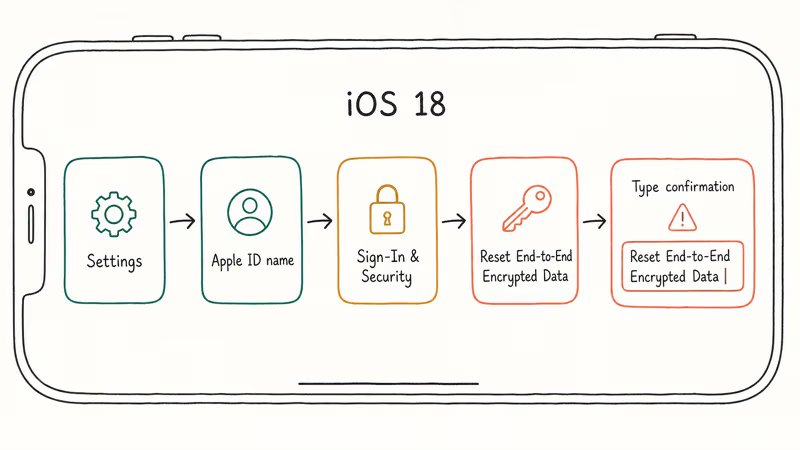
- Open Settings and tap your name at the top.
- Tap Sign-In & Security (iOS 18) or Password & Security (iOS 17).
- Scroll to the Recover Encrypted Data or Reset End-to-End Encrypted Data section. The wording shifted between iOS versions.
- Tap the option and read the on-screen list of what will be cleared.
- Type the confirmation phrase Apple shows you. iOS 18 currently uses Reset End-to-End Encrypted Data.
- Enter your Apple ID password.
- Confirm. The wipe propagates across your account in 1 to 5 minutes.
On older iOS versions the path was Settings > Apple ID > Password & Security > Recover Encrypted Data. The behavior is the same. Apple’s iOS 18 release notes renamed the prompt to make the consequence harder to miss.
If the option is missing, your account doesn’t need it. The system only surfaces the reset when your encryption keys are in a state that can’t be re-derived. A healthy account with at least one trusted device won’t show the entry.
#What to Do Right After the Reset
The reset clears the encrypted store. It doesn’t log you out, and it doesn’t touch your photos or files. The work that follows is rebuilding the wiped categories.
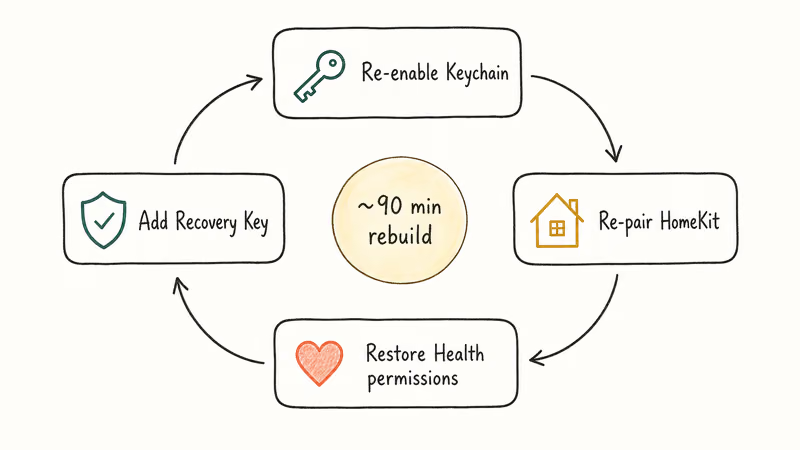
Re-enable iCloud Keychain by going to Settings > Apple ID > iCloud > Passwords and Keychain and toggling it on. Then import your CSV back into iOS, or let your password manager re-fill autofill entries one by one. Re-pair HomeKit accessories from your screenshots and grant Health permissions to the apps that need them.
If you had Advanced Data Protection on before the reset, re-enable it. This time, configure both a Recovery Key and a Recovery Contact. Apple recommends at least one of these be set up before you turn ADP on. Without one of them you can end up needing this exact reset again the next time something goes wrong.
The rebuild takes a long time once you add up Keychain, HomeKit, and Health. Plan for an evening, not a quick break.
#Limits of Resetting Without a Trusted Device
Yes, it works on the iPhone alone. No Mac or second iPhone required.
What you do need is your Apple ID password and the ability to receive the 6-digit verification code at your trusted phone number. According to Apple’s two-factor authentication documentation, the 6-digit code goes to a phone number you previously added to the account.
If that number is also lost, the reset path isn’t available. Use Apple’s account recovery instead.
For background on the sign-in side of things, our Apple ID verification guide walks through the trusted number setup, and the Apple ID locked walkthrough covers what to do when the account itself is frozen.
The reset doesn’t bypass any security boundary. It deletes data you can no longer decrypt anyway. Apple’s Platform Security guide confirms the iCloud key hierarchy is bound to a per-user master key derived from your Apple ID password.
#Bottom Line
Treat it as the last supported step for your own Apple ID. Export Keychain, Health, Wi-Fi credentials, and Home screenshots first if any device can still read them, then type the confirmation phrase deliberately. Plan an evening for the rebuild and add a Recovery Key so you don’t land here twice.
#Frequently Asked Questions
Will Reset Encrypted Data delete my photos or iCloud Drive files?
No. iCloud Photos, iCloud Drive, Mail, Contacts, Calendars, Reminders, and Notes use a different protection class and aren’t in the wipe scope. Only the end-to-end encrypted categories Apple lists, including Keychain, Health, Home, Messages in iCloud, and Screen Time, are cleared. Photos in particular use a server-side key that survives this reset, which is why a paired Mac that was already syncing photos sees no change after the reset finishes on your iPhone.
Can Apple recover my Keychain or Health data after the reset?
No. Apple doesn’t have the keys, so deleted encrypted blobs are gone.
Where is the option in iOS 18?
Open Settings, tap your name, tap Sign-In & Security, and look for Reset End-to-End Encrypted Data.
Is this the same as Erase All Content and Settings?
Not at all. Erase All Content and Settings, covered in our erase iPhone guide, wipes the iPhone itself and is meant for selling or trading the device. Reset Encrypted Data only clears specific iCloud categories tied to your Apple ID and leaves the iPhone, its photos, and your other iCloud data untouched. They live in different menus and serve different purposes, and the iPhone reset menu doesn’t show the iCloud option even on accounts where it would be available.
Does the reset turn off Advanced Data Protection?
It doesn’t change the ADP setting itself, but it removes the encrypted data ADP was protecting. Re-verify ADP under Settings > Apple ID > iCloud > Advanced Data Protection, then add a Recovery Key plus Recovery Contact before trusting ADP for new data.
Can I use this option to access someone else’s iPhone or Apple ID?
No. The feature requires the Apple ID password and the trusted phone number on the account, and trying to reset another person’s account is illegal under U.S. CFAA and similar laws elsewhere. Use Apple’s account recovery process for legitimate requests such as inheritance or estate access.
What if I tap Reset by mistake and I had no exports?
The wiped categories are gone. Apple can’t retrieve them, and no third-party tool can reconstruct end-to-end encrypted data without the keys. The practical recovery is rebuilding from sources that survived: a paired Mac with iCloud Keychain still synced, a clinical app that re-syncs Health data, a router admin page for Wi-Fi credentials, or a local encrypted Finder backup made before the reset.

Mac mini M6 vs M5 Pro: Which Model Should You Buy?
Mac mini M6 vs M5 Pro compared on price, memory, ports, displays, and real workloads. Find the better 2026 Mac mini for your desk and budget.

Apple Siri Settlement: Who Qualifies and How to Claim
Apple's $250 million Siri settlement covers iPhone 15 Pro and iPhone 16 models bought June 2024 to March 2025. See who qualifies and how claims work.

iOS 26.6.1 Security Update: What Apple Fixed and Who Gets It
Apple released iOS 26.6.1 on August 17 with 29 security fixes, including an IPSec interception bug. See what it patches, who gets it, and how to update.

iPhone Adaptive Power: How It Works and When to Use It
Learn how iPhone Adaptive Power works, which models support it, what it changes, and when Low Power Mode is still the better battery-saving choice.