Phone Charging, But CarPlay Not Working? 13 Fixes That Work
iPhone charging in the car but CarPlay won't connect? Try these 13 proven fixes for cable, Siri, Screen Time, and infotainment glitches in iOS 17 and 18.
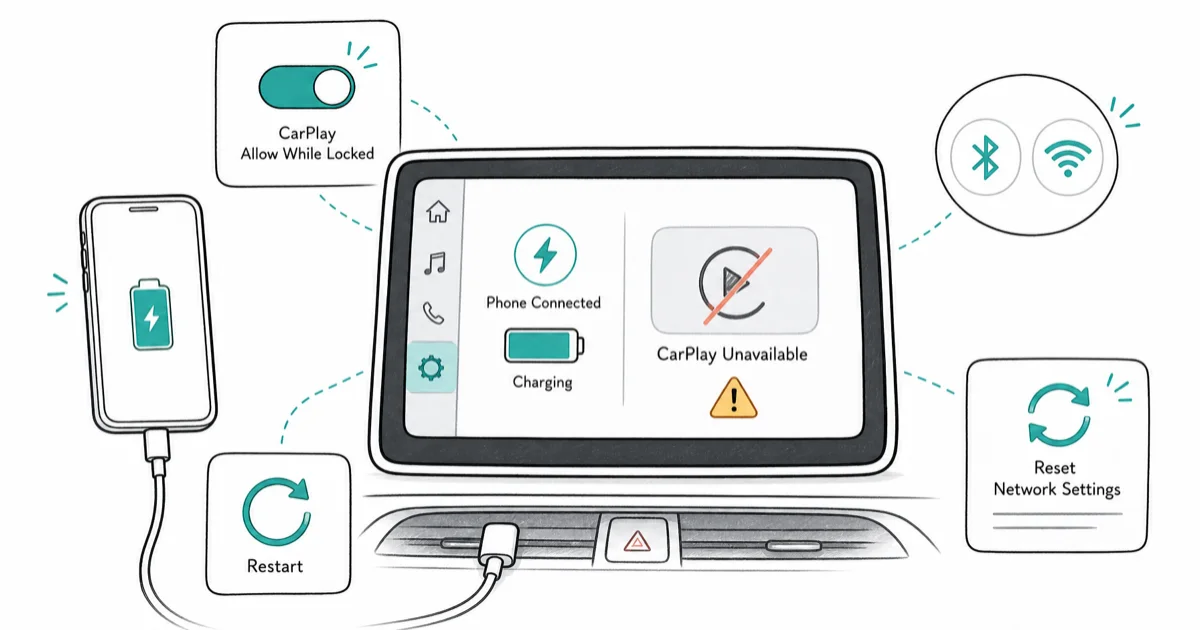
Quick AnswerReseat the Lightning or USB-C cable in the head unit, toggle CarPlay in Settings > General > CarPlay, confirm Siri is on, and restart both your iPhone and the car. If wireless CarPlay drops, forget the car under My Cars and pair fresh with Bluetooth and Wi-Fi both active.
Your iPhone charges fine through the car cable but CarPlay won’t appear on the head unit. The cable is rarely the only thing at fault. Charging needs two power pins; CarPlay needs the data lanes plus a clean Bluetooth or Wi-Fi handshake.
This guide assumes you own the iPhone and the vehicle (or have the owner’s permission), since CarPlay setup grants the head unit ongoing access to your contacts, messages, and location.
Work through the fixes in order, starting with the cable and Siri settings before moving to resets or firmware updates.
- A non-MFi cable can charge an iPhone at 5W while completely failing the USB 2.0 data handshake CarPlay requires. Swap to an Apple-certified Lightning or USB-C cable first.
- CarPlay is officially available in 36 countries; regional gating still applies even on hardware that supports it.
- Siri must be on. CarPlay refuses to launch if both Listen for Hey Siri and Press Side Button for Siri are off, because every voice prompt routes through Siri.
- Wireless CarPlay needs Bluetooth AND Wi-Fi both enabled. Bluetooth handles the handshake, Wi-Fi carries the screen stream, so toggling Airplane Mode kills the link.
- Screen Time content restrictions block CarPlay silently.
Settings>Screen Time>Content & Privacy Restrictions>Allowed Appsmust show CarPlay toggled on.
#Why Does My Phone Charge but CarPlay Won’t Connect?
The cable is doing one job; CarPlay is asking it to do four. A USB cable that only supports power delivery (5V on the VBUS line) will charge your iPhone fine but never enumerate as a CarPlay-capable device on the head unit.
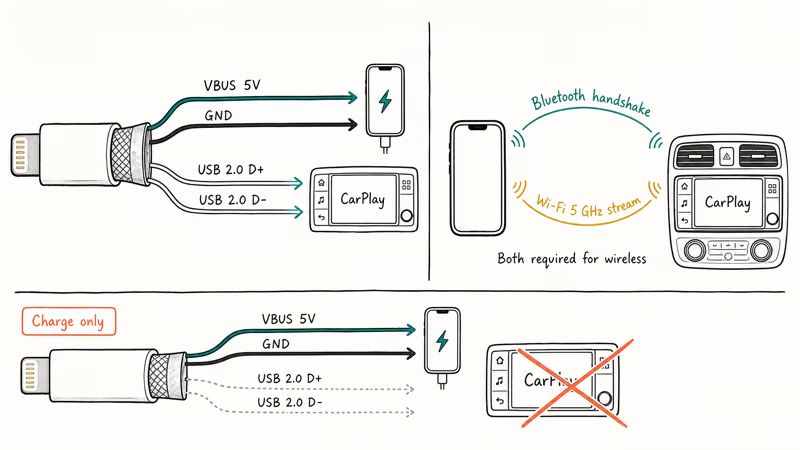
According to Apple’s CarPlay overview, every supported vehicle expects a USB 2.0 high-speed data path or a wireless handshake over Bluetooth plus Wi-Fi 5 GHz. Drop any one of those layers and the phone keeps charging but the head unit shows “No iPhone connected.”
Settings drift is another cause. iOS updates can toggle Screen Time permissions, and Bluetooth re-pairing can leave CarPlay half-paired.
The third class is thermal. When the phone is charging, navigating, and streaming Bluetooth audio at the same time, sustained current draw heats the Lightning or USB-C controller. iOS will preserve battery health by cutting CarPlay before it cuts charging.
Quick test before you start: plug the phone into a wall charger with the same cable, then connect it to a Mac. If iTunes or Finder doesn’t see the device, the cable can’t carry data and CarPlay will never work with it.
#Fix 1: Swap to an Apple-Certified Cable
Use a Lightning-to-USB-A cable that ships in the iPhone box, or a USB-C cable rated to USB 2.0 data minimum. Cheap aftermarket cables marked “fast charging only” almost always omit the data wires. If a cable charges but Finder or iTunes can’t see the iPhone, CarPlay won’t enumerate through it either. Swap to an Apple-certified cable before changing deeper settings.
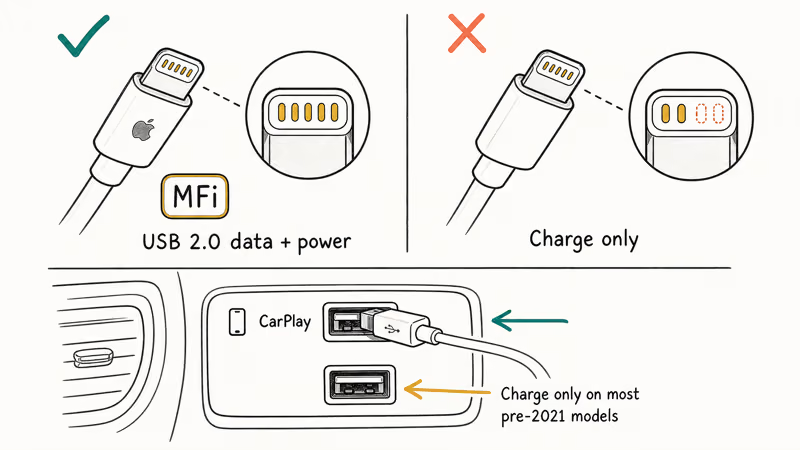
If the head unit’s USB port has multiple slots, look for the one labeled with a phone icon or the word “CarPlay.” Other ports are charge-only on most Hondas and Toyotas built before 2021.
#Fix 2: Reseat Both Ends of the Cable
Lint and pocket dust collect inside the iPhone Lightning or USB-C port. The cable seats just enough to make power contact but misses the data pins.
Unplug the cable, look into the iPhone port with a flashlight, and pick out any visible debris with a wooden toothpick. Never use metal probes or compressed air per Apple’s port maintenance guidance. A bent pin in the head unit socket will look fine from the outside but produce intermittent CarPlay drops, especially on Toyota and Mazda dash sockets that have seen daily use for three years or more.
Reseat the head unit end firmly. If the cable wiggles freely in the dash port, the socket itself probably needs service.
#Fix 3: Re-Enable CarPlay in Settings
iOS sometimes drops CarPlay from the active connection list after a major update. Apple recommends re-adding the car under General > CarPlay if the connection has stopped working after an iOS upgrade.
Open Settings > General > CarPlay. If your car appears under My Cars, tap it, then tap “Forget This Car.” Unplug the cable, wait 10 seconds, plug it back in. The car should reappear under “Available Cars” — tap it to re-pair.
#Fix 4: Confirm Siri Is Active
CarPlay requires Siri because every voice prompt and every “Hey Siri” call from the steering-wheel button routes through it. With Siri fully off, CarPlay refuses to launch.
Go to Settings > Siri & Search and confirm at least one of “Listen for Hey Siri” or “Press Side Button for Siri” is on. Also enable “Allow Siri When Locked” so you can trigger Siri from the car without unlocking the phone first. If Siri itself is broken, our Hey Siri not working walkthrough covers the deeper fixes before you come back to CarPlay.
#Fix 5: Allow CarPlay While Locked
By default iOS lets CarPlay run with the phone locked. If a previous owner or a profile install changed this, CarPlay disconnects every time the screen times out.
Open Settings > General > CarPlay > [Your Car] and confirm “Allow CarPlay While Locked” is on.
The toggle is per-car. Do this for every vehicle you have ever paired with.
#Fix 6: Check Screen Time Allowed Apps
Screen Time content restrictions can block CarPlay even when General > CarPlay shows the feature enabled. This is the most common silent failure on family-shared iPhones.
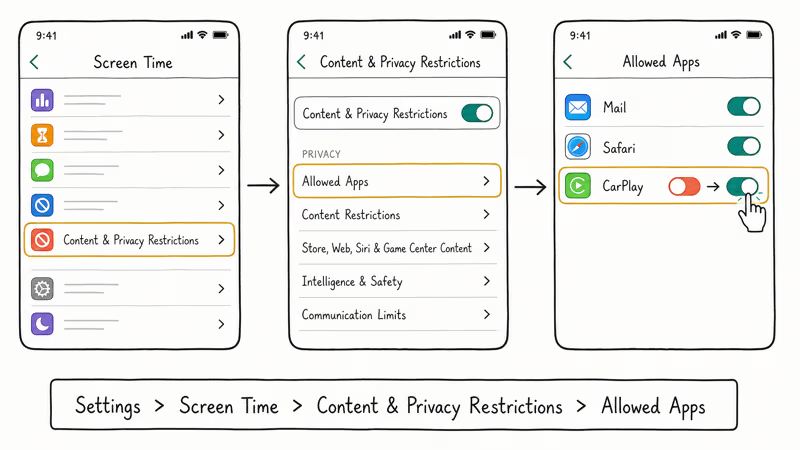
Open Settings > Screen Time > Content & Privacy Restrictions > Allowed Apps. Look for CarPlay in the list. If the toggle is off, switch it on. If the entire Content & Privacy Restrictions panel is off, no restriction is active and you can move on.
#Fix 7: Disable USB Accessories Lockout
iOS includes a security feature that disables the Lightning or USB-C data lanes after the phone has been locked for more than an hour. CarPlay sees the cable but gets no data.
Go to Settings > Face ID & Passcode, enter your passcode, and scroll to “Allow Access When Locked.” Toggle USB Accessories on. Our deeper guide on unlocking iPhone to use accessories explains the security trade-off if you would rather leave it off and unlock the phone before starting the car.
#Fix 8: Restart the Car’s Infotainment System
The car’s head unit runs its own embedded operating system, and that system gets stale.
On most vehicles, hold the volume knob for 10 seconds. On stubborn head units, pull the audio fuse for 60 seconds, checking the owner’s manual for the right fuse number first. Some head units also need a deeper reset, such as disconnecting the car battery, but check the manual first and preserve any anti-theft radio codes.
#Fix 9: Cool the Phone Down
If the phone feels warm and CarPlay drops 10 to 15 minutes into a drive, thermal throttling is cutting the connection to protect the battery.
Pull the phone out of any case that traps heat, especially leather and silicone wallet cases, park out of direct sun, and let it cool for 5 minutes. If it still drops, switch to wireless CarPlay if your car supports it. Wireless does not push current into the phone, so the thermal load is lower.
#Fix 10: Force Restart Your iPhone
A force restart clears the USB and Bluetooth daemons without erasing data. Press Volume Up, release. Press Volume Down, release. Then press and hold the Side button until the Apple logo appears (about 10 seconds).
Apple’s force restart guide states that this 10-second sequence doesn’t erase data or settings and is safe at any battery level. After the phone boots, leave it alone for 30 seconds before plugging back into the car. The Bluetooth and USB daemons need that window to come back online.
#Fix 11: Forget and Re-Pair the Car (Wireless CarPlay)
For wireless CarPlay, both Bluetooth pairing AND a Wi-Fi profile must be intact. iOS bundles them under one CarPlay entry, but the underlying handshake uses both. If one half breaks, the connection limps.
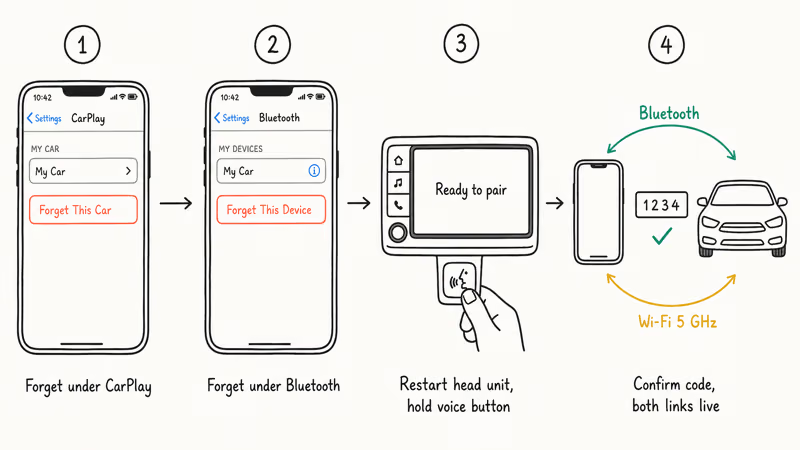
Go to Settings > General > CarPlay, tap your car, tap “Forget This Car.” Then go to Settings > Bluetooth, find the same car, tap the (i) icon, tap “Forget This Device.” Restart the car’s infotainment (Fix 8). Hold the voice command button on the steering wheel until the head unit shows “ready to pair,” then go to Settings > General > CarPlay > Available Cars on the iPhone and tap the car name. Confirm the 4-digit code matches.
If you are also troubleshooting Bluetooth audio drop-outs after the re-pair, our Waze on Android Auto guide covers some of the same Bluetooth-Wi-Fi coexistence quirks (the underlying causes overlap even though the platform differs).
#Fix 12: Reset Network Settings
If forget-and-re-pair does not work, reset the iPhone’s full network stack. Settings > General > Transfer or Reset iPhone > Reset > Reset Network Settings. Enter your passcode and confirm.
This wipes all saved Wi-Fi networks, Bluetooth pairings, VPN profiles, and cellular preferences. You’ll need to re-enter Wi-Fi passwords at home and re-pair every Bluetooth device, including the car. Use this as a near-last resort because of the home Wi-Fi pain. It often clears stale CarPlay pairing state when cable, Siri, and Screen Time checks don’t work.
#Fix 13: Update iOS and the Car’s Firmware
CarPlay protocol updates ship in iOS point releases, and the car side ships in head-unit firmware that some manufacturers update over Wi-Fi and others require a dealer visit for. Outdated firmware on either side can break the handshake.
Open Settings > General > Software Update on the phone. For the car, check the manufacturer’s app (Toyota App, MyHonda+, FordPass, MyVW) for an over-the-air update or visit the dealer. Specific iOS releases have been known to fix CarPlay regressions, including iOS 17.4 (USB-C iPhone 15 stability) and iOS 18.0.1 (wireless CarPlay reconnection bug).
If the phone won’t update because the battery drains in the car, our iPhone won’t charge but says it’s charging walkthrough covers cable and adapter checks first.
#Will CarPlay Ever Come to My Car if It’s Not Listed?
Probably not natively.
Auto manufacturers ship CarPlay in the head unit’s firmware at design time, and most won’t backport it to older infotainment hardware because the licensing model requires Apple-certified silicon for protocol negotiation. The aftermarket workaround is replacing the head unit, and Pioneer, Alpine, Sony, Kenwood, and Crutchfield all sell single- and double-DIN units with CarPlay starting around $300 plus install.
Some 2014-2018 vehicles also have official Apple-certified retrofit kits sold through the dealer (BMW and Audi did this for select model years). For a software-only path that gets you Maps and music on the dash, see our mirror phone to car screen guide. It doesn’t replace CarPlay, but it covers the screen mirroring options that work on cars without head-unit upgrades.
#Bottom Line
Cable first, then Siri.
Start with Fix 1 (cable swap) and Fix 4 (Siri). Together they cover the most common CarPlay-but-charging causes: missing data lanes and Siri being unavailable.
If neither works, jump to Fix 11 (forget and re-pair) before you bother with a network reset. Forget-and-re-pair is lower-impact and clears the most common stale-pairing state without nuking your saved Wi-Fi networks. If the phone still charges but CarPlay refuses to launch after all 13 fixes, the issue is almost certainly hardware. Book the dealer appointment.
#Frequently Asked Questions
What if my car doesn’t support CarPlay?
Check the official compatibility list at apple.com/ios/carplay before assuming your car is unsupported, because Apple adds models retroactively in some cases. If your year and trim still isn’t listed after that check, the only paths are an aftermarket head-unit replacement (Pioneer, Sony, Kenwood, around $300 plus install) or a dealer-installed CarPlay retrofit if the manufacturer offers one for that model year.
Why does my Apple-certified cable charge but not work with CarPlay?
The cable likely has a damaged data wire.
Lightning and USB-C cables fail the data wires before they fail the power wires because the data conductors are thinner. Test by plugging the phone into a Mac with the same cable. If Finder doesn’t see the iPhone, the cable can’t carry data and CarPlay won’t work with it on any vehicle no matter how many other fixes you try.
Can I use CarPlay over Bluetooth alone?
No. Wireless CarPlay needs both Bluetooth (for the initial handshake and for telephony audio) and a 5 GHz Wi-Fi link (for the screen stream). If your iPhone or your car only supports 2.4 GHz Wi-Fi, wireless CarPlay won’t work. Fall back to a wired connection.
How do I force-start CarPlay?
Plug into the CarPlay-labeled USB port with a certified cable. If wired won’t trigger it, hold the steering-wheel voice command button until the car prompts to pair.
Why is CarPlay missing from my iPhone Settings?
Either the iPhone is in a region where CarPlay isn’t supported, or Screen Time has hidden it. Open Settings > Screen Time > Content & Privacy Restrictions > Allowed Apps and look for CarPlay. If you’re outside the 36 supported countries, CarPlay won’t appear in the menu at all, and no toggle on the iPhone side will surface it.
Does CarPlay drain my iPhone battery while connected?
Wired CarPlay actively charges the phone, so battery rises. Wireless CarPlay uses Bluetooth plus Wi-Fi continuously, which steadily drains the battery even with no charger. Battery drain is more noticeable during navigation, especially with high screen brightness or heat.
Why did CarPlay stop working after an iOS update?
Major iOS releases occasionally reset the CarPlay pairing or disable Allowed Apps under Screen Time. Re-enable CarPlay under General > CarPlay, confirm it’s checked under Screen Time, and forget-then-re-pair the car.
For broader CarPlay failures after an iOS update (wireless dropouts, Screen Time toggles, and re-pairing), see our nine iOS 26 CarPlay connection fixes.
Does my iPhone need to be plugged in to use CarPlay?
Only if your car supports wired CarPlay only. If the car supports wireless CarPlay (most 2017+ luxury models and most 2020+ mainstream models), the iPhone can stay in your pocket once paired. If you also need a MacBook Pro charging fix or a similar power-system check while you’re at it, that’s a separate diagnostic path with the same cable-and-adapter logic on a different device.

Apple Siri Settlement: Who Qualifies and How to Claim
Apple's $250 million Siri settlement covers iPhone 15 Pro and iPhone 16 models bought June 2024 to March 2025. See who qualifies and how claims work.

iOS 26.6.1 Security Update: What Apple Fixed and Who Gets It
Apple released iOS 26.6.1 on August 17 with 29 security fixes, including an IPSec interception bug. See what it patches, who gets it, and how to update.

iPhone Adaptive Power: How It Works and When to Use It
Learn how iPhone Adaptive Power works, which models support it, what it changes, and when Low Power Mode is still the better battery-saving choice.

How to Transfer Data to a New iPhone Without iCloud
Move everything to your new iPhone without iCloud: Quick Start device-to-device transfer, wired migration, and encrypted Finder or iTunes backups.