Nvidia Backend Process: What It Is and How to Stop It
Learn what the nvbackend.exe Nvidia backend process is, why it uses CPU and RAM in the background, and three ways to stop it on Windows 10 and 11.
Quick AnswerThe Nvidia backend process (nvbackend.exe) is part of GeForce Experience and handles game optimization, driver updates, and network communications. You can safely disable it through Task Manager or by uninstalling GeForce Experience without affecting your graphics card.
The Nvidia backend process shows up in Task Manager on every PC with a GeForce graphics card. It runs as nvbackend.exe and stays active even when no game is open. It typically sits with a small RAM footprint right after boot, before any application launches.
- Nvbackend.exe belongs to GeForce Experience and handles game settings sync, driver checks, and ShadowPlay streaming
- Ending the process in Task Manager stops it instantly, but it relaunches at every Windows startup
- Disabling the Nvidia Streamer Service in services.msc stops nvstreamsvc.exe permanently with one toggle
- Uninstalling GeForce Experience removes nvbackend.exe entirely while keeping the graphics driver and PhysX intact
- The Nvidia App replaced GeForce Experience in late 2024, so newer driver installs may ship without nvbackend.exe at all
#What Does the Nvidia Backend Process Do?
Nvbackend.exe is the background worker for Nvidia GeForce Experience. It runs three jobs nonstop.
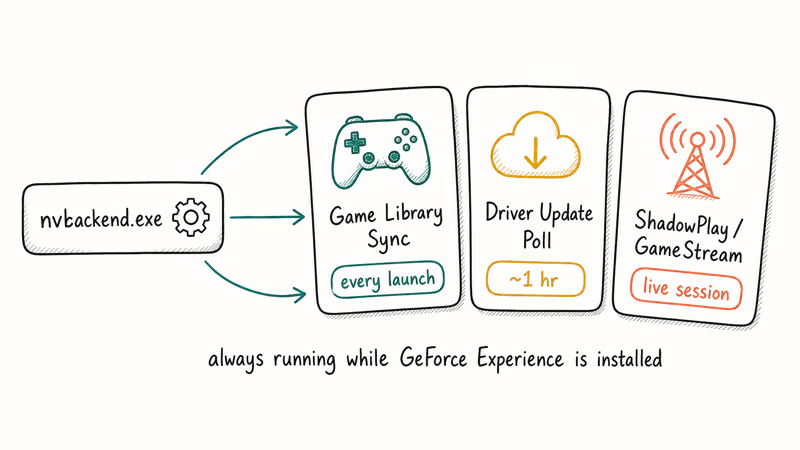
It syncs your installed game library with Nvidia’s optimization database, polls for driver updates roughly once an hour, and manages network sessions for ShadowPlay recording and GameStream. According to Nvidia’s GeForce forums thread on the backend process, the executable launches at startup and keeps running for the full Windows session as long as GeForce Experience is installed. The process does not touch your graphics driver. Your GPU still renders frames identically whether nvbackend.exe is alive or terminated.
You may also see a sibling process called nvstreamsvc.exe in Task Manager. gHacks Technology News confirms that nvstreamsvc.exe powers Nvidia’s streaming stack, including casting gameplay to Shield devices and remote play through Moonlight. If you have run into Nvidia Capture Server Proxy errors, those belong to the same GeForce Experience family and follow the same disable rules covered below.
#Is the Nvidia Backend Process Safe?
Yes. Nvbackend.exe is a code-signed executable from Nvidia Corporation, and it does not damage your system on its own.
Based on Malwaretips’ breakdown of nvbackend.exe, the legitimate file lives inside C:\Program Files\NVIDIA Corporation\ and carries Nvidia’s digital signature in its file properties. If a file named nvbackend.exe shows up in C:\Windows\System32 or any user temp folder, treat it as malware impersonating Nvidia and run a full antivirus scan immediately.
The legitimate process can still cause real problems. Threads on the Nvidia GeForce forums report nvbackend.exe triggering sudden hard drive activity mid-game, which happens when GeForce Experience kicks off a library scan to refresh its optimization data.
On a 7200 RPM mechanical drive, this scan can spike frame time for a few seconds before settling. If your PC feels unusually slow, that background scan is a likely contributor on HDD-based systems, especially laptops where the OS shares a drive with the games library. Moving the games library to an SSD generally clears up this kind of stutter.
#How to Check if Nvbackend.exe Is Running
Open Task Manager with Ctrl + Shift + Esc, click the Processes tab, and sort the list by name. Look for NVIDIA GeForce Experience Backend or nvbackend.exe.
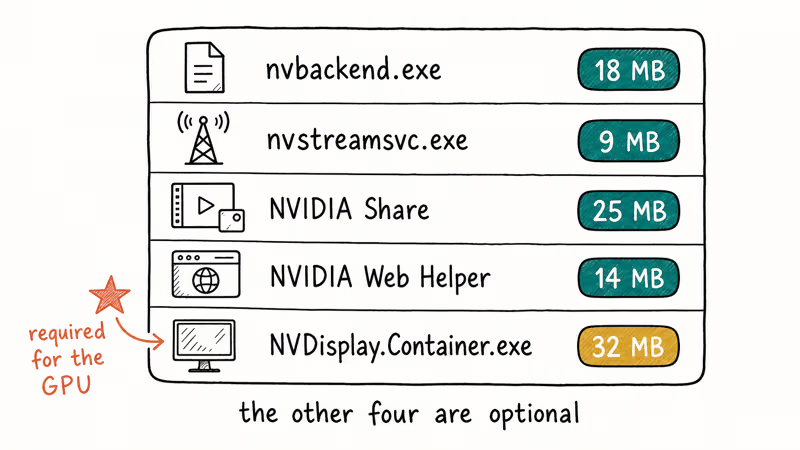
A clean GeForce Experience install on Windows 11 typically shows five Nvidia processes running at idle:
- nvbackend.exe (GeForce Experience Backend, light RAM use)
- nvstreamsvc.exe (Nvidia Streamer Service, light RAM use)
- NVIDIA Share (ShadowPlay overlay, modest RAM use)
- NVIDIA Web Helper (login and account features, light RAM use)
- NVDisplay.Container.exe (display driver service, modest RAM use)
Only the last one is required for your graphics card to work. The other four belong to GeForce Experience and can be disabled without affecting display output, refresh rate, or game performance. This is different from errors like Video Scheduler Internal Error or Nvidia display settings not available, which point to actual GPU driver problems and need a different fix.
#Ending Nvbackend.exe Temporarily via Task Manager
Right-click nvbackend.exe inside Task Manager and choose End Task. The process exits immediately, and the GeForce Experience tray icon disappears within a second.
There’s a catch. Nvbackend.exe relaunches the next time you reboot, because GeForce Experience registers it as a startup task. Ending it in Task Manager is the right move when you want a quiet hour during a game, but for a permanent fix you need one of the three methods below.
#Three Ways to Permanently Disable the Nvidia Backend
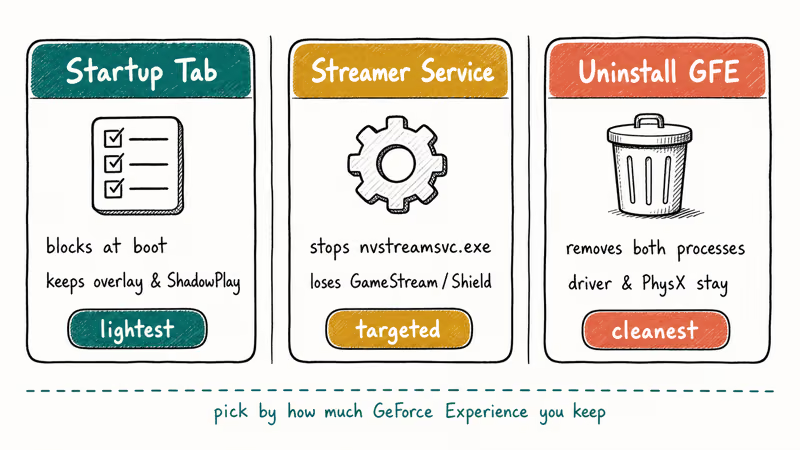
You have three options, depending on how much GeForce Experience you want to keep.
#Option 1: Disable From Startup
Press Ctrl + Shift + Esc to open Task Manager. On Windows 10 click the Startup tab; on Windows 11 click Startup apps in the left sidebar. Find NVIDIA Backend or NVIDIA GeForce Experience, right-click, and select Disable.
This blocks nvbackend.exe from launching at boot but leaves the rest of GeForce Experience installed. After the change, nvbackend.exe stays absent from Task Manager on the next boot, while ShadowPlay and the Nvidia overlay still work when launched manually.
#Option 2: Disable the Nvidia Streamer Service
This option targets nvstreamsvc.exe specifically.
Press Windows + R, type services.msc, and press Enter. Scroll to NVIDIA Streamer Service, right-click it, and choose Properties.
Set Startup type to Disabled, click Stop, then OK. After this change, nvstreamsvc.exe no longer launches at boot and stays out of the background. You lose GameStream and Shield casting, but driver updates, ShadowPlay, and game optimization keep working.
#Option 3: Uninstall GeForce Experience Completely
This is the cleanest fix and the one we recommend for most people.
Press Windows + R, type appwiz.cpl, and press Enter. Find NVIDIA GeForce Experience in the list, click Uninstall, and follow the wizard. The whole process usually takes only a couple of minutes.
Don’t uninstall NVIDIA Graphics Driver, NVIDIA HD Audio Driver, or PhysX System Software. Your GPU needs all three to function. After removal, both nvbackend.exe and nvstreamsvc.exe disappear from Task Manager, while NVDisplay.Container.exe stays. If you later run into Nvidia Control Panel issues, that’s a separate driver-side problem and unrelated to GeForce Experience.
#The Nvidia App and the Future of Background Processes
Nvidia officially replaced GeForce Experience with the new Nvidia App in late 2024. According to Tom’s Guide’s coverage of the Nvidia App launch, the new app combines GeForce Experience and the Nvidia Control Panel into a single program with a redesigned UI.
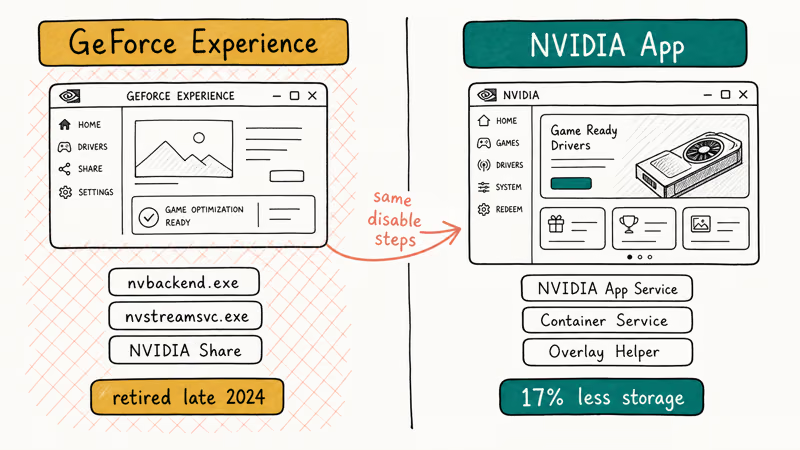
Newer drivers ship with the Nvidia App. Nvidia’s announcement describes it as a single, lighter-weight replacement for the old GeForce Experience and Control Panel combination.
The app still runs background services for driver checks and game optimization, but the executable names are different. Nvbackend.exe and nvstreamsvc.exe are gone, replaced by NVIDIA App services that show up under new process names in Task Manager. The Streamer Service entry in services.msc is gone too, since GameStream is no longer a built-in Nvidia App feature.
The same disabling logic still applies, though. You can end the Nvidia App processes in Task Manager for a temporary stop, disable its startup entry for a per-boot block, or uninstall the app entirely through appwiz.cpl while keeping the graphics driver and PhysX in place. Because the uninstall leaves the driver and PhysX untouched, game frame rates stay the same at identical settings.
#Updating Nvidia Drivers Without Companion Software
You don’t need GeForce Experience or the Nvidia App to stay current. Go to Nvidia’s official driver download page, pick your GPU model and Windows version, and run the installer.
When the installer opens, choose Custom Install and uncheck every component except NVIDIA Graphics Driver, HD Audio Driver, and PhysX. This gives you a driver-only install with no companion software, no telemetry, and no background processes beyond NVDisplay.Container.exe.
A driver-only setup delivers effectively the same game frame rates as the GeForce Experience install at identical settings, since the rendering driver is the same. Task Manager then shows only NVDisplay.Container.exe in the Nvidia process list, and total Nvidia RAM usage is noticeably lower than the full GeForce Experience install.
The trade-off is you lose automatic update notifications, so you need to check nvidia.com manually about once a month for new Game Ready drivers. The same logic works for any unwanted background process on Windows. If you instead see a kernel mode heap corruption crash, that points to a deeper driver or hardware fault, and a clean reinstall through the steps above is usually the right starting move.
#Bottom Line
Nvbackend.exe is harmless but unnecessary. If you don’t use ShadowPlay or game optimization, uninstall GeForce Experience and stick with a driver-only install from nvidia.com.
#Frequently Asked Questions
Is nvbackend.exe a virus?
No, the legitimate file is signed by Nvidia Corporation. The real executable lives under C:\Program Files\NVIDIA Corporation\. Finding it in C:\Windows\System32 or a user temp folder means malware impersonating Nvidia, and you should run a full antivirus scan.
Will removing GeForce Experience affect my games?
No. Frame rates stay the same.
How many Nvidia processes should be running in Task Manager?
With just the driver installed, you see one or two. NVDisplay.Container.exe is the main one, and NVIDIA LocalSystem Container sometimes appears alongside it depending on your driver version. Installing GeForce Experience or the Nvidia App adds four to six extra processes, including nvbackend.exe, NVIDIA Share, NVIDIA Web Helper, and the streamer service.
Does the Nvidia App have the same background processes as GeForce Experience?
Yes. The process names changed, but the disable steps are identical: Task Manager Startup tab, services.msc, or full uninstall.
Can I reinstall GeForce Experience after removing it?
Absolutely, although Nvidia now redirects the download page to the Nvidia App. Download the installer from nvidia.com, run it, and all features return. You may need to log in again and reconfigure ShadowPlay and your in-game overlay settings.
What is nvstreamsvc.exe and do I need it?
It powers Nvidia’s GameStream service for streaming to Shield devices and Moonlight clients. If you don’t stream games, disable it in services.msc by setting NVIDIA Streamer Service startup type to Disabled. Disabling it has no impact on regular gaming, browser performance, or video playback.
Does disabling Nvidia backend processes improve gaming performance?
The improvement is minimal on most modern setups. Nvbackend.exe uses 15 to 30 MB of RAM and very little CPU at idle. The exception is when the process kicks off a library scan mid-game, which can spike disk I/O on mechanical drives and cause a brief stutter; the same scan causes no disruption on NVMe storage.
How do I update Nvidia drivers without GeForce Experience?
Go to nvidia.com/Download, enter your GPU model, and download the latest Game Ready driver. Choose Custom Install and uncheck the companion software.

Best Laptop for Running LLMs in 2026: Memory Comes First
The best laptop for running LLMs is a memory purchase first. Compare MacBook unified memory against NVIDIA laptop VRAM, and see what each tier really runs.

How to Run a Local LLM on Windows: A 2026 Setup Guide
Run a local LLM on Windows with LM Studio or Ollama. Pick a model that fits your GPU memory, keep every prompt offline, and skip the monthly bill.

Bluetooth Not Working on Snapdragon X? Fixes for 2026
Bluetooth not working on your Snapdragon X Copilot+ PC? Generic audio, mice, and keyboards work, but vendor apps often lack an ARM build. Fixes inside.

Docker Desktop and WSL2 Not Working on Snapdragon X? Fix It
WSL2 runs fine on Snapdragon X, but Docker Desktop ARM is Early Access and throws WSL errors. Use WSL2 plus native ARM64 Ubuntu and Docker Engine.