Nintendo Switch 2 Wi-Fi Not Connecting? 7 Quick Fixes
Nintendo Switch 2 Wi-Fi not connecting? Split your router bands, set a manual DNS, and check WPA security. 7 fixes for a Wi-Fi 6 home network.
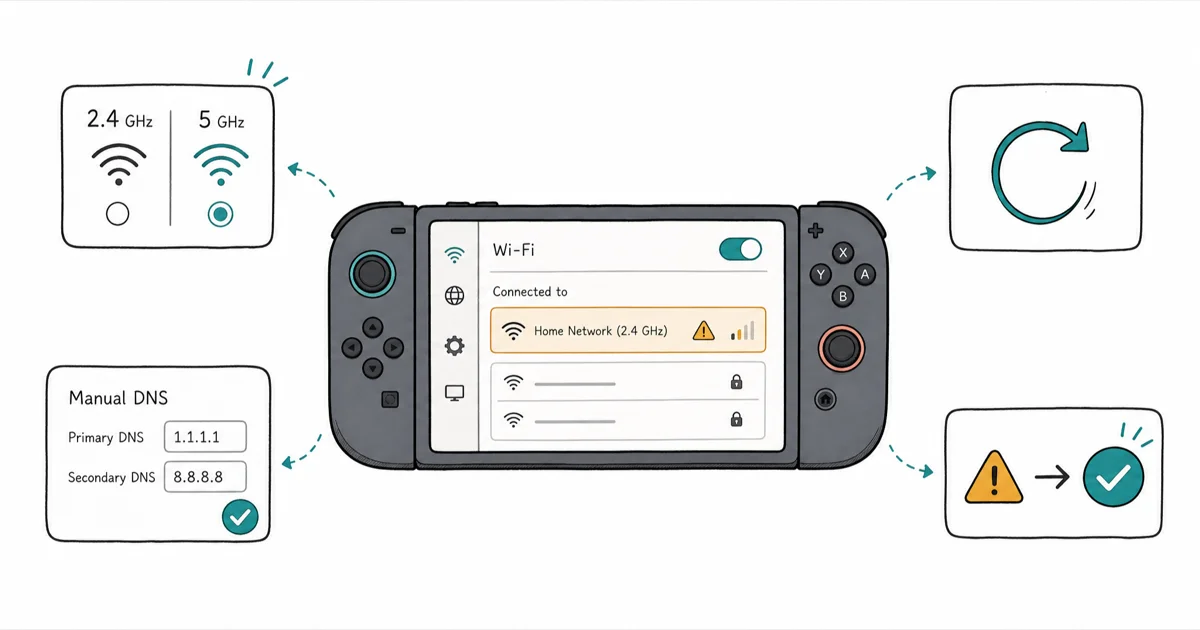
Quick AnswerThe Nintendo Switch 2 often fails to connect because it clings to the slower 2.4 GHz band. Split your 2.4 GHz and 5 GHz networks into separate names and set a manual DNS to fix most cases.
Nintendo Switch 2 Wi-Fi not connecting is one of the most common early complaints about the console, and it usually comes down to band behavior, not a broken unit. Splitting the bands and setting a manual DNS are two practical fixes to try before assuming the console is faulty.
- The Switch 2 supports Wi-Fi 6, but on many dual-band routers it stubbornly connects to the slower 2.4 GHz band instead of the faster 5 GHz one
- Splitting your 2.4 GHz and 5 GHz bands into separate network names lets you force the console onto the faster band
- Setting a manual DNS of 8.8.8.8 resolves cases where the console connects but can’t reach the internet or stalls during setup
- The Switch 2 only supports WPA3, WPA2-PSK (AES), and WPA-PSK (AES) security, so an old WEP router won’t connect at all
- The Switch 2 dock includes a wired LAN port, so an Ethernet cable is the most reliable connection when the console is docked
#Why Won’t My Nintendo Switch 2 Connect to Wi-Fi?
Most Switch 2 Wi-Fi failures trace back to how the console picks a band. It supports modern Wi-Fi, yet on a dual-band router it frequently latches onto the crowded 2.4 GHz signal and ignores the faster 5 GHz one.
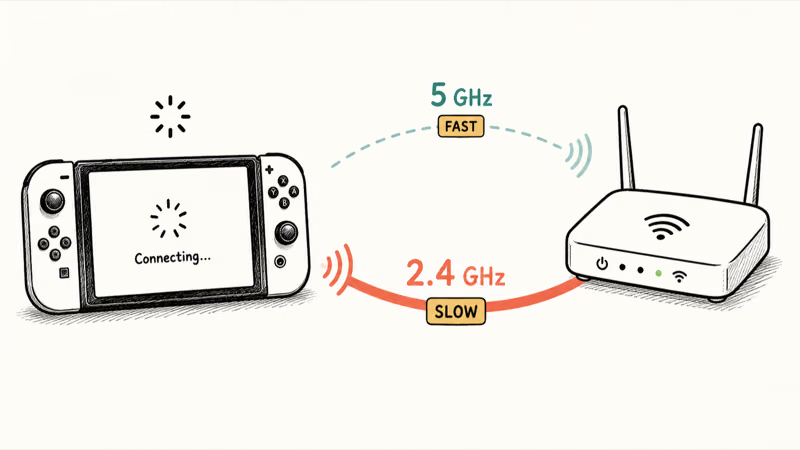
That single quirk explains a lot of the early frustration.
According to Tom’s Guide’s Switch 2 specs, the console added Wi-Fi 6 (802.11ax) over the original Switch, so the hardware handles 5 GHz speeds when it actually joins that band. Stuck on 2.4 GHz, downloads crawl and the link feels flaky. The other two usual suspects are router security and a stale saved network.
Work the fixes below in order.
#Restart the Console and Power Cycle Your Router
Start with the basics. Hold the Power Button on top of the console, choose Power Options, then Restart.
While it reboots, power cycle your network: unplug the modem and router for about 30 seconds, then plug them back in and wait for the lights to settle. That clears stale connections on both ends. Nintendo’s network connection guide recommends moving the console within 10 to 15 feet of the router and away from metal objects, speakers, and cordless phones that smother the signal.
Just unboxed it? If the console stalls here, the Switch 2 stuck on setup guide covers the setup-specific path.
#Split Your 2.4 GHz and 5 GHz Bands
This is the fix that solves the classic Switch 2 problem. Many routers broadcast both bands under one network name, which lets the console default to 2.4 GHz.
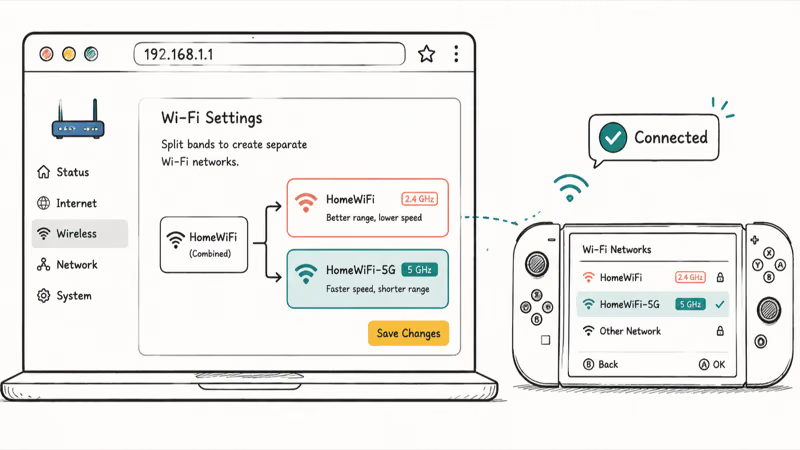
Log into your router’s admin panel, usually at an address like 192.168.1.1, and give the two bands separate names, such as adding “-5G” to the 5 GHz network. Save, then reconnect the Switch 2 to the 5 GHz name directly. On combined networks, the console can default to 2.4 GHz instead of the faster 5 GHz band.
If 5 GHz drops at distance, lock the console to 2.4 GHz instead. A steady slow band beats a fast one that keeps dropping.
#Set a Manual DNS to 8.8.8.8
Connected but nothing loads? The DNS is often the problem, and a manual one bypasses a flaky server from your provider.
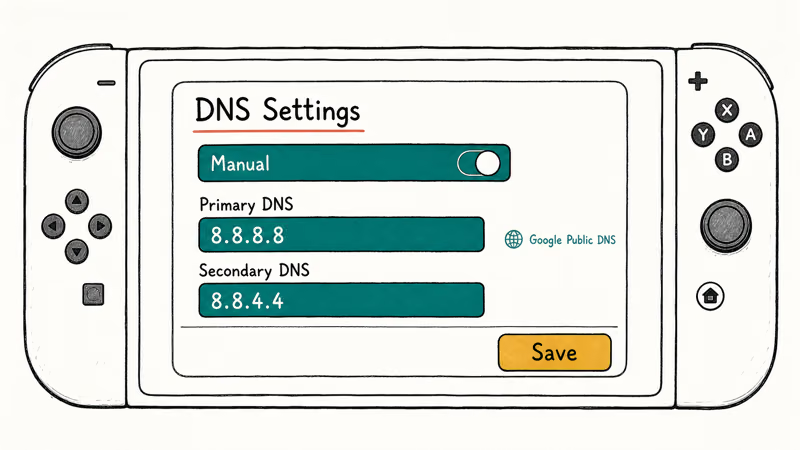
From the HOME Menu, go to Settings > Internet > Internet Settings, pick your network, then Change Settings > DNS Settings > Manual. Set Primary DNS to 8.8.8.8 and Secondary to 8.8.4.4, then save and reconnect. Those are Google’s public servers. A manual DNS can help when the console connects to Wi-Fi but can’t load online services.
Do this alongside the band split for the best odds.
#Check Your Router’s Security Type and Update the System
The Switch 2 is picky about security. An unsupported type silently blocks an otherwise healthy router.
According to Nintendo, the Switch 2 supports only WPA3, WPA2-PSK (AES), and WPA-PSK (AES) security, as its Wi-Fi support guide details. If your router still runs WEP or a mixed mode the console dislikes, log in and switch it to WPA2-PSK (AES) or WPA3.
Then update the system under System Settings > System > System Update, since early firmware often patches network bugs.
Moving from an old console? The Switch 2 data transfer walkthrough handles that move.
#Should You Use a Wired Connection?
When the console lives in the dock, skip Wi-Fi entirely. The Switch 2 dock has a built-in LAN port the original console lacked, and a wired link sidesteps every band and interference problem at once.
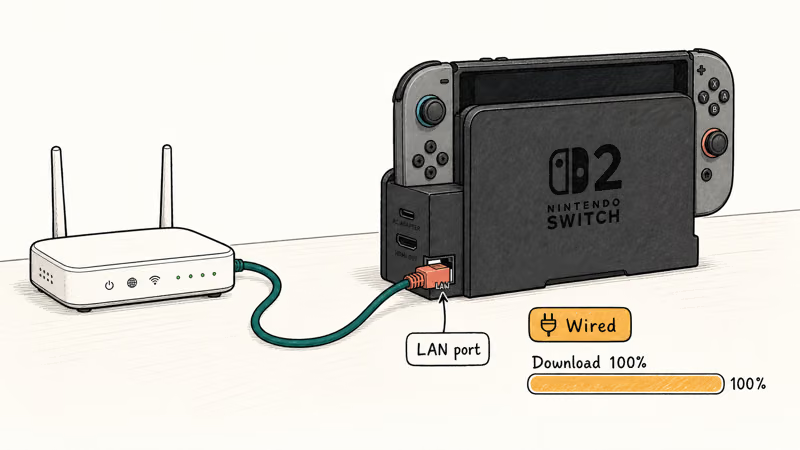
Plug an Ethernet cable from your router into the dock’s LAN port, dock the console, then set the connection to wired under Internet Settings. Downloads run at full speed and stay rock solid. It’s the better path for big game downloads, and it pairs nicely with a desk setup built around the best portable monitor for your Switch.
Handheld play still rides on Wi-Fi, so the band split and manual DNS matter on the go.
#Bottom Line
Split your router’s bands first. If the console is clinging to 2.4 GHz on a dual-band network, forcing it onto the 5 GHz network is the simplest fix to try.
Add a manual DNS of 8.8.8.8 if the console connects but can’t reach the internet, and when it’s docked, run Ethernet into the dock’s LAN port to forget Wi-Fi troubles altogether. While you’re kitting out the console, a fast microSD Express card for the Switch 2 keeps big downloads from filling internal storage.
#Frequently Asked Questions
Why does my Switch 2 keep connecting to 2.4 GHz?
Because many routers broadcast both bands under one name, and the console favors 2.4 GHz for its longer range. Split the 2.4 GHz and 5 GHz bands into separate network names, then connect the Switch 2 to the 5 GHz name directly. That forces it onto the faster band and usually clears slow downloads.
What DNS should I use on the Nintendo Switch 2?
Use Google’s public DNS: 8.8.8.8 as primary and 8.8.4.4 as secondary. It often fixes a console that connects but can’t load the eShop.
Does the Switch 2 support Wi-Fi 6?
Yes. The Switch 2 added Wi-Fi 6 (802.11ax), a step up from the original. The catch is that it has to actually join your 5 GHz band to see the benefit, which is exactly why splitting your router’s bands matters so much on the new hardware.
What Wi-Fi security does the Switch 2 need?
It supports WPA3, WPA2-PSK (AES), and WPA-PSK (AES). Older WEP encryption won’t connect at all.
Can I connect the Switch 2 with an Ethernet cable?
Yes, and it’s the most reliable option. The Switch 2 dock includes a wired LAN port that the original Switch lacked. Plug Ethernet from your router into the dock, dock the console, and select the wired connection in Internet Settings for full-speed, drop-free downloads.
Why does my Switch 2 say it can’t find my network?
Usually interference, distance, or an unsupported security type. Move the console within 10 to 15 feet of the router, away from metal and electronics, and confirm the router uses WPA2-PSK (AES) or WPA3. If other devices see the network but the Switch 2 doesn’t, restart both the console and the router.
Will a system update fix Switch 2 Wi-Fi problems?
It can. Early console firmware often carries network bugs that later updates quietly patch, so installing the newest system update is one of the first things worth doing before any deeper troubleshooting. Check under System Settings, System, then System Update, install whatever is offered, then reconnect and test a download. Once you’re reliably online, it’s worth lining up some 4-player Switch games so the whole group can jump into a stable lobby together.
Fortnite Stuck on the Loading Screen? Fix It in 2026
Fortnite stuck on the loading screen? Check server status, fix the Windows N Media Pack and DirectX 11 on PC, clear the console cache, and verify files.
Minecraft Keeps Crashing? Java and Bedrock Fixes (2026)
Minecraft keeps crashing on startup or mid-game? Update your GPU driver, remove mods on Java, and reinstall Gaming Services on Bedrock. Fixes for both.
Pokemon GO Not Loading? Fix the Loading Screen 2026
Pokemon GO not loading or stuck on the Pokeball? Check server status, fix automatic date and time, grant location permission, clear the cache, and update.
PS5 Controller Not Charging? 9 Fixes That Work (2026)
DualSense not charging? Swap the cable, use a rear port in Rest Mode, clean the USB-C port, and check power settings. 9 fixes for a dead PS5 controller.