Nintendo Switch 2 Stuck on Setup? Confirmed 2026 Fix
Switch 2 hangs on the Preparing screen during first-time setup. Nintendo's official fix is to skip account linking, then link later — full sequence.
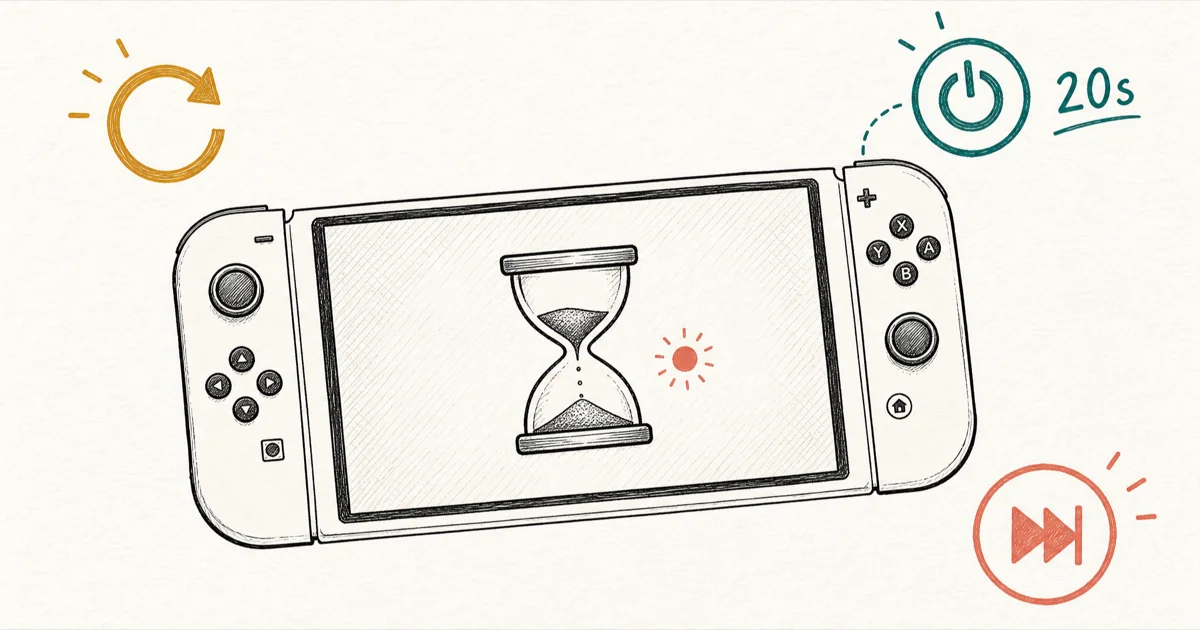
Quick AnswerIf your Nintendo Switch 2 freezes on the Preparing screen during first-time setup, hold POWER for 20 seconds to force shutdown, power back on, and skip Nintendo Account linking. Finish setup, update, then link later.
A brand-new Nintendo Switch 2 that hangs on the “Preparing…” screen is a Nintendo-acknowledged software bug, not a defective console. The fix lives on Nintendo’s own support center.
On a Switch 2 that has been stuck for several minutes, the forced-shutdown plus skip-link sequence usually gets the console finishing setup quickly.
- Hold the POWER button for 20 seconds to force a full shutdown. Short presses only put the Switch 2 into sleep mode, and the 12-second hold from the original Switch is no longer reliable on Switch 2 firmware.
- After the forced shutdown, power the console back on, run setup again, and tap Skip when prompted to link a Nintendo Account during the initial flow.
- Finish setup with a local user only, then go to
System Settings>System>System Updateand install the latest system update before doing anything else. - After the update completes, open User Settings, choose your user, select Link Nintendo Account, and scan the QR code with a phone or enter the URL
accounts.nintendo.com/login/deviceon any browser. - Skip the factory reset, skip the exchange, and skip the call to Nintendo Support until you’ve run this sequence twice. The bug is software, the support agents will walk you through this exact same recovery.
#Why Does the Switch 2 Hang on the Preparing Screen?
The hang happens during the Nintendo Account linking step, not during the Switch 2’s own initialization. When the console reaches the screen that asks you to link an existing Nintendo Account, it sends a request to Nintendo’s account servers. On launch-week firmware, that request can stall indefinitely, leaving the console showing “Preparing…” with no progress, no error, no timeout.
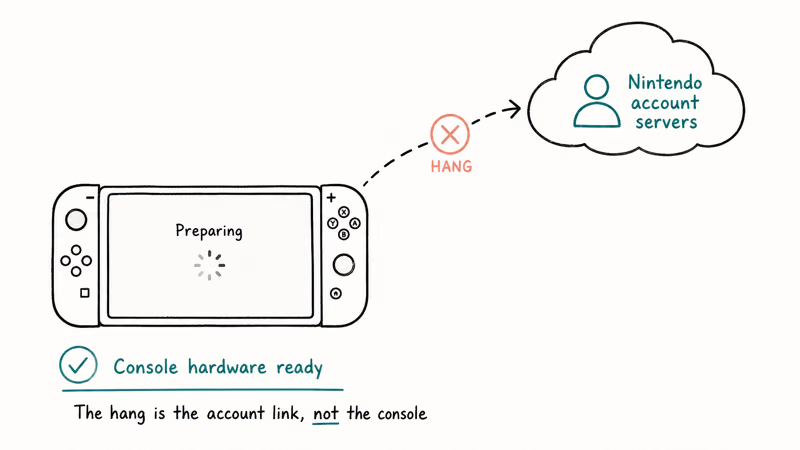
According to Nintendo’s official Switch 2 setup-stuck support page, the documented recovery is to power off the console, restart setup, and explicitly skip the account-linking step. The account link isn’t required during first boot. Switch 2 supports a local user that you can attach to a Nintendo Account later, from the regular system settings.
The Switch 2 hardware completes its own initialization fine.
What isn’t the problem: a bad screen, a defective console, a damaged cartridge, or a corrupted SD card. The bottleneck is purely on the account-linking server flow, and Nintendo’s fix updates the system firmware to a working version of that flow before you try linking again. The console itself is documented in detail on Wikipedia’s Nintendo Switch 2 page, including the 2026 release window the support pages reference.
#The 20-Second Power Button Reset Sequence
The POWER button sits on the top-left of the console, same position as the original Switch. Three different press durations trigger three different behaviors, and getting the duration wrong is the most common reason the reset doesn’t work.
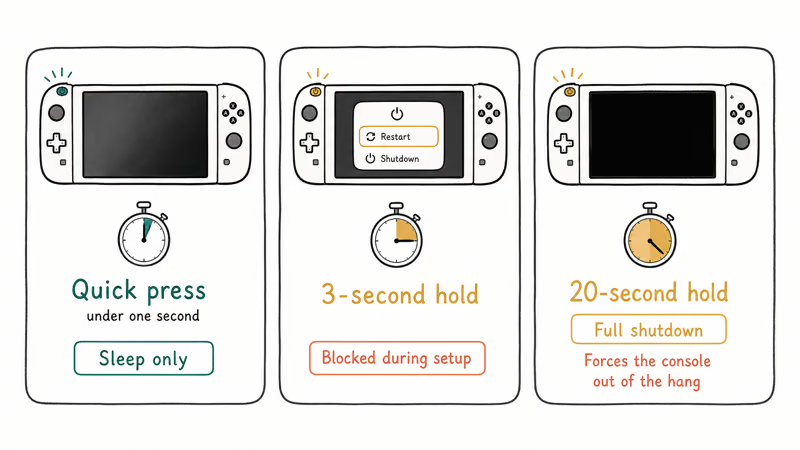
- Quick press (under 1 second). Puts the console into sleep mode. The screen turns off, but the system is still running. This won’t fix the stuck setup.
- 3-second hold. Opens the in-system power menu with restart, sleep, and shutdown options. This menu doesn’t appear during first-time setup because the setup flow blocks it.
- 20-second hold. Forces a full hardware shutdown regardless of the current screen state. The console power cuts completely.
On Switch 2, only the 20-second hold reliably forces the console out of the Preparing hang. The 12-second hold that worked on the original Switch isn’t always enough on Switch 2 launch firmware. Press and hold POWER, keep counting, and don’t release early. When the screen goes black and the console stops responding, count one extra second to be sure, then release.
Wait 5 seconds. Then press POWER once briefly to boot the console back on.
The Switch 2 will return to the start of the setup flow. You’ll need to re-enter region, language, and Wi-Fi network, but no other progress is lost because setup didn’t complete the first time.
#How Do You Skip the Nintendo Account Linking on First Boot?
When the setup flow reaches the “Link a Nintendo Account” prompt, look for the Skip option. It appears as a small text link at the bottom of the screen, not as a prominent button. Tap it. The console will ask you to confirm; choose Continue without linking.
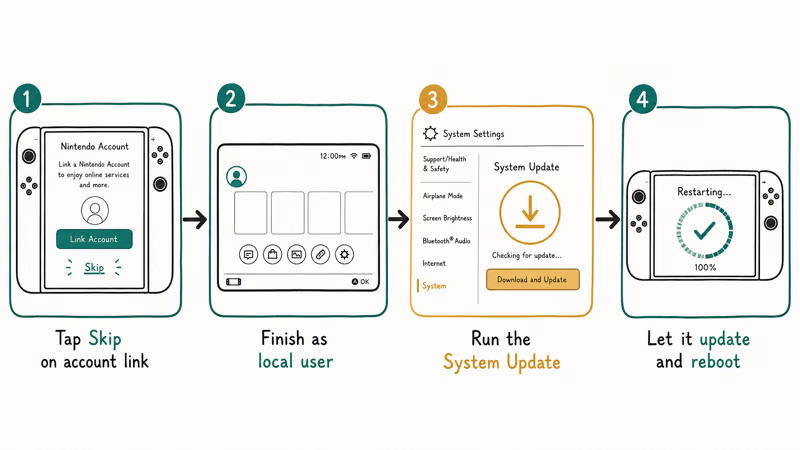
Setup will then finish creating a local user only. You’ll see the Switch 2 home screen, the eShop will be inaccessible until you link an account later, and any pre-purchased games tied to a Nintendo Account won’t appear yet. That’s normal and expected. The link comes after the system update.
Before doing anything else, go to System Settings > System > System Update. The Switch 2 will check for the latest firmware and download it over Wi-Fi. The update size on launch-week consoles can be larger than usual because Nintendo ships several patches between manufacturing and shelf, but the download takes a few minutes on a typical home connection. Let the update complete and let the console restart on its own.
Wi-Fi is required during setup. There’s no Ethernet option on the Switch 2 until you dock the console, and docking it cancels the handheld-mode setup flow. If your home network is weak, Nintendo UK’s Switch 2 setup page confirms the same fix applies globally and recommends moving closer to the router before retrying.
If the console can’t join Wi-Fi at all during that step, our seven Switch 2 Wi-Fi connection fixes cover band splitting, manual DNS, and router security.
#Linking Your Nintendo Account After Setup Is Complete
Once the system update finishes and the console reboots, open User Settings from the Switch 2 home screen. Select your user, choose Link Nintendo Account, and pick the QR-code path that Nintendo’s official Account-linking guide recommends.
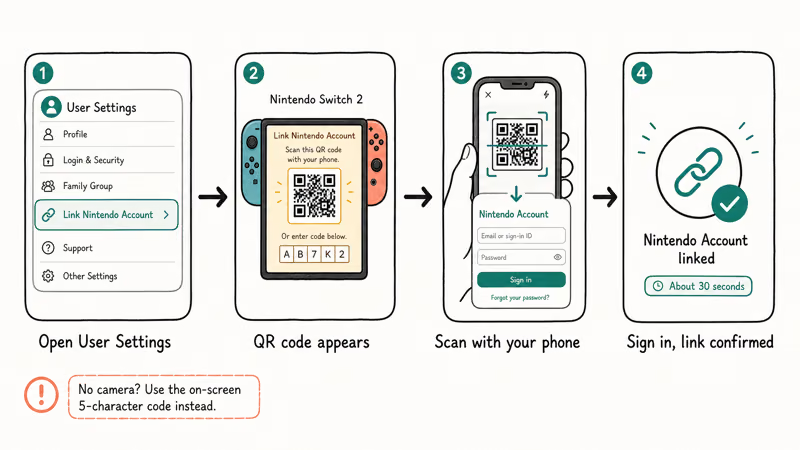
A code appears on the Switch screen. Scan it with your phone’s camera.
The QR code opens the Nintendo Account sign-in page on the phone. Log in with the Nintendo Account email and password you want to use, confirm the linking on both the phone and the Switch, and the console will register the link in about 30 seconds. The eShop, friend list, and cloud saves attached to that account all become available immediately after.
No smartphone? The alternate URL is accounts.nintendo.com/login/device. Open it on any browser, a tablet, a desktop, even a friend’s phone, sign in to the Nintendo Account, and enter the 5-character code the Switch 2 displays on screen. Same result, no camera needed.
Setup is now complete. You can install games, redeem eShop credit, and add family members through the Nintendo Account family group.
#Game Recommendations to Try After Setup
For game recommendations on the new console, our roundup of the best Switch games like GTA covers open-world picks that run cleanly on Switch 2 in handheld mode.
The best games like Fire Emblem list goes deep on tactical RPGs if that’s your genre. Our games like Monument Valley pick handles the cozy puzzle category if you bought the Switch 2 for a more casual household.
The Switch 2 also has a front-facing camera. Our best camera-based games list covers a few titles that already work with it. None of these need the Nintendo Account linked to download from physical cartridges, so you can start playing the moment setup finishes.
#When the Setup Still Won’t Complete
If the forced shutdown plus skip-link plus update sequence still leaves you stuck, work through these in order before contacting Nintendo Support.
- Run the sequence again. Nintendo’s own support agents have us repeat it twice on calls because account servers occasionally hang on the second attempt too. A clean second run resolves most edge cases.
- Check the Nintendo Account on another device. Sign in to
accounts.nintendo.comfrom a phone or computer. If the account says “already linked to a console,” you may have hit Error Code 2124-0150, which Nintendo’s error code page states means the account is tied to a different Switch and needs unlinking from the old console first. A Nintendo Account can’t be linked to more than one user on a single console. - Try a different Nintendo Account. If you created a fresh Nintendo Account just for this console, log in to that account from a browser, confirm the email is verified (check spam), and try the link again. Account creation that hasn’t been email-verified is the second most common cause of link failures.
- Move to a different Wi-Fi network. Some hotel, school, and corporate networks block the ports the Switch 2 uses for account authentication. Tether to a phone hotspot for the account-linking step only. You don’t need fast bandwidth, just an unfiltered connection.
- Check for a no-power condition. If the 20-second hold left the console with no display when you power back on, work through Nintendo’s Switch 2 blank-screen support page before assuming hardware failure. Charge the console for a while before retrying.
If all five steps fail and the console still hangs, contact Nintendo Support. Tell the agent you’ve already run the forced-shutdown plus skip-link plus update sequence. They’ll move past the script faster, often to a replacement RMA if the firmware update itself fails to install.
While you wait for a resolution, you can explore our roundup of classic SNES fighting games on another device, or check out how to play Pokemon on Android if you’ve got a phone handy.
This issue is specific to the Switch 2. The original Switch (the 2017 model) has a different stuck-on-preparing fix documented separately by Nintendo. Don’t confuse the two if you search for help. The Switch 2 firmware and account-linking flow aren’t shared with the original Switch, even though the consoles look similar.
#Bottom Line
Run this exact sequence and the Switch 2 unsticks: hold POWER for 20 seconds to force shutdown, power back on, skip the Nintendo Account linking step when prompted, finish setup as a local user, run System Settings > System > System Update, then return to User Settings and link your account.
Skip the factory reset. Skip the return.
That sequence resolves the documented launch-firmware bug, and the support center will walk you through this exact same path if you reach them. Run it twice before you escalate, because the bug is software, not hardware.
#Frequently Asked Questions
How long should I wait before forcing a shutdown on the Switch 2?
Five minutes. If the Preparing screen hasn’t moved in that window, the link request has hung and won’t recover on its own.
A short press triggers sleep, not shutdown, so the 20-second POWER hold is the only reliable way out. Don’t release the button early, even if the screen goes black at 15 seconds.
Will skipping Nintendo Account linking lose any games I bought?
No. Game purchases live on the Nintendo Account, not the console, and they reappear the moment you link the account after the system update.
Can I scan the Nintendo Account QR code with a tablet instead of a phone?
Yes. Any device with a camera and a browser works, including iPads, Android tablets, and even most e-readers with a camera. The QR points to the standard Nintendo Account sign-in page, which renders fine on tablet-class viewports. Skip the QR entirely and enter the URL on a desktop browser if there’s no camera at hand, then key in the 5-character code from the Switch screen.
What does Error Code 2124-0150 mean during Switch 2 setup?
It means the Nintendo Account is already linked to a user on a different Switch. According to Nintendo’s error code documentation, an account can’t be tied to more than one user on a single console, but it can move between consoles. Unlink from the old one first.
Do I need a Nintendo Account to play offline Switch 2 games?
No. A local user without a linked Nintendo Account plays any physical cartridge game offline.
Will updating the system erase my setup progress?
No, the update preserves local users, settings, and installed games. Your local user from the skip-link setup is still there afterward, and you can link the Nintendo Account to that same user without losing anything you’ve configured during setup.
Does the Switch 2 stuck-on-preparing bug happen on the OG Switch too?
The original Switch from 2017 has a similar but separately documented issue with a different fix path. Nintendo maintains two support articles, one for each console. The Switch 2 fix above doesn’t apply to the original Switch, and vice versa, because the firmware and account-linking flow aren’t shared between the two consoles.
When should I exchange my Switch 2 if setup keeps failing?
Only after running the forced-shutdown plus skip-link plus update sequence twice on two different Wi-Fi networks, and testing with a fresh email-verified Nintendo Account. Exchanges almost never help because the replacement console ships with the same launch firmware.

Fortnite Stuck on the Loading Screen? Fix It in 2026
Fortnite stuck on the loading screen? Check server status, fix the Windows N Media Pack and DirectX 11 on PC, clear the console cache, and verify files.

Minecraft Keeps Crashing? Java and Bedrock Fixes (2026)
Minecraft keeps crashing on startup or mid-game? Update your GPU driver, remove mods on Java, and reinstall Gaming Services on Bedrock. Fixes for both.

Pokemon GO Not Loading? Fix the Loading Screen 2026
Pokemon GO not loading or stuck on the Pokeball? Check server status, fix automatic date and time, grant location permission, clear the cache, and update.

PS5 Controller Not Charging? 9 Fixes That Work (2026)
DualSense not charging? Swap the cable, use a rear port in Rest Mode, clean the USB-C port, and check power settings. 9 fixes for a dead PS5 controller.