How to Transfer Data to Nintendo Switch 2 (2026 Guide)
Move users, saves, screenshots, and eShop games from your Switch to Switch 2 with Nintendo's System Transfer. Steps, gotchas, microSD Express plan.
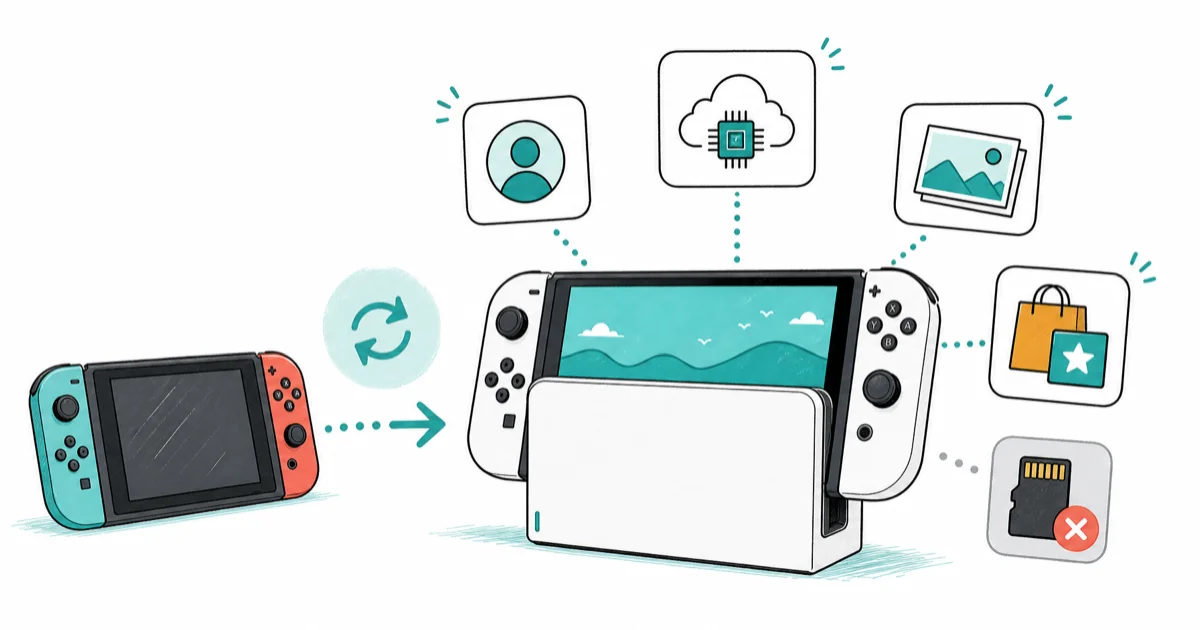
Quick AnswerOn Switch 2 setup, pick System Transfer and choose your old Switch as the source. Users, saves, screenshots, and eShop games move, but old microSD cards won't work.
Moving from an original Nintendo Switch to a Switch 2 takes one system transfer. The console asks during initial setup. Most libraries finish in about 30 minutes, while larger screenshot and video libraries can take longer.
- System Transfer runs from the Switch 2’s initial setup screen. Both consoles must be powered, on the same Wi-Fi, and signed into the same Nintendo Account before you start.
- All users, save data backed up by Save Data Cloud Backup, screenshots, videos, eShop game entitlements, friends, parental controls, and Mii data move to the Switch 2 in one pass.
- Bluetooth audio pairings and custom controller button mappings don’t transfer. You rebuild those once on the new console.
- Old microSD cards from the original Switch aren’t compatible with Switch 2 for game data. Switch 2 needs a microSD Express card. Budget for a 256 GB or larger card before unboxing.
- A server-based transfer factory resets the source Switch after upload. Pick local communication if you plan to keep using the old console as a backup.
#What Transfers From Switch to Switch 2
The Switch 2 supports a full system transfer from any original Switch, Switch Lite, or OLED model. According to Nintendo’s System Transfer support page, the move covers users, Nintendo Accounts, cloud-eligible save data, screenshots, videos, friends, play activity, parental controls, and Mii data in one pass. Digital game entitlements ride the Nintendo Account itself. The eShop then redownloads your library to the new console.
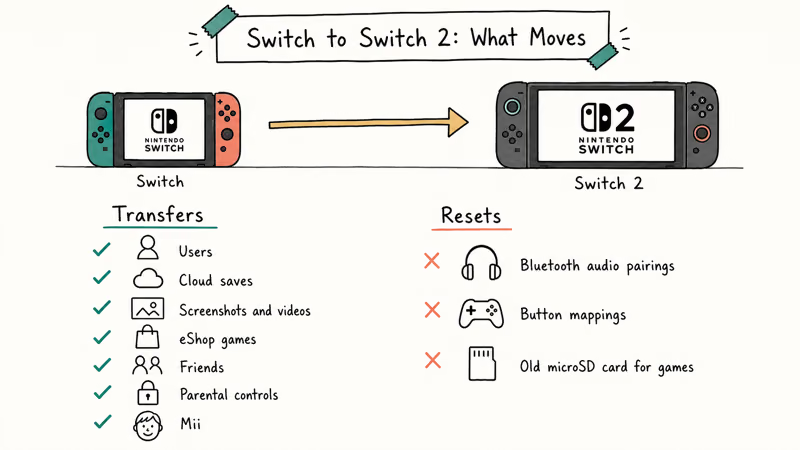
Two things stay behind. Bluetooth audio pairings reset, so wireless headphones need a fresh pair. Custom controller button mappings also reset and have to be rebuilt.
The expensive thing that doesn’t move is storage.
Nintendo confirms that microSD cards used in the original Switch aren’t compatible with Switch 2 for game data. As the Wikipedia article on Nintendo Switch 2 notes, the console launched in June 2025 with a microSD Express slot to support faster game loads.
Same form factor. Faster interface. A 200 GB Switch microSD card holding old downloads simply won’t play those files on the new console.
Save behavior follows Nintendo Switch Online status. Account-linked saves with cloud backup copy cleanly. Saves for users without a linked account, or for games that opt out of cloud backup, get deleted from the source after the transfer finishes.
Animal Crossing: New Horizons is the headline opt-out title. Pokemon Sword and Shield, Splatoon 2, and Splatoon 3 are the others people ask about most.
For those titles a full system transfer with both consoles present is the only clean path. If you already configured a parental controls setup on the original Switch, the rules and PIN move automatically and stay enforced.
Family group settings live on your Nintendo Account, not on the console, so they survive every transfer method.
#Before You Start: A 5-Step Pre-Transfer Checklist
Skipping any of these turns a 30-minute transfer into a multi-hour fight. Run all five before you open the Switch 2 box.
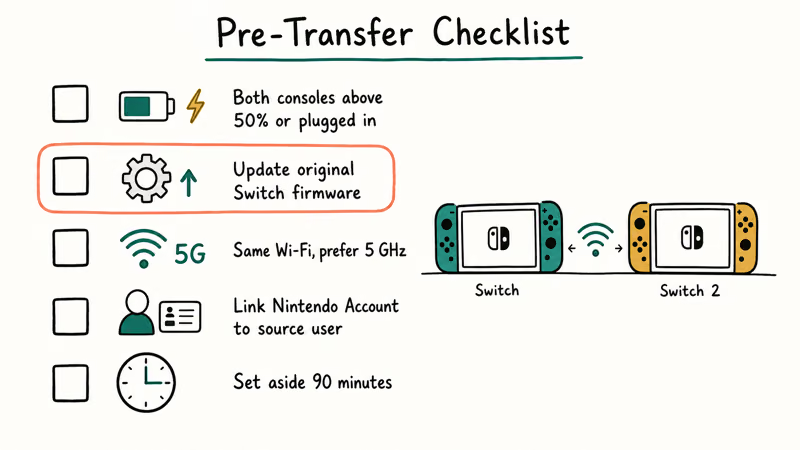
- Charge both consoles past 50 percent or plug both into power. A system transfer is one of the longest continuous operations a Switch performs.
- Update the original Switch to its latest firmware. Go to
System Settings>System>System Updateon the old console. The Switch 2 refuses a transfer from stale firmware. - Confirm both consoles are on the same Wi-Fi network. Both 2.4 GHz and 5 GHz networks work, but the source and target must be on the same SSID. Pick 5 GHz for speed.
- Link your Nintendo Account to a user on the source console. Cloud-backup-eligible saves only carry over for users tied to an account.
- Set aside at least 90 uninterrupted minutes. Large libraries with many screenshot files stretch a local transfer well past the 30-minute average.
If your original Switch has dock-related issues you have ignored, now is the moment to deal with them. A transfer interrupted by a flaky dock connection is harder to recover from than running the whole thing in handheld mode. The same goes for an old console that struggles when the Switch doesn’t connect to a TV, since the setup screens may be easier to follow on a docked display.
#How Do I Run the System Transfer Step by Step?
The transfer starts as part of the Switch 2’s initial setup. If you finished setup without transferring, you can’t run a full system transfer later. You’d need to factory reset the Switch 2 first.
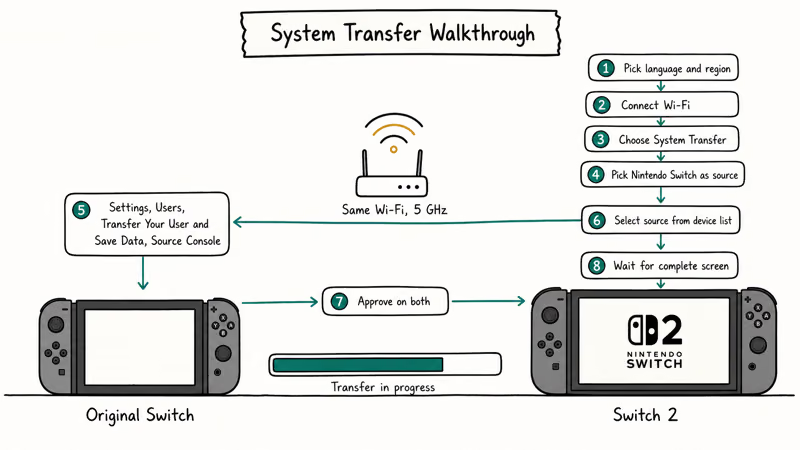
The cleanest path is local communication, with both consoles near each other and on the same Wi-Fi network. Here’s the sequence:
- Power on the Switch 2 and pick your language and region.
- Connect the Switch 2 to Wi-Fi.
- When the setup flow asks about data transfer, choose System Transfer.
- Pick Nintendo Switch as the source console type.
- On the original Switch, go to
System Settings>Users>Transfer Your User and SaveData. Select Source Console. - On the Switch 2, confirm the original Switch appears in the device list, then select it.
- Approve the transfer on both consoles. The Switch 2 shows a progress bar and an estimated remaining time.
- Leave both consoles awake and connected until you see “System transfer complete” on the Switch 2.
After the bar finishes, the Switch 2 reboots into a personalized home screen with your users, profile icons, and friends list in place.
The eShop redownload queue starts automatically for digital titles. Download speed will follow your home internet, so a large library can take hours regardless of how fast the transfer itself ran.
Nintendo also publishes a Switch 2 transfer guide for the consumer-facing flow.
The server-based alternative uploads your data first and then factory resets the source Switch as part of the process. Pick that path only if you are selling the original console and want a clean wipe.
#Why Your Old microSD Card Won’t Work
You’ll be tempted to slot the Switch microSD card into the Switch 2 and play. It won’t work for game data. Nintendo states that microSD Express is required, and the spec gap is huge: the official MT-10002 support page confirms that the new console reads only Express cards for game data.
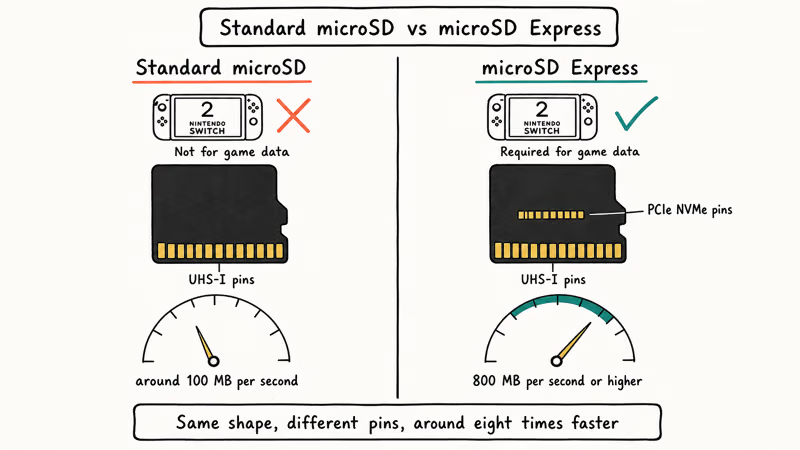
microSD Express adds a PCIe NVMe interface on top of the classic UHS-I pins. The form factor is identical, but the speed profile is very different.
A standard microSD card peaks around 100 MB/s. microSD Express pushes 800 MB/s or higher.
There is one narrow use for the old card. If your original Switch saved screenshots to it instead of system memory, the transfer may ask you to reinsert it briefly. After that step, the card has no role on the Switch 2.
The practical move is to buy a 256 GB or larger microSD Express card before you open the Switch 2 box. SanDisk, Lexar, and others sell Nintendo-licensed cards.
If your Switch 2 bundle ships with a small Express card, treat it as a starter.
Keep the old card. It’s a clean backup of screenshots since 2017. Only the game-data role disappears.
The same logic applies to your original Switch peripherals. Pro Controllers and most Joy-Con accessories pair with the Switch 2 over Bluetooth. If you’ve collected third-party Joy-Con controllers for couch co-op, those work after a fresh pair.
#Using Cloud Saves Instead of a Full Transfer
If you subscribe to Nintendo Switch Online and only care about saves for a couple of games, you can skip the full system transfer and rely on Save Data Cloud Backup. The save data is already on Nintendo’s servers and downloads back when you sign in on the Switch 2 and launch the game.
This shortcut is the right call when you sold the original Switch before getting the Switch 2 and never ran a transfer.
It’s the wrong call when you have local-only saves for cloud-backup-opted-out games. Animal Crossing: New Horizons is the headline holdout.
For those titles, you need either a full system transfer while you still have both consoles, or the per-game Transfer Your Save Data option Nintendo documents. The per-game flow lets you move individual saves between two consoles signed into the same Nintendo Account.
It’s slower than a full system transfer for a large library. Useful for grabbing one or two saves after the fact.
#What If the Transfer Gets Stuck or Fails?
The most common failure mode is the Switch 2 hanging on the “Preparing” screen during initial setup, before the transfer even starts. The cause is a Nintendo Account linking step that times out against Nintendo’s servers on launch-week firmware. We documented the Switch 2 setup-stuck fix in detail.
The recovery is short. Force a shutdown, skip account linking during the next setup, update the firmware, and then run the transfer.
If the transfer itself stalls partway through, both consoles will show the progress bar but the estimate stops moving. Wait 10 minutes before assuming it’s stuck, because large screenshot batches can make the estimate pause before it resumes.
If the bar truly hasn’t moved after 15 minutes, hold POWER on the Switch 2 for 20 seconds, then on the original Switch for 12 seconds, and start the flow again from step 5 above.
The source console keeps its data because the transfer only deletes user data after the Switch 2 confirms a successful receipt.
A failed server-based transfer is more delicate. The source Switch may have already wiped before the upload finished. If you hit a server error mid-upload, don’t factory reset anything.
Open a Nintendo Support ticket and reference the timestamp. Their backend can usually re-issue the upload from the server-side copy.
#Bottom Line
Run System Transfer on first boot of the Switch 2, with both consoles powered, on the same Wi-Fi, and signed into the same Nintendo Account. Order a 256 GB or larger microSD Express card before you open the box so you have somewhere to install the games the eShop redownloads.
If you only need saves and you subscribe to Nintendo Switch Online, the cloud backup path is faster. Full system transfer is the only safe route for cloud-opt-out titles like Animal Crossing: New Horizons.
#Frequently Asked Questions
How do I transfer everything to my Switch 2?
Pick System Transfer during Switch 2 setup, then approve the move on both consoles. Both need to be powered, on the same Wi-Fi, and signed into the same Nintendo Account. The flow moves users, saves, screenshots, eShop entitlements, friends, parental controls, and Mii data in one pass — but the menu only appears during initial setup, so skipping it forces a factory reset later.
Do my save files transfer to Switch 2?
Yes, with one caveat. Cloud-eligible saves transfer cleanly. Opt-out titles such as Animal Crossing: New Horizons only transfer in a full system transfer with both consoles present.
Can I use my old microSD card’s games on Switch 2?
No, Switch 2 reads microSD Express only. The original card won’t run game data. Redownload from the eShop onto an Express card.
Do I need both consoles for the transfer?
For a local transfer, yes, both must be powered and on the same Wi-Fi. For the server transfer, you upload from the original Switch first. The Switch 2 only signs in at the end to receive. Server transfer factory resets the source console as part of the upload, so it suits sellers.
How long does the Switch 2 transfer take?
Plan for 30 to 60 minutes for an average library. A sizable transfer with saves and screenshots can still land in that window on a stable Wi-Fi network, but the eShop redownload that fills your game library afterward depends on internet speed and library size, not on the transfer itself.
What if the transfer gets stuck?
Wait 10 minutes first. Real stalls usually clear themselves.
If the bar hasn’t moved after 15 minutes, hold POWER for 20 seconds on the Switch 2, do the same on the original Switch, and restart the transfer flow from the source-console step. Data on the source stays safe until the Switch 2 confirms receipt.
Will my Nintendo Switch Online cloud saves move automatically?
Yes. Cloud saves live on your Nintendo Account, not on the console. Sign into the same account on the Switch 2 and launch the game, and the save downloads from Nintendo’s servers. No full system transfer is required for cloud-eligible titles.

Fortnite Stuck on the Loading Screen? Fix It in 2026
Fortnite stuck on the loading screen? Check server status, fix the Windows N Media Pack and DirectX 11 on PC, clear the console cache, and verify files.

Minecraft Keeps Crashing? Java and Bedrock Fixes (2026)
Minecraft keeps crashing on startup or mid-game? Update your GPU driver, remove mods on Java, and reinstall Gaming Services on Bedrock. Fixes for both.

Pokemon GO Not Loading? Fix the Loading Screen 2026
Pokemon GO not loading or stuck on the Pokeball? Check server status, fix automatic date and time, grant location permission, clear the cache, and update.

PS5 Controller Not Charging? 9 Fixes That Work (2026)
DualSense not charging? Swap the cable, use a rear port in Rest Mode, clean the USB-C port, and check power settings. 9 fixes for a dead PS5 controller.