Nintendo Switch Dock Not Working? 8 Proven Fixes (2026)
Nintendo Switch dock not working? Fix no TV signal, blinking green LED, charging-only faults, and AC adapter issues with practical steps at home.
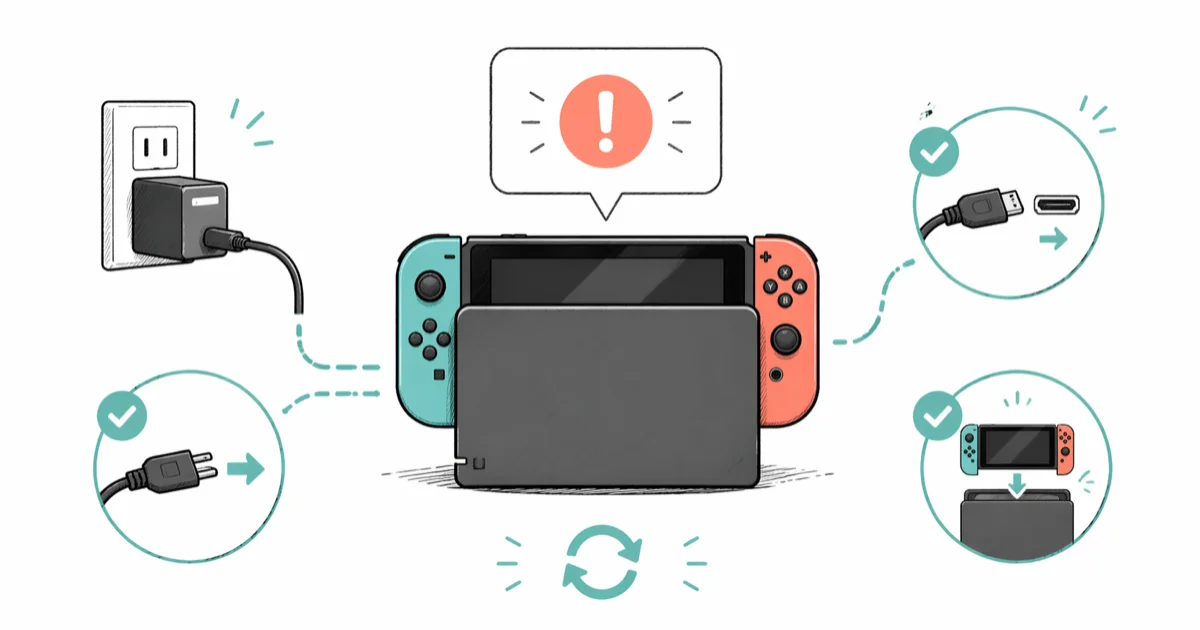
Quick AnswerUnplug the AC adapter and HDMI cable from your dock, wait 30 seconds, then reconnect power first, HDMI second, and seat the Switch last. The reseating order matters because the dock firmware initializes differently when it sees power before HDMI.
Your Nintendo Switch dock stopped pushing video to the TV, and you’re stuck playing in handheld mode. Start with a 30-second cable reseat before replacing parts. The stubborn cases usually trace back to the dock’s video output chip or a third-party AC adapter that has been quietly underdelivering power.
- The official reset sequence is power off, unplug both cables, wait 30 seconds, reconnect AC adapter first, HDMI second, then dock the Switch
- A blinking green LED means the dock detects power but can’t handshake with the console through the USB-C port, usually because of dust or a misaligned seat
- Third-party AC adapters cause most chip-level failures because they can’t reliably deliver the 39W the dock needs for charging plus 1080p HDMI output
- The PI3USB30532 video output chip is the dock’s most common failure point, and it can’t be reflashed or repaired at home
- Out-of-warranty dock repairs through Nintendo cost about $99 and take 3 to 4 weeks, while a brand-new dock from Nintendo’s store costs around $60
#Why Does the Switch Dock Stop Working?
The Switch dock is more than a plastic shell. It has a small circuit board with a dedicated video output chip (PI3USB30532) that converts the console’s USB-C signal into HDMI. Nintendo states that the dock requires 39W of input power for simultaneous charging and 1080p HDMI output, and common failures fall into three buckets: a stuck firmware state on the console, a wrong cable order, or a power supply that can’t keep up.
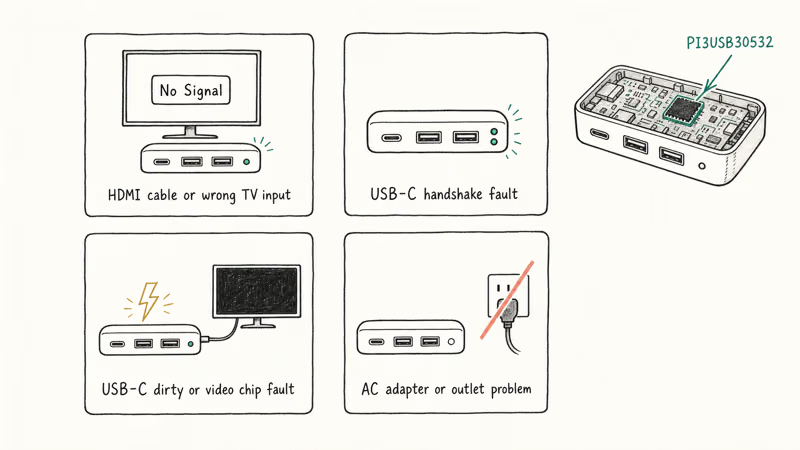
Here is what each symptom usually means.
| Symptom | Likely cause |
|---|---|
| No TV signal, green LED solid | HDMI cable or wrong TV input |
| Green LED blinking | Console not detected through USB-C |
| Dock charges but no video | USB-C connector dirty or video chip fault |
| No LED at all | AC adapter or power outlet problem |
According to Nintendo’s no-signal support guide, the first thing to check is whether you are using the original AC adapter and HDMI cable that shipped in the box.
If the Nintendo Switch is not connecting to your TV at all, that companion guide walks through the TV-side checks that come after this dock check.
#How Do You Fix a Switch Dock with No Signal?
Start with the official reset. It clears the dock’s internal state and works for most readers.
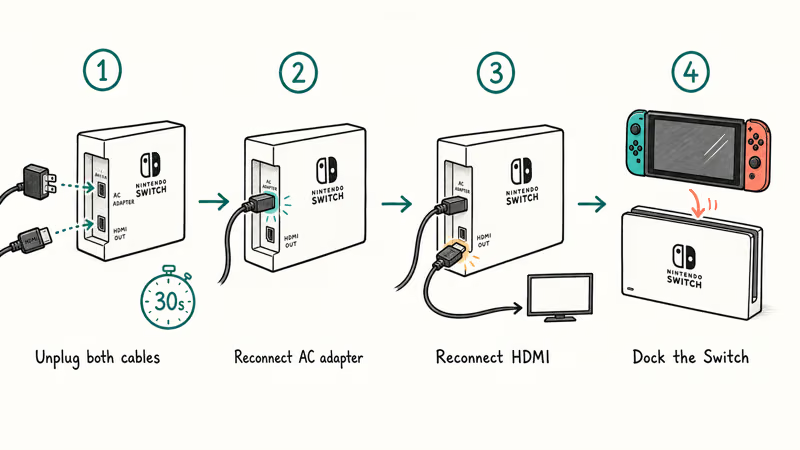
- Unplug both the AC adapter and the HDMI cable from the back of the dock, then wait 30 seconds
- Reconnect the AC adapter first, then the HDMI cable into the dock and TV
- Place the Switch into the dock with the screen facing you
Order matters. The dock’s firmware initializes differently depending on whether it sees power or HDMI first. According to Nintendo’s system update troubleshooting page, connecting the AC adapter before HDMI prevents an initialization bug that causes the green LED to blink without locking onto the console.
Run this sequence before swapping parts. It forces the console and dock to renegotiate power and video output from a clean state.
#Verify Your Power Supply
The dock needs the official Nintendo AC adapter (model HAC-002) to push video. Third-party chargers that handle handheld charging often can’t deliver the 39W the dock requires for simultaneous charging and 1080p HDMI output. The HAC-002 negotiates 15V at 2.6A through USB Power Delivery, and that handshake is what flips the dock into TV mode. Cheaper chargers top out at 9V or 12V, leave the dock starved, and the green LED blinks instead of going solid.
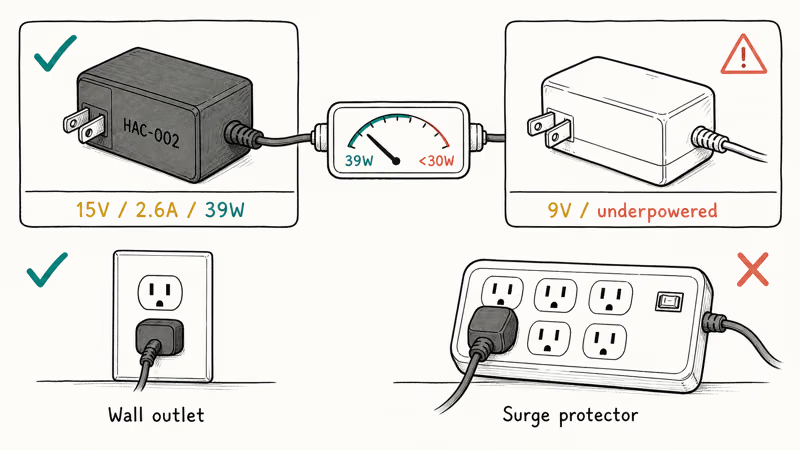
Check these things in order:
- Plug the AC adapter directly into a wall outlet, not a power strip or surge protector
- Inspect the cable along its length for kinks, cuts, or chew marks
- Test the outlet with a lamp or phone charger to confirm it works
- Try a known-good Nintendo AC adapter borrowed from another Switch if you have access to one
If the dock has power but no video, test the official HAC-002 adapter, a wall outlet, and a known-good HDMI cable before blaming the dock board. A power strip or weak third-party charger can light the green LED while still leaving the dock short of the power needed for TV output.
If you hit similar HDMI port problems on other devices, the cable testing steps in that guide overlap with what is here.
#Test and Replace the HDMI Cable
A bad HDMI cable is another common cause. HDMI cables degrade at the connector ends where repeated plugging and unplugging slowly bends the internal pins.
To isolate the cable, unplug the HDMI cable from both the dock and the TV. Test it with a different device, like a streaming stick or another game console. Try the same cable in a different HDMI port on the TV. If no device gets a signal through that cable, replace it.
Use an HDMI 2.0 cable or newer. The Switch dock outputs 1080p at 60fps, and older HDMI 1.4 cables cause intermittent dropouts especially on cable runs longer than 6 feet.
#Clean the USB-C Connector and Dock Slot
Dust, pocket lint, and skin oil pile up inside the Switch’s USB-C port and the dock’s connector slot. Even a thin layer of debris can break the contact pins needed for video output.
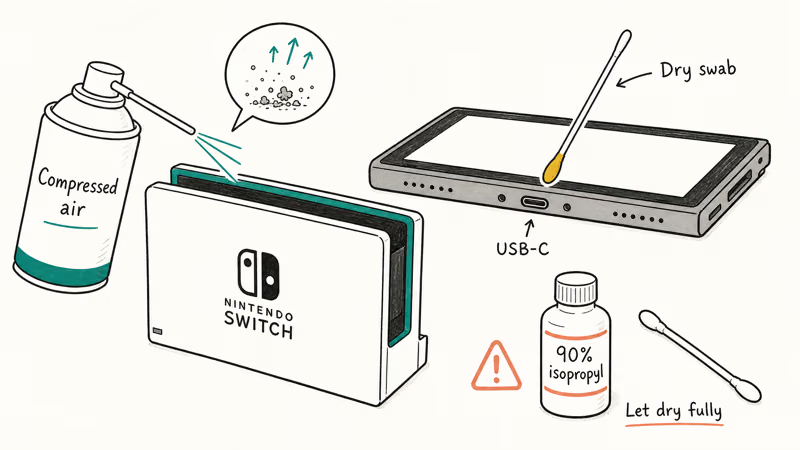
Power off the Switch by holding the power button for three seconds and selecting Power Options > Turn Off. Grab a can of compressed air and a dry cotton swab. Blow short bursts into the dock slot from multiple angles, then gently wipe the Switch’s USB-C connector with the dry swab. For stubborn grime, dip a fresh swab in 90% or higher isopropyl alcohol and let everything dry fully before docking again.
According to iFixit’s no-video-out troubleshooting page, the dock connector’s contact points oxidize over time, especially in humid environments or homes with pets. Cleaning resolves the issue without any disassembly.
#Update Your Switch Firmware
Outdated firmware sometimes breaks the dock handshake, particularly after Nintendo ships a system update that changes how the console negotiates the USB-C role swap.
- Go to
System Settings>System>System Updateon the Switch home screen - Download and install any available update, which takes about 2 to 5 minutes on a stable Wi-Fi connection
- After the update completes, dock the Switch and test for video output
The dock has no separate update path. It receives any patches indirectly through the console after a system update. Nintendo states that firmware 18.0.0 fixed a dock detection bug specific to OLED models, restoring video output for users who had been stuck in handheld mode.
If the family also relies on Nintendo Switch parental controls, system updates refresh those rules at the same time.
#Hard Reset the Console
A hard reset forces the Switch to fully reinitialize its hardware connections when a normal power cycle doesn’t work.
Hold the power button on the top of the Switch for 15 seconds. The screen goes black. Wait 10 seconds, press the power button once to turn it back on, and dock the console after it reaches the home screen.
This is different from sleep mode. A hard reset clears the console’s RAM and resets the USB-C role negotiation state, which is the layer that controls how the Switch and dock identify each other when they connect physically.
#Signs of a Hardware Problem
If none of the software fixes above work, the dock has a hardware fault. The most common failure is the PI3USB30532 video chip on the dock’s circuit board. According to iFixit’s repair community thread, the chip handles all video output and fails most often after a power surge or after long-term use with a non-compliant third-party adapter.
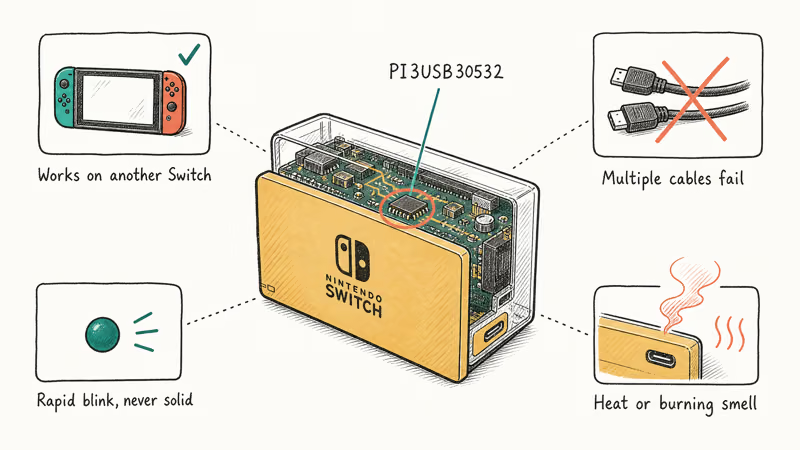
Signs of a hardware-level problem:
- The dock works with a friend’s Switch but not yours, which points to a USB-C port issue on your console
- Multiple HDMI cables and TVs all produce no signal, which points to a dock board failure
- The green LED blinks rapidly and never goes solid, which suggests a chip-level fault
- You smell burning plastic or notice unusual heat near the dock’s USB-C slot
Nintendo charges $99 for out-of-warranty dock repairs through their support portal. If your console is still under the 12-month warranty, the repair is free.
Contact Nintendo’s USB port support page to start a repair ticket.
While the repair is in flight, keep playing in handheld mode with these picks:
- Best RPGs on Switch for long story-driven sessions
- Top single-player Switch games when you want offline depth
- Nintendo Switch games for girls if a younger player shares the console
#Bottom Line
For a Switch OLED stuck on no signal, unplug everything, wait 30 seconds, reconnect power first, HDMI second, and dock the console. That resets the firmware handshake before you spend money on parts. If the green LED still blinks, swap to a known-good HAC-002 AC adapter before assuming the dock board itself is dead, since underpowered third-party chargers are a common culprit.
#Frequently Asked Questions
Why is my Switch dock’s green light blinking?
A blinking green LED means the dock has power but can’t see the console over USB-C. Clean both connectors with compressed air, reseat the Switch firmly, then test a different AC adapter.
Can a third-party charger damage my Switch dock?
Yes. Chargers that don’t follow the USB Power Delivery specification can send incorrect voltage to the dock’s PI3USB30532 chip and damage it permanently. Stick with the official HAC-002 adapter for daily use. Brands like Genki and Anker that publish PD certification are safer than unbranded chargers from random marketplaces, which have caused at least one wave of brick reports on r/NintendoSwitch.
Does the Switch dock work with any TV?
Yes, almost any modern HDMI TV works. The dock outputs 1080p 60fps over a single HDMI cable.
How do I know if my dock needs replacing?
Test with a different Switch console if you can borrow one. If the dock works with another Switch, your console’s USB-C port is the problem rather than the dock. If the dock fails with multiple consoles, the dock itself is faulty. Try different AC adapters and HDMI cables to rule out accessories before paying $60 for a brand-new replacement, since accessories are cheaper to swap than the dock.
Can I play Switch games on my TV without the dock?
No. The dock has dedicated video output hardware that converts USB-C to HDMI, and generic USB-C-to-HDMI adapters can’t replicate the negotiation safely. Nintendo warns against third-party alternatives because some have caused bricked consoles, including the well-publicized Nyko portable dock recall.
How long does Nintendo’s dock repair take?
About 3 to 4 weeks total, including round-trip shipping. You get a tracking number through their online support portal once the unit arrives at the service center.
Why does my dock charge the Switch but not display on the TV?
This points at the HDMI output path rather than the power path. The dock’s charging circuit and video circuit are separate. Try a different HDMI cable and a different TV port first. If charging still works but video doesn’t appear after multiple cables and TVs, the dock’s HDMI controller chip has failed and the dock itself needs replacing.
Should I buy a used Switch dock as a replacement?
Used docks are risky because you can’t verify whether previous owners ran third-party chargers that may have already weakened the PI3USB30532 chip. A new official dock costs around $60. Nintendo also sells refurbished docks for about $40 with a 90-day warranty, and those have been tested for full functionality. Refurbished is a safer budget option than buying used from a random seller.

Fortnite Stuck on the Loading Screen? Fix It in 2026
Fortnite stuck on the loading screen? Check server status, fix the Windows N Media Pack and DirectX 11 on PC, clear the console cache, and verify files.

Minecraft Keeps Crashing? Java and Bedrock Fixes (2026)
Minecraft keeps crashing on startup or mid-game? Update your GPU driver, remove mods on Java, and reinstall Gaming Services on Bedrock. Fixes for both.

Pokemon GO Not Loading? Fix the Loading Screen 2026
Pokemon GO not loading or stuck on the Pokeball? Check server status, fix automatic date and time, grant location permission, clear the cache, and update.

PS5 Controller Not Charging? 9 Fixes That Work (2026)
DualSense not charging? Swap the cable, use a rear port in Rest Mode, clean the USB-C port, and check power settings. 9 fixes for a dead PS5 controller.