Netgear Parental Controls Setup: Smart App + OpenDNS Guide
Set up Netgear parental controls in under 10 minutes with the Nighthawk app or Live Parental Controls. Step-by-step for both router types, with fixes.
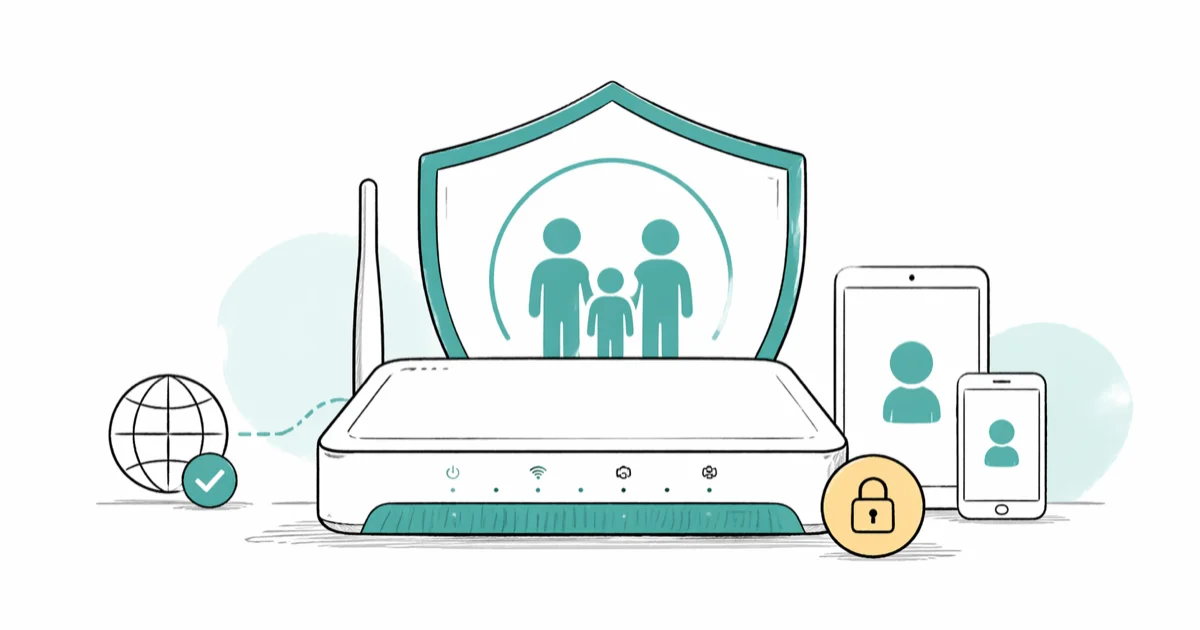
Quick AnswerNewer Netgear routers use Smart Parental Controls inside the Nighthawk or Orbi app; older models use OpenDNS-based Live Parental Controls through the router admin page. Both let you filter content and set bedtime schedules for each device on your home network.
Netgear parental controls let you filter websites and set screen-time schedules for every device on your home network without installing anything on the kids’ phones. The exact setup path depends on your router’s age, and most people pick the wrong one because the names sound similar. This guide covers both methods, a newer Nighthawk model and an older standard router, to map out exactly what each version does and where it falls short.
- Smart Parental Controls runs through the Nighthawk and Orbi apps and works on most Netgear routers released after 2017
- Live Parental Controls uses the free OpenDNS service and works on older Nighthawk and standard models through the genie app or web admin
- Filter strength has four levels in OpenDNS: Minimal, Low, Moderate, and High; the High preset blocks adult, gambling, proxy, and weapons categories
- Bedtime schedules and pause timers attach to a profile, so a kid switching from an iPad to a Switch still hits the same curfew
- The free Smart tier covers basic filtering and bedtimes; Smart Parental Controls Premium adds usage history, instant pause, and reward time
#What’s the Difference Between Smart and Live Parental Controls?
Netgear ships two parental control systems. They share the brand name and almost nothing else. Knowing which one your router supports saves about 20 minutes of dead-end clicking.
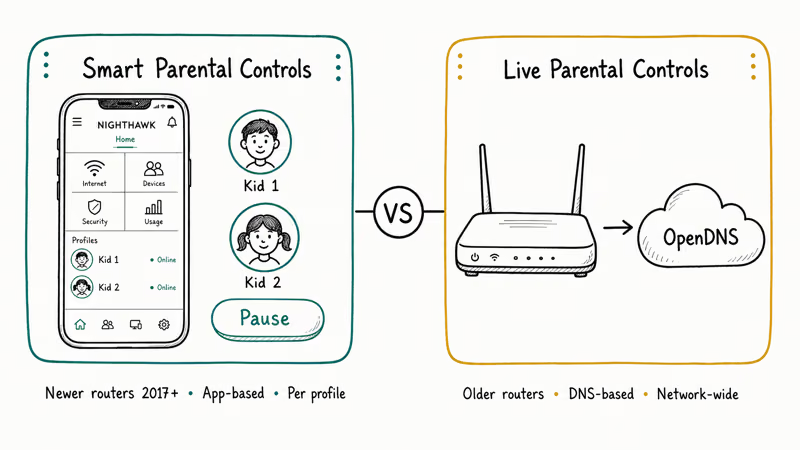
Smart Parental Controls is the newer system. It’s powered by Circle technology and managed entirely from the Nighthawk app or Orbi app on your phone. It groups devices into profiles (one per kid), filters by content category, and runs schedules per profile. According to NETGEAR’s Smart Parental Controls product page, the service is included free with most Nighthawk and Orbi models from 2018 onward, and the Premium subscription adds detailed usage history plus the ability to reward extra screen time.
Live Parental Controls is the older OpenDNS-based system. It runs at the DNS level on the router itself, so the filter applies to every device that uses your Wi-Fi, including consoles, smart TVs, and guest devices. OpenDNS states that its filtering categories are updated daily based on community reporting, which is why the same domain can move from “social networking” to “video sharing” between weeks.
On a newer router, the Nighthawk app applies Smart Parental Controls within a few minutes from a cold start. On older models, Live Parental Controls takes longer because you have to create the OpenDNS account first.
#How to Set Up Smart Parental Controls on Newer Routers
This is the path for any Netgear router that shows up in the Nighthawk or Orbi app on your phone.
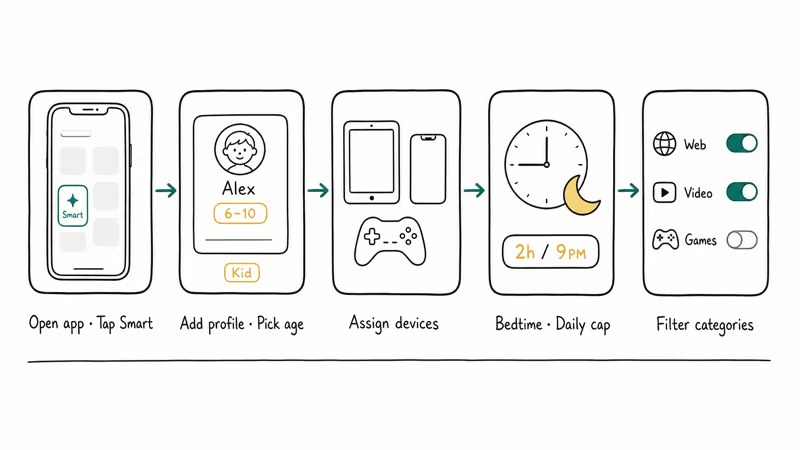
#Step 1: Open the app and tap Smart Parental Controls
Open the Nighthawk or Orbi app and sign in with the email you used to register the router. Tap the Smart Parental Controls tile on the home screen, accept the one-screen Circle consent prompt, and wait about 10 seconds for the network reconfiguration to finish. If you skip the prompt, every category toggle stays greyed out until you accept it. The consent state syncs across any phones signed in to the same router.
#Step 2: Create a profile for each child
Tap Add Profile, give it a name (the child’s first name works), and pick an age range. The age range pre-selects a filter level, but you can override every category later. Pick Kid for under 9, Teen for 9 to 17, or Adult for unrestricted. Adult profiles are useful for parents because paused profiles still appear in usage reports.
#Step 3: Assign devices to the profile
The app lists every device that has connected in the last 30 days, identified by hostname and MAC address. Drag the kid’s iPad, phone, Switch, and laptop into their profile.
#Step 4: Set bedtime and time limits
Open the profile, tap Time Limits, and set a daily cap (e.g., 2 hours of screen time on weekdays) plus a bedtime window (e.g., 9 PM to 7 AM). Because the bedtime attaches to the profile rather than one device, it kicks in almost immediately even if a kid jumps to another device on the same profile.
#Step 5: Adjust filter categories
Each profile has a content filter list with toggles for adult, social media, online gaming, dating, and similar categories. The Pause button at the top of the profile cuts internet access instantly for everything in that profile. That single button is the feature most parents end up using daily.
#How to Set Up Live Parental Controls on Older Routers
Live Parental Controls is the right path if your router predates the Nighthawk app or you want network-level filtering that covers every device, including ones the app can’t see (like a smart fridge or a thermostat).
#Step 1: Create a free OpenDNS account
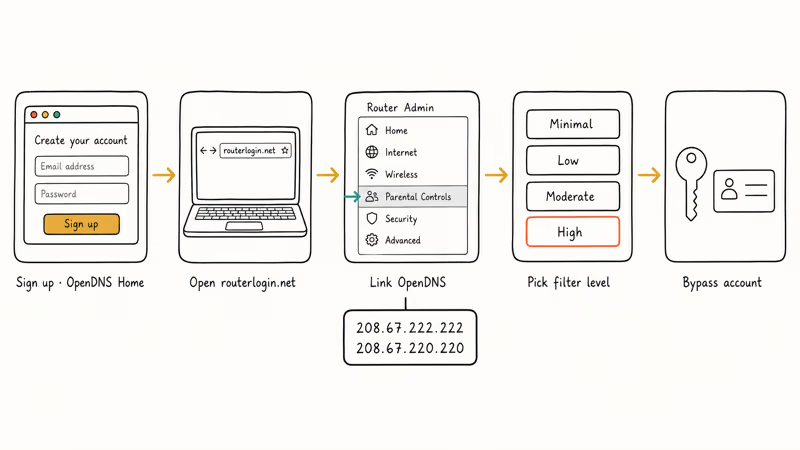
Go to OpenDNS Home and sign up. The basic family filter is free; the paid VIP tier adds detailed query logs. Pick a memorable username because the router asks for it again in step 3.
#Step 2: Install the Netgear genie app or open the router admin page
Use the desktop genie app or browse to routerlogin.net (or 192.168.1.1) and sign in with your router admin credentials. If you’ve never changed them, the defaults are usually admin for username and password for password. Change them after setup. Default credentials are the first thing automated scanners try.
#Step 3: Enable Parental Controls and link your OpenDNS account
In the router dashboard, click Parental Controls in the left sidebar. The setup wizard asks for your OpenDNS username and password, then writes the OpenDNS DNS servers (208.67.222.222 and 208.67.220.220) into the router config automatically.
#Step 4: Pick a filtering level
OpenDNS gives you four presets:
| Level | What it blocks |
|---|---|
| Minimal | Phishing, malware, attack domains |
| Low | Adult sites |
| Moderate | Adult, illegal, racism, sexual content |
| High | All of Moderate plus social networking, video sharing, gambling, weapons, proxies |
Pick High for under-13s and Moderate for teens; you can fine-tune categories later in the OpenDNS dashboard rather than in the router itself.
#Step 5: Add a bypass account for yourself
The bypass account is a second OpenDNS profile with looser filtering, attached to your own devices. From the OpenDNS dashboard, go to Settings > Bypass Accounts, add a username and password, then install the OpenDNS Updater (or a browser extension) on your devices and sign in. When that device hits a blocked URL, you’ll get a “Bypass” button instead of a hard block.
Filtering takes effect almost immediately after you save the OpenDNS settings. Cached DNS results on the kids’ phones mean a few previously-loaded sites keep loading for a short while until the lookups expire.
#Choosing the Right Filter Level for Your Kids
The filter level is more than a strictness slider. Different ages need different categories blocked, and a one-size-fits-all setting either over-blocks for a teen or under-blocks for a kindergartener.
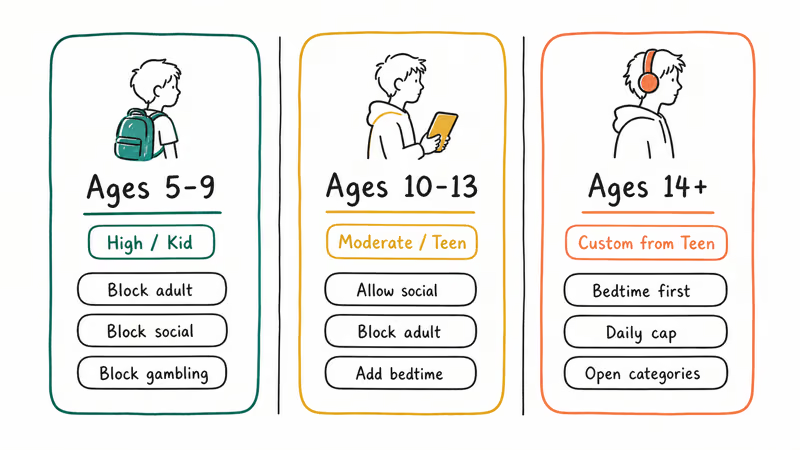
For ages 5 to 9, lock down to High in OpenDNS or Kid in Smart Parental Controls. Block adult, gambling, social media, and dating, plus video sharing if YouTube isn’t already filtered through SafeSearch. On the Kid preset, most typical kid sites load without issue; the main blocks tend to be Roblox-related, since the preset categorizes Roblox as gaming.
For ages 10 to 13, drop to Moderate or Teen. Allow social media but keep gambling, adult, and proxy categories blocked. This is also the right window to add bedtime schedules.
For 14 and up, custom-tune from the Teen preset. Most parents at this age leave categories permissive but use bedtime and daily caps as the primary tool. The OpenDNS Wikipedia article has the full content category reference if you want a deeper read.
#Can Kids Bypass Netgear Parental Controls?
The honest answer: yes, partially. The exact workarounds depend on which system you use.
Smart Parental Controls runs at the router level. A VPN on the kid’s phone tunnels DNS through the VPN provider, so the router never sees the lookups. Use Apple’s Family Sharing or Google’s Family Link to block VPN apps device-by-device.
Live Parental Controls has a second hole on top of the VPN gap: kids who manually change device DNS to 1.1.1.1 (Cloudflare) or 8.8.8.8 (Google) skip OpenDNS entirely. To close this, log into the router admin page, find WAN Setup or DHCP, and enable DNS Forced to block client DNS overrides. If your model lacks this toggle, the only fix is moving to a parental control router with built-in DNS lock.
Either way, parental controls are a speed bump, not a wall. NETGEAR’s support documentation confirms that the system is designed to manage casual access, not stop a determined teenager who’s done their homework.
Pair the network filter with device-level controls. Separate walkthroughs on how to block porn on Android and how to block TikTok cover the layered approach.
#Troubleshooting Common Netgear Parental Control Issues
These are the four problems that come up most often during setup.
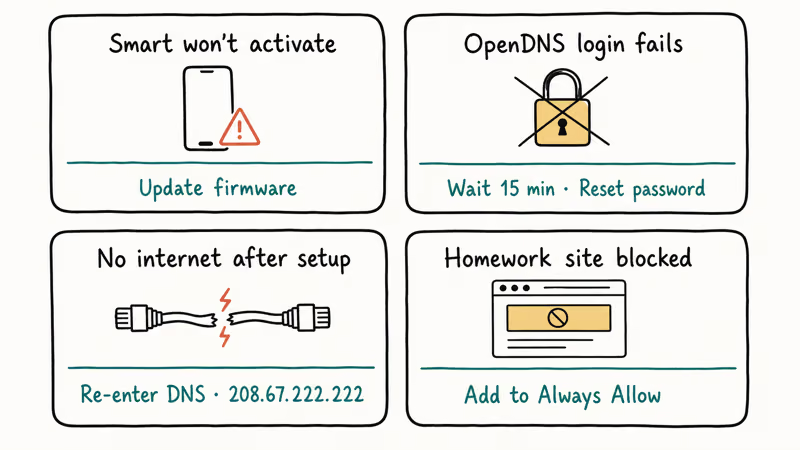
Smart Parental Controls won’t activate. This usually means the firmware is too old. In the Nighthawk app, open the Settings menu, tap Router Update, install the latest firmware, then reopen the parental controls tile. Most Nighthawk models require firmware V1.0.5 or later, per NETGEAR’s official support documentation.
OpenDNS login keeps failing. OpenDNS rate-limits authentication after a handful of bad attempts. Wait 15 minutes and try again. If it still fails, reset your OpenDNS password from the website (not the router page); the router only validates against OpenDNS, it doesn’t store the password.
The internet stops working entirely after setup. This is almost always a DNS misconfiguration. From the router admin page, go to Internet > DNS Servers and confirm both primary and secondary are set to the OpenDNS addresses (208.67.222.222 / 208.67.220.220). If you see 0.0.0.0 or blanks, re-run the parental controls wizard. If your devices show DNS_PROBE_FINISHED_NO_INTERNET, our DNS probe error fix walks through the device-side cache flush.
Filter blocks legitimate sites your kid needs for homework. Open the OpenDNS dashboard, go to Web Content Filtering > Manage Individual Domains, and add the school site to the Always Allow list. The change propagates to your network in about 3 minutes.
#Bottom Line
For any Netgear router from 2017 onward, start with Smart Parental Controls in the Nighthawk or Orbi app. It’s faster to set up, works per child instead of per device, and the free tier covers what most parents need. Reach for Live Parental Controls only if your router predates the app or you want the wider category list OpenDNS exposes. For per-app blocking on individual phones, layer on device-level tools like Samsung’s built-in parental controls instead.
#Frequently Asked Questions
Is Smart Parental Controls free?
The basic tier is free for the life of the router and covers profile creation, content filtering, bedtime schedules, and instant pause. Smart Parental Controls Premium is a paid subscription that adds detailed usage history (which sites and apps each profile used), reward time, and SafeSearch enforcement on YouTube. Most parents stick with the free tier and only upgrade once they want to see a usage breakdown.
Can I block specific apps like TikTok or Roblox?
Smart Parental Controls blocks app categories rather than individual apps, so TikTok falls under “Social Media” and Roblox under “Online Gaming.” If you need a single app blocked, use the per-device controls instead. Our separate walkthrough for TikTok parental controls covers the in-app Family Pairing settings.
Why isn’t my Live Parental Controls page loading?
The page lives on routerlogin.net, which only resolves when you’re on your home Wi-Fi. If you’re on cellular or a guest network, it won’t load. Switch back to your home Wi-Fi and try again. If you’re on the right network and still get an error, the router admin session may have timed out; clear your browser cache or open a private window.
Do Netgear parental controls work over a VPN?
No. An active VPN routes DNS through the VPN provider’s servers, bypassing the Netgear filter. Block VPN apps at the device level using iOS Screen Time, Android Family Link, or an MDM profile.
How do I reset my OpenDNS account password?
Go to opendns.com, click Sign In, then Forgot password. Check spam if nothing arrives in 5 minutes.
Can kids see the websites I block?
Smart Parental Controls and OpenDNS both show a generic “this site is blocked” page on the kid’s device, with no indication of who set the rule. The kid knows the site is blocked but not who blocked it.
Does enabling parental controls slow down my Wi-Fi?
Enabling either system adds only a negligible amount to DNS lookup time, which is invisible during normal browsing. The exception is the very first request to a new domain on a slow connection; you might notice a half-second delay on the first page load. After that, the OpenDNS or Circle response cache kicks in and speeds match an unfiltered connection.

Is This Bank App Real? Spot a Fake App on Your Home Screen
A bank app can land on your home screen from a web page with no install warning. Learn the checks that tell a real banking app from a phishing web app.

Passkeys Not Syncing Between iPhone and Windows? Read This
Passkeys not syncing between iPhone and Windows is by design, not a bug. Here is why iCloud passkeys skip Windows Hello and the three ways to fix it.

VPN Not Working on Snapdragon X? Why It Fails, How to Fix
Your VPN won't install or connect on a Snapdragon X Copilot Plus PC because Windows on ARM can't emulate the network driver. Here are the fixes that work.

How to Check If a Link Is Safe Before You Click It
Learn how to check if a link is safe with official-first steps: read the real domain, use the app instead, and treat scanners as a second opinion only.