Spotify Won't Play Songs? 8 Fixes That Work (2026)
Spotify won't play, says can't play this right now, or songs greyed out? Turn off offline mode, pick an output device, and clear the cache. 8 fixes.
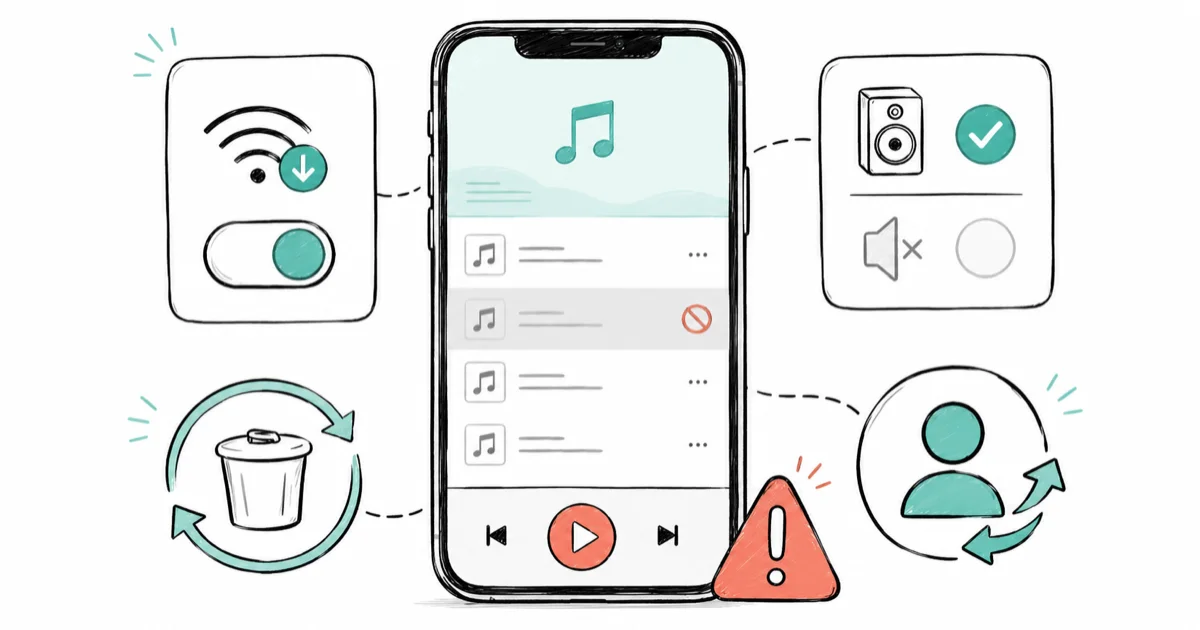
Quick AnswerWhen Spotify won't play, check two settings first: offline mode being left on, and no active output device selected, since both silently block playback. If a song is greyed out, that is a licensing removal, not a bug. For broader failures, clear the cache, re-download offline tracks, and log out and back in.
Spotify won’t play songs is a frustrating wall to hit, especially when the app looks fine, your connection is solid, and the music still refuses to start. Whether you see “Spotify can’t play this right now,” a song sits greyed out, or playback stalls on a loading spinner, the cause is usually a setting or a corrupt file rather than a broken app. This guide leads with the two silent settings that block playback most often.
This guide covers Spotify on iPhone, Android, and desktop, on an account that’s yours.
- Offline mode left switched on is a top cause of “won’t play,” since it blocks streaming even on a perfect connection
- With no active output device selected, Spotify has nowhere to send audio and silently refuses to play
- A greyed-out song means licensing or regional removal, not a fault, so there’s no fix beyond finding an available version
- Spotify recommends at least 250MB of free storage, so a full device can stop playback and downloads
- Re-downloading a corrupt offline track fixes the won’t-play-offline case that a restart never will
#Why Won’t Spotify Play Your Songs?
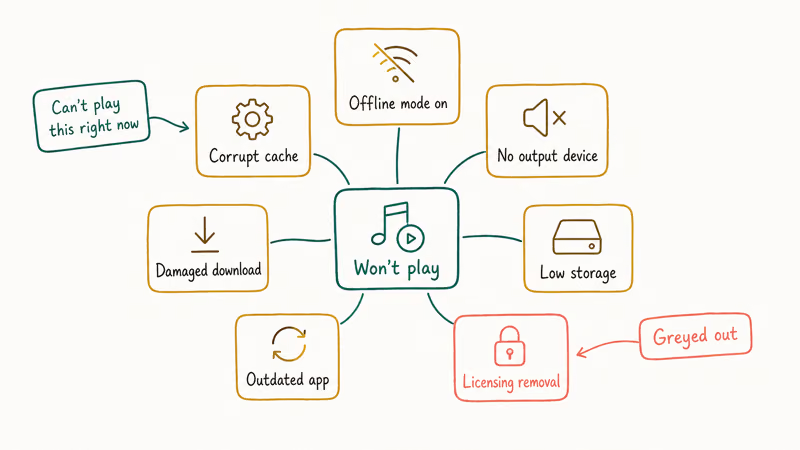
A playback failure on Spotify usually comes down to one of a handful of causes: offline mode is on, no output device is selected, the cache is corrupt, an offline download is damaged, the device is out of storage, the app is outdated, or the song has been removed for licensing reasons. The error you see narrows it down. “Can’t play this right now” points at offline mode, output, or cache. A greyed-out title points at licensing.
This is a distinct problem from when Spotify keeps pausing mid-song, which is usually a device-handoff or battery issue. If your music starts and then stops on its own, that pausing guide is the better match for your symptom than this one, since the fixes differ.
If Spotify says “can’t play this right now,” start with Offline mode. It can get toggled on by accident, and switching it off often resolves the issue.
#Turn Off Offline Mode and Pick an Output Device
These two settings silently break playback more than any bug, so check them first. Offline mode tells Spotify to play only downloaded tracks and refuse everything else, even on full Wi-Fi.
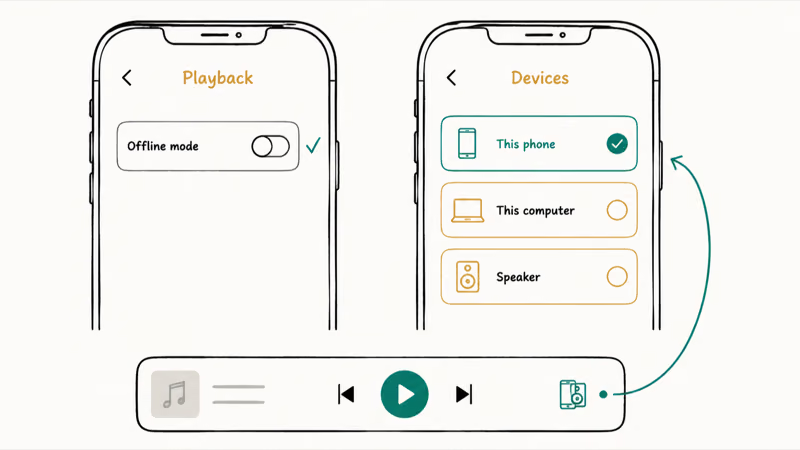
On mobile, open Settings > Playback and make sure Offline mode is off. According to Spotify’s can’t-play support article, confirming the device “is not in offline mode” is one of the core checks for a song that won’t play. On desktop, the toggle lives in the menu under the account dropdown.
The second silent culprit is the output device. Spotify routes audio to a selected device through Spotify Connect, so if control sits on a speaker or session that’s no longer there, the app has nowhere to send sound. Tap the Devices icon near the playback bar and explicitly select This phone, This computer, or your intended speaker. Reselecting the right output device can restore playback without changing anything else.
#Clear the Cache and Re-Download Offline Tracks
If the settings are correct, a corrupt cache is the next suspect. Spotify stores temporary streaming and download data that can become damaged and block playback. Clearing it forces a clean rebuild and doesn’t delete your playlists or account.
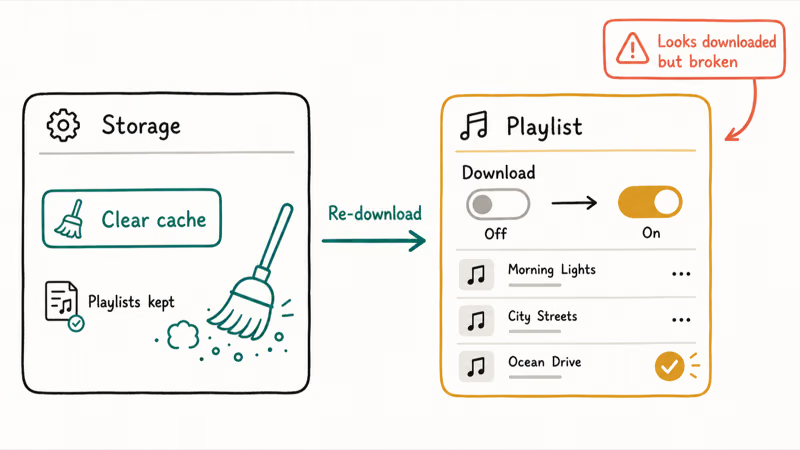
On mobile, go to Settings > Storage and tap Clear cache. The same harmless-cleanup logic applies to clearing the Spotify queue when it’s misbehaving.
Your downloaded tracks are a separate issue. A corrupt offline file won’t play even though it shows as downloaded, and clearing the cache won’t fix a damaged download. The cure is to re-download it: open the playlist, toggle the Download switch off so the local copies are removed, then toggle it back on to fetch fresh files over a stable connection.
This re-download step is the specific fix for the “my offline songs won’t play” case, and it’s the one people most often miss because the track looks downloaded when it’s actually broken.
#Why Is a Song Greyed Out or Unavailable?
A greyed-out track isn’t a bug you can fix, and understanding why saves a lot of wasted troubleshooting. When a song appears dimmed and won’t play, it means Spotify no longer has the rights to stream that exact recording to you, usually because of a licensing change or a regional rights difference. As the Wikipedia overview of Spotify notes, the catalog is licensed from rights holders and varies by country, so titles come and go.
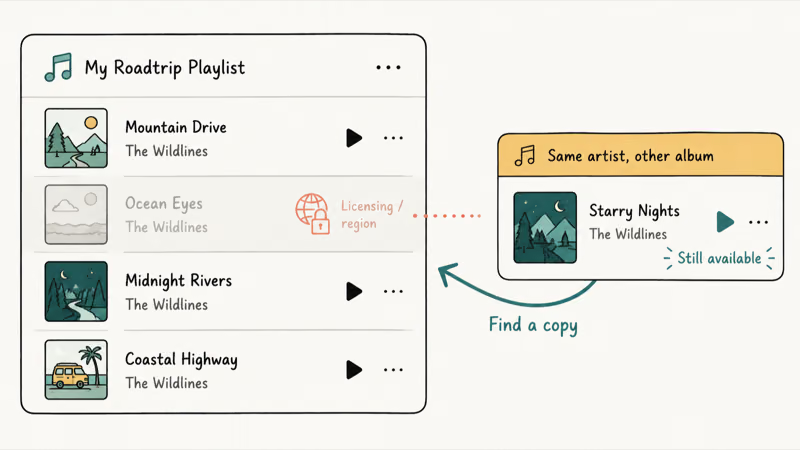
There’s no setting that brings a greyed-out song back, because the cause is on the rights side, not your account. The same song on a different album or single is often still available, so search the artist’s discography for a copy Spotify can still play in your country before giving up on it entirely.
If an entire artist greys out after you travel, that’s a regional rights difference tied to where the app thinks you are. The guide on how to change Spotify location covers that case. For a single greyed track, just find an available version.
#Log Out, Update, and Reinstall Spotify
When playback still fails after settings and cache checks, refresh the app itself. Log out and back in to re-sync your account and clear a stuck session.
Next, update the app, since an outdated version can carry playback bugs that a newer release fixes. Spotify’s support steps confirm that updating and reinstalling the app are standard moves when the basic checks don’t resolve the problem, so it’s worth the minute it takes to check the store before you reach for a full reinstall.
If it still won’t play, do a clean reinstall. Delete the app, restart the device, and install Spotify fresh from the store. Reinstalling clears any deeply corrupt app data that Clear cache can’t reach.
Remember you’ll need to re-download your offline tracks afterward, because a reinstall removes them. If the app won’t even open to begin with, the guide on Spotify not responding tackles that first.
#Free Up Storage and Check Your Connection
A device that’s nearly full can stop Spotify from caching the data it needs to stream, and from saving downloads. Spotify states that the app needs at least 250MB of free storage to work properly, so check your device storage and delete unused apps, photos, or old downloads if you’re running low.
Connection matters for streaming too. As the Wikipedia overview of streaming media explains, audio is delivered continuously over the network, so a weak signal stalls playback. Test by switching between Wi-Fi and mobile data.
Lowering streaming quality from Very High to Normal cuts the data each track needs. It’s the same trick that helps when you listen on a plane.
On desktop, the hardware-acceleration setting can interfere with playback on some machines. Open Settings, find the Compatibility section, toggle Enable hardware acceleration off, then restart the app. If your song keeps jumping ahead instead of staying silent, the guide on Spotify skipping songs is the closer match.
#Bottom Line
When Spotify won’t play at all, check two settings first: offline mode being left on, and no active output device selected, because those silently block playback even with a perfect connection. If specific songs are greyed out, that’s usually a licensing or region removal rather than a fault, so there’s no fix beyond finding an available version.
For broader playback failures, clear the cache, re-download any corrupt offline tracks, and log out and back in before reinstalling. If your downloads won’t play, deleting and re-downloading them fixes the corrupt-file case that a restart never will.
#Frequently Asked Questions
Why does Spotify say “can’t play this right now”?
This message usually means offline mode is left on, no output device is selected, or the cache is corrupt. Turn offline mode off, tap the Devices icon and pick This phone or This computer, and clear the app cache. If it persists, log out and back in, since a stuck session can trigger the same error even when your connection is fine.
Why is a song greyed out in my playlist?
A greyed-out song means Spotify lost the rights to stream that recording to you, typically a licensing or regional change. It isn’t a bug and no setting restores it. Look for the track on a different album or single.
Why won’t my downloaded songs play offline?
The download is likely corrupt, which a restart can’t fix. Open the playlist, toggle Download off to remove the local copies, then back on over a stable connection to fetch clean files.
Does offline mode stop Spotify from playing on WiFi?
Yes. Offline mode tells Spotify to play only downloaded tracks and refuse streaming, so it blocks anything not downloaded even on full Wi-Fi. On a strong connection that still won’t play, turning offline mode off in the playback settings is the very first thing to check before you touch the cache or reinstall.
How do I clear the Spotify cache?
On mobile, open Settings > Storage and tap Clear cache. On desktop, the option sits in the advanced Storage section. This removes only temporary data, never your playlists or account.
Why does Spotify play on one device but not another?
This is almost always the output device setting. Spotify Connect routes your audio to a selected device, and if it’s pointed at a speaker or session that’s no longer active, the other device stays silent. Tap the Devices icon and explicitly select the device you’re using, and make sure that device is logged into the same account.

Is This Bank App Real? Spot a Fake App on Your Home Screen
A bank app can land on your home screen from a web page with no install warning. Learn the checks that tell a real banking app from a phishing web app.

Apps Crashing After iOS 27 Update? Fix Order (2026)
Apps crashing after the iOS 27 update? Update the app in the App Store first, then offload and reinstall to clear stale cache, then restart. The fix order.

Do AI Translation Earbuds Work Offline? What to Know
Do AI translation earbuds work offline? A few do with downloaded language packs, but most need the cloud. Here's what works offline and what you give up.
How to Set Up Translation Earbuds (Pairing and Modes)
How to set up translation earbuds: charge, install the app, pair over Bluetooth, pick two languages, and choose a mode. A step-by-step first-use guide.