How to Restore WhatsApp From Google Drive to iPhone
Transfer WhatsApp from Google Drive to iPhone using Move to iOS or a third-party converter, with setup limits, safety caveats, and error fixes.
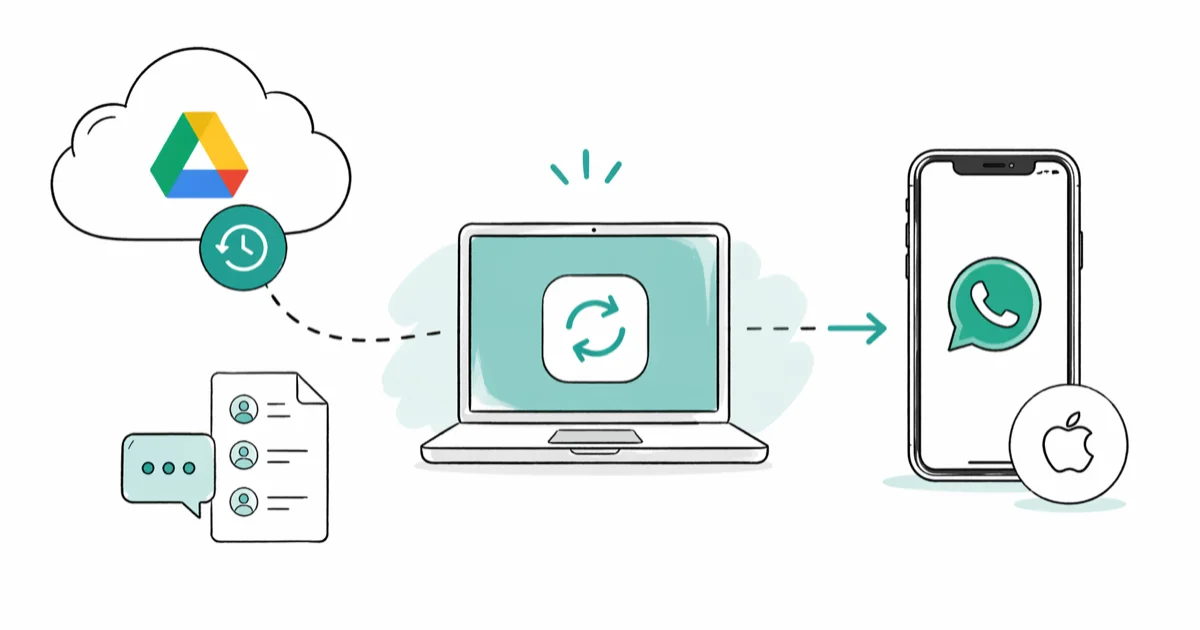
Quick AnswerYou can't restore a Google Drive WhatsApp backup directly to an iPhone because Android and iOS use different encryption. Use WhatsApp's free Move to iOS feature during fresh setup, or run a desktop converter like iCareFone to load an existing backup onto an in-use iPhone.
Restoring WhatsApp from Google Drive to an iPhone takes a workaround because Android writes its backup to Drive while iOS pulls from iCloud, and the two encrypt their archives differently. The practical routes are WhatsApp’s Move to iOS feature during fresh iPhone setup or a desktop converter for an iPhone that is already in use.
This guide assumes you’re moving your own WhatsApp account on a phone you legally own. Copying someone else’s chats requires their explicit consent under WhatsApp’s terms of service.
- A Google Drive backup uses Android-only encryption, so iPhone won’t read it directly without conversion
- WhatsApp’s Move to iOS is free, but it only runs on a brand new or factory reset iPhone
- Tools like iCareFone or Dr.Fone download the Drive backup, decrypt it, and rewrite it for iOS
- You’ll need a USB-C cable, the same Google account that owns the backup, and 2x your backup size in iPhone free storage
- Group chats, photos, voice notes, and starred messages all carry over; call history and Status posts don’t
#Why Google Drive Backups Don’t Restore Directly to iPhone?
Google Drive backups carry Android-side encryption keys. iPhones can’t decrypt them. That’s the core mismatch.
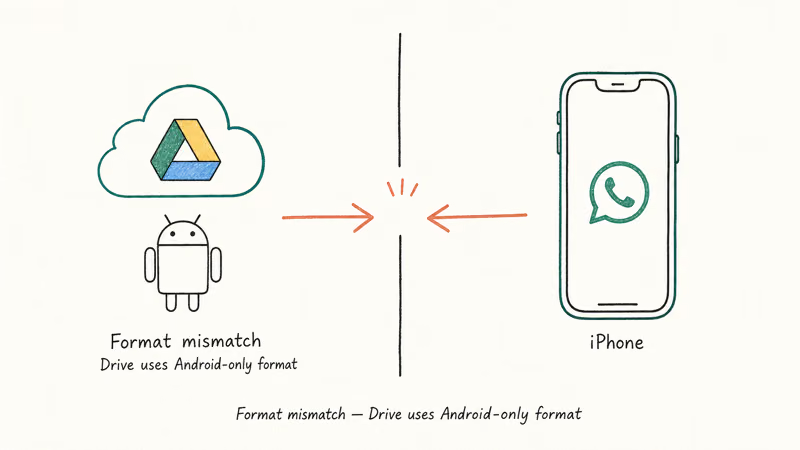
WhatsApp on Android writes encrypted chat history into your Google Drive account using a Crypt format tied to your Google login and the device’s security key. WhatsApp on iOS hands the same data to iCloud using Apple’s encryption stack. The two backup formats don’t talk to each other across the platform line.
According to WhatsApp’s 2021 Move to iOS announcement, the cross-platform transfer ports text history, photos, voice notes, and group chats. WhatsApp recommends running this migration during the iPhone’s first-time setup, which leaves a single supported alternative for already-active iPhones: a desktop-side conversion tool that decrypts the Drive archive and rebuilds it for iOS.
If you want a deeper walkthrough comparing every cross-platform option, our transfer WhatsApp messages from Android to iPhone guide breaks each route down side by side.
#Preparing Your Android WhatsApp Before You Switch
Create a fresh Google Drive backup before you start either method. Open WhatsApp on your Android phone, tap the three-dot menu, then go to Settings > Chats > Chat backup > Back up to Google Drive. Confirm the backup uses the same Google account you’ll log into during the conversion.
Toggle Include videos on if you want media to come across. The backup runs longer but you won’t have to chase missing files later.
If you’re upgrading from a Galaxy phone, our Samsung WhatsApp backup guide walks through Smart Switch and Samsung Cloud alongside the Drive route, so you can pick the path that fits your setup. And if you only need a single conversation rather than the whole archive, the export WhatsApp chat feature gives you a portable .txt file that lands in any iPhone email client without conversion.
#Method 1: Move to iOS During Fresh iPhone Setup
Start here when your iPhone is brand new or you’re willing to factory reset. WhatsApp’s official path is free, runs in about 20 minutes, and ports almost everything that matters.
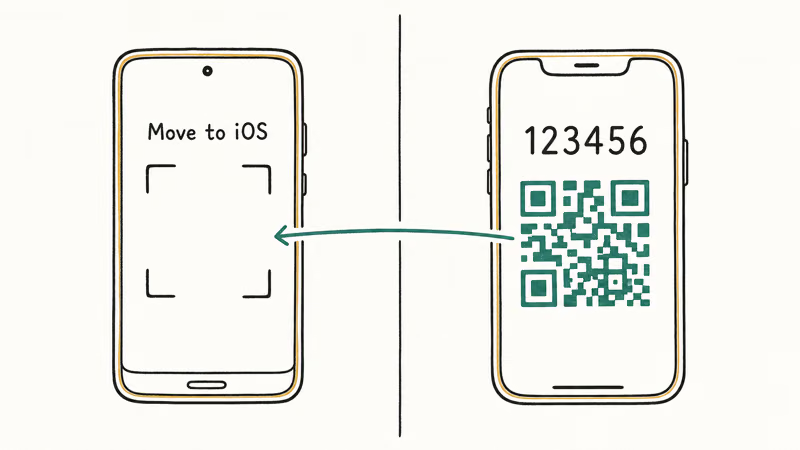
Open the iPhone in setup mode. A new iPhone lands on the Apps & Data screen automatically. An in-use iPhone needs a wipe first: open Settings > General > Transfer or Reset iPhone > Erase All Content and Settings, confirm with your Apple ID, and let it reboot into the welcome flow.
Pick Move Data from Android. Tap that option in setup instead of Restore from iCloud or Quick Start.
Install Move to iOS on the Android side. Grab Apple’s Move to iOS app from Google Play, open it, and follow the on-screen pairing prompt. Both phones must sit on the same 2.4 GHz Wi-Fi network. The iPhone will display a 6-digit code; type it into the Android.
Tick the WhatsApp box. When the Android lists what it can transfer, scroll down to WhatsApp and select it. Hand off the phones to the same Wi-Fi for the duration. Don’t lock either screen.
Finish on the iPhone. When pairing completes, sign into WhatsApp using the same phone number you used on Android. Apple’s Move to iOS guide states that both devices must stay on Wi-Fi and stay awake until the bar fills, after which the iPhone reboots once and your chat history surfaces inside the WhatsApp app.
Don’t lock the screen during the transfer. The Wi-Fi handshake drops if either device sleeps.
#Method 2: Third-Party Tool for an Existing iPhone
If your iPhone is already in use and you don’t want to wipe it, a desktop converter is the supported route. Tools like Tenorshare iCareFone and Wondershare Dr.Fone download the Drive backup, decrypt it, and rewrite it into the format iOS WhatsApp expects.
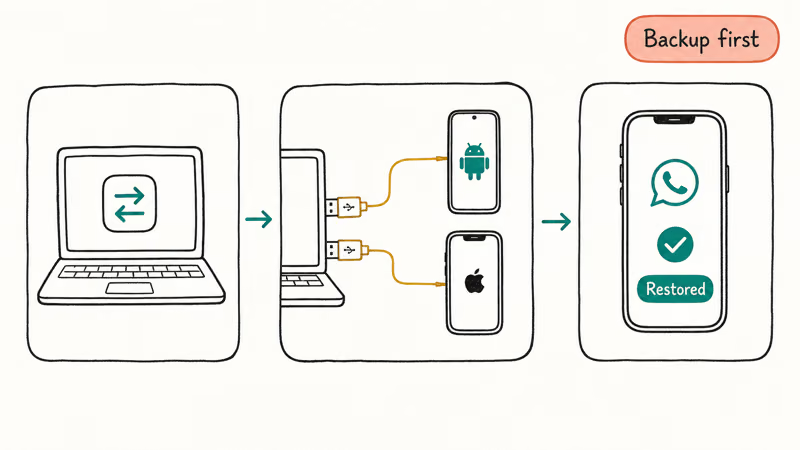
Install the converter on a Mac or Windows PC. Both vendors ship native builds. Plug the iPhone in over USB-C and tap Trust on the unlock screen.
Sign into the Google account holding the backup. Inside the converter, pick the WhatsApp transfer module and choose Restore Google Drive backup. The tool opens a browser window for Google sign-in. Use the exact account that owns the backup, since multi-account households often have separate Drive folders for different family members.
Verify the WhatsApp number with SMS. Type the same phone number that owns the chat history. WhatsApp texts a 6-digit code; punch it in within 5 minutes.
Watch the conversion bar. The download-decrypt-reencrypt cycle can take a while, especially for media-heavy backups or slower Wi-Fi. Don’t unplug the iPhone, don’t let the laptop sleep, and don’t switch Wi-Fi networks midway. iCareFone and Dr.Fone both display a percentage and an estimated finish time, so you can step away once the bar passes 50 percent.
Open WhatsApp on iPhone. Install WhatsApp from the App Store, register the same number, and skip the Restore from iCloud prompt entirely. The converter copies the chat database directly into the app’s container, so an iCloud restore would conflict.
Allow 30-60 seconds for the chat list to populate. Group chats and media catch up last.
#What Data Actually Moves and What Doesn’t?
Most of your library survives the trip. Text messages, photos, videos, voice notes, group chats, group profile photos, and starred messages all carry through. Time stamps stay accurate, sender info stays attached, and group memberships stay intact, so nobody has to re-add you.
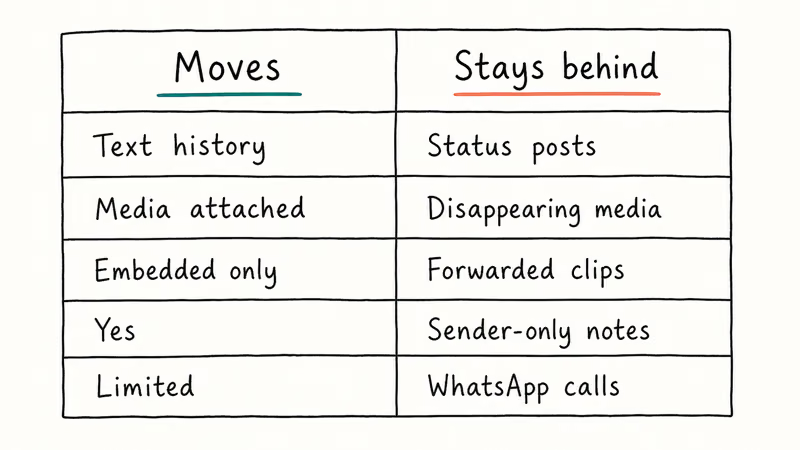
Call history doesn’t transfer. Status updates don’t either. WhatsApp Pay records and end-to-end encrypted backup keys reset on the new device.
Contacts move through your phone book, not WhatsApp itself, so back them up first via Google Contacts sync or pair it with our Android app backup and restore walkthrough. WhatsApp’s announcement confirms that text, photos, video, voice notes, and group chats all migrate together, but it doesn’t claim to move call logs or Status archives.
Files larger than 100 MB sometimes throw an error in third-party tools. Move them off WhatsApp before the backup if they matter.
#Fixing Common Transfer Errors
Most failures fall into four buckets. Walk through them in order before reinstalling anything.
Backup download stalls. Sign out of Google in the converter and back in. Confirm the laptop has at least 3x the backup size free on the drive holding its temp folder. If a 4 GB backup keeps failing on the same error code, the cause is usually a corporate Google account with file-sharing restrictions you can’t bypass.
SMS code never arrives. Switch to the voice-call option after 60 seconds. VoIP and Google Voice numbers can’t receive WhatsApp’s verification code reliably.
Transfer halts mid-progress. Swap the USB cable before anything else, since one frayed wire wastes more conversion attempts than a busted backup ever will. Then disable sleep on the laptop, kill any VPN, and restart from the converter’s main screen. Keep the laptop plugged in, the screen unlocked, and the iPhone unlocked too.
Chats won’t show in WhatsApp on iPhone. Force-quit the app and reopen. If the list still looks empty, our iCloud restore stuck on iPhone fix covers the conflict path that blocks third-party imports.
If nothing moves, uninstall WhatsApp, run the converter again, and re-verify the phone number on a fresh install.
#Bottom Line
Use Move to iOS if your iPhone hasn’t been opened yet. Use iCareFone or Dr.Fone if it has. Either way, take a fresh Google Drive backup first and budget 30-60 minutes.
If WhatsApp is the only thing you actually care about, skip the Apple-ecosystem dance and pair the WhatsApp contacts backup workflow with a single chat export.
iPhone tips & tricks
#Frequently Asked Questions
Is the WhatsApp transfer from Google Drive to iPhone free?
Apple’s Move to iOS is completely free. Third-party tools like iCareFone and Dr.Fone start at $20-$40 for a one-time license, with free trials that preview chats before you pay. Pricing varies between vendors and changes seasonally, so check the current list price at checkout.
Can I transfer WhatsApp without erasing my iPhone?
Yes, but only with a third-party converter. Apple’s Move to iOS requires a fresh-out-of-box or factory reset iPhone, while iCareFone and Dr.Fone work fine on an iPhone you’ve been using for months.
Will my Android WhatsApp keep working after the transfer?
WhatsApp logs out of Android automatically once you verify your phone number on the iPhone, since one account can only own one main device at a time. You can still sign back into the Android phone afterward, but you’ll start with an empty chat list because the active session now sits on iOS. The Drive backup itself stays intact in your Google account.
Does the transfer include group chats?
Yes. Every group chat moves over with its full message history, member list, and group profile photo. You stay listed as a member, and other members notice nothing on their end.
What if my Google Drive backup is several months old?
You can still transfer it, but you’ll lose every message sent since that backup ran. Take a fresh Android backup before starting so you capture the most recent conversations. WhatsApp finishes a new Drive backup in a few minutes for typical chat histories.
What happens to the Google Drive backup once I’m on iPhone?
It stays in Google Drive untouched. The converter only downloads a copy. You can use the same backup later to restore WhatsApp on another Android device if you need to.

How to Transfer Data to a New iPhone Without iCloud
Move everything to your new iPhone without iCloud: Quick Start device-to-device transfer, wired migration, and encrypted Finder or iTunes backups.
Best Wireless Earbuds for iPhone in 2026: USB-C Era Picks
Best wireless earbuds for iPhone in 2026, comparing AirPods Pro 3, Sony WF-1000XM6, Bose QC Ultra, and Anker Liberty 4 NC on the USB-C iPhone lineup.
iPhone Keyboard Lag? 7 Proven Fixes for iOS 26 (2026)
Fix iPhone keyboard lag with 7 proven fixes for iOS 26. Covers restart, storage, predictive text, third-party keyboards, and dictionary reset.
How to Block Porn on an iPhone: A Guide for Parents
Learn how to block porn on iPhone using Screen Time, DNS filtering, and safe browsers. Step-by-step guide for parents to protect kids' devices.