How to Use Miracast on Windows 7 (Workarounds That Work)
Windows 7 lacks built-in Miracast. Use Intel WiDi, a wireless display adapter, or upgrade to Windows 10. Step-by-step setup instructions inside.
Quick AnswerWindows 7 does not natively support Miracast. You can get wireless display functionality by using Intel WiDi with compatible hardware, connecting a Microsoft Wireless Display Adapter, or upgrading to Windows 10 where Miracast is built in.
Windows 7 doesn’t ship with Miracast. Microsoft only added native support starting with Windows 8.1, so on Windows 7 you have to fake it with Intel WiDi, a third-party HDMI dongle, or a full Windows upgrade.
A wireless display dongle is usually the simplest route. Intel WiDi can work when the PC already has the right Intel CPU and wireless card. A Windows 10 upgrade removes the workaround entirely, but it also carries the normal upgrade risks for old drivers, VPN clients, and printers.
Most readers should pick the dongle. The other two paths exist for people who already have the right hardware or were planning to upgrade anyway.
- Windows 7 has zero native Miracast support because Microsoft added the stack in Windows 8.1
- Intel WiDi only works with 2nd-gen Core i-series CPUs and a short list of Intel wireless cards
- A $20-50 wireless display dongle plugs into HDMI and pairs through Control Panel
- The command netsh wlan show drivers tells you whether your Wi-Fi adapter supports Wireless Display
- Upgrading to Windows 10 removes every workaround and lets you cast with the Windows + K shortcut
#Why Doesn’t Windows 7 Support Miracast?
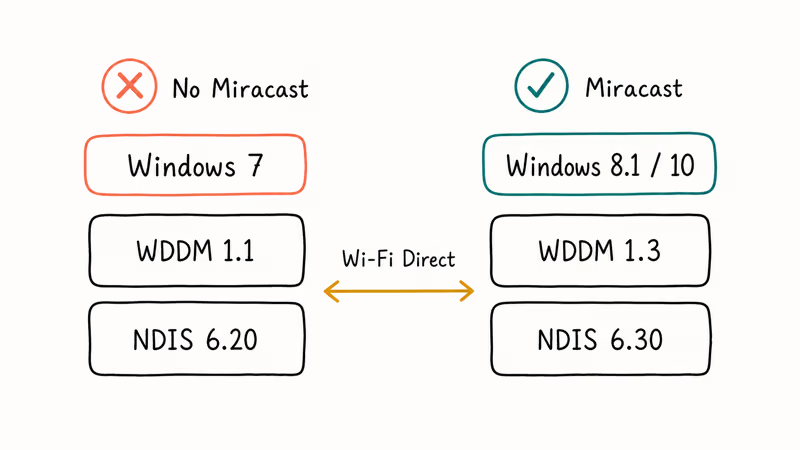
Miracast is a peer-to-peer wireless display standard the Wi-Fi Alliance certified in 2012. It uses Wi-Fi Direct to negotiate a direct link between your PC and the receiver, so no router or internet connection is involved.
According to the Wi-Fi Alliance’s Miracast certification page, the standard supports up to 1080p HD video and 5.1 surround audio over Wi-Fi Direct. The Alliance has certified a broad range of devices since launch.
Windows didn’t get this stack until Windows 8.1. Based on Microsoft’s wireless displays driver documentation, a working Miracast implementation needs WDDM 1.3 graphics drivers and NDIS 6.30 wireless drivers. Both shipped first in Windows 8.1 and were carried into Windows 10. Windows 7 ships with WDDM 1.1 and the older NDIS 6.20.
That’s why no driver update will make stock Windows 7 cast natively on its own. The fix is to add a third-party transmitter or receiver that handles the wireless display side itself, which is what the three workarounds in this guide do for Windows 7 PCs you own.
#How Do You Check If Your Windows 7 PC Supports Wireless Display?
Run two quick checks before you spend money on hardware. Both take under a minute.
#The netsh Command
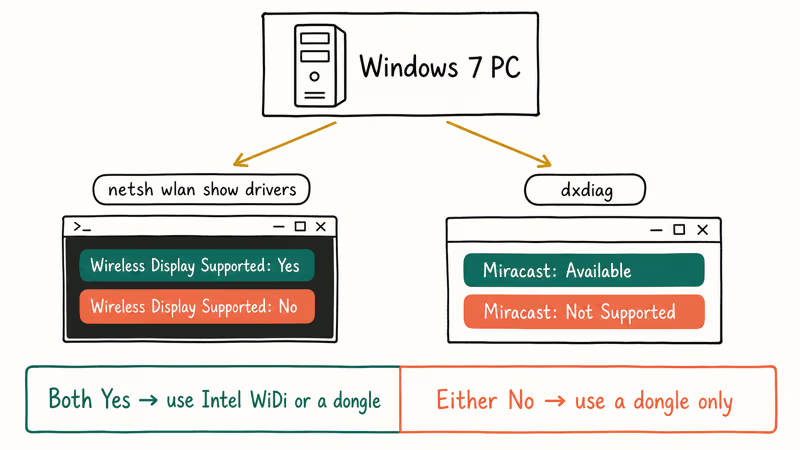
Press Windows + R, type cmd, and press Enter. In the Command Prompt, type:
netsh wlan show driversLook for the line Wireless Display Supported. “Yes” means your built-in Wi-Fi adapter speaks Wi-Fi Direct and Miracast on the transmitter side. “No” means you need a different Wi-Fi card or you have to use the dongle path on the receiver side.
Generic Realtek and Atheros adapters often return No. Intel wireless cards from the WiDi era are more likely to return Yes when paired with compatible graphics drivers.
#DirectX Diagnostic
Press Windows + R, type dxdiag, and press Enter. Click Save All Information, save the text file, and search inside it for “Miracast”. A line starting with Miracast: Available means the GPU and driver chain support sending video to a wireless display. Miracast: Not Supported by Graphics driver means your GPU driver is too old or the card is too old, full stop.
The DirectX check is mostly a sanity check. If netsh says Yes and dxdiag says Available, you can use Intel WiDi or the dongle path. If either says No, the dongle path is your only option that doesn’t require new internal hardware.
#Setting Up Intel WiDi on Windows 7
Intel Wireless Display, almost always called WiDi, was Intel’s proprietary wireless display software that predated Miracast. Intel folded it into Miracast around 2014 and stopped distributing the standalone software in 2015, but the installer still works fine on Windows 7.
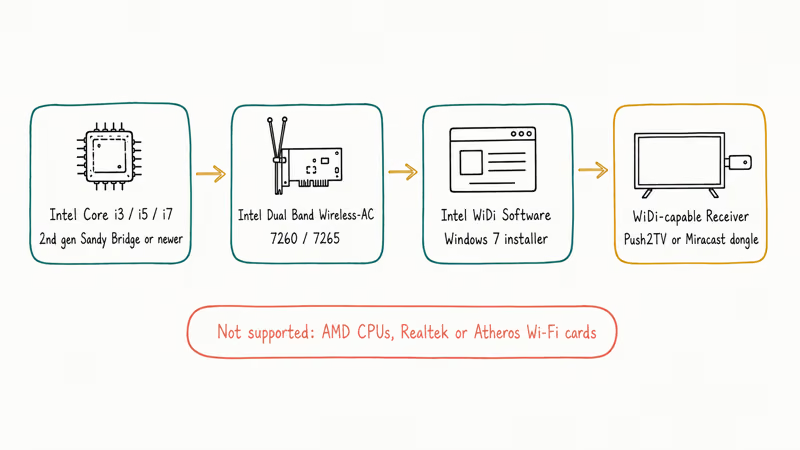
To use it, you need:
- A 2nd-generation Intel Core i3, i5, or i7 (Sandy Bridge) or newer with integrated graphics
- An Intel wireless adapter (the Dual Band Wireless-AC 7260 or 7265 are the best-supported)
- The legacy Intel WiDi software for Windows 7
- A WiDi-capable receiver, such as the Netgear Push2TV or a current Miracast dongle in WiDi mode
The hardware list is the part that catches people. AMD CPUs don’t work. Generic Realtek or Atheros Wi-Fi cards don’t work either. Plenty of Windows 7 laptops shipped with an Intel CPU but a non-Intel Wi-Fi card, which is one of the most common WiDi failure points.
If your hardware checks out, install the WiDi software, open it, and let it scan. WiDi can handle basic 720p mirroring on compatible hardware, but 1080p playback is more likely to show compression artifacts during action movies and sports.
WiDi is free, but the hardware shortlist is the bottleneck.
#Using a Wireless Display Adapter on Windows 7
A Miracast adapter is a small dongle that plugs into your TV’s HDMI port and presents itself as a Miracast receiver. Because the adapter handles the receiver side, the PC only needs to support outgoing Miracast — which is the part most Windows 7 machines can do once their drivers are current.
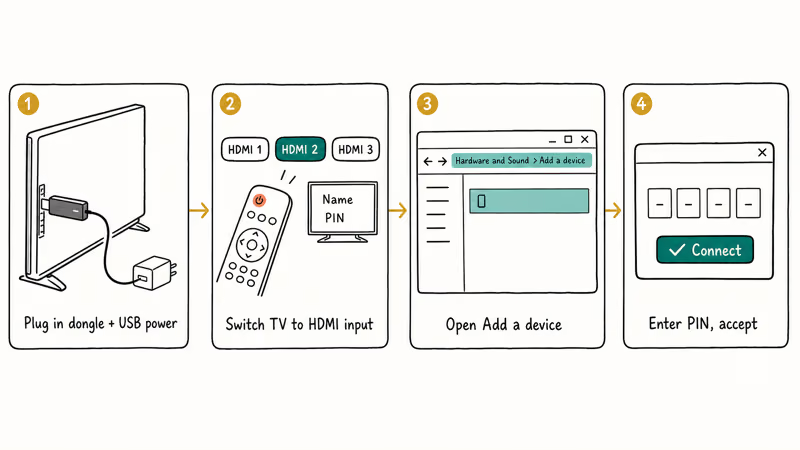
Setup is the most forgiving of the three paths:
- Plug the dongle into a free HDMI port and supply USB power from the TV or a 5V adapter.
- Switch the TV to that HDMI input. The dongle’s pairing screen should show a name and PIN.
- On the Windows 7 PC, open
Control Panel>Hardware and Sound>Adda device. - Select the dongle when it appears, enter the PIN, and accept the connection.
Generic AnyCast and EZCast-style dongles are common low-cost options. Some pair from the Windows 7 Add a device screen immediately, while others need a firmware update through a companion app before they appear.
Microsoft’s Wireless Display Adapter support page confirms that the Miracast-based adapter is officially supported on Miracast-enabled Windows 8.1 and Windows 10 devices only. In practice it works on Windows 7 if your Wi-Fi adapter and graphics drivers are current; if not, a generic AnyCast or EZCast dongle is a safer pick.
Keep your Wi-Fi adapter drivers updated. Outdated drivers are the single biggest reason wireless display dongles fail to pair on Windows 7.
#When the Windows 10 Upgrade Is Worth It
If wireless display is a daily part of how you use this PC, the upgrade pays for itself fast.
Windows 10 ships with the full Miracast stack on the transmitter side and an optional Wireless Display feature on the receiver side. Press Windows + K, pick the display, done. No drivers to hunt for, no dongle firmware to update, no Intel-only hardware list.
According to Microsoft’s screen mirroring guide, Windows 10 (build 1809 and later) and Windows 11 can also act as a Miracast receiver after you install the Wireless Display optional feature under Settings > Apps > Optional Features. That turns any modern PC into a target your phone can cast to.
The hidden costs are real, though. A Windows 10 upgrade can break old VPN clients, force printer driver updates, or expose hardware that no longer has maintained Windows drivers.
The free Windows 10 upgrade officially ended in July 2016, so you may need a fresh license. If you don’t cast every day, a $25 dongle is the cheaper answer. If your hardware is already Windows 10 capable and you were going to upgrade in the next year anyway, do it now and skip the workarounds. A Chromecast dongle is also worth a look if your main use case is casting browser content rather than mirroring the full desktop.
#Troubleshooting Wireless Display Problems on Windows 7
Most failures fall into the same handful of buckets.
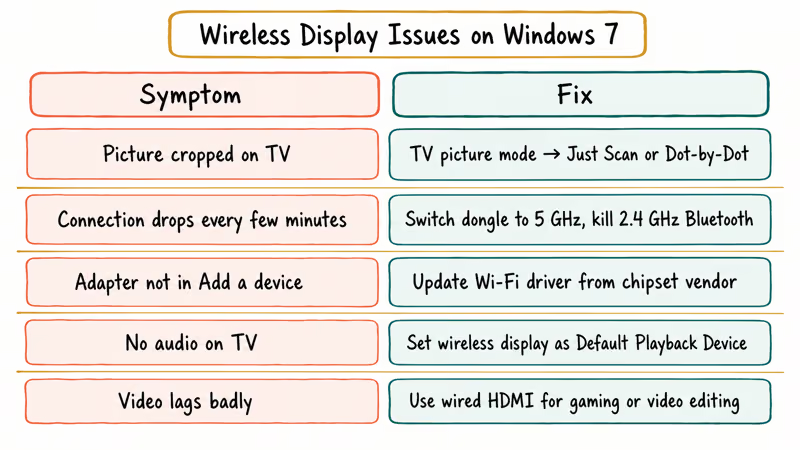
Picture is zoomed in or cut off. Your TV’s overscan is cropping; switch the picture mode to Just Scan, Dot-by-Dot, or Native.
Connection drops every few minutes. Miracast uses Wi-Fi Direct, which shares the same 2.4 GHz and 5 GHz spectrum as your home Wi-Fi and Bluetooth. Move the PC and the dongle into the same room, kill 2.4 GHz Bluetooth peripherals, and switch the dongle to its 5 GHz band if it has one. Disconnecting the PC from your regular Wi-Fi during casting also helps.
Adapter never shows up in Add a device. This is almost always a Wi-Fi driver problem; open Device Manager, right-click your Wi-Fi card, and pick Update Driver Software. If the manufacturer ended Windows 7 support, search the chipset vendor (Intel, Realtek, Qualcomm Atheros) directly for the latest legacy driver. The Windows 7 firewall can also block dongle discovery traffic, so temporarily disable the Public profile to confirm.
No audio on the TV. Right-click the speaker icon, choose Playback devices, find the wireless display, and pick Set as Default Device.
Video lags badly. Expect noticeable latency over Miracast, which is the price the standard pays for compressing the stream and pushing it over Wi-Fi. Lag is usually more obvious during fast scrolling and quick window switches. For gaming, video editing, or anything time-sensitive, plug in a wired HDMI cable instead, because Miracast was never built for those workloads.
#Bottom Line
For Windows 7 today, a $20-$50 Miracast dongle is the right answer for almost everyone. It doesn’t care which Wi-Fi card you have, avoids the Intel WiDi hardware shortlist, and works whether or not Microsoft still maintains your hardware.
Use Intel WiDi only if you already have a Sandy Bridge-or-newer Intel CPU and a 7260/7265 wireless card. Upgrade to Windows 10 only if you cast every day or were going to upgrade soon anyway. For casual living-room mirroring, a basic AnyCast-style dongle is usually enough.
#Frequently Asked Questions
Does Windows 7 have built-in Miracast support?
No. Microsoft added native Miracast in Windows 8.1, with the WDDM 1.3 and NDIS 6.30 driver requirements that ship in 8.1 and 10 only.
Do I need an internet connection to use Miracast?
No. Miracast uses Wi-Fi Direct for a peer-to-peer link, so no router or internet is needed.
Is Miracast better than using an HDMI cable?
For most desk setups, no. Miracast adds wireless convenience but introduces noticeable latency and lossy compression, while HDMI carries uncompressed video at full refresh rate with effectively zero lag. Use HDMI for gaming, video editing, and anything that has to look right at full bitrate. Use Miracast when running a cable across the room is the bigger problem.
Can I mirror to two TVs at once with Miracast?
No. Miracast is a one-to-one peer-to-peer link by design, so each session targets a single receiver.
What is the difference between Miracast and Chromecast?
Miracast mirrors your full desktop over Wi-Fi Direct without a router and shows everything on the source screen. Chromecast streams specific app content through your home Wi-Fi router and needs an internet connection for most apps. For full desktop mirroring on a network with no internet, Miracast wins. For casting a YouTube tab from your phone, Chromecast is easier and gets active firmware updates from Google.
Which wireless display dongle works best on Windows 7?
Generic dongles from AnyCast or EZCast are the safest pick for most Windows 7 setups because they avoid Intel WiDi’s narrow hardware requirements.
Can I use Miracast for gaming on Windows 7?
Only for slow-paced or turn-based games. Miracast’s input lag is usually fine for board games or strategy titles but feels sluggish in any first-person or rhythm game. For competitive or fast-paced gaming, plug in an HDMI or DisplayPort cable.
Why does my Miracast connection keep disconnecting?
Wi-Fi interference is the usual cause. Move the PC closer to the receiver, switch the dongle to 5 GHz, and update your Wi-Fi card driver from the chipset vendor’s site.

Best Laptop for Running LLMs in 2026: Memory Comes First
The best laptop for running LLMs is a memory purchase first. Compare MacBook unified memory against NVIDIA laptop VRAM, and see what each tier really runs.

How to Run a Local LLM on Windows: A 2026 Setup Guide
Run a local LLM on Windows with LM Studio or Ollama. Pick a model that fits your GPU memory, keep every prompt offline, and skip the monthly bill.

Bluetooth Not Working on Snapdragon X? Fixes for 2026
Bluetooth not working on your Snapdragon X Copilot+ PC? Generic audio, mice, and keyboards work, but vendor apps often lack an ARM build. Fixes inside.

Docker Desktop and WSL2 Not Working on Snapdragon X? Fix It
WSL2 runs fine on Snapdragon X, but Docker Desktop ARM is Early Access and throws WSL errors. Use WSL2 plus native ARM64 Ubuntu and Docker Engine.