Samsung Wi-Fi Direct: How to Connect and Share Files
Set up Samsung Wi-Fi Direct in Settings > Connections, transfer files between Galaxy devices, and learn why One UI 3.1 blocks outgoing sends.
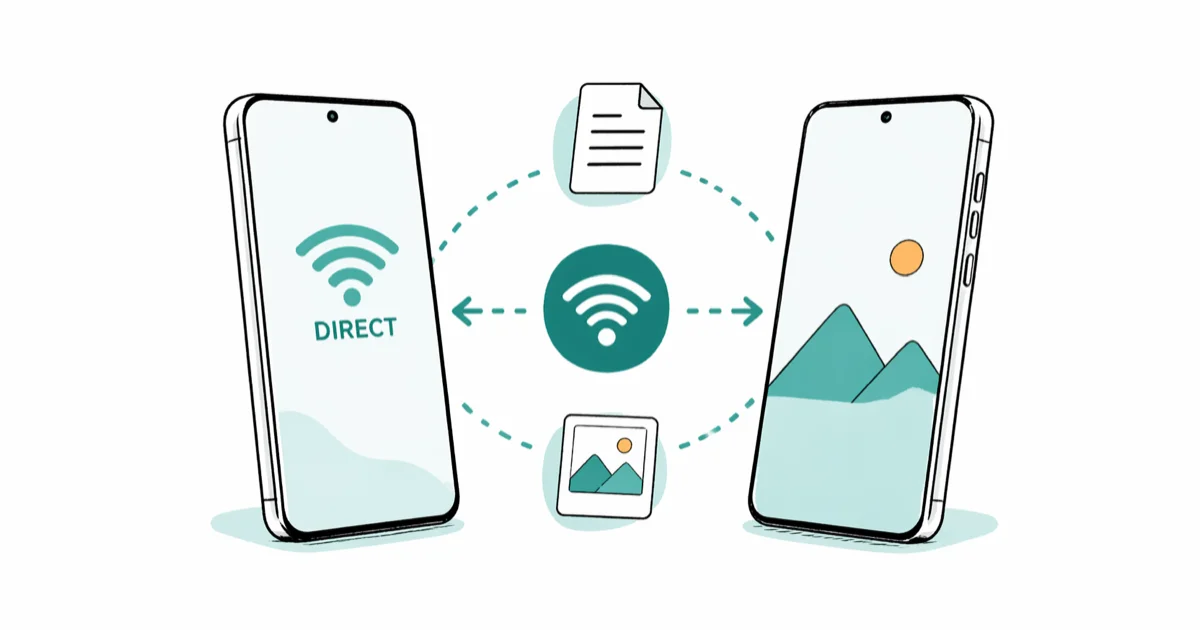
Quick AnswerSamsung Wi-Fi Direct creates a peer-to-peer connection between two devices without a router or internet. Open Settings > Connections > Wi-Fi > Wi-Fi Direct on your Galaxy phone to turn it on.
Samsung Wi-Fi Direct links two devices over Wi-Fi with no router, hotspot, or carrier data. It moves large files far faster than Bluetooth, but what works now depends on your Galaxy model and One UI version.
- Wi-Fi Direct creates a peer-to-peer Wi-Fi link without a router, hotspot, or internet connection
- Outgoing transfers are blocked on Galaxy phones running One UI 3.1 (Android 11) and newer
- Quick Share replaced Wi-Fi Direct as Samsung’s default phone-to-phone file sharing in 2021
- Screen mirroring, wireless printing, and Smart TV pairing on Galaxy still depend on Wi-Fi Direct
- The Wi-Fi Alliance certifies Wi-Fi Direct with WPA2 encryption for secure peer connections
#What Is Wi-Fi Direct on a Samsung Phone?
Wi-Fi Direct is a Wi-Fi Alliance certified standard that lets two devices form a direct Wi-Fi link without joining the same network. Your Galaxy phone becomes a soft access point, and the second device pairs with it the same way you would pair to a router. No SSID, no password sharing, no carrier data.
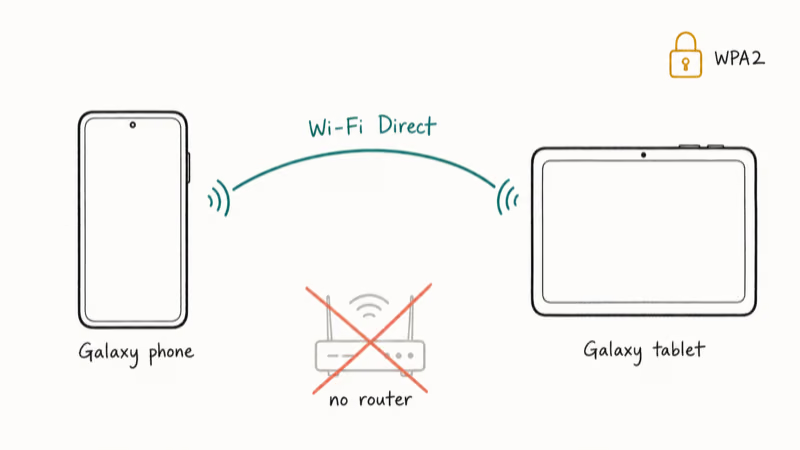
According to the Wi-Fi Alliance, Wi-Fi Direct uses WPA2 encryption to secure the peer-to-peer session, the same encryption that protects most home routers. That security guarantee is one reason older Galaxy lineups leaned on it heavily for ad-hoc file transfers before Samsung pushed everyone toward Quick Share.
Samsung has shipped Wi-Fi Direct in Galaxy S, A, Note, and Tab models since 2011. Samsung Smart TVs picked it up from 2012 onward.
Android’s developer documentation states that Wi-Fi Direct handles connection negotiation automatically once both devices enable it, which is why you never configure IP addresses or join any existing network. The OS does the handshake; you just pick the receiving device from a list of nearby Wi-Fi Direct devices and the radio takes care of the rest.
#How to Enable Wi-Fi Direct on a Galaxy Phone
Turning Wi-Fi Direct on takes about half a minute. Here is the path on a Galaxy S24 running One UI 6.1:
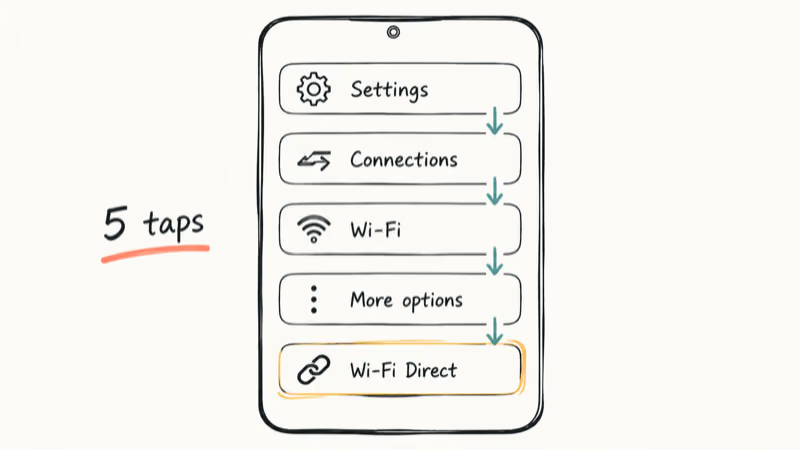
- Open Settings.
- Tap Connections.
- Tap Wi-Fi and confirm Wi-Fi is on.
- Tap the More options menu (three dots, top right).
- Tap Wi-Fi Direct.
Your phone scans for nearby Wi-Fi Direct devices automatically.
Two Galaxy devices in the same room usually show up on each other’s screens within a few seconds. On a Samsung Smart TV, press the Home button on the remote, open Settings > General > Network, and select Wi-Fi Direct from the network options.
If a device fails to appear, restart Wi-Fi on both ends and try again. That clears most discovery failures. Also check whether a VPN, mobile security suite, or third-party firewall is running. Those tools commonly block local device discovery and will keep the pairing screen empty.
#How Do You Transfer Files With Wi-Fi Direct?
On older Galaxy phones, sharing a file is a four-tap path.
Open the file in Gallery, My Files, or any app with a Share sheet, tap Share, choose Wi-Fi Direct, and select the receiving device. The other device sees an incoming-transfer prompt and accepts before anything moves, so nothing arrives without your knowledge.
A large video file moves between two Galaxy devices in well under a minute, far quicker than Bluetooth would manage the same payload. Both devices stay under the same Wi-Fi Direct session for the entire transfer, with no router or internet connection anywhere in the loop, which is exactly why the method survived for ad-hoc sharing long after faster home networks became common.
#The One UI 3.1 Sending Block
Here is the frustration point on modern hardware. Samsung removed outgoing Wi-Fi Direct file sending on Galaxy phones starting with One UI 3.1 (Android 11). Receiving still works, and Galaxy tablets plus Smart TVs kept two-way support. Phones running One UI 3.0 or earlier can still send without any workaround.
The change pushed everyone toward Quick Share for outbound transfers between Galaxy devices. If you need to migrate apps, contacts, messages, photos, and settings to a new Galaxy in one sweep, Smart Switch is the right tool, not Wi-Fi Direct.
#Other Things Wi-Fi Direct Powers
File sharing gets the headline, but Wi-Fi Direct quietly powers several Galaxy features that have nothing to do with moving files.
Screen mirroring is the biggest one. Mirroring your Galaxy phone to a Samsung Smart TV through Smart View, or to a compatible third-party display, runs over Wi-Fi Direct under the hood. If screen mirroring isn’t working on your setup, both devices need Wi-Fi Direct enabled and matching firmware. The same applies when Samsung Smart View won’t connect to your TV.
Wireless printing is the second use. A Wi-Fi Direct printer shows up in your Galaxy device list the same way another phone would, and you print straight from the share sheet. No router setup, no driver disc, no PC in between.
Local multiplayer games sometimes use Wi-Fi Direct for offline peer-to-peer play. It also handles peripheral pairing for some Galaxy accessories that fall back to Wi-Fi Direct when Bluetooth is out of range or saturated.
#Wi-Fi Direct vs Bluetooth vs Quick Share
Each transfer method has different trade-offs. Here is how they line up on Galaxy hardware:
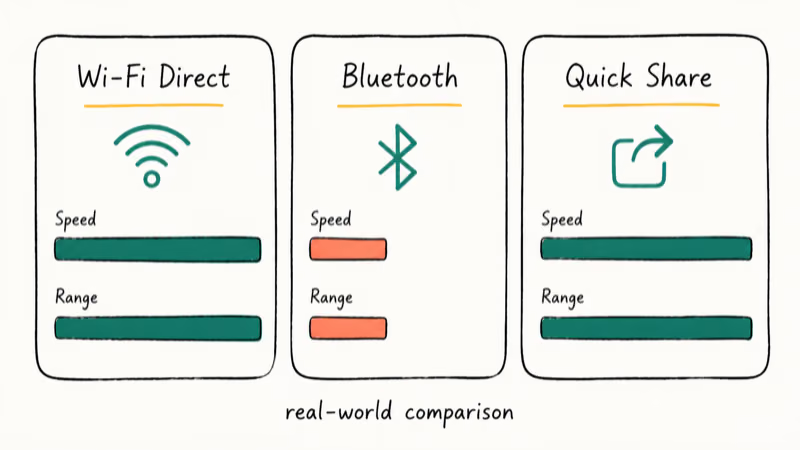
| Feature | Wi-Fi Direct | Bluetooth | Quick Share |
|---|---|---|---|
| Real-world speed | Fast (tens of Mbps) | Up to 3 Mbps | Fast (tens of Mbps) |
| Range | Up to 200 m open | About 10 m | Up to 200 m open |
| Internet needed | No | No | No |
| Setup taps | 4-5 taps | 3-4 taps | 2 taps |
| Works with non-Samsung | Yes | Yes | Limited |
For Samsung-to-Samsung sharing, Quick Share is the simpler choice. It uses Wi-Fi Direct underneath but wraps the pairing in a two-tap interface and removes the manual device-pick step entirely. Quick Share has been the Galaxy default for outbound file sharing since One UI 3.1.
When you need to reach a non-Samsung Android phone or a printer, plain Wi-Fi Direct is still the right tool. Bluetooth is the fallback if you can’t get Wi-Fi Direct to discover the other device, but expect long waits on anything over 50 MB. If you keep hitting authentication errors on Wi-Fi when trying to set this up, a USB-C cable is sometimes faster than fighting the radio.
#Fixing Wi-Fi Direct Connection Problems
When Wi-Fi Direct refuses to connect, work through these in order. The first three resolve most failures.
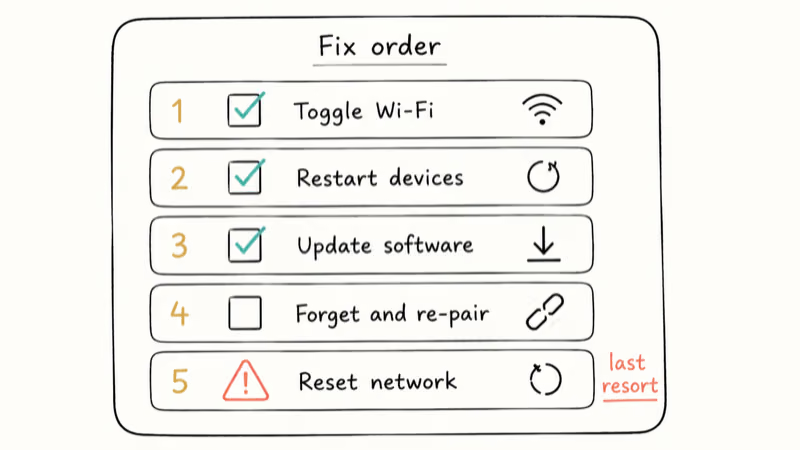
- Toggle Wi-Fi off and back on on both devices. This clears stale sessions and forces a fresh scan.
- Restart both devices. A clean boot fixes most discovery failures and is faster than chasing logs.
- Check for software updates. Open
Settings>Software Update>Download and Install. Mismatched firmware versions block pairing on older Galaxy hardware. - Forget the saved Wi-Fi Direct device and re-pair. Open
Settings>Connections>Wi-Fi>Wi-Fi Direct, long-press the stale device entry, and tap Disconnect. The next pairing attempt forces a fresh handshake. - Reset network settings as a last resort. Open
Settings>General Management>Reset>Reset Network Settings. Heads up: this wipes saved Wi-Fi passwords, Bluetooth pairings, and mobile data presets.
Samsung’s support documentation recommends disabling third-party VPN and firewall apps when Wi-Fi Direct can’t find nearby devices. The recommendation is buried but worth trying before any factory reset, because a VPN intercepting local network traffic will block peer discovery every time. Pause the VPN, run the scan, then re-enable it.
If the receiving device is a tablet that keeps dropping the session, plug it in.
Low battery and aggressive power management kill Wi-Fi Direct sessions silently, and a Samsung tablet that won’t charge is a separate problem to fix first.
#Bottom Line
Use Quick Share for Samsung-to-Samsung file sharing. It’s faster to set up, reaches the same speeds, and is what Samsung now officially supports for outbound transfers between Galaxy devices. Keep Wi-Fi Direct for the jobs Quick Share can’t do: mirroring to a Samsung TV, printing wirelessly, and pairing with non-Samsung Android phones or older hardware that doesn’t speak Quick Share.
Samsung Galaxy Guide
#Frequently Asked Questions
Does Wi-Fi Direct use mobile data or internet?
No. Wi-Fi Direct creates a direct radio link between the two devices, so nothing routes through your carrier or any router. Your mobile data counter stays at zero during transfers, even if mobile data is on.
Can I use Samsung Wi-Fi Direct with an iPhone?
iPhones don’t support Wi-Fi Direct for peer file sharing. Apple uses AirDrop instead, which only talks to other Apple devices. To move files between a Galaxy and an iPhone, fall back to Google Drive, a USB-C-to-Lightning cable, or a cross-platform app like SHAREit.
Why can’t I send files with Wi-Fi Direct on my new Galaxy phone?
Samsung blocked outgoing Wi-Fi Direct sends on Galaxy phones running One UI 3.1 (Android 11) and newer. Receiving still works, but the Share sheet no longer offers Wi-Fi Direct as a send target. The change funnels you to Quick Share for outbound transfers and only affects phones, not Galaxy tablets or Samsung TVs.
Is Wi-Fi Direct secure for sharing sensitive files?
Yes. Wi-Fi Direct uses WPA2 encryption, the same protocol that protects home Wi-Fi networks. For high-stakes documents, switch to a wired USB transfer.
Can I connect more than two devices with Wi-Fi Direct?
Wi-Fi Direct is designed for one-to-one connections. Some Galaxy models technically support multiple peers, but throughput drops sharply with each extra device and pairing gets unstable. For sharing one file with several people at once, use Quick Share or a cloud folder instead.
How far apart can two devices be?
The Wi-Fi Alliance rates Wi-Fi Direct at up to 200 meters in open space. Indoors the usable range is much shorter, and each interior wall cuts it further until the link drops. Concrete and metal cut range hardest, so stay in the same room for large transfers.
What’s the difference between Wi-Fi Direct and Quick Share?
Quick Share uses Wi-Fi Direct underneath but wraps the entire pairing flow in a two-tap interface that handles device discovery automatically. Wi-Fi Direct gives you the raw peer connection and works with non-Samsung devices. Quick Share is faster to use but only really shines between Galaxy hardware.
Does Wi-Fi Direct work without a SIM card?
Yes. Wi-Fi Direct only uses your phone’s Wi-Fi radio, so SIM status, carrier coverage, and active mobile plan are all irrelevant. Wi-Fi Direct still works on a Galaxy that has been completely disconnected from any carrier.
Samsung Secure Folder: Setup, Hide Apps, Clone Apps
Set up Samsung Secure Folder in under 5 minutes. Hide apps and photos, clone a banking app, and hide the Secure Folder icon on any Galaxy S8 or newer.
How to Use Google Find Hub: Setup + Find Lost
Set up and use Google Find Hub to locate, ring, lock, or erase your own Android phone, including offline finding and powered-off Pixel support.
Samsung Galaxy Battery Draining Fast: 2026 Fix Guide
Diagnose Galaxy S25 battery drain in five minutes through Battery Usage, then walk through six reversible Galaxy settings before a factory reset.
Samsung Parental Controls: Full Setup Guide for Parents
Set up Samsung parental controls in three layers: Samsung Kids, Google Family Link, and Digital Wellbeing. Free step-by-step guide for Galaxy parents.