HDMI Over Ethernet: Send Video Up to 330 Feet Away
HDMI over Ethernet extends your video signal up to 330 feet using Cat5e/Cat6 cables. Learn setup steps, 4K support, and the best configurations.
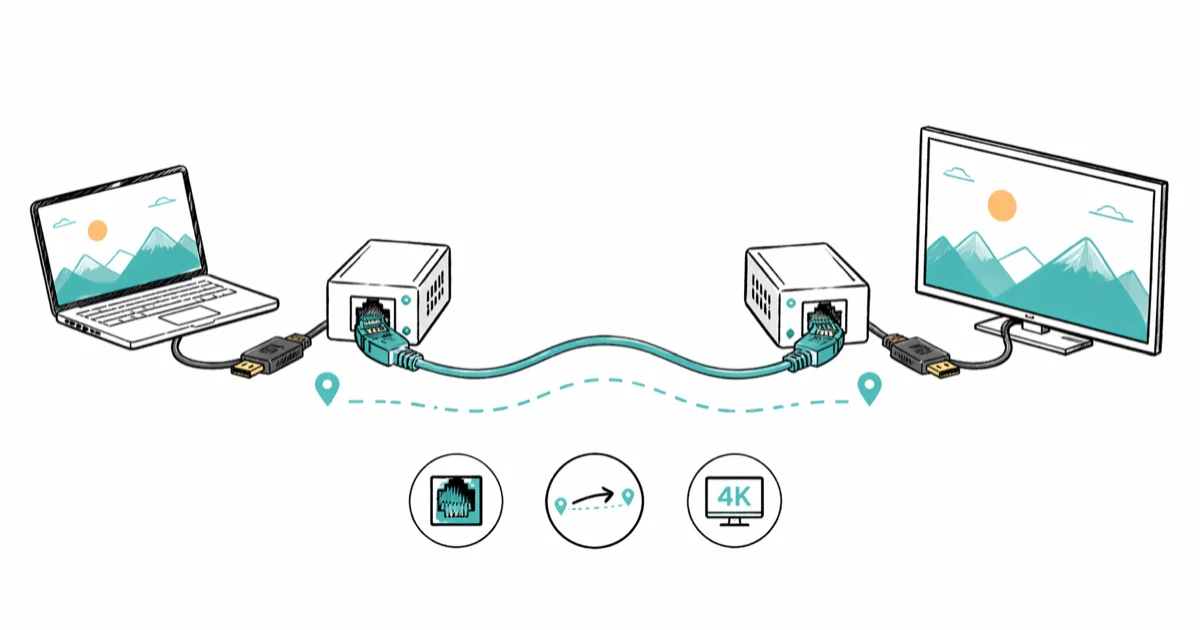
Quick AnswerHDMI over Ethernet uses a transmitter-receiver pair to send HDMI video and audio signals through standard Cat5e or Cat6 cables, reaching distances up to 330 feet (100 meters) compared to the 50-foot limit of regular HDMI cables.
Standard HDMI cables tap out around 50 feet before the picture starts to fall apart. HDMI over Ethernet bypasses that wall.
The trick: convert the video signal into data packets, send the packets through cheap Cat5e or Cat6 cable, and decode them at the far end. With the right gear, a single Cat6 run pushes 1080p out to 330 feet with no visible loss.
With a compatible transmitter-receiver kit, the receiving TV should mirror the source signal over an Ethernet cable.
Below is what the tech actually does, what to buy, and how to set it up without burning a weekend.
- HDMI over Ethernet extends video from 50 feet to 330+ feet using Cat5e, Cat6, or Cat7 cables
- A basic transmitter-receiver kit costs $30-$80 and supports 1080p up to 200 feet
- 4K extenders max out at 130 feet for 4K@30Hz unless you use Cat6a/Cat7 cables
- Latency is under 1ms (uncompressed) to about 80ms (compressed), fine for everything except competitive gaming
- One-to-many setups send a single source to multiple displays using a network switch
#How Does HDMI Over Ethernet Actually Work?
The system uses two small boxes: a transmitter and a receiver. The transmitter plugs into your HDMI source (a laptop, Blu-ray player, or streaming box), encodes the video into data packets, and pushes them down an Ethernet cable. The receiver at the other end decodes those packets back into an HDMI signal for your TV or projector. According to Wikipedia’s HDMI overview, HDMI carries digital video and audio, so long-run extender choices need to preserve signal compatibility first.
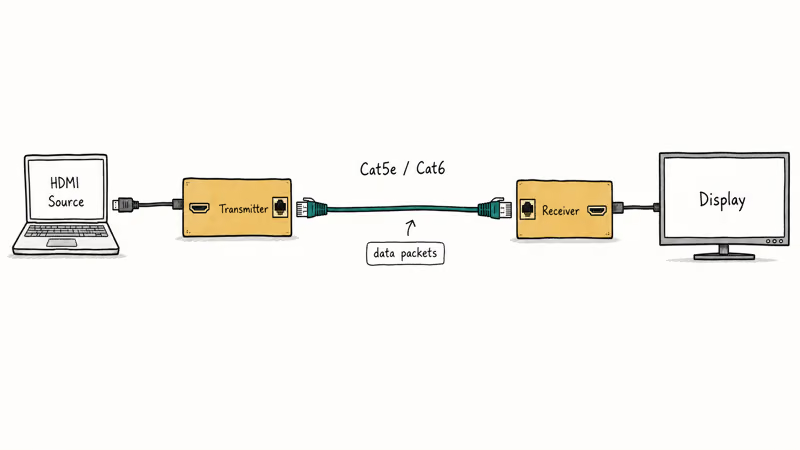
There are two main encoding approaches.
Uncompressed extenders send a raw HDMI signal through the cable with almost zero latency, but they cap out around 165 feet on Cat6. Compressed extenders (usually H.264 or H.265) push the signal further, up to 500 feet in some cases, but they add 30-80ms of delay.
The Ethernet cable itself does not carry standard network traffic in most point-to-point kits. It’s just a cheap, well-shielded copper run that happens to have the bandwidth needed for HD video.
#Choosing the Right Cable: Cat5e vs. Cat6 vs. Cat7
Your cable choice directly affects how far the signal can travel and at what resolution.
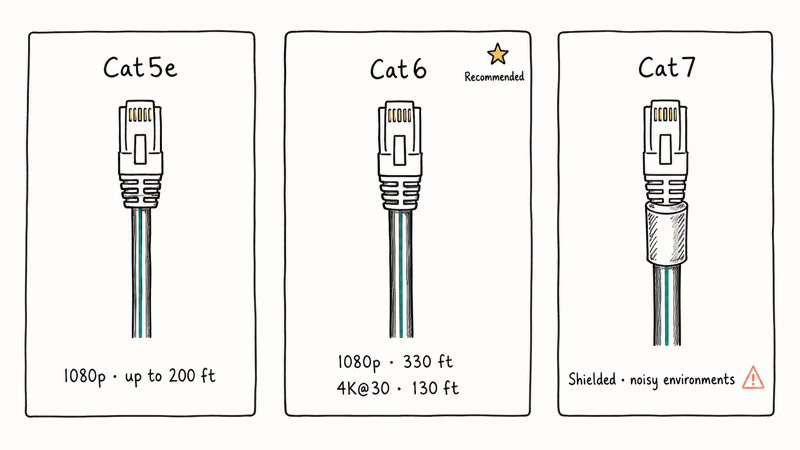
Cat5e handles 1080p at distances up to 200 feet. It’s the minimum most extender manufacturers require. Don’t expect 4K from Cat5e.
Cat6 is the sweet spot. Tighter twisting and an internal separator reduce crosstalk, giving you stable 1080p at 330 feet and 4K@30Hz at around 130 feet. Cat6 costs only 15-20% more than Cat5e, so there is no good reason to pick Cat5e for a new install when Cat6 hands you that much extra headroom for both distance and resolution.
Cat7 adds full shielding on each individual pair. It earns its keep in electrically noisy commercial buildings. Most home setups don’t need it.
For short runs within the extender’s rated range, Cat5e and Cat6 can both carry a clean signal when the kit supports them. Cat6 is still the safer default because it gives more headroom for distance, resolution, and interference. Either cable type works for shorter runs.
If you are dealing with Ethernet cable issues on your PC before the extender kit ever powers on, our guide on fixing Ethernet doesn’t have a valid IP configuration covers the most common culprits.
#Setup: One-to-One, One-to-Many, and Matrix Configurations
#One-to-One (Point-to-Point)
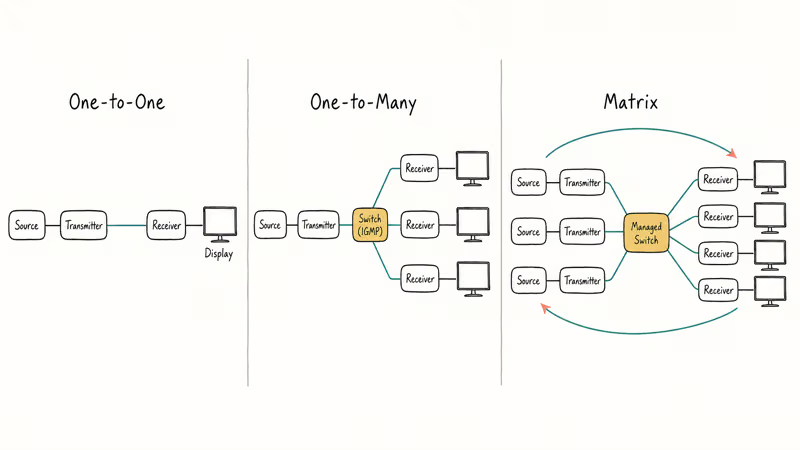
This is the most common setup. Connect your HDMI source to the transmitter, run a single Ethernet cable to the receiver, and plug the receiver into your display. Most kits are true plug-and-play with no software needed.
- Connect the HDMI source to the transmitter’s HDMI input
- Run a Cat5e/Cat6 cable from the transmitter to the receiver
- Connect the receiver’s HDMI output to your TV or projector and power both units
The whole process takes about 5 minutes.
#One-to-Many (Distribution)
You’ll need a network switch between the transmitter and multiple receivers. Each receiver connects to its own display.
This is how bars and corporate lobbies push a single cable box to dozens of TVs. Look for extenders that support IGMP (Internet Group Management Protocol), because without it the video traffic floods your entire network and kills regular internet performance. According to ATEN’s VE8950 4K HDMI over IP datasheet, the system uses IGMP snooping and supports up to 254 transmitters and receivers on a single managed switch.
#Matrix (Many-to-Many)
Matrix setups use multiple transmitters and receivers on a managed switch, letting you route any source to any display. They need networking knowledge to configure.
Popular extender brands here include J-Tech Digital, Monoprice Blackbird, Orei, and ATEN. For a 4-source / 4-display home theater matrix, expect to spend $400-800 for the IP-based gear plus the cost of a Gigabit managed switch with IGMP snooping enabled.
#What Resolution and Refresh Rate Can You Expect?
Resolution support depends on your extender model, cable type, and distance. Here’s what common extender specs usually look like:
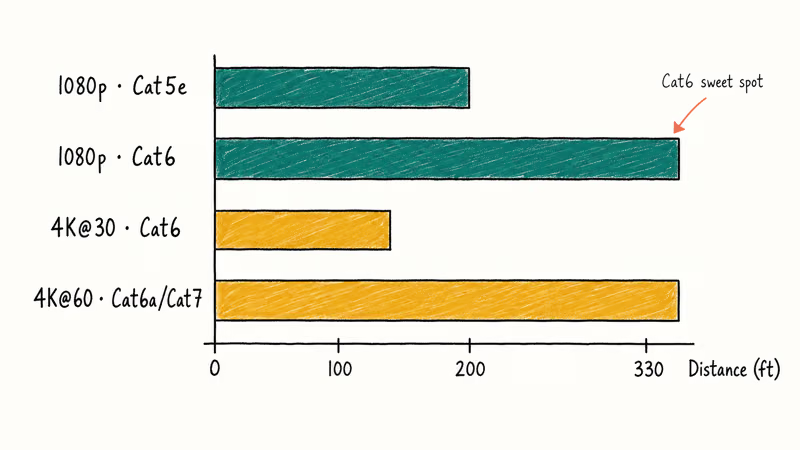
| Resolution | Cable | Typical Max Distance | Compression |
|---|---|---|---|
| 1080p@60Hz | Cat5e | 200 ft (60m) | None |
| 1080p@60Hz | Cat6 | 330 ft (100m) | None |
| 4K@30Hz | Cat6 | 130 ft (40m) | H.264 |
| 4K@60Hz | Cat6a/Cat7 | 330 ft (100m) | H.265 |
Most home theater users only need 1080p at 100-200 feet. Any decent extender kit handles that.
If you need 4K, check the spec sheet carefully. Many kits marketed as “4K” only deliver 4K@30Hz, and a few sneak in chroma subsampling at 4:2
to make the bandwidth math work. For pristine 4K@60Hz at 4:4, you need an HDBaseT-class extender on Cat6a or Cat7. Always read the resolution table before you buy — vendor headlines lie.For the best display quality on the receiving end, pairing your setup with a high-quality HDMI 2.1 monitor makes a noticeable difference, especially when your extender supports 4K@60Hz. And if your HDMI port stops responding after connecting the extender, our HDMI port troubleshooting guide has the quick fixes.
#Common Problems and How to Fix Them
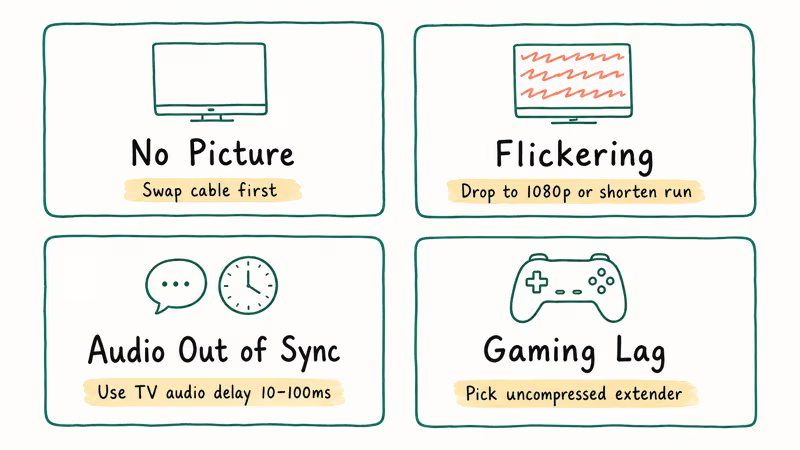
#No Picture on the Receiver
Swap the Ethernet cable with a known-good run. Confirm both units have power. Try a different HDMI cable on the source side. Nine times out of ten this is a cable issue, not a box issue.
#Flickering or Dropped Signal
This usually means the cable run is too long for the resolution you’re pushing. Lowering the output resolution can reduce bandwidth pressure and may stop the flickering. If that fix works for you, you need a shorter run, a higher-category cable, or a different extender rated for your distance.
Electrical interference is the other common cause. Keep your Ethernet cable at least 12 inches away from power cables and away from fluorescent ballasts.
#Audio Out of Sync
Some compressed extenders add enough latency to create a visible lip-sync gap. Most modern receivers and TVs have an audio delay setting that lets you offset by 10-100ms to fix this.
#Latency for Gaming
Uncompressed extenders add under 1ms of delay. That’s fine for any game. Compressed (H.264/H.265) models add 30-80ms, which competitive gamers will notice on fast-twitch titles. Pay more for an uncompressed model if gaming matters to you.
#HDMI Over Ethernet vs. Other Long-Distance Options
For runs over 50 feet, HDMI over Ethernet is the most practical option on the market.
Fiber-optic HDMI cables exist but cost 3-5x more, and once you cut the cable to length you usually can’t re-terminate it on site. Wireless HDMI transmitters cap out around 100-150 feet and struggle through walls. Active copper HDMI cables work, but reliably only out to about 100 feet.
According to Wirecutter’s HDMI cable buying guide, Wirecutter recommends sticking with passive HDMI under 25 feet for guaranteed handshake reliability and switching to a different cabling system beyond that. That different cabling system, in most installs, is HDMI over Ethernet.
It works well for home theaters with AV gear in a closet, digital signage in retail, conference rooms with ceiling-mounted projectors, classroom AV carts, restaurant TV walls, and church AV booths feeding a projector at the back of the hall. Each one wins by hiding the noisy rack while keeping a clean HDMI handshake at the display end. If your screen mirroring app can’t reach the room you need, a wired extender is the dead-reliable fallback.
For shorter runs, look at AirPlay without Wi-Fi or Miracast apps for Android.
#Bottom Line
Get a Cat6-based HDMI extender kit. A $40-60 uncompressed 1080p model from a vendor like J-Tech Digital, Monoprice Blackbird, or Orei handles up to 200 feet without quality loss or latency. That covers the vast majority of home theater jobs.
For 4K at longer distances, expect to spend $100-200 on an H.265-based system and use Cat6a or better cable. Start with a one-to-one setup to confirm everything works before investing in switches and multiple receivers for distribution. Always buy from a vendor with a return policy, because cable routing, interference, and compatibility quirks don’t always show up until you test in your actual space — including unexpected EDID handshake failures with older AV receivers and projectors.
#Frequently Asked Questions
Can I use my existing home network for HDMI over Ethernet?
You can, but it’s not ideal. HDMI video traffic is bandwidth-heavy, and sharing the same switch with your regular internet traffic can cause stuttering or dropped frames. For the best result, use a dedicated Ethernet run from transmitter to receiver without going through your home router or main switch. One-to-many setups that must use a switch should turn on IGMP snooping to isolate video traffic.
Does HDMI over Ethernet support 4K resolution?
Yes, but your distance shrinks. Most 4K extenders top out at 130 feet for 4K@30Hz on Cat6. Getting 4K@60Hz reliably needs Cat6a or Cat7 cable plus H.265 compression on the extender side.
What is the difference between HDMI over Ethernet and HDMI with Ethernet Channel?
They’re completely different technologies. HDMI over Ethernet sends video through Ethernet cables using a transmitter-receiver pair. HDMI with Ethernet Channel (HEC) is a feature built into HDMI 1.4+ cables that adds a 100Mbps data connection alongside the video signal, so connected devices can share an internet link through the HDMI cable itself.
Will an HDMI over Ethernet extender add noticeable latency?
Uncompressed extenders add under 1ms. You won’t notice that in any scenario, including gaming. Compressed extenders (H.264 or H.265) add 30-80ms, which is fine for movies and presentations but noticeable in fast-paced competitive games where every frame counts. If latency matters, spend more on an uncompressed model and keep the cable run under 165 feet to stay within the uncompressed range.
Do I need special Ethernet cables for HDMI extenders?
No. Any Cat5e or better Ethernet cable works. Use Cat6 for runs over 150 feet or 4K content, and pick solid-core cable for in-wall installations.
Can I run HDMI and regular network traffic on the same cable?
No. A point-to-point HDMI extender uses the full bandwidth of the Ethernet cable for video, so you can’t share it with network data. Run two separate cables if you need both. IP-based systems on a network switch can coexist with regular traffic, but they need a Gigabit switch with IGMP support.
How far can HDMI over Ethernet actually reach?
About 330 feet (100 meters) for 1080p on Cat6 with a single extender pair. IP-based systems using managed switches as repeaters can push to 500 feet.
Is HDMI over Ethernet better than wireless HDMI?
For reliability, yes. Wireless HDMI transmitters typically work within 100-150 feet with line-of-sight and struggle through walls or in spaces with lots of Wi-Fi interference. HDMI over Ethernet is more stable, supports longer distances, and costs less per foot of distance covered. Wireless wins only when running a cable is physically impossible.

Best Laptop for Running LLMs in 2026: Memory Comes First
The best laptop for running LLMs is a memory purchase first. Compare MacBook unified memory against NVIDIA laptop VRAM, and see what each tier really runs.

Pixel 11 vs Pixel 10: What Changed and Who Should Upgrade
Pixel 11 vs Pixel 10: same screen and camera resolution, new Tensor G6, 25W wireless, and Gemini Intelligence. Here is who should actually upgrade.
Best Power Bank for iPad in 2026: Pro, Air, and Mini
Best power bank for iPad in 2026. Compare mAh tiers and USB-C PD wattage for iPad Pro, Air, and mini, plus airline Wh math, cables, and travel tips.
Best Power Bank With Built-In Cable: Top 2026 Picks
Best power bank with built-in cable picks for 2026. Compare single USB-C, multi-connector, and retractable laptop banks, plus airline Wh math.