Microsoft Virtual WiFi Miniport Adapter: Setup and Fixes
Set up, troubleshoot, and decide if you need the Microsoft Virtual WiFi Miniport Adapter. Step-by-step Hosted Network and Mobile Hotspot fixes.
Quick AnswerMicrosoft Virtual WiFi Miniport Adapter is a built-in Windows feature that lets one wireless card act as both a Wi-Fi client and a wireless hotspot at the same time. If it disappears from Device Manager, the WLAN AutoConfig service is usually stopped or the wireless driver no longer supports Microsoft's legacy Hosted Network API.
The Microsoft Virtual WiFi Miniport Adapter shows up in Device Manager and confuses people who can’t tell whether it’s hardware or an error. It’s neither. The adapter splits one physical Wi-Fi card so a single radio can join a network and broadcast a hotspot at the same time. This guide covers how it works, how to set it up, and how to fix it when it goes missing.
- The Microsoft Virtual WiFi Miniport Adapter is the visible side of the Wireless Hosted Network feature Microsoft added in Windows 7 and kept in Windows 8.x and early Windows 10 builds.
- You only need the adapter running if you actively share your laptop’s connection through
netsh wlanor older third-party hotspot tools; otherwise it adds a small driver overhead with no benefit. - A missing adapter almost always traces back to one of three causes: the WLAN AutoConfig service is stopped, your wireless driver dropped Hosted Network support, or a Windows update replaced the legacy stack.
- On modern Windows 10 builds and Windows 11, the recommended hotspot path is the Mobile Hotspot toggle in Settings, which uses the newer Microsoft Wi-Fi Direct Virtual Adapter instead.
- Only share or troubleshoot connections on PCs you own or administer, and keep your hotspot password long enough to discourage neighbours from leaning on your data plan.
#What Is the Microsoft Virtual WiFi Miniport Adapter?
Microsoft Virtual WiFi Miniport Adapter is the friendly name Windows assigns to the virtual interface that the Wireless Hosted Network API creates from your physical Wi-Fi card.
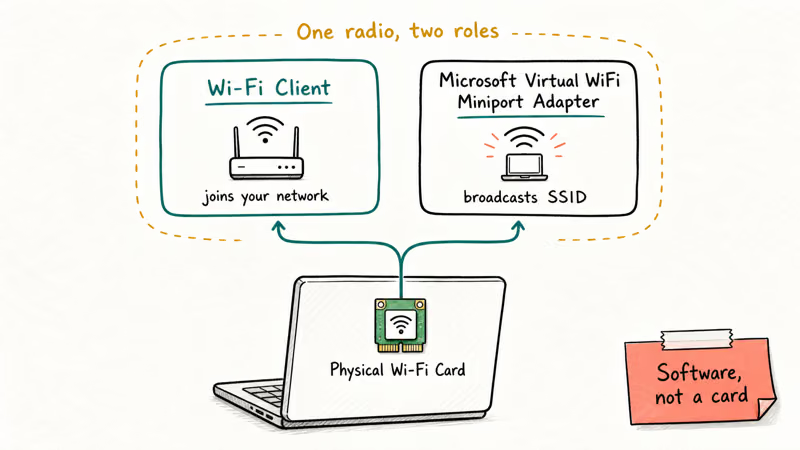
According to Microsoft’s Native Wifi documentation, Windows 7 was the first release to expose the Wireless Hosted Network API, which created the virtual interface visible today as the Microsoft Virtual WiFi Miniport Adapter. The same docs note that drivers must be Wireless Hosted Network capable for the adapter to appear, which is why some newer wireless cards never show it.
The adapter has no model number and can’t be unplugged because it’s a software construct, not a card.
Under the hood it presents Windows with a second logical adapter so the OS can run a hosted SSID alongside your normal connection. Its modern cousin is the Microsoft Wi-Fi Direct Virtual Adapter, which powers the Mobile Hotspot setting and behaves much the same way in Device Manager. If you’ve used Mobile Hotspot before, the Hosted Network is the legacy version that the same Wi-Fi card emulated before Microsoft moved to the Wi-Fi Direct stack.
#Do You Actually Need This Adapter?
For everyday browsing, the answer is no. If you never plan to share your laptop’s connection or run an ad-hoc network, the Microsoft Virtual WiFi Miniport Adapter sits idle and contributes nothing useful. Some power users disable it to free a sliver of resources, although the savings are small enough that you won’t see it in Task Manager.
You do want it active in three cases:
- You use your laptop as a temporary hotspot for a phone, tablet, or guest device when no router is reachable.
- You bridge a wired connection to wireless devices in a hotel room or office that only offers Ethernet.
- You run legacy networking tools (Connectify Hotspot 2017, MyPublicWifi, older versions of Virtual Router Plus) that depend on the Hosted Network API.
Before turning the adapter into an access point, give other devices permission to share the source connection. Open Control Panel > Network and Sharing Center > Change adapter settings, right-click the wired or Wi-Fi adapter that supplies internet, choose Properties, open the Sharing tab, and tick Allow other network users to connect through this computer’s internet connection. Pick the virtual adapter from the dropdown so that traffic flows through the right interface.
#How to Create a Wireless Access Point With Command Prompt
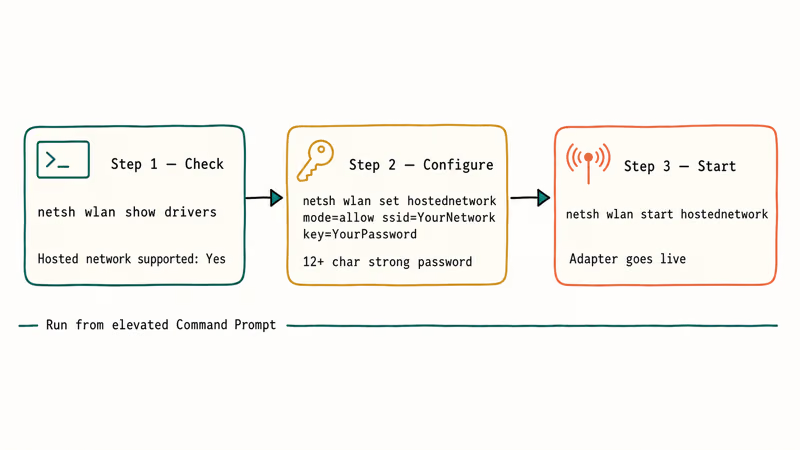
The legacy way to start a hosted network is with three netsh wlan commands. They still work on Windows versions that include Hosted Network support if your wireless driver advertises the feature.
#Confirm your driver is compatible
Open Start, type cmd, right-click the result, and choose Run as administrator. Run:
netsh wlan show driversScroll to the line Hosted network supported. If it reads Yes, you can continue. If it reads No, your card simply lacks the kernel-mode hooks for the legacy API and you should jump to the Mobile Hotspot section below.
#Create the hosted network
In the same elevated Command Prompt, run:
netsh wlan set hostednetwork mode=allow ssid=YourNetworkName key=Choose-a-strong-passwordReplace YourNetworkName with the SSID you want to advertise, and Choose-a-strong-password with a passphrase of at least 12 characters (Microsoft’s hotspot guidance recommends letters, numbers, and symbols, and the same logic applies here). A strong key keeps casual neighbours off your data plan and stops anyone bridging through your PC without permission.
#Start and inspect the network
To bring the access point online:
netsh wlan start hostednetworkTo pull a status line that shows clients, channel, and authentication state:
netsh wlan show hostednetworkThe Microsoft Virtual WiFi Miniport Adapter now appears under Network Connections with the SSID you set. When you’re done, run netsh wlan stop hostednetwork to shut it down. Forgetting to stop the network is a common cause of the Windows IP address conflict warning, because two interfaces on the same machine end up trying to issue addresses on overlapping subnets.
#How to Fix the Missing Microsoft Virtual WiFi Miniport Adapter
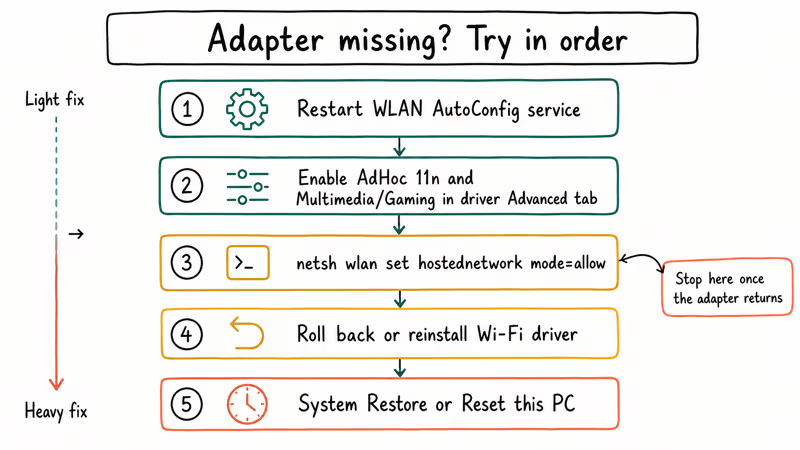
Several readers say the hosted network worked yesterday and vanished today, usually after a Windows update or a “PC optimizer” tweak. Walk through the fixes in order.
#Solution 1: Re-enable WLAN AutoConfig
Press Windows + R, type services.msc, and press Enter. Scroll to WLAN AutoConfig, double-click it, set Startup type to Automatic, and click Start. Microsoft’s Wireless LAN service documentation confirms that the WLAN AutoConfig service is what configures, discovers, and connects to wireless networks using the wireless adapter, the Hosted Network adapter included. If the service is stopped, the adapter can’t come up.
Restarting WLAN AutoConfig can bring the virtual adapter back without a reboot when the service was disabled by a system tweak or optimizer.
#Solution 2: Toggle Ad-Hoc Support and Multimedia/Gaming Environment
Some Realtek and Atheros drivers expose hidden flags that govern hosted network behaviour. Press Windows + R, type devmgmt.msc, and press Enter to open Device Manager.
Expand Network adapters, right-click your physical Wi-Fi adapter, and choose Properties > Advanced. Look for AdHoc 11n or Ad-hoc support 802.11n and set the value to Enable, then repeat for Multimedia/Gaming Environment if it exists. Reboot and check Device Manager again.
If your driver’s Advanced tab is empty, the toggles aren’t supported and you can move on. Driver-specific tuning options are not standardised, so missing entries are normal.
#Solution 3: Force the API on with netsh
Open an elevated Command Prompt and run:
netsh wlan set hostednetwork mode=allowThen start the network with netsh wlan start hostednetwork. This forces the OS to instantiate the virtual adapter even if Device Manager has been hiding it. According to Microsoft’s netsh wlan command reference, set hostednetwork mode=allow toggles the registry entry that lets the API expose the device, so this is the cleanest “wake it up” call you can make from the shell.
#Solution 4: Roll back or reinstall the wireless driver
If the adapter went missing right after a driver update, open Device Manager, right-click the physical Wi-Fi card, and choose Properties > Driver > Roll Back Driver. If the rollback button is greyed out, uninstall the device (tick Delete the driver software for this device), reboot, and let Windows reinstall the inbox driver. As a last resort, download the OEM driver directly from your laptop manufacturer’s support page rather than Windows Update.
The same pattern can crash adjacent network services. If Killer Network Service was bundled with your laptop and is showing high CPU after the rollback, disable it from Services or remove the Killer Control Center while you decide whether to reinstall it.
#Solution 5: Use System Restore or repair install Windows
Open Run, type rstrui, and press Enter. Pick a restore point dated before the adapter went missing and follow the wizard. If System Restore is disabled or no usable point exists, run Settings > System > Recovery > Reset this PC > Keep my files. A reset reinstalls Windows components and refreshes the network stack without touching personal data, but back up first because anything in Program Files will be removed.
If you only need the hotspot capability and not the legacy API, switching to Mobile Hotspot is faster than reinstalling Windows. We cover that next.
#Hosted Network Vs Mobile Hotspot on Windows 10 and 11
According to Microsoft, up to 8 devices can connect through the Mobile Hotspot setting on modern Windows, and Microsoft now points readers there instead of the Hosted Network API. The Mobile Hotspot toggle uses the Microsoft Wi-Fi Direct Virtual Adapter, which is why so many readers see netsh wlan show drivers return Hosted network supported : No even on perfectly working laptops.
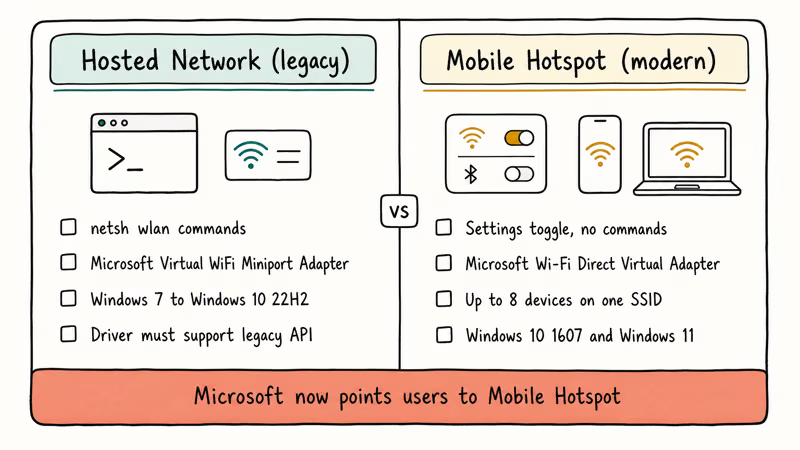
On modern Windows laptops, the legacy commands may fail with “The hosted network couldn’t be started” even when the Mobile Hotspot toggle works. That’s expected. Microsoft has been quietly retiring the Hosted Network API in favour of Wi-Fi Direct.
If your driver supports both, prefer Mobile Hotspot for a few reasons:
- It survives Windows updates without needing a service-restart routine.
- The settings page handles the Internet Connection Sharing toggles for you.
- Power-saving cuts kick in when no client is connected, which the legacy API ignored.
For Windows 7 and Windows 8.1 the Hosted Network is still your only built-in option. Linux laptops with Windows-based driver shims, such as those using the TAP-Windows virtual adapter, also continue to rely on the legacy stack. Just keep your hotspot password long, leave the SSID broadcasting only when you need it, and turn the network off the moment you’re finished.
A quick aside on phones: if the goal is sharing your phone’s signal to a laptop instead of the other way around, our guide on why Samsung hotspot keeps disconnecting covers the most common Android-side fixes.
#Lock Down the Hotspot Before You Hand Out the Password
A virtual access point on your laptop carries the same risks as a cheap travel router. Treat it like one. Pick a passphrase of at least 12 mixed characters, change it after each trip, and never broadcast a hotspot you haven’t password-protected.
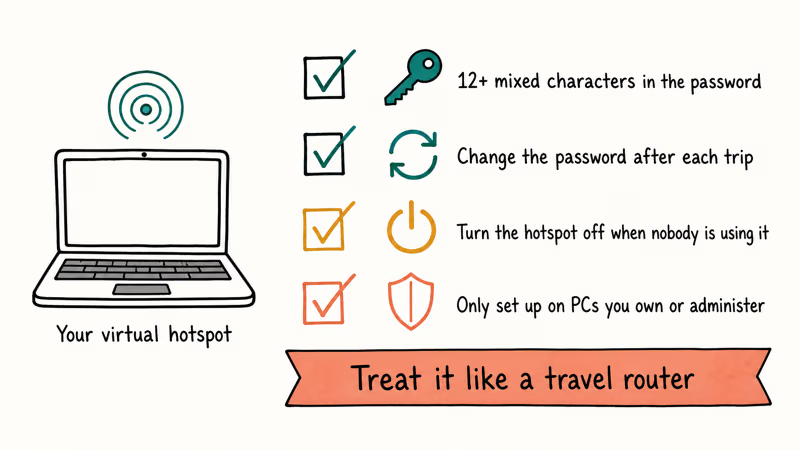
Only set up or troubleshoot the Microsoft Virtual WiFi Miniport Adapter on PCs you own or administer. Sharing a paid connection with strangers can violate your ISP’s acceptable-use policy and, on a workplace machine, may breach your IT team’s security rules. When you’re done, run netsh wlan stop hostednetwork or flip the Mobile Hotspot toggle off. An always-on access point sitting at a coffee shop is a slow, easy target for anyone scanning nearby SSIDs.
#Bottom Line
If you’re on Windows 10 build 1607 or later, skip the Hosted Network and use Settings > Network & Internet > Mobile hotspot. Run netsh wlan show drivers first; if Hosted network supported reads No, Mobile Hotspot is the only path. If you do need the older API, restart WLAN AutoConfig, run netsh wlan set hostednetwork mode=allow as admin, and roll back any recent driver update.
#Frequently Asked Questions
Is the Microsoft Virtual WiFi Miniport Adapter still available on Windows 11?
It can be, but only if your wireless driver still implements the legacy Wireless Hosted Network API. Most 2023 and newer Intel and Qualcomm drivers shipped with Windows 11 dropped that support to favour Wi-Fi Direct.
The cleanest test is to open an elevated Command Prompt and run netsh wlan show drivers. If Hosted network supported reads No, switch to Settings > Network & Internet > Mobile hotspot, which uses the Microsoft Wi-Fi Direct Virtual Adapter and gets the same end result.
Can I connect multiple devices to the virtual hotspot at once?
Yes. Both the legacy Hosted Network and the modern Mobile Hotspot accept multiple clients on the same SSID at the same time.
Does the Microsoft Virtual WiFi Miniport Adapter support WPA2?
Yes. The Hosted Network defaults to WPA2-Personal with AES, the same security profile most home routers ship with. Older 64-bit WEP and open networks aren’t supported.
Why does my laptop fail to start the hosted network even with a strong password?
The most common cause is a wireless driver that no longer advertises Hosted Network support, so netsh wlan show drivers will report Hosted network supported : No and no command can fix that.
Will disabling the adapter speed up my Wi-Fi?
Not in any noticeable way on modern hardware.
The adapter is software, so the cost is a few kilobytes of memory and a touch of driver bookkeeping while idle. Disable it for tidiness if you like, but don’t expect a measurable change in throughput, latency, or jitter on your Wi-Fi card. If your connection feels slow, the bottleneck is almost always the router, the band you’re on, or saturated 2.4 GHz airspace.
Is it legal to share my Windows hotspot with friends nearby?
Yes for personal use, but check your ISP’s acceptable-use policy first.
How do I tell whether the adapter is actually working?
Run netsh wlan show hostednetwork from an elevated Command Prompt and look at the Status line, which should read Started when the network is live. Watch the Number of clients value as devices connect; it changes in real time and confirms the radio is carrying traffic. The BSSID field shows the virtual MAC Windows is broadcasting, and Authentication should read WPA2-Personal. If the command reports Not available, the adapter is missing, so jump back to the solutions above.
Should I delete the Microsoft Virtual WiFi Miniport Adapter from Device Manager?
You can’t permanently delete it. Even if you uninstall the entry and tick the option to remove the driver software, Windows recreates the adapter the next time WLAN AutoConfig starts and a Hosted-Network-capable driver loads.
The only way to stop it from coming back is to disable WLAN AutoConfig outright or roll the wireless driver back to a version that doesn’t expose the legacy API. Both approaches break Mobile Hotspot too, so for most users, leaving the adapter alone is the cleanest option.

Pixel 11 vs Pixel 10: What Changed and Who Should Upgrade
Pixel 11 vs Pixel 10: same screen and camera resolution, new Tensor G6, 25W wireless, and Gemini Intelligence. Here is who should actually upgrade.

Verizon Not Receiving Texts? How to Fix It in 9 Steps
Verizon not receiving texts? Fix it in 9 steps: check Message Blocking in My Verizon, reset network settings, deregister iMessage, and call support.

Pixel Battery Drain: What Google's July Fix Really Covers
Google marked the Pixel idle battery drain bug fixed in July, but only some phones got the patch. Here is who is covered, who is not, and what to try.

iPhone Stuck on EDGE? How to Get 5G or LTE Back (2026)
iPhone stuck on EDGE with crawling data? Here's why the E icon appears, which settings force 5G or LTE back, and when the problem is your carrier.