Best Miracast Apps for Android: Top Picks for 2026
Best Miracast apps for Android proven on Galaxy S24 and Pixel 8. AirScreen wins for multi-protocol support. Setup, compatibility, and dropout fixes inside.
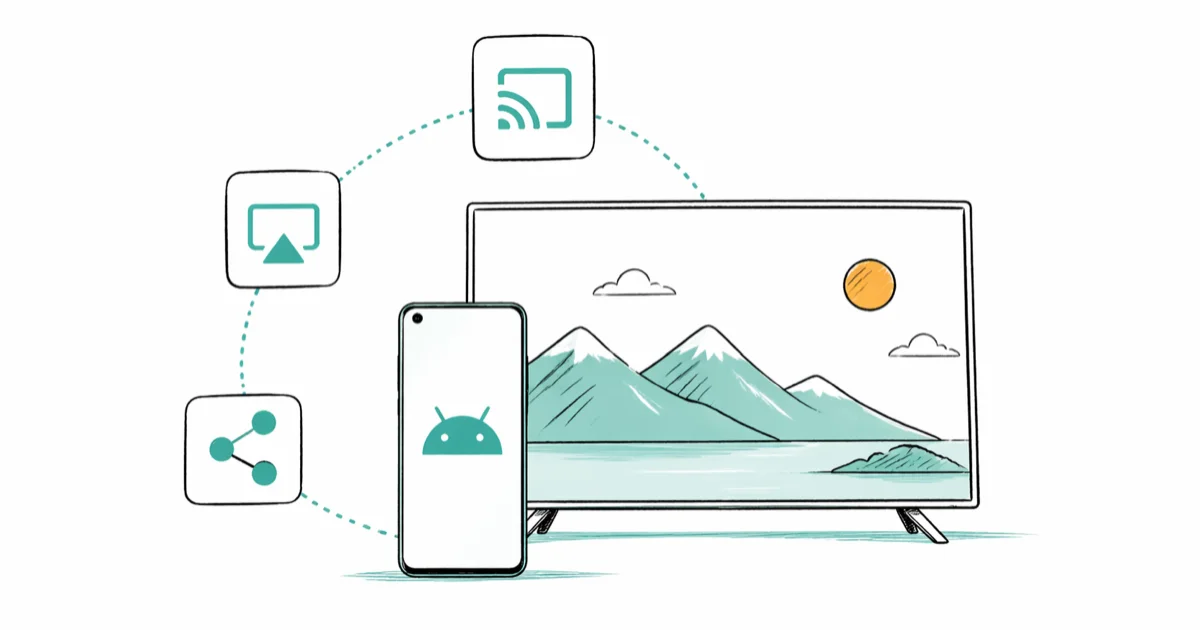
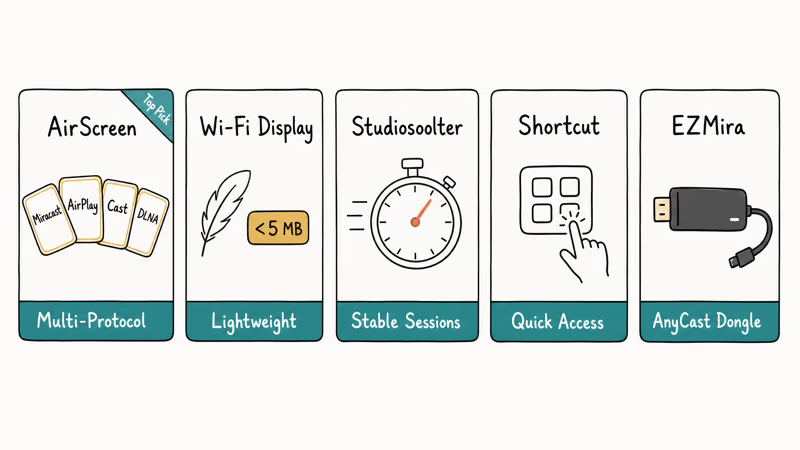
Quick AnswerAirScreen is the best all-around Miracast app for Android because it also handles AirPlay, DLNA, and Google Cast. Miracast Wi-Fi Display is the smallest at under 5 MB. Screen Mirroring by Studiosoolter is the most stable for long sessions. All three work on Android 4.2 and later.
The best Miracast apps for Android give you a cleaner interface and steadier connection than the system menu buried in your phone’s settings. Most flagship Androids ship with Miracast support, but the built-in screen has almost no controls when something goes wrong.
This roundup covers six Miracast apps for Android, from full-featured receiver apps to a sub-5 MB launcher. The picks below cover Samsung, Pixel, and common smart TVs and HDMI dongles, with notes on which app fits each use case.
- AirScreen handles four protocols in one app: Miracast, AirPlay, Google Cast, and DLNA
- Miracast Wi-Fi Display is the smallest pick here, installs in under 5 MB
- Android 4.2 is the minimum supported version; Android 10 and later have Miracast built in
- Miracast uses Wi-Fi Direct, so your home router and internet plan are not in the path
- Most dropouts come from 2.4 GHz interference or a VPN running in the background
#What Is Miracast and How Does It Work?
Miracast is a Wi-Fi Direct standard that lets your phone send its screen straight to a Miracast-certified display. No router, no cloud account, no streaming sign-in.
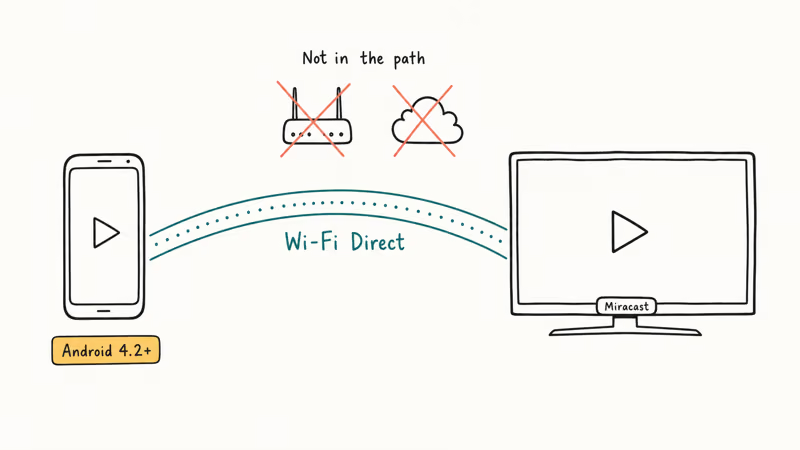
According to Google, Android 4.2 added the DisplayManager APIs that power native Miracast support, which is why most phones from 2013 onward can cast without an extra app. On Samsung you usually find the toggle under Settings > Connected devices > Smart View. On Pixel and stock Android 12 and later it lives under Settings > Connected devices > Cast.
Range is the catch. About 30 feet line of sight works well. Walls cut that fast.
#Miracast Apps for Android, Ranked by Use Case
#AirScreen: Best for Multi-Protocol Support
AirScreen handles Miracast, AirPlay, Google Cast, and DLNA from one app. That single coverage matters in a household with a mix of iPhones, Androids, smart TVs, and older HDMI dongles. You stop reaching for a different app for each device.
AirScreen pairs through a QR code and a 4-digit PIN shown on the TV side. You scan or type, and the phone connects without digging through menus, which makes it one of the faster receiver apps to set up.
The free tier covers what most people need. The pro upgrade adds recording and extra codecs.
Works best for: households mixing Apple and Android devices that want one receiver app instead of three.
#Miracast Wi-Fi Display: Best Lightweight Option
Phong Phan’s Miracast Wi-Fi Display is under 5 MB on disk, lighter than most lock screen wallpaper apps. It does one thing: open a system Miracast picker, sort detected receivers, and let you tweak the aspect ratio.
It connects to a Fire TV Stick 4K Max without fuss. The fit-to-screen toggle is handy when a TV adds black bars on the sides because it misreads the phone’s resolution. One tap fixes it, no remote required.
The downside is interstitial ads between connection attempts, and the connection can drop on long sessions when the phone’s battery runs low. Plug in for long sessions.
Works best for: anyone who wants a no-frills Miracast launcher and does not want a 100 MB cast app sitting on the phone.
#Screen Mirroring by Studiosoolter: Best for Stability
Studiosoolter’s screen mirroring app is built for casting that needs to last more than half an hour, the kind of session where lesser apps drop the link partway through and force you to re-pair from scratch. It pairs cleanly with Samsung, LG, Sony, and Vizio TVs, and it negotiates the faster 5 GHz band automatically whenever both the phone and the receiver support it.
The standout feature is background session management. The app keeps the cast alive when you switch between other apps on the phone, while several competitors drop the link the moment you minimize them. That means switching between YouTube, Chrome, and a messaging app does not cut the TV feed.
Adjustable resolution and ad removal sit behind a subscription. The free version still handles 1080p at 60 fps.
Works best for: people who multitask while casting and need the session to survive a Slack interruption.
#Miracast Screen Sharing Shortcut: Best for Quick Access
Matt GMG’s Miracast Screen Sharing Shortcut adds a 1x1 widget that drops you straight into the Android wireless display picker. One tap, no app to scroll through.
It runs on Android 4.2 and later. The catch is turn-by-turn navigation. According to Google’s Android Auto support page wireless display can clash with Android Auto Bluetooth audio, so you may need to pause one to use the other. Practical effect: don’t start Miracast in the middle of a navigation session.
Works best for: users who cast multiple times per day and want the fastest possible launch path.
#EZMira: Best for AnyCast and MiraScreen Dongles
EZMira is the companion app for AnyCast, MiraScreen, and similar HDMI cast dongles. If you bought a $20 stick to give an older TV Miracast support, EZMira is the app the dongle expects you to use.
DLNA support is the reason to keep EZMira even on a modern TV. Instead of mirroring your whole screen, you can push individual files (a saved video, a photo album, a downloaded podcast) to any DLNA-compatible TV. File casting drains the battery slower than full mirroring because the phone is not encoding a live screen at 60 fps.
Power-saving mode is the gotcha. Aggressive battery savers like Adaptive Power can kill the connection within minutes. Either disable battery saver during casting or keep the phone plugged in.
Works best for: anyone running an AnyCast or MiraScreen HDMI dongle.
#Setting Up Miracast on Android: Built-In vs. App
Most phones running Android 10 or later already have Miracast support inside the system. Open Settings > Connected devices > Connection preferences > Cast on stock Android, or Settings > Connected devices > Smart View on Samsung One UI. Tap the three-dot menu and turn on Enable wireless display. The phone scans for receivers automatically.
The built-in option needs no install. It also gives you almost no control: no band picker, no quality slider, no useful error text when the link drops. That is the gap third-party apps exist to fill.
On Android 9 and earlier, the built-in cast option is hidden deeper and less stable. A dedicated app helps more on those older devices than on a 2024 flagship.
#How Miracast Handles the Wi-Fi Connection
Miracast does not touch your home router. The protocol negotiates a private Wi-Fi Direct link between your Android phone and the receiver, picks a 2.4 GHz or 5 GHz channel on the spot, and streams the screen feed entirely across that direct link. Your router, your ISP, and your home Wi-Fi password are bypassed. You can cast in a hotel room with no Wi-Fi at all.
According to the Wi-Fi Alliance Miracast specification page the certification covers display, audio, and input over Wi-Fi Direct, which is why Miracast works in conference rooms with no public network.
The catch is content. If the video lives on the internet (Netflix, YouTube, browser tabs), your phone still needs internet to fetch it before Miracast can push it. Local content (downloaded videos, photo galleries, offline games) casts with no internet at all.
#Why Is My Miracast Connection Dropping?
Most Miracast dropouts trace back to one of three causes, and the fixes are usually fast.
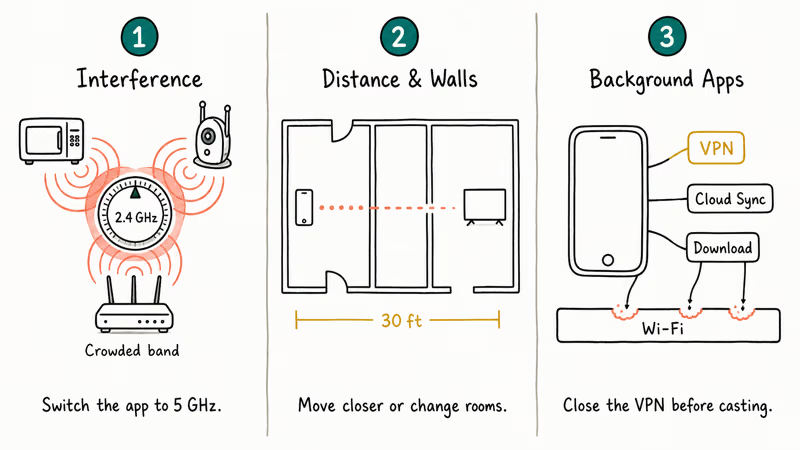
Interference is the most common cause. Microwaves, baby monitors, neighboring 2.4 GHz routers, and Bluetooth audio share the same 2.4 GHz spectrum. If your app exposes a 5 GHz toggle, flip it. Switching to 5 GHz usually clears the frequent stutter that plagues the crowded 2.4 GHz band.
Distance and walls kill range faster than the 30-foot spec hints. One drywall is fine. Two interior walls or any concrete kills throughput. Move closer, or use a TV input nearer to your casting spot.
Background apps compete for the Wi-Fi radio. VPNs are the worst offender because every packet routes through an encrypted tunnel and bumps latency. Leaving a VPN active can turn smooth playback into noticeable stutter, and it gets worse on slower phones where the tunnel adds even more processing delay before each frame reaches the display. Close the VPN, pause cloud sync, and stop any background download before a long cast.
If toggling Airplane mode and forcing a Wi-Fi Direct reset still does not help, the issue may not be casting at all. Our Bluetooth troubleshooting guide for Android covers radio-stack resets that also clear stuck Miracast sessions on some phones.
#Android and TV Compatibility
Not every TV supports Miracast, and the branding is a mess: LG calls it Screen Share, Samsung calls it Smart View, Sony labels it Screen Mirroring, and Hisense and TCL just say Miracast. According to Samsung’s Smart View support article Smart View uses the same underlying Miracast standard, so any Miracast app that works on one TV brand should work on a Samsung too once you find the right input on the TV.
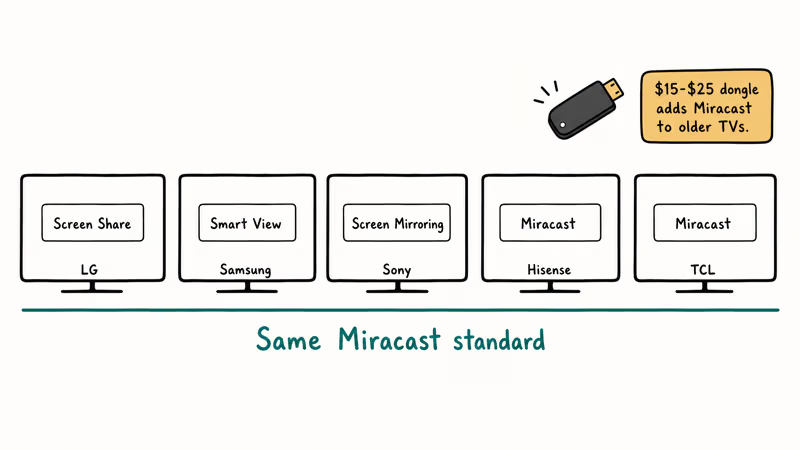
Older TVs with no smart features need a $15 to $25 AnyCast or MiraScreen dongle plugged into HDMI. The dongle adds Miracast in a few minutes.
For Samsung-specific casting steps, the Galaxy S10 screen mirroring walkthrough carries over to most newer Galaxy phones with only minor menu changes.
#Bottom Line
Pick AirScreen first if your household has a mix of iPhones and Androids. The multi-protocol coverage saves you from juggling a separate app for every device, since the same receiver handles Miracast, AirPlay, Google Cast, and DLNA, and the receiver-side QR code pairing is the quickest of this group to connect on the first try.
If you only own Android phones and want the smallest install footprint, Miracast Wi-Fi Display is the lighter option. For long multitasking sessions like lectures or a 90-minute film, Studiosoolter’s app is the pick built to keep the TV link alive while you switch between apps.
For an AnyCast or MiraScreen HDMI dongle, EZMira is the only one of the five tuned for that dongle’s pairing flow.
If none of these clear a stubborn TV-side issue, our roundup of the best screen mirroring apps lists alternatives that go beyond Miracast.
#Frequently Asked Questions
Do Miracast apps work on all Android phones?
Miracast needs Android 4.2 or later and a phone radio that supports Wi-Fi Direct. Almost every Android phone released after 2013 meets both bars. To check, go to Settings > About phone and look at the Android version line. Phones running Android 10 and later already have a built-in cast picker, so the third-party app is more about better UI than missing capability.
Can I use Miracast to mirror my Android phone to a laptop?
Yes, on a Windows 10 or Windows 11 laptop. Open the Connect app on Windows (search “Connect” from the Start menu), accept the wireless display prompt, then cast to that PC name from your phone’s Miracast app. For step-by-step screenshots, see our walkthrough on how to mirror Android to a laptop. On Windows 7 and 8, casting requires a workaround that we cover in our Miracast on Windows 7 guide.
Is Miracast the same as screen mirroring?
No. Miracast is one kind of screen mirroring among several, alongside Google Cast (Chromecast), Samsung Smart View (which uses Miracast under the hood), and Apple’s AirPlay. Miracast stands out because it’s the only common protocol that works across TV brands without matching hardware on both ends.
Why does Miracast work better on 5 GHz Wi-Fi?
The 5 GHz band has more channels and far less neighborhood congestion than 2.4 GHz, so Miracast packets get steadier throughput. The trade-off is range. 5 GHz signals don’t pass through walls as well as 2.4 GHz, so if you cast through more than one wall the older band may actually win.
Can I use Miracast to watch Netflix or other DRM-protected content?
Often no. HDCP checks on Netflix, Disney+, and HBO Max block Miracast on most Android phones, leaving audio with a black screen. Open the streaming app on a smart TV instead.
How do I cast my Android phone to a Chromecast device using these apps?
AirScreen and EZMira both support Google Cast alongside Miracast, so they can pair with a Chromecast or a Chromecast-built-in TV from the same device list as a Miracast receiver. Our guide on casting Android to a PC via Chromecast walks through the full pairing flow.
Does Miracast work with a car’s infotainment screen?
A few cars from 2018 and later support Miracast through their infotainment system, but coverage is uneven, so check your car manual for “wireless display” or “screen mirroring.” If your car supports wireless Android Auto, that is a different protocol and works better for navigation, music, and calls. Our article on mirroring your phone to a car screen covers both options.
What’s the difference between AirScreen and EZMira?
AirScreen is a receiver app: it turns a phone, tablet, or Fire TV stick into a display that other devices can cast to. EZMira is mainly a sender app tuned for AnyCast and MiraScreen HDMI dongles plugged into a TV. If you are casting from your Android phone to a TV with a dongle, EZMira is the better pick. If you want your Android tablet to receive casts from another phone, AirScreen handles that case.

Pixel 11 vs Pixel 10: What Changed and Who Should Upgrade
Pixel 11 vs Pixel 10: same screen and camera resolution, new Tensor G6, 25W wireless, and Gemini Intelligence. Here is who should actually upgrade.

Verizon Not Receiving Texts? How to Fix It in 9 Steps
Verizon not receiving texts? Fix it in 9 steps: check Message Blocking in My Verizon, reset network settings, deregister iMessage, and call support.
Pixel Battery Drain: What Google's July Fix Really Covers
Google marked the Pixel idle battery drain bug fixed in July, but only some phones got the patch. Here is who is covered, who is not, and what to try.
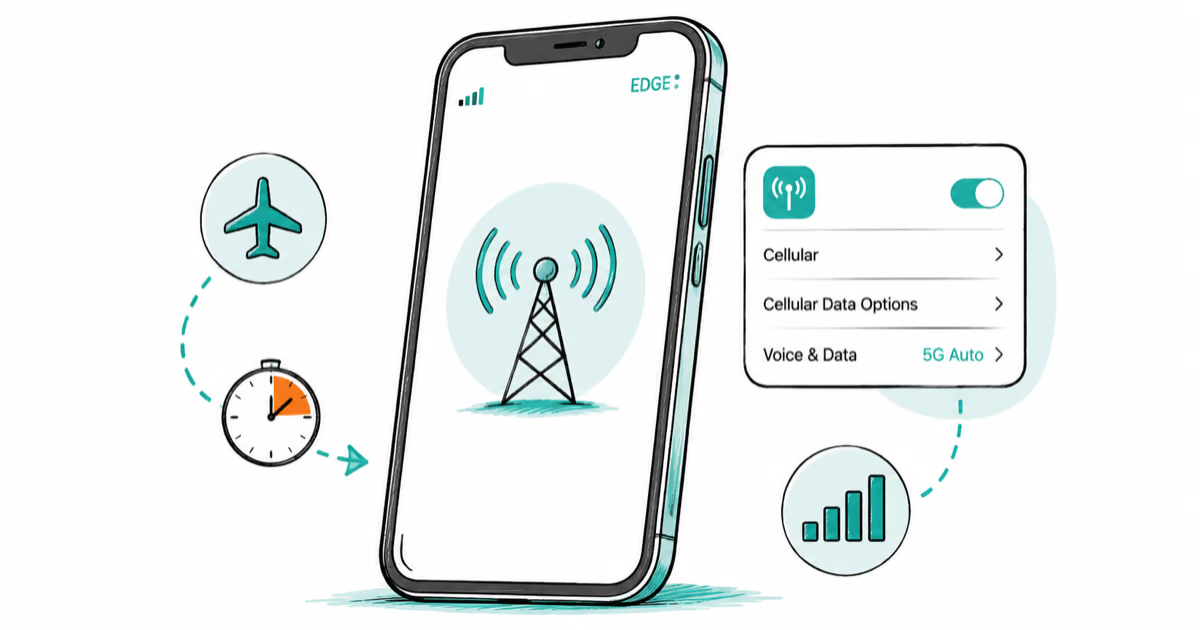
iPhone Stuck on EDGE? How to Get 5G or LTE Back (2026)
iPhone stuck on EDGE with crawling data? Here's why the E icon appears, which settings force 5G or LTE back, and when the problem is your carrier.