How to Mirror Your Android Screen to PC via Chromecast
Mirror Android to a PC monitor via Chromecast in under three minutes. Step-by-step setup, Quick Settings cast, in-app cast, and Wi-Fi troubleshooting tips.
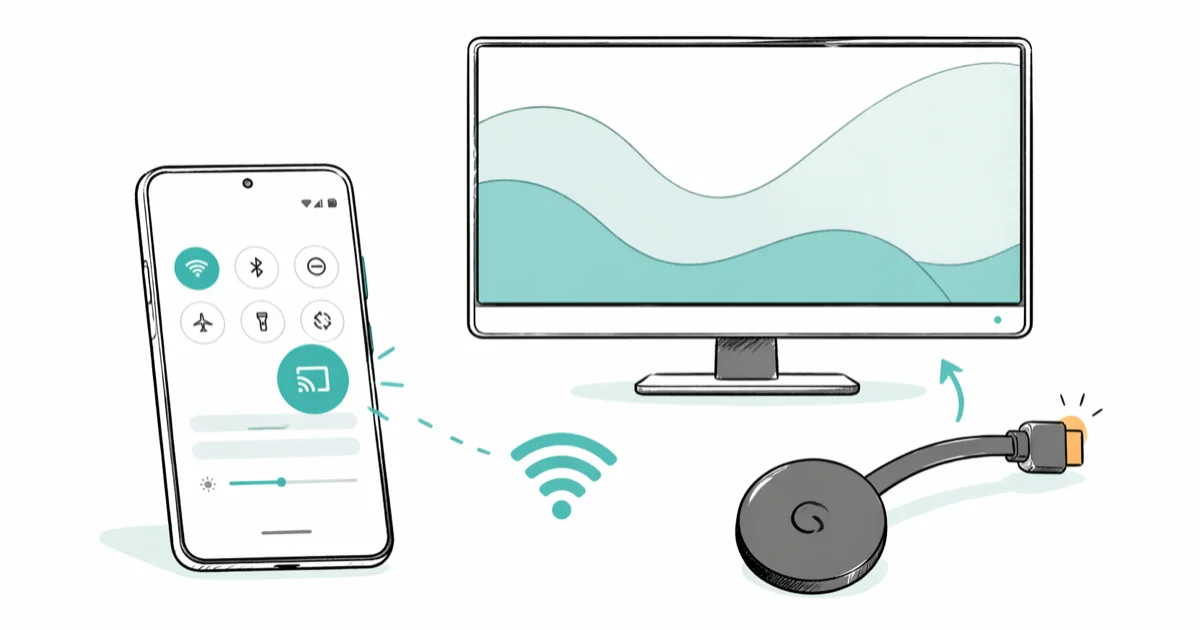
Quick AnswerPlug Chromecast into the monitor's HDMI port, connect both Chromecast and your phone to the same Wi-Fi network, then open Quick Settings on Android and tap the Cast tile to mirror your full screen. Initial setup takes about five minutes; future casts start in under ten seconds.
Mirroring your Android screen to a PC monitor via Chromecast is the cleanest wireless option for most home setups. No cables, no driver installs, no third-party apps. Once Chromecast is paired through Google Home, Android’s Cast tile can mirror the full screen to a PC monitor through a compatible Chromecast.
- Chromecast needs Android 5.0 or later, an HDMI port on the monitor, and one shared Wi-Fi network for the phone and the dongle
- Quick Settings cast mirrors the entire phone screen; in-app cast streams only that app and uses less battery
- 5 GHz Wi-Fi generally keeps mirroring lag lower than crowded 2.4 GHz networks
- The Google Home app is required only for first-time setup, not for daily casting
- One Chromecast can host one active cast at a time; switching displays means stopping the current session first
#What You Need Before You Start
You don’t need much hardware. Most of it’s already on your desk.
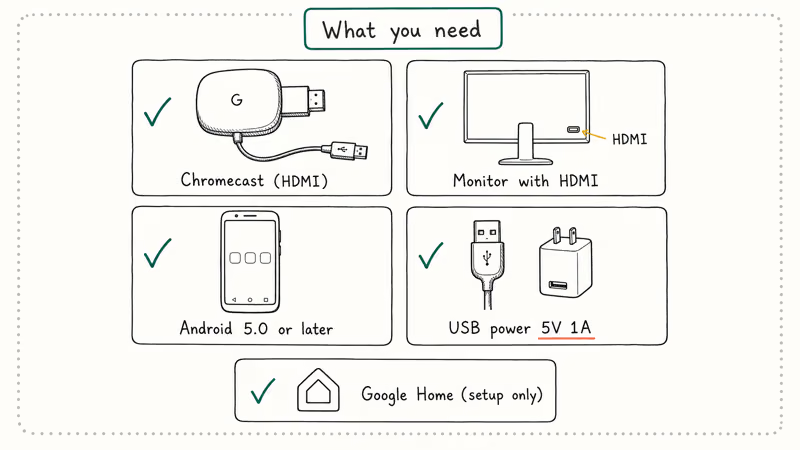
A Chromecast device is the core piece. The standard HD Chromecast, the 3rd-gen model, and the Chromecast with Google TV (HD or 4K) all support full-screen Android mirroring. Google’s Chromecast support page states that Cast on Android requires version 5.0 or later, and every currently sold Chromecast model lists screen mirroring among its built-in features.
Your monitor needs an HDMI port. Chromecast plugs straight in, so you won’t need an extra cable. Most monitors made after 2010 have at least one HDMI input. If yours has DisplayPort or DVI only, a small HDMI-to-DisplayPort adapter works.
Your Android phone must run Android 5.0 (Lollipop) or later with the built-in Cast feature. Older Android 4.x devices can’t cast at all because Google never backported the Cast protocol to KitKat or earlier.
Power for the dongle comes from the included USB cable. Plug it into your monitor’s USB port if that port supplies at least 5V/1A, or use the bundled wall adapter when in doubt. Cheap monitor USB outputs can drop below spec under load, which may cause the Chromecast to brown-out mid-cast and show a black screen on the monitor.
Finally, install the free Google Home app from the Play Store. You only need it during the one-time pairing.
#How to Set Up Chromecast on a PC Monitor
Initial setup runs about five minutes the first time. After that, future casts start with two taps from Quick Settings.
#Step 1: Plug in the Chromecast
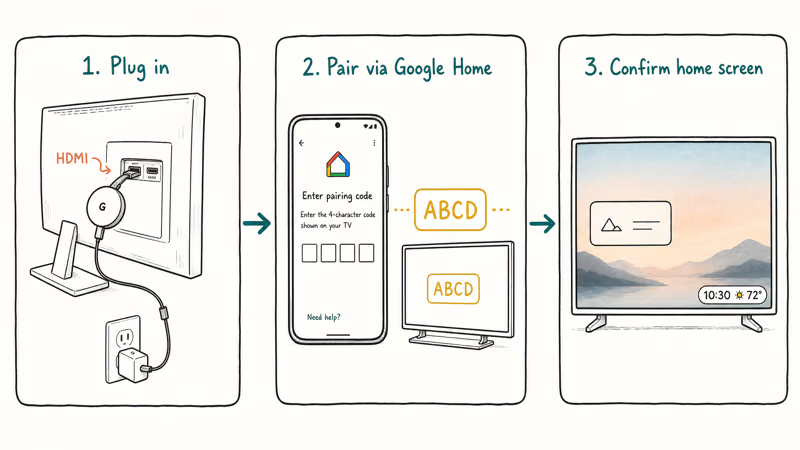
Insert the Chromecast into your monitor’s HDMI port. Connect the USB power cable to your monitor’s USB output or the wall adapter, then switch the monitor’s input to that HDMI channel using the Source button on the side panel. The whole connection takes under a minute and needs no tools.
#Step 2: Pair through Google Home
Open Google Home on your phone. Tap the + icon, then choose Set up device and New device.
Google Home scans for nearby Chromecasts and prompts you to confirm a four-character code shown on the monitor. Pick the Wi-Fi network you want Chromecast to join. Both the phone and the Chromecast must be on the same network, and ideally the same Wi-Fi band. If your router broadcasts a single SSID for both 2.4 GHz and 5 GHz, you’re already done; the router picks the band on each device’s behalf.
#Step 3: Confirm the home screen
Your monitor should display the Chromecast home screen with a colorful background and rotating ambient photos.
If you see “HDMI No Signal,” check that the dongle’s fully seated, that the monitor input is set to the right HDMI channel, and that the USB cable supplies enough power. Some monitor USB ports deliver under 5V; switching to the wall adapter can clear power-related black screens.
#How Do You Cast Your Full Android Screen?
Once the Chromecast is paired, full-screen mirroring takes about ten seconds. The exact path depends on your Android version.
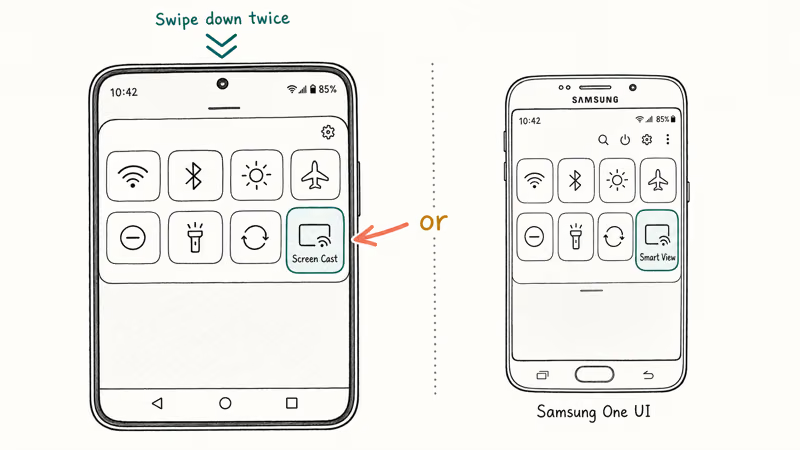
On Android 12 and later: Swipe down twice from the top of the screen to open Quick Settings. Look for the Screen Cast tile (the icon’s a rectangle with a Wi-Fi mark in the corner). If it isn’t there, tap the pencil edit icon and drag the Cast tile into the active panel. Tap Cast, choose your Chromecast from the list, and the monitor mirrors your phone within a few seconds.
On Android 10 and 11: Go to Settings > Connected devices > Connection preferences > Cast and select your Chromecast. Manufacturer skins rename the option. Samsung’s One UI calls it Smart View in the quick panel, while stock Android and most ROMs label it Cast.
On Samsung phones, the Smart View tile in the One UI Quick Panel can detect Chromecast devices on the same Wi-Fi network. The monitor may take a moment to draw the first frame before the mirrored screen stabilizes.
#App-Based Casting vs Full-Screen Mirroring
Casting from inside an app uses the app’s own streaming protocol instead of capturing your screen frame by frame. Sharper video, less battery drain.
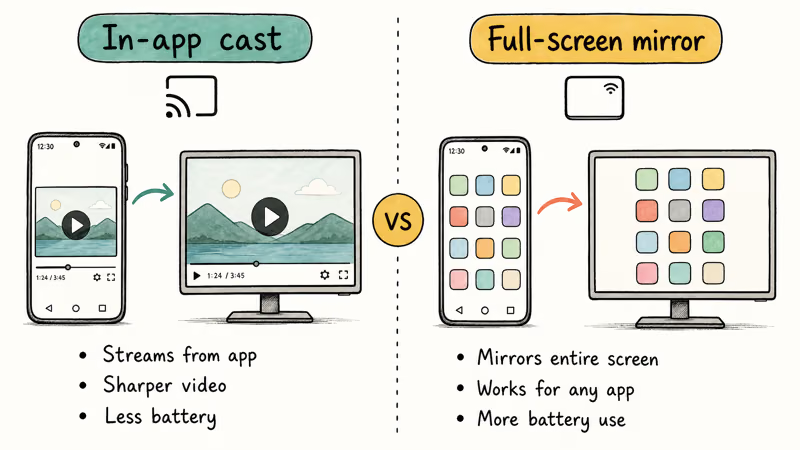
Apps that ship with Cast support include YouTube, Netflix, Disney+, Hulu, HBO Max, Spotify, Pandora, and the Chrome browser.
Inside any of these apps, look for the Cast icon (a rectangle with three Wi-Fi waves in the bottom-left). Tap it, choose your Chromecast, and the content begins playing on the monitor while your phone becomes a remote.
According to Google’s Cast SDK reference for Android, any Android sender app built on the Cast SDK uses a single API that handles device discovery, connection, and media controls. That’s why so many third-party apps include the Cast button without any extra setup on your side.
For presentations and apps without a Cast button, full-screen mirroring is the right choice. Silence notifications or enable Focus mode first, since the monitor will mirror them too. Treat any cast like opening your phone in public: only cast on a network and monitor you legally control, and confirm any screen recording respects local privacy laws and the consent required from anyone who appears on camera.
#Things You Can Do With Android Mirrored to a Monitor
The use cases run well beyond Netflix on a bigger screen. These are common workflows for full-screen mirroring.
Gaming on a real display. Android games scale up to monitor resolution, and a Bluetooth controller paired to the phone makes the experience feel like a small console. Casual games can feel responsive on a stable 5 GHz network, though competitive shooters still feel snappier on the phone screen because of the wireless hop in the chain.
Presentations from your phone. Cast from Quick Settings before the meeting and any deck on your phone (Google Slides, Canva, Keynote on iCloud Web) renders cleanly on the monitor. Tap through slides on the phone like a remote.
Group photo and video sharing. Mirror the Photos app or Google Photos and let everyone in the room see your camera roll on a full-size screen instead of crowding around a phone or running a long USB-C cable.
Tutorial recording for friends and family. Mirroring lets you point at the monitor instead of describing icon positions on a small screen.
If a cable-based path suits you better, our guide on how to mirror Android to a laptop covers USB-C and USB-debugging methods that work without Wi-Fi at all. For network-free casting on the road, the screen mirroring without Wi-Fi guide walks through a hotspot fallback and a direct USB-C-to-HDMI option.
#Why Is Chromecast Lagging or Not Connecting?
Chromecast mirroring problems almost always trace back to one of five causes. Work down this list in order.
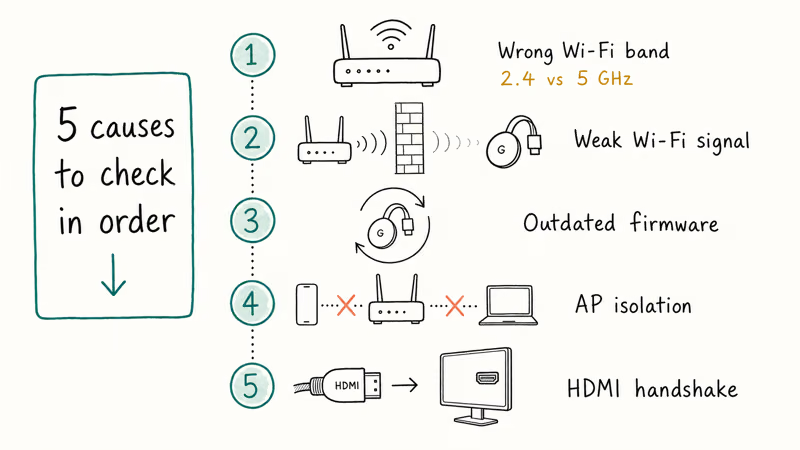
Wrong Wi-Fi band. Your phone might be on 2.4 GHz while the Chromecast joined 5 GHz, or vice versa. Open your phone’s Wi-Fi settings, confirm the network name matches the one Chromecast joined in Google Home, and reconnect if it doesn’t. Keeping both devices on the same 5 GHz SSID usually reduces lag enough for videos and presentations to feel smooth.
Weak Wi-Fi signal. Chromecast needs a steady connection. If your Chromecast hides behind a TV or inside a media console, a short HDMI extender pulls it into the open and often clears connection drops.
Outdated firmware. Open Google Home, tap your Chromecast, then the Settings gear, and look for Reboot or any update prompt. Old firmware causes random connection drops and cast failures. A reboot usually triggers any pending update Google’s queued for your device.
Router AP isolation. Some routers block device-to-device traffic when AP isolation or “Client Isolation” is on. This is common on guest networks. Sign in to your router’s admin page and disable AP isolation if Chromecast appears in Google Home but the cast button never connects.
HDMI handshake failure. Try a different HDMI port on the monitor, or power-cycle the Chromecast by pulling the USB cable for ten seconds and plugging it back in.
For deeper fixes, our walkthrough on screen mirroring not working covers Bluetooth conflicts, VPN interference, and a router DNS reset that’s cleared casting issues for several readers.
#Alternatives to Chromecast for Android Screen Mirroring
Chromecast is the easiest wireless path for a PC monitor, but it isn’t the only one.
For a software-only setup, the best screen mirroring app for Android roundup compares eight apps by latency, audio support, and how painless the install actually is. Several of them mirror over USB and skip Wi-Fi entirely.
Samsung phones can mirror without Chromecast at all. Smart View and DeX both stream the phone screen to monitors with the right input. Our guide on screen mirroring with Samsung Galaxy S10 and later models covers the exact menu paths. To send your screen to another phone, the mirror Android to Android walkthrough explains three methods that need no extra hardware.
If you want full-screen mirroring rather than a per-app cast, our screen mirroring full-screen guide covers the Quick Settings tile, Smart View, and three other paths. And for readers comparing dongles, our roundup of Chromecast alternatives ranks the best Roku, Fire TV, and AirPlay-friendly options.
For developer-leaning workflows, according to XDA Developers’ community resource on Android screen mirroring, the scrcpy command-line tool is a strong option. It’s more involved than Chromecast but gives you near-zero latency over USB.
#Bottom Line
For mirroring an Android phone to a PC monitor, Chromecast remains the simplest wireless setup for most homes. Pair it once through Google Home, and every future cast starts with two taps from Quick Settings. Use in-app casting for video and music apps to save battery, and reserve full-screen mirroring for presentations and apps without a Cast button.
If you only remember one fix from this guide: when mirroring lags, force both your phone and your Chromecast onto the same 5 GHz Wi-Fi band. That single change can turn obvious lag into a much smoother session.
Skip Chromecast entirely if your monitor is more than two thick walls away from the router; a USB-C-to-HDMI cable works better in that situation.
#Frequently Asked Questions
Does Chromecast screen mirroring work on every Android phone?
Any Android phone on version 5.0 (Lollipop, late 2014) or later supports Chromecast screen mirroring. Older Android 4.x devices can’t cast at all.
Can I mirror my Android screen to two monitors at the same time?
No, not from a single Chromecast. Each Chromecast hosts one active cast session at a time. You can switch displays by stopping the current cast in Google Home and starting a new one to a second Chromecast, but simultaneous output to two monitors isn’t supported. A wired USB-C-to-HDMI hub is the only reliable way to drive two displays from one Android phone.
How much lag does Chromecast screen mirroring add?
On a 5 GHz Wi-Fi network with the Chromecast within line-of-sight of the router, full-screen mirroring feels close to native for video and presentations, but adds a perceptible lag on touch-based games. In-app casting feels closer to native because it streams the encoded video directly rather than capturing your live screen frame by frame.
Do I need the Google Home app open in the background to keep casting?
Only for first-time setup. Once Chromecast is paired with your Wi-Fi network, you can close Google Home and cast from Quick Settings without it running.
Why does my Chromecast say “already in use” when I try to cast?
Another phone or tablet on your network is casting to that same Chromecast. Open Google Home, tap the Chromecast tile, and choose Stop. If the message persists, reboot the dongle.
Can I send only audio to Chromecast without mirroring my screen?
Yes. Spotify, YouTube Music, Pandora, Amazon Music, and Tidal all support Cast natively. Open the app, start playback, tap the Cast icon, and the audio streams to the Chromecast through your monitor’s speakers or a connected sound system. Your phone screen can stay off and run other apps in the background, which uses far less battery than full-screen mirroring.
Does Chromecast also work with iPhone for screen mirroring?
Chromecast works with iPhone for any app that ships with the Cast SDK, including YouTube, Netflix, and Spotify. Full-screen iOS mirroring to Chromecast isn’t native; it needs a third-party app from the App Store. For native full-screen mirroring on iPhone, an Apple TV with AirPlay or a Lightning-to-HDMI adapter is the more straightforward route. Our Apple Music on Chromecast from iPhone walkthrough covers the exact steps for the audio side.

Pixel 11 vs Pixel 10: What Changed and Who Should Upgrade
Pixel 11 vs Pixel 10: same screen and camera resolution, new Tensor G6, 25W wireless, and Gemini Intelligence. Here is who should actually upgrade.

Verizon Not Receiving Texts? How to Fix It in 9 Steps
Verizon not receiving texts? Fix it in 9 steps: check Message Blocking in My Verizon, reset network settings, deregister iMessage, and call support.

Pixel Battery Drain: What Google's July Fix Really Covers
Google marked the Pixel idle battery drain bug fixed in July, but only some phones got the patch. Here is who is covered, who is not, and what to try.

iPhone Stuck on EDGE? How to Get 5G or LTE Back (2026)
iPhone stuck on EDGE with crawling data? Here's why the E icon appears, which settings force 5G or LTE back, and when the problem is your carrier.