How to Mirror Android to Laptop: 5 Best Methods (2026)
Mirror Android to a laptop with 5 proven methods, including scrcpy, AirDroid, and built-in Windows features. Works over Wi-Fi or USB in under 3 minutes.
Quick AnswerMirror your Android to a laptop using the built-in Windows 11 Wireless Display feature, or use scrcpy for a free open-source option. Connect both devices to the same Wi-Fi network, enable screen mirroring on your Android, and select your laptop from the available devices list.
Mirroring your Android screen to a laptop takes under 3 minutes with the right tool. The best free option is scrcpy, an open-source app that mirrors over USB with very low lag on Windows, macOS, and Linux. This guide covers five methods, from open-source command-line tools to built-in Windows features. Scrcpy delivers the lowest latency because it streams over a wired ADB connection, while wireless options like AirDroid trade some delay for skipping the cable.
Before changing these settings, use the steps only on your own device, computer, or account, or with explicit permission from the owner. Unauthorized access can violate law, privacy rights, and platform terms, so don’t use this guide to bypass someone else’s controls. When available, start with the official support option, built-in settings menu, or vendor documentation before trying manual fixes, especially if the device or account belongs to work, school, or another person.
- Windows 11 has built-in wireless display support that works without any third-party apps
- scrcpy is the fastest free option, with very low USB latency thanks to its wired ADB connection
- All wireless mirroring methods require both devices on the same Wi-Fi network
- USB mirroring requires enabling USB debugging in Android Developer Options
- AirDroid and Vysor both offer free tiers, but paid versions remove ads and add remote control
#Prerequisites for Screen Mirroring
Two things are required regardless of which method you pick: a stable connection and USB debugging enabled on your Android device.
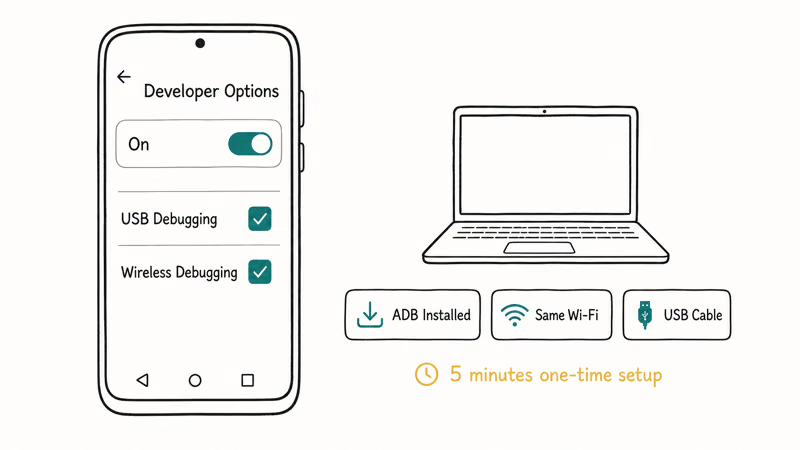
Enable USB debugging (needed for USB-based methods):
- Go to Settings > About Phone
- Tap Build Number seven times to unlock Developer Options
Go back to Settings, open Developer Options, and toggle on USB Debugging. When your phone asks “Allow USB debugging?” tap Always allow from this computer. The whole setup takes about 60 seconds.
For wireless methods, both your Android and laptop must share the same Wi-Fi network. A 5 GHz connection works better than 2.4 GHz because it has lower latency and higher bandwidth for screen data. The difference shows up most during video playback, where a congested 2.4 GHz band tends to stutter while 5 GHz stays smooth.
If you’re also interested in mirroring between two phones, check out our guide on mirroring Android to Android.
#Method 1: Scrcpy (Free, Open-Source, Lowest Latency)
Scrcpy is the best free screen mirroring tool available. It’s open-source, works on Windows, macOS, and Linux, and delivers near-native display quality with very low latency over USB.
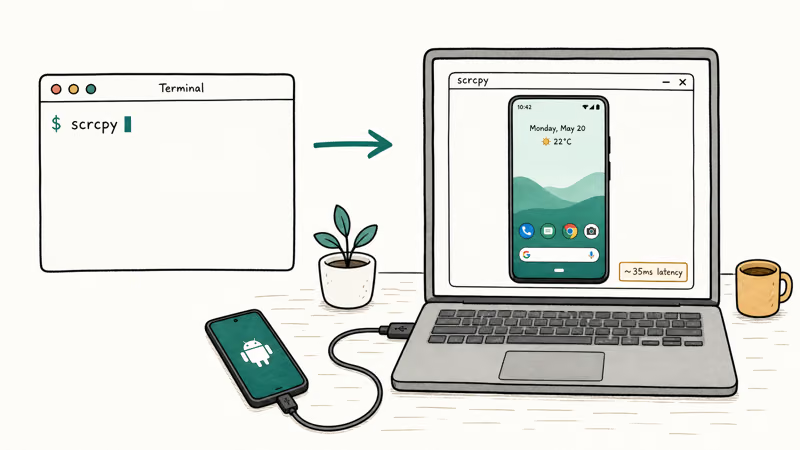
#How to Set Up Scrcpy
On macOS:
- Open Terminal and install via Homebrew:
brew install scrcpy - Connect your Android via USB cable
Type scrcpy in Terminal and press Return. Your phone’s screen appears on your laptop within 2 seconds.
On Windows:
Download scrcpy from the official GitHub releases page. Extract the zip file, open a command prompt in that folder, and type scrcpy.
According to Google’s Android developer documentation, scrcpy uses the Android Debug Bridge (ADB) protocol to capture and stream screen content. This is the same protocol developers use for app testing, which is why the latency is so low.
Wireless scrcpy is also possible. After connecting via USB once, run scrcpy --tcpip to switch to wireless mode. The USB cable can then be disconnected. Latency rises noticeably over Wi-Fi compared to USB, but scrcpy still tends to stay snappier than most wireless alternatives.
The main downside of scrcpy is the initial setup. If you’re not comfortable with Terminal or Command Prompt, Method 2 or 3 will be easier.
#Method 2: AirDroid (Wireless, No USB Required)
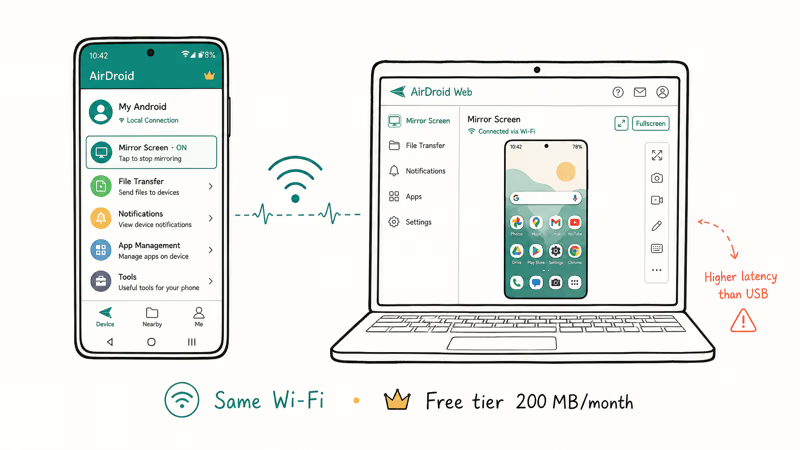
AirDroid works entirely over Wi-Fi. It lets you mirror your screen, transfer files, and read notifications on your laptop without plugging in a cable. The free version covers screen mirroring and file transfers. The paid version ($3.99/month) adds remote camera access and removes ads.
#How to Set Up AirDroid
- Install AirDroid on your Android device and your laptop
- Create an account and sign in on both devices
Open AirDroid on your laptop, click AirMirror, and select ViewOnly Mode. On your Android, tap Start Now on the permission popup. Your screen appears within 5 seconds. If you get a “device not found” error, make sure both devices are signed into the same AirDroid account and connected to the same Wi-Fi network.
AirDroid mirrors reliably over Wi-Fi, with latency low enough for everyday tasks like checking notifications, replying to messages, or demoing an app to someone across the room. Because everything runs over your local network rather than a cable, you can keep the phone in your pocket or on a charger while it streams. Its free-tier ad banner sits at the bottom of the mirror window and never covers the actual screen content.
For browser-based mirroring, go to web.airdroid.com. No desktop app needed. See our screen mirroring app comparison for more options.
#How Does Vysor Compare to Scrcpy?
Vysor is a polished alternative to scrcpy with a visual interface instead of command-line setup. It’s faster to get running if you’ve never used Terminal before.
The free version limits display quality to 480p and includes ads. Vysor Pro ($2.50/month) unlocks full HD mirroring, drag-and-drop file transfer, and wireless mode. Because Vysor layers its own interface on top of the same ADB connection scrcpy uses, its USB latency runs slightly higher than scrcpy’s bare-bones stream.
#How to Set Up Vysor
- Download Vysor from vysor.io
- Connect your Android via USB
Vysor detects the device automatically. Click View to start mirroring. The whole process takes under 30 seconds from download to mirror.
If Vysor doesn’t detect your device, check that USB debugging is enabled and that you’ve accepted the debugging prompt on your phone. According to Vysor’s troubleshooting guide, most connection failures come from missing or outdated ADB drivers on Windows.
#Method 4: Built-In Windows Wireless Display
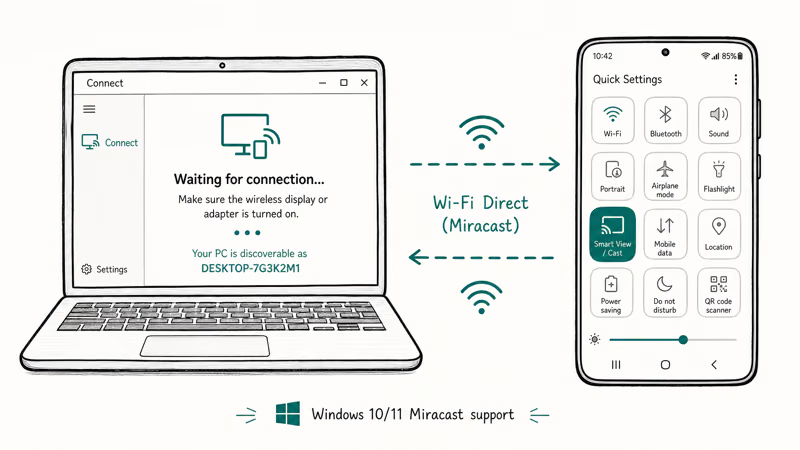
Windows 10 and 11 include a built-in screen mirroring receiver called Wireless Display. No third-party software needed. This uses the Miracast protocol.
#How to Set It Up
- On your Windows laptop: go to Settings > System > Projecting to this PC
- Set the first dropdown to Available everywhere on secure networks
On your Android, pull down the notification shade and tap Smart View (Samsung), Cast (stock Android), or Screen Cast (some other brands). Select your laptop from the list. According to Microsoft’s Wireless Display documentation, your laptop’s Wi-Fi adapter must support Miracast for this feature to work.
The connection takes about 5-10 seconds. Miracast latency is the highest of the methods here, which is fine for presentations and general browsing but too slow for gaming. Check our guide on Miracast on Windows for more details on compatibility across Windows versions.
This method doesn’t work on macOS because Apple uses AirPlay instead of Miracast. Mac users should use scrcpy or AirDroid instead.
#Can You Mirror Android to a Laptop With a USB Cable Only?
Yes. Both scrcpy and Vysor support USB-only mirroring that doesn’t need Wi-Fi at all. This is the best option when you’re on a network that blocks mirroring traffic (like hotel or office Wi-Fi) or when you need the lowest possible latency for gaming or screen recording.
USB mirroring has two advantages: zero network dependency and noticeably lower latency than any wireless method. The only requirement is a USB cable that supports data transfer, not just charging. Some budget USB-C cables only carry power without data transfer capability, so check the cable packaging for “data” or “sync” labels.
For connecting to a TV instead of a laptop, consider screen mirroring without Wi-Fi using an HDMI adapter, or check out our guide on Chromecast with Safari if you’re in an Apple ecosystem.
Also see our guide on connecting a PS4 to a laptop if you need to mirror other devices.
#Comparison Table
| Method | Cost | Latency | USB? |
|---|---|---|---|
| scrcpy | Free | Very low | Yes |
| AirDroid | Free/$3.99/mo | Moderate | No |
| Vysor | Free/$2.50/mo | Low | Yes |
| ApowerMirror | Free/$29.95/yr | Moderate | Both |
| Windows Cast | Free | High | No |
Some links on this page are affiliate links, which means fone.tips may earn a commission at no extra cost to you.
#Bottom Line
Use scrcpy if you want the best free performance with very low USB latency. Use AirDroid if you prefer wireless convenience. ApowerMirror is another solid option that supports both USB and wireless modes with annotation tools built in. Use Windows Wireless Display if you want zero software installation. For raw responsiveness, scrcpy’s wired ADB stream consistently outperforms every other option on this list.
#Frequently Asked Questions
Do I need an internet connection for screen mirroring?
No. Screen data stays on your local network. USB methods don’t need any network at all.
Can I control my Android from the laptop while mirroring?
With scrcpy and Vysor, yes. Both let you use your laptop’s mouse and keyboard to interact with your Android screen, type messages, launch apps, and swipe through menus. AirDroid’s free tier only supports view-only mirroring, and the built-in Windows Cast feature doesn’t support any input control. If you need full control without a paid subscription, scrcpy is the clear winner since it’s completely free and supports mouse, keyboard, and clipboard sharing between devices.
Will screen mirroring drain my phone battery fast?
Wireless mirroring is a meaningful battery drain because the phone is both running its display and streaming over Wi-Fi, so expect a noticeable drop over an extended session. USB mirroring actually charges your phone while streaming, so battery drain isn’t a concern there.
Is there input lag when gaming through a mirrored screen?
Yes. Even scrcpy’s very low USB latency is noticeable in fast-paced games. For gaming, use an Android emulator instead.
Can I mirror my Android to a MacBook?
Yes. Install scrcpy via Homebrew (brew install scrcpy) or use AirDroid. The built-in Windows Cast feature doesn’t work on macOS because Apple uses AirPlay instead of Miracast. Because scrcpy relies on the same cross-platform ADB connection on every operating system, it runs on macOS with the same very low USB latency you get on Windows.
Does mirroring work with Samsung DeX?
They’re different. DeX creates a desktop-like interface with resizable windows, while mirroring just duplicates your phone screen. Galaxy S20+ supports DeX over USB-C.
How do I fix “device not found” errors in scrcpy?
Check three things: USB debugging is on in Developer Options, you’ve tapped “Allow” on the debugging prompt, and your USB cable supports data transfer. Run adb devices in Terminal to verify your device appears. If it doesn’t, try a different cable or USB port.

Pixel 11 vs Pixel 10: What Changed and Who Should Upgrade
Pixel 11 vs Pixel 10: same screen and camera resolution, new Tensor G6, 25W wireless, and Gemini Intelligence. Here is who should actually upgrade.

Verizon Not Receiving Texts? How to Fix It in 9 Steps
Verizon not receiving texts? Fix it in 9 steps: check Message Blocking in My Verizon, reset network settings, deregister iMessage, and call support.

Pixel Battery Drain: What Google's July Fix Really Covers
Google marked the Pixel idle battery drain bug fixed in July, but only some phones got the patch. Here is who is covered, who is not, and what to try.

iPhone Stuck on EDGE? How to Get 5G or LTE Back (2026)
iPhone stuck on EDGE with crawling data? Here's why the E icon appears, which settings force 5G or LTE back, and when the problem is your carrier.