Trackpad Not Working on Mac? Fix It Safely in 2026
Mac trackpad not working or unresponsive? Check the ignore-when-mouse setting, reset trackpad preferences, update macOS, and rule out battery swelling.
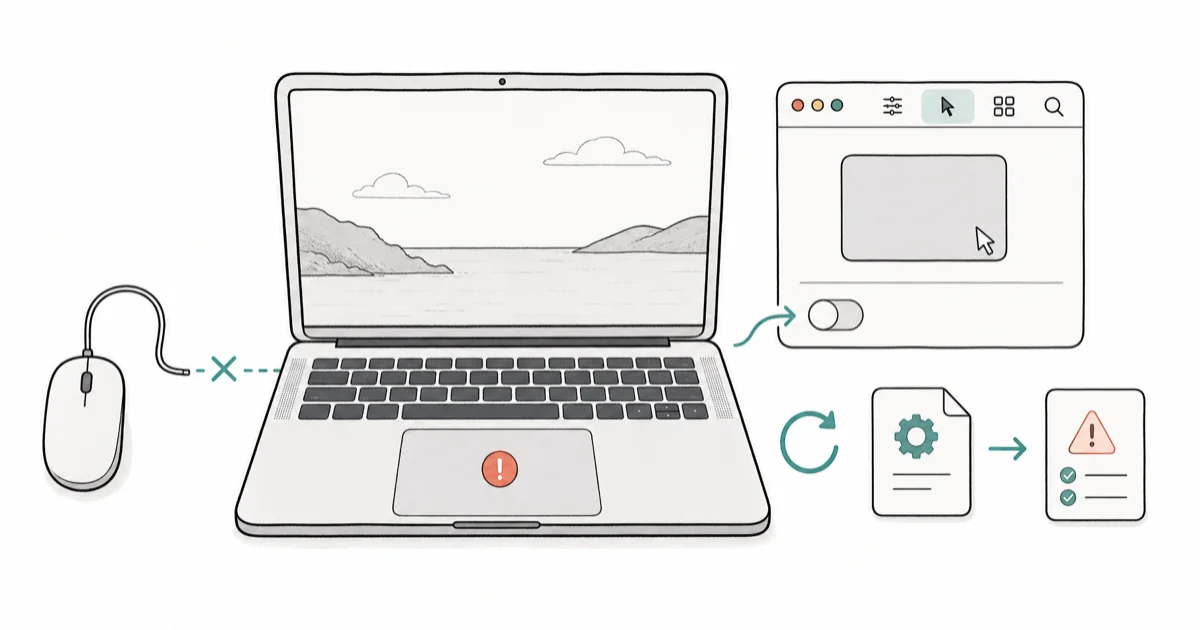
Quick AnswerA Mac trackpad often stops working because an external mouse triggered the ignore-built-in-trackpad setting or a preference file is corrupt. Disconnect the mouse, uncheck that setting, then reset the trackpad preferences.
A trackpad not working on a Mac sends most people straight to a reset or the Apple Store, but the cause is often a setting you turned on without noticing. The single most overlooked trigger is an accessibility option that disables the built-in trackpad whenever a mouse is plugged in.
That setting can make a healthy trackpad look dead, so checking that setting is the safest first move before resets or service.
This guide leads with that mouse-conflict setting and a battery-swelling safety check, two causes generic fix lists skip. Both can make a trackpad feel completely dead, and neither needs a repair. Only after those are ruled out do the deeper preference resets and macOS updates make sense.
- An external mouse can silently disable the built-in trackpad through an accessibility setting
- Resetting the trackpad preference files clears corrupt settings without erasing your data
- A swollen battery can press up against the trackpad, causing stuck or unresponsive clicks
- macOS updates fix tracking and click bugs, so check for an update before assuming hardware failure
- Stop using the Mac if the case bulges or the trackpad sits raised, since swelling is a safety risk
#The Main Causes of a Dead Mac Trackpad
A Mac trackpad fails for a handful of reasons that range from a one-click setting fix to a hardware fault. The most common and most missed is the accessibility option that turns off the built-in trackpad while a mouse is connected. After that come corrupt preference files, a macOS bug fixed in a later update, and, less often, a swollen battery pushing on the trackpad from below.
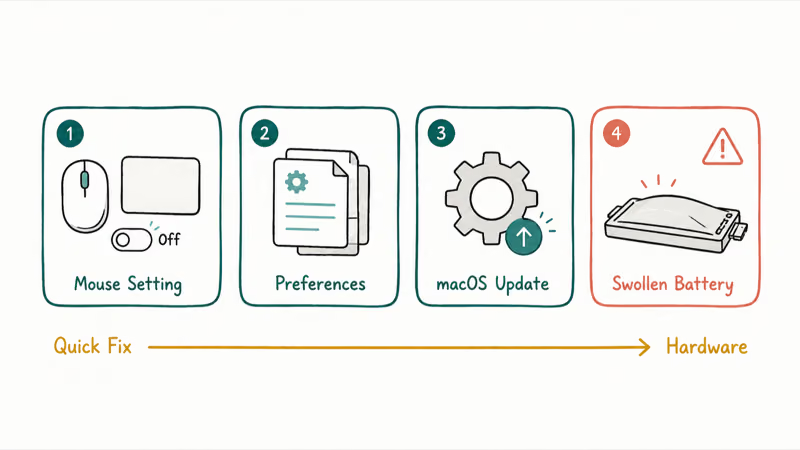
The right order matters. Each cause has a quick check, so you confirm it before reaching for a more drastic step.
Jumping to an SMC reset or a reinstall when the real problem is a checked box wastes an afternoon. The mouse-conflict setting is a common reason a healthy trackpad can feel completely dead. Work down the list from the cheapest fix to the most serious, and treat the battery-swelling check as a safety step rather than a routine one.
#Is an External Mouse Disabling the Trackpad?
This is the first thing to rule out, and it takes ten seconds. macOS has an accessibility setting that ignores the built-in trackpad whenever a mouse is present. If you recently plugged in a USB or Bluetooth mouse, or one is paired and within range, the trackpad can go fully unresponsive by design.
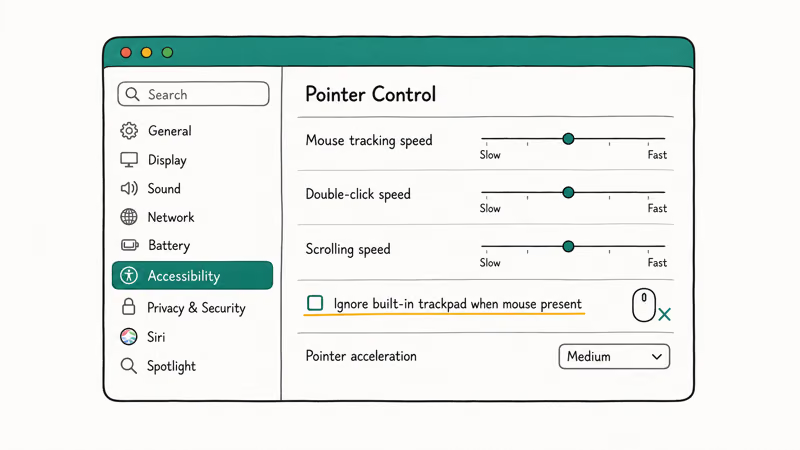
Open System Settings, go to Accessibility, then Pointer Control, and look for the option to ignore the built-in trackpad when a mouse or wireless trackpad is present. Uncheck it.
According to Apple’s Pointer Control settings guide, this “Ignore built-in trackpad when mouse or wireless trackpad is present” option lives in the Pointer Control pane, which is exactly where people forget to look. Disconnect any external mouse, unpair Bluetooth mice you aren’t using, and test the trackpad. If the trackpad comes back after unchecking it, nothing was broken; macOS was intentionally ignoring the built-in surface.
If your trackpad responds but clicks or gestures behave oddly, the issue may be gesture configuration rather than a dead trackpad. Our Right-Click on Mac guide covers the secondary-click and tap settings that often get changed by accident.
#Reset Trackpad Settings and Preferences
When the mouse setting isn’t the cause, a corrupt preference file is the next suspect. macOS stores trackpad behavior in property list files, and a bad write during a crash or update can leave them inconsistent. Resetting them forces macOS to rebuild clean defaults at the next login.
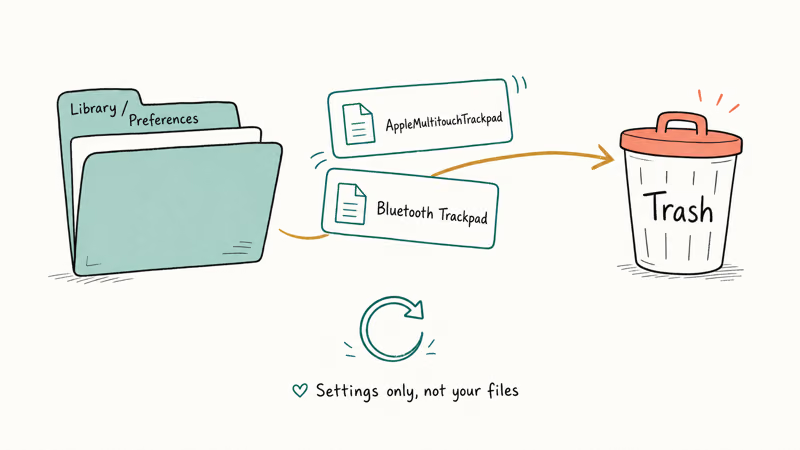
Quit System Settings first.
In Finder, use Go, Go to Folder, and open the Library Preferences folder inside your home directory. Move the trackpad preference files, the ones with AppleMultitouchTrackpad and driver.AppleBluetoothMultitouch.trackpad in their names, to the Trash, then restart. macOS recreates them with defaults, and you reconfigure your gestures afterward. This clears settings, not your files or apps.
If the trackpad began acting up alongside other slowdowns after an update, the problem may be broader than preferences. Our Mac Slow After Update guide handles post-update performance, and Mac Keeps Crashing covers instability that can take the trackpad down with it.
#Update macOS and Check for Battery Swelling
Apple regularly fixes tracking and click bugs in macOS point releases. Open System Settings, go to General, then Software Update, and install any pending update. According to Apple’s trackpad settings guide, the Point & Click tab is where Force Click, Tap to Click, and tracking speed live, so confirm those are set as you expect after the update. Reboot and retest.
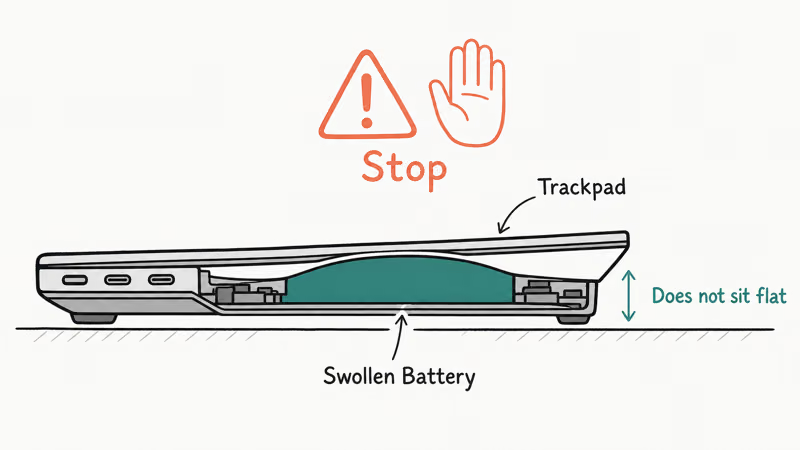
If the trackpad feels physically stuck, clicks unevenly, or sits raised on one side, stop and inspect the chassis. A swollen battery expands inside the case and presses up against the underside of the trackpad, which jams the click mechanism.
Look for a case that no longer sits flat, a bulge near the trackpad, or a gap opening along the seams. This is a safety issue, not a DIY repair. Don’t keep using or charging a Mac with a swollen battery, and don’t try to remove the battery yourself, since a punctured cell can vent or catch fire. Take it in instead.
Power it down and take it to Apple or an authorized service provider. According to Apple’s guide to cleaning Apple products, you shouldn’t force liquid or objects into seams, which matters once a chassis starts to flex.
If your Mac shows a battery alert, our MacBook Pro Service Battery Warning guide explains the message, and MacBook Battery Draining covers the health metrics worth checking before swelling ever starts.
#When Is the Trackpad a Hardware Fault?
A genuine hardware fault is the last conclusion, reached only after the settings, preference reset, and macOS update all fail and the battery shows no swelling. Signs of a real defect include a trackpad that responds intermittently regardless of settings, a click that never registers even after a preference reset, or a cursor that jumps with no input while no mouse is connected.
Before booking service, test in a clean environment. Restart in Safe Mode, which loads macOS without third-party extensions.
If the trackpad works in Safe Mode, a startup item or driver is interfering rather than the hardware. If it fails even there, with a current macOS and no battery swelling, the trackpad or its cable likely needs replacement. That’s an Apple service job rather than a setting you can change.
#Keep the Trackpad Working After the Fix
A few habits keep the trackpad reliable after you’ve fixed it. If you regularly dock to an external mouse, leave the ignore-built-in-trackpad setting unchecked unless you never use the built-in surface, so a routine dock doesn’t kill it.
Keep macOS current, since point releases quietly patch tracking and click bugs. Most important, watch the chassis as the Mac ages: a battery that begins to swell shows up first as a trackpad that clicks unevenly, so catching that early protects both the trackpad and the rest of the machine. A two-second glance at whether the laptop still sits flat on the desk is the cheapest safety check you can run.
#Bottom Line
Disconnect any external mouse and uncheck the ignore-built-in-trackpad accessibility setting first, since that single toggle revives more “dead” trackpads than anything else. If that fails, reset the trackpad preference files to clear corruption, then update macOS for tracking bugs. The moment you notice a bulging case or a raised, stuck trackpad, stop using the Mac and have the battery checked, because swelling is a safety hazard no software fix will solve.
#Frequently Asked Questions
Why is my Mac trackpad not working?
The most common cause is an accessibility setting that disables the built-in trackpad when a mouse is connected. Corrupt preference files, a macOS bug, or a swollen battery pressing on the trackpad are the next possibilities. Start by disconnecting any mouse and checking that one setting.
Does plugging in a mouse disable the trackpad?
It can, if the accessibility option to ignore the built-in trackpad with a mouse present is turned on. Open System Settings, Accessibility, Pointer Control, and uncheck it.
How do I reset trackpad settings on a Mac?
Quit System Settings, then in Finder use Go to Folder to open your Library Preferences folder. Move the trackpad preference files containing AppleMultitouchTrackpad to the Trash and restart. macOS rebuilds clean defaults, and this clears only the trackpad settings, not your files or apps. It’s the right step when the trackpad behaves erratically with no mouse connected.
Can a swollen battery break the trackpad?
Yes. A swollen battery expands and presses up against the underside of the trackpad, which can jam clicks or make it unresponsive. If the case bulges, sits unevenly, or the trackpad feels raised, stop using the Mac and have the battery replaced by Apple or an authorized provider.
Will a macOS update fix the trackpad?
Often, yes. Apple fixes tracking and click bugs in point releases, so install the latest update before assuming hardware failure. Reboot and retest afterward.
When is the trackpad a hardware problem?
Suspect hardware only after the mouse setting, preference reset, and macOS update all fail and the battery shows no swelling. Restart in Safe Mode to rule out third-party software. If the trackpad still fails there on a current macOS, the trackpad or its cable likely needs Apple service.

macOS 27 Compatible Macs: Every Supported Model (2026)
macOS 27 Golden Gate runs only on Apple Silicon Macs. Here is the full list of supported M-series models and the four Intel Macs that lose support.

macOS 27 Golden Gate: Every Major New Feature Confirmed
macOS 27 Golden Gate goes Apple Silicon only, adds a Gemini-powered Siri, refines Liquid Glass, and rebuilds Spotlight. Here is every confirmed change.

macOS 27 Liquid Glass: Every Readability Fix Explained
macOS 27 Golden Gate refines Liquid Glass with an intensity slider, better contrast, cleaner window corners, and edge-to-edge sidebars to fix readability.

macOS 27 Performance: What Golden Gate Makes Faster
macOS 27 Golden Gate speeds up AirDrop, network file browsing, Safari, and Spotlight, with core system improvements on the Apple Silicon-only release.