MacBook Keyboard Not Working? 9 Fixes to Try First in 2026
MacBook keyboard not working or some keys dead? Run the external-keyboard test, check Accessibility toggles, clean debris, and rule out a swollen battery.
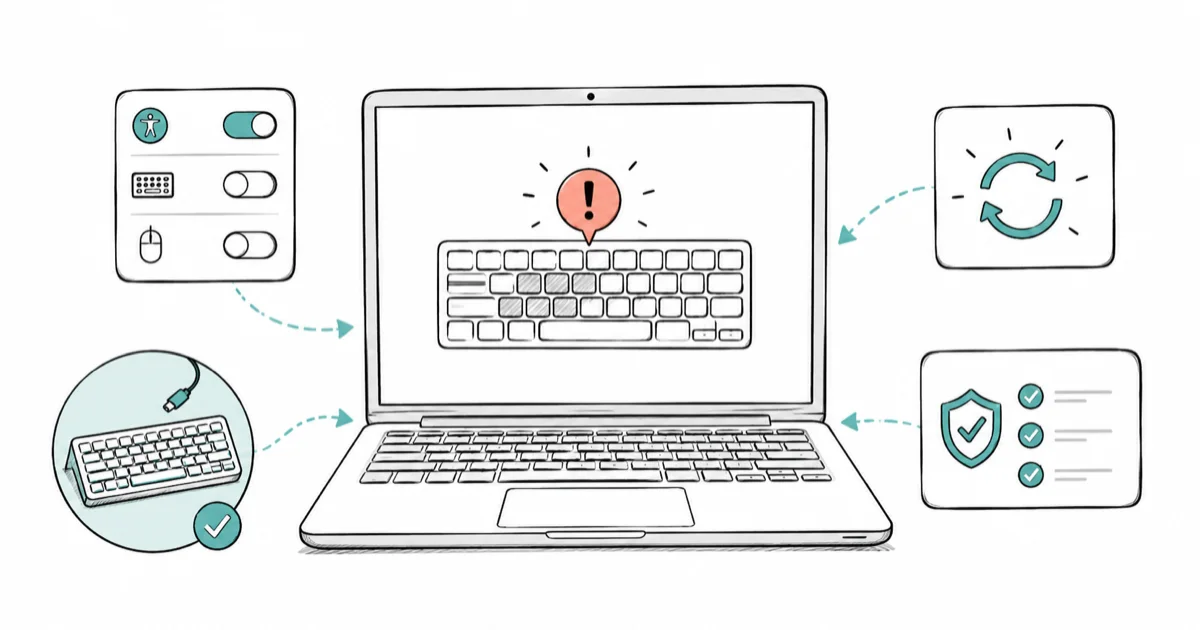
Quick AnswerA MacBook keyboard not working is usually software, not hardware. Plug in an external keyboard to test, then check Accessibility toggles like Slow Keys and Mouse Keys before suspecting the hardware.
A MacBook keyboard not working is far more often a software glitch than a dead piece of hardware. Keys might stop responding entirely, type the wrong characters, or fail only in a small cluster. The single fastest way to tell hardware from software is the external-keyboard test, and the fixes below walk through it before anything expensive comes up.
- Plug in a USB or Bluetooth keyboard first. If the same keys fail on it too, the problem is software, not the built-in keyboard.
- Mouse Keys is a hidden cause: when it’s on, the u, i, o, j, k, l, 7, 8, and 9 keys move the pointer instead of typing.
- Compressed air at short bursts clears the debris behind most single stuck keys, with no liquids and no prying keycaps off.
- Apple Silicon Macs have no SMC or NVRAM to reset, so a simple restart replaces those old Intel-era steps.
- If keys near the trackpad feel hard to press, suspect a swollen battery and stop using the laptop until it’s checked.
#Why Is Your MacBook Keyboard Not Working?
A dead or misbehaving MacBook keyboard comes down to a handful of causes: an Accessibility setting like Slow Keys or Mouse Keys, the wrong input source, debris under a key, a macOS bug after an update, a swollen battery pressing the keyboard from below, or a genuine butterfly-keyboard hardware failure. The trick is to rule out the free software causes before assuming the worst.
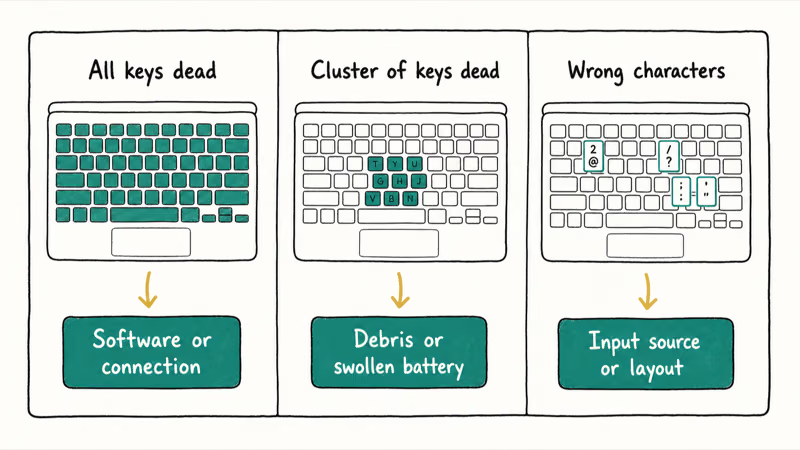
First, narrow the scope. Is every key dead, or just a few? Does the keyboard type the wrong characters? Each pattern points somewhere different.
All keys dead usually means software or a connection issue. A small cluster of dead keys often means debris or a swollen battery. Wrong characters point to an input-source or layout problem. Naming the pattern saves you from trying fixes that were never going to apply.
Mouse Keys can make a healthy keyboard look broken, especially when the affected keys move the pointer instead of typing. Check that setting before treating the keyboard as failed hardware.
#Run the External-Keyboard Test to Split Hardware From Software
This one test saves the most time, so do it early. Plug a USB or Bluetooth keyboard into your MacBook and try the keys that were failing.
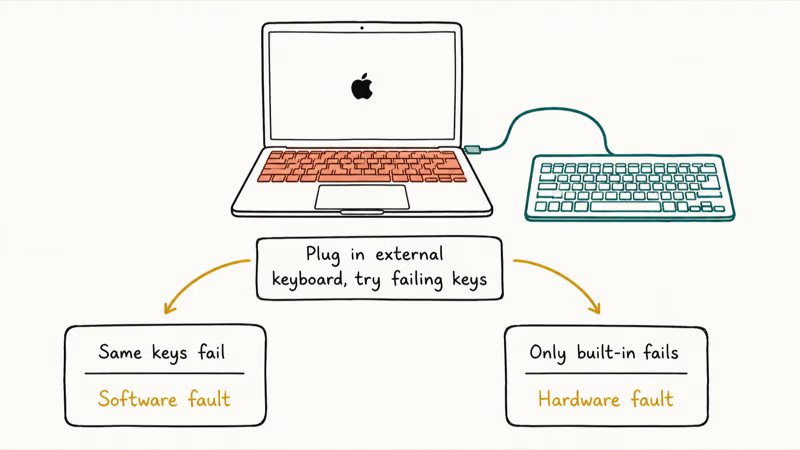
If the same keys fail on the external keyboard too, the fault lives in software or macOS, because two separate keyboards can’t share the same physical defect. Work through the Accessibility, input-source, and update fixes below.
If the external keyboard works perfectly while only the built-in one misbehaves, you likely have a hardware issue with the built-in keyboard. That narrows your path to cleaning, the service program, or a repair. The same isolation logic applies to the pointer too, so if your cursor is the problem, see trackpad not working on Mac.
#Check Slow Keys, Sticky Keys, and Mouse Keys
Accessibility toggles cause more “broken keyboard” reports than any hardware fault, and they’re the first thing to check. Open System Settings > Accessibility > Keyboard.
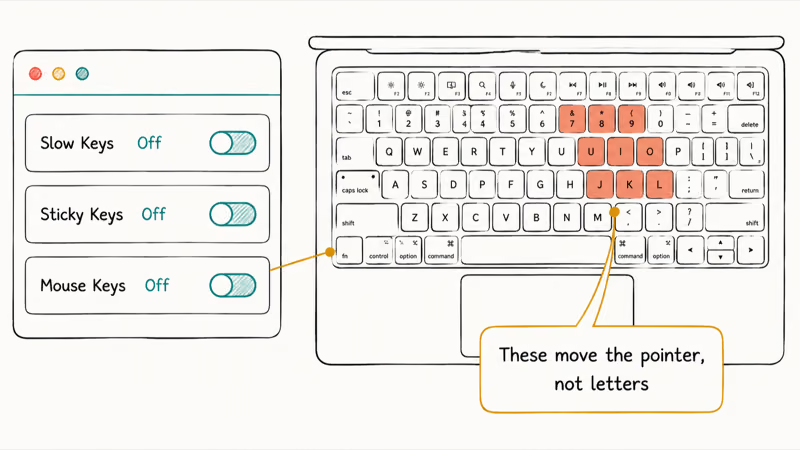
Turn off Slow Keys. When it’s on, macOS ignores a keypress unless you hold the key down longer than usual, which feels exactly like dead or laggy keys.
Then find Mouse Keys under Accessibility > Pointer Control and turn it off. This is the sneakiest cause on the list. With Mouse Keys on, the u, i, o, j, k, l, 7, 8, and 9 keys move the mouse pointer instead of typing letters, so a perfectly healthy keyboard looks half-dead. Apple’s unresponsive-keys support guide confirms that disabling these Accessibility features is the first step before suspecting hardware.
#Fix the Wrong Keyboard Layout and Update macOS
If your keyboard types the wrong characters, like a quotation mark where you expect an at-sign, the input source is wrong. Go to System Settings > Keyboard > Text Input > Edit and confirm the correct layout (such as U.S.) is selected, then remove any layout you don’t use. This is a Mac-specific quirk, not the same as the on-screen issues in our iPhone keyboard not working guide.
Next, test a new user account. Create one under System Settings > Users & Groups, log in, and try the keyboard. If it works there, the problem is corrupted preferences in your main account, not hardware, and you can narrow your cleanup to that account.
Then update macOS. A keyboard bug introduced by a recent update is often patched in the next one, so go to System Settings > General > Software Update and install anything pending. A reboot after the update clears any lingering glitch. If your Mac also feels sluggish after updating, our guide on Mac slow after a macOS update covers that, and macOS running slow goes broader.
#Clean Debris Under Stuck Keys Safely
For one or two physically stuck or mushy keys, debris is the usual cause, and compressed air clears most of it. Hold the can upright and use short bursts.
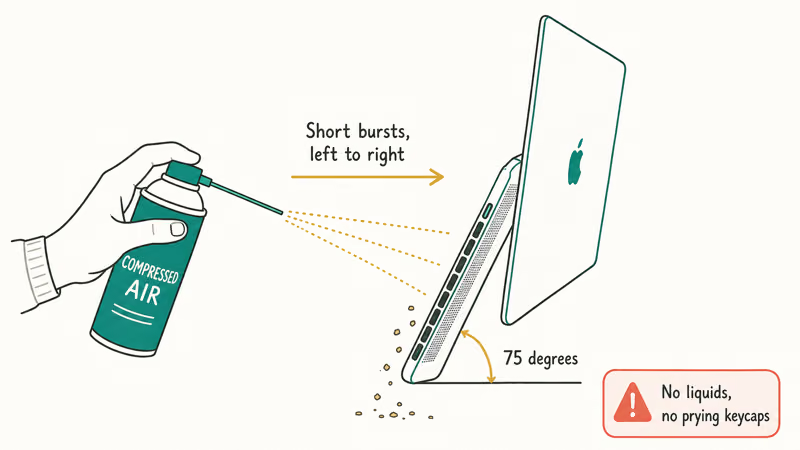
Apple recommends holding the MacBook at roughly a 75-degree angle, not fully upright, and spraying left to right across the keyboard in short bursts. Rotate the laptop and repeat from each side. That way the air pushes crumbs and dust out from under the keys instead of driving them deeper, which is the mistake that turns a quick clean into a stuck key that gets worse over time.
Never use liquids, and never pry keycaps off. The clips under modern MacBook keys are fragile, and a snapped clip turns a free fix into a repair. iFixit’s MacBook keyboard troubleshooting guide states that trapped debris is a leading cause of intermittent key failures on butterfly-keyboard models, which is exactly the symptom compressed air addresses.
#Could a Swollen Battery Be Pressing the Keys?
If keys in the middle of the keyboard, especially the space bar, suddenly feel hard to press or click oddly, suspect a swollen battery. Lithium-ion batteries swell with age, and inside a MacBook the battery sits directly under the keyboard and trackpad.
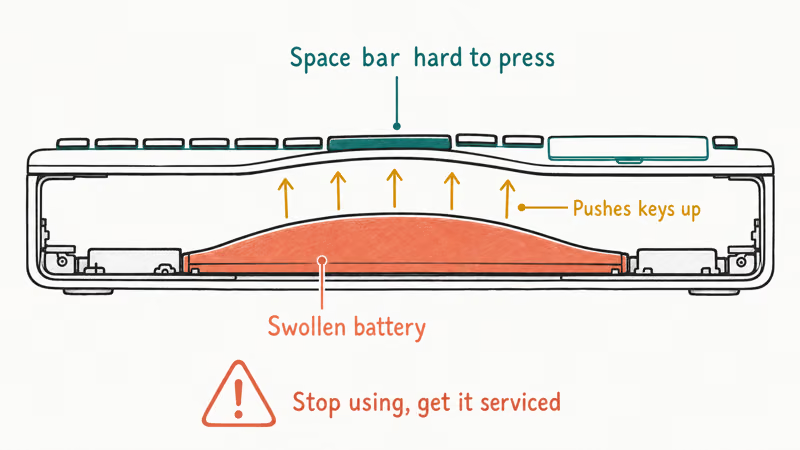
A swelling battery pushes up from below and physically blocks the keys. You might also notice the trackpad clicking strangely or the laptop no longer sitting flat on a desk.
This is a stop-now situation. A swollen battery is a safety hazard, so power the MacBook down, stop using it, and take it to Apple or an authorized service provider. Don’t try to open it yourself, since puncturing a swollen lithium-ion cell is dangerous. For a related symptom that often accompanies battery problems, see Mac keeps restarting.
You can also run Apple Diagnostics to check hardware. According to Apple’s guide to test your Mac, macOS Tahoe 26 even lets you run a keyboard-specific diagnostic. On Apple Silicon, shut down, then hold the power button until startup options appear; on Intel, restart and hold the D key.
One Apple Silicon note: these Macs have no SMC or NVRAM to reset, so a plain restart replaces those old steps.
#Bottom Line
Plug in an external keyboard first. If the same keys fail on it too, the problem is software, so work through the Accessibility toggles, input source, and a macOS update. If only the built-in keyboard misbehaves, you likely have a hardware issue.
For one or two stuck keys, compressed air clears most cases. But if the space bar or keys near it feel hard to press, suspect a swollen battery and stop using the laptop. Older butterfly-keyboard MacBooks once qualified for free Apple service, so check your model and serial number before paying for any repair, because the keyboard is riveted to the top case and rarely worth a third-party fix.
#Frequently Asked Questions
Why did some keys stop working after a macOS update?
An update can introduce a temporary keyboard bug or reset an Accessibility setting like Slow Keys without you noticing. Check Accessibility > Keyboard and Pointer Control first, then install any newer macOS update, since Apple often patches these bugs quickly. A restart after updating clears most lingering glitches.
How do I tell if it’s a software or hardware problem?
Plug in an external USB or Bluetooth keyboard and try the failing keys. If they fail on the external keyboard too, the cause is software, because two separate keyboards can’t share one physical defect, so the fault has to be in macOS or a setting. If only the built-in keyboard misbehaves while the external one works, it’s hardware, and your path narrows to cleaning, the service program, or a repair.
Can debris really break a single MacBook key?
Yes. A crumb or speck of dust under a key can block it from making contact, which feels exactly like a dead key. Compressed air in short bursts clears most cases.
Does my Apple Silicon Mac have an SMC to reset?
No. Apple Silicon Macs have no SMC and no NVRAM to reset, so the old Intel-era reset steps don’t apply. A normal restart does the same job. Just shut down, wait a few seconds, and power back on, which clears the temporary states those resets used to handle.
Is my MacBook eligible for a free keyboard repair?
It depends on the model. Apple’s butterfly-keyboard service program covered certain 2015 to 2019 MacBooks, but it has now ended. Check your serial number on Apple’s support site for any current coverage.
Could a swollen battery cause keyboard problems?
Yes, and it’s a safety issue. The battery sits directly under the keyboard, so as it swells with age it pushes up and makes the keys, especially the space bar, hard to press. If the laptop also no longer sits flat or the trackpad clicks oddly, stop using it and take it in for service.

macOS 27 Compatible Macs: Every Supported Model (2026)
macOS 27 Golden Gate runs only on Apple Silicon Macs. Here is the full list of supported M-series models and the four Intel Macs that lose support.

macOS 27 Golden Gate: Every Major New Feature Confirmed
macOS 27 Golden Gate goes Apple Silicon only, adds a Gemini-powered Siri, refines Liquid Glass, and rebuilds Spotlight. Here is every confirmed change.

macOS 27 Liquid Glass: Every Readability Fix Explained
macOS 27 Golden Gate refines Liquid Glass with an intensity slider, better contrast, cleaner window corners, and edge-to-edge sidebars to fix readability.

macOS 27 Performance: What Golden Gate Makes Faster
macOS 27 Golden Gate speeds up AirDrop, network file browsing, Safari, and Spotlight, with core system improvements on the Apple Silicon-only release.