Mac Bluetooth Not Available? Fix the Module in 2026
Mac Bluetooth not available or greyed out? Remove the Bluetooth preferences, restart the service, rule out USB interference, and update macOS in order.
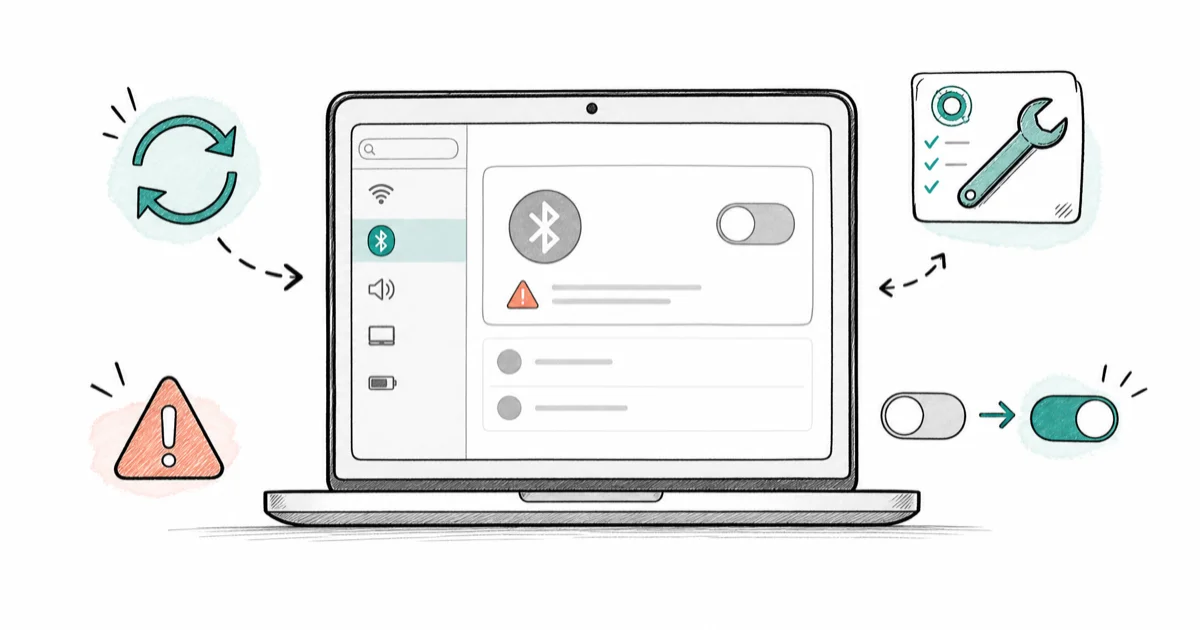
Quick AnswerMac Bluetooth showing Not Available usually means the Bluetooth module or its preferences crashed, not one device. Remove the Bluetooth preference files and restart the service first.
Mac Bluetooth not available is the menu-bar state where the Bluetooth icon shows a wavy line and the menu reads “Bluetooth: Not Available,” with every wireless device gone at once. That’s a module-level failure, not one device refusing to pair. macOS has lost contact with its own Bluetooth controller, so the fix targets the system, not a single keyboard or headset. This guide works that angle in order.
- Not Available is a module failure, so it kills all wireless devices at once, not just one
- Removing the Bluetooth preference files forces macOS to rebuild the module on the next boot
- Restarting the bluetoothd process via Activity Monitor revives the module without a full reboot
- USB-3 devices generate 2.4 GHz noise that can knock out the whole Bluetooth module
- An SMC reset and a hardware check are the last resort, not the first move
#Why Does My Mac Say Bluetooth Not Available?
The Not Available message means macOS can’t talk to the Bluetooth chip at all. Your Mac doesn’t even see its own module, which is why peripherals, AirDrop, and Handoff all vanish together.
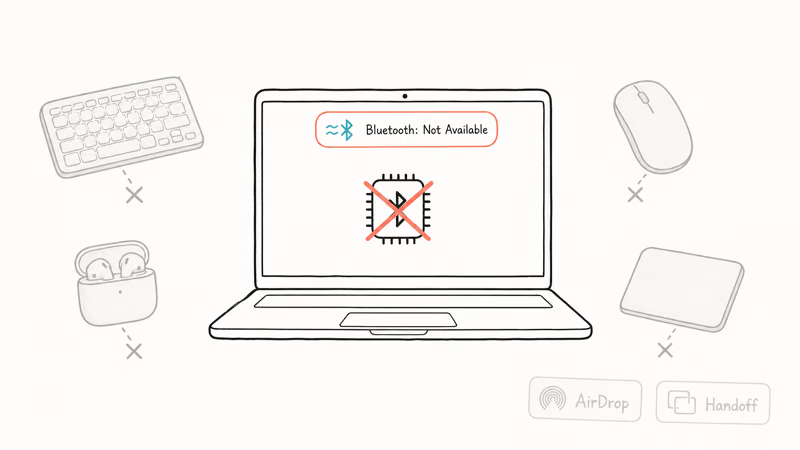
This is different from a single device failing to connect. When only your AirPods or one mouse won’t pair, the module is fine and the problem is that pairing. When the whole menu reads Not Available, the controller itself has crashed or its preferences have corrupted.
The usual triggers are a corrupted Bluetooth preference file, a hung bluetoothd process, USB-3 radio interference, or a buggy macOS update that left the controller in a bad state. That’s why the first fix is a service restart or preference reset rather than re-pairing one accessory.
Because this is a module problem, single-device pairing fixes won’t help. Skip them and go straight to the system-level steps below.
#Is It the Bluetooth Module or One Device?
Run this check before anything else, because it decides which guide you need.
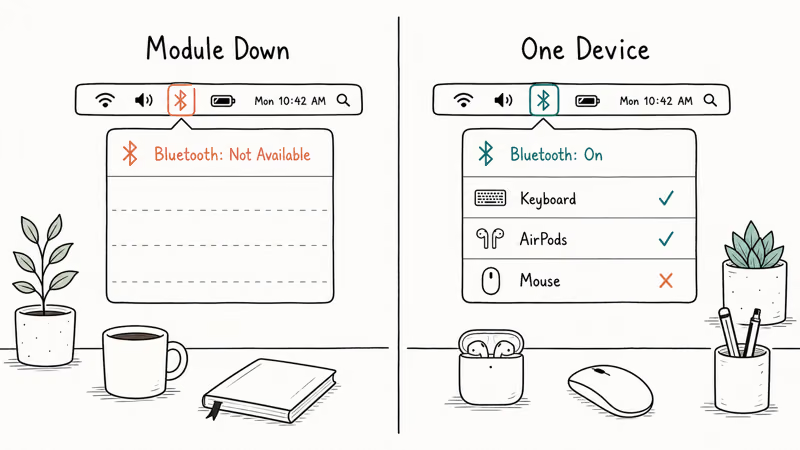
Look at the menu bar. If it reads Bluetooth: Not Available and lists no devices, the module is down, and you’re in the right place. If Bluetooth is on and shows your devices but one won’t connect, that’s a single-device pairing fault, and our companion guide on Bluetooth Not Available on Mac plus the device-specific steps cover the broader fix set.
The split matters because the fixes don’t overlap. A module failure needs a preference reset or a service restart. A single-device failure needs re-pairing that one device, which our walkthrough on AirPods not connecting to Mac handles directly for Apple’s earbuds, and our guide on an AirPods connection failed error covers the pairing handshake when the module is otherwise fine.
If your other devices still work over Bluetooth right now and only one is missing, stop here and use the single-device path. Everything below assumes the module itself reads Not Available.
#Remove Bluetooth Preferences and Restart the Service
This is the core module fix, and it resolves most Not Available cases. You’ll delete the preference file, then restart the Bluetooth service so macOS rebuilds it.
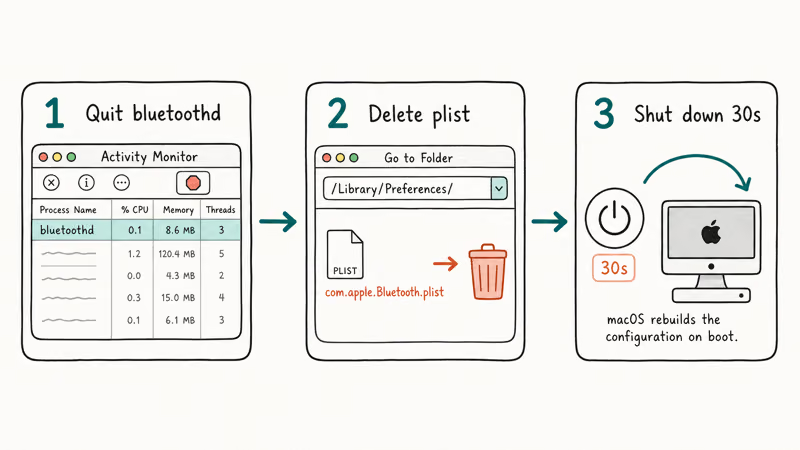
First, restart the service without a reboot. Open Activity Monitor, search for bluetoothd, select it, and click the stop button to quit the process. macOS relaunches bluetoothd automatically within a few seconds, and that alone revives the module in many cases.
If that doesn’t work, remove the preference file. Open Finder, press Command + Shift + G, type /Library/Preferences/, and delete com.apple.Bluetooth.plist along with its .lockfile if present. Then shut down fully, wait 30 seconds, and power on. macOS builds a fresh Bluetooth configuration from scratch on boot, which clears the corruption that caused Not Available.
After rebooting, re-pair your devices. The full shutdown matters because it lets the controller power down completely before macOS rebuilds the Bluetooth preference file.
#Check USB and Wireless Interference
Sometimes the module isn’t corrupted, it’s being jammed. USB-3 hardware radiates noise in the same 2.4 GHz band Bluetooth uses, and enough of it can drop the whole module to Not Available.
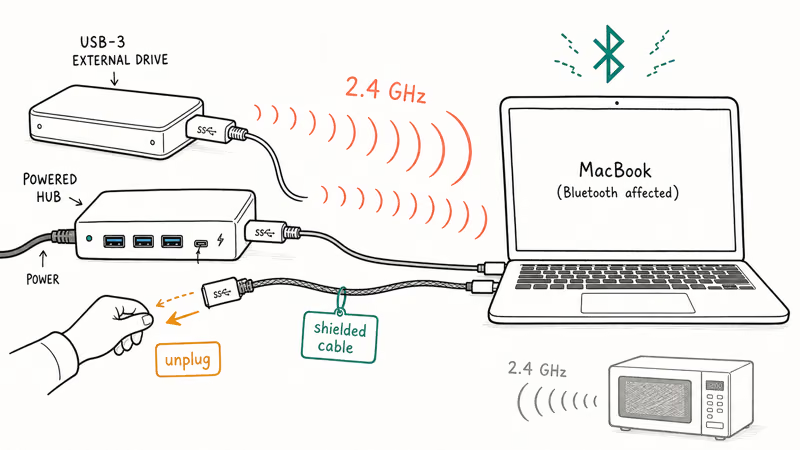
According to Apple, even 1 unshielded USB-3 device can radiate enough noise to disrupt the module. Apple’s wireless interference guide states that you should use a shielded cable for each USB-3 device and turn off any that aren’t in use. Shut down your Mac, unplug every USB device, hub, and dongle, then boot and check whether Bluetooth returns.
If the module comes back with everything unplugged, reconnect devices one at a time to find the culprit. USB-3 external drives and powered hubs are the worst offenders. Apple’s Bluetooth accessory setup guide recommends clearing metal surfaces and physical barriers between the Mac and an accessory, since they degrade the link, so keep the line of sight open too.
Move 2.4 GHz sources like microwaves and cordless phones away from the Mac while you test, since they crowd the same band.
#Update macOS to Patch Controller Bugs
You reach this stage only after the preference reset, service restart, and interference checks all fail to bring Bluetooth back.
Update macOS first. Apple patches Bluetooth controller bugs in minor releases, so go to System Settings > General > Software Update and install anything pending. A buggy update is a known cause of module failures, and the next patch often fixes it. If your Mac feels sluggish after updating, our guide on a Mac slow after a macOS update covers the cleanup that follows.
If the module returns but a specific accessory still won’t reconnect, that’s now a single-device problem. Apple’s Magic accessory connection guide covers re-pairing a keyboard, mouse, or trackpad once the module itself is healthy again.
#Reset Power and Check the Hardware
Reset the power controller before you book a repair. On Intel Macs, reset the SMC, which controls low-level power to the Bluetooth chip. On Apple Silicon Macs there’s no SMC, so a full shutdown for 30 seconds does the equivalent.
If the module still reads Not Available after a clean macOS and a power reset, check About This Mac > System Report > Bluetooth. “No Information Found” there points to a physical chip failure that needs Apple service. A failed module can also mimic other peripheral faults, so if your built-in camera misbehaves at the same time, our guide on a Mac camera not working helps separate a board-level fault from a software one.
#Bottom Line
Treat Not Available as a module failure: restart bluetoothd in Activity Monitor, then remove the Bluetooth preference files and shut down fully if that doesn’t hold. Move USB-3 devices and 2.4 GHz sources away to rule out interference, then update macOS. Consider hardware service only after a clean macOS and a power reset still show Not Available with no Bluetooth listed in System Report.
#Frequently Asked Questions
Why does my Mac say Bluetooth Not Available?
Because macOS has lost contact with the Bluetooth module itself, usually from a corrupted preference file or a hung bluetoothd process. It takes down all wireless devices at once, not just one. Remove the preference file and restart the service to rebuild the module.
Is it the module or one device?
Check the menu bar. If it reads Not Available with no devices listed, the module is down. If Bluetooth is on and shows devices but one won’t connect, that’s a single-device pairing problem, which needs a different fix focused on re-pairing that one device rather than resetting the whole module.
How do I remove Bluetooth preferences on a Mac?
Open Finder, press Command + Shift + G, type /Library/Preferences/, and delete com.apple.Bluetooth.plist and its lockfile. Then shut down fully and power back on so macOS rebuilds the file.
Can a USB device interfere with Bluetooth?
Yes. USB-3 hardware emits 2.4 GHz radio noise that can disable the module. Unplug all USB devices, reboot, and check.
Will a macOS update fix Bluetooth?
Often, yes. Apple patches Bluetooth controller bugs in minor macOS releases, so a pending update is worth installing when the module reads Not Available. Update under System Settings, then reboot and re-check the menu bar before moving on to a hardware reset.
When should I get the Mac serviced?
Only after a clean macOS, a preference reset, and a power reset all fail, and System Report shows no Bluetooth hardware. “No Information Found” under About This Mac points to a physical chip failure that needs Apple service rather than another software fix.

macOS 27 Compatible Macs: Every Supported Model (2026)
macOS 27 Golden Gate runs only on Apple Silicon Macs. Here is the full list of supported M-series models and the four Intel Macs that lose support.

macOS 27 Golden Gate: Every Major New Feature Confirmed
macOS 27 Golden Gate goes Apple Silicon only, adds a Gemini-powered Siri, refines Liquid Glass, and rebuilds Spotlight. Here is every confirmed change.

macOS 27 Liquid Glass: Every Readability Fix Explained
macOS 27 Golden Gate refines Liquid Glass with an intensity slider, better contrast, cleaner window corners, and edge-to-edge sidebars to fix readability.

macOS 27 Performance: What Golden Gate Makes Faster
macOS 27 Golden Gate speeds up AirDrop, network file browsing, Safari, and Spotlight, with core system improvements on the Apple Silicon-only release.