iPhone Stolen Device Protection: Setup and Tips for 2026
iPhone Stolen Device Protection explained for 2026: how Security Delay works, Always vs familiar locations, setup steps, and what to do before travel.
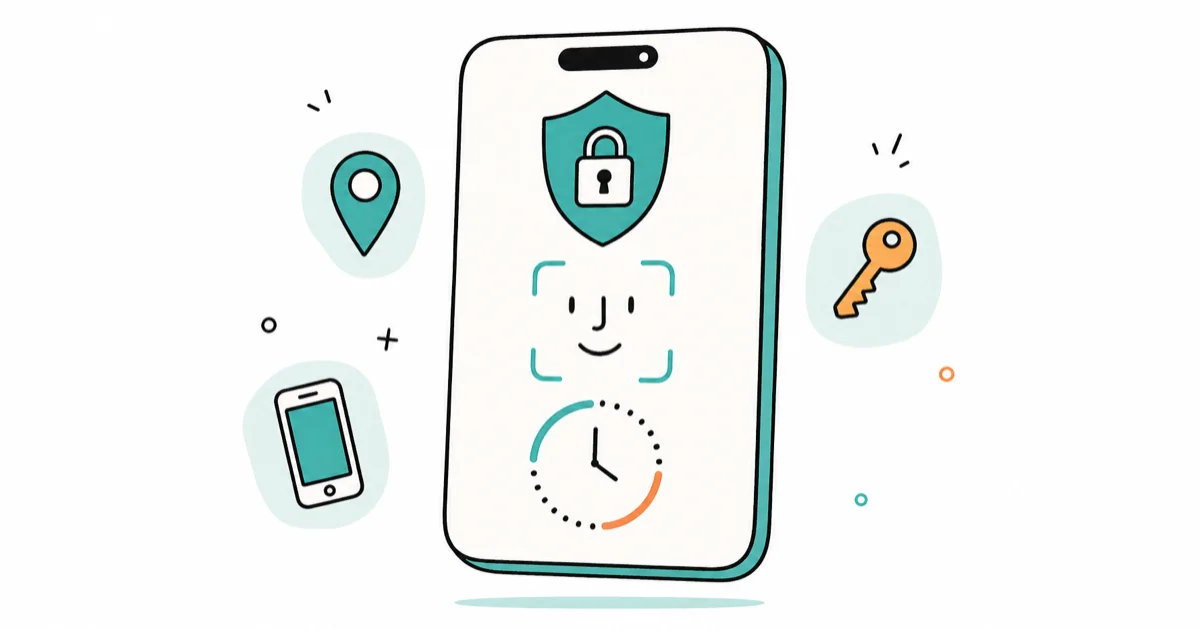
Quick AnsweriPhone Stolen Device Protection adds a Face ID or Touch ID requirement plus a one-hour Security Delay for sensitive actions when your iPhone is away from familiar places. Turn it on in Settings under Face ID and Passcode, and set the delay to Always for the strongest protection.
iPhone Stolen Device Protection closes a real gap. A thief who watched you type your passcode can no longer take over your digital life with just that code. When the feature is on and your iPhone is somewhere unfamiliar, sensitive actions need Face ID or Touch ID with no passcode fallback, and setup lives in Settings > Face ID & Passcode.
- Stolen Device Protection requires Face ID or Touch ID for sensitive actions, with no passcode fallback away from home
- A one-hour Security Delay blocks the most critical changes, like altering your Apple Account password
- Setting the delay to Always protects you everywhere, not just away from familiar locations
- It needs iOS 17.3 or later and two-factor authentication on your Apple Account
- This protects against passcode theft, not lost or physically destroyed phones, which still need Find My
#What Is iPhone Stolen Device Protection?
Stolen Device Protection is a security layer Apple added in iOS 17.3 to defend against a specific crime: someone learns your passcode by watching, then steals the phone. Without it, that passcode alone unlocks almost everything.
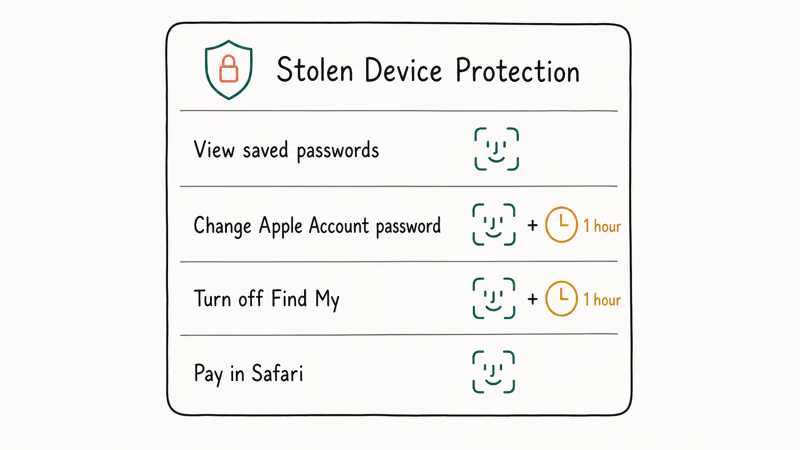
When the feature is on and your iPhone is in an unfamiliar location, certain actions demand Face ID or Touch ID and refuse to accept the passcode as a backup. The rules are spelled out on Apple’s Stolen Device Protection page. Apple states that the most critical changes wait out a Security Delay of 1 hour, and that delay gives you a window to mark the device as lost.
What Stolen Device Protection requires by action type
| Action | Requirement when away from home |
|---|---|
| View saved passwords | Face ID or Touch ID, no passcode |
| Change Apple Account password | Biometrics plus 1-hour delay |
| Turn off Find My | Biometrics plus 1-hour delay |
| Use a payment method in Safari | Face ID or Touch ID |
If you want a broader hardening pass beyond this one feature, the iPhone privacy settings checklist covers the rest of the settings worth tightening.
#Should You Set Security Delay to Always?
Yes, for most people. The “Away from Familiar Locations” option only enforces the delay when you’re somewhere new, which leaves your home and workplace as soft spots a thief could exploit if they grab your phone there.
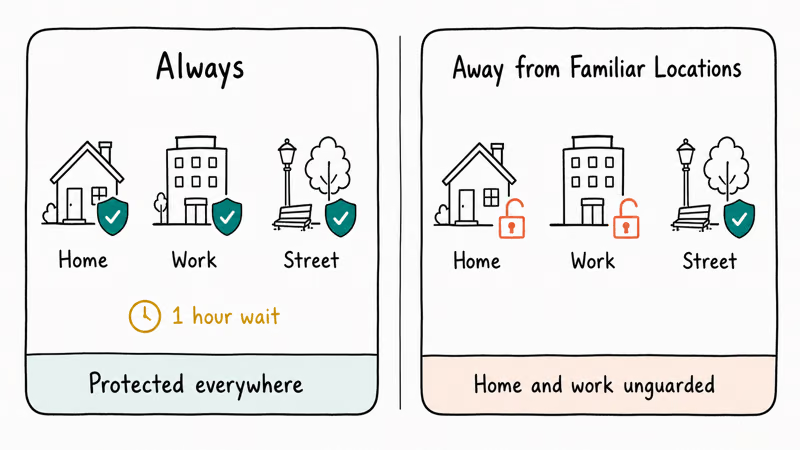
Setting it to Always applies the Security Delay everywhere, no matter where the phone is. The tradeoff is minor friction: even at home, changing your Apple Account password or disabling Find My means waiting an hour. For the security gain, that’s usually worth it, especially if you live with roommates or your home address is easy to find.
Always adds the Security Delay to major account changes everywhere, including at home. Pick “Away from Familiar Locations” only if the hour-long wait at home would seriously disrupt how you work. Otherwise, choose Always.
#How to Turn It On Before Travel
Turning it on takes under a minute, and travel is exactly when you want it active. Crowded airports and unfamiliar cities are prime spots for passcode-watching theft.
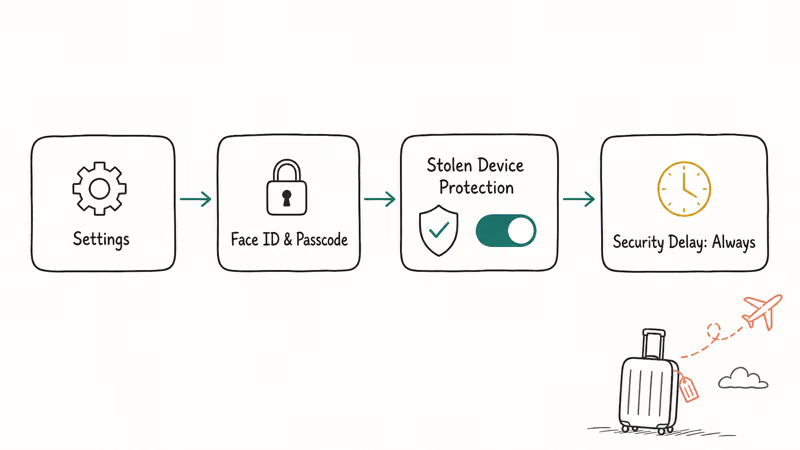
Open Settings, tap Face ID & Passcode, enter your passcode, then scroll to Stolen Device Protection and turn it on. Choose Always for the Security Delay if you want full coverage. The feature needs two-factor authentication enabled on your Apple Account, so if the option is missing, that’s usually why.
While you’re hardening sign-in, consider switching key accounts to passkeys. The guide on how to set up passkeys on iPhone walks through it, and passkeys remove the typed password a thief could otherwise capture.
#Confirm Two-Factor Authentication First
Stolen Device Protection only appears once two-factor authentication is active on your Apple Account. The feature depends on it, so confirm two-factor is on first. Open Settings, tap your name, choose Sign-In & Security, and check that two-factor authentication shows as turned on before you go hunting for the protection toggle.
Reusing one authenticator app across phones? The guide on how to prevent SIM swapping covers a related attack two-factor alone won’t stop.
#What Changes Away From Familiar Locations
Quite a lot, and that’s the point. Apple states that the phone learns your familiar locations over time, then tightens up everywhere else.
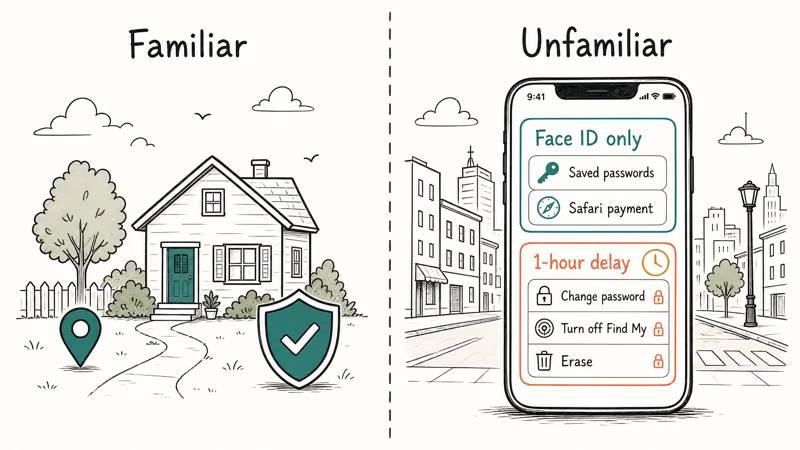
Away from familiar places, viewing stored passwords, using saved payment cards in Safari, and applying for an Apple Card all require Face ID or Touch ID with no passcode escape hatch. The heaviest actions, like changing your Apple Account password, turning off Find My, or erasing the device, trigger the one-hour Security Delay followed by a second biometric check.
That design means a thief with your passcode is stuck. They can’t quietly reset your account and lock you out, which is the exact attack the feature was built to stop. If you suspect your device was already compromised, the how to tell if your phone is hacked guide helps you check.
#Where It Can Get in Your Way
Mostly during legitimate account changes and after losing access to Face ID. The same friction that stops thieves can slow you down.
Crack your screen or lose Face ID away from home, and certain actions stall until you reach a familiar location. The recovery key is the bigger trap. According to Apple’s recovery key documentation, losing your recovery key with no trusted device can lock you out permanently, so store it safely.
For privacy and legal reasons, only enable these protections on a device you own, and never use account locks on someone else’s phone without consent. Worried about being tracked? The how to find an AirTag tracking you guide helps.
#Bottom Line
Turn on Stolen Device Protection today and set the Security Delay to Always, especially before you travel. It costs you a little friction during account changes at home but shuts down the passcode-theft attack that has cost people their entire Apple Account. Confirm two-factor authentication is on first, then store your recovery key somewhere safe so the feature protects you without locking you out.
#Frequently Asked Questions
What iOS version do I need for Stolen Device Protection?
You need iOS 17.3 or later, and the feature requires two-factor authentication on your Apple Account. If you don’t see the option in Settings, update your iPhone and confirm two-factor is enabled, then check again.
Does Stolen Device Protection slow down everyday use?
Not for normal tasks. Unlocking your phone, opening apps, and texting all work as usual. Only sensitive actions like changing your Apple Account password add friction.
What is the difference between Always and Away from Familiar Locations?
Always enforces the Security Delay everywhere, while Away from Familiar Locations only enforces it when your iPhone is somewhere new. Always is safer because it removes the home and workplace as soft spots. The cost is waiting an hour for major account changes even at home.
Can I turn off Stolen Device Protection if I’m locked out?
You can turn it off in Settings under Face ID and Passcode, but doing so away from a familiar location triggers the one-hour Security Delay first, because an easy off switch would defeat the whole purpose of the feature. The fix is simple but slow: wait out the delay, or return to a familiar place like home where the delay may not apply, then disable it there.
Does this protect me if my iPhone is lost or destroyed?
Not directly. Stolen Device Protection defends against passcode theft and account takeover, not a phone that is simply lost or broken. For a missing device, you still rely on Apple’s Find My to locate, lock, or erase it remotely.
What should I avoid doing after enabling it?
Don’t disable two-factor authentication, since the feature depends on it. Avoid losing your recovery key with no trusted device, because that combination can lock you out of your own account. And only ever enable these locks on a phone you legally own.

Is This Bank App Real? Spot a Fake App on Your Home Screen
A bank app can land on your home screen from a web page with no install warning. Learn the checks that tell a real banking app from a phishing web app.

Passkeys Not Syncing Between iPhone and Windows? Read This
Passkeys not syncing between iPhone and Windows is by design, not a bug. Here is why iCloud passkeys skip Windows Hello and the three ways to fix it.

VPN Not Working on Snapdragon X? Why It Fails, How to Fix
Your VPN won't install or connect on a Snapdragon X Copilot Plus PC because Windows on ARM can't emulate the network driver. Here are the fixes that work.

How to Check If a Link Is Safe Before You Click It
Learn how to check if a link is safe with official-first steps: read the real domain, use the app instead, and treat scanners as a second opinion only.