iPhone StandBy Mode Battery Drain — Causes and Fixes
iPhone StandBy drain shows up on iPhone 14 Pro and newer with always-on display. Here is why it happens overnight and which settings to flip first.
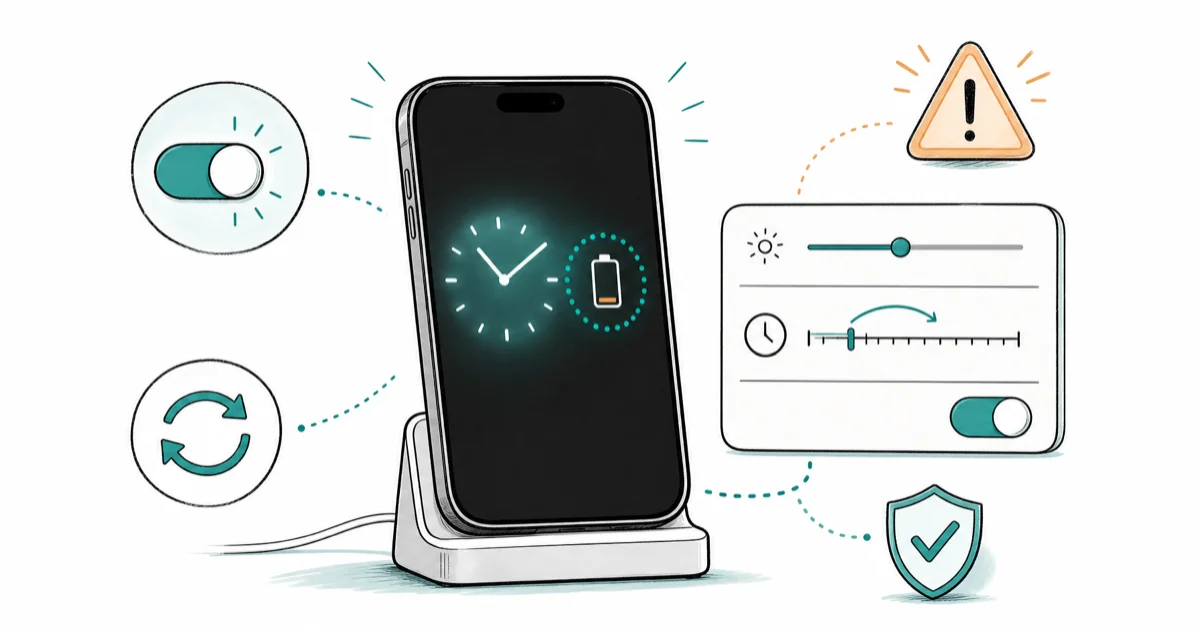
Quick AnswerStandBy drains battery on Pro iPhones because their always-on display stays lit while charging. Go to Settings > StandBy > Display and set Turn Display Off to After 20 Seconds.
iPhone StandBy drain almost always traces back to one combination: an iPhone with an always-on display, charging overnight on MagSafe, with the display set to never turn off.
- StandBy activates only when your iPhone is locked, charging, and held in landscape; flat on a table won’t trigger it
- Always-on continuous StandBy is a hardware feature limited to iPhone 14 Pro, iPhone 15 Pro, iPhone 16 Pro, and iPhone 17 Pro
- Standard iPhones dim StandBy after about 20 seconds by default, so they don’t have a StandBy drain problem to fix
- The single biggest fix on a Pro model is
Settings>StandBy>Display>Turn Display Off>After20 Seconds - Low Power Mode disables the always-on StandBy display, which makes it a useful one-night diagnostic but not a long-term fix
#Why Does StandBy Drain Battery on My iPhone?
StandBy is the bedside-clock mode Apple shipped with iOS 17 in September 2023. It’s not a separate app and not a Sleep Focus. According to MacRumors’ StandBy walkthrough, the activation rule is narrow: “the iPhone needs to be locked, fixed in a stationary horizontal (or landscape) orientation, and positioned at an angle (i.e. not on a flat surface).”
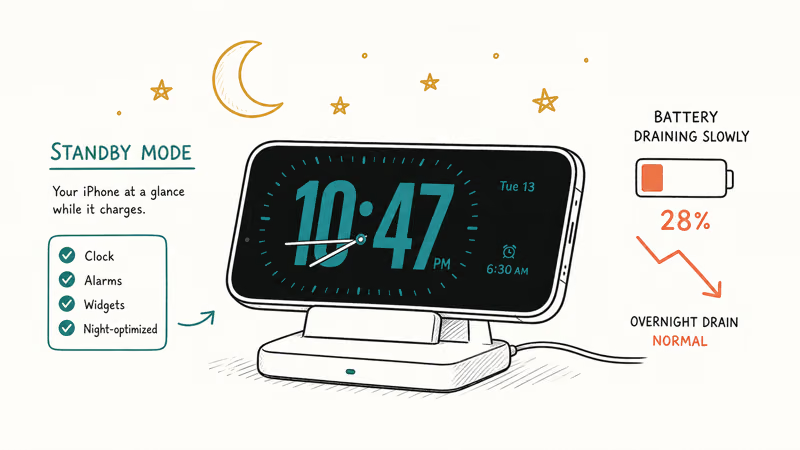
Drop the phone flat or stand it in portrait and StandBy never appears. The drain question only starts mattering when StandBy stays on. On older iPhones it doesn’t stay on, so the rest of this article doesn’t apply to you.
On the always-on display models, StandBy can hold the screen lit for the full charging session. That’s roughly 6 to 10 hours of overnight charging for most people. A dim screen drawing a low but constant load for that many hours adds up the same way a single LED night light adds up over a month.
There’s a second, sneakier reason StandBy looks like a drain when it isn’t. After an iOS update, Spotlight, Photos, and iCloud reindex in the background. Apple states the behavior plainly on its battery troubleshooting page: “Even though you can use your device immediately after an update, certain tasks related to the update continue in the background and might affect battery life and thermal performance.”
That reindex runs while you sleep and shows up in the morning Battery graph next to whatever was on screen, which is StandBy. The fix is to wait three to seven days for the post-install settling window before judging StandBy itself, which we cover in our guide to iOS 26 battery drain. If you’re on a beta seed, the iOS 27 beta battery drain article walks through the same window.
#Which iPhones Are Most Affected by StandBy Drain?
Only four iPhone families can keep the StandBy display lit indefinitely. MacRumors confirms that “the ability to use StandBy mode’s always-on feature is limited to iPhone 14 Pro, iPhone 15 Pro, and iPhone 16 Pro models.” Apple extended the always-on display to the iPhone 17 Pro line in 2025. That’s why Tom’s Guide’s iPhone 17 always-on display setup guide became a popular search the week the device shipped.
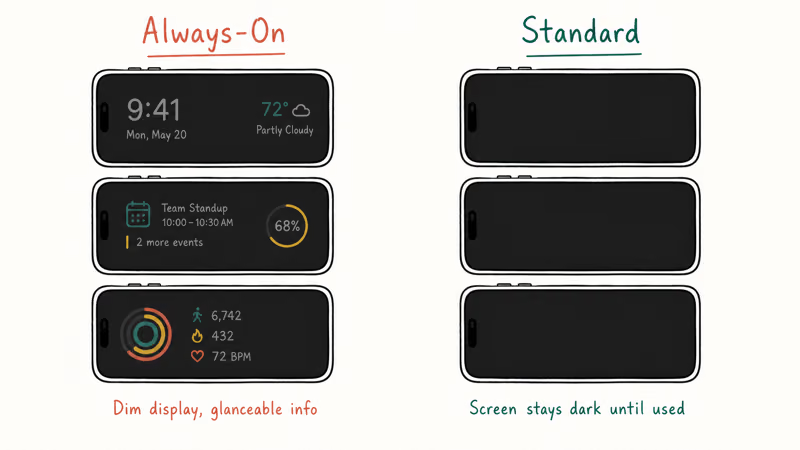
The reason is the panel. All four Pro lines use an LTPO OLED panel that can ramp refresh rate down to 1 Hz when nothing on screen is moving. A 1 Hz refresh draws a fraction of what a standard 60 Hz LCD or fixed-refresh OLED would draw.
Standard iPhones (iPhone 14, 15, 16, 17 non-Pro, the SE line, and anything older) don’t have that panel. That’s why their StandBy display automatically turns off after about 20 seconds. They can’t hold it on even if you wanted them to.
So the question “why is StandBy draining my battery” collapses to two cases:
- You have a Pro model. The always-on display is the cause. Settings will fix it.
- You have a standard model. StandBy isn’t your drain. Look at general iPhone battery dying fast causes instead, or check if Battery Health has dropped below 80% per our guide on slowing iPhone battery degradation.
#How to Read the Battery Graph After an Overnight Charge
Open Settings > Battery > Battery Usage by App after an overnight charge. The graph shows the last 24 hours. StandBy drain on a Pro model usually shows up under one of three labels, not under a category called “StandBy”:
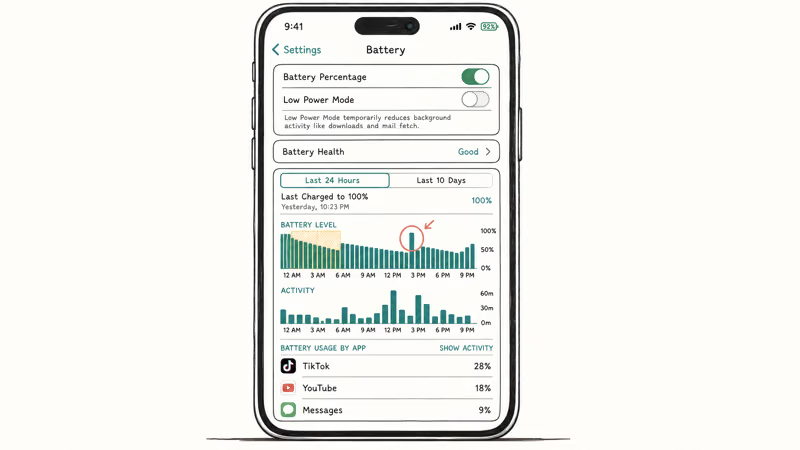
- Cover Sheet is Apple’s internal name for the lock screen layer that StandBy renders into
- Display & Brightness captures total display energy, which catches StandBy because it kept the panel powered
- Home & Lock Screen covers widget and complication activity
If you don’t already have the percentage indicator on, our guide on show battery percentage on iPhone gets it back in under 15 seconds. You’ll want the precise number, not the icon, when comparing two overnight tests.
When StandBy Display is set to Never, Cover Sheet can appear near the top of the Battery graph after an overnight charge. The device may also feel warmer than it does with Display set to After 20 Seconds, even if the final charge level is the same because the iPhone stayed plugged in.
The temperature difference is the part that matters. Apple’s battery page above notes that “high screen brightness consumes a lot of energy,” and the always-on display is, by definition, screen brightness for hours. Heat during charging is what quietly shortens battery lifespan over many months.
If the post-overnight graph instead shows the bulk of drain under apps like Photos, Mail, or Spotlight Search, it’s the settling window from a recent iOS update, not StandBy.
#Quick Fixes That Keep StandBy but Cut the Drain
Try these in order. Stop at the first one that gives you the morning result you want.
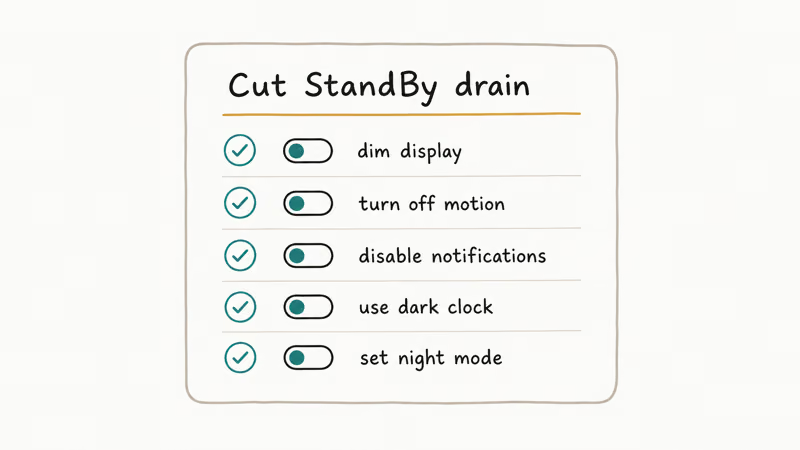
#1. Change Turn Display Off to After 20 Seconds
This is the highest-leverage fix. Go to Settings > StandBy > Display > Turn Display Off and select After 20 Seconds. You still get StandBy when you reach for the phone in the dark, since it wakes on tap or on motion, but the display does not stay lit for the rest of the night.
This is the default on standard iPhones for a reason. Apple’s own StandBy support guide documents the three Turn Display Off options: Auto, After 20 Seconds, and Never.
#2. Enable Night Mode
Settings > StandBy > Night Mode. According to MacRumors’ StandBy walkthrough, Night Mode dims the StandBy display when the room is dark and shifts it to a red tint so it won’t disturb your sleep. A dimmer screen with red pixels draws less than a full-color clock face, and it stops StandBy from lighting the room.
#3. Disable the Widgets You Don’t Need
StandBy supports rotating widgets. Each widget refreshes on its own schedule, and refreshes draw power. Long-press any widget in StandBy and remove the ones you never look at. Weather, Calendar, and Photos are common defaults that most people set up once and then ignore.
#4. Use Low Power Mode as a one-night diagnostic
Low Power Mode disables the always-on functionality of StandBy. Apple confirms on its battery troubleshooting page that Low Power Mode “reduces the amount of power that your device uses by reducing or disabling certain settings and features,” and the always-on StandBy display is one of those features.
Run one overnight charge with Low Power Mode forced on. If the morning Battery graph still shows Cover Sheet as a top consumer, StandBy is not your real problem and you should look at app-level background activity instead. For context on what Low Power Mode does and does not change for charging itself, see what Low Power Mode actually does to charging.
#5. Move off MagSafe to a wired cable
Wireless charging puts more heat into the iPhone than a wired Lightning or USB-C cable. Heat plus an always-on display is the worst-case combination for overnight wear. Switching to a wired cable for sleep charging removes about half of the thermal load. Most users won’t feel the difference in one night, but over a year it changes how fast Battery Health declines.
#When to Turn StandBy Off Entirely
Some users just don’t need StandBy. If you sleep with the phone face-down, sleep with the room dark anyway, or charge during the day in your car or at your desk, StandBy is doing nothing useful. Go to Settings > StandBy and toggle StandBy itself off. The setting persists across iOS updates.
The case for turning it off entirely:
- You are not using the bedside clock function
- Your iPhone is older than iPhone 14 Pro (StandBy still runs, just dims after 20 seconds, so no harm but no benefit either)
- You noticed Battery Health dropping faster than expected and want to remove the heat component completely
- You always charge on MagSafe overnight and a separate alarm clock already covers the bedside function
Turning StandBy off entirely removes the bedside-clock view from the overnight Battery graph. Whether you want that tradeoff depends on whether you ever actually used the clock in the first place.
#StandBy Versus the Always-On Lock Screen
These are two separate Pro features that share the same 1 Hz LTPO panel, and people often mix them up. The always-on lock screen is the regular lock screen kept lit when the iPhone is upright in a pocket-free position; StandBy is the bedside-clock view that only activates while charging in landscape.
Turning off StandBy display alone does not disable the always-on lock screen. If you want to remove every always-on display drain, also visit Settings > Display & Brightness > Always On Display and toggle it off there. That setting is independent of the StandBy toggles covered above.
#Bottom Line
If you have an iPhone 14 Pro, 15 Pro, 16 Pro, or 17 Pro and you charge overnight on a MagSafe stand, change Settings > StandBy > Display > Turn Display Off to After 20 Seconds and enable Night Mode. Don’t start by turning StandBy off, because you’ll lose the feature without learning whether it was actually the problem.
Run one full overnight charge with that change, then check Battery > Battery Usage by App in the morning. If Cover Sheet drops out of the top three consumers, the fix worked and you can leave it.
If Cover Sheet is still near the top after that change, turn StandBy itself off in Settings > StandBy and move on to general iPhone battery dying fast troubleshooting. Standard non-Pro iPhones don’t have this problem and don’t need any of these changes.
#Frequently Asked Questions
Does StandBy drain my iPhone battery overnight?
Only on iPhones with an always-on display, which means iPhone 14 Pro, 15 Pro, 16 Pro, and 17 Pro. On those models the StandBy display can stay lit for the full charging session, so it adds a steady low-level draw for several hours. On standard iPhones the display dims after about 20 seconds by default, so StandBy has almost no battery cost.
Why does my iPhone 15 Pro use more battery in StandBy than my old iPhone 12?
The iPhone 15 Pro has an always-on display that holds StandBy lit; the iPhone 12 does not. The hardware difference is the LTPO OLED panel that can drop to a 1 Hz refresh rate. Even at 1 Hz, hours of continuous display use add up. Setting Display to After 20 Seconds matches the iPhone 12 behavior.
Can I keep StandBy on but turn off the always-on display?
Yes. Go to Settings > StandBy > Display > Turn Display Off and pick After 20 Seconds. StandBy still appears the moment you tap the phone or it senses motion, but it does not stay lit when you are asleep. This is the change most users actually want.
Does Night Mode in StandBy save battery?
It helps a little. Night Mode dims the screen and shifts to a red tint when the room is dark, so the panel draws less than a full-color StandBy face. It’s not as effective as turning Display off after 20 seconds, but combining the two is the best setup if you want to keep a glanceable bedside clock.
Will StandBy damage my iPhone battery long term?
Not directly. The drain itself is small per hour. The real issue is thermal: an always-on display while charging on MagSafe runs the iPhone warmer than the same charge cycle with the display off, and consistent heat is what accelerates battery wear over months.
Apple recommends keeping iPhones cool during charging. Switching to a wired cable and using After 20 Seconds removes most of that heat. For more on slowing battery wear, see slowing iPhone battery degradation.
Why is StandBy not turning on when I charge?
StandBy requires three conditions at once: locked, charging, and landscape orientation on a stand or propped at an angle. If your iPhone is flat on a table or in portrait orientation it won’t activate. If StandBy is toggled off in Settings > StandBy it won’t activate either. Check those three conditions first.
Should I use Low Power Mode to stop StandBy drain?
Use it for a single diagnostic night, not as a permanent setting. Low Power Mode disables the always-on StandBy display along with several other background features, so it confirms whether StandBy is your real drain. If overnight battery use stays high with Low Power Mode on, the cause is something else. Keeping Low Power Mode on full-time slows the iPhone in ways most people don’t want once they notice them.

Mac mini M6 vs M5 Pro: Which Model Should You Buy?
Mac mini M6 vs M5 Pro compared on price, memory, ports, displays, and real workloads. Find the better 2026 Mac mini for your desk and budget.

Apple Siri Settlement: Who Qualifies and How to Claim
Apple's $250 million Siri settlement covers iPhone 15 Pro and iPhone 16 models bought June 2024 to March 2025. See who qualifies and how claims work.

iOS 26.6.1 Security Update: What Apple Fixed and Who Gets It
Apple released iOS 26.6.1 on August 17 with 29 security fixes, including an IPSec interception bug. See what it patches, who gets it, and how to update.

iPhone Adaptive Power: How It Works and When to Use It
Learn how iPhone Adaptive Power works, which models support it, what it changes, and when Low Power Mode is still the better battery-saving choice.