How to Show Battery Percentage on iPhone (2026 Guide)
Show iPhone battery percentage in three taps: Settings, Battery, toggle on. Plus four backup methods for older iPhones, AirPods, and lock screens.
Quick AnswerOpen Settings, tap Battery, then turn on Battery Percentage. Your exact charge appears inside the status bar icon on iOS 16.1 or later. Older iPhones can swipe down from the top-right corner to open Control Center, where the percentage shows next to the battery icon.
That tiny battery icon hides whether you have 50% left or 5%. The toggle in Settings is quick, and Control Center is even faster.
The exact method depends on your iPhone model, iOS version, and whether you want a permanent status-bar number or a quick swipe-only check.
- Settings, then Battery, then toggle Battery Percentage on shows the number inside your status bar icon
- The toggle works on iPhone X and newer Face ID models running iOS 16.1 or later
- Control Center shows the exact percentage on every iPhone in iOS 11 and later, no settings required
- The Batteries widget displays your iPhone alongside paired AirPods and Apple Watch charge levels
- Low Power Mode forces the percentage visible automatically and turns the icon yellow until 80% charge
#The Fastest Way to See Your iPhone Battery Percentage
For a quick check, open Control Center instead. The percentage sits beside the battery icon.
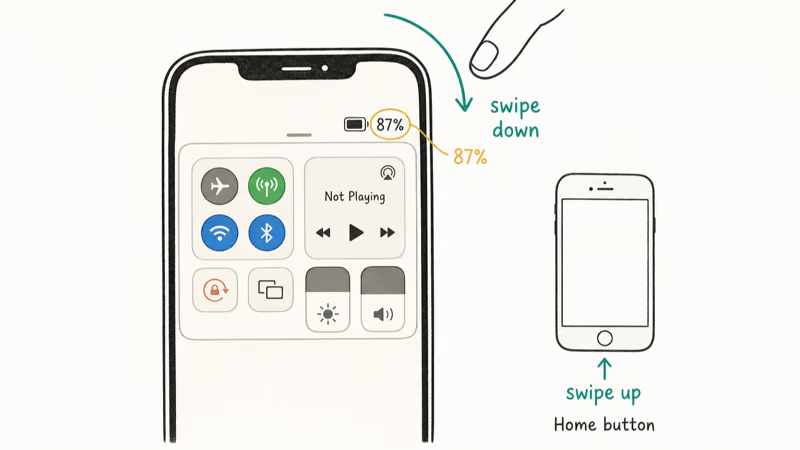
On a Home button iPhone, swipe up from the bottom edge instead.
Control Center works on every iPhone running iOS 11 or later. No toggle needed, no model restrictions, and the percentage shows even if you’ve never opened the Battery settings panel. If you only check your battery a few times a day, this is enough.
#How Do You Turn On the Battery Percentage Toggle?
Apple added the dedicated Settings switch in iOS 16.1, released in October 2022. The number lives inside the status bar battery icon, so it stays visible all the time without taking up extra space.
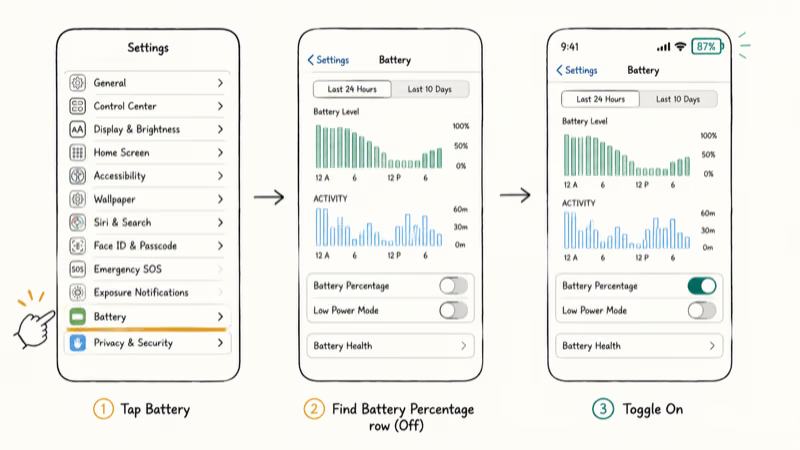
To turn it on:
- Open Settings
- Tap Battery
- Toggle Battery Percentage to green
The change takes effect instantly. According to Apple’s iPhone User Guide section on showing or hiding the battery percentage, the switch is available on iPhone with Face ID running iOS 16.1 or later. If you don’t see the toggle after updating, scroll back up to confirm the iOS version under Settings, then General, then About.
This persistent display has one quirk worth knowing: the digits are tiny, especially on compact status-bar layouts. If your eyesight prefers a larger number, Control Center remains the better default.
#iPhones That Show Battery Percentage Differently
Not every iPhone uses the same method. The shortcut depends on which model you carry and which iOS version it runs.
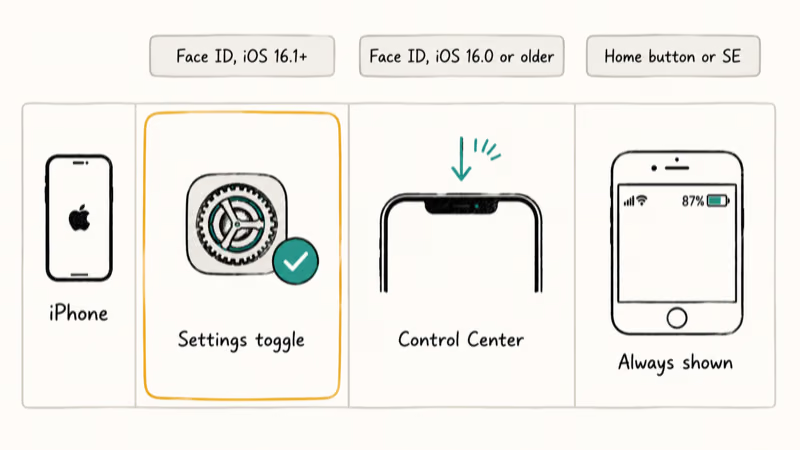
| iPhone model | iOS version | Best method |
|---|---|---|
| iPhone X, 11, 12, 13, 14, 15, 16 | iOS 16.1 or later | Settings, Battery, toggle on |
| iPhone X, 11, 12, 13, 14, 15, 16 | iOS 16.0 or earlier | Control Center swipe |
| iPhone 8 and earlier with Home button | Any iOS 11+ | Always shown by default in status bar |
| iPhone SE 1st, 2nd, 3rd gen | Any iOS 11+ | Always shown by default in status bar |
The Home button models keep the older status bar layout that has room for the percentage next to the icon by default. Face ID models lost that space when the notch arrived in 2017, which is why the toggle did not appear until iOS 16.1.
#The Batteries Widget on Your Home Screen and Lock Screen
The Batteries widget shows your iPhone charge plus paired Bluetooth accessories such as AirPods and Apple Watch. Connected devices can appear together in the same widget.
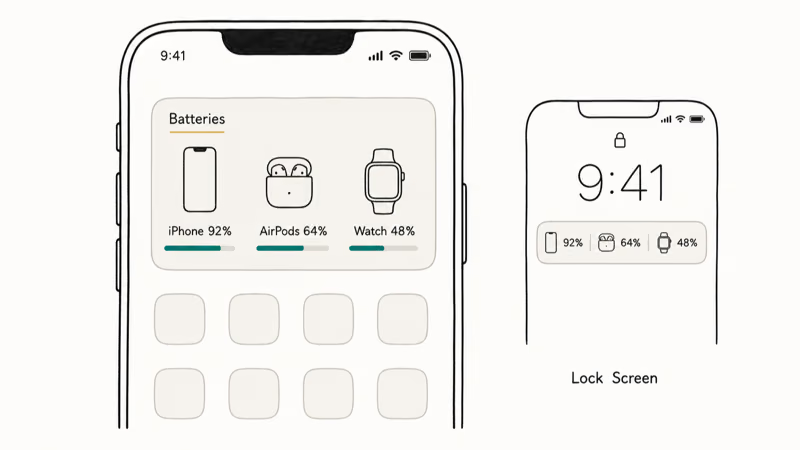
To add it to the Home Screen:
- Long-press an empty area of the Home Screen until icons jiggle
- Tap the + symbol in the top-left corner
- Search for Batteries
- Choose a size, then tap Add Widget
The Lock Screen version works the same way on iOS 16 and later. Long-press the lock screen, tap Customize, then tap the widget area below the clock and pick Batteries. Apple’s iPhone User Guide widget section confirms that lock-screen widgets refresh in the background and don’t require unlocking the phone.
The medium-size widget shows up to four devices, the small size shows one or two. If a paired accessory doesn’t appear, open Settings, then Bluetooth, and confirm the device shows as connected.
#Low Power Mode Forces the Number to Show
Switching on Low Power Mode automatically displays the percentage in your status bar even without the dedicated toggle. The battery icon turns yellow as a visible reminder that the mode is active.
Open Settings, tap Battery, then toggle Low Power Mode on. Or set up a Control Center shortcut by going to Settings, then Control Center, then adding the Low Power Mode tile. According to Apple’s support article on Low Power Mode, the feature reduces background activity, mail fetch, visual effects, and 5G usage to extend battery life by up to several hours.
Low Power Mode turns itself off automatically when the iPhone reaches 80% charge. The yellow icon and forced percentage display disappear at the same time. If you want the number visible after that, turn on the dedicated Battery Percentage toggle as a backup. For a deeper look at how Low Power Mode affects charging, see does Low Power Mode actually charge your iPhone faster.
#Does Battery Percentage Get Less Accurate Over Time?
Yes. Lithium-ion cells lose chemical capacity as they age, and the iPhone software can no longer translate voltage into a stable percentage when capacity drops too low.
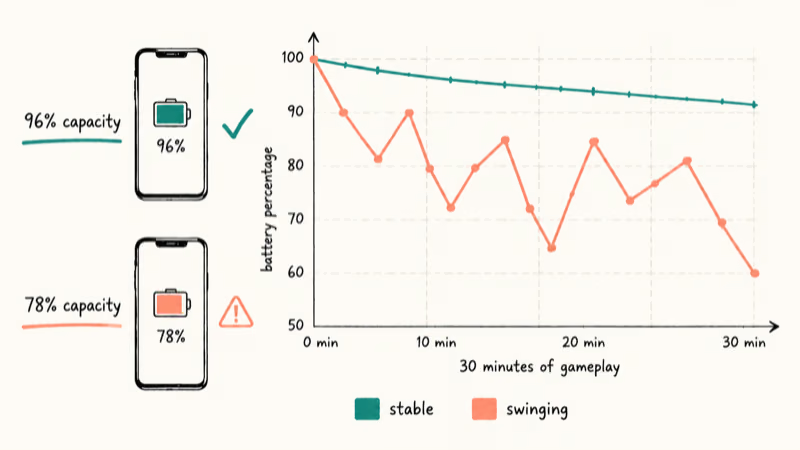
An iPhone with a worn battery can show jumpier percentage changes during heavy tasks such as games, video recording, or navigation. Percentage stability generally tracks battery health.
Open Settings, tap Battery, then tap Battery Health and Charging to see your maximum capacity number. Apple’s battery and performance guide states that iPhone batteries from iPhone 14 and earlier are designed to retain 80% of original capacity at 500 complete charge cycles, which works out to roughly two years of typical use. Below 80% capacity, the same screen shows a Service Recommended notice.
If you see big percentage jumps and your maximum capacity is below 80%, the maximum capacity number is the real culprit, not the iOS reading. A battery replacement restores both the runtime and the accuracy.
#Habits That Keep Your Battery Reading Honest
Watching the number is half the work. Keeping the cell healthy keeps the number meaningful.
Auto-Brightness is the first display setting to check. Open Settings, then Accessibility, then Display and Text Size, then turn Auto-Brightness on. Pair that with a manual brightness slider near the middle, and drop True Tone if you find it warm.
Background App Refresh quietly drains your charge while the phone sits in your pocket. Open Settings, then General, then Background App Refresh. Toggle off any app you rarely open and keep Mail, Messages, and travel apps enabled.
Wireless charging adds a few degrees of heat compared with a cable, and heat is the main accelerator of iPhone battery degradation.
Apple’s battery performance and longevity guidance states that iPhone should not be charged in environments above 35°C (95°F), since heat above that threshold may cause permanent capacity loss. If your case is thick or the bedroom is warm, switch to the cable until the air cools.
A solid Qi pad still has its place when convenience beats peak speed. Lower-power wireless charging is usually gentler than high-speed charging when heat is controlled, while thick cases and warm rooms can still push temperatures up. See our best wireless chargers for iPhone 11 roundup for practical charging options.
If your AirPods case stays stuck at 0%, the case may not be charging properly and the iPhone reports a stale number.
#Bottom Line
Turn on the Battery Percentage toggle under Settings, then Battery if your iPhone runs iOS 16.1 or later. That gives you a permanent number inside the status bar icon. Keep Control Center as your backup on any model and version, since the swipe-down readout never depends on a setting. If your maximum capacity drops below 80%, the percentage will start jumping and a battery replacement, not a software fix, is what restores accuracy.
iPhone battery problems
#Frequently Asked Questions
Why doesn’t my iPhone show the Battery Percentage toggle?
The toggle requires iOS 16.1 or later on an iPhone X or newer Face ID model. Open Settings, tap General, then About to read the iOS version. If you’re on iOS 16.0 or earlier, run Software Update to install the newest release. iPhone 8 and SE models always display the percentage by default in the status bar, so the switch never appears for them.
Does showing the battery percentage drain my battery faster?
No. The percentage is a software overlay on the existing status bar icon, so it has no meaningful effect on battery life over a normal day of use.
Can I add the Batteries widget to my lock screen?
Yes, on iOS 16 and later. Long-press your lock screen, tap Customize, then tap the widget area below the clock and pick Batteries from the list. The lock screen version shows the iPhone charge plus any connected AirPods or Apple Watch in a compact form.
How do I see AirPods battery percentage on my iPhone?
Open the AirPods case lid near a paired iPhone and the case plus earbud charge levels appear in a pop-up. The Batteries widget shows the same numbers without opening the case. If neither method shows AirPods, open Settings, tap Bluetooth, and confirm the AirPods appear as connected.
What percentage range should I keep my iPhone battery in?
Apple’s battery performance guidance recommends regular use rather than a strict range. Avoid leaving the phone at 100% in a hot car or letting it sit at 0% for days. Most importantly, leave Optimized Battery Charging enabled in Settings, Battery, Battery Health and Charging. The feature delays the final 20% of overnight charging until just before you wake up, which reduces the time the cell sits at full charge.
Why does my battery percentage jump from high to low?
Most jumps come from a degraded cell. Read the maximum capacity number under Settings, Battery, Battery Health and Charging. Below 80% the readings become unstable, especially under heavy load.
Will Low Power Mode keep the percentage visible after it turns off?
No. Low Power Mode forces the percentage and the yellow battery icon while it’s active. Once the phone charges past 80% and the mode turns off, both indicators disappear unless you have the dedicated Battery Percentage toggle enabled separately.
Is the battery percentage accurate on every iPhone?
Modern iPhones with healthy batteries are accurate within 1 to 2 points. Older batteries, extreme temperatures, or sustained high CPU load can swing the reading by 5 to 10 points. If you want a stable readout, check the maximum capacity number first and replace the battery if it has fallen below 80%.

Mac mini M6 vs M5 Pro: Which Model Should You Buy?
Mac mini M6 vs M5 Pro compared on price, memory, ports, displays, and real workloads. Find the better 2026 Mac mini for your desk and budget.

Apple Siri Settlement: Who Qualifies and How to Claim
Apple's $250 million Siri settlement covers iPhone 15 Pro and iPhone 16 models bought June 2024 to March 2025. See who qualifies and how claims work.

iOS 26.6.1 Security Update: What Apple Fixed and Who Gets It
Apple released iOS 26.6.1 on August 17 with 29 security fixes, including an IPSec interception bug. See what it patches, who gets it, and how to update.
How to Transfer Data to a New iPhone Without iCloud
Move everything to your new iPhone without iCloud: Quick Start device-to-device transfer, wired migration, and encrypted Finder or iTunes backups.