How to Fix Stuck iPhone When Updating iCloud Settings
Fix an iPhone stuck on Updating iCloud Settings with steps for iPhone 8 and later, including restart, status, network, and computer updates.
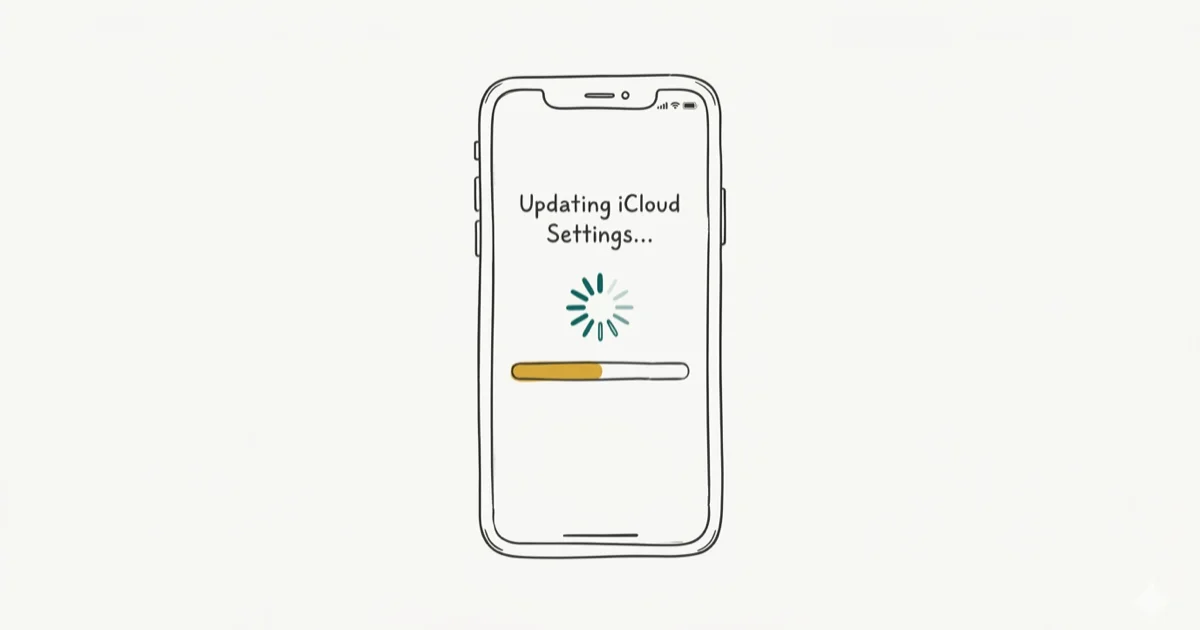
Quick AnswerForce restart your iPhone by pressing and releasing Volume Up, then Volume Down, then holding the Side button until the Apple logo appears. If the screen returns, check Apple services and update through a computer.
Your iPhone is frozen on the “Updating iCloud Settings” screen, and nothing seems to work. This happens most often after a major iOS update when the device tries to sync your iCloud data and gets caught in a loop. Start with a force restart, then move to sign-in, network, server-status, and computer-update fixes if needed.
- A force restart is the fastest first step for a stuck iCloud settings screen
- Keep the iPhone connected to power and Wi-Fi while an iOS update completes
- Check Apple’s System Status page for real-time iCloud server outages before troubleshooting
- Resetting network settings erases saved Wi-Fi passwords but resolves sync freezes on iOS 15+
- A computer-based update through Finder or Apple Devices is the safest fix for stubborn cases
#Why Does Your iPhone Get Stuck on Updating iCloud Settings?
The “Updating iCloud Settings” screen appears right after an iOS update finishes installing. Your iPhone contacts Apple’s servers to sync your iCloud data, and that process can stall for several reasons.
Unstable Wi-Fi is a common culprit. A dropped sync connection can leave iCloud setup hanging.
Interrupted power can stop an update from completing. According to Apple’s iPhone update guide, you should connect the device to power and Wi-Fi before updating.
Overloaded Apple servers cause problems too, especially on launch day when millions of devices sync at once.
Insufficient storage rounds out the list. According to Apple’s update troubleshooting guide, you need enough available storage to download an update. Go to Settings > General > iPhone Storage to check your available space before starting.
#How to Force Restart Your iPhone (Method 1)
A force restart is the fastest fix and works on most iPhones. The steps depend on your model.
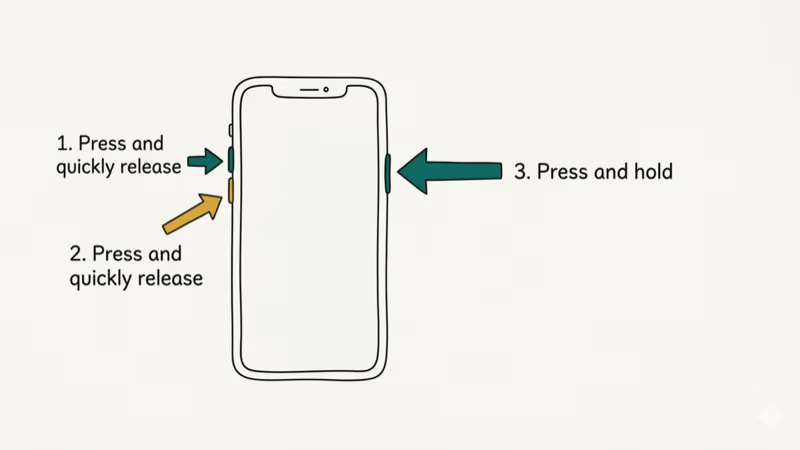
iPhone 8 and later:
- Press and quickly release the Volume Up button
- Press and quickly release the Volume Down button
- Press and hold the Side button until the Apple logo appears
iPhone 7 / 7 Plus:
- Press and hold both the Volume Down button and the Sleep/Wake button
- Release when the Apple logo appears
iPhone 6s and earlier:
- Press and hold both the Home button and the Top (or Side) button
- Release when the Apple logo appears
After the restart, your iPhone should boot normally and finish the iCloud setup. If the “Updating iCloud Settings” screen appears again, move on to Method 2.
#Skip the iCloud Sign-In During Setup
If the force restart brings you back to the setup screen, you can skip the iCloud step entirely and configure it later.
- When you see the iCloud sign-in prompt, tap Skip This Step or Set Up Later in Settings
- Complete the rest of the setup process
- Once you’re on the home screen, go to Settings > [your name] > iCloud and sign in there
Signing in later can help when Apple’s servers are slow or the initial setup flow keeps stalling. After the device finishes its initial boot, return to Settings and complete the iCloud sign-in there.
If you’re also having trouble with your iCloud not syncing notes properly, that’s a separate but related issue worth checking after you get past this screen.
#How to Check Apple’s iCloud Server Status?
Sometimes your iPhone isn’t the problem. Apple’s servers might be down.
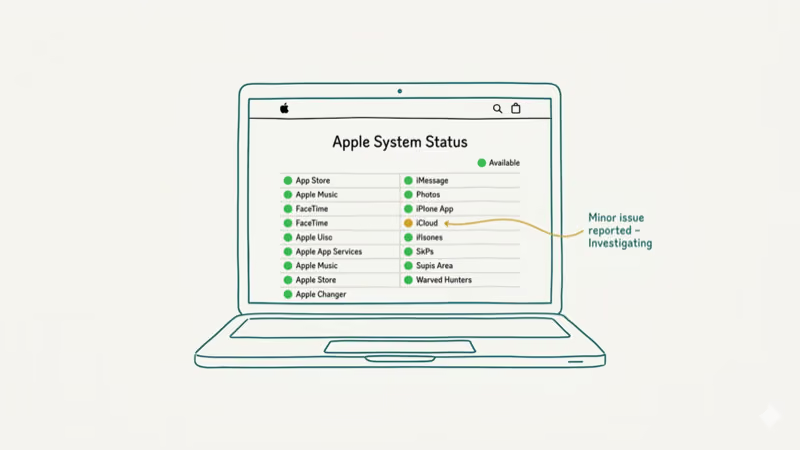
- Open a browser on another device (phone, tablet, or computer)
- Go to apple.com/support/systemstatus
- Look for colored dots next to iCloud Account & Sign In, iCloud Backup, and iCloud Drive
Green means that service is running normally. Yellow or red means Apple knows about the problem. Outage duration varies, so check this page before you spend time troubleshooting the iPhone itself.
Don’t keep restarting your iPhone while you wait. Just leave it plugged in and connected to Wi-Fi, and the update will finish on its own once servers recover. If you’ve also been dealing with verification failures on your iPhone at the same time, a server outage is very likely the root cause of both problems, and both will resolve together once Apple’s infrastructure is back online and processing sync requests normally.
#Reset Network Settings
If your Wi-Fi connection is causing the iCloud update to stall, resetting network settings wipes the slate clean and forces your iPhone to rebuild all its connection configurations from scratch, which resolves most sync-related freezes.
- Go to
Settings>General>Transferor Reset iPhone - Tap
Reset>Reset Network Settings - Enter your passcode, and your iPhone will restart automatically
Important: This erases all saved Wi-Fi passwords, Bluetooth pairings, and VPN configurations. Write down your Wi-Fi password first.
After the reset, reconnect to Wi-Fi and try the iCloud update again.
You might also want to check if you can’t sign out of your Apple ID due to restrictions. That can interfere with iCloud updates too.
#Update Your iPhone Using a Computer
When nothing else works, connect your iPhone to a computer and reinstall iOS. This method keeps your data if you choose Update instead of Restore.
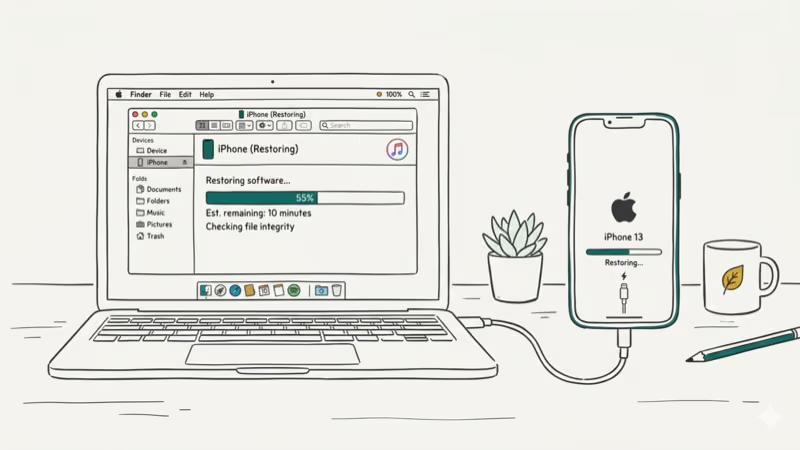
On a Mac (macOS Catalina or later):
- Connect your iPhone to your Mac with a USB cable and open Finder
- Select your iPhone in the sidebar
- Click Check for Update, then click Update (not Restore) to reinstall iOS without erasing data
On Windows or an older Mac:
- Open the Apple Devices app on Windows, or iTunes on a Mac running macOS Mojave or earlier
- Connect your iPhone and select it when it appears
- Choose Update rather than Restore
According to Apple’s Restore screen guide, you should click Update (not Restore) to reinstall iOS while keeping your personal data. Keep the iPhone connected until the update finishes.
If your iPhone is completely unresponsive, you may need to put it in recovery mode first. Press Volume Up, then Volume Down, then hold the Side button until you see the recovery mode screen (a cable pointing to a computer icon). Then proceed with the update from Finder, Apple Devices, or iTunes as appropriate for your computer.
For related boot issues, check our guide on fixing an iPhone stuck on the loading screen or an iPhone that won’t turn on.
#Preventing Future iCloud Update Freezes
You can avoid this problem next time by preparing your iPhone before any iOS update.
Plug in your iPhone before starting so a loss of power can’t interrupt the update.
Free up storage space. Go to Settings > General > iPhone Storage and follow Apple’s storage recommendations if the device reports that it needs more room.
Use a strong Wi-Fi connection. Sit close to your router and avoid public Wi-Fi.
Wait after a new iOS release. Apple’s servers get hammered on launch day. Waiting lets the traffic die down and also gives Apple time to patch any first-day bugs.
Back up first. Go to Settings > [your name] > iCloud > iCloud Backup > Back Up Now. If anything goes wrong during the update, you won’t lose data. For more on what restoring actually does to your phone, read our explainer on what “restore iPhone” means.
#Bottom Line
Start with a force restart. It’s the fastest low-risk fix for this screen.
If it doesn’t work, skip the iCloud sign-in during setup and configure it later from Settings. For stubborn cases, a computer-based update through Finder or iTunes will get your iPhone running again without losing any of your data. Keep your phone charged and your Wi-Fi stable to prevent this from happening again.
#Frequently Asked Questions
How long should updating iCloud settings take normally?
It normally finishes quickly on a stable Wi-Fi connection. If the screen doesn’t move for a long time, treat it as stuck and start with a force restart.
Will I lose my data if I force restart during the iCloud update?
No. A force restart doesn’t erase any data on your iPhone. It cuts power to the processor and reboots the device, and all your photos, messages, apps, and settings stay intact. The iCloud sync picks up where it left off after the restart completes.
Can I update iCloud settings using cellular data instead of Wi-Fi?
Wi-Fi is the safer choice. Apple requires a Wi-Fi connection for standard wireless iOS updates, and a stable connection also reduces the chance of an interrupted iCloud sync.
Why does my iPhone keep getting stuck on iCloud settings after every update?
Repeated freezes usually point to a deeper issue. Your iCloud storage might be full, preventing the sync from completing. Go to Settings > [your name] > iCloud > Manage Storage to check. If storage isn’t the problem, try signing out of iCloud completely (Settings > [your name] > Sign Out), then signing back in after the update.
Does resetting network settings delete my apps or photos?
No. This only removes Wi-Fi passwords, Bluetooth pairings, and VPN configurations. Your apps, photos, messages, and all other personal data are completely untouched by a network settings reset.
Should I contact Apple Support if none of these fixes work?
Yes. If you’ve tried every method in this guide and your iPhone is still stuck, reach out to Apple Support. They can run hardware diagnostics to check for Wi-Fi antenna or storage chip issues that no software fix can address.
Is the “Updating iCloud Settings” freeze more common on older iPhones?
Older models like the iPhone 8 and iPhone X are more likely to freeze during iCloud updates because they have slower processors and less RAM. The sync process demands more from the hardware on these devices. If you’re using an older model, make sure to close all apps before updating and keep the phone plugged into power throughout the entire process.
Can a third-party repair tool fix a stuck iCloud settings screen?
Third-party iOS repair tools like Tenorshare ReiBoot can force your iPhone out of a stuck state without data loss. These tools work by reinstalling the iOS firmware while preserving your files. They’re worth considering if the standard force restart and computer restore methods don’t work for your specific situation.
Some links on this page are affiliate links, which means fone.tips may earn a commission at no extra cost to you.

Mac mini M6 vs M5 Pro: Which Model Should You Buy?
Mac mini M6 vs M5 Pro compared on price, memory, ports, displays, and real workloads. Find the better 2026 Mac mini for your desk and budget.

Apple Siri Settlement: Who Qualifies and How to Claim
Apple's $250 million Siri settlement covers iPhone 15 Pro and iPhone 16 models bought June 2024 to March 2025. See who qualifies and how claims work.

iOS 26.6.1 Security Update: What Apple Fixed and Who Gets It
Apple released iOS 26.6.1 on August 17 with 29 security fixes, including an IPSec interception bug. See what it patches, who gets it, and how to update.

iPhone Adaptive Power: How It Works and When to Use It
Learn how iPhone Adaptive Power works, which models support it, what it changes, and when Low Power Mode is still the better battery-saving choice.