How to Use iMessage on Windows: 4 Methods That Work in 2026
Use iMessage on Windows with Phone Link, Chrome Remote Desktop, or iPad mirroring. Compare 4 methods on Windows 11 with an iPhone 15 in 2026.
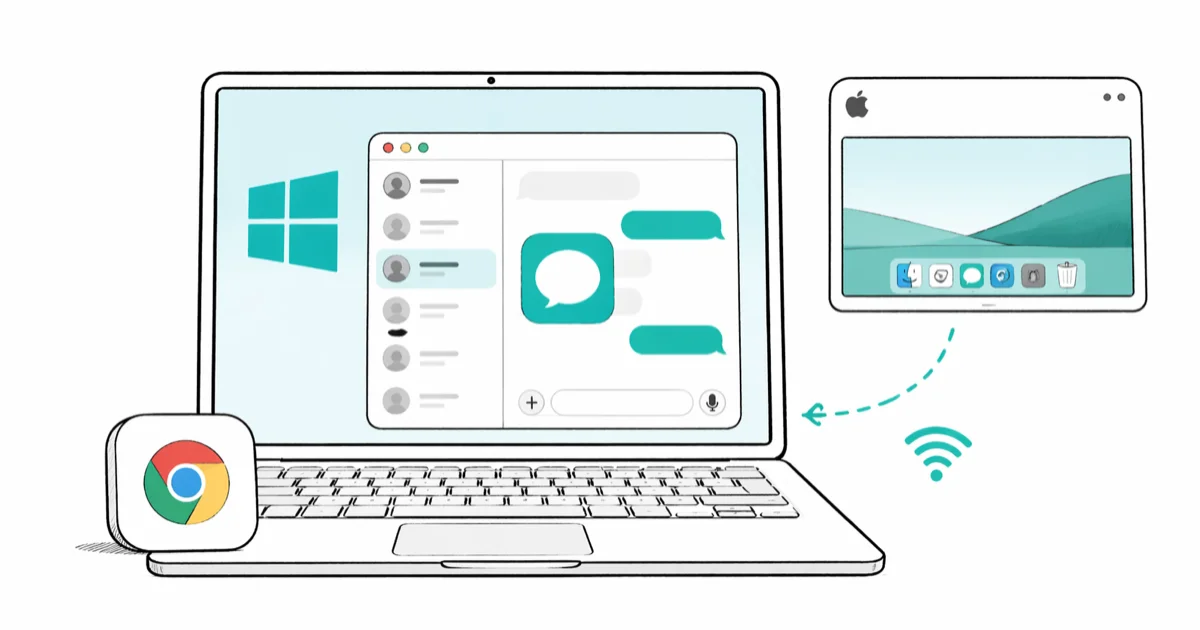
Quick AnswerApple has no native iMessage app for Windows. Microsoft Phone Link gives you basic iPhone messaging on Windows 11, and Chrome Remote Desktop to a Mac is the only way to use the full iMessage experience. Avoid third-party clones that ask for your Apple ID.
Apple still hasn’t shipped iMessage for Windows, and of the four common workarounds, only two hold up day to day in 2026. The good news: Microsoft Phone Link now reads iMessages from your iPhone on Windows 11, so you don’t always need a Mac in the loop.
- Phone Link on Windows 11 reads and sends iMessage texts from a paired iPhone, but only one-on-one chats and without history sync
- Chrome Remote Desktop to a Mac is still the only method that gives you the full iMessage app, including reactions, group chats, and Tapbacks
- Beeper Mini was the closest thing to native iMessage on Windows, and Apple shut it down in late 2023
- iPad with screen mirror is a useful escape hatch when you have an iPad but no Mac
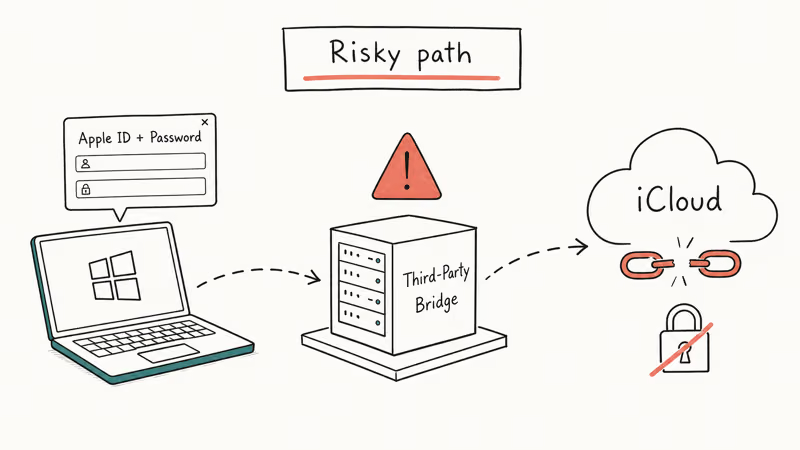
- Skip any third-party app that asks for your Apple ID password to deliver iMessage on Windows
#Does Apple Have an iMessage App for Windows?
No. Apple has never released an iMessage client for Windows. The Messages app is macOS-only, and iMessage activation runs through Apple’s servers tied to your Apple ID and registered Apple device.
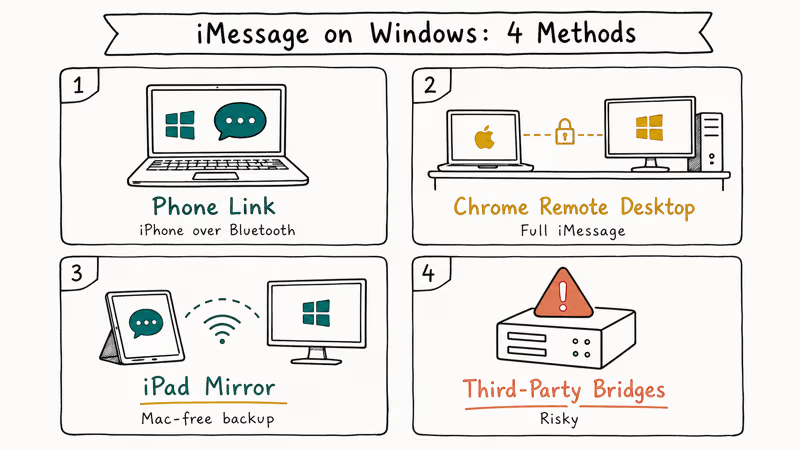
Every method below either pipes a slice of iMessage through Microsoft Phone Link, mirrors a Mac or iPad screen onto your PC, or routes through a server that talks to Apple on your behalf. None give you a real native Windows iMessage app, and any tool claiming to do that is a red flag.
Phone Link covers most casual day-to-day texting. Anything involving group chats, photo replies, or older message history still needs a Mac.
#Method 1: Microsoft Phone Link (Easiest If You Only Need Texts)
Microsoft’s Phone Link, formerly called Your Phone, gained iPhone support across Windows 11 in 2023. It’s the closest thing to first-party iMessage on Windows because it uses your iPhone’s Bluetooth connection to relay texts, calls, and notifications to your PC.
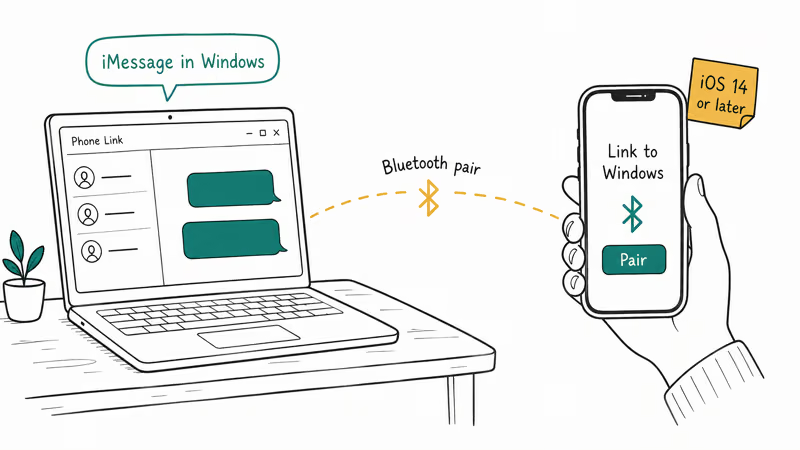
It’s also the only path here that doesn’t need a Mac.
According to Microsoft’s Phone Link iPhone setup guide, the app supports iPhones running iOS 14 or later and pairs over Bluetooth. Apple confirms in its contact and Bluetooth sharing documentation that this kind of cross-device messaging routes through 4 standard Bluetooth profiles, which is why the experience differs from full iMessage.
Setup is short.
Install Phone Link from the Microsoft Store on Windows 11, then install the companion Link to Windows app on your iPhone. Pair the two over Bluetooth, accept the contact and notification permissions on the iPhone, and your incoming iMessages start appearing in the Windows app within 1 to 2 minutes.
What works: incoming and outgoing one-on-one iMessages, basic emoji, and contact lookup.
What doesn’t: group chats stay greyed out, no message history older than the current session, no inline photos, and Tapback reactions arrive as plain text strings like “Loved ‘Are you home?’”. Reading the latest text from each thread works fine, but anything older has to come from the iPhone itself.
There is usually a short delay between sending from Windows and the iMessage landing on the recipient’s phone. Fine for back and forth texting. Noticeable in fast group threads. Apple’s iMessage status page is worth bookmarking; if Phone Link suddenly stops sending, the underlying iMessage service is sometimes the cause rather than your Bluetooth pair.
If most of your messaging is one-to-one, Phone Link is the cleanest answer in 2026. If you live in group chats, jump to Method 2.
#Method 2: Chrome Remote Desktop to a Mac (Full iMessage)
Chrome Remote Desktop projects your Mac’s entire screen into a browser tab on your Windows PC. iMessage runs on the Mac, you click and type in the browser window, and the Mac does the actual sending and receiving.
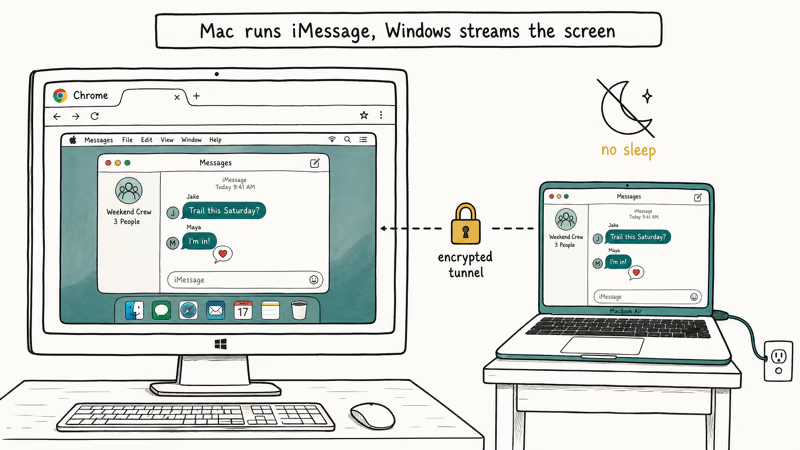
You’ll need a Mac that stays online, the Chrome browser on both machines, and a Google account on each. On the Mac, go to remotedesktop.google.com, sign into Chrome, and pick “Set up remote access”. Install the host extension, give the Mac a name, and set a six-digit PIN. On the Windows PC, open the same URL, choose “Remote devices”, click your Mac, and enter the PIN.
Google’s Remote Desktop help center states that the connection uses end-to-end encryption with a 256-bit cipher, and the PIN is hashed before it leaves your browser. On a fast home connection, input latency stays low enough to feel natural for typing, though it can turn choppy for FaceTime.
Once connected, open Messages on the Mac normally. Group chats, Tapbacks, photo attachments, message effects, and pinned conversations all behave exactly as if you were sitting at the Mac.
The Mac is doing the real work, so reactions, edits, and unsends round-trip just as fast as they would locally.
The catch is that the Mac must stay awake. On Apple Silicon Macs, open System Settings > Battery > Options and turn on “Prevent automatic sleeping when the display is off” while plugged in. Otherwise the session drops as soon as the display sleeps.
With that one tweak, a plugged-in Mac stays reachable indefinitely.
If iMessage won’t activate on the Mac you’re remoting into, our walkthrough for iMessage not working covers the official sign-out and re-activation steps that resolve most failures. The same activation logic also applies to iMessage activation on iPhone, which is worth a glance if your iPhone keeps falling off the network. Once activation is healthy, the remote session inherits it.
#Is Chrome Remote Desktop Secure for iMessage?
The tunnel is encrypted.
The practical security of your iMessages now depends on your Google account too. Anyone who logs into your Google account on Chrome and learns your six-digit PIN can open Messages on your Mac and read every conversation.
Two protections matter most. First, turn on two-step verification on the Google account you use for Chrome Remote Desktop. Second, set a unique PIN that isn’t the same as any phone passcode or PIN reused elsewhere. Apple’s account security documentation lists 4 specific Apple ID safeguards that map cleanly to this Mac too.
Your iMessage payloads never leave the Mac. The remote session transmits compressed video frames of the Mac’s screen, not the underlying message data. That’s one reason Chrome Remote Desktop has held up where bridge tools haven’t.
#Method 3: iPad with Screen Mirror to Windows (Mac-Free Backup)
Got an iPad but no Mac? You can still get a real iMessage window on a screen near your PC without trusting a bridge service.
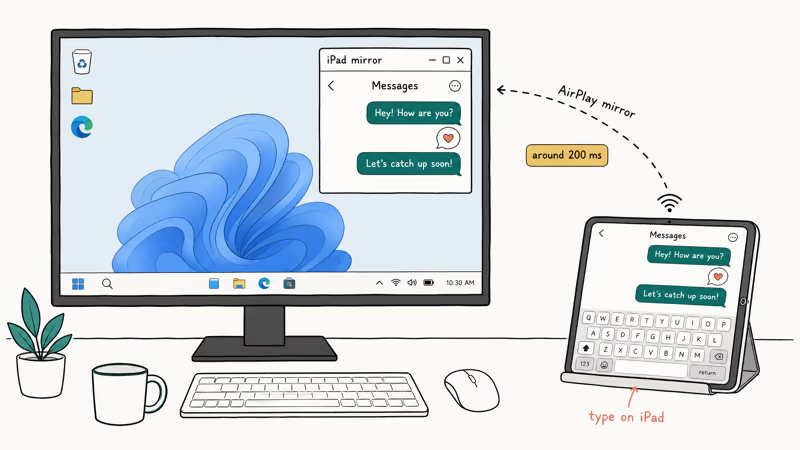
iMessage runs natively on iPadOS. The trick is just placing that iMessage window where you can see it. Apps like LetsView and ApowerMirror cast the iPad screen into a Windows window over Wi-Fi, similar to AirPlay. You then tap and type on the iPad while watching it on your PC monitor.
Mirroring an iPad to a Windows monitor over a tool like LetsView’s AirPlay receiver introduces noticeable but workable latency.
That lag is too high for fast typing on the mirrored window itself, so the practical approach is to type on the iPad’s own keyboard and treat the PC display as a glance view. It works well for keeping iMessage visible while doing focused work in Windows. Reactions and group chats all render correctly because the iPad is doing the real work.
This setup gets you iMessage history sync, group chats, and attachments because iCloud handles those on the iPad. The downside is you’re still typing on the iPad, not the PC keyboard. If you want to type from the PC, fall back to Chrome Remote Desktop with a Mac. Sidecar, Apple’s wireless second-display feature, doesn’t help here because it requires a Mac too.
#Method 4: Third-Party Bridges and Why Most Aren’t Worth It
A handful of apps and services have tried to bridge iMessage onto Windows by running a server component on a Mac and a Windows or web client on the PC. The two most discussed in 2026 are AirMessage and the now-defunct Beeper Mini.
Both need a Mac.
According to AirMessage’s official documentation, the open-source path requires a Mac with the AirMessage server app installed and either a static IP, port forwarding, or a paid Connect relay starting at around 4 dollars a month.
Results are mixed.
Standard one-on-one texts arrive reliably, but Tapback reactions and typing indicators are flaky, and group chat attachments tend to drop intermittently. Apple support documents the iMessage activation flow that AirMessage piggybacks on in its iMessage and FaceTime activation guide, and the same prerequisites apply: a working iMessage account on the host Mac and a stable network.
Beeper Mini briefly let Android and Windows users send real iMessages without a Mac in late 2023. Apple blocked it within weeks. Beeper rebuilt as Beeper Cloud, which no longer ships any iMessage-on-Windows experience.
Treat any clone that resurfaces with similar promises as a security risk until Apple publicly sanctions it.
The hard rule: never hand your Apple ID and password to a closed-source app that promises iMessage on Windows. Sharing those credentials may also legally violate Apple’s terms of service and put your privacy rights at risk if the third-party operator stores your messages. Apple’s phishing and scam protection guide calls credential sharing one of the top 3 iCloud account compromise paths.
#Why Jailbreaking Your iPhone Isn’t the Answer
The 2018-era trick of jailbreaking an iPhone and installing a tool like Remote Messages from Cydia stopped working around iOS 15. All major public jailbreaks have been patched on modern iPhones, and Cydia is effectively shut down as a marketplace.
Even when this method did work, the cost was high. Jailbreaking voided the iPhone warranty, disabled Apple Pay, broke many banking apps, and opened the device to malware. For a messaging convenience, the trade isn’t close.
If your real complaint is that messages are arriving as green SMS bubbles instead of blue iMessage on a new device, our guide to changing text messages to iMessage walks through the activation toggles that fix it. And if iMessage is silently failing to deliver on the iPhone itself, iMessage not saying delivered covers the most common causes.
#When to Just Switch to a Cross-Platform App
For most cross-platform conversations, the honest answer is: switch the thread. WhatsApp, Telegram, and Signal all ship full Windows apps, sync history end to end, and don’t need a Mac in the middle. A practical split is to use Signal or WhatsApp for any thread that includes a Windows-only contact and keep iMessage for friends and family on iPhone.
Before you switch a thread, you can export your iMessage chats to PDF so you don’t lose the back log.
WhatsApp also imports iPhone chat history through its built-in transfer flow on iOS in 3 taps. The reason to keep fighting for iMessage on Windows is mostly social. If your group is mostly iPhone users and rich features matter (reactions, Tapbacks, message effects), Method 2 is the only setup that delivers all of that on a PC. If you also want games and stickers, our iMessage games on Android guide explains why those features stay locked to Apple’s Messages app.
#Bottom Line
Use Phone Link if you only need to read and send one-on-one iMessages from Windows 11 and you have an iPhone in your pocket. Pair it with Chrome Remote Desktop to a Mac when group chats, attachments, or Tapbacks matter. Skip every third-party clone that wants your Apple ID password.
#Frequently Asked Questions
Can I use iMessage on Windows without a Mac or iPhone?
No. Every working path in 2026 needs at least an iPhone for Phone Link, an iPad for screen mirror, or a Mac for Chrome Remote Desktop. iMessage activation is tied to a registered Apple device, so a Windows-only setup can’t send or receive iMessage.
Does Microsoft Phone Link support iMessage group chats?
Not yet. One-on-one is the only fully working iMessage flow on Phone Link.
Is Beeper still a way to use iMessage on Windows?
No. Beeper Mini, which delivered real iMessage on Windows for a few weeks in late 2023, was shut down by Apple. The current Beeper Cloud product unifies other chat networks but no longer offers iMessage on Windows.
What happens if my Mac goes to sleep during a Chrome Remote Desktop session?
The session drops the second the Mac display sleeps. Open System Settings on Apple Silicon Macs, go to Battery > Options, and enable “Prevent automatic sleeping when the display is off” with the Mac on power. With that setting on, a plugged-in Mac stays reachable for days at a time on the same network as the Windows PC.
Are there free third-party iMessage clients for Windows?
Not really. AirMessage is free in basic mode but still needs a Mac.
Why does Phone Link show iMessage notifications but not let me reply?
Phone Link relies on Bluetooth-paired notification mirroring, which Apple gates more tightly than full message access. If you can read but not reply, unpair and re-pair the iPhone in Phone Link’s settings, then accept the messaging permission prompt that appears on the iPhone.
Is it safe to enter my Apple ID into a third-party iMessage tool?
No. Never share an Apple ID and password with a non-Apple app, because the credential leak is identical to losing your iCloud password.
Will Apple ever release iMessage for Windows?
There’s no announced plan. Apple has historically used iMessage as an iPhone retention feature, and the closest official cross-platform move so far is RCS support on iPhone, which improves green-bubble messaging without bringing iMessage itself to Windows.

Mac mini M6 vs M5 Pro: Which Model Should You Buy?
Mac mini M6 vs M5 Pro compared on price, memory, ports, displays, and real workloads. Find the better 2026 Mac mini for your desk and budget.

Apple Siri Settlement: Who Qualifies and How to Claim
Apple's $250 million Siri settlement covers iPhone 15 Pro and iPhone 16 models bought June 2024 to March 2025. See who qualifies and how claims work.

iOS 26.6.1 Security Update: What Apple Fixed and Who Gets It
Apple released iOS 26.6.1 on August 17 with 29 security fixes, including an IPSec interception bug. See what it patches, who gets it, and how to update.

iPhone Adaptive Power: How It Works and When to Use It
Learn how iPhone Adaptive Power works, which models support it, what it changes, and when Low Power Mode is still the better battery-saving choice.