iPhone Call Failed: 10 Fixes That Actually Work (2026)
Fix the iPhone Call Failed error with 10 proven methods covering signal, SIM, carrier settings, VoLTE, and iOS bugs, all using official Apple settings.
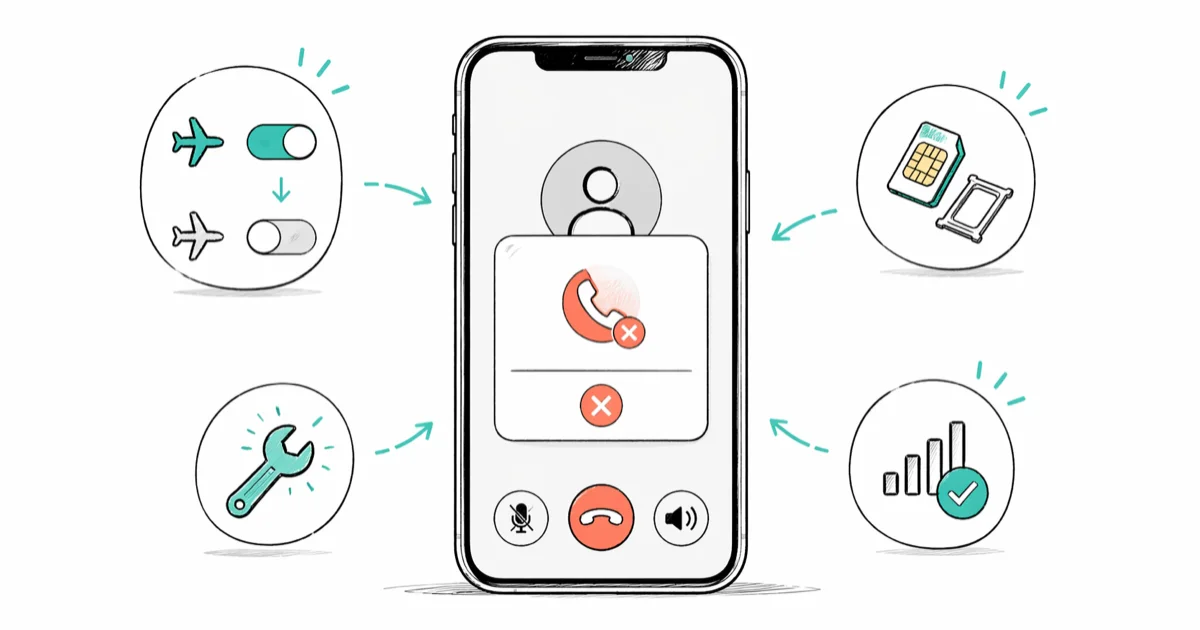
Quick AnswerToggle Airplane Mode on for 10 seconds, then off to reset your cellular connection. This fixes the Call Failed error on most iPhones. If that fails, reseat your SIM card and check for a carrier settings update.
iPhone call failed errors stop your calls from connecting or drop them right after dialing. All 10 fixes below are for your own phone and use official Apple settings. Most call failures clear up within a few minutes using the first three methods, so work through them in order before escalating.
- Airplane Mode toggle forces a full cellular reconnect and resolves a large share of call failures
- A loose or corroded SIM card causes repeated call drops that software fixes can’t resolve
- Outdated carrier settings are a separate update from iOS and often fix call routing errors silently
- VoLTE conflicts cause call failures on certain carriers even with full signal bars showing
- Resetting network settings rebuilds the entire cellular stack without touching your apps or personal data
#What Causes the iPhone Call Failed Error?
Almost every call failed error traces back to one of three causes: weak signal, a SIM card problem, or a software conflict in the cellular stack.
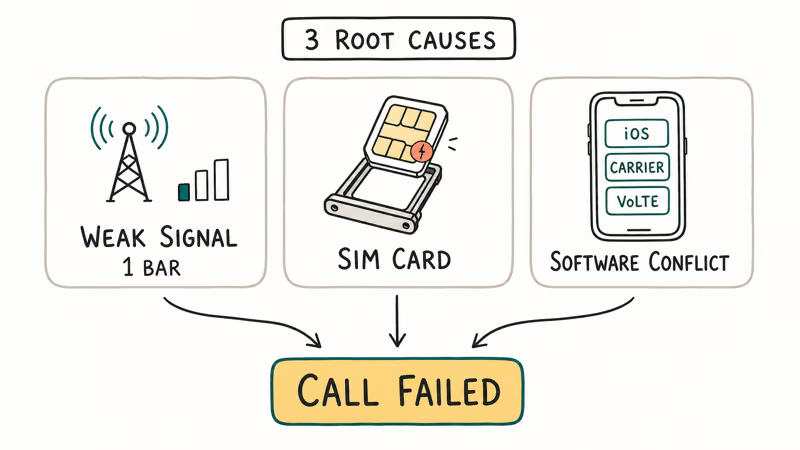
Weak signal is the most obvious. If you see one bar or fewer, your iPhone can’t maintain a stable voice connection. Move to a window or step outside.
SIM card issues are sneaky. A partially unseated SIM tray returns “Call Failed” within a ring or two, and dust on the gold contacts or a hairline crack produces the same result. Data and texts sometimes still work fine while calls fail, so you don’t suspect the SIM right away.
Software conflicts usually appear after an iOS update, a carrier switch, or when VoLTE settings don’t match what your carrier actually supports. These respond well to the fixes below.
#Quick Fixes to Try First
#1. Toggle Airplane Mode
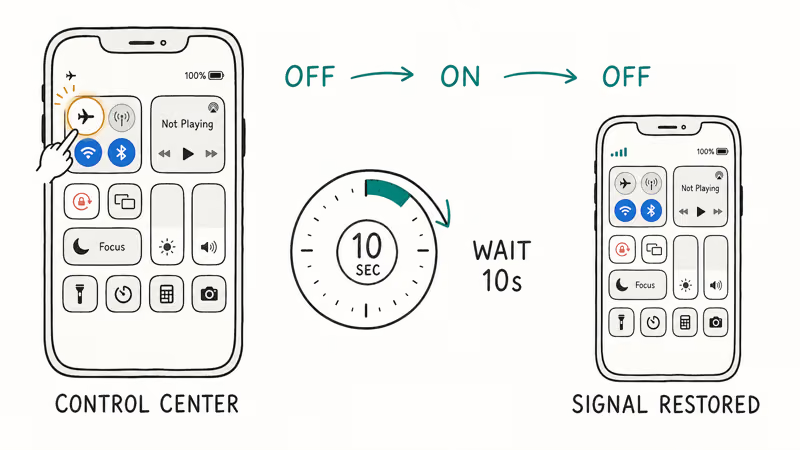
Open Settings and tap Airplane Mode to turn it on. Wait 10 seconds, then turn it off. This forces your iPhone to disconnect from the tower and rebuild the connection from scratch.
Alternatively, swipe down from the top-right corner to open Control Center and tap the airplane icon. Wait 15 seconds before trying your call again. This one step resolves the problem for most people.
#2. Restart Your iPhone
Hold the side button and either volume button until the power-off slider appears. Drag it, wait 30 seconds, and hold the side button to turn the phone back on.
A restart clears temporary issues in the cellular radio that an Airplane Mode toggle sometimes misses. The whole process takes under 2 minutes. If your phone is completely unresponsive, check our guide on what restoring your iPhone means before taking drastic steps.
#3. Check Your Signal Strength
Look at the bars in the top-left corner. One bar or none means your call will likely fail before it connects. Walk outside or go to a higher floor.
For persistently poor indoor coverage, enable Wi-Fi Calling. Open Settings > Phone > Wi-Fi Calling and turn it on. According to Apple’s Wi-Fi Calling support page, this feature routes voice calls over your Wi-Fi network when cellular signal is too weak to maintain a connection.
#SIM Card Fixes
#4. Reseat the SIM Card
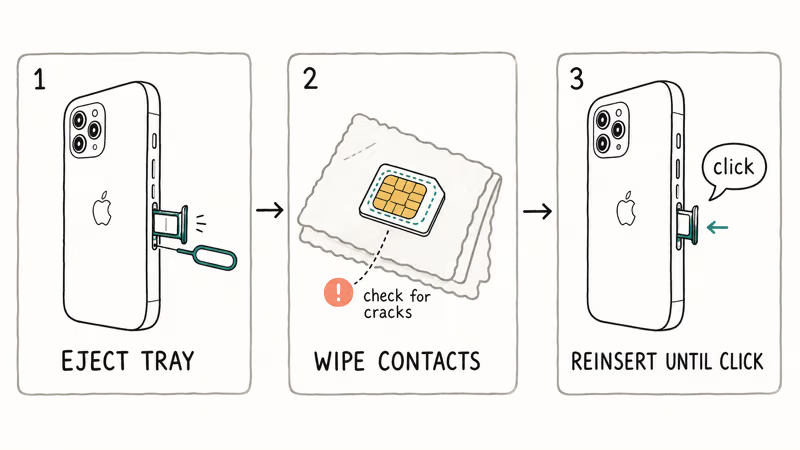
Eject the SIM tray using the included SIM tool or a paperclip. Pull out the SIM card, wipe the gold contacts gently with a clean dry cloth, and push it back in firmly until the tray clicks.
If the contacts look cracked, corroded, or bent, the card itself needs replacing. Your carrier will swap it for free at any store. This step also helps with the closely related iPhone No SIM Card error that sometimes appears alongside call failures.
#5. Turn Off Call Blocking Apps
A third-party call-blocking app or a disabled Caller ID setting can prevent outgoing calls entirely.
Check Settings > Phone > Call Blocking & Identification for any app actively blocking calls. Disable anything you don’t recognize. Then open Settings > Phone > Show My Caller ID and make sure it’s on. Some carriers reject outgoing calls when Caller ID is hidden.
#How Do You Fix Carrier Settings Issues?
#6. Update Carrier Settings
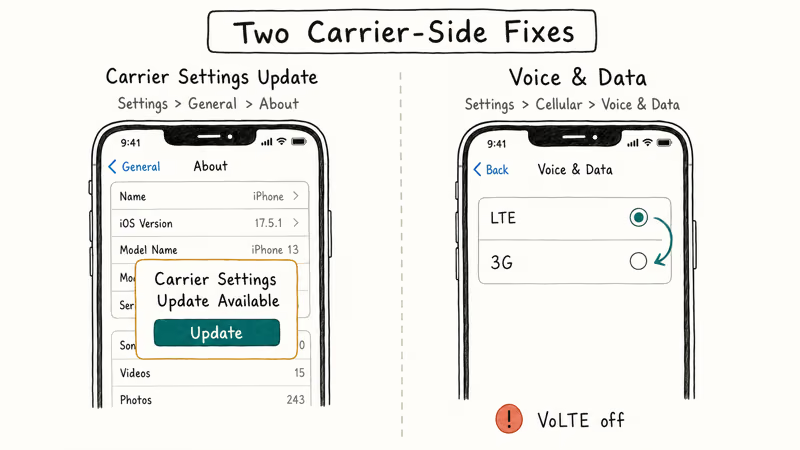
Carrier settings control how your iPhone routes calls on your specific network. They’re separate from iOS, and an outdated file often causes call failures after a carrier infrastructure change.
Connect to Wi-Fi, then open Settings > General > About. If an update is available, a popup appears within a few seconds. Tap Update. According to Apple’s carrier settings documentation, these updates modify cellular configurations, roaming behavior, and voice call routing rules.
#7. Switch VoLTE or Data Mode
VoLTE (Voice over LTE) isn’t supported on every plan or in every region. When your iPhone tries to route a voice call over LTE but the carrier doesn’t support it, every call fails instantly despite full signal bars.
Open Settings > Cellular > Cellular Data Options > Voice & Data. If it shows LTE, try switching to 3G temporarily. On a prepaid plan that hasn’t enabled VoLTE, this single change often fixes call failures outright.
When calls go through on 3G, you’ve confirmed the carrier’s LTE voice settings are the issue. Contact your carrier to enable VoLTE on your plan.
#8. Ask the Carrier to Check the Line
According to Apple’s call-failure guide, users should ask the carrier whether the account is set up for the iPhone, whether there’s a local outage or billing block, and whether the carrier system shows call errors. Use the carrier’s documented support route rather than dialing an undocumented code copied from a forum.
#iOS and Account Fixes
#9. Reset Network Settings
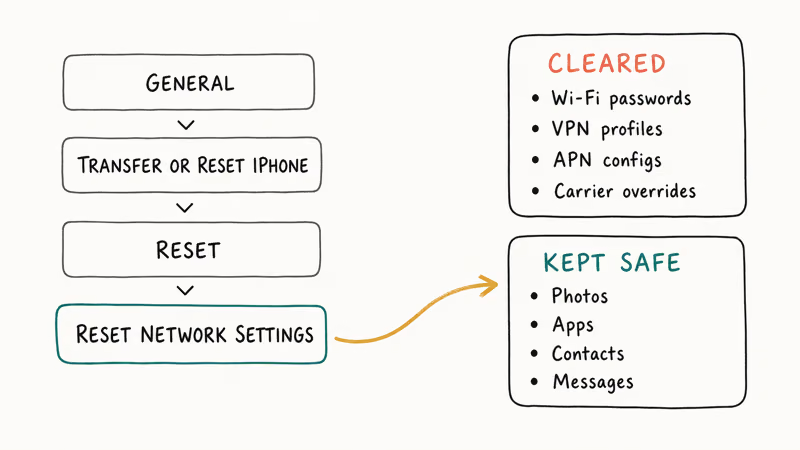
This is the most thorough software fix available. Open Settings > General > Transfer or Reset iPhone > Reset > Reset Network Settings. Enter your passcode and let the phone restart.
The reset clears all stored APN configurations, VPN profiles, saved Wi-Fi passwords, and carrier overrides. Your iPhone rebuilds the cellular stack from scratch. Apps and personal data stay untouched. You’ll just need to re-enter Wi-Fi passwords.
This fix also resolves related problems like not receiving texts on iPhone and FaceTime stuck on waiting for activation, since all three share the same network configuration root cause.
#10. Update iOS
Open Settings > General > Software Update and install any available update. Apple’s current call-failure guide lists both iOS updates and carrier-settings updates among its troubleshooting steps. Test a call afterward.
If calls still fail after updating, your carrier may have an account-level issue: a suspended line, an unpaid balance, or a porting error. Call your carrier from a different phone to verify your account status. If you’re on AT&T and also dealing with device locks, your carrier is legally required to unlock your device after the contract period ends. Our guide on AT&T iPhone unlocking covers the official process.
#When the Problem Is Hardware
If all 10 software checks fail, hardware damage is one possibility. Test with another SIM before arranging service.
Test with a known-good SIM from the same carrier. If calls still fail with a different SIM, the hardware needs service. Book a Genius Bar appointment through the Apple Support app.
You can also check whether WhatsApp calls work while regular calls fail. If internet-based calls connect fine but cellular calls don’t, that confirms the problem is carrier-side or hardware-specific rather than a general audio issue.
#Bottom Line
Start with Fix 1, the Airplane Mode toggle, and test a call. If that doesn’t work, reseat your SIM card in Fix 4 and check carrier settings in Fix 6.
If all 10 checks fail, use Apple’s carrier/account checks and arrange Apple service instead of trying an undocumented carrier code.
#Frequently Asked Questions
Why does my iPhone say call failed immediately after dialing?
Immediate failure points to a signal or SIM problem rather than a network routing issue. Check your bars first. If you have two or more bars, eject and reseat the SIM card. A partially unseated SIM triggers instant call failures even when data still works.
Can LTE settings cause the call failed error?
Yes. If your carrier hasn’t enabled VoLTE on your plan, your iPhone can’t route voice calls over LTE. Switch to 3G temporarily at Settings > Cellular > Cellular Data Options > Voice & Data. If calls succeed on 3G, contact your carrier about enabling VoLTE.
Does resetting network settings delete my photos or apps?
No. The reset only removes Wi-Fi passwords, Bluetooth pairings, VPN profiles, and cellular configurations. Your photos, contacts, apps, and all personal data stay exactly where they’re stored. The only inconvenience is reconnecting to Wi-Fi networks afterward.
Why do calls fail on one specific number but work for others?
The problem is with that number or their carrier, not your iPhone. Try calling the same number from a different phone. Ported numbers with routing errors, numbers with active call-blocking, and disconnected lines all return “Call Failed” regardless of which phone you use.
Is call failed different from no service on iPhone?
Yes. “No Service” means your iPhone detects zero carrier signal. “Call Failed” means signal is present but the call couldn’t connect. You can see three or four bars and still get a call failure because bars measure signal strength, not whether your carrier can route a voice call at that moment.
Can a factory reset fix the call failed error?
It can, but only as a last resort. Try Fix 9 (reset network settings) first because it handles most software-caused failures without erasing anything. A full factory reset wipes everything and should only be considered after Apple Support confirms there’s no hardware issue. Back up first through Settings > [your name] > iCloud > iCloud Backup.
How do I tell if my SIM card is damaged?
Look at the gold contacts on the SIM card. Visible cracks, corrosion spots, or discoloration mean the card is damaged. Even if it looks fine, try a replacement SIM from your carrier. They swap damaged cards at no charge, and it eliminates the SIM as a variable in about 2 minutes.
Calls fail only at home but work everywhere else. What should I do?
Your home is likely in a weak coverage zone or has building materials that block cellular signals. Enable Wi-Fi Calling at Settings > Phone > Wi-Fi Calling to route calls over your home internet instead. You can also ask your carrier about a network extender device. This is the same indoor coverage problem that can cause Safari to not work on iPhone and other network-dependent features to be unreliable.

Mac mini M6 vs M5 Pro: Which Model Should You Buy?
Mac mini M6 vs M5 Pro compared on price, memory, ports, displays, and real workloads. Find the better 2026 Mac mini for your desk and budget.

Apple Siri Settlement: Who Qualifies and How to Claim
Apple's $250 million Siri settlement covers iPhone 15 Pro and iPhone 16 models bought June 2024 to March 2025. See who qualifies and how claims work.

iOS 26.6.1 Security Update: What Apple Fixed and Who Gets It
Apple released iOS 26.6.1 on August 17 with 29 security fixes, including an IPSec interception bug. See what it patches, who gets it, and how to update.

iPhone Adaptive Power: How It Works and When to Use It
Learn how iPhone Adaptive Power works, which models support it, what it changes, and when Low Power Mode is still the better battery-saving choice.