How to Mirror iPhone to PS4: 4 Proven Methods (2026)
Mirror iPhone to PS4 with PS Remote Play, Plex DLNA, or Second Screen. 4 proven methods, exact setup steps for iOS 16+ and PS4 firmware 11.x.
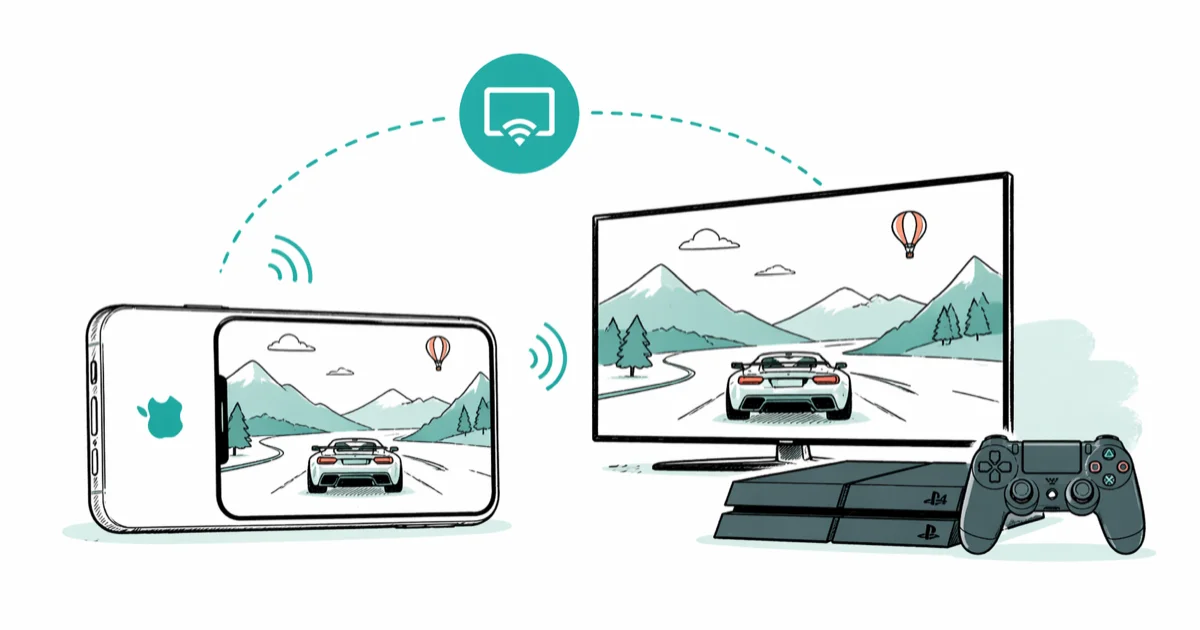
Quick AnswerYou cannot directly mirror your iPhone screen to a PS4 because Sony does not support AirPlay or Miracast. Use PS Remote Play to stream PS4 games to your iPhone, or use a DLNA app like Plex to send media from your iPhone to the PS4 screen.
Sony shipped the PS4 without AirPlay, Miracast, or Chromecast. There’s no built-in way to mirror your iPhone screen onto the console. But four workarounds get most of the job done.
The methods below cover two media paths, one official gameplay stream, and one keyboard companion path for the console.
- PS4 has no AirPlay or Miracast, so direct iPhone screen mirroring is not possible
- PS Remote Play streams PS4 games to your iPhone with DualShock 4 support on iOS 16 and newer
- Plex with DLNA pushes iPhone photos, videos, and music to the PS4 Media Player
- The PS4 Second Screen app turns your iPhone into a touchpad and keyboard
- All four methods require both devices on the same Wi-Fi and at least 5 Mbps of bandwidth
#Does the PS4 Support Direct Screen Mirroring From an iPhone?
No. The PS4 was built as a gaming console, not a display receiver. Sony never shipped AirPlay, Miracast, or Chromecast support, and the company has not added it through any firmware update from launch through 11.50. According to Sony’s PS Remote Play support page, the only sanctioned way to link an iPhone to a PS4 is through the Remote Play app or the Second Screen companion app.
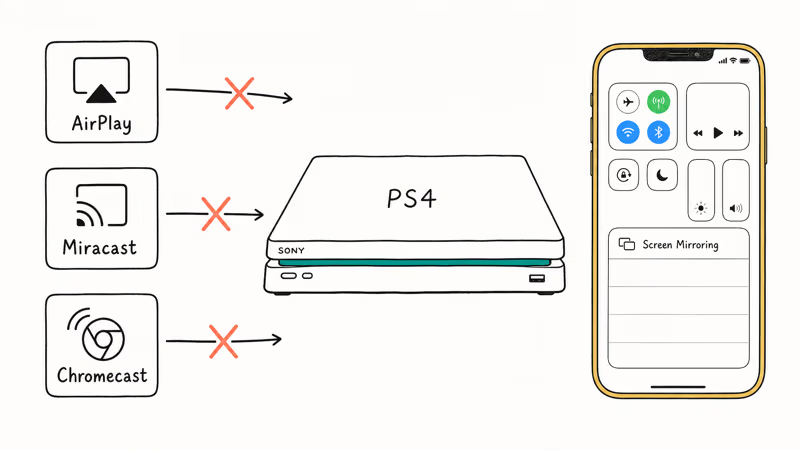
Open Control Center on your iPhone, tap Screen Mirroring, and the PS4 won’t appear. It isn’t a discoverable AirPlay target. Search the list for as long as you want, nothing changes.
If your real goal is just to put iPhone content on a TV, an Apple TV or Chromecast paired with your iPhone is a cleaner path. But if the PS4 has to be in the loop because it’s your only HDMI source, the four methods below cover gaming, media playback, and text input.
#How to Use PS Remote Play to Stream PS4 Games to Your iPhone
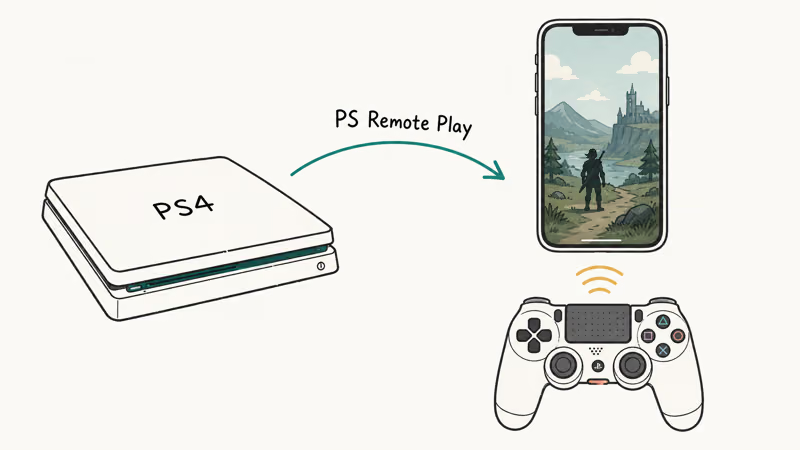
PS Remote Play does the opposite of what most people expect. It sends the PS4 picture to your iPhone, so you play console games directly on the phone. Your iPhone screen is never the source.
#Step 1: Enable Remote Play on Your PS4
On the console, go to Settings > Remote Play Connection Settings and tick Enable Remote Play. Then activate the console as your primary PS4 under Settings > Account Management > Activate as Your Primary PS4. Both toggles are required, or the iPhone app will fail to find your console with a vague network error.
#Step 2: Set Up the iPhone App
Download PS Remote Play from the App Store. Sign in with your PSN account and tap Start.
The app pairs through your PSN account, not by scanning your network, so the two devices don’t even have to share Wi-Fi for the first handshake. Remote Play works best on a stable connection, while weak links make frame drops and input lag more obvious. Sony’s bandwidth floor is a minimum, not a comfort target.
#Step 3: Connect a DualShock 4 Controller (Optional)
Touch controls work for menus and turn-based games. For action titles, pair a DualShock 4 over Bluetooth: hold the Share and PS buttons together until the light bar flashes, then select the controller in Settings > Bluetooth on your iPhone. This needs iOS 16 or newer.
If your screen mirroring on the iPhone is broken for AirPlay receivers, that has no effect on Remote Play because Remote Play does not use AirPlay at all.
#How Do You Stream iPhone Media to PS4 Using Plex?
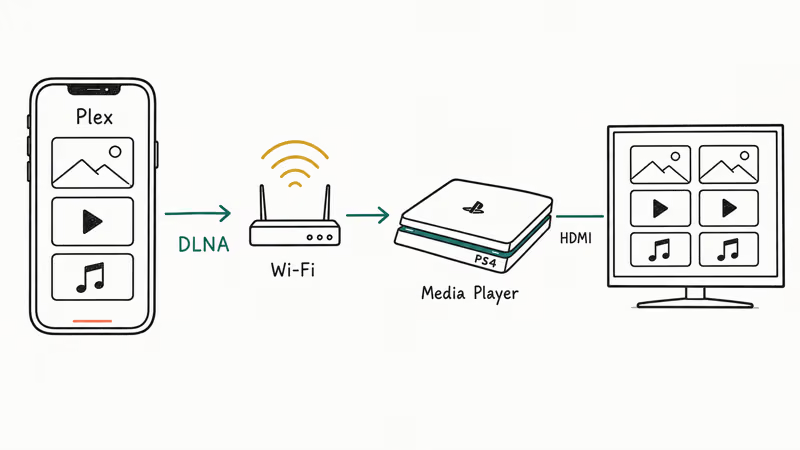
If you want iPhone photos, video, or music on the TV through the PS4, Plex over DLNA is the most reliable route. The PS4 Media Player handles DLNA natively, so no Plex Pass is required for this specific path. Based on Plex’s official DLNA documentation, you turn DLNA on inside the Plex server settings and any DLNA-capable client on the same network can browse the library.
#What You Need
- A Plex Media Server running on a computer, NAS, or your iPhone itself
- The Plex app on your iPhone (free tier works for DLNA)
- A PS4 on the same Wi-Fi network as the Plex server
#Setup Steps
Install Plex on your iPhone and add a few photos and videos. Turn on the DLNA server under Settings > DLNA in Plex.
On the PS4, open Media Player from the home screen. The Plex server appears in the list within a few seconds.
Large video files may buffer at the start, and unsupported formats can fail or require transcoding. For the easiest path, use common MP4 files and keep the Plex server and PS4 on the same network.
DLNA only moves media files. For mirroring apps and Safari, use a dedicated screen mirroring app on a different receiver instead.
#Using the PS4 Second Screen App as a Wireless Keyboard
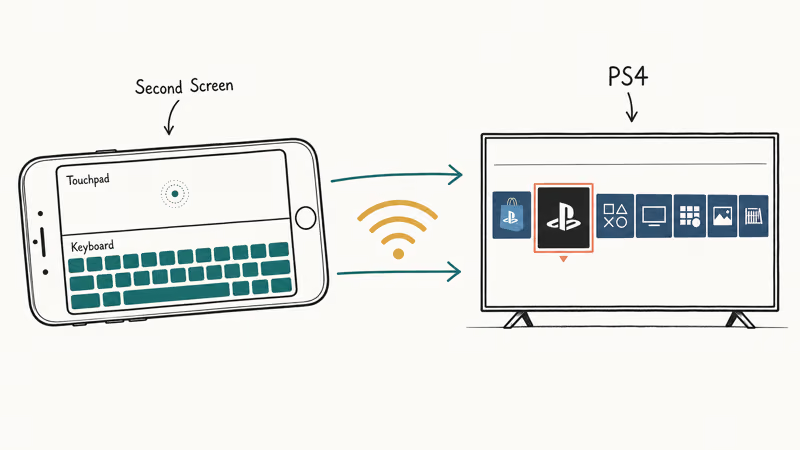
According to Sony’s PS4 Second Screen App Store listing, the app turns your iPhone into an input device. It doesn’t mirror video in either direction. What you get is a touchpad, a software keyboard, and basic navigation that talks to the console over Wi-Fi.
#How to Set It Up
Download PS4 Second Screen from the App Store and put both devices on the same Wi-Fi network.
On the PS4, go to Settings > Mobile App Connection Settings > Add Device. A short numeric code appears on the TV. Open Second Screen on the iPhone and enter that code to finish pairing.
Once paired, swipe on the iPhone to drive the PS4 cursor or tap the keyboard icon to type with the iOS keyboard. Entering a Wi-Fi password or a PSN search query is the obvious win. Typing a long password on the PS4 controller is slow and fiddly, while the phone keyboard is much faster.
The app is still on the App Store as of early 2026, version 23.10.0 with a January 2026 update. It’s great for typing and menu navigation but it doesn’t move video or audio either way.
#The HDMI Workaround for iPhone to PS4
There is one more route, and it needs hardware. You can connect an Apple TV or Lightning-to-HDMI adapter to a capture card, then route that HDMI signal into the PS4. The PS4 has no HDMI input on retail units, so this only works through a USB capture device that the PS4 recognizes, and almost none do. For most readers this is a dead end.
The practical version skips the PS4 entirely. Plug the Apple TV or HDMI adapter into the same TV your PS4 uses, then change the input on the TV. No software, no lag, and you can use AirPlay without Wi-Fi over a wired adapter when your network is unreliable. This is the only path that gives you full mirroring of your iPhone, including apps, games, and notifications, on the same screen.
If you have a Samsung phone instead of an iPhone, mirroring a Samsung phone to a PC over Miracast or Smart View is far simpler than anything PS4-related, since Samsung supports Miracast natively.
#Real Reasons to Pair Your iPhone With a PS4
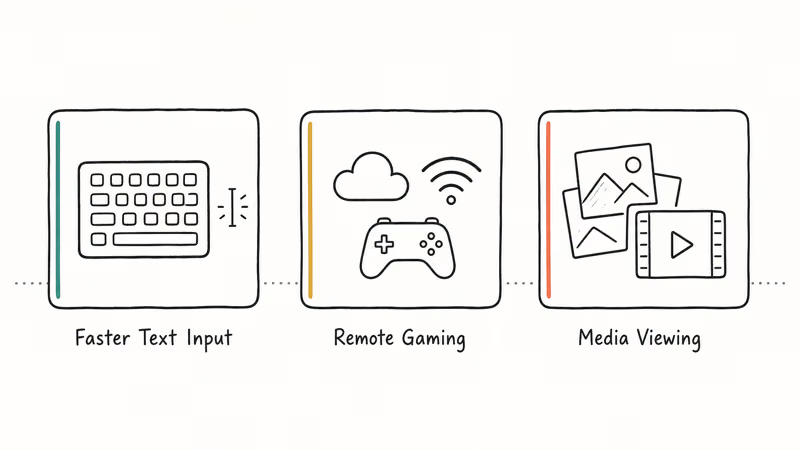
PS4 plus iPhone setups usually come down to three real-world problems, and the methods above each solve one of them.
#Faster Text Input
The PS4 on-screen keyboard is slow. Second Screen lets you type on the iPhone keyboard instead, which makes long PSN passwords and YouTube searches less frustrating.
#Remote Gaming Outside the House
PS Remote Play works from anywhere with internet, not just your living room. Sony confirms that you need at least 5 Mbps of upload and download on both ends for a stable session. Public Wi-Fi and cellular links can add enough lag to hurt fast games, while slower games tolerate delay better.
#Media Viewing Without Cables
Plex over DLNA puts your entire iPhone media library on the TV without dragging a laptop into the room. This is useful when showing photos at a family gathering, where you don’t want to set up a phone-to-PC mirroring chain just to watch a few videos.
#Bottom Line
If gaming is the goal, install PS Remote Play and stop searching. It’s the only legitimate way to play PS4 games on an iPhone, and it works.
If you want photos and video on the TV, use Plex with DLNA and the PS4 Media Player. If you mostly hate typing on the controller, install Second Screen for the keyboard alone. Skip the HDMI capture-card workaround unless you already own both pieces of hardware. There’s no fifth method that puts your iPhone display directly on the PS4 because the hardware doesn’t support it.
iPhone tips & tricks
#Frequently Asked Questions
Can you mirror your iPhone screen directly to a PS4?
No. The PS4 has no AirPlay and no Miracast support, and Sony has not added either through any firmware update. The closest options are PS Remote Play for gaming, Plex over DLNA for media, and the Second Screen app for keyboard input.
Does PS Remote Play work over cellular data?
Yes, but the experience depends on your connection. Sony requires at least 5 Mbps for both upload and download. Cellular sessions can work, but input lag is usually clearer than on stable Wi-Fi. For competitive games stick to Wi-Fi.
Is the PS4 Second Screen app still available in 2026?
Yes. Version 23.10.0 was released in January 2026 and is still listed on the App Store. Sony has not announced any plans to retire it.
What internet speed do you need for PS Remote Play?
Sony lists 5 Mbps as the minimum. Comfortably exceeding that minimum usually gives a smoother stream with fewer compression artifacts during fast camera movement. A wired Ethernet cable from your router to the PS4 helps more than upgrading your iPhone Wi-Fi band, because the bottleneck is usually the console-side jitter.
Can you use a DualShock 4 controller with your iPhone?
Yes. Hold the Share and PS buttons together until the light bar flashes, then pair it under Settings > Bluetooth on your iPhone. iOS 16 or newer is required.
Does Plex work on PS4 without a paid subscription?
Yes. The free Plex tier works with the PS4 built-in Media Player over DLNA. The dedicated Plex app for PS4 needs a Plex Pass at $4.99 per month, but the DLNA path described above costs nothing.
Why does PS Remote Play keep disconnecting?
Network instability is almost always the cause. Move the PS4 to wired Ethernet, enable Stay Connected to the Internet under Power Save Settings if you are using Rest Mode, and check that no other device on the same network is saturating upload bandwidth during the session.
Can you play PS4 games on your iPhone without PS Remote Play?
No legitimate method exists. Remote Play is the only Sony-approved way to stream PS4 gameplay to an iPhone. Apps that promise full PS4 game streaming without Remote Play almost always only do DLNA media instead, or they require modifying console firmware in ways that violate Sony’s terms of service and risk a permanent PSN ban.

How to Transfer Data to a New iPhone Without iCloud
Move everything to your new iPhone without iCloud: Quick Start device-to-device transfer, wired migration, and encrypted Finder or iTunes backups.
Best Wireless Earbuds for iPhone in 2026: USB-C Era Picks
Best wireless earbuds for iPhone in 2026, comparing AirPods Pro 3, Sony WF-1000XM6, Bose QC Ultra, and Anker Liberty 4 NC on the USB-C iPhone lineup.
iPhone Keyboard Lag? 7 Proven Fixes for iOS 26 (2026)
Fix iPhone keyboard lag with 7 proven fixes for iOS 26. Covers restart, storage, predictive text, third-party keyboards, and dictionary reset.
How to Block Porn on an iPhone: A Guide for Parents
Learn how to block porn on iPhone using Screen Time, DNS filtering, and safe browsers. Step-by-step guide for parents to protect kids' devices.