How to Control iPhone from PC: 7 Working Methods (2026)
Control your iPhone from a PC using TeamViewer, AirServer, MirrorGo, and 4 more methods. Step-by-step guide for Windows and Mac without jailbreaking.
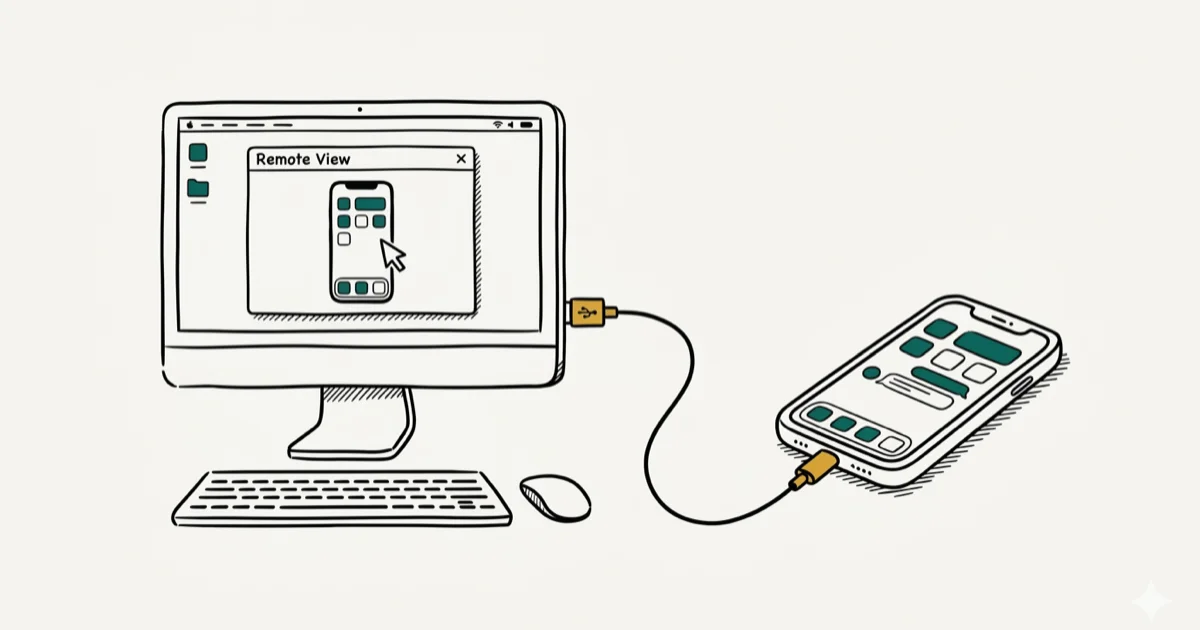
Quick AnswerYou can control your iPhone from a PC using TeamViewer for remote screen viewing, Apple Handoff for continuity features on Mac, AirServer for screen mirroring, or Chrome Remote Desktop for full remote access. No jailbreak is required for these methods.
Controlling your iPhone from a PC is useful when you need to troubleshoot remotely, mirror your screen for a presentation, or continue tasks between devices. There are seven methods that work across Windows and macOS, each with its own trade-offs.
Control an iPhone from a PC only when it is your own device or a phone you are authorized to support. Remote-control tools can expose messages, photos, notifications, and location data, so keep consent clear, follow legal privacy boundaries, and stop the session before entering passwords or viewing private content.
- TeamViewer QuickSupport lets you view your iPhone screen on a PC but does not support two-way control
- Apple Handoff is Mac-only and continues Safari, calls, and iMessage across devices
- AirServer mirrors your iPhone wirelessly at up to 1080p to Mac or Windows
- Chrome Remote Desktop is free for iPhone-to-PC viewing with only a Google account
- Wondershare MirrorGo provides full reverse control via keyboard and mouse for operating iPhone from PC
#What Makes It Difficult to Control iPhone from PC?
The challenge comes down to Apple’s approach to security. Neither iOS nor Windows includes a built-in remote access protocol between the two platforms. Apple’s ecosystem is designed for tight Mac-to-iPhone integration, not Windows-to-iPhone control.
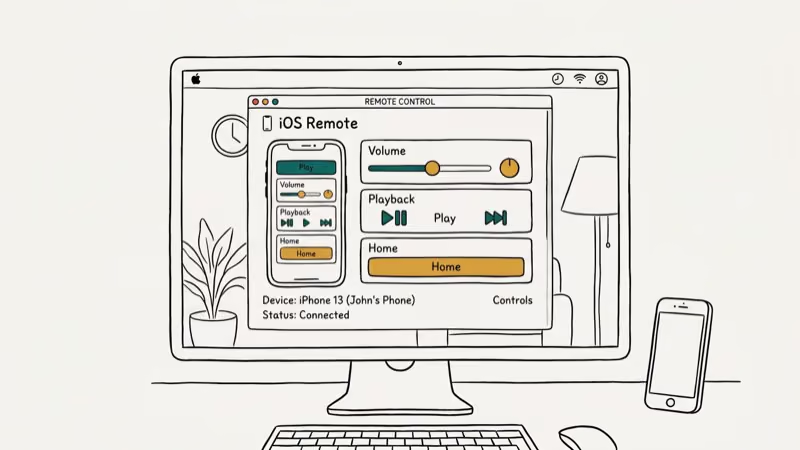
According to Apple’s Continuity documentation, built-in features like Handoff and AirPlay only work between Apple devices on iOS 8 or later and macOS Yosemite or later. For cross-platform access from a Windows PC, you need third-party software.
iOS also restricts background processes. Apps can’t run in the background to receive remote connections the way a Windows or Mac app can. That’s why solutions either require an active session or use screen-mirroring rather than full remote desktop access. For a focused walkthrough of one popular approach, our guide on Vysor for iPhone mirroring covers setup in depth.
If you only need to mirror the display, our roundup of the best screen mirroring apps compares six tools side by side.
#Solution 1: Use TeamViewer to Control Your iPhone Remotely from a PC
TeamViewer QuickSupport is the most widely used remote-control solution for iPhone, and it’s free for personal use. It connects quickly over a reliable Wi-Fi connection.
The app shares your iPhone screen with whoever has the TeamViewer ID, useful when you need help from technical support or want to show someone your screen. TeamViewer’s official documentation confirms that screen sharing on iOS requires iOS 11 or later and TeamViewer version 16 or higher.
The key limitation: you can view the iPhone screen on a PC, but you can’t click or interact with it remotely. Control is one-directional. This works well for support scenarios but not for operating the phone from your PC.
#How to Use TeamViewer to Control iPhone from a PC
Install TeamViewer QuickSupport from the App Store on your iPhone. Launch the app; it generates a unique session ID automatically.
On your PC, open TeamViewer and enter the session ID in the Remote Control field. Click Connect. On your iPhone, activate Screen Mirroring by swiping down from the top-right corner to open Control Center, then tapping Screen Mirroring and selecting TeamViewer.
Both devices will show a chat window confirming the connection. You’ll now see the iPhone screen on your PC.
#Solution 2: Use Veency to Control Your iPhone through a PC
Veency offers near-complete iPhone control from a PC: lock/unlock, open apps, adjust icons, and view the gallery remotely. The catch is significant: Veency requires a jailbroken iPhone.
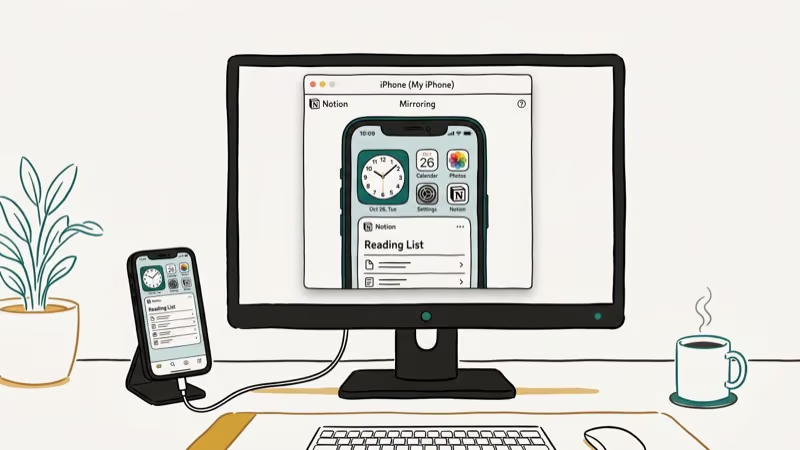
If you’re comfortable with jailbreaking and the associated security trade-offs, Veency connects your iPhone to a VNC client on your PC. Compatible clients include TightVNC, UltraVNC, and Chicken VNC.
#How to Control iPhone from PC Using Veency
First, jailbreak your iPhone using a tool appropriate for your iOS version. Then open the Cydia App Store on the device and search for Veency. Install it; the app runs in the background automatically without appearing on your home screen.
Go to Settings > Wi-Fi and note your iPhone’s IP address. On your PC, open a VNC client and enter that IP address, then click Connect. Accept the connection request on your iPhone to begin screen projection. Once connected, you’ll see your iPhone screen on the PC and can interact with it using your mouse and keyboard — the only method on this list that provides true two-way control without additional paid software.
#Solution 3: Use Handoff to Control iPhone through the PC
Apple’s Handoff is built into iOS 8 and later. It won’t let you control your iPhone from Windows, but on a Mac it creates genuine continuity between devices. You can make calls from your MacBook using your iPhone’s cellular connection, hand off Safari sessions, and send iMessages from your Mac.
On a Mac paired with an iPhone, Handoff works for phone calls and SMS messages without any setup beyond signing into the same Apple ID. The feature activates almost immediately when switching context between the two devices.
#How to Control iPhone from PC Using Handoff
On your Mac, go to System Settings > General > AirDrop & Handoff and turn on Handoff. Both devices must be signed into the same Apple ID.
When you start an activity on your iPhone, such as browsing a website, a Handoff icon appears in the Mac Dock. Click it to continue the session on your Mac. The reverse also works: start something on your Mac and it appears on your iPhone’s App Switcher.
#Solution 4: Use AirServer to Control iPhone from PC
AirServer transforms your Mac or Windows PC into an AirPlay receiver. Your iPhone sees the PC as an AirPlay target and mirrors its screen wirelessly. AirServer’s feature list states that the app supports AirPlay 2, Google Cast, and Miracast simultaneously, with up to 4 concurrent streams at 1080p. For Windows-specific AirPlay setup, see our guide on AirPlay for Windows 10.
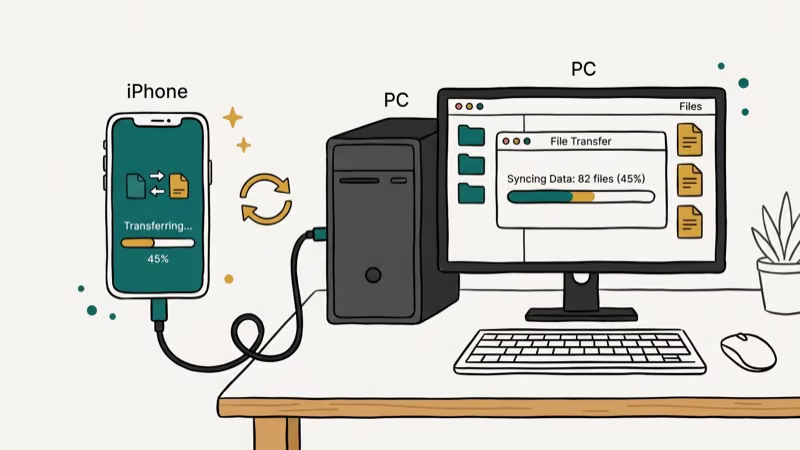
Screen mirroring to a Windows PC handles presentations fine, though lag becomes noticeable during fast-moving content. You get visual access to the iPhone, but interaction remains on the phone itself.
#How to Use AirServer
Download and install AirServer on your Mac or PC. Connect both devices to the same Wi-Fi network. On your iPhone, swipe down from the top-right to open Control Center and tap Screen Mirroring. Select your computer from the list of AirPlay receivers.
Your iPhone screen now appears on the PC. Any action you take on the iPhone shows in real time on the larger display.
#Solution 5: Use ISL Light to Control iPhone Using a PC
ISL Light is purpose-built for remote support across PCs, Macs, iOS, and Android devices. It’s designed for IT professionals but works well for personal use too. The software supports complete remote access (not just viewing), which sets it apart from screen-mirroring solutions.
ISL Light runs on Windows, Mac, and Linux. The session code system means you don’t need to configure router ports or static IPs.
#How to Use ISL Light
Download and install ISL Light on your PC. Launch the software and start a new session; the app generates a session code. Install ISL Light on your iPhone and enter the session code to establish the connection.
Once connected, monitor and interact with the iOS device through the PC interface.
#Solution 6: Use Wondershare MirrorGo to Control iPhone from a PC
Wondershare MirrorGo is the most capable solution on this list for people who want genuine iPhone control from a PC. It mirrors the screen and supports reverse control using your keyboard and mouse.
Some links on this page are affiliate links, which means fone.tips may earn a commission at no extra cost to you.
MirrorGo connects quickly over USB and a bit slower over Wi-Fi, and keyboard input registers right away in text fields.
#Features of Wondershare MirrorGo
- Mirror: Cast your iPhone screen to a PC monitor at full resolution
- Reverse control: Use keyboard and mouse to operate iPhone apps
- Screenshot: Capture and save iPhone screenshots directly on your PC
- Notifications: View iPhone notifications on the PC screen
#Use Wondershare MirrorGo and Control iPhone from the Computer
Connect your iPhone and PC to the same Wi-Fi network. Install MirrorGo on your PC, then launch it. On your iPhone, open Control Center and tap Screen Mirroring, then select MirrorGo from the list.
Your iPhone screen appears on the PC. Click anywhere on the mirrored screen to control the iPhone with your mouse.
#Can You Use Chrome Remote Desktop to Control iPhone from a PC?
Chrome Remote Desktop is a free Google extension that provides remote access across platforms. Both devices need the latest version of Chrome installed. According to Google’s support documentation, the extension supports remote access on Windows, Mac, Linux, and Chromebook with a secure 6-digit PIN.
It’s free and requires only a Google account. If you’re troubleshooting without Wi-Fi, check our guide on screen mirroring without Wi-Fi.
- Log into your Google Account and install Chrome Remote Desktop on both devices
- Enable remote access permissions and create a unique PIN
- Install the Chrome Remote Desktop app on your iPhone
- Open the app, select the computer to connect to, and enter the PIN
#Bottom Line
For viewing your iPhone screen on a PC without jailbreaking, TeamViewer and AirServer are the most reliable free options. If you need actual control (keyboard and mouse input), Wondershare MirrorGo is the best choice for full control. Mac users should also enable Handoff, which makes day-to-day continuity between iPhone and Mac effortless.
Veency offers the deepest control but requires jailbreaking, which carries real security and warranty risks. Only consider it if you’re already running a jailbroken device.
#Frequently Asked Questions
Can I control my iPhone from a Windows PC without jailbreaking?
Yes. TeamViewer, Chrome Remote Desktop, and Wondershare MirrorGo all work on Windows without requiring jailbreak. These tools either mirror the screen or provide partial remote control.
Does TeamViewer let me fully control my iPhone from a PC?
No. TeamViewer on iOS only supports screen sharing in one direction: you can view the iPhone screen on the PC, but you can’t click or interact remotely. Full remote control isn’t possible through TeamViewer on iOS due to Apple’s platform restrictions.
What is the easiest way to mirror my iPhone to a Mac?
Apple Handoff and AirPlay are the simplest options since they’re built into iOS and macOS with no third-party software required. Open Control Center on your iPhone, tap Screen Mirroring, and select your Mac from the list. Both devices must be on the same Wi-Fi network and signed into the same Apple ID for this to work reliably.
Is it safe to use third-party apps to control my iPhone from a PC?
Yes, as long as you download apps from official sources like the App Store, the developer’s official website, or the Mac App Store. Avoid pirated software or apps from unknown sources, which can introduce malware.
Can I use my keyboard to type on my iPhone from my PC?
Yes, Wondershare MirrorGo supports keyboard input. Once the screen is mirrored to your PC, you can type in any iPhone text field using your PC keyboard.
Does Chrome Remote Desktop work for iPhone control?
Chrome Remote Desktop is designed primarily for accessing a PC remotely, not for controlling an iPhone from a PC. It works best the other way around: accessing your PC from your iPhone. For full iPhone control from a PC, use MirrorGo or ISL Light instead.

Mac mini M6 vs M5 Pro: Which Model Should You Buy?
Mac mini M6 vs M5 Pro compared on price, memory, ports, displays, and real workloads. Find the better 2026 Mac mini for your desk and budget.

Apple Siri Settlement: Who Qualifies and How to Claim
Apple's $250 million Siri settlement covers iPhone 15 Pro and iPhone 16 models bought June 2024 to March 2025. See who qualifies and how claims work.

iOS 26.6.1 Security Update: What Apple Fixed and Who Gets It
Apple released iOS 26.6.1 on August 17 with 29 security fixes, including an IPSec interception bug. See what it patches, who gets it, and how to update.

iPhone Adaptive Power: How It Works and When to Use It
Learn how iPhone Adaptive Power works, which models support it, what it changes, and when Low Power Mode is still the better battery-saving choice.