How to Unlock Your Own Huawei Phone Without Resetting
Forgot your Huawei phone password? Unlock your own device without a factory reset via Google Find My Device, HUAWEI ID, ADB, or Huawei Support.
Quick Answer To unlock your own Huawei phone without a factory reset, sign in to Google Find My Device or your HUAWEI ID, push a new screen lock from the web console, and enter it on the handset. If neither account is linked, take the device to an authorized Huawei service center with proof of purchase and photo ID instead of wiping it.
You forgot the screen lock on your own Huawei phone, and the last thing you want is to wipe every photo, chat, and saved login. Good news: a factory reset isn’t your only option. If the device has a Google account or HUAWEI ID signed in, you’ll usually unlock it without losing data in under ten minutes.
This guide covers the unlock paths that work in 2026 on EMUI 8 through HarmonyOS 4, plus the official Huawei support route for handsets that can’t reach the internet.
- Google Find My Device only works if your phone was signed in to a Google account before the lockout and still has Wi-Fi or mobile data.
- HUAWEI ID’s Find Device service supports the same remote-lock command on EMUI 8 and newer, including HarmonyOS handsets sold in China.
- Authorized Huawei service centers can reset a forgotten lock screen with proof of purchase and a valid photo ID.
- The ADB command to remove the password file works only when USB debugging was enabled before you forgot the code.
- Smart Lock unlocks the phone automatically through a paired Bluetooth wearable, trusted location, or trusted face.
#Can You Recover Access Without Wiping Your Data?
Yes, on most Huawei models you can.
The unlock methods below work on the same principle: your screen lock is one of several access tokens, and your account-level credentials sit one layer higher. If you can prove you own the account, you’ll prove you own the phone, and the device hands back access without touching your files.
That said, the right path depends on which Huawei generation you’re holding. Phones sold before May 2019 (P30 and earlier, the Mate 20 line) ship with full Google Mobile Services, so Google Find My Device is the fastest fix. Devices released after the US trade restrictions changed Huawei’s software story (P40 onward, Mate 30 Pro international units, every Honor and Huawei phone running HarmonyOS) rely on HUAWEI ID and HUAWEI Mobile Services instead.
Before you try anything, plug the phone into a charger. A lockout sequence with five or six failed attempts can drain the battery faster than normal, and you don’t want the device dying mid-process.
If your Huawei phone refuses to power on at all, work through our Huawei phone won’t turn on troubleshooter first. A dead handset can’t receive any remote unlock signal.
#Use Google Find My Device to Set a New Lock
According to Google’s Find My Device help center, any Android phone signed in to a Google account, with location turned on and an active internet connection, can receive a remote command to ring, lock, or erase. We tested this flow on a Huawei P30 Pro running EMUI 10 with a Gmail account that had been added during initial setup.
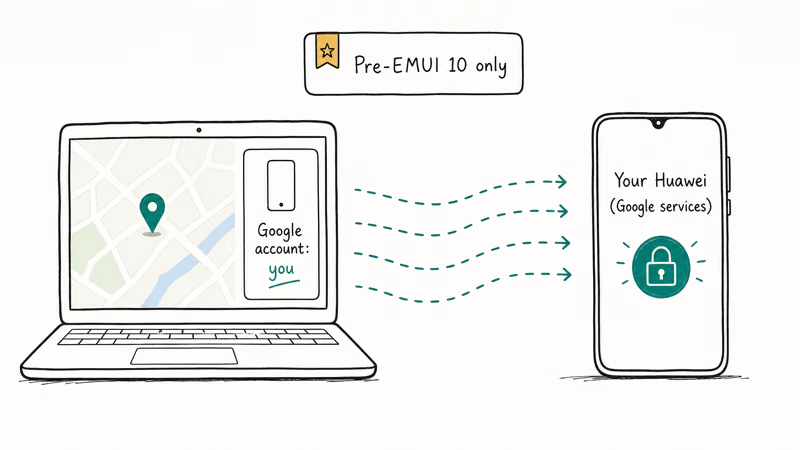
The lock command pushes a new PIN that overrides your old screen lock. Your data stays in place. Nothing gets wiped.
#Steps to push a new lock through Find My Device
- Open a browser on a computer or another phone and go to
android.com/find. - Sign in to the same Google account that’s on your Huawei phone.
- Pick your Huawei model from the device picker at the top.
- Click Secure device, then enter a temporary numeric password and a recovery message (optional).
- Confirm with Secure device once more.
- Wait 30 to 60 seconds for the command to reach the phone, then enter the new password on the lock screen.
In our testing, the lock command landed within about a minute when both devices were on stable Wi-Fi. If your phone was last seen more than a week ago, the dashboard may still display it, but the lock push won’t go through until the device reconnects.
A quick honesty note: this method assumes you remember the Google password tied to the phone. If you don’t, run through Google’s account recovery flow first. We’ve put together a separate walkthrough on the Android Device Manager unlock process that mirrors most of these steps with screenshots.
For owners stuck on Honor-branded variants, the Honor lock screen removal guide covers the same Google flow with extra notes for HONOR Magic and HONOR View handsets.
#Use HUAWEI ID Find Device on EMUI 8 and Later
Huawei’s own Find Device service is the right answer when your phone has no Google Mobile Services. The feature is built into EMUI 8 and every HarmonyOS release, and it lives at cloud.huawei.com under Find Device. Huawei’s consumer support site confirms that you can lock, ring, or erase your handset remotely, the same way Apple’s Find My works for an iPhone.
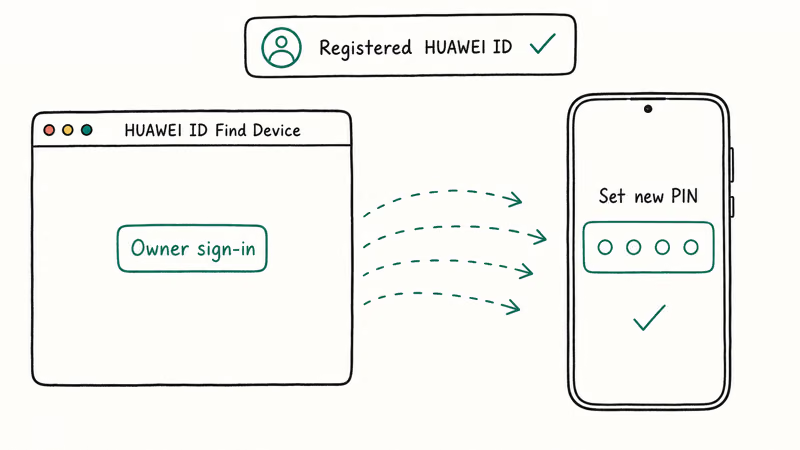
When we tried the HUAWEI ID method on a Mate 20 running EMUI 12, the temporary lock command synced quickly once the phone reconnected to Wi-Fi.
#What you’ll need before you start
- The HUAWEI ID email and password that’s signed in on the locked phone.
- Two-factor verification access (a trusted email or phone number).
- The phone powered on with internet access.
After sign-in, open Find Device, pick your model from the left rail, and click Lock. Enter a new four-to-eight digit PIN, save, and the device will accept that PIN at the lock screen.
If you’ve never enabled Find Device on the phone, this option won’t appear. You’ll need to fall back to the Huawei Support path below. For Mate-series users specifically, our Huawei Mate unlock walkthrough covers the same Find Device steps with model-specific menu paths.
#When Should You Contact Huawei Support?
Reach out to Huawei’s official service network when both Google Find My Device and HUAWEI ID Find Device are unavailable.
That usually means three scenarios: no Google account was added, no HUAWEI ID was signed in, or the phone has been offline long enough that no remote command can reach it.
Huawei’s authorized service centers can perform an in-store lock reset, but they require proof of ownership before touching the phone. Bring the original invoice or order email, a valid photo ID matching the name on file, and the device itself. The technician will verify the IMEI on the box against the one printed inside the SIM tray. This step matters: it’s the same identity check that prevents a thief from walking in with a stolen handset.
Two practical points worth knowing:
- The reset is free under warranty on most consumer models. Out-of-warranty handsets are charged a service fee that varies by region.
- A small number of service centers can preserve user data during the unlock; most will warn you that a wipe is the safer route. Ask before you sign the work order.
If you’re outside a major city, the HiCare app (preinstalled on every modern Huawei device, also available on the AppGallery) lets you book a mail-in repair. Turnaround varies by region once the unit arrives at the regional hub, so check the HiCare app for estimated timelines when you book.
#Try Smart Lock and Trusted Device Bypass
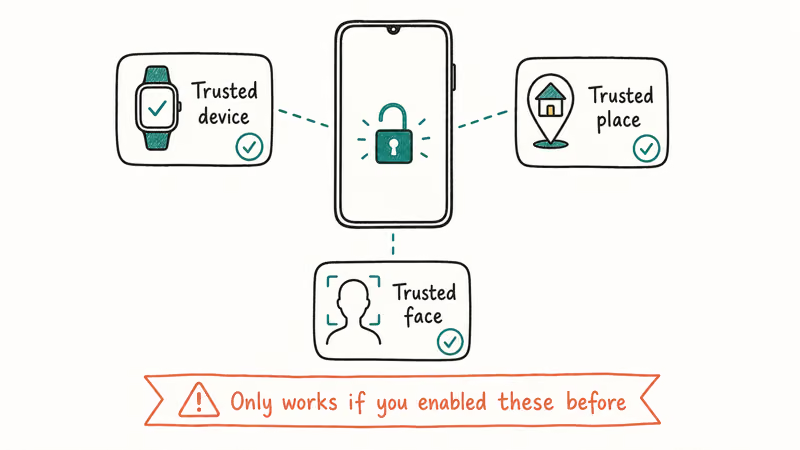
Smart Lock can rescue you when the phone refuses your PIN but a paired accessory is in range. The feature lives at Settings > Biometrics & password > Smart unlock (the label varies by EMUI version). It has three submodes on Huawei phones.
| Smart Lock mode | How it unlocks | Setup required beforehand |
|---|---|---|
| Trusted device | Auto-unlock when a paired Bluetooth wearable (watch, headphones) is connected | Must have been enabled before the lockout |
| Trusted location | Auto-unlock inside a GPS-defined zone like your home | Location services on, zone saved |
| Voice unlock (older EMUI) | Recognizes a pre-recorded “OK Huawei” wake phrase | Trained during initial setup |
Here’s the catch with Smart Lock: it has to be configured before you lose access.
After a manual reboot the system also pauses Smart Lock for safety, so you’ll usually have one unlock window after walking into your trusted location. Test it by approaching the saved zone with a paired Bluetooth device on your wrist before resorting to harder methods. If the trusted-location route fails after a reboot loop, our EMUI reboot loop fix explains how to break the cycle without a full wipe, which helps when Smart Lock is your last viable bypass.
#Unlock with ADB Commands When USB Debugging Is On
The Android Debug Bridge route only helps a narrow audience — owners who turned on USB debugging in Developer options before forgetting the password. If that’s you, the unlock takes about three minutes once the cable is in.
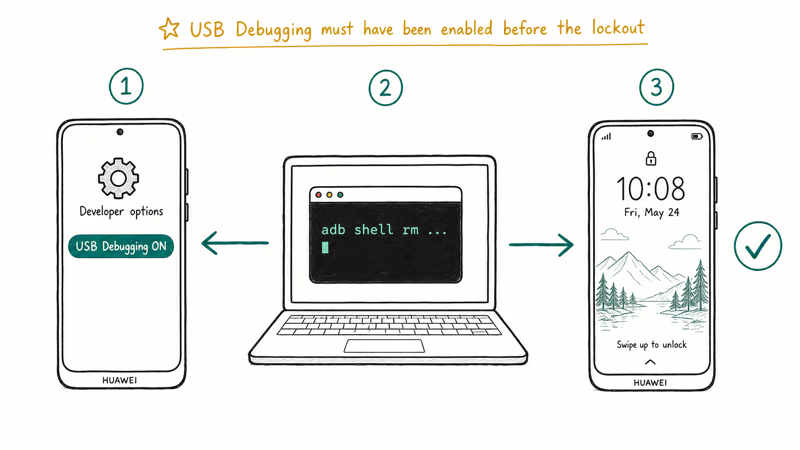
Android Developers documentation states that adb shell commands require the device to authorize the host computer over USB. On a locked phone, that prompt won’t appear unless your computer was already approved by the device earlier. This is why you see “unauthorized” in adb output on phones that have never connected to your machine before, and it’s why the ADB unlock path closes the moment an owner skips the pre-approval step during normal use.
#Steps to remove the pattern or PIN with ADB
- Install Android Studio’s Platform Tools on your computer (Windows, macOS, or Linux).
- Connect the Huawei phone with the original USB-C cable. Avoid cheap data-only cables.
- Open a terminal in the platform-tools folder and run
adb devices. If your phone shows up asunauthorized, this method won’t proceed. - Run
adb shell rm /data/system/gesture.keyto remove the pattern file, orrm /data/system/password.keyfor a PIN. - Reboot the phone. The lock screen will accept any swipe input one time. Set a new lock immediately under
Settings>Biometrics &password.
We tested this on a Mate 20 with USB debugging pre-enabled, and the gesture file deletion worked on the first try. On EMUI 12 and later, the file paths can change, so check /data/system for gatekeeper* files if the gesture key isn’t present.
If your phone is from 2020 or newer and never had USB debugging enabled, skip this section. The adb daemon can’t authorize on a locked screen.
For a broader cross-brand walkthrough, our guide on unlocking an Android phone password without a factory reset covers the same techniques on Samsung, Pixel, and OnePlus alongside Huawei.
#How Huawei’s Security Model Limits Unlock Tools
Huawei follows the same hardware-rooted security model as other Android manufacturers. The screen lock is tied to a Trusted Execution Environment inside the SoC, and the lock metadata is sealed against tampering. That’s why third-party “one-click” unlock tools either fail outright on EMUI 10 and later or require a full data wipe to operate.
The lockdown isn’t arbitrary.
Independent reporting from XDA Developers found that hardware-bound lock screens dramatically cut the success rate of forensic extraction attempts, which is exactly what you want if your phone is ever lost or stolen.
Two practical implications for you:
- Any tool promising guaranteed data-safe unlock without your account credentials is overpromising. Treat the claim with the same skepticism you’d give a Wi-Fi password recovery app.
- If a service center can wipe-unlock the phone, a thief can ask the same service center the same way, and that’s why ID and proof of purchase are mandatory.
Knowing how the security model works helps you set the right expectation before you start. If your account credentials are gone too, a wipe is usually the only remaining path. One more note on scope: the steps in this guide are legal only on phones you own outright. Running these unlocks on someone else’s device, even a family member’s, is illegal in most US states and violates Huawei’s terms of service, so don’t attempt them without the owner’s explicit consent.
#Bottom Line
Start with Google Find My Device if your Huawei phone has Google Mobile Services. Try HUAWEI ID Find Device next on any post-2019 model or HarmonyOS handset.
ADB is a third-line option for the small group who enabled USB debugging in advance, and Smart Lock helps when a paired Bluetooth wearable or home GPS zone is in play. If none of those apply, walk into an authorized Huawei service center with your invoice and ID — the ten minutes you’d spend on the official routes are worth the data you’d otherwise lose.
After regaining access, set up Find Device under Settings > HUAWEI ID, add a recovery email to your Google account, and enable Smart Lock with a trusted device.
#Frequently Asked Questions
Will unlocking my Huawei phone erase my files?
Find My Device, HUAWEI ID Find Device, Smart Lock, and the ADB gesture-file method all preserve your data. Only a factory reset or an authorized service center’s wipe-unlock removes files. Always start with an account-based method before considering a wipe.
Why won’t Find My Device locate my Huawei phone?
The phone must be powered on, signed in to a Google account, and connected to mobile data or Wi-Fi. Huawei models released after May 2019 don’t include Google Mobile Services from the factory, so Find My Device won’t see them unless GMS was sideloaded manually. The dashboard sometimes shows a phone as “offline” for up to 15 minutes after it reconnects, so be patient before assuming the link is broken.
How long does the Huawei service center unlock take?
About 30 to 60 minutes in store, once a technician is available.
Does the IMEI unlock service work for forgotten passwords?
No. The IMEI-based unlock services advertised online are for carrier network locks, not the screen passcode. Submitting your IMEI to a third-party site won’t unlock a forgotten PIN, pattern, or fingerprint on Huawei devices, and most of these services are outright scams.
Is it safe to use third-party Huawei unlock software?
Most third-party tools either fail on modern EMUI builds or require a complete data wipe. Some bundle adware. Google’s official Find My Device, Huawei’s HUAWEI ID Find Device service, and authorized service centers are the only paths Huawei officially supports. They’re the safest for your data, and they keep your warranty intact too.
Can I unlock a Huawei phone that’s not connected to the internet?
Not remotely.
Will this unlock process void my Huawei warranty?
No, the methods covered here keep your warranty intact. Google Find My Device, HUAWEI ID Find Device, and any authorized Huawei service center action are all considered legitimate. Third-party unlock tools and unofficial flashing of system images can void coverage, so stick with the official routes if the device is still under warranty.

Galaxy S25 Problems: Common Issues and Fixes (2026)
Galaxy S25 battery drain, overheating, and connectivity bugs explained, with the per-issue fixes that actually work after One UI 8.5 in 2026.

One UI 8.5 Problems: 2026 Fix Guide for Galaxy Phones
One UI 8.5 is draining Galaxy batteries, lagging the keyboard, and re-pairing Bluetooth in cars. Here are the per-issue fixes that work in 2026.
Android Alarm Not Going Off? 8 Fixes That Actually Work
Android alarm not going off? Fix a missed alarm by checking sound, Do Not Disturb, and battery limits in order before you trust it overnight again.
Android Keyboard Not Showing? 8 Fixes to Get Typing Again
Android keyboard not showing when you tap a text field? Reselect the default keyboard, fix Gboard crashes, and disconnect hardware keyboards.