How to Bypass Android Lock Screen: Password, Pattern & PIN
How to safely unlock your own Android phone: Google Find My Device, Samsung Find My Mobile, factory reset, ADB, and the legal lines you must not cross.
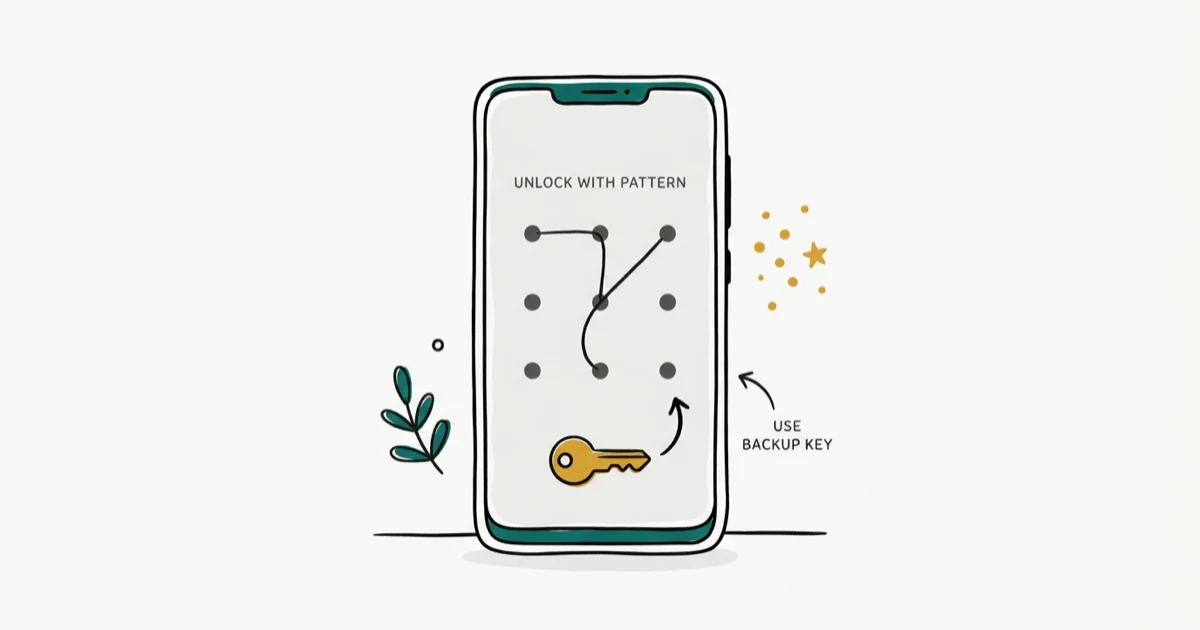
Quick AnswerTo unlock your own Android phone, go to android.com/find, sign in with the Google Account already on the device, then send Secure Device to set a new lock or Erase Device for a clean factory reset. Galaxy owners can use findmymobile.samsung.com to unlock remotely without erasing, but only if Find My Mobile was switched on before the lockout.
Forgetting your own Android password, pattern, or PIN is common. The safe route back in always starts with the official Google or OEM recovery tools tied to your account, never a third-party cracker.
This guide assumes one thing: the phone is yours, the account on that phone belongs to you, and you can prove it. Trying to “bypass” a device that belongs to someone else is a different problem with criminal consequences, and we cover those lines explicitly at the end.
- Google Find My Device at android.com/find is the first official method; sign in with the Google Account already on the phone and use Secure Device to set a new lock.
- Samsung Find My Mobile at findmymobile.samsung.com can remotely unlock Galaxy phones without erasing data, but only if the feature was enabled before the lockout.
- A factory reset is the manufacturer-recommended fallback when account recovery fails, and Factory Reset Protection then requires the original Google Account credentials on next setup.
- ADB and third-party unlock utilities should be treated as last-resort options for your own device, after you have exhausted Google and Samsung recovery flows.
- Unlocking a phone you don’t own, or helping someone else do it without proof of ownership, is illegal in most jurisdictions under computer-misuse and stolen-property laws.
#Start With Proof of Ownership Before Any Bypass
Before any recovery method, gather the evidence a carrier store, repair shop, or police report would ask for. That means the original purchase receipt, the box with the IMEI printed on it, the SIM and number tied to the line, and the Google or Samsung email you used to sign in.
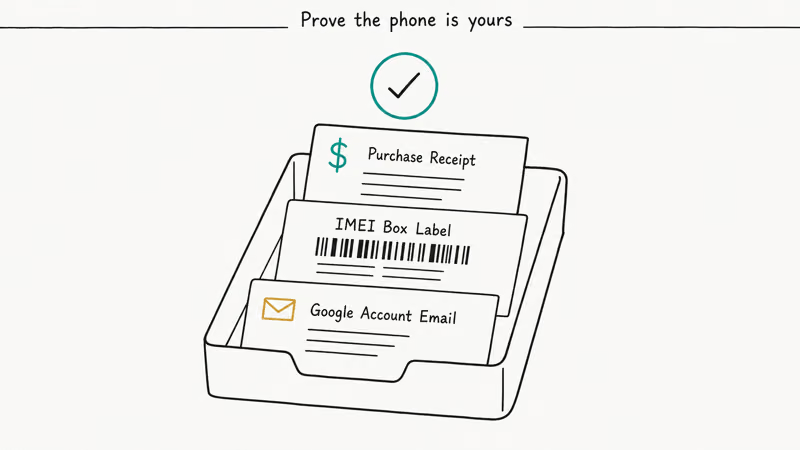
Store that bundle in your password manager today.
If the phone isn’t yours, stop here. Hand it to the carrier, the venue’s lost and found, or local police. Using bypass tools on someone else’s device can be charged under the Computer Fraud and Abuse Act in the United States and equivalent statutes elsewhere; “I was just helping a friend” isn’t a defense without documented consent from the owner.
#Unlock With Google Find My Device on Your Own Account
Google Find My Device is the path Google itself recommends for a phone you own. If you knew this console as Android Device Manager, it’s the same service; Google renamed it years ago and the android.com/find URL still works.
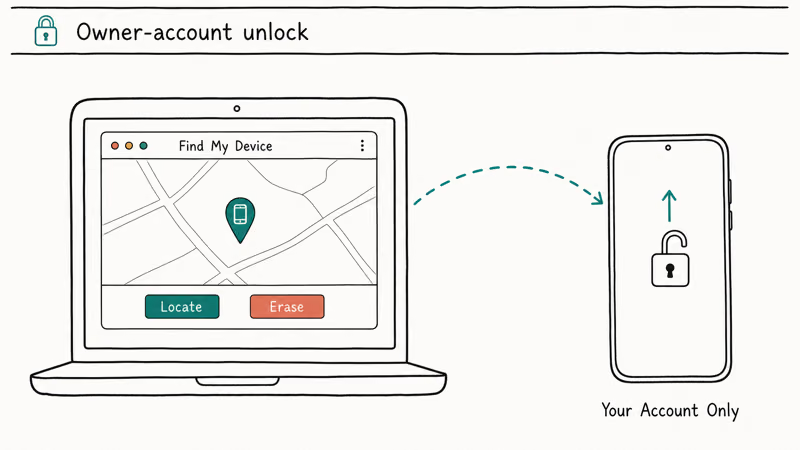
Sign in with the Google Account already linked to the device, pick the phone from the list, and choose Secure Device. The service pushes a new lock screen password straight to the phone, and your data stays untouched in place; you sign in with that new password the next time you tap the screen, then change it again from inside the device.
Google’s official help page confirms that 4 conditions must hold on the target phone before any remote command works.
The phone has to be powered on, signed in to a Google Account, connected to mobile data or Wi-Fi, and have Find My Device turned on in Settings. If any one is off, the command waits in the queue until the next time the phone comes online. Secure Device commands usually reach the phone soon after it reconnects to Wi-Fi or mobile data.
Find My Device misbehaving? Google Play Services is the usual culprit, and our Google Play services keeps stopping guide walks through the cache and account fixes that clear it within a few minutes on most phones.
#Use Samsung Find My Mobile for Galaxy Devices
Samsung’s official documentation states that Galaxy owners can remotely unlock through Samsung Find My Mobile without wiping anything, provided the Remote unlock toggle was switched on beforehand under Settings, Biometrics and security, Find My Mobile, and a Samsung Account was registered on the phone.
Sign in. Choose Unlock. Confirm with your account password.
After a PIN lockout, the remote unlock completes in a moment with Wi-Fi on. If Remote unlock was never enabled, this option isn’t available and you fall back to Secure Device or a full factory reset through the steps in the next section.
#Three Data-Preserving Checks Before You Wipe Anything
Galaxy on One UI 6.1 or later: try your previous lock code. After you change a PIN, pattern, or password, Samsung keeps the old credential alive for exactly 72 hours. Miss the code 5 times, tap Forgot PIN?, enter the previous credential, and set a new lock. Samsung’s previous screen lock guide confirms you get one use per lock change, three attempts, and the stored credential self-deletes at the 72-hour mark.
Check whether Smart Lock is already holding the door open. If you ever configured Google’s Smart Lock trusted places or trusted Bluetooth devices, going home or connecting your paired earbuds may let you straight in to reset the lock.
Stuck on a third-party lock screen app? Boot into Safe Mode. Hold Power, long-press Power off, and confirm the Safe Mode reboot. Third-party apps stay disabled there, so you can uninstall the misbehaving lock app under Settings > Apps and restart normally. This only helps with app-caused lockouts; it can’t recover a forgotten system PIN, as our remove Android screen lock guide explains in more depth.
#When Should You Factory Reset Your Android Phone?
A factory reset is the OEM-recommended fallback once account recovery fails. It wipes the lock screen along with everything else, then asks for the previously linked Google Account credentials during setup.
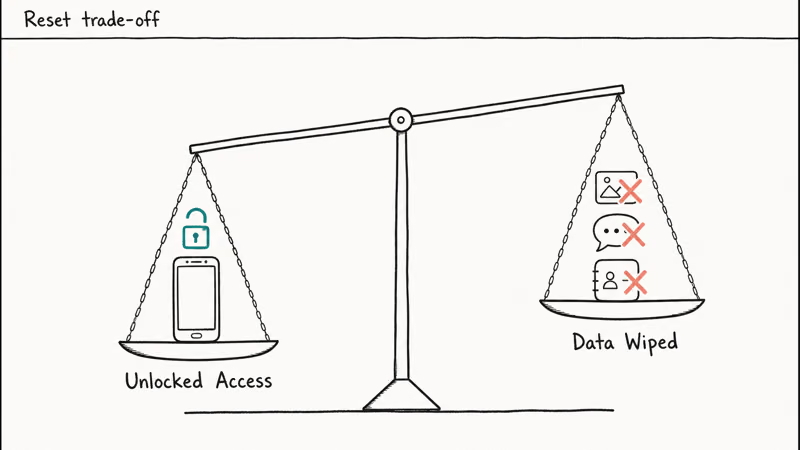
There’s a built-in trap waiting on the other side.
Google’s documentation on Factory Reset Protection states that after a remote reset through Find Hub, setup requires a Google username and password previously associated with the device. If you can’t provide that account information, you can’t use the phone after the reset.
Reset paths vary by recovery menu, but the common steps are: power the phone off, hold Power and Volume Down (or the model-specific combo) until you see the bootloader, use the volume keys to highlight Recovery, then choose Wipe data / factory reset and confirm twice.
Done.
After the reset, sign in with the same Google Account that was on the phone before. If you don’t remember those credentials, recover them at accounts.google.com before you wipe, never after.
#Try ADB Recovery if USB Debugging Was Enabled
The ADB command adb shell rm /data/system/gesture.key removes the pattern lock on older Android versions, but only if USB debugging was enabled before the lockout and you previously authorized the connecting computer through its RSA fingerprint prompt.
USB debugging can’t be enabled remotely once a phone is locked.
That guardrail is intentional, so the ADB trick is realistic only for power users who already had Developer Options switched on for tinkering. Modern Android releases since 7.0 changed how the lock secret is stored, so the gesture.key removal fails on most current phones and the safer route remains Find My Device or a clean factory reset.
If your screen is also damaged, our enable USB debugging on broken screen walkthrough covers the OTG mouse and scrcpy paths for older models.
#What About Third-Party Unlock Tools?
Third-party desktop utilities exist for stubborn cases on your own device, after Google and Samsung recovery have already failed. Treat them as last-resort, use only on phones you own, and read the data-loss notice on the product page before you start.
On newer hardware they offer no real advantage over a clean factory reset.
Reputable options worth knowing:
- DroidKit: supports PIN, pattern, password, and fingerprint locks; preserves data on some pre-Android 11 models.
- Dr.Fone Screen Unlock: user-friendly Windows and macOS interface; broad device coverage.
- EaseUS MobiUnlock: works on most Samsung Galaxy models; expect a data wipe on newer Android versions.
Some links on this page are affiliate links, which means fone.tips may earn a commission at no extra cost to you.
Avoid anything that advertises “undetectable” unlocking, hidden monitoring, or “spy” features; those market themselves toward illegal use and several of them have been flagged by Google Play Protect as potentially harmful applications.
#Plan for Factory Reset Protection (FRP)
Factory Reset Protection (FRP) kicks in automatically whenever an Android phone is wiped outside of Settings.
That covers both a recovery-menu reset and a remote Erase Device command pushed from the Find My Device console.
The next person to set the phone up must sign in with a Google Account that was on the device before the reset, or the setup wizard refuses to continue.
It’s a feature.
For a phone you own, recover your Google Account password at accounts.google.com first, then proceed with the reset and breeze through the FRP prompt with credentials you control. If a refurbisher or carrier mishandled FRP on a phone you legitimately bought, our FRP bypass tools guide covers the legitimate request flow with proof of purchase, which is the only route we recommend.
Carrier and manufacturer support are worth a call in two specific cases. Samsung, Google, and Motorola service centers can verify a purchase receipt or IMEI and process an FRP removal when the original account is unreachable on a phone you legitimately own. And if the lockout is hardware (a fingerprint sensor that stopped reading your enrolled finger, for example), walk-in repair can replace the part and walk you through recovery, as covered in our forgot Android password guide.
#Legal and Privacy Lines You Must Not Cross
Every method here assumes the phone is yours and the linked Google or Samsung account belongs to you.
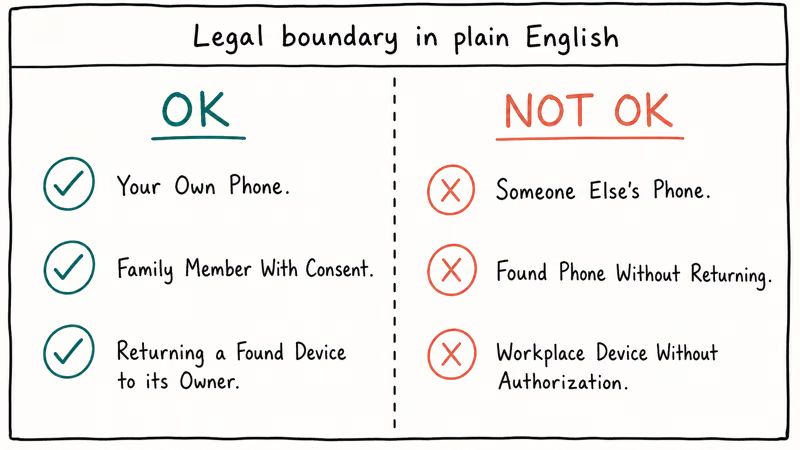
Stealth tools, hidden monitoring, unlocking without the owner’s knowledge, or “helping a friend” without seeing their proof of ownership are not in scope, and we won’t link to anything that markets those use cases. Doing so can violate federal and state computer-misuse laws, wiretapping statutes, and stalking laws, with criminal penalties on top of any civil exposure.
Trying to handle an account for a deceased family member? Use Google’s request page for a deceased user’s account. Immediate family members and representatives can ask Google to close the account or, in some circumstances, provide account content, but Google won’t provide passwords or other login details.
If the phone was stolen, file a police report and give the IMEI to your carrier before doing anything else.
#Bottom Line
For a phone you own and a Google or Samsung account you can sign into, the sequence is fixed.
Try Google Find My Device first. If it’s a Galaxy with Remote unlock already enabled, try Samsung Find My Mobile next. After that, fall back to a factory reset using the original Google credentials at the FRP prompt during setup.
Third-party desktop unlockers are a niche fallback for older devices and almost always wipe data on modern Android. Don’t use any of these methods on a phone or account that isn’t yours; recovery tools were never designed to substitute for proof of ownership, and using them that way is a criminal matter, not a tech problem.
FRP bypass
#Frequently Asked Questions
Will using Find My Device erase my data?
No. Secure Device sets a new lock screen password remotely and leaves your files in place.
Erase Device is a separate command in the same console that does perform a full factory reset, so make sure you click the right button on the right device.
Can I unlock a phone I just bought second-hand?
Only if the seller hands you the previously linked Google Account credentials, or has wiped the phone properly through Settings before completing the sale.
If you hit a Factory Reset Protection screen asking for an unfamiliar account on first boot, that phone is still locked to the previous owner under FRP rules. Contact the seller, ask them to remove the device from their account at myaccount.google.com, or return the phone for a refund.
What if I never enabled Find My Device or Samsung Find My Mobile?
You’re limited to a factory reset through the recovery menu, after which the phone will ask for the Google Account that was on it before the wipe.
Is the universal Android unlock code real?
No.
Codes like *#*#7780#*#* are factory reset shortcuts on a few old models, never unlock codes for the lock screen itself. Any site claiming to sell a “universal PIN” that bypasses any Android lock is selling either malware, a refurbished factory-reset trick, or a scam.
Why don’t phones show a Forgot Pattern link anymore?
Android 4.4 and earlier offered a lock-screen “Forgot pattern” link that accepted your Google credentials after five failed attempts. Google removed it in Android 5.0 when full-disk encryption tied the lock credential to the data encryption key, making the old reset structurally impossible. On anything from late 2014 onward, the official paths are Find My Device or a factory reset.
How do I prove ownership at a carrier store?
Bring the original purchase receipt or order confirmation email, the IMEI (printed on the original box and inside Settings, About phone), a government photo ID matching the name on the account, and the SIM with the phone number tied to the line. Carriers cross-check all four before they help reset an account-locked device, and they keep a record of the visit.
Are third-party Android unlock tools legal?
Using them on a phone you own is legal in most jurisdictions. Using them on someone else’s device is not.
What happens if the police find a stolen phone with my IMEI?
If you filed a report and your carrier flagged the IMEI as stolen, the device is added to the GSMA stolen-device database and most carriers worldwide refuse to activate it on their networks. File the report immediately and keep the case number; it’s the fastest path to getting a stolen phone back when one turns up at a pawn shop or repair counter months later.
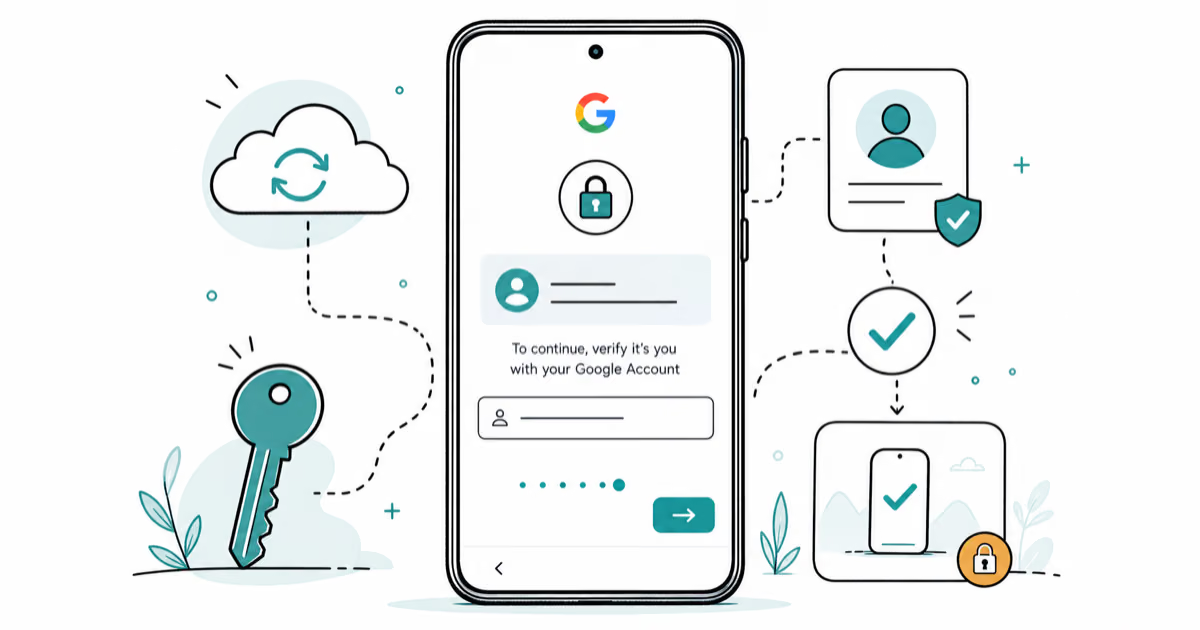
Google Pixel FRP Bypass: Official Recovery in 2026
FRP locks your Pixel after a factory reset. Start with Google Account Recovery for your own device. Here is what works on Pixel 4a and later in 2026.
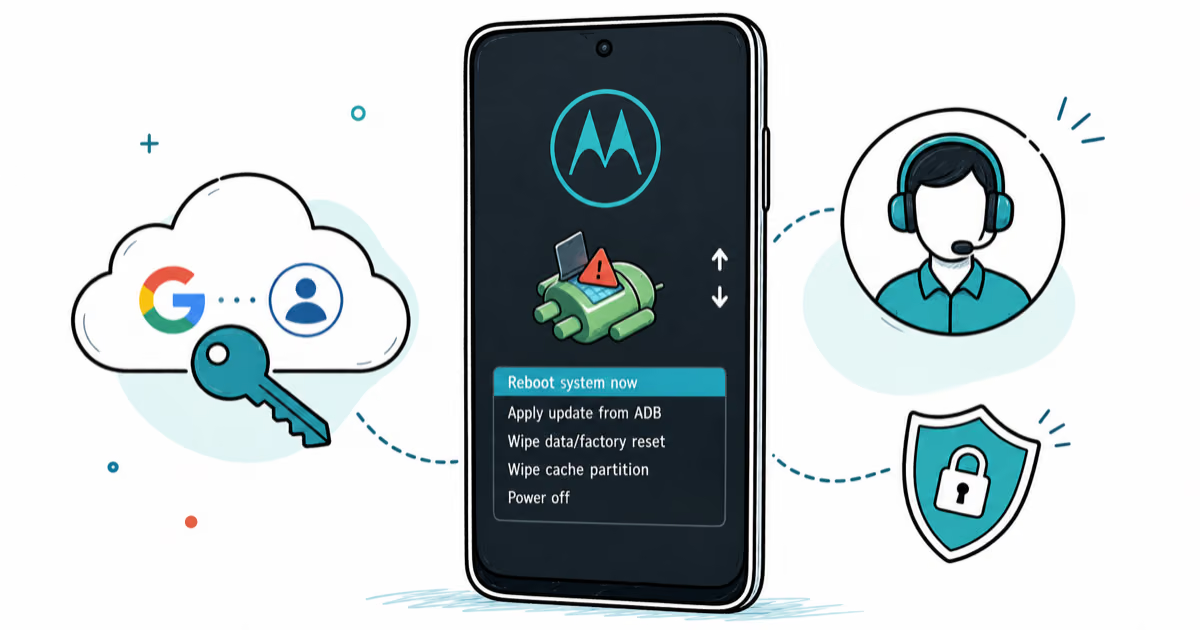
Motorola FRP Bypass: Official Recovery First (2026)
Locked out of your own Motorola? Use Google Account Recovery and Motorola Support before any FRP bypass tool. Legal limits explained for 2026.
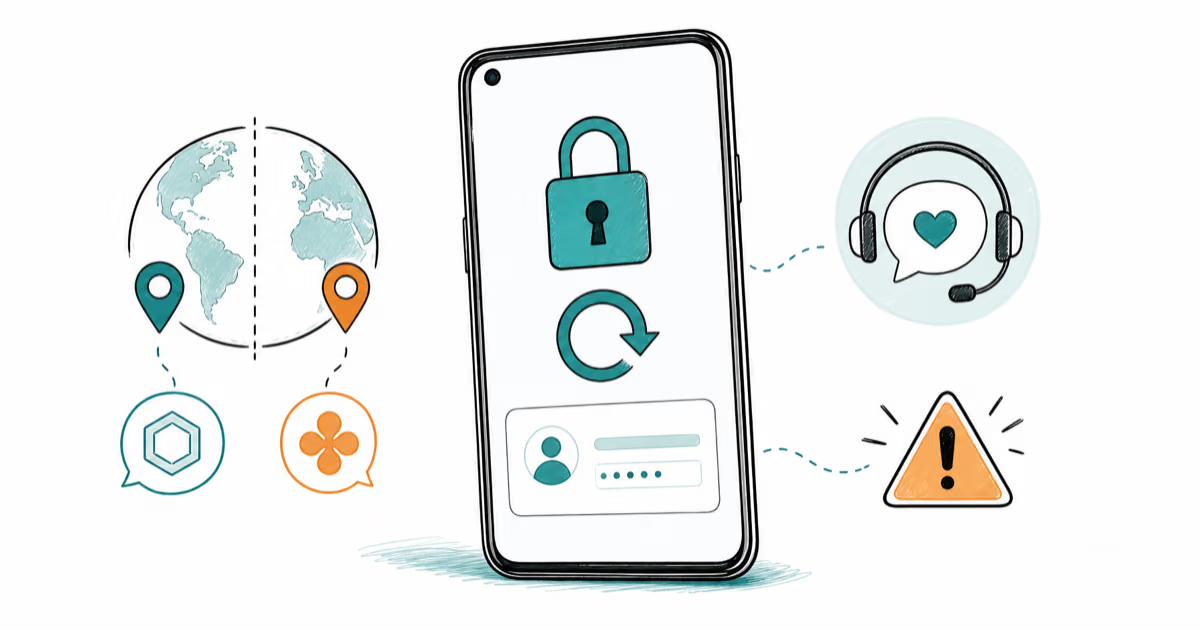
OnePlus FRP Bypass: Region Risks and Recovery (2026)
OnePlus FRP bypass guide: OxygenOS vs ColorOS region risks, official Google Account Recovery, OnePlus Support, and why YouTube tutorials brick.
Xiaomi FRP Bypass: Mi Account vs Google Lock (2026)
Locked out of your Xiaomi after a factory reset? Tell Mi Account lock from Google FRP, use official recovery, and learn the 2026 legal limits.