How to Remove Emojis from Pictures on Any Device (2026)
Remove emojis from photos using Snapseed, TouchRetouch, online tools, and AI-powered apps. Step-by-step methods for iPhone, Android, and desktop.

Quick AnswerUse Snapseed's Healing tool or TouchRetouch to paint over the emoji and let the app intelligently fill the area. Online tools like Fotor and PicWish also work without installing any software.
Emoji removal from photos works best with AI-powered inpainting tools that fill the gap with matching background pixels. The quality of the result depends on how complex the background is behind the emoji.
- Snapseed’s free Healing tool is the fastest mobile option; paint over the emoji and the app fills the area using surrounding pixels.
- TouchRetouch is a specialized removal app for iOS and Android that uses a Brush or Lasso tool for precise control.
- Online tools like Fotor and PicWish require no install and work directly in your browser with AI-powered object removal.
- AI-powered tools like AniEraser and YouCam Enhance can remove emojis from both photos and videos.
- Always save a copy of the original image before editing; results vary by background complexity.
Simple removals work best on solid or gradient backgrounds; patterned areas may need multiple passes.
#How to Remove Emojis from Photos on Mobile?
Mobile apps are the fastest option for emoji removal on the go. These are the best free and paid choices for both iPhone and Android.
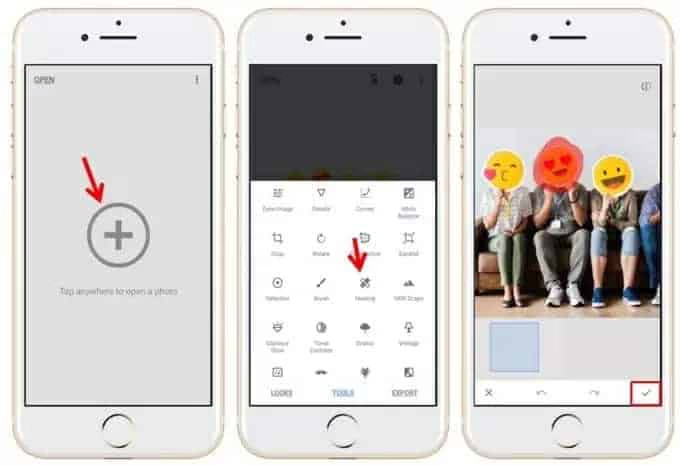
#Snapseed (Free, iOS and Android)
Snapseed is the quickest free option and works on both iOS and Android.
- Open the app and import your image.
- Tap Tools and select Healing.
- Zoom in on the emoji.
- Use your finger to paint over the emoji.
- The app fills the area automatically based on surrounding pixels.
Download from Google Play | Download from App Store
#TouchRetouch (Paid, iOS and Android)
TouchRetouch is built specifically for object removal and gives more precise control than Snapseed.
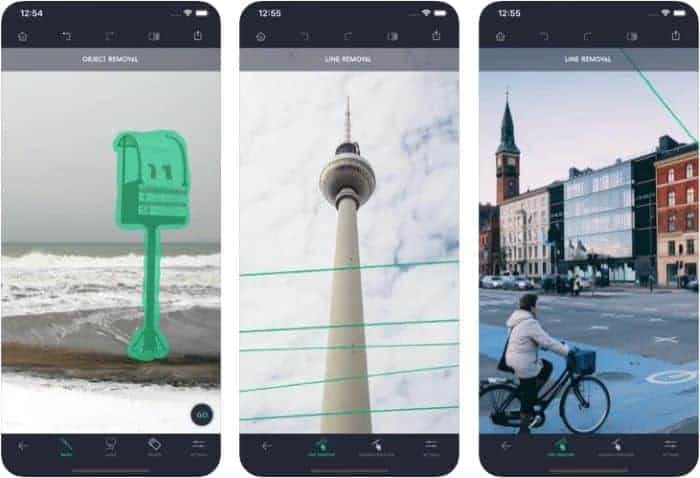
- Open the app and select your photo.
- Choose the Brush or Lasso tool.
- Mark the emoji you want to remove.
- Tap Go to erase it.
For photos with text overlays, the Lasso tool can give cleaner edges than the brush, especially on transparent or semi-transparent emojis. The app costs $1.99 on iOS and Android.
#AirBrush (Free with in-app purchases)
AirBrush handles emoji removal alongside portrait retouching tools.
- Open the app and select your photo.
- Tap Tools and choose Eraser.
- Adjust the brush size as needed.
- Carefully erase the emoji and tap Apply.
Download from Google Play | Download from App Store
Once you’ve mastered emoji removal, you can also use these apps to remove dates from photos or other unwanted overlays.
#Online Tools for Emoji Removal Without Any App
Online tools let you remove emojis from a browser on any device without downloading anything.

#Fotor
According to Fotor, its editor includes object removal.
- Go to Fotor’s website and upload your image.
- Click Edit then find the AI Remover or Object Remover tool.
- Use the brush to paint over the emoji.
- Click Apply to remove it.
Fotor’s free tier supports images up to 100MB and allows 5 AI removals per day.
#PicWish
According to PicWish, its browser tool removes marked areas.
- Visit PicWish and upload your photo.
- Use the selection tools to mark the emoji.
- Click Erase and download the result.
If you’re dealing with blurry areas around removed objects, see our guide on how to unblur a picture or image.
#Media.io
According to Media.io, its remover handles both photos and videos and can replace face emojis with AI-reconstructed faces.
- Upload your image to Media.io.
- Use the brush to highlight the emoji.
- Click Remove and download the edited photo.
#Desktop Software for Precise Emoji Removal
Desktop editors offer deeper repair tools.
#Adobe Photoshop
Photoshop’s Content-Aware Fill fills removed areas intelligently, producing the cleanest results on complex backgrounds.
- Open your image in Photoshop.
- Select the Clone Stamp tool.
- Hold Alt (Option on Mac) and click to sample the area near the emoji.
- Paint over the emoji to cover it with the sampled texture.
- Use the Healing Brush tool to blend edges.
#GIMP (Free)
GIMP replicates most of Photoshop’s removal tools at no cost.
- Open your image in GIMP.
- Select the Clone tool.
- Hold Ctrl and click to sample a nearby area.
- Paint over the emoji.
- Use the Heal tool to smooth inconsistencies.
#Paint.NET (Free)
Paint.NET offers a simpler interface for users who don’t need advanced controls.
- Open your image in Paint.NET.
- Use the Clone Stamp tool.
- Hold Ctrl and click to select a sample area.
- Paint over the emoji to replace it.
For techniques like creating transparent backgrounds in Paint.NET, see our guide on Paint.NET transparent backgrounds.
#Which AI Tools Give the Best Emoji Removal Results?
AI tools automate the entire process and handle complex backgrounds that manual tools struggle with. AI inpainting tools handle solid and gradient backgrounds well, though textured surfaces still need manual cleanup. According to PCMag’s photo editing roundup, AI inpainting tools perform well on most backgrounds.

#AniEraser
AniEraser removes emojis from both photos and videos using batch processing.
- Upload your image to the AniEraser platform.
- Use the selection tool to highlight the emoji.
- Click Erase and download the result.
#YouCam Enhance
YouCam Enhance uses AI to automatically detect and remove emojis from portrait photos.
- Upload your photo to YouCam Enhance.
- Select the AI Removal feature.
- Let the AI detect and remove the emoji.
- Save the edited image.
#Tips for the Best Emoji Removal Results
- Use the highest resolution version of the image available for the cleanest fill.
- Light strokes work better than one large brush pass when using manual tools.
- Multiple passes on complex backgrounds blend the fill more naturally.
- Always save a copy of the original before editing.
If you encounter playback issues with edited media files, see our guide on fixing “The media could not be played” errors.
#Legal and Privacy Considerations
Before removing emojis from photos, consider the context. Removing overlays from your own photos is straightforward. If the image belongs to someone else, removing identifiers or obscuring overlays could raise copyright or privacy questions depending on your intended use.
For photos shared publicly on social platforms, the original photographer holds the copyright. Personal use is generally fine; distributing the edited version without permission is not.
#Bottom Line
For quick mobile removal, Snapseed’s free Healing tool handles simple emoji removal quickly. TouchRetouch is worth the cost for photos with complex backgrounds that need more control. For batch processing or video, AniEraser handles both in one tool. Desktop users get the cleanest results from Photoshop’s Content-Aware Fill or GIMP’s Clone and Heal tools.
#Frequently Asked Questions
Is it legal to remove emojis from someone else’s picture?
For personal use, it’s generally acceptable. If you plan to publish or distribute the image, obtain permission from the copyright holder first. Removing emojis from images you don’t own and redistributing them could raise copyright issues.
Can I remove emojis from videos?
Yes. Tools like AniEraser and Media.io support video emoji removal. The process takes longer than photos and quality depends on how much the background moves.
Will removing emojis affect image quality?
When done correctly with AI inpainting tools, the impact is minimal. Manual clone stamping on complex backgrounds is more likely to leave visible artifacts.
Are there any free desktop tools for emoji removal?
Yes. GIMP and Paint.NET are both free and work on Windows and Mac. Both support the clone stamp technique for removing emojis.
What if the emoji was burned into a scanned document?
Convert the scanned PDF to an image file, use a clone stamp or healing brush to remove the emoji, then convert back to PDF. The quality depends on the scan resolution. For PDF-specific editing, see our guide on removing signatures from PDFs.
How do I remove multiple emojis from one photo?
Use Snapseed’s Healing tool or GIMP’s Clone tool to address each emoji individually. AI tools like PicWish let you select multiple areas at once before processing, saving time on photos with several overlays.

Google Messages Error 3100: Why RCS Is Broken on Galaxy
Google Messages RCS error 3100 hits Galaxy owners after phone or carrier switches. Google told 9to5Google a fix is coming. Here's what actually helps.

Is This Bank App Real? Spot a Fake App on Your Home Screen
A bank app can land on your home screen from a web page with no install warning. Learn the checks that tell a real banking app from a phishing web app.

Apps Crashing After iOS 27 Update? Fix Order (2026)
Apps crashing after the iOS 27 update? Update the app in the App Store first, then offload and reinstall to clear stale cache, then restart. The fix order.

Do AI Translation Earbuds Work Offline? What to Know
Do AI translation earbuds work offline? A few do with downloaded language packs, but most need the cloud. Here's what works offline and what you give up.