Fix iTunes Error 0xE80000A on Windows: Current Steps
Fix iTunes error 0xE80000A on Windows with current Apple guidance: restart AMDS, check USB and Trust, update software, or switch to Apple Devices.
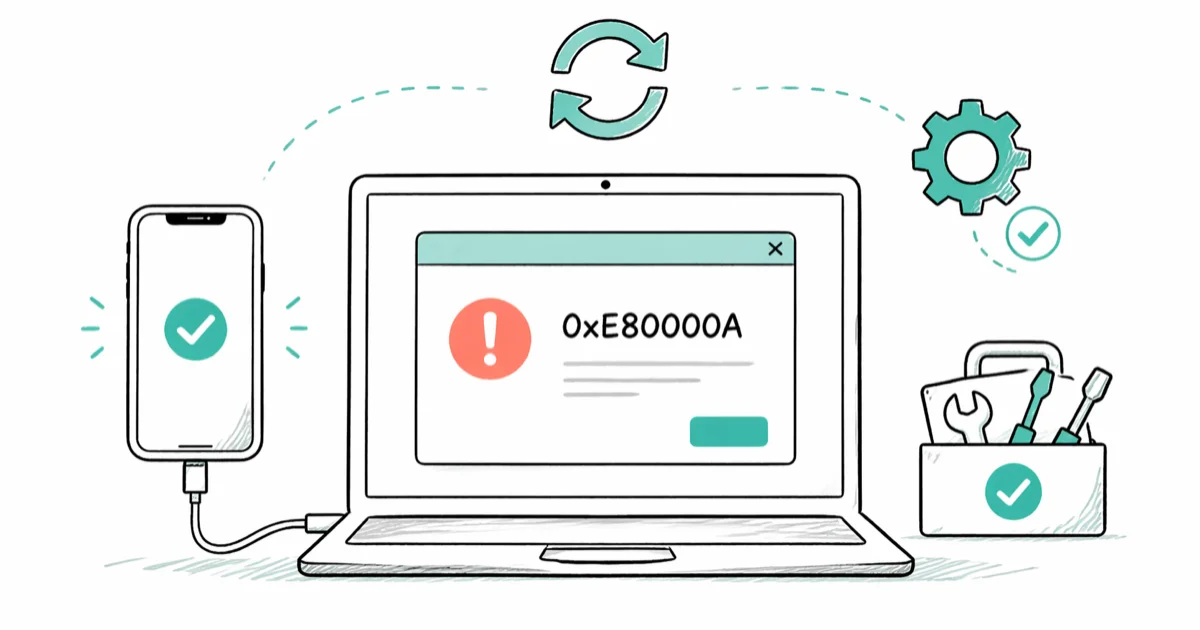
Quick AnswerIf iTunes can't recognize your iPhone or iPad, restart Apple Mobile Device Service, then check the data cable, USB port, and Trust prompt. For device management, Apple directs Windows users to the Apple Devices app.
iTunes error 0xE80000A appears when Windows and an Apple device don’t complete a usable connection. The code doesn’t prove which service, trust record, cable, or security product failed, so use current Apple checks.
- Restart Apple Mobile Device Service through Windows Services before reinstalling software.
- Use a cable that carries data, try another USB port, and respond to the Trust prompt on the unlocked device.
- Reset Location & Privacy on the iPhone or iPad if the Trust prompt is missing or was declined.
- Apple Devices is the current Windows app for updating, backing up, restoring, managing, and syncing an iPhone or iPad.
- Don’t disable security software or delete Apple program folders as a first-line fix.
Authorization and privacy: Use these steps only on your own device or with permission. Unauthorized access may be illegal.
#What Does iTunes Error 0xE80000A Mean?
Apple’s current support pages don’t define 0xE80000A as proof of one specific failed component. Treat it as a device-recognition problem: iTunes tried to connect, but Windows and the Apple device didn’t complete a usable connection.
According to Apple’s background-process guide, AppleMobileDeviceHelper listens for commands, while Apple Mobile Device Service lets iTunes recognize an iPhone or iPod touch. That explains why restarting the service can help, but it doesn’t justify claiming that the helper always crashed.
If the device never appears after the checks below, compare the symptoms with our broader iTunes not recognizing iPhone guide.
#Start With Apple’s Current Windows App
Use the supported app first.
Before troubleshooting an old iTunes workflow, confirm which Apple app should handle the task. According to Apple’s current Windows app guide, the Apple Devices app now updates, backs up, restores, manages, and syncs an iPhone or iPad. iTunes remains the Windows app for podcasts and audiobooks.
Install or update the relevant app through the Microsoft Store. If your goal is device management rather than podcasts or audiobooks, open Apple Devices, connect the phone, unlock it, and look for it in the sidebar.
This doesn’t make an old iTunes error imaginary. It gives you a supported path that avoids rebuilding a legacy installation without evidence that reinstalling is necessary.
#Restart Apple Mobile Device Service
Restart the service, not every background process.
Apple’s current AMDS instructions say the service may need a restart when iTunes on Windows doesn’t recognize an Apple device.
- Close iTunes and disconnect the iPhone or iPad.
- Press Windows key + R, enter
services.msc, and select OK. - Open Apple Mobile Device Service properties.
- Set Startup type to Automatic.
- Stop the service, start it again, and select OK.
- Restart Windows, reopen iTunes, and reconnect the unlocked device.
If Apple Mobile Device Service isn’t listed, don’t substitute a guessed executable path. Update or reinstall the Apple app you actually use, then check again.
#Check the USB Connection and Trust Prompt
Test one variable at a time.
According to Apple’s current device-recognition guide, a connected iPhone or iPad should appear in the Apple Devices sidebar on Windows. Apple tells users to check the charging port for debris, try another data-capable cable, try another USB port or computer, and update Windows and iOS or iPadOS.
Use this order:
- Unlock the iPhone or iPad and reconnect it directly to the computer.
- Confirm that the cable supports data as well as charging.
- Try another port, cable, or computer to isolate the connection.
- Accept Trust This Computer on the device and the matching prompt in Apple Devices or iTunes.
- Install current Windows and device software updates before retesting.
If the Trust prompt never appears, Apple’s Trust alert guide says to restart both devices and, if needed, use Settings > General > Transfer or Reset [Device] > Reset > Reset Location & Privacy. That is safer and better supported than deleting the Windows Lockdown folder. Our repeated Trust prompt guide covers the separate case where the prompt returns on every connection.
#How Should You Handle Security Software?
Keep protection on while you investigate.
Apple’s AMDS page states that third-party security software can be involved when the service won’t start or stops unexpectedly. That does not mean every 0xE80000A error is caused by antivirus software, and it doesn’t justify turning protection off without a controlled test.
Start by updating the security product and Windows. Review the vendor’s blocked-app or quarantine history, and allow only the signed Apple component that the vendor identifies. On a managed work or school PC, ask the administrator to check policy conflicts rather than changing endpoint protection yourself.
For other connection messages, see our iTunes could not connect guide before changing firewall or security settings.
#Reinstall Only the App You Use
Reinstall is the last software step.
Reinstall after the service, cable, port, Trust, and update checks fail. The Mac Studio specifications page previously cited here was not an iTunes reinstall guide, so the unsupported six-component removal order and recurrence forecast have been removed.
For current device management, reinstall Apple Devices from the Microsoft Store. If you still use iTunes for podcasts or audiobooks, reinstall iTunes through the Microsoft Store or Apple’s current Windows download path. Don’t delete program folders or uninstall unrelated Apple apps unless a current vendor instruction specifically calls for it.
Use our iTunes reinstall guide only as context, and compare every step with Apple’s current download guidance.
#When to Contact Apple Support
Contact Apple if the device fails to appear on more than one computer after you have tested a data-capable cable, restarted AMDS, accepted the Trust prompt, and installed current software. That pattern can separate a Windows installation issue from a cable, port, or device service problem.
Keep the exact code, Windows version, app name, and completed tests. For context, compare it with our common iTunes errors guide.
#Bottom Line
Restart Apple Mobile Device Service first, then test the cable, port, Trust prompt, and current software. Use Apple Devices for present-day iPhone and iPad management on Windows. Reinstall only the app you use, and escalate after the same device fails on another known-good cable or computer.
#Frequently Asked Questions
Is 0xE80000A always an Apple Mobile Device Helper crash?
No. Apple documents what the helper and service do, but its current support pages don’t assign this code to one guaranteed cause. Restart AMDS and test the whole connection path.
Can I fix the error without reinstalling iTunes?
Yes. Restart AMDS, reconnect with a data-capable cable, try another USB port, unlock the device, and accept the Trust prompt before considering a reinstall.
Should I delete the Windows Lockdown folder?
Not as a first-line fix. Apple’s current Trust guidance uses Reset Location & Privacy on the iPhone or iPad when trust settings need to be recreated.
Should I use iTunes or Apple Devices on Windows?
Use Apple Devices to update, back up, restore, manage, and sync an iPhone or iPad. Apple still directs Windows users to iTunes for podcasts and audiobooks.
Will charging prove that the USB cable can transfer data?
No. Apple specifically says the cable must support both data and charging. A charge-only or damaged data cable can power the device without creating a usable connection.
Should I disable antivirus software?
Don’t disable protection as a routine step. Update it, review any blocked-item history, follow the security vendor’s guidance, or ask an administrator to check a managed computer.
When should I contact Apple?
Contact Apple after the device still isn’t recognized with current software, a known-good data cable, another port, and another computer. Report the exact code and everything you tested.

Mac mini M6 vs M5 Pro: Which Model Should You Buy?
Mac mini M6 vs M5 Pro compared on price, memory, ports, displays, and real workloads. Find the better 2026 Mac mini for your desk and budget.

Apple Siri Settlement: Who Qualifies and How to Claim
Apple's $250 million Siri settlement covers iPhone 15 Pro and iPhone 16 models bought June 2024 to March 2025. See who qualifies and how claims work.

iOS 26.6.1 Security Update: What Apple Fixed and Who Gets It
Apple released iOS 26.6.1 on August 17 with 29 security fixes, including an IPSec interception bug. See what it patches, who gets it, and how to update.

iPhone Adaptive Power: How It Works and When to Use It
Learn how iPhone Adaptive Power works, which models support it, what it changes, and when Low Power Mode is still the better battery-saving choice.