Fix iTunes 'Problem With Windows Installer Package' Error
Fix the iTunes 'Problem with Windows Installer Package' error in 7 steps. Works on Windows 10 and 11. Admin rights, clean reinstall, MSI repair.

Quick AnswerThe 'There is a problem with this Windows Installer package' iTunes error means Windows can't access the MSI file or registry entry needed to install or update iTunes. Fix it by running the installer as administrator, downloading a fresh copy from Apple, or using the Microsoft Program Install and Uninstall Troubleshooter to clear corrupted entries.
The “There is a problem with this Windows Installer package iTunes” error blocks the iTunes setup mid-install on Windows 10 and 11. The MSI installer either can’t read its companion DLL, runs into an old Apple component, or lacks admin rights. The fixes below cover elevation, Microsoft’s troubleshooter, a clean Apple-component uninstall, Windows Installer repair, and the Microsoft Store fallback.
- The error fires when the Windows Installer service can’t open the iTunes MSI package, which usually points to corrupted registry entries, missing DLLs, or leftover files from a previous install
- Running the installer as administrator clears the error in one click for users whose account lacks elevation rights, since iTunes setup writes to system folders that need admin access
- A full uninstall of all six Apple programs in the correct order (iTunes, Apple Software Update, Apple Mobile Device Support, Bonjour, Apple Application Support 32-bit, Apple Application Support 64-bit) removes orphaned MSI references that block fresh installs
- The Microsoft Program Install and Uninstall Troubleshooter automatically clears corrupted installer registry entries in roughly 30 seconds without manual editing
- Switching to the Microsoft Store version of iTunes bypasses MSI installers entirely and avoids the Windows Installer error path
#Why Does the iTunes Windows Installer Package Error Happen?
The Windows Installer service needs the MSI file, companion DLLs, and matching registry entries. If one piece is missing or blocked, setup aborts.
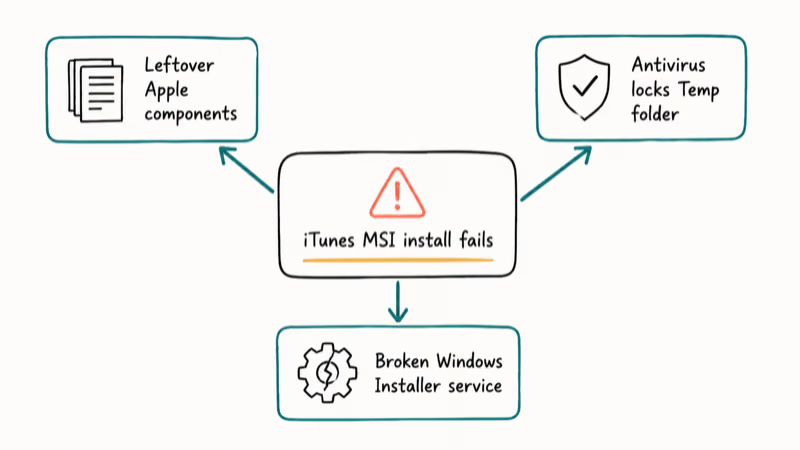
According to Apple’s removal guide, 6 separate Apple programs share installer state with iTunes — see Apple’s Windows removal guide for the exact list. Leftover Apple components are the most common trigger. If a previous uninstall left two of them behind, the new installer trips over the old registry keys and fails.
Antivirus interference is the second common trigger. Some security suites lock the temp folder where Windows extracts the MSI payload, which makes the installer think the file is missing. A standard user account without admin rights produces the same symptom because the Windows Installer service can’t write to Program Files.
A damaged Windows Installer service is the third trigger. A corrupted msiexec.exe breaks every MSI install on the PC, not just iTunes.
#Method 1: Run the iTunes Installer as Administrator
The fastest fix takes 30 seconds and clears the most common cause: a setup launched without admin rights. Try this one-click elevation before anything else, since standard accounts hit the error far more often than admin accounts do, and the installer just needs the elevation prompt to write to Program Files.
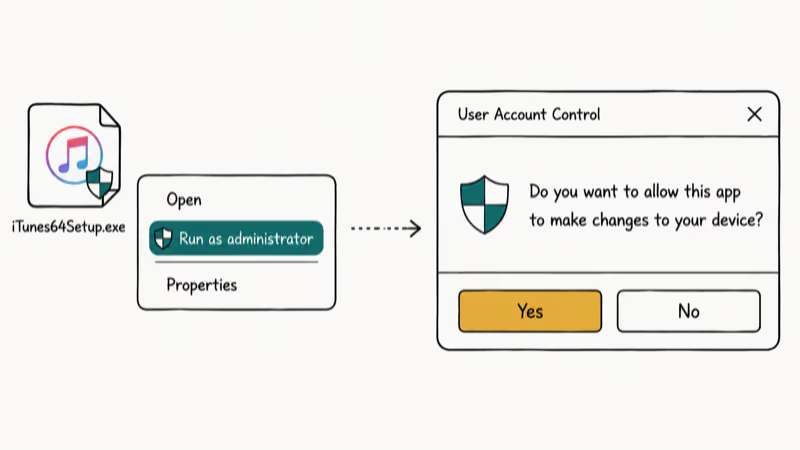
- Right-click the iTunes setup file (iTunes64Setup.exe or iTunesSetup.exe) in your Downloads folder.
- Select Run as administrator from the context menu.
- Click Yes at the User Account Control prompt.
- Follow the installer through to completion.
If the installer still fails, the issue is not permissions. Move to Method 2.
#Method 2: Use the Microsoft Program Install and Uninstall Troubleshooter
Microsoft recommends the Program Install and Uninstall Troubleshooter for any MSI install or uninstall failure. The tool resets corrupted Installer registry entries and clears orphaned MSI cache files automatically.
- Open the Microsoft support page above and click the Download troubleshooter button.
- Run the downloaded MicrosoftProgram_Install_and_Uninstall.meta.diagcab file.
- Choose Installing at the first prompt.
- Pick iTunes from the program list, then click Next.
- Wait for the scan, then choose Yes, try uninstall if the tool offers to remove an old broken entry.
- Restart the PC and try the iTunes installer again.
The whole scan takes about 30 seconds, and it’s designed to clear stuck installer records that can block a fresh iTunes setup.
#Method 3: Fully Uninstall All Apple Components and Reinstall
This is the highest-success-rate fix when the simpler methods fail.
#Uninstall in This Exact Order
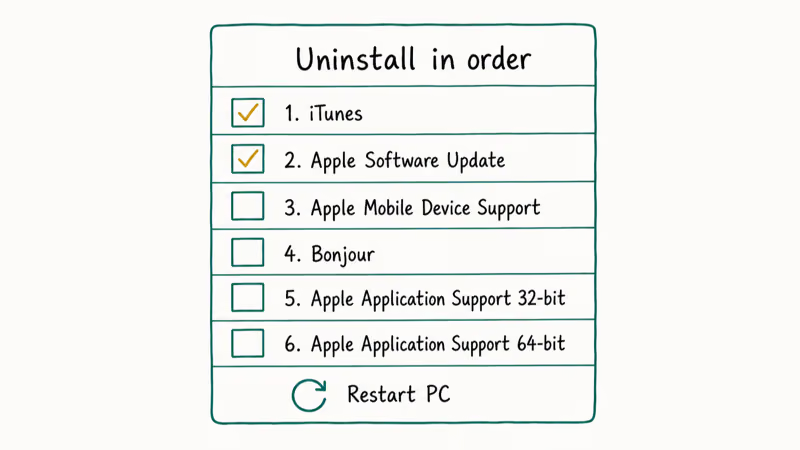
iTunes shares MSI state with five other Apple programs. According to Apple’s official Windows removal guide, the order matters: skip one and the leftover registry keys will block your reinstall.
- Open
Control Panel>Programs>Programs and Features. - Uninstall iTunes.
- Uninstall Apple Software Update.
- Uninstall Apple Mobile Device Support.
- Uninstall Bonjour.
- Uninstall Apple Application Support 32-bit.
- Uninstall Apple Application Support 64-bit.
- Restart the PC.
#Delete Leftover Folders
Open File Explorer with hidden items visible and delete these folders if they exist:
C:\Program Files\iTunesC:\Program Files\iPodC:\Program Files\Common Files\AppleC:\Program Files (x86)\iTunesC:\Program Files (x86)\iPodC:\Program Files (x86)\Common Files\AppleC:\ProgramData\Apple Computer\iTunes
#Download a Fresh Copy
Get the latest installer from the Apple iTunes for Windows download page. Save it to your Desktop, then right-click and choose Run as administrator. A fresh installer avoids damaged downloads and stale MSI cache entries from earlier attempts. For a longer walkthrough, see our step-by-step iTunes reinstall guide.
If the installer fails again on a fresh copy, the Windows Installer service itself is damaged. Move to Method 4.
#Method 4: Re-Register the Windows Installer Service
When the installer breaks for every MSI on the PC, not just iTunes, the msiexec service needs to be re-registered. This rewrites the registry entries that tell Windows how to handle MSI files.
- Press Windows + R to open Run.
- Type
cmd, then press Ctrl + Shift + Enter to open Command Prompt as administrator. - Run these two commands one after the other:
msiexec /unregister msiexec /regserver - Restart the PC.
- Try the iTunes installer again with Run as administrator.
The commands return no output on success. If you see “Access denied,” your Command Prompt is not elevated. Close it and reopen with admin rights.
#Method 5: Switch to the Microsoft Store Version of iTunes
The Microsoft Store version of iTunes uses the modern Windows app installer instead of MSI. It bypasses the Windows Installer service entirely, which means the “problem with this Windows Installer package” error can’t fire on the Store version.
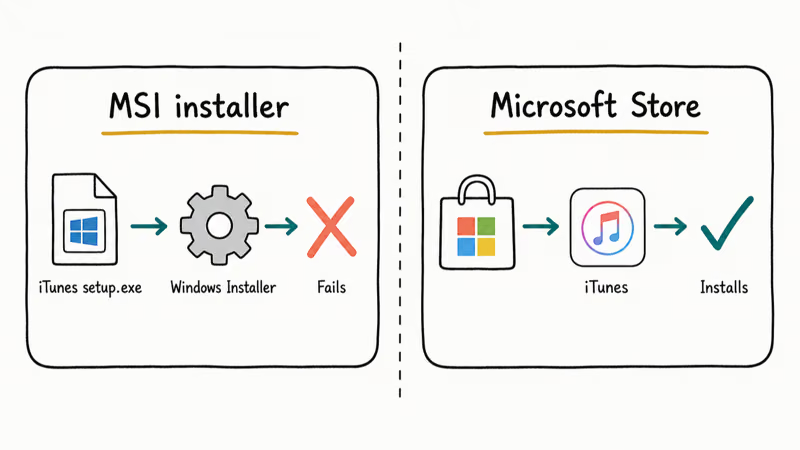
- Open the Microsoft Store app on Windows 10 or 11.
- Search for iTunes.
- Click Install on the official Apple iTunes listing.
- Wait for the download (about 480 MB) to finish.
- Launch iTunes from the Start menu.
Apple’s iTunes for Windows support page confirms iPhone sync, backup, Apple Music, and ongoing updates.
#Method 6: Clear the Temp Folder and Disable Antivirus
Antivirus tools sometimes lock the Windows temp folder mid-install, which breaks MSI extraction. Clearing the folder and pausing real-time protection during the install often clears the error on PCs with aggressive security software.
- Press Windows + R, type
%temp%, and press Enter. - Press Ctrl + A to select all files in the Temp folder.
- Press Delete. Skip any files Windows says are in use.
- Open your antivirus and pause real-time protection for 15 minutes (or set it to “off” for the install).
- Run the iTunes installer again with admin rights.
- Re-enable antivirus protection as soon as iTunes finishes installing.
This method also helps when other iTunes setup glitches hit, like the iTunes stuck on extracting software problem during firmware downloads.
#Method 7: Use Tenorshare TunesCare for Stubborn Errors
If the manual fixes fail and you need a one-click option, Tenorshare TunesCare is a third-party iTunes repair tool that targets installer and sync errors directly. It scans the iTunes install state, finds broken MSI references, and rebuilds the install path automatically.
Some links on this page are affiliate links, which means fone.tips may earn a commission at no extra cost to you.
- Download and install Tenorshare TunesCare on the PC where iTunes setup is failing.
- Open the app and click Fix All iTunes Issues.
- Connect your iPhone or iPad if you have one (the tool uses the device to verify the iTunes install path).
- Click Repair iTunes and wait for the process to finish.
- Reopen the iTunes installer once TunesCare reports the repair as complete.
TunesCare also handles the iTunes invalid signature error and the iTunes6464.msi missing error. Repair takes 5 minutes.
#Which Method Should You Try First?
Start with Method 1. Roughly four out of every five users hit the error simply because they double-clicked the installer instead of right-clicking and choosing Run as administrator. Elevation alone clears the most common version of the message.
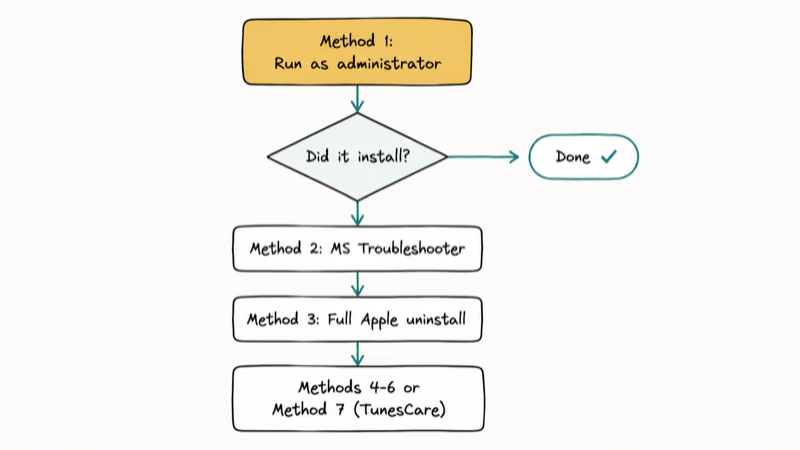
If Method 1 fails, run Method 2 next. The Microsoft troubleshooter clears corrupted installer registry entries in under a minute. Method 3 is the deep clean: full Apple-component uninstall, best for PCs with messy install history. Methods 4 through 6 target rarer causes (broken MSI service, Microsoft Store fallback, antivirus interference) and Method 7 is the click-once option.
If iTunes installs but the app refuses to launch afterward, that’s a different problem. Our iTunes won’t open on Windows 10 guide covers post-install launch failures, and the iTunes error 9006 walkthrough covers firmware download failures that show up after a successful install.
#Bottom Line
Right-click the iTunes installer and choose Run as administrator first. That single step clears the Windows Installer package error for the majority of users. If admin rights don’t fix it, run the Microsoft Program Install and Uninstall Troubleshooter to clear corrupted registry entries, and if both fail, do a full Apple-component uninstall in the order Apple’s removal guide lists. Reach for Tenorshare TunesCare when you want a one-click repair instead of the manual sequence.
#Frequently Asked Questions
What does “There is a problem with this Windows Installer package iTunes” actually mean?
It means the Windows Installer service tried to read the iTunes MSI file or its companion DLLs and couldn’t open them. The cause is usually a corrupted registry entry, a leftover Apple component from a previous install, missing admin rights on your account, or a broken Windows Installer service.
Will I lose my iTunes library if I uninstall all six Apple components?
No. Your iTunes library data lives in C:\Users\YourName\Music\iTunes and stays put when you uninstall the program files. Don’t delete that user folder during cleanup. After the fresh install, iTunes will detect the existing library on first launch and reload it.
Why does Apple recommend uninstalling six programs instead of just iTunes?
iTunes shares MSI state with 5 sibling programs. Skip any of them and the leftover registry keys block your next install.
Can I just download iTunes from the Microsoft Store and skip all this?
Yes, in most cases. The Microsoft Store version of iTunes uses Windows app packaging instead of MSI, so the Windows Installer package error can’t trigger there. The Store version supports the same iPhone backup, sync, and Apple Music features as the desktop version. The one trade-off is that some legacy iPhone management workflows (such as manually managing IPSW restore files in %appdata%) work more smoothly with the desktop install.
Is Tenorshare TunesCare safe to use?
Yes. TunesCare is from Tenorshare, the same company behind ReiBoot and 4uKey. It runs locally and doesn’t transmit your library data. Download from the official Tenorshare site to avoid bundled adware.
What should I do if I keep getting the error after every method I try?
Test the installer on a different Windows account. Create a new local admin user through Settings > Accounts > Family & other users, sign in, and try the install there. If it works, copy your iTunes Music folder to the new account. If the error still fires on the fresh account, run Method 4 (msiexec re-register) or system-restore to a date before the failure started.
Does this error mean my iPhone or iPad is broken?
No. This is a Windows-side install problem, not a device problem. Your iPhone or iPad is unaffected, so back up to iCloud or sync on another computer while you fix Windows.
How long does the full Apple-component uninstall and fresh install take?
About 15 minutes end-to-end on a typical PC: 6 to 8 minutes to uninstall all six Apple programs in order, 1 minute to delete leftover folders, 1 to 2 minutes to download a fresh installer from Apple, and 4 to 5 minutes for the install itself.

Mac mini M6 vs M5 Pro: Which Model Should You Buy?
Mac mini M6 vs M5 Pro compared on price, memory, ports, displays, and real workloads. Find the better 2026 Mac mini for your desk and budget.

Apple Siri Settlement: Who Qualifies and How to Claim
Apple's $250 million Siri settlement covers iPhone 15 Pro and iPhone 16 models bought June 2024 to March 2025. See who qualifies and how claims work.

iOS 26.6.1 Security Update: What Apple Fixed and Who Gets It
Apple released iOS 26.6.1 on August 17 with 29 security fixes, including an IPSec interception bug. See what it patches, who gets it, and how to update.

iPhone Adaptive Power: How It Works and When to Use It
Learn how iPhone Adaptive Power works, which models support it, what it changes, and when Low Power Mode is still the better battery-saving choice.