How to Fix Common iTunes Errors on iPhone: 6 Methods (2026)
Fix iTunes errors 11, 17, 54, 9006, 2003, and 2005 with 6 proven methods. Step-by-step troubleshooting for sync and restore failures on iPhone.
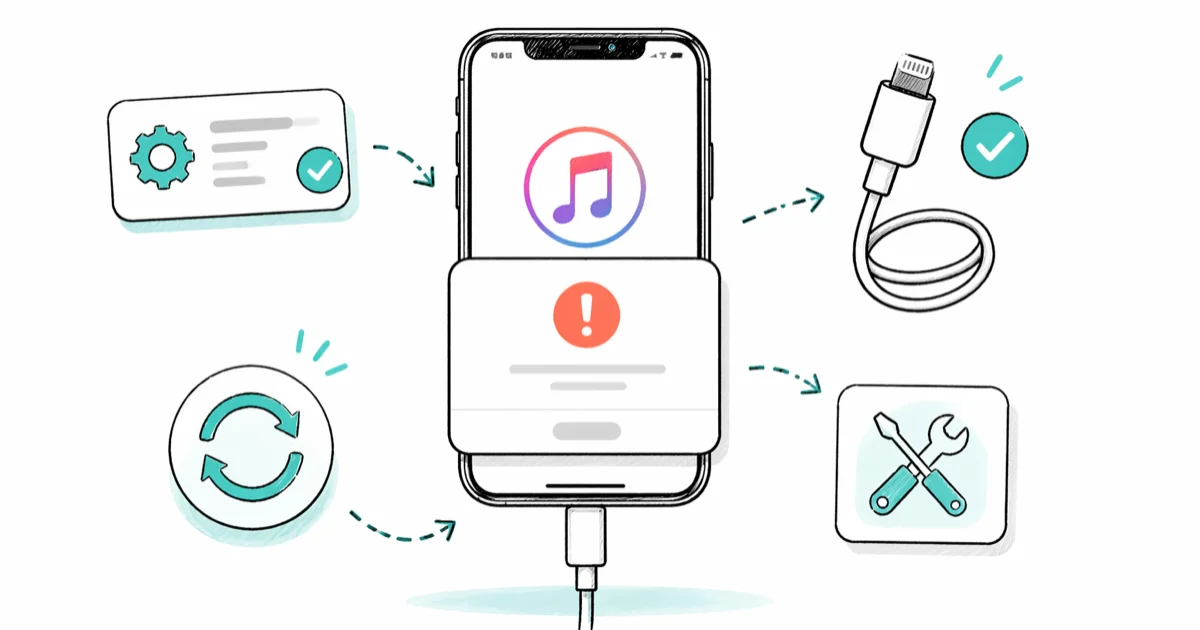
Quick AnswerUpdate iTunes and iOS to the latest versions, swap the USB cable for an Apple-certified one, and restart both devices. These three fixes clear most iTunes error codes including Error 11, 17, 54, and 9006.
iTunes errors tend to show up at the worst time. You’re mid-restore or syncing your iPhone, and a cryptic error code stops everything. The most common fixes fall into six methods that cover almost every error code you’ll hit, on both iTunes for Windows and the Apple Devices app. The fix usually takes under five minutes once you know which category your error belongs to.
- Apple groups iTunes errors into three buckets: USB or cable problems, security software blocks, and network failures reaching Apple servers
- Updating iTunes and iOS clears version-mismatch errors like Error 11 on the first try in most cases
- Error codes 2000, 2001, 2002, 2005, 2006, and 2009 point to the USB connection, not the iPhone or its software
- Error 17 and 9006 are network errors; switching off your VPN and using wired Ethernet usually clears them
- Apple’s remote diagnostics tool at getsupport.apple.com can flag a failing Lightning port or battery when software fixes stop working
#Why Do iTunes Errors Keep Happening?
iTunes errors fall into three buckets: software mismatches, connection failures, and network problems.
Error 11 means your iTunes version can’t talk to your iPhone’s firmware. Errors 2005 and 2003 point to a broken USB connection mid-transfer. Errors 17 and 9006 happen when iTunes can’t reach Apple’s servers during a firmware download.

According to Apple’s official error-code reference, connection errors include the ranges 1600-1604, 1611, 1643-1650, and 2000-2009. Network errors contacting Apple servers include 17, 1638, 3014, 3194, 3000, 3002, 3004, 3013, 3015, and 3200. Security software blocks trigger codes 2, 4, 6, or 1611 specifically. Knowing which bucket your code falls into saves you from random guesswork.
Third-party antivirus suites block the iTunes Mobile Device service more often than built-in security does, because they hook deeper into the system and treat the device-sync process as suspicious. Suites like Norton, Kaspersky, and McAfee are frequent culprits behind Error 54, and the same heavy-handed scanning is what turns a routine restore into a stalled transfer partway through.
#Fix 1: Update iTunes and iOS (Error 11 and Version Mismatches)
Error 11 shows up when there’s a version mismatch between iTunes and your iPhone’s firmware. Updating iTunes usually clears this error on the first try, so run the update before anything else.
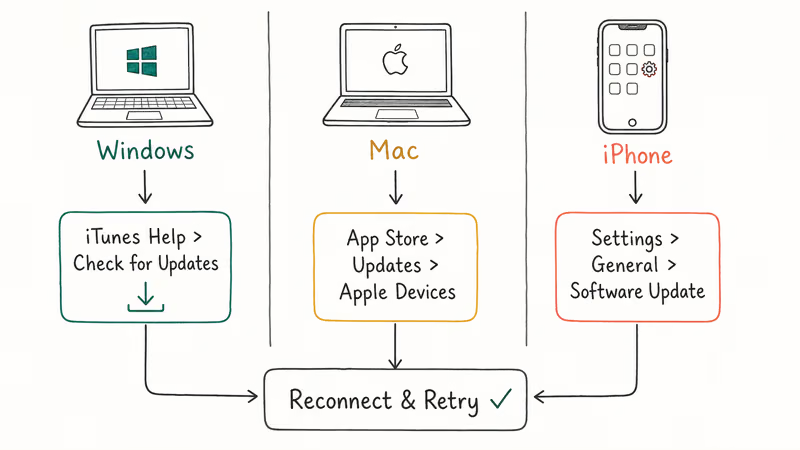
- On Windows: Open iTunes, go to
Help>Check for Updates, install any pending updates, and restart your PC. - On Mac (macOS Catalina and later): iTunes is gone. Open the App Store, check the Updates tab, and install any macOS or Apple Devices app update.
- On your iPhone: Go to
Settings>General>Software Update andinstall any iOS update waiting there.
Reconnect your iPhone and retry the sync. If you still see Error 11, try a different USB cable. Cable problems are the single most-missed cause of this code.
During a failed restore, your iPhone won’t turn on in some cases and looks bricked. A force restart gets it back to a usable state so you can retry. Apple’s force-restart instructions state that Face ID models need you to press and release Volume Up, press and release Volume Down, then hold the Side button until the Apple logo appears.
#Fix 2: Clear Error 17 and 9006 (Network and Firmware Download)
Error 17 means iTunes lost its connection to Apple’s servers during a firmware download. Error 9006 is the same family, and both point to network instability you can fix in a few minutes.
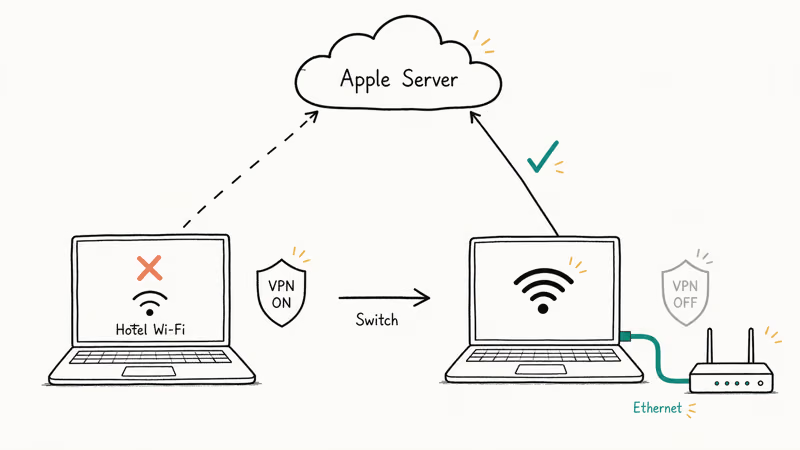
Apple’s iTunes error-code reference confirms that network errors like 17 and 3194 need you to check your security software and your connection to Apple servers. Weak or congested networks, such as hotel Wi-Fi, are a common trigger for Error 17, and switching to a stronger connection like a mobile hotspot with good signal often clears it.
Run these steps in order:
- Switch from Wi-Fi to a wired Ethernet connection if you have one
- Restart your router and modem, then wait two minutes before retrying
- Turn off any VPN software and your third-party firewall, then retry
- Check your
hostsfile on Windows (C:\Windows\System32\drivers\etc\hosts) or Mac (/etc/hosts) for entries pointinggs.apple.comanywhere
Public and congested Wi-Fi networks are the biggest culprit. If you’re restoring from a backup and keep hitting network errors, consider restoring your iPhone without updating to skip the firmware download entirely.
#Fix 3: Handle Error 54 on Windows (File Permissions)
Error 54 is a Windows-specific issue tied to file permissions and security software. It blocks iTunes from reading or writing files during sync operations. It shows up most on machines running a third-party antivirus alongside heavy user-folder restrictions.
Fix it with three steps:
- Run iTunes as administrator: right-click the iTunes shortcut, pick Run as administrator
- Grant Full control to your iTunes folder: go to
C:\Users\YourName\Music\iTunes, right-click the folder, pickProperties>Security>Edit, and give your user account Full control - Temporarily disable antivirus real-time protection and retry the sync
Microsoft’s documentation on User Account Control confirms that standard user accounts can’t modify system data without an administrator access token, which is exactly what iTunes needs to write to protected folders. That is why running iTunes as administrator clears Error 54 in most cases where a standard user account kept failing.
If you see a Trust This Computer alert every time you plug in, fix that separately first. A permissions-corrupted trust relationship can mimic Error 54 symptoms.
#Fix 4: Errors 2005 and 2003 (USB Connection Drops)
These errors show up when the USB connection drops mid-transfer. Cable problems are the most common cause, and they’re easy to miss because a frayed cable can look fine from the outside. The same goes for a clogged Lightning port: debris builds up over months of pocket lint and blocks the data pins before you notice any charging issue.
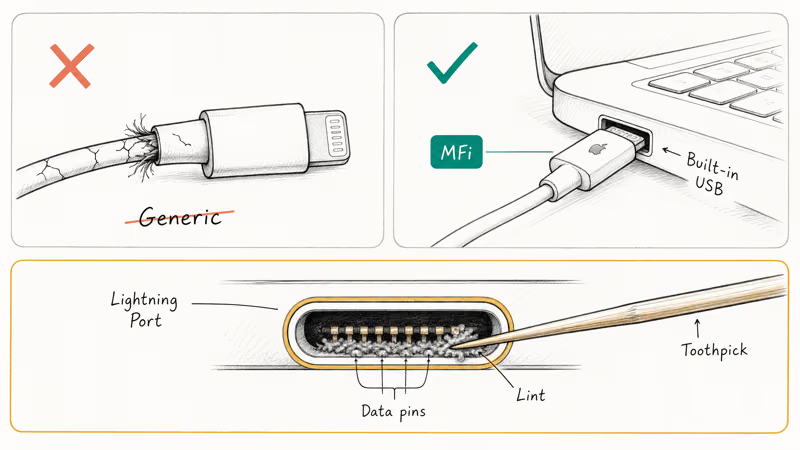
Apple’s error reference lists codes 2000-2009 under USB connection problems. Same fix pattern for every one:
- Use a different Apple MFi-certified Lightning or USB-C cable
- Plug directly into your computer’s built-in USB port, not a hub or dock
- Try every available port, front and back
- On Windows, open Device Manager, find Universal Serial Bus controllers, and update all drivers
Generic third-party cables are a frequent cause here. A cheap cable can pass data fine during a normal iTunes backup, then drop the connection during the high-throughput firmware write phase, which is exactly when Errors 2003 and 2005 surface. Swapping to an Apple MFi-certified cable usually eliminates both.
Check the Lightning port for lint too. A wooden toothpick pulls compacted debris better than compressed air, which can pack it deeper.
#Fix 5: Disable Security Software Blocking iTunes
Third-party antivirus and firewall suites block iTunes communication more often than Windows Defender or macOS XProtect do. A suite like Kaspersky Total Security can stall a restore partway through with Error 9, and quitting the security software entirely is what clears it.
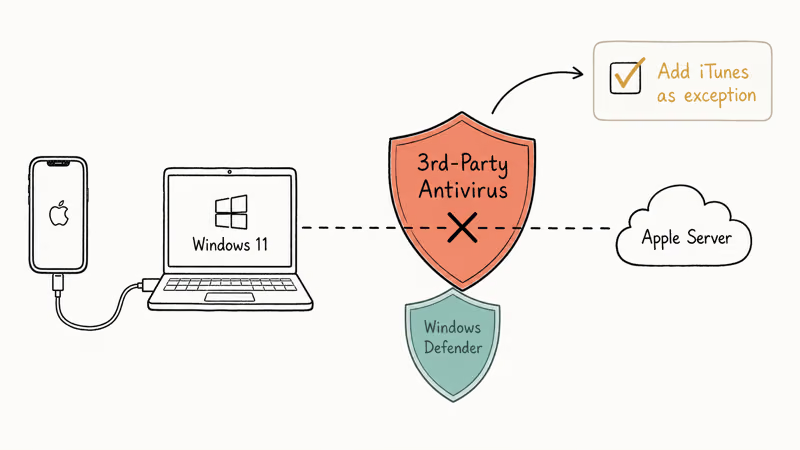
Apple’s error reference states that codes 2, 4, 6, and 1611 point specifically to security software blocking the connection. The fix is straightforward:
- Quit any third-party antivirus, firewall, or endpoint security software completely (system tray icon gone)
- If quitting doesn’t work, uninstall the software temporarily
- Retry the iTunes restore
- After the restore completes, reinstall or restart the security software and add iTunes as an exception
Windows Defender and Apple’s built-in security rarely cause these errors. Third-party suites are almost always the source.
#When Should You Use iOS Repair Software?
If standard troubleshooting doesn’t fix your iTunes error after trying all five methods above, iOS repair tools like Tenorshare ReiBoot can fix firmware-level problems that iTunes itself can’t handle. These tools download a fresh iOS firmware package and reinstall it at a deeper level than a standard restore.
Some links on this page are affiliate links, which means fone.tips may earn a commission at no extra cost to you.
They’re especially good for iPhone stuck in recovery mode and boot loops caused by failed restores.
Data loss isn’t a concern in standard repair mode. ReiBoot’s standard repair is designed to clear errors like Error 9 without wiping photos, messages, or app data. The tool works around network and cable problems by letting you manually pick the firmware package, which bypasses the Apple server step entirely.
If your phone shows iTunes could not connect to this iPhone, that’s a separate problem. It points to a driver fault on your computer, not firmware, and you fix it by updating or reinstalling the Apple Mobile Device USB Driver through Windows Device Manager.
#Bottom Line
Start with Fix 1 and Fix 2: update iTunes and iOS, swap your cable for an Apple MFi-certified one, and check your network. Those three steps clear most iTunes errors you’ll ever hit, including Error 11, most of the 2000-series, and the basic network codes. If Error 54 is your problem on Windows, jump straight to Fix 3 and run iTunes as administrator.
When standard fixes fail, ReiBoot can reinstall firmware without data loss, and it’s worth trying before you reach for a factory reset. Only Apple support can diagnose hardware faults, so if nothing resolves it, book remote diagnostics through getsupport.apple.com.
#Frequently Asked Questions
Does updating iTunes delete my music or backups?
No. Your music library, playlists, and device backups stay intact. The update takes about two minutes and requires a restart afterward.
Can a bad USB cable really cause iTunes errors?
Yes, and it’s the most common cause people overlook. A cable can look fine externally but have damaged pins or a broken internal wire that only fails under sustained high throughput. Errors 2003, 2005, and 11 often trace back to a faulty cable rather than the iPhone or its software. Always try a different MFi-certified cable first before you move on to software fixes.
Why does iTunes Error 54 only appear on Windows?
Error 54 is tied to how Windows handles file permissions and User Account Control. iTunes needs full read and write access to its sync folders, but Windows security policies block this by default for standard user accounts. Running iTunes as administrator clears it in most cases. Mac users don’t see this error because macOS grants app permissions during installation through a different mechanism.
What is the difference between Error 17 and Error 9006?
Both are network errors. Error 17 shows up when iTunes can’t start the firmware download, while 9006 means the download started but got interrupted. The fix is the same for both: wired Ethernet and a disabled firewall.
Should I factory reset my iPhone to fix iTunes errors?
No, and it should be your absolute last resort. Most iTunes errors come from the computer side, not the iPhone itself, so wiping your phone rarely helps. A factory reset erases all your data, and restoring from backup may trigger the exact same error if the root cause is on your PC or Mac. Try updating software, swapping cables, and checking your network first.
Is it safe to disable antivirus while fixing iTunes errors?
Yes, for a short window. Turn off real-time protection for 10 to 15 minutes while you troubleshoot, then re-enable it right after. If disabling clears the error, add iTunes as an exception in your security software settings before the next sync.
Can I use Finder instead of iTunes on newer Macs?
Yes. Apple replaced iTunes with Finder for device management starting with macOS Catalina in 2019, and macOS Sonoma now uses the Apple Devices app on Windows too. Connect your iPhone, open Finder, and pick your device in the sidebar to manage syncing, backups, and restores.
How do I know if my iTunes error is caused by hardware?
Hardware is the likely cause if you’ve tried every software fix, tested multiple cables, and used different computers but the same error keeps coming back. Common culprits include damaged Lightning or USB-C ports, failing storage chips, and swollen batteries pressing on the logic board. Book a Genius Bar appointment or visit getsupport.apple.com for remote diagnostics, which can pinpoint the exact component causing your issue.

Mac mini M6 vs M5 Pro: Which Model Should You Buy?
Mac mini M6 vs M5 Pro compared on price, memory, ports, displays, and real workloads. Find the better 2026 Mac mini for your desk and budget.

Apple Siri Settlement: Who Qualifies and How to Claim
Apple's $250 million Siri settlement covers iPhone 15 Pro and iPhone 16 models bought June 2024 to March 2025. See who qualifies and how claims work.

iOS 26.6.1 Security Update: What Apple Fixed and Who Gets It
Apple released iOS 26.6.1 on August 17 with 29 security fixes, including an IPSec interception bug. See what it patches, who gets it, and how to update.

iPhone Adaptive Power: How It Works and When to Use It
Learn how iPhone Adaptive Power works, which models support it, what it changes, and when Low Power Mode is still the better battery-saving choice.