How to Cast Your Phone to a Chromebook for Screen Mirroring
Learn how to cast your phone to a Chromebook for screen mirroring. Step-by-step methods for Android using built-in tools and third-party apps.
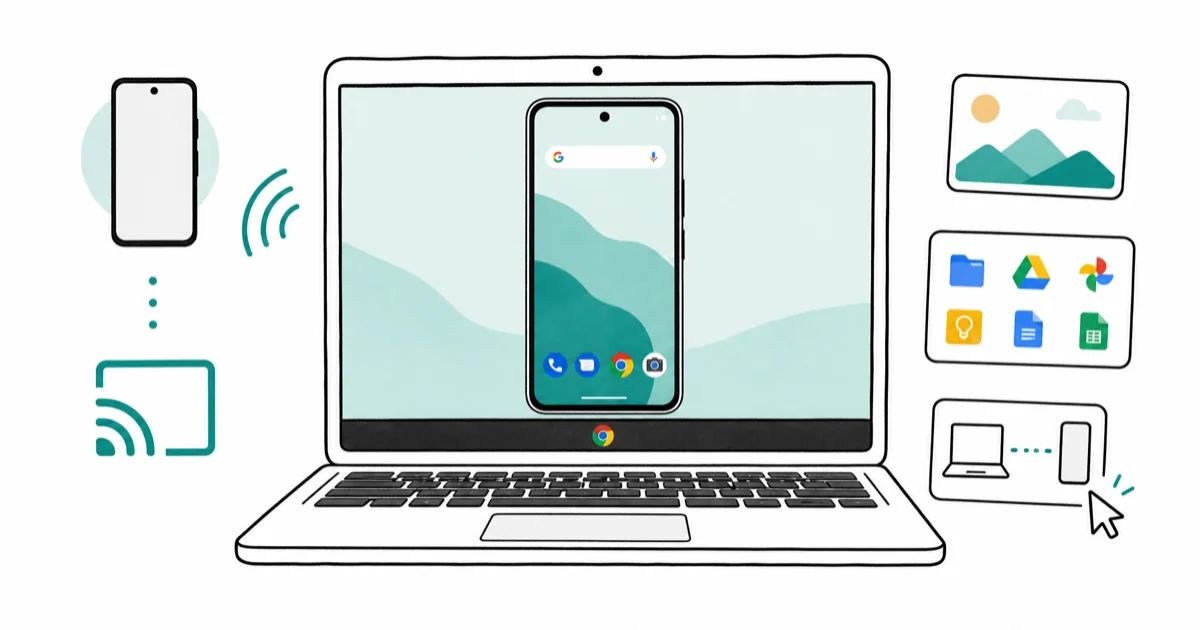
Quick AnswerUse the built-in Phone Hub feature on your Chromebook or install a third-party app like Vysor to mirror your Android phone screen to your Chromebook wirelessly.
Casting a phone to a Chromebook is handy when you want a bigger view for media, presentations, or remote support. This guide walks through the methods that actually work on ChromeOS today.
A Chromebook runs Google’s browser-first operating system. Many models lack a full HDMI port, so screen sharing usually leans on USB, Phone Hub, or a wireless app instead of a cable into the display. The right method depends on whether you care about live video, file access, or full control of the phone from the laptop.
Most people just want a quick way to see Android photos, slides, or a how-to video on the larger screen.
Start with the simplest path, then use extra tools for the cases where the built-in option falls short, including audio routing, multi-phone control, and bypassing Wi-Fi entirely.
- The USB method is the simplest option since it requires no app installation and works for both iPhone and Android with the appropriate cable.
- Tenorshare Phone Mirror supports up to 5 smartphones connected simultaneously and allows full mouse and keyboard control of your Android device from a PC.
- Vysor can be added as a Chrome browser extension rather than a full app installation, making setup faster on Chromebooks with limited storage.
- AirDroid goes beyond screen mirroring by also offering file management, audio playback, and remote control of your Android phone from the Chromebook.
- Chrome Remote Desktop works in reverse, mirroring your desktop PC screen to another device rather than the phone to the Chromebook.
#What You Need Before Casting
A few quick checks save a lot of frustration. Confirm these before you start any of the methods below.
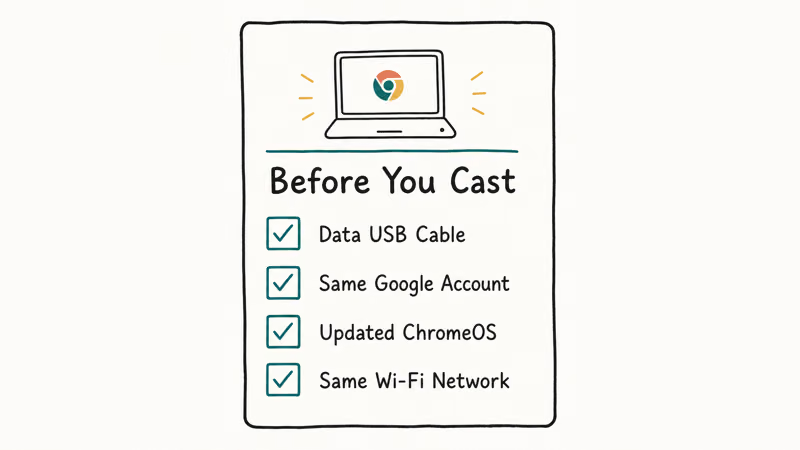
- A data-capable USB cable (charge-only cables won’t pass file or screen data).
- The same Google account signed in on the phone and the Chromebook if you plan to use Phone Hub.
- An up-to-date ChromeOS build. Older builds shipped before Phone Hub launched.
- Both devices on the same Wi-Fi network for wireless apps like Vysor or AirDroid.
According to Google’s Phone Hub documentation, your Android phone must run Android 5.1 (Lollipop) or later and be signed into the same Google account as the Chromebook for the built-in pairing flow to appear.
#When Mirroring Helps Most
Phone-to-Chromebook mirroring earns its keep in a handful of clear situations.
- Watching videos or slideshows together on a larger panel without uploading anything to the cloud.
- Reading PDFs, manga, or long articles that feel cramped on a 6-inch screen.
- Running a quick demo of a mobile app for a colleague or family member, or capturing screenshots of an Android-only app for documentation.
- Pairing notifications and reply tools so you don’t keep picking up the phone during work.
Phone Hub is best for notifications and quick replies. USB is best for bulk photo transfers. Vysor or Tenorshare is better when you need mouse and keyboard control of the phone.
For comparable setups on other devices, see the walkthrough on how to screen mirror to a PS4 and the broader guide to the best screen mirroring apps.
#How to Cast Phone to Chromebook Using USB Connectivity
A USB cable is the most reliable route. It skips Wi-Fi, app accounts, and developer-mode setup. ChromeOS support recommends connecting through a USB-C or USB-A port directly on the Chromebook rather than a hub, since some hubs strip the MTP signal your phone needs to share content.
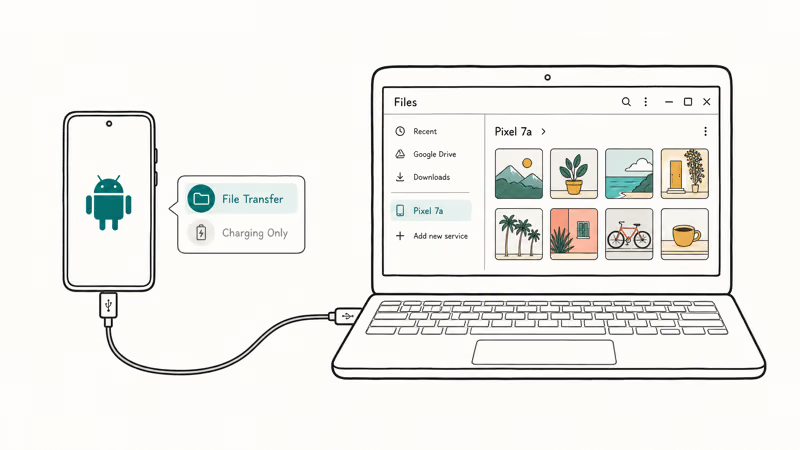
To mirror or browse your phone over USB:
- Plug the phone into a working USB port on the Chromebook. Use a data-capable cable.
- On the phone, tap the USB notification and choose File transfer or Photo transfer to grant access. Older phones may show “Allow” instead.
- The Files app on ChromeOS opens a tab named after your device. From there you can preview photos, copy clips, or open documents.
- For a true live screen mirror you’ll still need an Android app such as Vysor; USB alone shows files, not live screen output.
After you approve the prompt on the phone, the device tab should appear in the Files app.
If the Chromebook refuses to detect the phone, try a different port or cable. The Android-to-laptop mirroring guide gives a non-Chromebook reference.
#How to Cast Phone to Chromebook Using Professional Tools
Wireless apps fill the gap when USB isn’t an option, or when you want full screen mirroring with control. Below are four practical ChromeOS options.
#01. How to Cast Phone to Chromebook Using Tenorshare Phone Mirror
Tenorshare Phone Mirror is a desktop-style mirroring tool that runs on Windows or in ChromeOS’s Linux container. It’s a solid pick when you need keyboard and mouse control of the phone for demos or replies.
Some links on this page are affiliate links, which means fone.tips may earn a commission at no extra cost to you.
Quick setup:
- Install Tenorshare Phone Mirror on the host machine and open it.
- Connect the Android device with a USB cable and follow the on-screen prompts to enable USB debugging.
- Grant the mirroring permissions on the phone, then click Mirror in the app.
- Once the screen appears, use the mouse and keyboard to navigate the phone the same way you’d use any window.
The tool supports up to five phones at once and works well for back-to-back demos.
Note: the current build can’t route Android audio to the Chromebook. Plan to use the phone’s speaker for any audio playback.
#02. How to Cast Phone to Chromebook via Chrome Remote Desktop
Google’s Remote Desktop service is more about controlling another computer than mirroring a phone. It’s useful when you want the Chromebook to see a desktop while the phone stays in your hand.
Google’s support page confirms that each remote session generates a fresh 12-digit access code, which expires after one use to keep the connection from staying open longer than needed.
To set it up:
- Sign into the same Google account on both the host computer and the Chromebook.
- On the host, open Remote Desktop and tap Generate Code to create the 12-digit code.
- On the Chromebook, open the Remote Access tab and paste the code, then approve the prompt on the host machine.
- The host screen appears on the Chromebook. Click Share if the other party should also control it.
This path works without a local network because the connection routes through Google’s relay, which is handy for travel scenarios.
#03. How to Cast Phone to Chromebook Using Vysor
Vysor is the most plug-and-play of the wireless options. The free tier handles 720p mirroring with light watermarks. The paid tier removes them and unlocks 1080p plus audio.
Install Vysor as a Chrome extension or as a Linux/Android app. The extension is the lighter option on storage-constrained Chromebooks.
Steps:
- Visit the Vysor website and click Add to Chrome to install the extension.
- Open the extension, connect the phone over USB, and accept the debugging prompt.
- Pick your device from the list inside Vysor and click View.
- For wireless mirroring after the initial pair, keep both devices on the same Wi-Fi network and reopen Vysor.
The first Vysor pairing happens over USB. Subsequent wireless connections use the same local network.
#04. Use AirDroid to Mirror Your Smartphone to a Chromebook
AirDroid is the most feature-rich of the group. Alongside mirroring, it handles file sync, SMS reply, and remote camera, which is why people on family-support duty tend to like it.
How it works:
- Create an AirDroid account and install the mobile app plus the Chromebook web client (or the Chrome extension).
- Sign in on both devices and approve the connection on the phone.
- Pick Mirroring inside the web client to start the live screen feed.
- Use the same Wi-Fi network on both ends. AirDroid falls back to its relay if not, but the relay path adds latency.
For mirroring without an account at all, the Android-to-Android route via Chromecast is a lighter alternative. Pixel users can also follow the dedicated Google Pixel screen mirroring guide for first-party tips.
#How Do These Methods Compare in Practice?
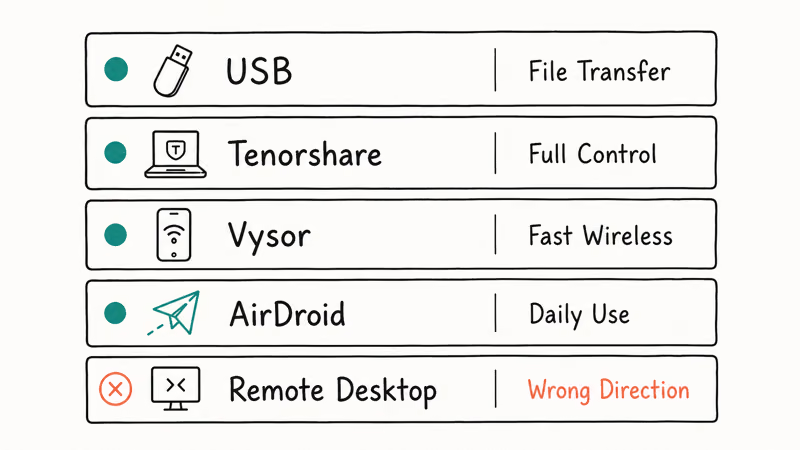
Each path has a sweet spot. The right pick depends on whether you care more about speed, control, audio, or zero setup.
#● USB Method
A wired connection skips Wi-Fi headaches. It’s the fastest for transferring photos. USB alone shows files, not a live screen, unless you pair it with Vysor or Tenorshare for the screen mirror layer.
#● Tenorshare Phone Mirror
The strongest desktop-like control. Full keyboard and mouse, up to five phones at once. Best for demos, presentations, and replying to messages without picking up the phone.
#● Chrome Remote Desktop
Best when you want to view a desktop computer from the Chromebook, not the other way around.
Skip this one if your goal is to mirror a phone. It’s wrong-direction for that job.
#● Vysor
The fastest wireless start on ChromeOS thanks to the Chrome extension. Free tier is fine for casual use. Pay if you need 1080p, audio, or zero watermarks.
#● AirDroid
The broadest feature set. Mirroring, file sync, SMS, remote camera. Best for ongoing daily use rather than a one-off cast.
#Why Won’t My Chromebook Detect My Phone?
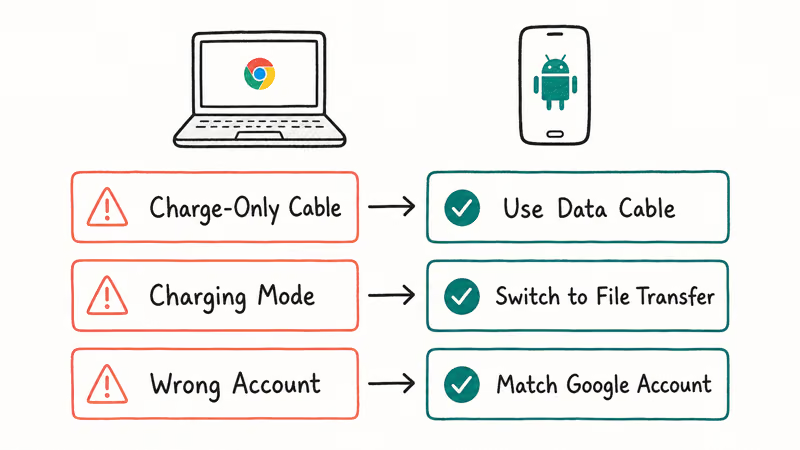
Detection failures usually trace back to one of three things: the cable, the USB mode, or the account pairing. Swapping a charge-only cable for a data-capable cable often fixes the problem.
Other quick checks:
- Confirm the USB notification on the phone is set to File transfer rather than Charging only.
- Sign both devices into the same Google account if you’re using Phone Hub.
- Toggle Bluetooth off and on. Phone Hub falls back to Bluetooth pairing before going wireless.
- Restart the Chromebook if a recent ChromeOS update changed your USB drivers.
If wireless mirroring stalls, check that the Chromebook and phone are on the same Wi-Fi band.
Some routers split 2.4 GHz and 5 GHz into separate SSIDs, and mirroring apps don’t always cross between them.
#Bottom Line
For photos and files, USB is the path of least resistance. No accounts, no Wi-Fi quirks.
For a real live screen mirror, Vysor is the fastest way to get started on a Chromebook. Tenorshare Phone Mirror is the upgrade when you need to drive five phones at once or rely on keyboard input. AirDroid earns its place when mirroring is part of a broader daily phone-on-laptop habit, and Chrome Remote Desktop isn’t worth using here because it points the wrong way.
#Frequently Asked Questions
Can I mirror a Chromebook to my TV?
Yes, with an HDMI cable. Plug the cable from the Chromebook (use a USB-C to HDMI adapter if there’s no full-size port) into the TV, switch the TV to the matching input, then open Settings → Device → Displays and enable “Mirror Built-in Display.” Some older Chromebooks may need a powered adapter.
How do I display my phone’s content on a Chromebook?
Use one of three options: a USB cable for files, Phone Hub for notifications and quick replies, or a wireless app like Vysor or AirDroid for a live screen mirror. Phone Hub requires Android 5.1 or later and the same Google account on both devices.
Can I connect any smartphone to a Chromebook?
Most Android phones connect over USB or Phone Hub without extra software. iPhones can hand over photos and files via USB, but iOS doesn’t support third-party live mirroring to ChromeOS. You’d need to project to a separate AirPlay receiver instead.
Does Vysor route phone audio to the Chromebook?
The paid version of Vysor pipes Android audio through to the Chromebook’s speakers; the free tier does not. If you need audio without paying, AirDroid’s premium tier offers it as well, or you can use the phone’s own speaker.
Why does my phone disconnect from the Chromebook?
The most common causes are a charge-only cable, a Chromebook USB hub that strips data signals, or a Wi-Fi router that splits 2.4 GHz and 5 GHz networks. Swap the cable, plug the phone directly into the Chromebook, and confirm both devices are on the same SSID.
Do I need developer mode to cast my phone?
No. USB file transfer and Phone Hub both work without developer mode. Only some third-party mirroring tools (typically the ones that use ADB) require USB debugging, which lives in Developer Options on the phone, not in ChromeOS itself.
Is wireless mirroring secure?
It depends on the tool. Chrome Remote Desktop’s 12-digit code expires after a single session, AirDroid uses encrypted relays, and Vysor pairs over the local network. Avoid public Wi-Fi for any of these if you’re sharing anything sensitive on the phone screen.

Pixel 11 vs Pixel 10: What Changed and Who Should Upgrade
Pixel 11 vs Pixel 10: same screen and camera resolution, new Tensor G6, 25W wireless, and Gemini Intelligence. Here is who should actually upgrade.

Verizon Not Receiving Texts? How to Fix It in 9 Steps
Verizon not receiving texts? Fix it in 9 steps: check Message Blocking in My Verizon, reset network settings, deregister iMessage, and call support.

Pixel Battery Drain: What Google's July Fix Really Covers
Google marked the Pixel idle battery drain bug fixed in July, but only some phones got the patch. Here is who is covered, who is not, and what to try.

iPhone Stuck on EDGE? How to Get 5G or LTE Back (2026)
iPhone stuck on EDGE with crawling data? Here's why the E icon appears, which settings force 5G or LTE back, and when the problem is your carrier.